Mockitt - Flowchart Maker
Flowchart - Help Your Work More Efficient and Effective
- Complete guide on creating all types of flowchart.
- Plenty of flowchart examples and templates for inspiration.
- Best flowchart software recommendation.
- Basic flowchart knowledge to understand flowchart better.

Complete Guide on How to Create Flowchart in Microsoft
Microsoft offers many apps on which you can create the best Microsoft program for flowcharts. Every desktop application has a unique way of presenting or designing
Although Microsoft has divided the applications for different nature of work, you can perform every possible work within a single application. In this article, we'll be going to see which Microsoft applications are perfect to create Microsoft flowcharts. Then we'll select the best application and make a complete guideline/steps on how to create flowcharts in the Microsoft environment.
- Part 1: What's the best Microsoft App for Flowcharts?
- Part 2: How to Create a Flowchart in Microsoft Visio?
- Part 3: Create a Flowchart online
What's the best Microsoft App for Flowcharts?
Creating a flowchart in a Microsoft environment can be lengthy in the process but comfortable. As we discussed above, Microsoft has divided its applications for different purposes. Suppose you want to create a document file you can use Microsoft Word, or you want to create a presentation for business purposes you can use PowerPoint.
Both of them are the products of Microsoft. There's another application we forgot to mention in Microsoft Excel. Any accountable works can be done by using Microsoft Excel.
What if we tell you, you can make a Microsoft flowchart in all of the mentioned applications? But the question is, which application is suitable or best to create Microsoft flowcharts?
To see the best application for Microsoft flowchart, we need to take a look at each of these applications and their features.
1.Microsoft Word
Well, Microsoft Word renowned for creating documents files only. It's a word processing document application. If you think Microsoft Word is only limited to creating documents, you might be wrong. By using Word, you can create brochures, learning activities, homework assignments, and even though you can create flowcharts on it.
2.Microsoft PowerPoint
PowerPoint is another but powerful tool of Microsoft. The primary purpose of PowerPoint is to create presentations. It provides a visual aid to the presenter to presenting their ideas, pitch, sales, etc. You can also use animations to your slides to look more attractive and professional.
3.Microsoft Excel
It's a spreadsheet program used to create number grids, text, and formulas to specify calculations. It commonly uses for accountable projects. Many businesses use Excel to save the daily record of their products, income, budget, and fiscal results. Although you can make flowcharts on it creating a Microsoft flowchart on Excel can be very difficult.
4.Microsoft Visio
Well, that's the Microsoft product we were looking for. Microsoft Visio is a drawing tool used to draw a variety of diagrams which include Microsoft flowcharts, organization charts, creating plans, business process models, 3D maps, and much more. We bet you wouldn't know about this Microsoft product.
How to Create a Flowchart in Microsoft Visio?
There's a complete guideline to create a flowchart in Visio is available on the official website of Microsoft. However, you are here at first; can take a look at our guidelines which we've created for the persons like you.
Note: If you are new to flowcharts, try to create basic flowcharts first, they are easy to develop, and the shapes are so simple they can be easily understandable.
So, let's get started:
First of all, Microsoft Visio must be installed on your desktop. You can download the complete package of Microsoft from its official site, or you can download it separately.
Below an example of a basic Microsoft flowchart that can be automatically generated in Visio.
Source: Microsoft
Create a Flowchart in Microsoft Visio:
- You download the application, now start the Visio app.
- Now, you'll see different categories. Just click on the Flowchart category.
- If you want to create a flowchart from scratch, you can go with a new one. Here we are suggesting to start with a Basic Flowchart.
- Now, drag the shape you are documenting for, place it on your drawing.
- Connect the shapes by holding the mouse pointer, then click on the arrow that appears on the shape where you want to connect.
- Insert text to a shape or connector. Simply select it and type and when you are done with typing click anywhere on the blank page.
- To change the direction of the arrow, select the connector and click the line arrows on the Shape tab to choose the arrow direction.
Fixing and Adjusting
- There are two options available to select everything on the drawing page; you can press CTRL + A to select all or you select with the help of a mouse pointer.
- Home Tab > Arrange groups, click Position, and Auto Align & Space.
- CTRL + Z to undo the changes.
Well, these were some of the necessary steps that needed to create a basic Microsoft flowchart. For further assistance, you can visit their official site.
Create a Flowchart Online
Want a quick way to create a flowchart? We suggest you make it online. No doubt, creating a flowchart online will help you save your precious time.
Nowadays, many online tools are available to create flowcharts. But there are the most frequent questions asked by many users, which online tool is best for making process flowcharts or business flowcharts. Below is the answer that you're looking for.
We tried out many flowchart makers and designing tools, Wondershare Mockitt is the best multi-function tool for making flowchart and also creating a prototype. Let's take a look at some of the features of Mockitt.
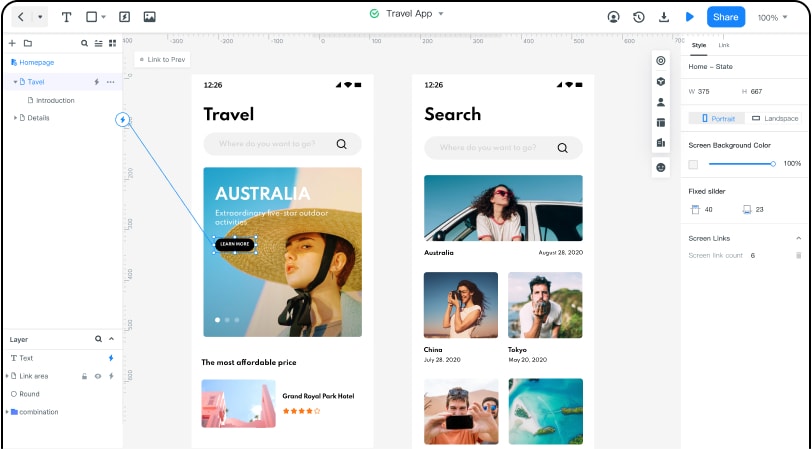
Features of Wondershare Mockitt
1.Widgets and Icons
Includes so many widgets and icons in "Library" that can be very helpful for creating flowcharts. Creating a flowchart with Mockitt is comfortable and better rather than creating a Microsoft flowchart.
2.Collaboration
The only online tool that provides real-time communication between other team members. Now, you can design and communicate at the same time.
3.Security
The most important feature of Wondershare Mockitt is security. Your project with your information stored on secured servers. Don't worry about the loss of data. Mockitt provides full backup access to its users.
