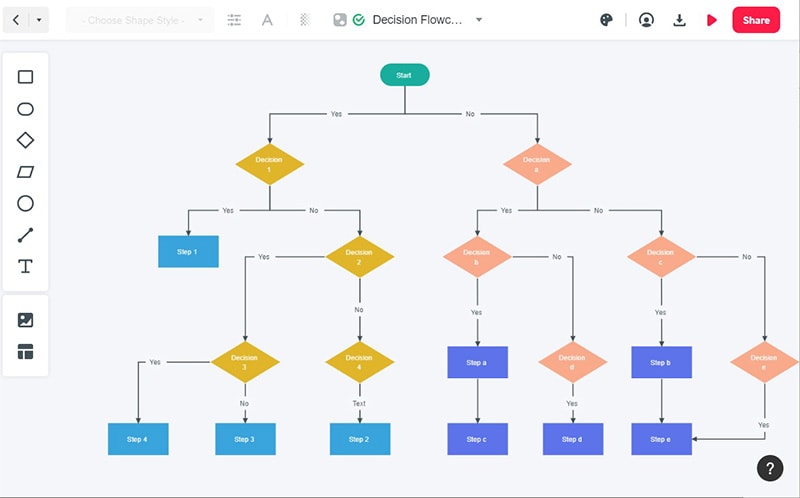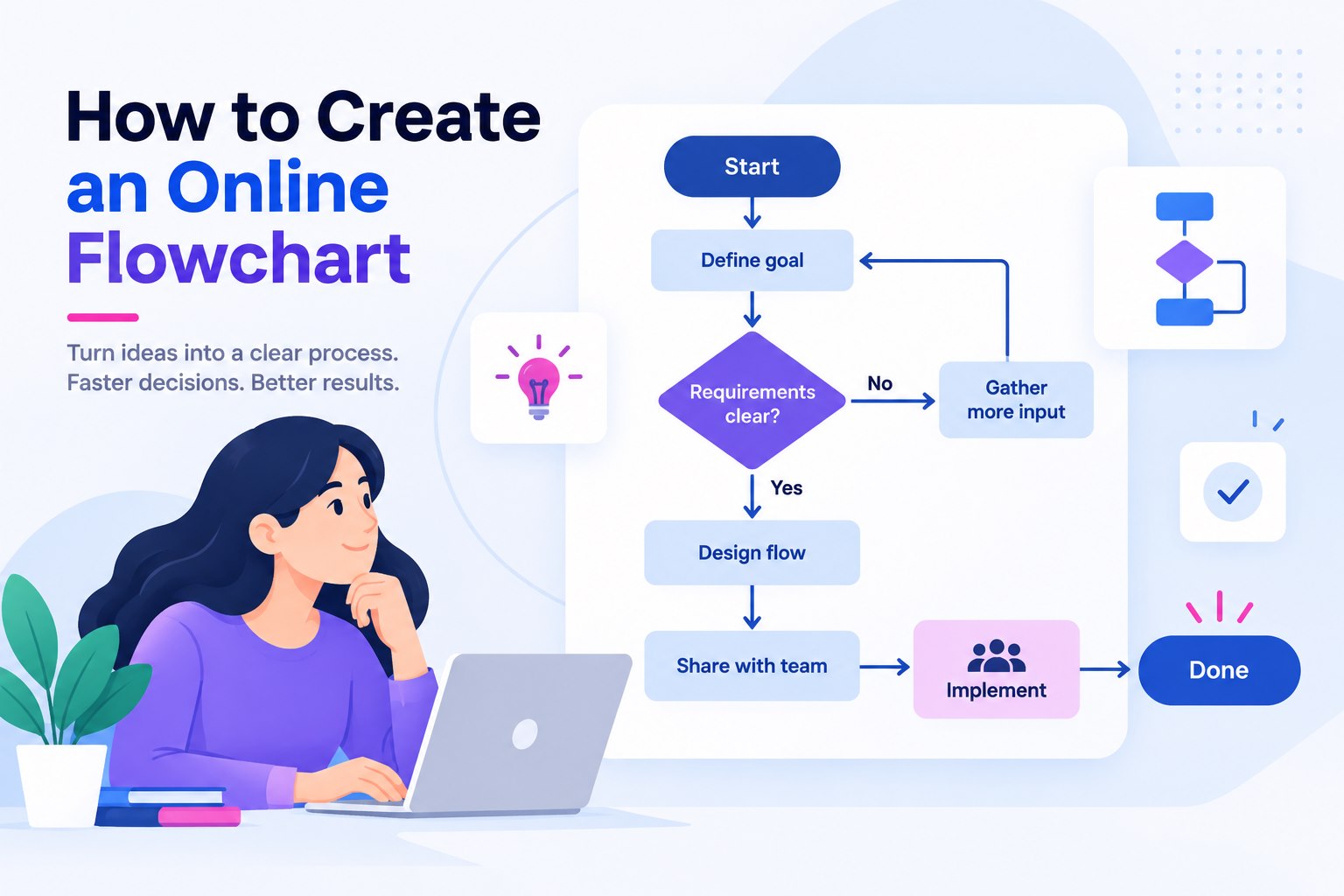
Mockitt provides a canvas for arranging shapes and connections. Use it to discuss a process with your team; use a programming environment when the goal is to execute that logic.
Flowcharts can communicate a process, but they can also represent a program that reads input, makes decisions and produces output. Flowgorithm is an educational tool for that second task. You can draw a flowchart to explain the program logic before following how Flowgorithm executes its shapes.
This guide explains Flowgorithm’s main features and five examples from the original tutorial. The diagrams cover output, repetition, a small function, a guessing game and temperature conversion. Each example has a different lesson; reading its arrows is more useful than treating it as a picture to copy.
What is Flowgorithm?
Flowgorithm is a visual programming tool that lets you build and run programs using flowchart shapes. An input shape reads a value, an assignment changes a variable, and a decision chooses a path. Its official documentation describes these shapes, data types and expressions.
Before building a program, decide which values it receives and what result it should produce. Then arrange the operations in the order they must run. For a temperature conversion, for example, the input is a temperature value and the output is the converted value—not a complete application inferred from one diagram.
An algorithm and its flowchart describe related things: the procedure and a visual representation of it. Trace a small input through the shapes and record how values change. This can expose missing steps, though a clear diagram alone does not prove that a program is correct.
Flowgorithm Features
The following features help connect a diagram with program behavior:
- Flowchart shapes make the operations visible, so a learner can focus on sequence, selection and repetition while learning the expression syntax.
- The Variable Watch window shows variable values during execution. Step through a program to see when a value changes, rather than inspecting only the final output.
- The Source Code Viewer displays corresponding source in supported languages. Its available targets and templates are documented on the Flowgorithm features page; check the current list for the language you need.
- Loops, arrays and expressions support exercises beyond a single calculation. Choose the appropriate data type and trace the condition that controls repetition.
- The application provides translated interface options. Check the available translations in the version you use rather than assuming every language is supported.
- Matching the highlighted shape with its source-code representation helps show how visual operations relate to text-based programming. Generated source still deserves review in its target environment.
What You Can Learn from Flowgorithm
The useful outcome is an understandable small program, with inputs and results you can explain:
- Plan the sequence of operations before concentrating on the syntax of a particular text-based language.
- Follow both outcomes of a decision and the condition that lets a loop finish.
- Compare expected and actual values to find a mistake in the logic or expression. Start with a small exercise before combining several concepts.
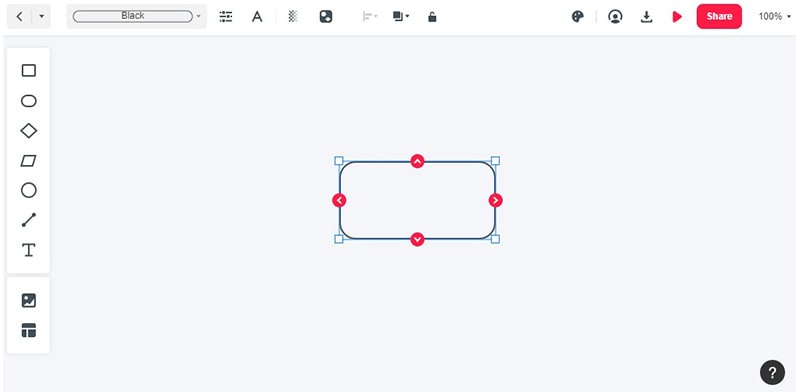
Arrange process shapes and label their connections in Mockitt when the task is explaining a workflow to other people. The retained canvas below illustrates visual diagramming; it is not a Flowgorithm execution window.
Five Examples for Understanding Flowgorithm
The five retained diagrams below illustrate different operations. Read each with a specific input or expected output in mind. The final example separates its main program from helper functions, so the main diagram does not show every implementation detail.
1. Hello World
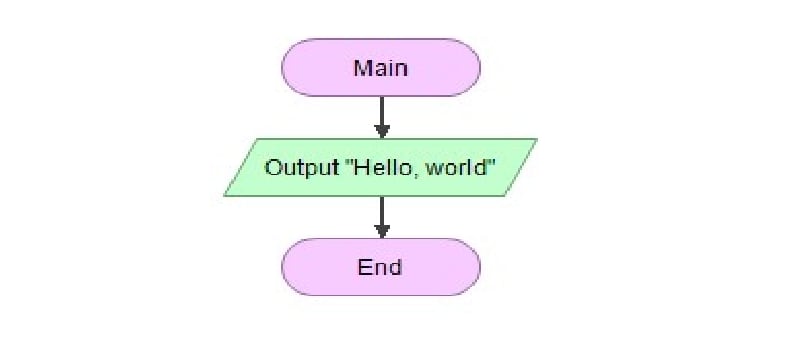
The first diagram produces a “Hello, world!” message. The sequence runs from Main to an output shape and then End. No input or decision is needed. In the official Hello World tutorial, the Main terminal marks the program’s entry point. Check the exact output text before adding another operation.
2. 99 Bottles of Beer
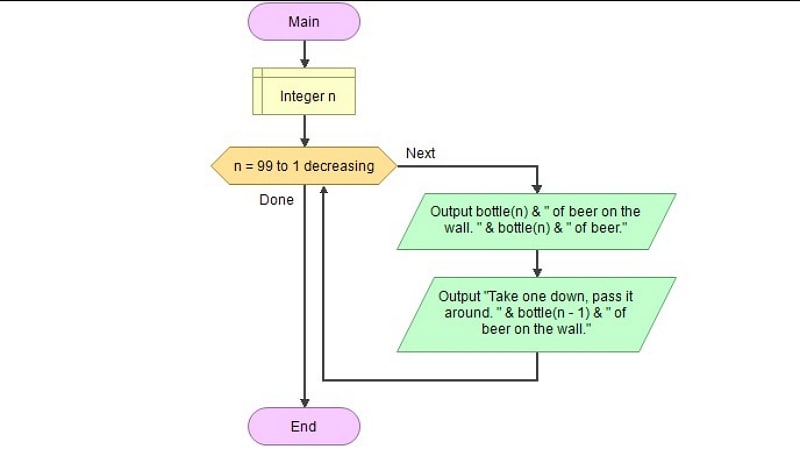
This diagram repeats a verse while n counts down from 99 to 1. Each iteration outputs the current bottle count and then the count after taking one away. The bottle(n) calls rely on the helper function in the next example. Trace n = 2 and n = 1 to inspect the singular/plural wording and the final zero count.
3. A Singular/Plural Helper Function
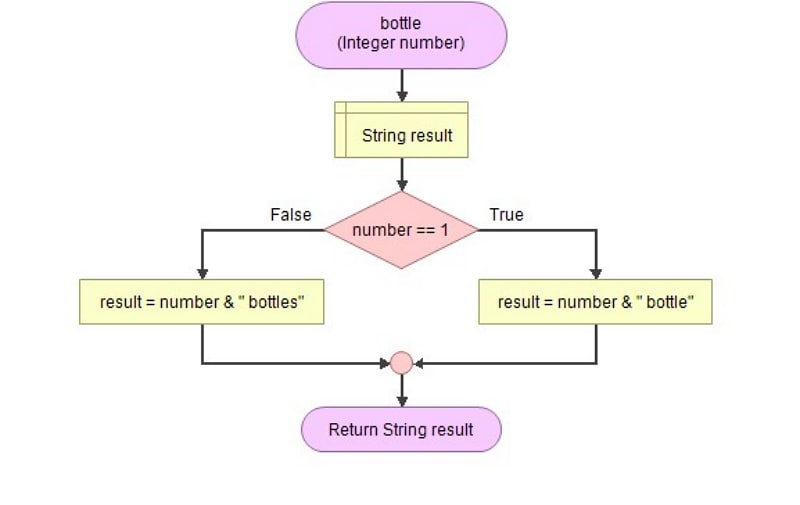
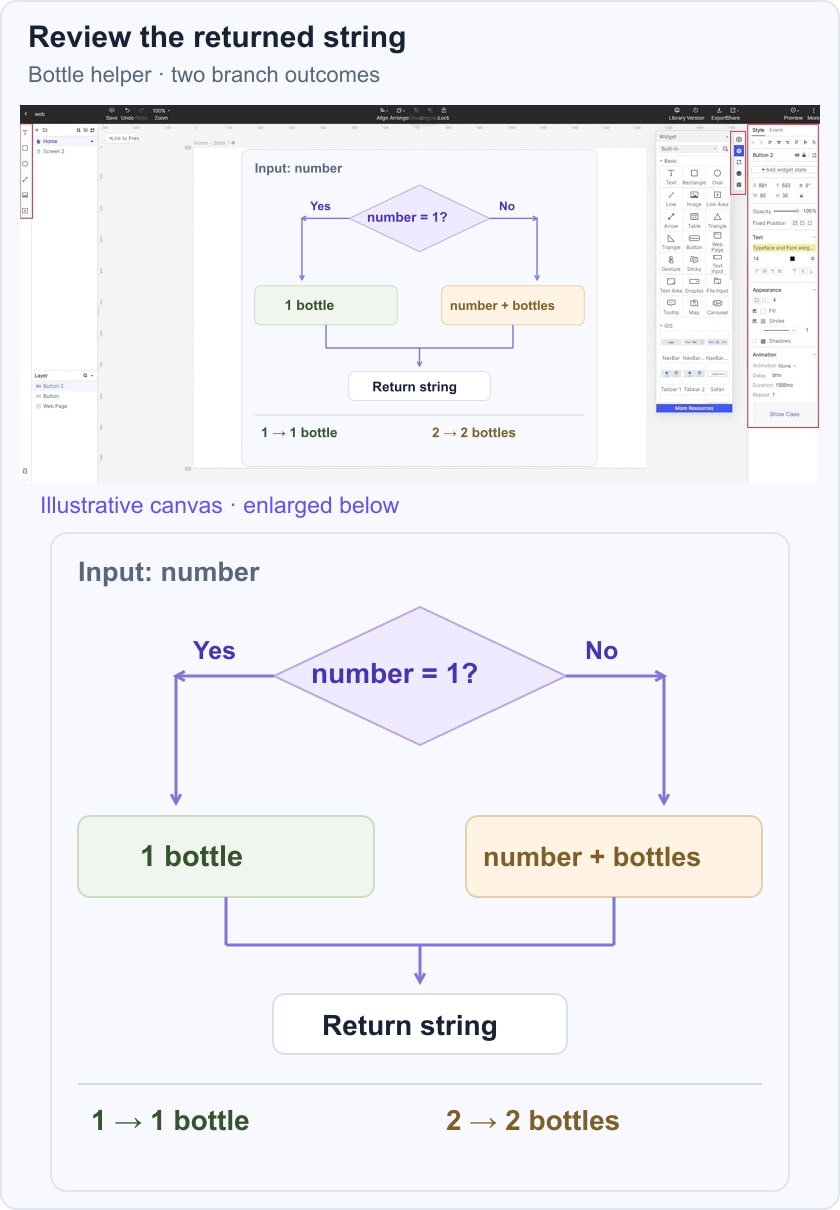
The pictured bottle function receives an Integer named number and returns a String. Its decision asks whether number equals 1. The true path uses “bottle”; the other path uses “bottles.” Thus bottle(1) returns “1 bottle,” while bottle(2) returns “2 bottles.” The result is a string, not a Boolean answer to a quiz.
Keep the branch outputs distinct and then return the chosen string. This is the same decision-reading habit used in C flowchart examples, even though the expression syntax and execution environment differ.
4. Secret Number Game
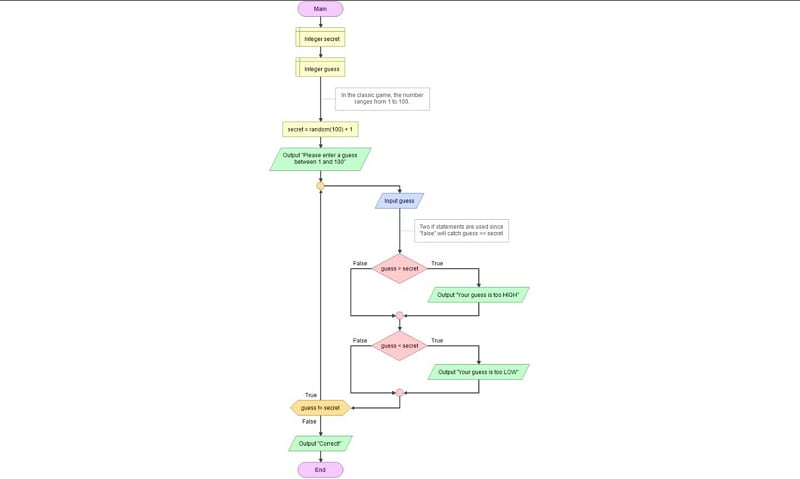
The game selects a secret number from 1 to 100, reads a guess and checks whether the guess is too high or too low. It repeats while guess differs from secret, then outputs “Correct!” For a trace, suppose secret is 42: a guess of 60 follows the high branch, 20 follows the low branch, and 42 finishes the loop. The pictured program does not show separate validation for a nonnumeric input.
5. Fahrenheit-to-Celsius Conversion
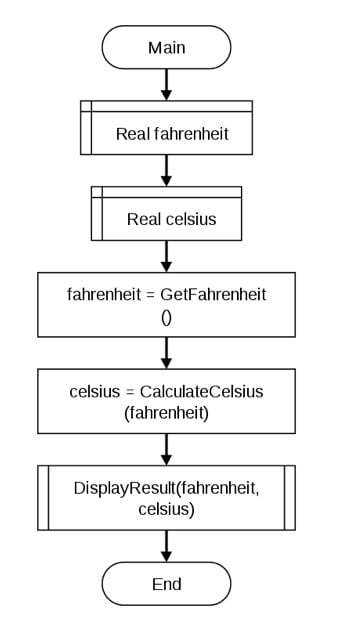
This main diagram obtains a Fahrenheit value, passes it to CalculateCelsius and displays both values. The conversion inside that helper should use C = (F − 32) × 5 / 9 with real-number arithmetic. Check 32°F → 0°C and 212°F → 100°C. The helper functions’ contents are not visible in this main diagram, so they still need to be defined and checked.
How to Create a Flowchart Online
Mockitt can help you present a flowchart for discussion, while Flowgorithm runs the educational program represented by its own shapes. Keep those purposes separate: a drawn decision and arrow in a shared design do not execute code or validate an algorithm.
The earlier Mockitt screenshots retain a simple workflow: create a flowchart project, arrange shapes and connect them. Their menu positions belong to that earlier interface. Use the current workspace’s available flowchart controls, then concentrate on making the input, condition and output clear.
1. Open your Mockitt workspace and start a project suitable for the diagram. Give it a name that identifies the program or process you are reviewing.
2. In the earlier interface shown below, Create offers a Flowchart project. The capture explains that workflow without claiming the same menu position in every current account.
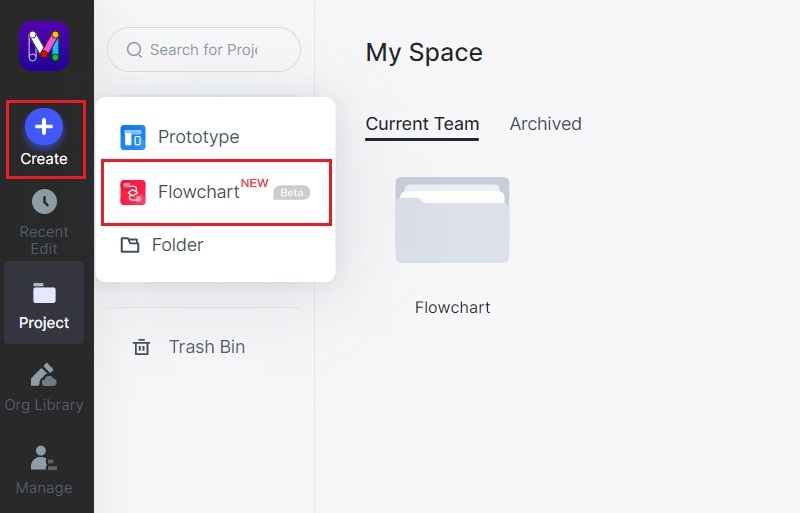
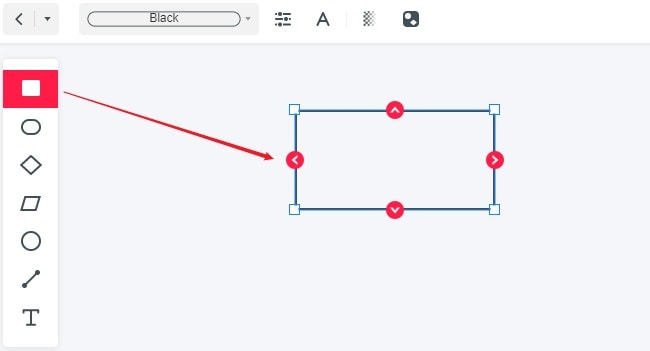
3. Add a shape for each operation and connect the shapes in execution order. Put the condition in the decision shape and label the outgoing branches. Check that each branch reaches the intended next step.
4. Use the drawing to review a specific question. For the bottle helper, show “number = 1?” leading to “1 bottle” on Yes and “number + bottles” on No. Trace 1 and 2 with a reviewer, then check the executable expression separately in Flowgorithm.
The composed example keeps the two text results visible beside the branch that selects them. It is a review aid for the helper function, not a live program run. Once that decision is clear, return to Flowgorithm to test the actual string expression and its return value.