Mockitt - Flowchart Maker
Flowchart - Help Your Work More Efficient and Effective
- Complete guide on creating all types of flowchart.
- Plenty of flowchart examples and templates for inspiration.
- Best flowchart software recommendation.
- Basic flowchart knowledge to understand flowchart better.

How to Create Flowchart in Excel Simply
Flowcharts can be created on different software according to project requirements. Some of them are online, and some are desktop applications. Microsoft Excel is one of the desktop applications on which you can create flowcharts.
Although, there's another alternative of Excel on which you can draw and shape your flowcharts. There isn't any competition between Excel and Word because both are from the same organization. But we'd rather suggest you create a flowchart in Excel. Making a flowchart in Excel will make diagrams and shapes a lot easier than Word.
That's why this article will be all about flowchart Excel. Further in this article, we'll discuss how to create a flowchart to excel in detail. At the end of the article, there will be a small gift for you. So, hang on with this article.
How to Make a Flowchart in Excel?
Making a flowchart in Excel is a bit tricky but easy. First of all, you need to know that Microsoft Excel provides a large number of templates that are available online. You've to download them to use them. Excel templates help to create a good looking and useful worksheet for any purpose. But we'll use SmartArt to create a flowchart in Excel. It is the most straightforward and easy way to create a flowchart in Microsoft Excel.
Note: The guidelines/steps used in this article to create flowchart Excel are performed on Microsoft Excel 2016. We can't guarantee that it'll work on other versions of Excel.
So, let's get started.
There are two possible ways of making a flowchart in Excel.
- Create a Flowchart Excel with the help of SmartArt.
- Create a Flowchart Excel manually.
Well, don't worry, we'll cover both techniques:
Making A Flowchart in Excel With SmartArt
1.Create a new worksheet where you want to create flowchart Excel.
2.Now, simply go to the insert tab.
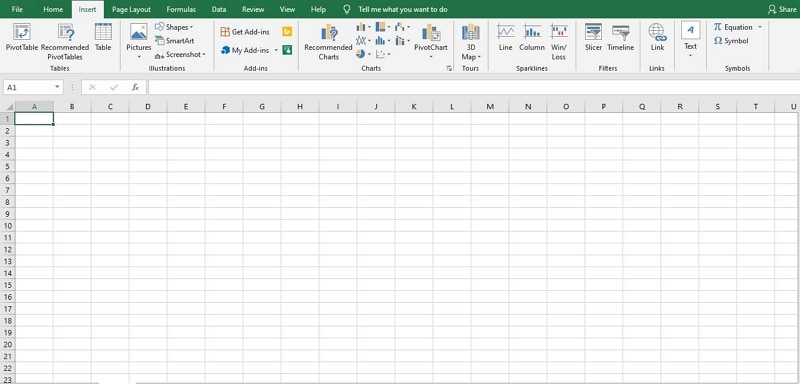
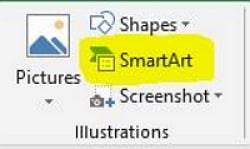
3.Now, go to the Illustration group and select SmartArt.
4.After that, a SmartArt Graphic window will pop-up.
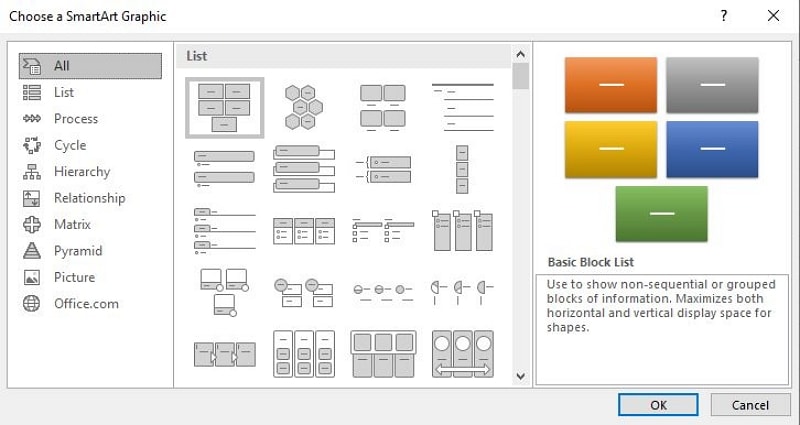
5.Choose the process on the left menu.
6.After that select the flowchart template you want to use.
7.Enter "OK". A simple flowchart will appear on the spreadsheet.
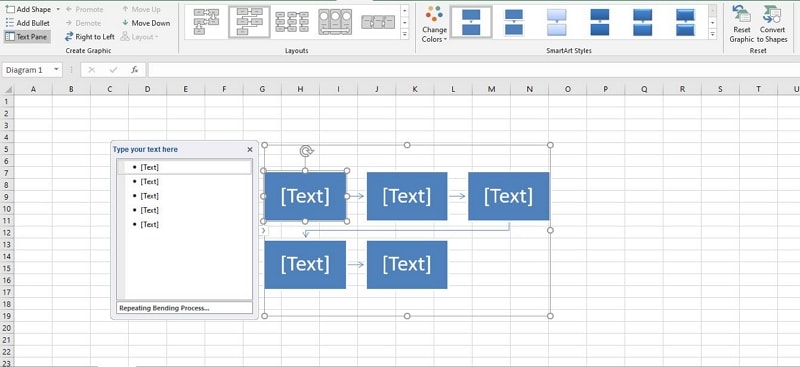
That's how you can create flowchart Excel with the help of SmartArt. You can also customize the flowchart according to your need such as edit text, change shapes, flowchart type, and many other things you can explore for yourself. And in last save the worksheet when you think you've made the changes successfully.
Look how simple it is to design a flowchart in Microsoft Excel. Amazing, isn't it? Well, that's was the easiest and simple way to create a flowchart in Excel with the help of SmartArt. Now, it's time to move to the next step.
Making A Flowchart in Excel Manually
Excel has some features that allow you to create flowchart Excel directly in the spreadsheet. But with these features, you need to make some adjustments manually. At the same time, we recommend saving time by creating a flowchart with Wondershare Mockitt (skip to the next section to see how?). Below are the steps for making a flowchart in excel manually.
1.Format a Grid
Formatting a grid isn't necessary. But it will make it easier for you to create a flowchart and diagrams. Formatting a grid is all about changing the column width to the same size as the default row heights, which will add shapes more uniform and adequately proportioned.
To change the width of the column of a spreadsheet. Select the first cell at the upper-left column and select all cells inside the spreadsheet. Simply, right-click on the selected column and click on Column width. Change the column to 2.14 to format the grid and save the changes.
2.Enable Snap to Grid/Page Alignment Feature
To enable the feature, go to the "Page Layout" then "Align" and select Snap to Grid.
3.Add Shapes
There are two ways to add shapes, one is SmartArt which we already discussed above, and the other features you can use the "Shapes tool."
4.Add Lines
To add lines between your shapes, go to the Insert tab, and select "Shapes" then choose your desired line that suits your requirements.
5.Format Your Flowchart
You've created your desired flowchart in excel. Now, it's time to format your flowchart shapes, texts, lines in your spreadsheet. After formatting the flowchart, save the changes and save the file to your desire location.
Create a Flowchart Online
Save your time, efforts, and make use of the online tool to create a flowchart quickly. Making a flowchart in Excel is a traditional and old-fashioned way. Upgrade yourself and move to the online world where everything is available over the internet.
Wondershare Mockitt is an online graphic designing or prototyping tool that helps you to create awesome website templates as well as a flowchart. We're also using this tool to create Mockups for our website's projects. The features of Mockitt are the reason behind it.
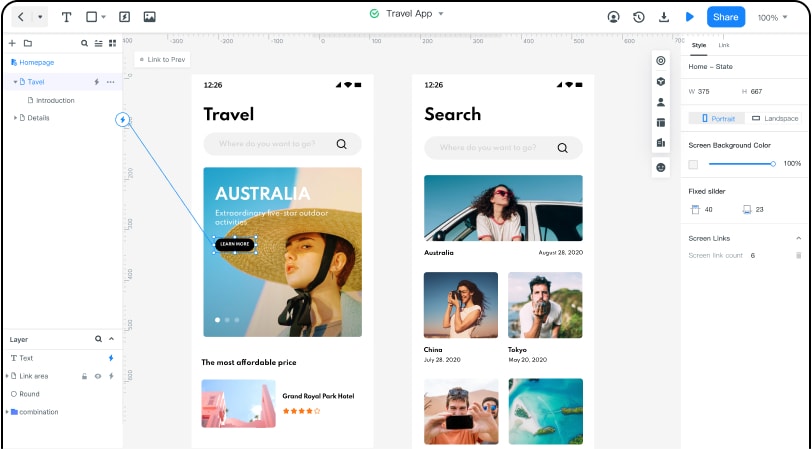
Features of Wondershare Mockitt
1.Widgets and Icons
Mockitt has many icons and widgets available that will help you to create flowcharts projects easily.
2.Collaboration
There is another benefit of creating a flowchart online, with Wondershare Mockitt you can easily collaborate with your team members and can share it on your different social media platforms.
3.Animation
Bring some creativity to your flowchart designs. Use animated prototyping in Wondershare Mockitt to design attractive flowcharts and mobile layouts. Don't believe us, go to Wondershare Mockitt's website and sign up and create your first flowchart for free.
