A flowchart represents steps, decisions and their connections. A “generator” may mean a shape editor, a tool that lays out structured text, or an AI feature that proposes a draft from a prompt. Those are different starting points, and each still needs a logic review.
Use the order-fulfillment example to decide what you need: a successful route from order to shipment, an out-of-stock branch, and a refund endpoint. Choose whether you want to place those steps yourself or review a draft produced from text.
Ten flowchart tools and their input methods
1. Mockitt: draw a process or review an AI draft
Mockitt Diagram supports manual diagrams with shapes, connectors, templates and alignment. Choose this route when you already know the process and want direct control of the layout.
Mockitt also offers a separate AI flowchart workflow that turns a description into an editable draft. State the start, decisions and exceptions explicitly. For an order flow, inspect the out-of-stock branch and the refund route before treating the output as a usable process; generated nodes do not execute the order or validate the policy.
2. Boardmix: editable flowcharts on a whiteboard
Boardmix combines manual flowchart tools with a collaborative whiteboard. Its AI flowchart option can start from a prompt, leaving nodes and connections available for editing.
Keep the source notes beside the draft and compare them branch by branch. A missing “customer declines to wait” route is a logic problem even if the layout looks polished. AI usage is credit-limited and separate from assumptions about a free manual board.
3. GitMind: shapes and templates
GitMind’s flowchart guide documents shapes, connectors, templates and image/PDF export. Its manual editor is relevant when you want to arrange the nodes yourself; do not infer that all GitMind features or platform versions are free from the availability of a web editor.
4. Gliffy: diagrams in Confluence
Gliffy is useful when the chart belongs in Confluence documentation. Its shapes and connectors help create the diagram within that context; this does not make an ordinary manually drawn flowchart an automatically generated process.
Confirm your deployment, user tier and license. Keep the written rules on the surrounding documentation page and use the chart to show their sequence.
5. Lucidchart: template or blank-canvas editing
Lucidchart provides a blank canvas, templates, shape libraries and collaboration. For a manual workflow, choose a template based on its branching structure rather than its appearance. Check document and feature limits for the intended plan.
6. draw.io: manual editing with file control
draw.io provides a free editor without requiring a draw.io account. It is useful when you want to build and maintain an editable diagram file, with the storage location chosen for your workflow.
Use its flowchart shapes and templates, then save the editable source. Storage services and integrations can have their own permissions; a shared exported image is not the same as shared editing.
7. Cacoo: shared diagram editing
Cacoo offers flowchart shapes, templates, real-time editing and comments. It fits a draft that several people need to inspect together.
Give reviewers a specific question, such as whether the refund path ends in the correct place. Confirm the plan and access requirements before using the diagram as a team workspace.
8. Wireflow: screen-based user flows
Wireflow is a browser tool for user flows built from screen-like blocks and connections. It is a better fit for explaining movement between interface screens than for every kind of operational process.
Its current editor offers screen templates, search and image output. Retain the editable file as well as an exported view, and do not infer live multi-user collaboration from the ability to share an image.
9. Textografo: diagrams from structured text
Textografo builds diagrams from simple text syntax. It is useful when you prefer to describe the steps and hierarchy in text instead of positioning every box by hand.
Check that the generated relationships express the intended branches, especially when revising a condition. Its automatic layout reduces placement work; it does not establish that the process itself is correct. Check the current plan or trial before relying on it for continuing work.
10. Google Drawings: a general drawing canvas
Google Drawings is a general drawing canvas with shapes, arrows and text. You place and connect the process manually; it is not an automatic flowchart generator simply because it runs in a browser.
Use the document’s sharing permissions deliberately and keep a consistent symbol convention. It suits a small drawing in a Google Drive workflow, provided the team is comfortable maintaining the layout manually.
Choose the input method before the layout
| Starting point | Useful situation | Review task |
|---|---|---|
| Manual shapes | You know the steps and want direct control of their placement. | Check attached connectors and labels after moving or inserting a step. |
| Structured text | You prefer defining the sequence and branches through a repeatable syntax. | Check that changing the text changes the intended relationship, not merely the appearance. |
| AI draft | You have process notes and need an editable first arrangement. | Review every proposed action and exception; remove steps that were not part of the process. |
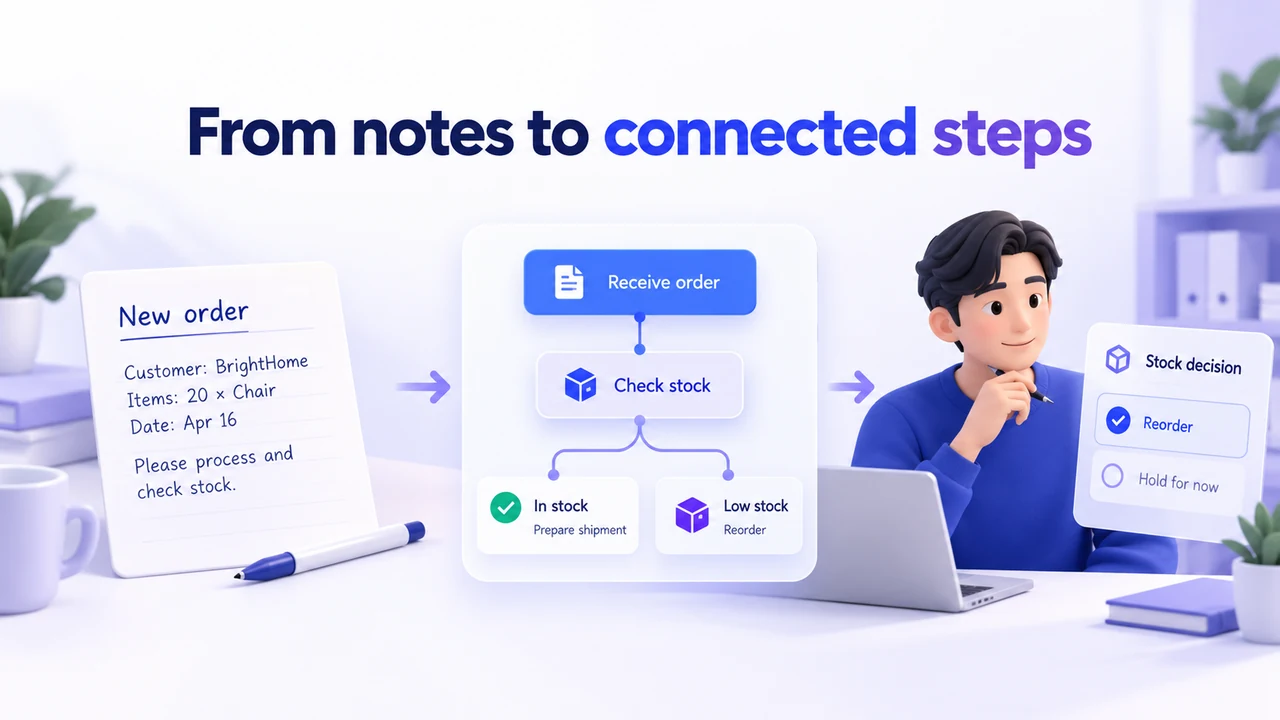
Example process notes: Receive an order. If stock is available, pack and ship it. If stock is missing, offer the customer a wait or a refund. A customer who accepts the wait proceeds to packing only after stock arrives; a customer who declines receives a refund and reaches the end. These notes can guide manual drawing or an AI prompt.
Whichever input method you use, trace all three outcomes: immediate shipment, delayed shipment and refund. An attractive layout with only the successful route is an incomplete representation of these notes.
Create a simple flowchart online
Start the Mockitt flow with a written list of actions and conditions. For an order, specify what happens when stock is missing and whether the customer wants to wait or receive a refund.
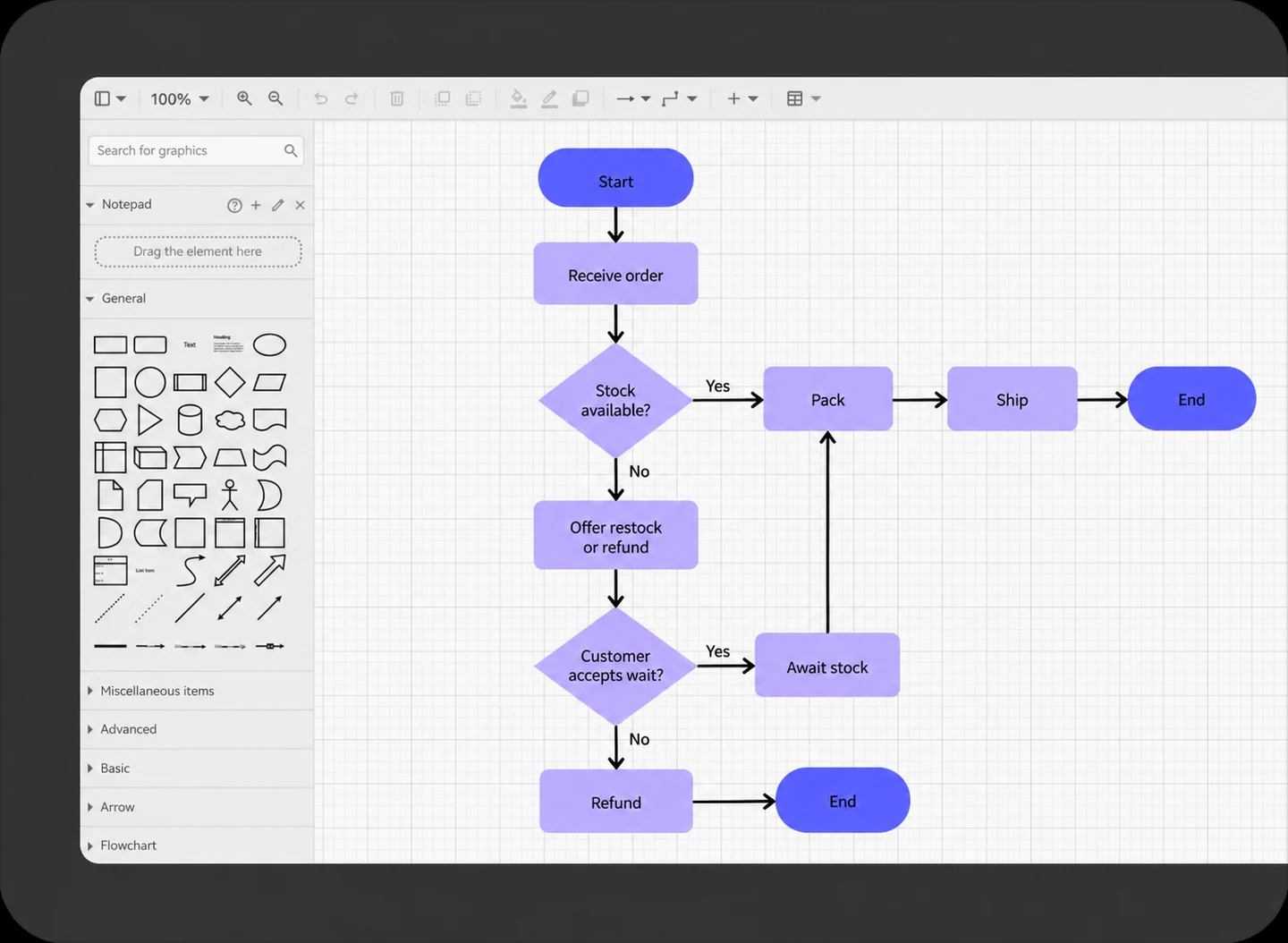
Create or generate the initial diagram, then read each path from the start to an explicit endpoint. Correct missing branches and unclear labels before styling the chart.
Ask the process owner to review the exceptions. Save the editable version and share the approved diagram using the options in your account. Treat an AI result as a draft, not as proof that the business process is complete.