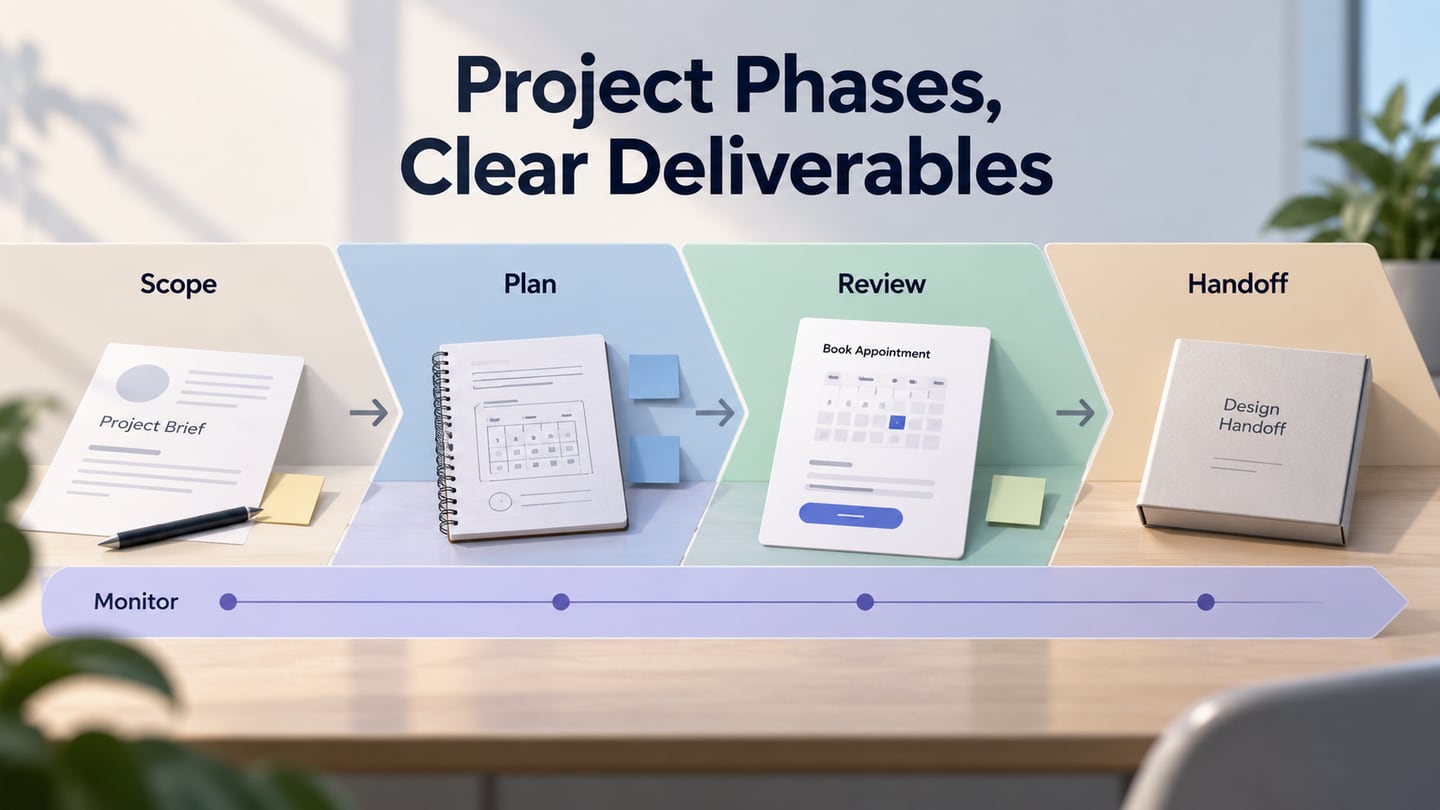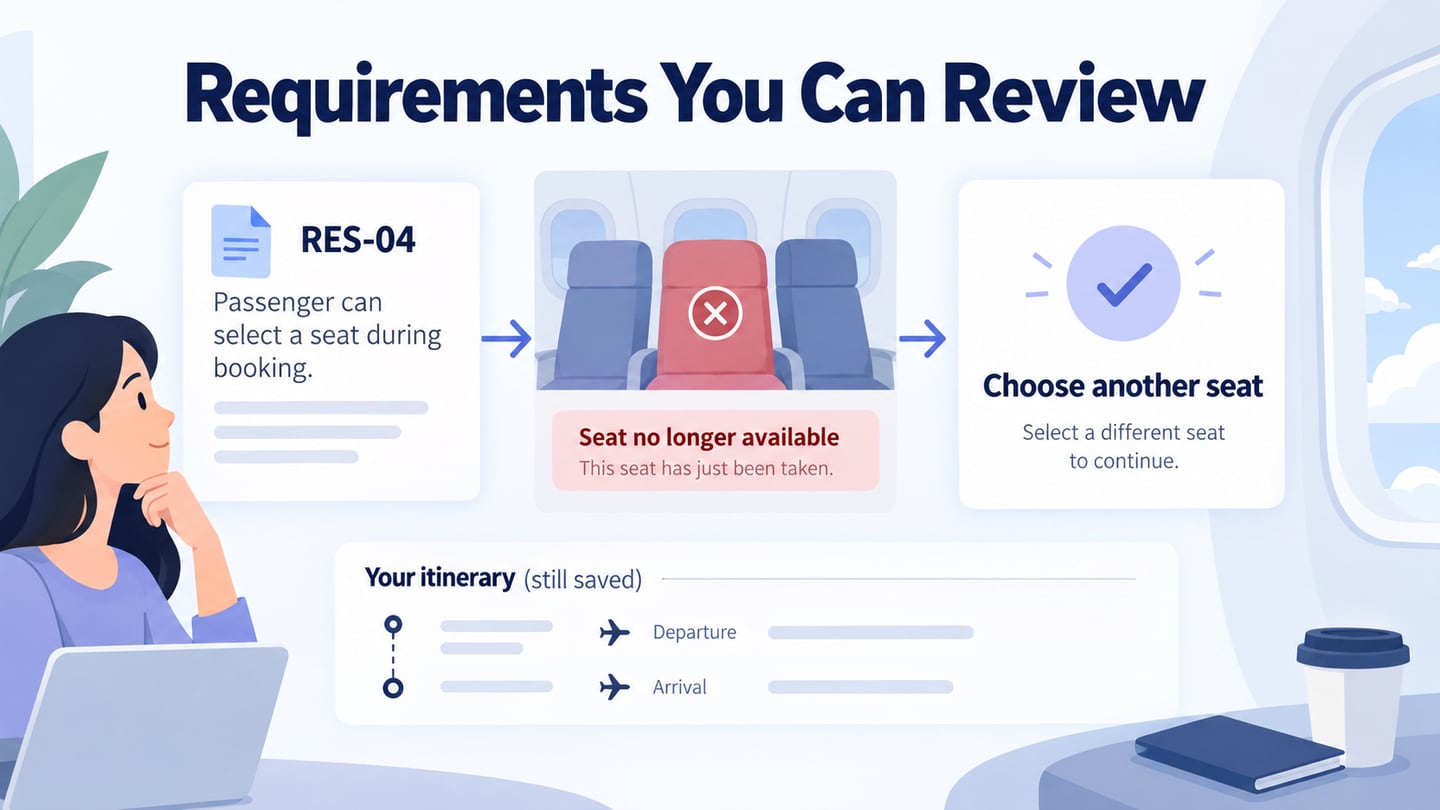
A project schedule turns agreed work into an order of tasks, owners, and expected dates. Start with the deliverables and constraints in your project plan, then estimate the work and identify what must happen first. A schedule is useful when the team can see not only a deadline but also the dependency or decision that could move it. This guide keeps the original six-step approach and adds a small example you can adapt.
What is a Project Schedule?
A project schedule records the tasks needed to deliver a project, the people responsible, their expected duration, and the order in which they can happen. It may include start and finish dates, review milestones, dependencies, and actual progress. Its purpose is to make the sequence and available capacity visible, not simply to present a preferred launch date.
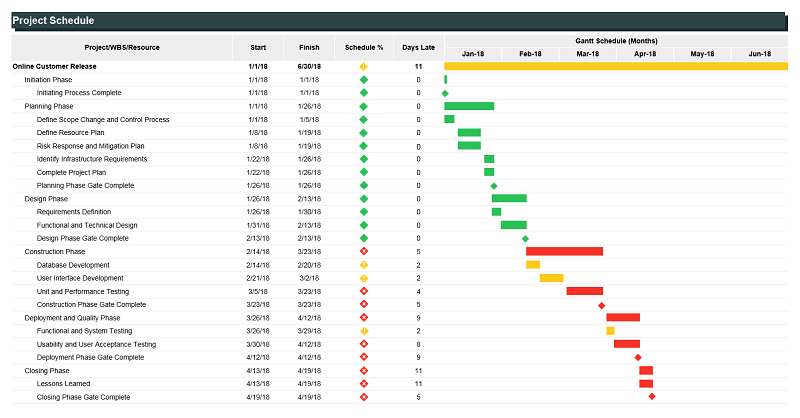
There are a number of tasks that make up a project, and for each task a start and end date is set so that the project can be completed within that given timeframe. Similarly, people have their respective routines and different schedules, therefore in order to plan tasks successfully their availability and vacations or leave dates must be known and documented properly.
Teams can maintain a small schedule in a shared spreadsheet or use scheduling software when dependencies, resources, and changes become harder to manage. A calendar shows when something happens; a dependency view helps explain why a later task cannot begin. Choose a format the team will actually update.
6 Steps to create a project schedule:
Step 1: Recognize & Interact with Stakeholders
Identify the people who define, perform, review, and approve the work. Ask them about scope, availability, and decision deadlines before assigning dates. Include the person who must approve a deliverable, even if they are not producing it; review time can become a dependency.
Step 2: Establish & Prioritize Goals
Agree on the outcomes the schedule needs to support and rank the work accordingly. Keep optional improvements separate from release requirements. Share these priorities so that a delayed task leads to a deliberate scope or timing decision, rather than a silent addition to the deadline.

Step 3: Define Deliverables
Describe the deliverables as things that can be reviewed: an agreed requirement, a prototype, a tested implementation, or approved launch material. Break a large deliverable into tasks small enough to estimate and assign. Write what “done” means before treating the completion date as reliable.
Add the relevant review or acceptance milestone to each deliverable. A milestone can be a zero-duration decision point, while the work and review leading to it still need time in the schedule.
Step 4: Create the Project Schedule
For each task, record an owner, duration estimate, predecessor, and available working days. Distinguish effort from elapsed duration: four hours of work may span several days if the owner is shared with another project. Confirm estimates with the people doing the work.
Arrange tasks by their dependencies, then check whether the same person is assigned to overlapping work. A Gantt chart can show the sequence, but the task list must remain accurate. Explain intentional overlap and the rework risk if an earlier decision changes.
Worked example: schedule a reminder-settings review
The following durations are illustrative estimates for one small feature, not a standard delivery promise. They assume the assigned people are available on the stated working days.
| Task | Owner | Duration | Depends on | Completion evidence |
|---|---|---|---|---|
| A. Confirm reminder rules | Product owner | 1 day | None | Agreed on/off and save behavior |
| B. Build review prototype | Designer | 2 days | A | Three reviewable states |
| C. Review and decide | Product owner and engineer | 1 day | B | Accepted states and recorded changes |
| D. Estimate implementation | Engineer | 1 day | C | Estimate with unresolved risks |
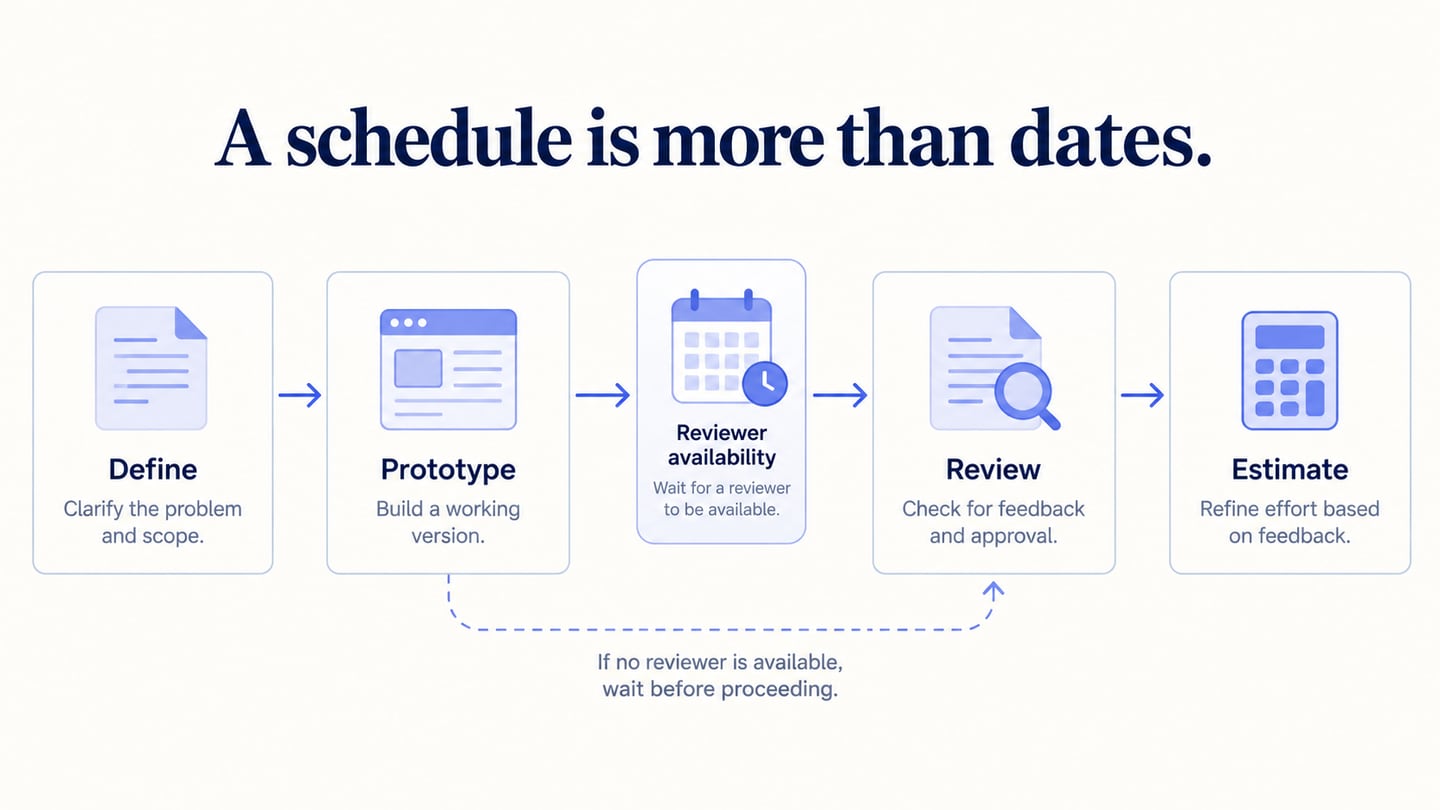
With these assumptions and no overlap, the sequence takes five working days. If the reviewer is unavailable until day six, the review moves even if the designer finishes on day three. That is a capacity constraint, not evidence that the design task took longer.
Check the sequence against the work breakdown structure so required work is not missing, then use the schedule to expose dependencies rather than conceal uncertainty.
Step 5: Check for errors and Complete a Risk Assessment
Review constraints that could affect the dates: leave, approval availability, technical unknowns, external deliveries, or a shared specialist. Do not assume every team member has a full uninterrupted day available for this project.
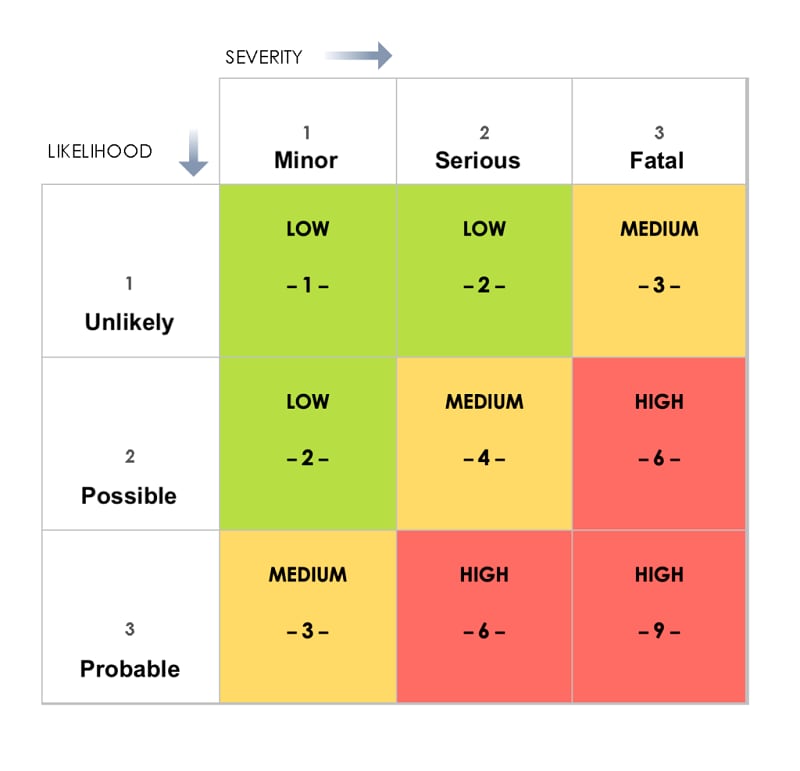
Record the risk, its likely effect on the schedule, an owner, and the next action. Use a buffer where uncertainty justifies it, and state the assumption behind it. The original risk matrix below is a discussion aid; its severity labels are not a universal scoring system.
Step 6: Present the Project Plan to Stakeholders
Present the schedule with its assumptions, dependencies, and unresolved decisions. Ask the team to confirm ownership and reviewer availability. Agreement does not remove uncertainty; it establishes which baseline future changes will be compared with.
Give contributors access to the current schedule and name the person responsible for updating it. Record why dates change. Agree on a review cadence and an escalation path for a blocked dependency, rather than circulating conflicting copies.
During execution, update actual progress and remaining work. If a dependency slips, trace its effect on later tasks before promising the original finish date. Keep the approved baseline available so the team can distinguish planned dates from the current forecast.
Maintain the forecast without losing the baseline
At the next review, compare three facts: what was completed, what remains, and which dependency has changed. If the prototype took one day instead of two but the reviewer is still unavailable, the next milestone may not move forward. If a newly discovered requirement adds a screen, update the remaining effort rather than labeling the original task almost finished.
For the reminder-settings example, a short status note could read: “Prototype ready; engineering review awaiting reviewer availability; implementation estimate remains blocked.” Add the owner and expected decision date in the schedule itself. This separates completed design work from the blocked decision without inventing a percentage-complete figure.
When a requested date cannot be met, make the alternatives explicit: reduce optional scope, change the sequence where dependencies permit it, add suitable capacity, or accept a later forecast. Do not simply shorten every duration. Save the agreed change and its reason so the next review starts from the same information.
Tools for Managing a Project Schedule
The right tool depends on whether the main problem is task sequencing, team capacity, or both. The two products below address different parts of scheduling; neither removes the need for sound estimates and current information.

1. monday.com
monday.com is a work-management platform, not Microsoft Project. Its boards can organize tasks, owners, and dates, while timeline and Gantt views help show the sequence. Check the plan and dependency settings in your account before building the schedule around a particular automation.
Its dependency documentation distinguishes flexible, strict, and no-action modes. Date shifting depends on configuration and populated date fields; a dependency link alone should not be assumed to create a complete schedule. Test the behavior with a small sample before using it for a release plan.
2. Hub Planner
Hub Planner focuses on resource scheduling and capacity, with related timesheet and reporting capabilities. It is relevant when the main question is who is available for the work. Check the working calendar, allocation assumptions, and required extensions against your team’s needs.
Include Prototype Reviews in the Schedule
A product project often needs a design decision before implementation can proceed. Treat a prototype review as a real deliverable with an owner, reviewer, and decision deadline. The schedule should show what becomes blocked if the review does not happen, rather than hiding it inside a generic “design” task.
Mockitt is a design and prototyping tool, not a resource-scheduling system. You can build an interactive prototype for a scheduled review and attach its link to the task in your scheduling tool. Use the review to discuss screen behavior and capture decisions before development estimates are treated as fixed.
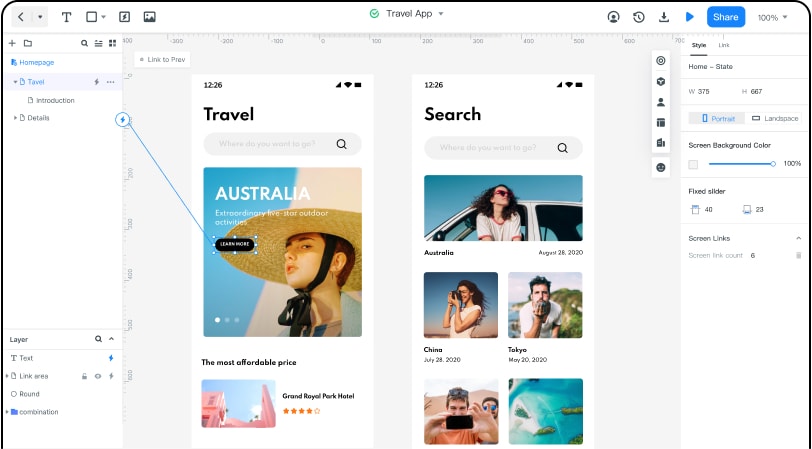
For example, schedule a review of reminder settings before the implementation task begins. The prototype can show the enabled state, disabled state, and save confirmation. Ask the reviewer which behaviors are accepted and which need changes; do not mark the task complete merely because a link was sent.
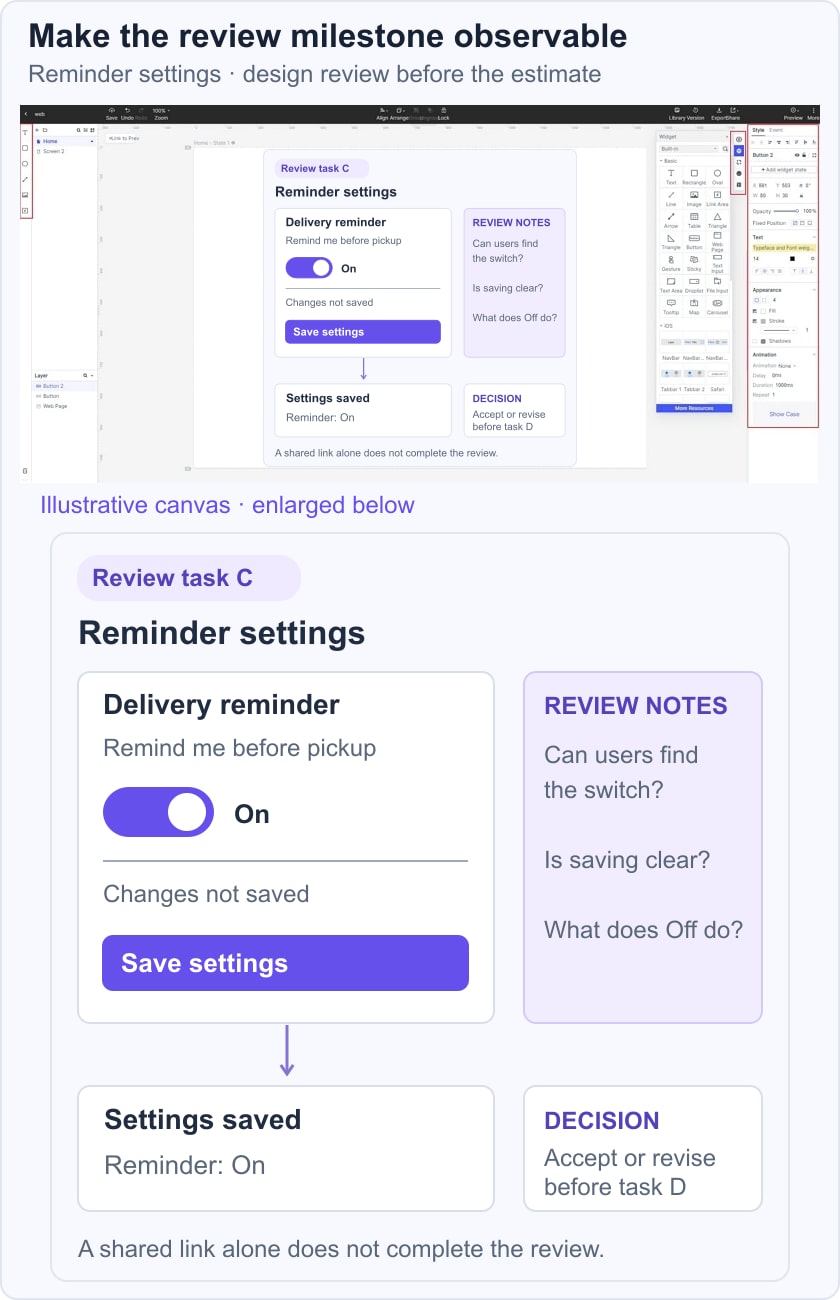
Keep the prototype review criteria alongside the task. They might require a clear opt-out path, a visible confirmation, and a documented decision about what happens when saving fails. Your schedule tracks the decision; the prototype makes the decision concrete.
After the review, update the task status and affected dependencies. A prototype can improve the discussion, but it does not calculate resource availability, implement the feature, or guarantee that the project will finish on time.