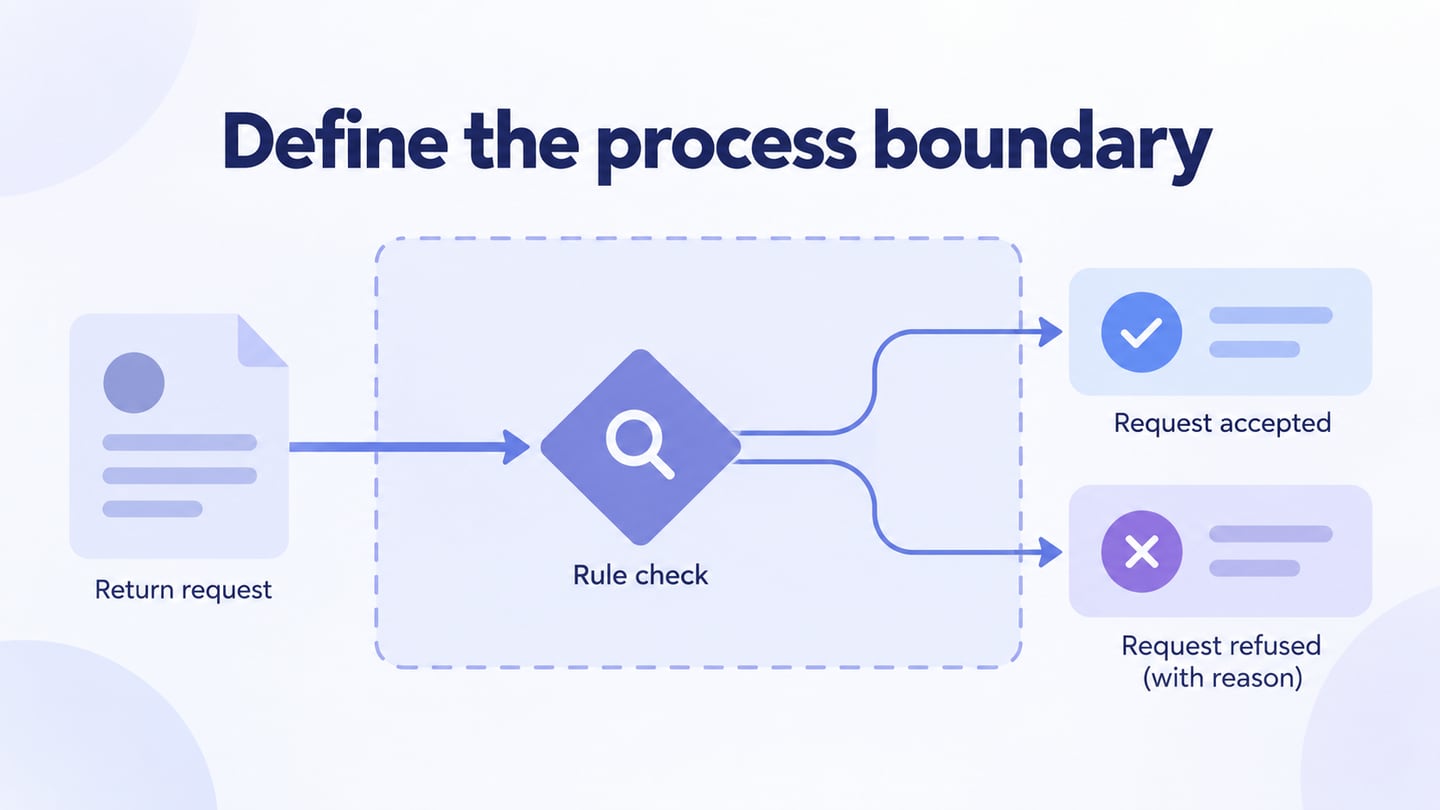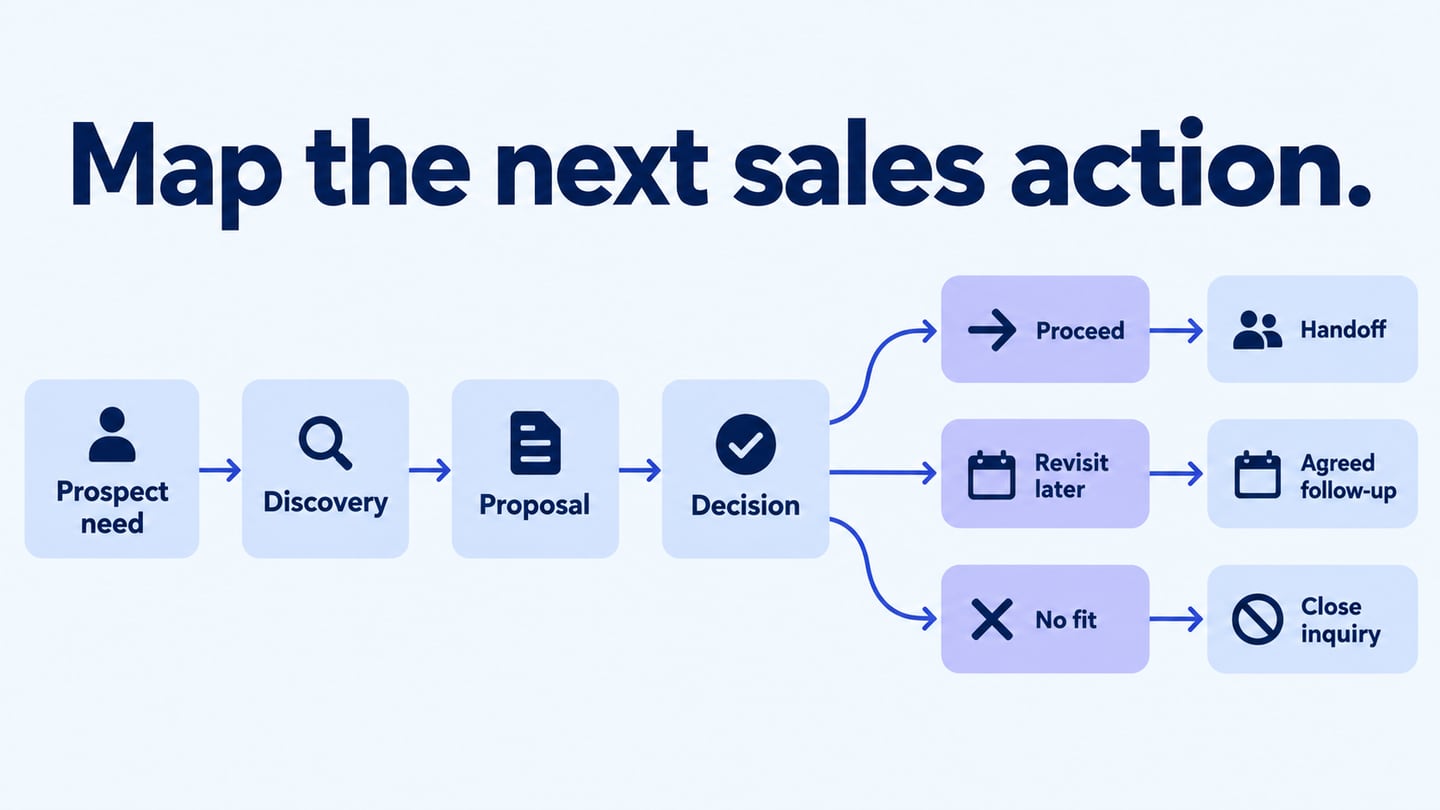
An online flowchart maker lets you draw and revise a process in a browser. The important choice is what happens after the first draft: whether a reviewer can open it, whether the right people can edit it, and whether you can keep a usable source as well as an exported image.
The eleven options below cover shared diagrams, whiteboards, text-driven editing and document illustrations. Some have bounded free plans and others require a license or trial. Choose around the access, editing and output your process needs.
Eleven online flowchart makers for creating and sharing
1. Mockitt: a browser diagram for product review
Mockitt Diagram provides shapes, connectors, templates and alignment in a browser workspace. It is a useful starting point when a process chart needs to stay close to a product team’s design work.
For a content-review flow, label both “ready to publish” and “needs revision.” Share the diagram with the intended reviewer and confirm the access path before the meeting. Keep the editable source so a change to the review process can be reflected in the next version.
2. Boardmix: a shared board for mapping the process
Boardmix combines flowchart tools with a whiteboard, comments and real-time editing. It suits a team that wants to arrange the steps together and keep questions beside the chart.
Separate the agreed process from discussion notes before sharing a final view. Check the board’s viewing and editing permissions, and confirm that the chosen plan covers the board size and output you need.
3. Lucidchart
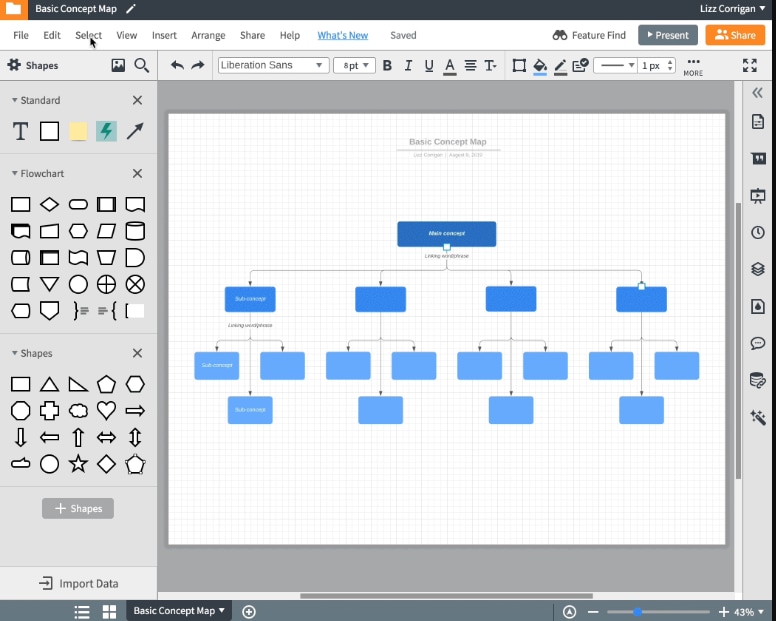
Lucidchart provides flowchart templates, shape libraries and collaborative editing. It is relevant when a diagram will be reviewed and revised as a shared document.
Start with a blank canvas or a template whose decisions resemble your process, then replace its example labels.
Useful for:
- Templates and shape libraries for a structured starting point.
- Collaboration for reviewing the same diagram.
- Browser access for the intended team workflow.
Check before choosing:
- Check document limits, reviewer permissions and required export features in the selected plan.
4. draw.io
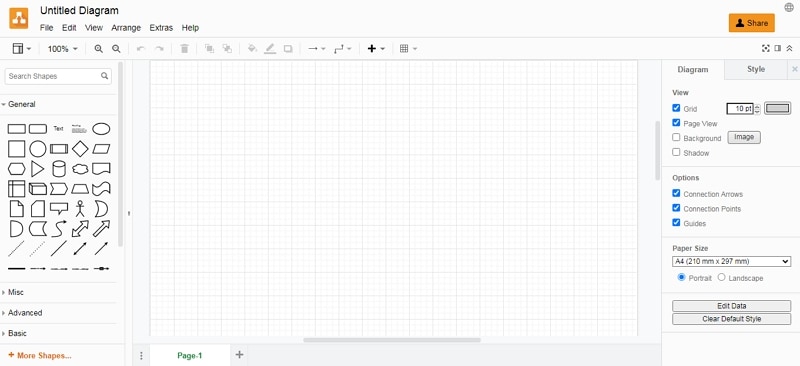
draw.io offers a free browser editor that does not require a draw.io account for basic use. Choose a storage location that matches how your team keeps and shares files.
Its templates and libraries can support a flowchart while the editable file remains under your chosen storage workflow.
Useful for:
- An editable file rather than only a finished image.
- Basic editing without a draw.io account.
Check before choosing:
- Cloud storage or integrations can require their own accounts and permissions.
- Decide who maintains the file and how colleagues receive its latest version.
5. Cacoo
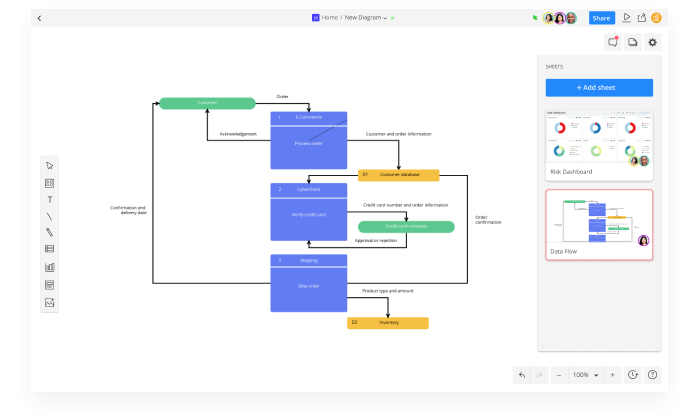
Cacoo provides templates, standard flowchart shapes, real-time editing and comments. It suits a review in which several people need to discuss the same process.
Use the chart for the agreed sequence and comments for questions that need resolution; adding more diagram types does not remove the need for clear labels.
Useful for:
- Comments and chat for discussing the drawing.
- Collaborative editing and version history.
Check before choosing:
- Check the document, sharing and export limits for the intended review workflow.
6. Gliffy
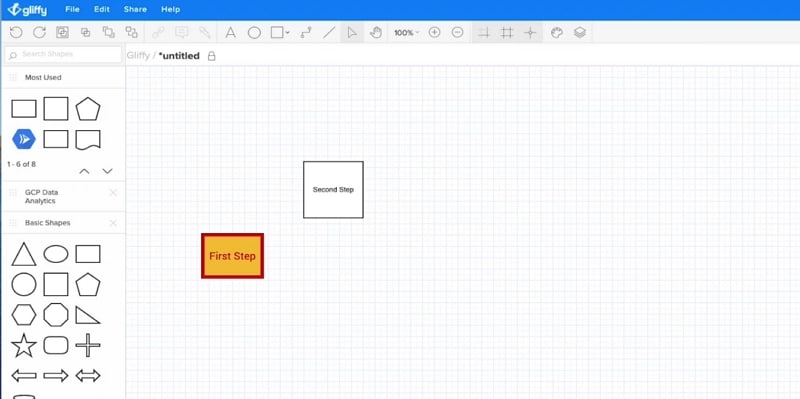
Gliffy is relevant when the team documents its processes in Confluence. Its current plans focus on Confluence apps, so the workspace and licensing context matter.
Place the chart beside the explanation that readers need, with clear labels connecting decisions to the written rules.
Useful for:
- Flowchart shapes within a documentation workflow.
- A diagram kept with its surrounding Confluence page.
Check before choosing:
- Confirm hosting, user tier and license with the administrator; free eligibility has conditions.
7. Wireflow
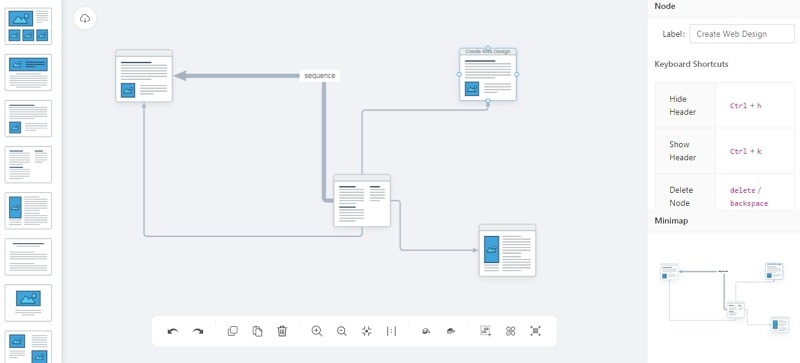
Wireflow is a browser editor for user flows built from screen-like blocks and connectors. It fits a designer explaining how people move between screens.
Its current editor offers screen templates, search and image exports. Keep the editable source if the flow will change.
Useful for:
- Screen-oriented blocks for interface journeys.
- File and image output for keeping and communicating the flow.
Check before choosing:
- It is not a substitute for every process notation; confirm the storage and sharing workflow instead of assuming live multi-user editing.
8. Textografo
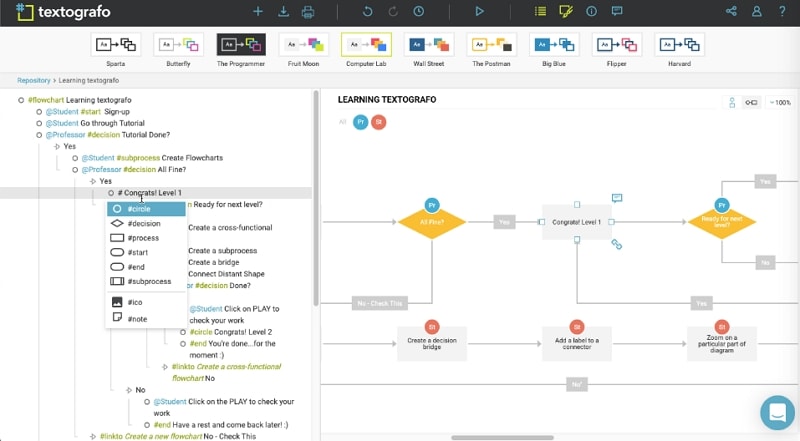
Textografo creates diagrams from structured text. It suits someone who wants to revise step definitions without arranging every box manually.
The generated layout should still be checked against the intended process, especially around decisions and loops.
Useful for:
- Text syntax as an alternative to manual placement.
- Diagram themes and sharing options.
Check before choosing:
- Learn the syntax and check the current subscription or trial for the workflow you need.
9. Visme
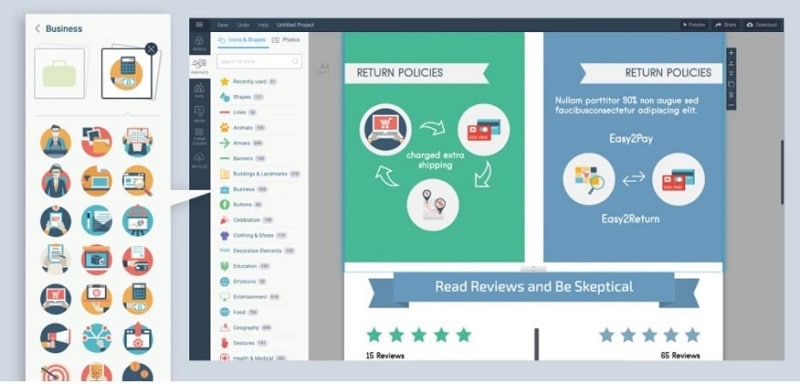
Visme offers flowchart templates, shapes and connectors in a visual-document environment. It is useful when the chart is part of a report or presentation.
Use colors and typography to support the meaning of the diagram. A decorative theme should not obscure a decision or make its branches difficult to follow.
Useful for:
- Templates and styling for visual communication.
- Editable labels, shapes and connected steps.
Check before choosing:
- Confirm the required publishing or download format in your plan and retain the editable design.
10. SmartDraw
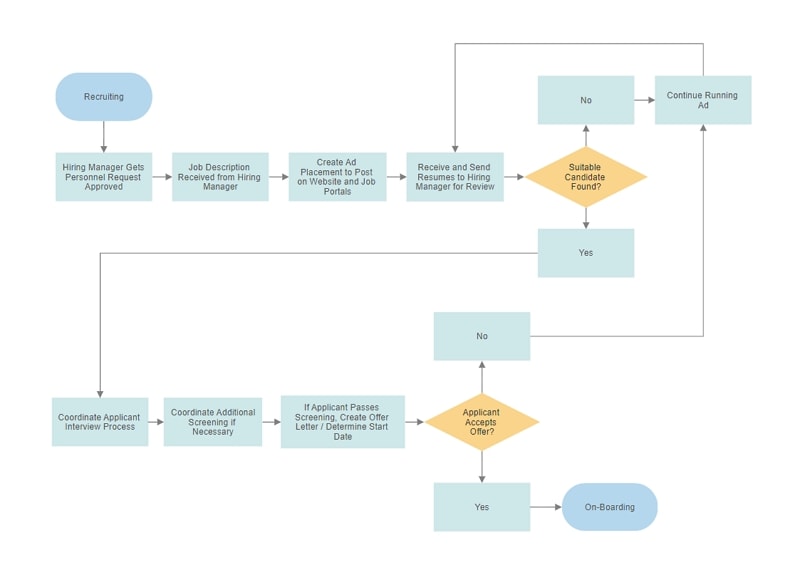
SmartDraw provides flowchart templates and diagramming tools for structured documentation. Compare it with the file, sharing and integration requirements of your team.
Use a representative chart to see how edits affect its layout. Review connections after inserting or deleting a step instead of assuming every automatic adjustment preserves the intended meaning.
Useful for:
- A flowchart-focused starting point for process documentation.
- Templates and tools that support maintaining diagrams.
Check before choosing:
- Confirm the license and required import/export format with the people receiving the diagram.
11. Creately
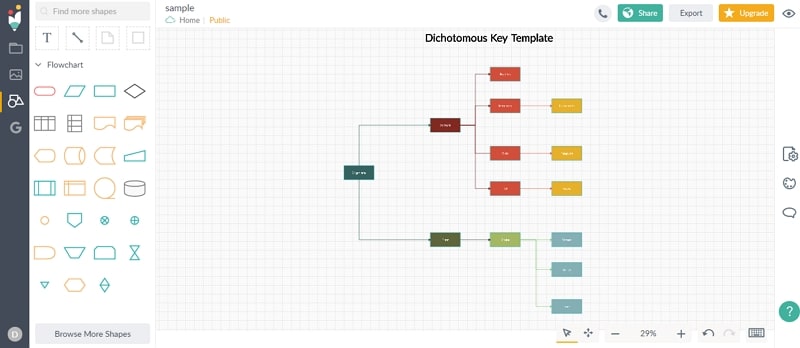
Creately combines diagram templates with a collaborative visual workspace. It is relevant when several people need to organize and update a process together.
A small trial diagram should include the notes, decisions and outputs the real process will need, so you can judge the whole working document.
Useful for:
- Templates and diagram types for different process tasks.
- A shared canvas for team editing.
Check before choosing:
- Free-plan diagram size and export features are limited; confirm access for the intended collaborators.
Create a simple flowchart online
For a simple online workflow in Mockitt, begin with the process you want the reviewer to understand. The content-review example needs a draft, an editor check, a publish decision and a revision loop.
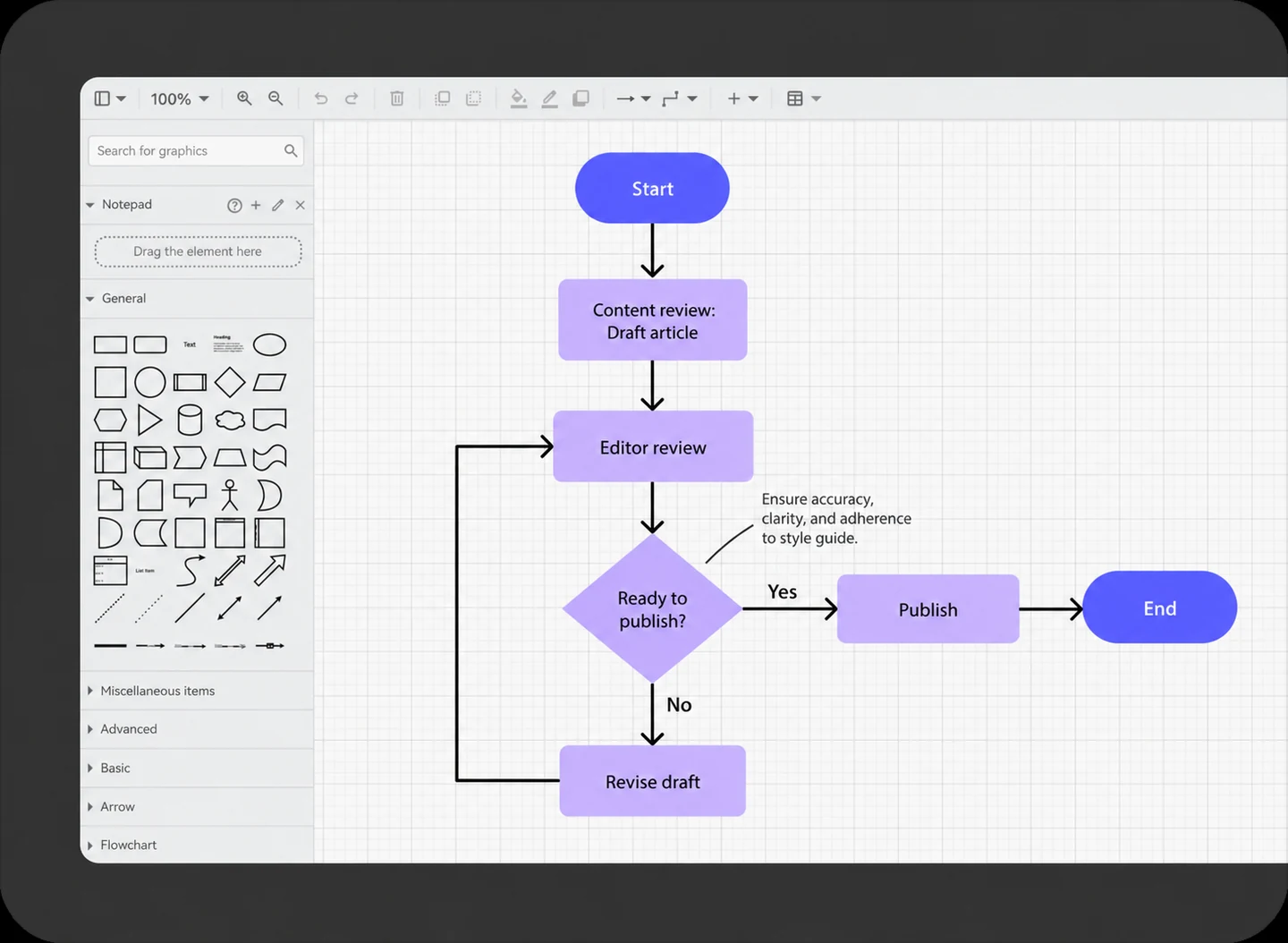
Create the actions and decisions with shapes, then connect the complete paths. Keep each action concise and label the alternatives at a decision.
Use the available alignment and formatting controls to make the branches readable. A template can provide structure, but replace its labels and remove any irrelevant steps.
If the flow also relates to interface screens, review those screens separately in the prototype workflow. A process diagram does not itself demonstrate the interface behavior.
Use these checks before sharing:
Step 1: Open a diagram workspace and build the smallest complete flow, including the revision route.
Step 2: Move one shape and confirm that its connectors and labels remain understandable. Keep an editable version of the diagram.
Step 3: Share the chart using the intended permissions and ask a reviewer to follow each route to its endpoint. Resolve missing steps before exporting a copy for wider circulation.
Keep the diagram useful after the first share
A template is a starting structure, not a barrier to original work. The value comes from accurately documenting your process and making its decisions understandable.
Choose the tool whose editing, access and storage workflow fits the people who will maintain the chart. Confirm those requirements while the example is still small.