Mockitt - Flowchart Maker
Flowchart - Help Your Work More Efficient and Effective
- Complete guide on creating all types of flowchart.
- Plenty of flowchart examples and templates for inspiration.
- Best flowchart software recommendation.
- Basic flowchart knowledge to understand flowchart better.
7 Easy Flowchart Maker You Should Know
Flowchart maker can be a really challenging task for you if you do not support great tools for carrying forward the process. Because every flowchart drawing tool offers some sort of features and support within the package, and if you can pick up the right tool that fulfills your requirements, that will help you complete your work efficiently.
Moreover, if you are also facing issues in selecting the best & easy flowchart maker tool for yourself, then this post has everything you need to know about. As here, we will have a look at seven flowchart maker tools you should be knowing.
5 Flowchart Drawing Tools That You Should Know
Here is the list of easy flowchart maker tools you should know before getting started with the designing part:
1.Wondershare Mockitt
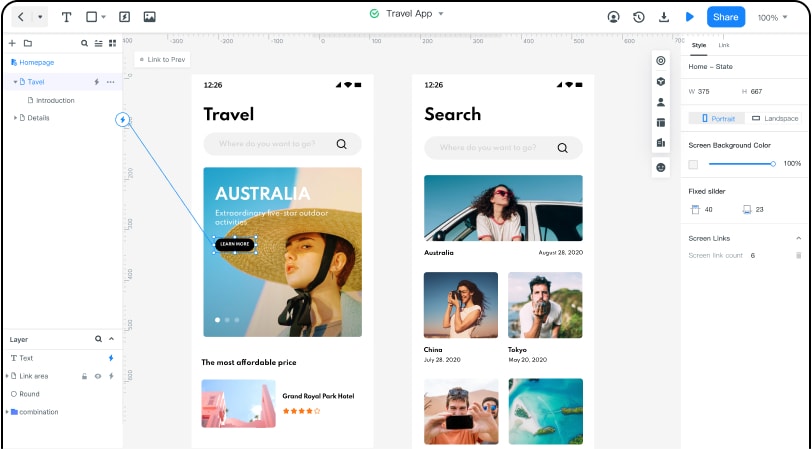
The first option in the list is also the most popular one amongst them all, Wondershare Mockitt. This is a complete package for graphical designing, which means you would not only be able to create amazing flowcharts, but along with that, you can design websites, social media posts, and many more such things.
One of the significant reasons to consider Mockitt at the top of this list is that it comes with an easy to use UI. No one would have to worry about its working processes and get started with it without even taking advantage of instruction manuals.
Another reason to go with Mockitt is, this tool is entirely free of cost, and you can take advantage of some premium designing features with the help of this tool. Moreover, if you are going to use this tool for personal or professional usage, it can ultimately provide you desirable results efficiently.
2.Canva
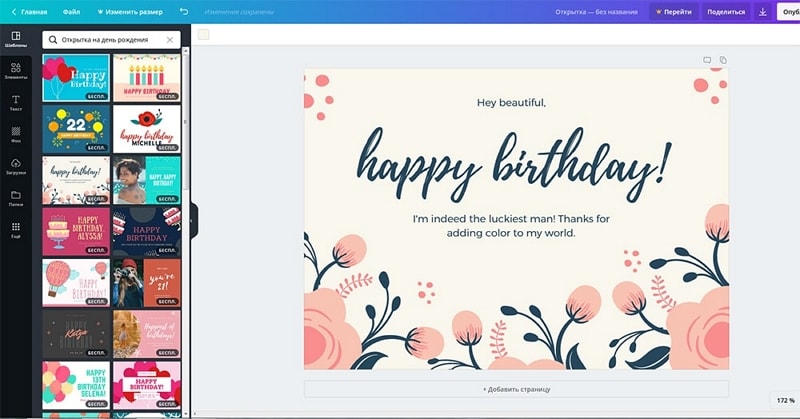
The next tool in the list we have is Canva Graph, with the help of which you can design online graphs, charts, and many more such things within minutes. This tool's specialty is that it comes with some amazing features support, and it is easy to use. Because of which most of the users love this flowchart drawing tool.
You would be able to get several pre-designed themes for flowcharts and other such graphical items. Once you visit this tool, you directly need to head forward to the graphics designing section and select Flowcharts from the listed options.
Right after getting started with the flowchart designing feature, you would be able to get all the themes available. You can select the most appropriate one from them and edit them accordingly.
You can even get it connected with your Facebook or Google account and keep all your prepared graphical images and flowcharts saved. So, whenever you log in with your connected account, you would be able to get back to the data you created.
3.Gliffy
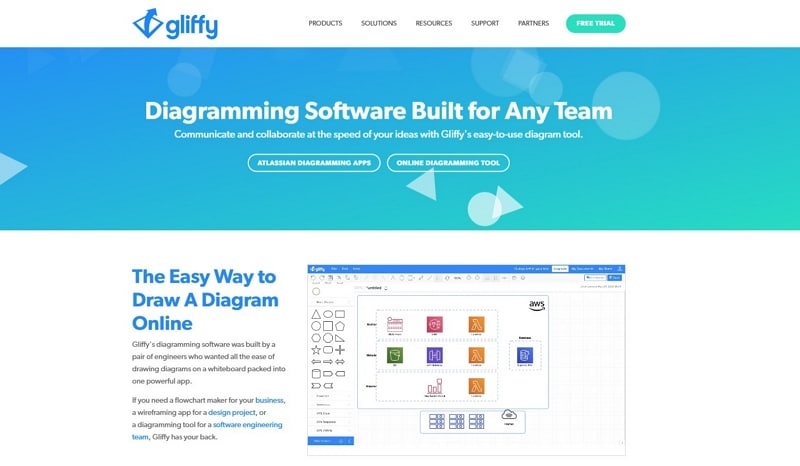
Gliffy is an easy to use flowchart drawing tool with the help of which you can take advantage of outstanding flowchart developing experience. Although most users think you cannot create professional designs with the help of this tool, it has impressive support for professional-based features.
You would be able to create high-end flowcharts and diagrams with this tool. Under its editor option, you can find tools and functions such as different shapes, elements, color schemes, and many more.
Although you all must be thinking it is a paid tool, but you can sign up for a free account and take advantage of all the tools and features of this online software free of cost.
In case if you are trying something from both home and professional usage, then Gliffy is the best available option for you.
4.Creately
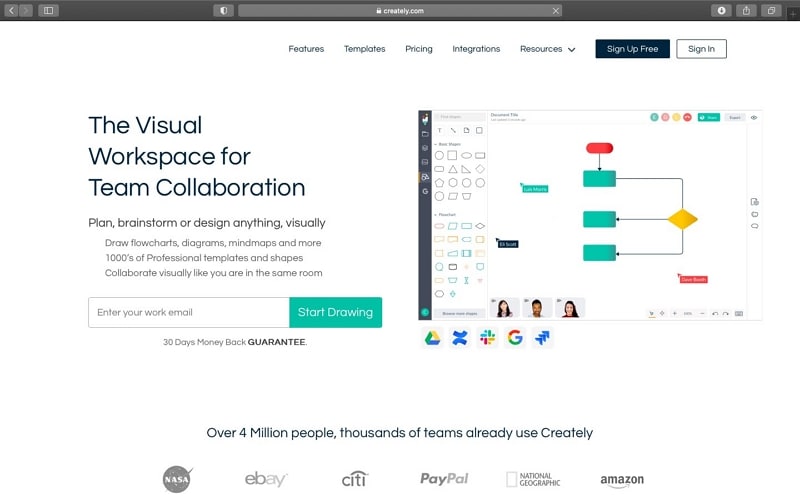
Here we have the fourth option from the list, which is known as Creately flowchart drawing software. It has an excellent looking interface with the help of which you can enhance your productivity as it works with faster responses.
One of the most important reasons for using this tool is that it comes integrated with an intelligent engine that can enhance its speed upto a higher extent. Moreover, another significant advantage of using this software is that you would not have to sign up for anything and directly get started with it without providing any information.
You can even let your complete team join this software and work efficiently on only one project. With the help of this small feature, you can enhance your productivity and get the best possible outcomes.
5.Draw.io
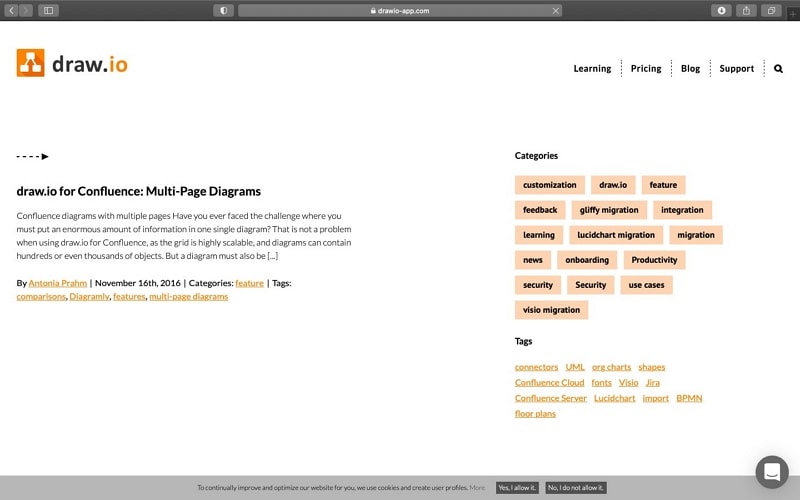
Draw.io is known as the Diagramly flowchart drawing tool, with the help of which you can create all types of flowcharts, graphs, and many more such things. Within the package, you would be able to get several clip arts, elements to use, and themes that are going to help you create the best possible flow chart for yourself.
Moreover, you would not have to provide any information about yourself to this tool, and you can directly get started with it. If you have ever used the Microsoft Drawing tool, then you would be able to use this flowchart, creating tools efficiently, as both of those tools have similar designs.
6.Diagram Maker
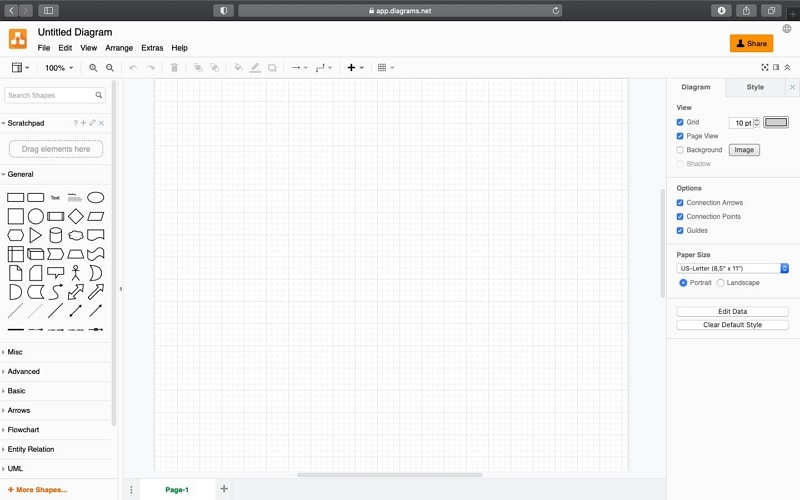
The next option in the list of best and easy flowchart makers is Diagram maker with the help of which you can get an easy to use approach for your work. Hence right after visiting the platform, you will be directly taken to the editing place itself.
7.LucidChart
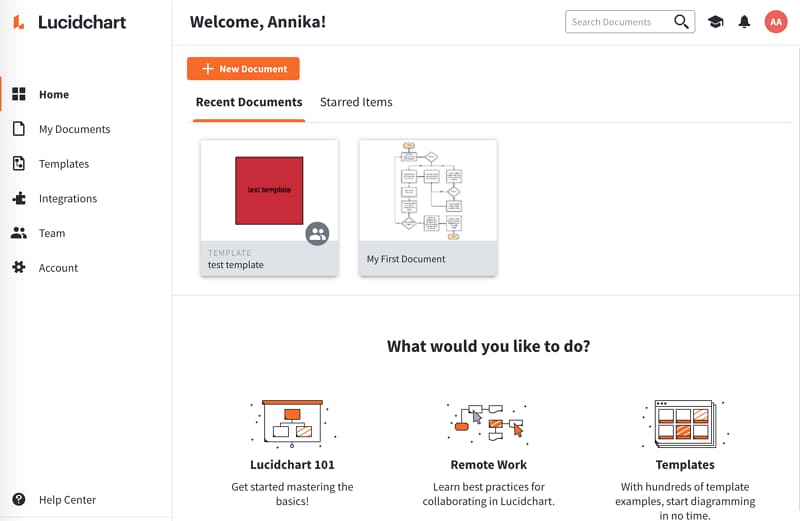
The final option from the list of easy flowchart makers is LucidChart, which is a professional platform for creating high-quality flow charts. You would have to sign up for free with this platform to get started with it.
Create A Simple Flowchart Online
We have already noticed that Mockitt is one of the best available easy flowchart drawing tools from the above list. In case if you want to get started with the same tool, then do follow the steps below, as here we are going to have a look at the steps for creating a simple flowchart online using Mockitt:
- In the first step, you would have to visit the Mockitt flowchart designing tool's official website.
- Right after visiting the site, you need to move to the Design section that you can access from the Features menu from the top.
- You can create an account on this platform for accessing all the available features.
- Once you have created the account, then you would be able to access all the features and development related support. Hence can get started with the flowchart development.
