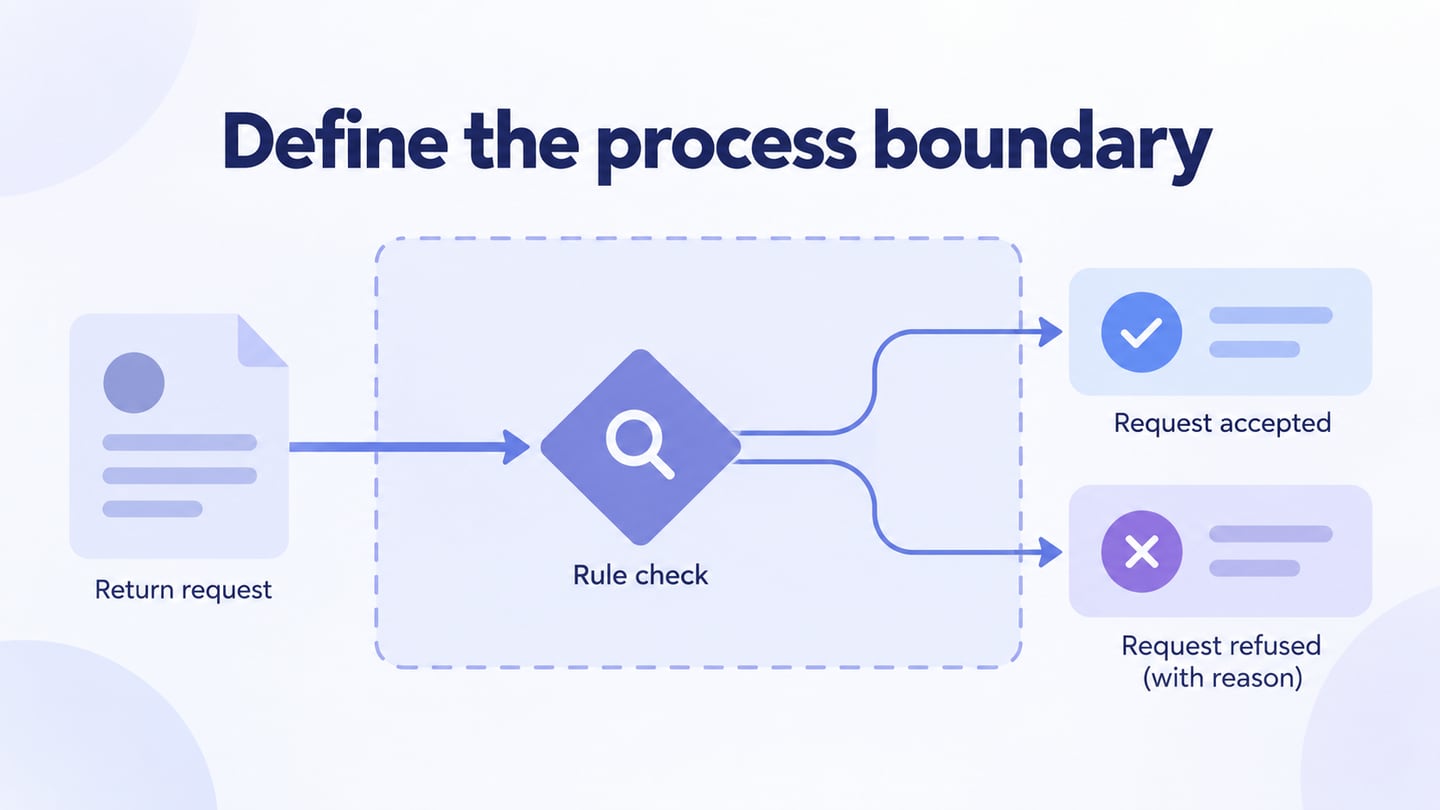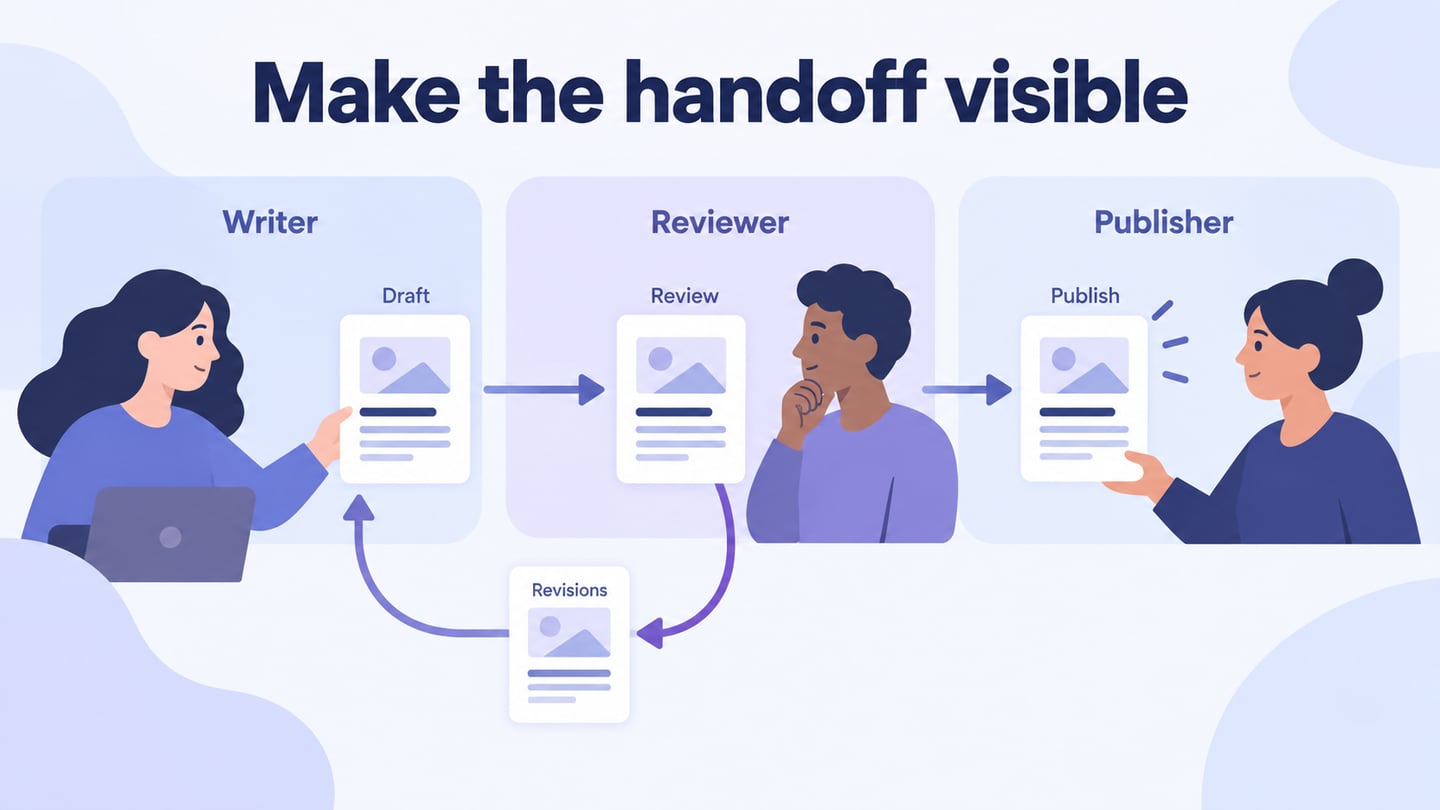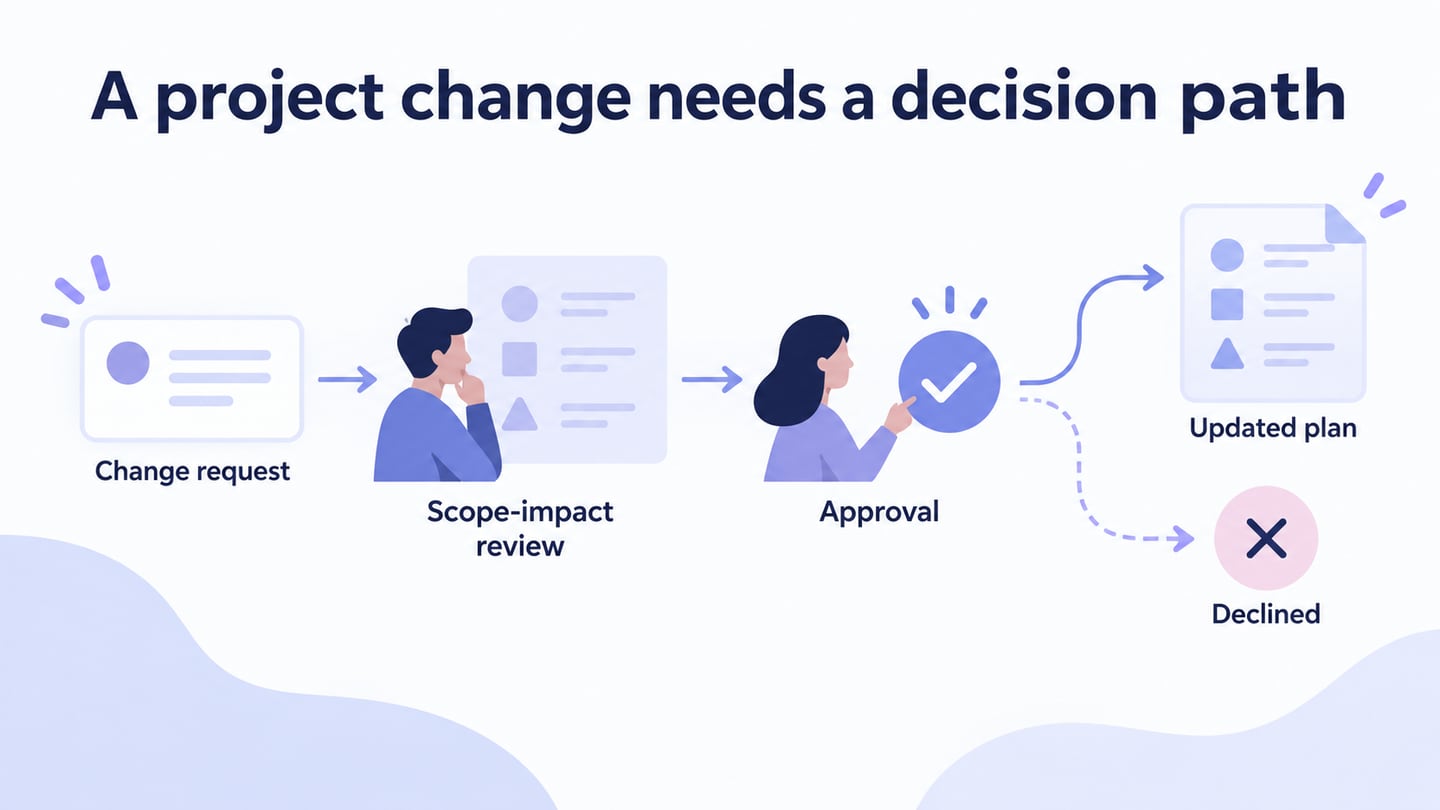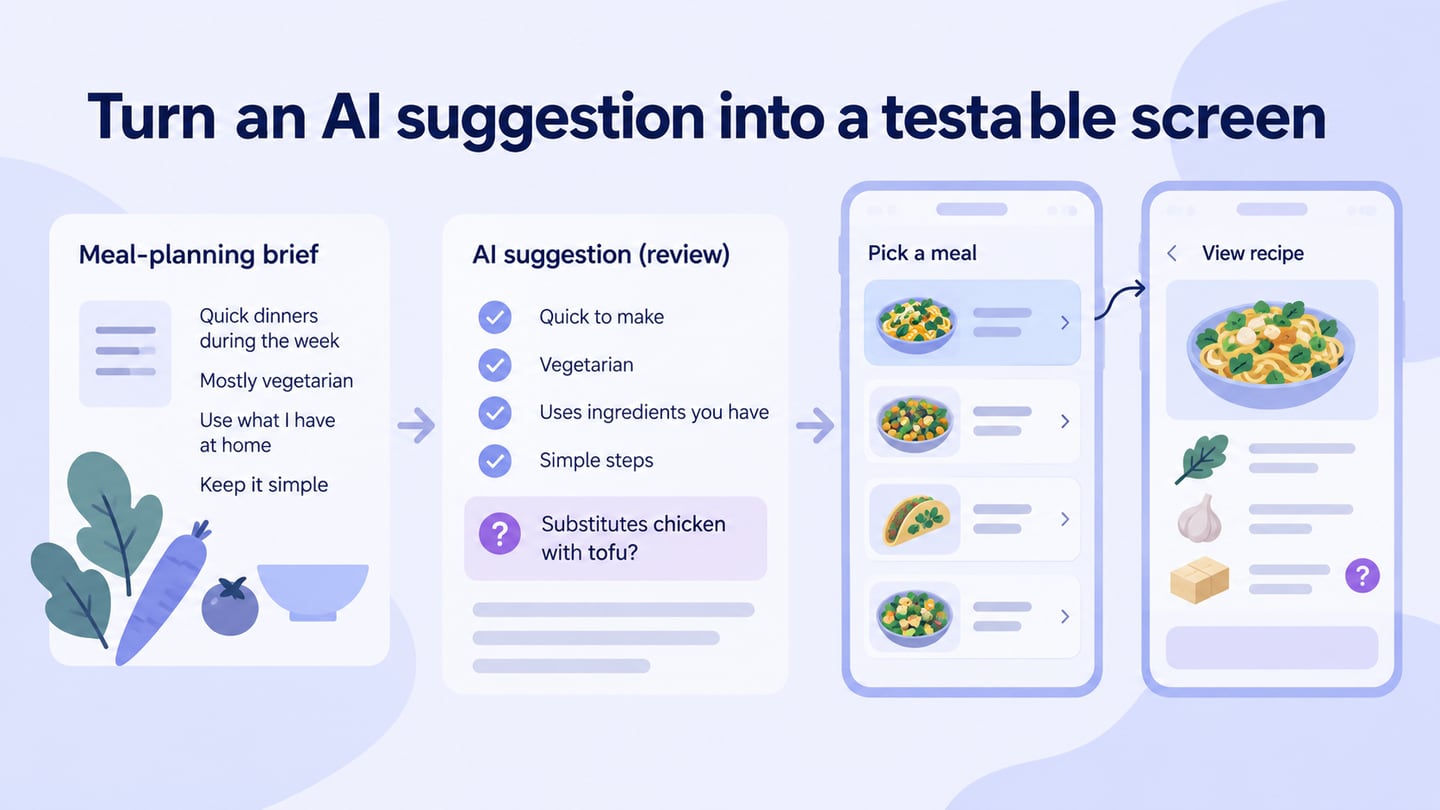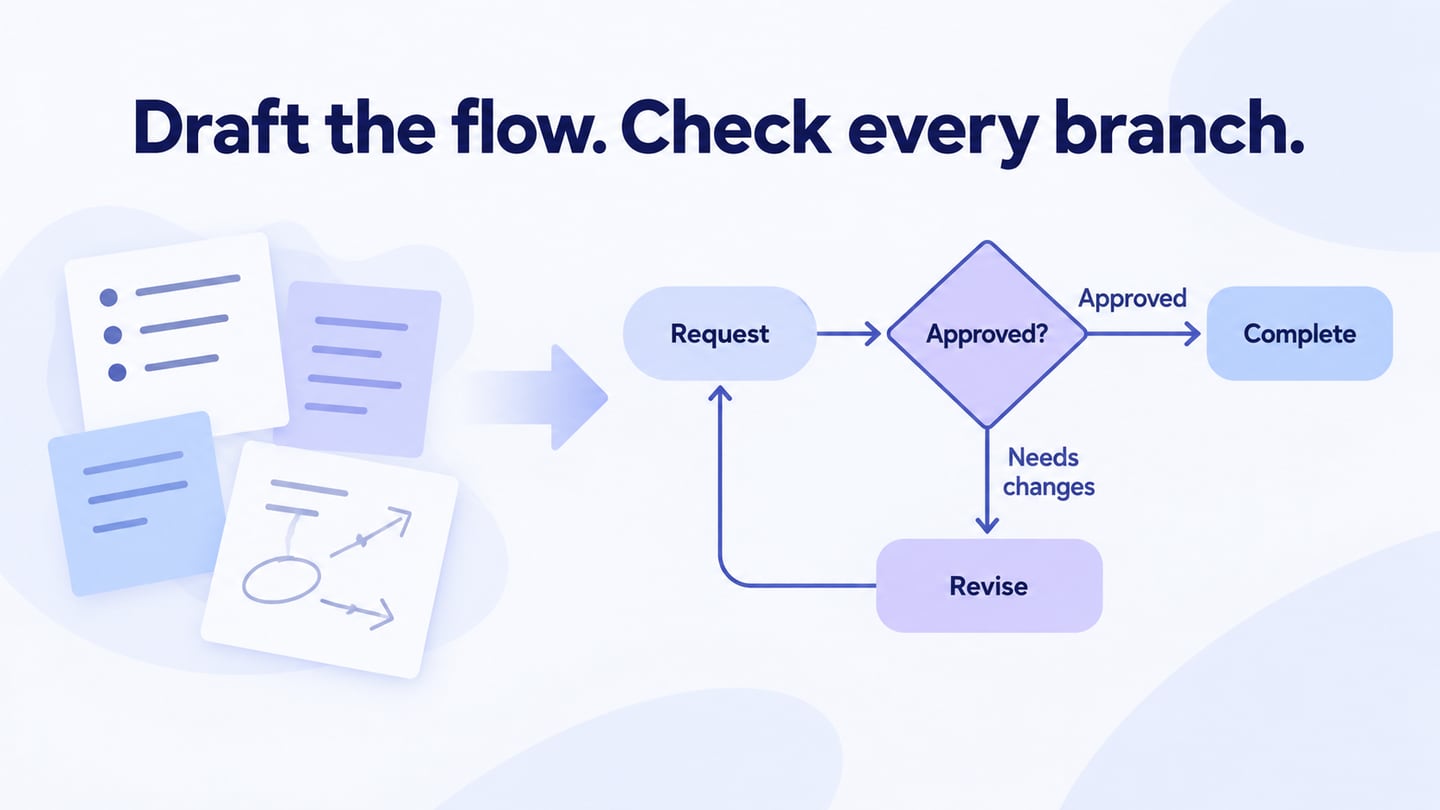
A flowchart shows the steps, decisions, and outcomes in a process. An AI flowchart generator can turn a description into a first diagram, but the result still needs review against the actual workflow. This guide explains how to prepare the input, inspect the branches, and share a corrected draft in Mockitt.
Use AI to reduce blank-canvas work, not to decide undocumented business rules. A tidy layout can still omit an exception, reverse a decision, or connect steps in the wrong order.
AI-assisted generation can provide an initial node-and-connector structure from process notes. Its usefulness depends on the input and the amount of checking required afterward. Compare the draft with real examples before treating it as process documentation.
How Mockitt Supports the Workflow
Mockitt AI can organize described actions and decisions into an editable flowchart draft. Review the labels and connections, then adjust the diagram with the people who know the process.
Key Features
The useful capabilities for this task are drafting, editing, and review:
- Text-to-flowchart drafting: Describe the start point, actions, decisions, and exceptions. The generated diagram is a proposal, not a guarantee of correct logic.
- Visible structure: Inspect how the nodes connect and which outcomes each decision covers. Do not assume the AI has recognized an undocumented symbol or rule.
- Editing: Refine labels, reposition nodes, and correct branches before sharing the flow.
Open the current Mockitt workspace and use the available AI flowchart entry. The retained screenshots show the original tutorial’s earlier interface, so panel names and locations may differ.
Step 1: Sign in to your current Mockitt account in the browser. Check the account’s feature access and AI usage limits.
Step 2: Create or open a suitable workspace or diagram. Decide which process the flowchart will describe and what marks its start and end.
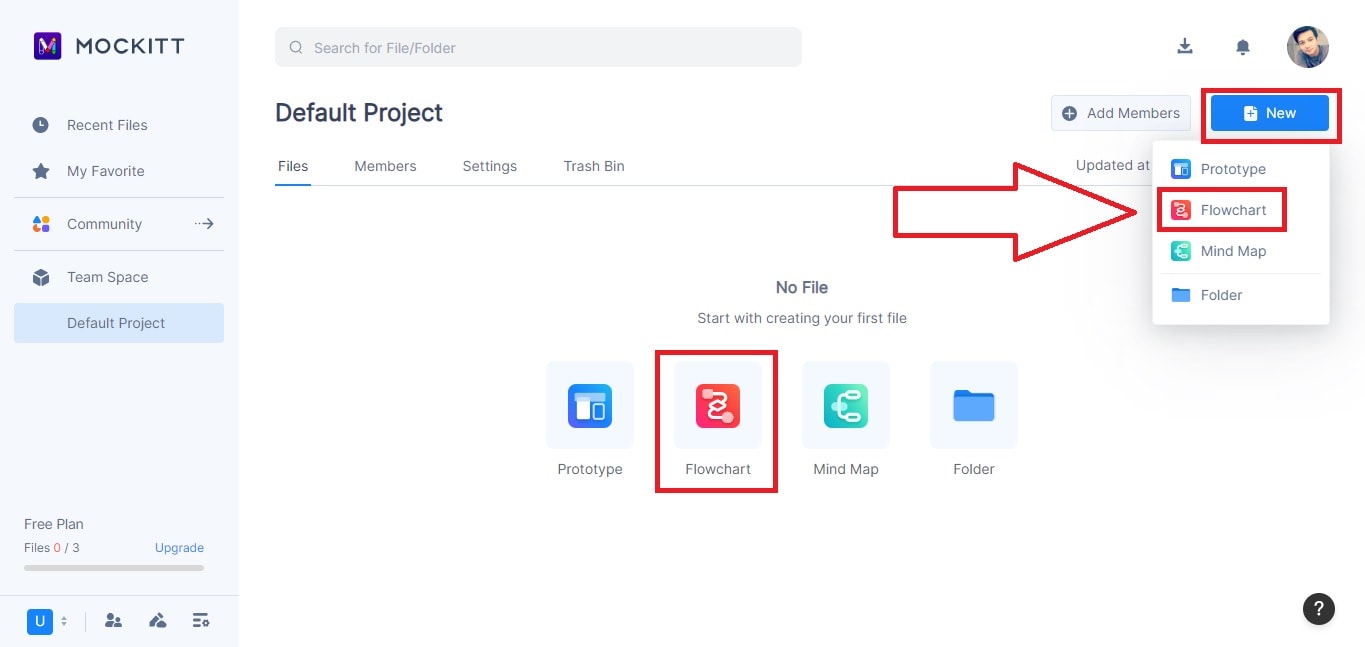
Step 3: Open the available AI flowchart generation tool and prepare the process notes before generating.
Expert Tips for Maximizing the Benefits of AI Flowcharts
These checks help keep the generated draft connected to the real process:
- Provide structured input: State the actor, trigger, steps, decision conditions, and outcomes. Name anything unknown instead of inviting the tool to invent it.
- Review paths: Trace a normal case and at least one exception. Every decision outcome should lead to a defined next action or end.
- Review with process owners: Ask the people performing the work to identify missing handoffs or responsibilities.
- Use restrained formatting: Make labels and connections readable before adding colors. If colors carry meaning, provide a key.
The workflow below covers generating, editing, collaborating, and sharing. The extra review step is what turns a plausible diagram into useful documentation.
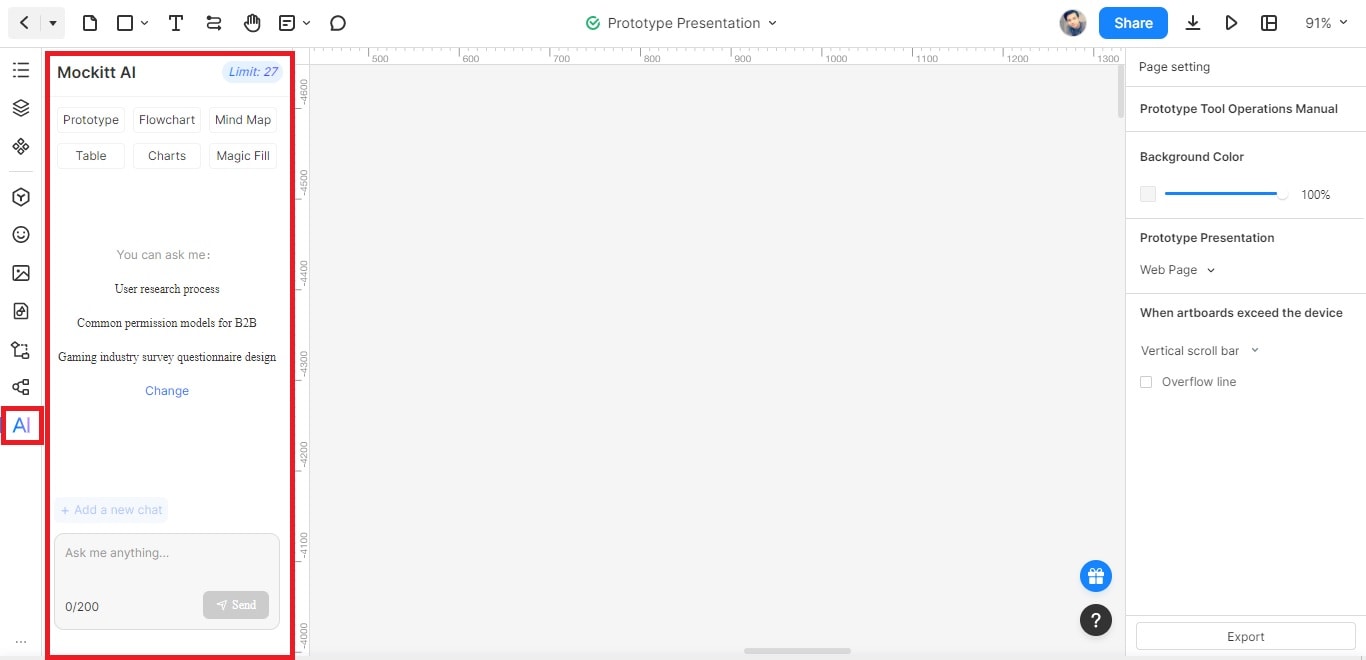
Step 1: Open the AI flowchart tool in the current workspace. You do not need to reproduce an old project type solely because it appears in an archived screenshot.
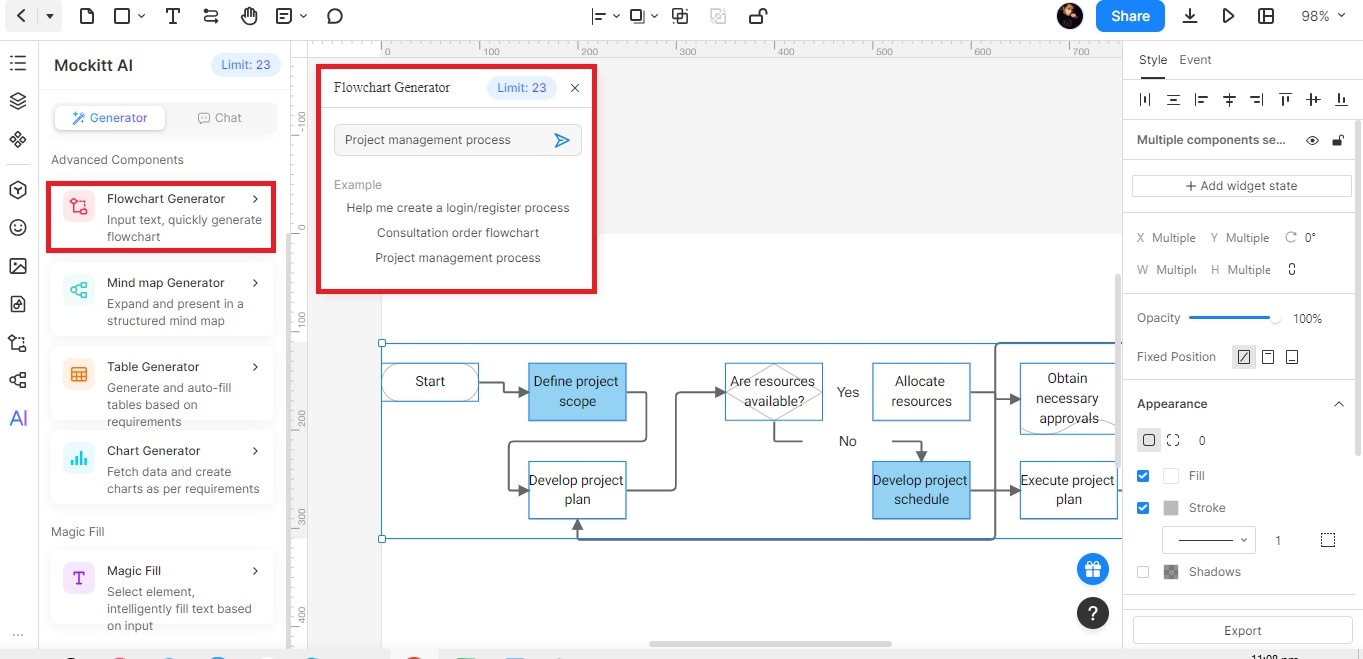
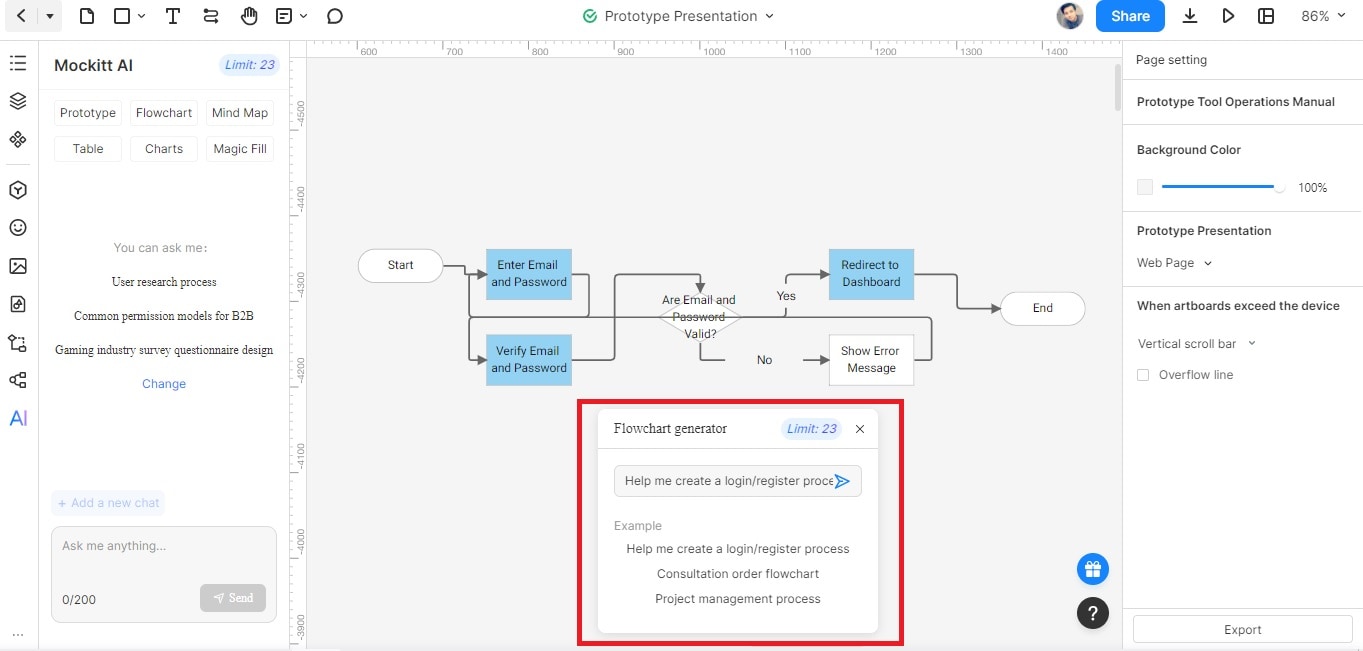
The historical screenshots illustrate the prompt-and-canvas workflow. Use the current entry provided by your account.
Step 2: Generate a Flowchart Using Mockitt AI
Enter a process description with enough detail to distinguish the outcomes. An example prompt can be a starting point, but replace it with the actual process being reviewed.
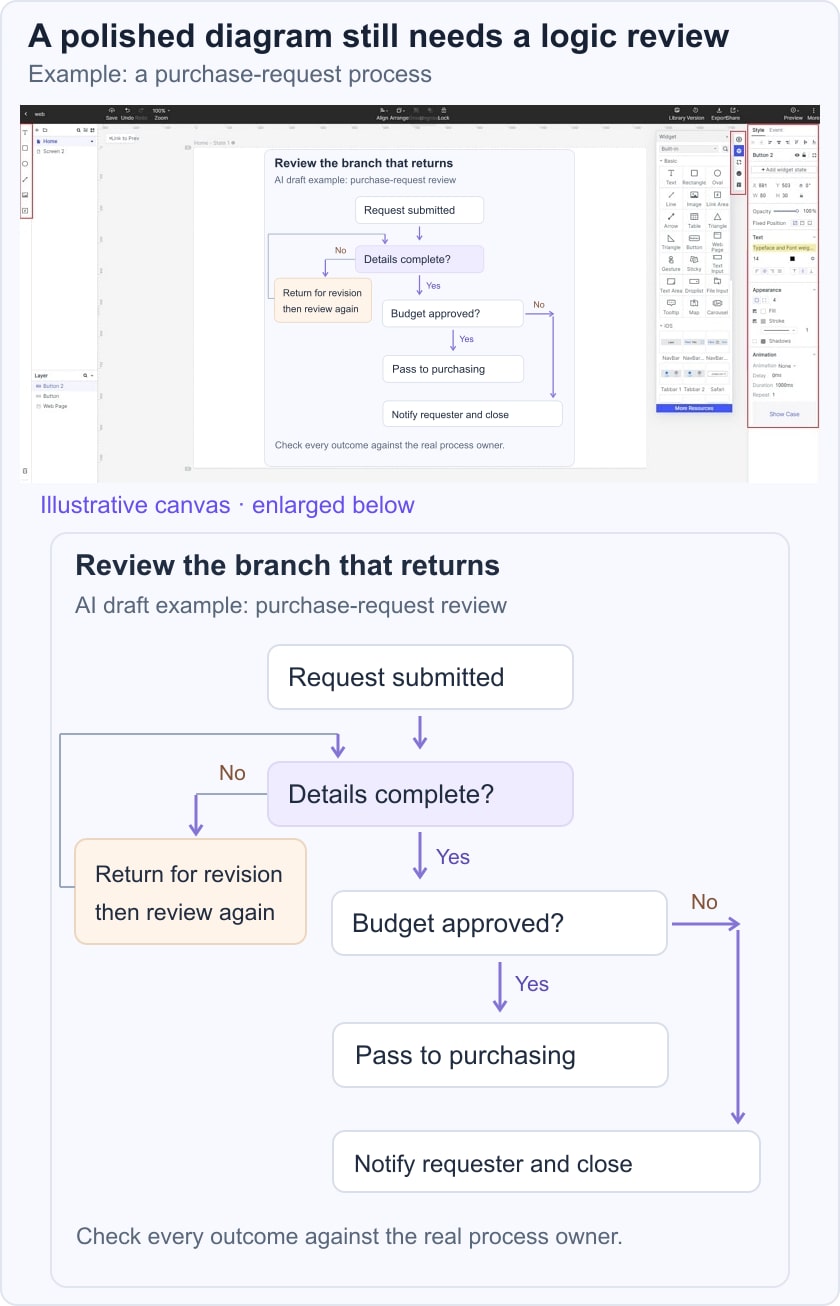
Use a purchase-request process as a worked example. The requester submits the details; a reviewer checks completeness; incomplete requests return for revision; complete requests proceed to a budget decision. If the budget is not approved, notify the requester and close the request. If approved, pass it to purchasing. Ask the generator to label every decision outcome and leave unspecified rules as questions.
Step 3: Add Flowchart Elements
Inspect the resulting shapes, labels, and connectors. Trace an incomplete request through revision and back to review. If the draft sends that branch straight to purchasing or leaves it dangling, correct the connection. For manual structure and notation, see the flowchart editing workspace.
Step 4: Collaborate and Share
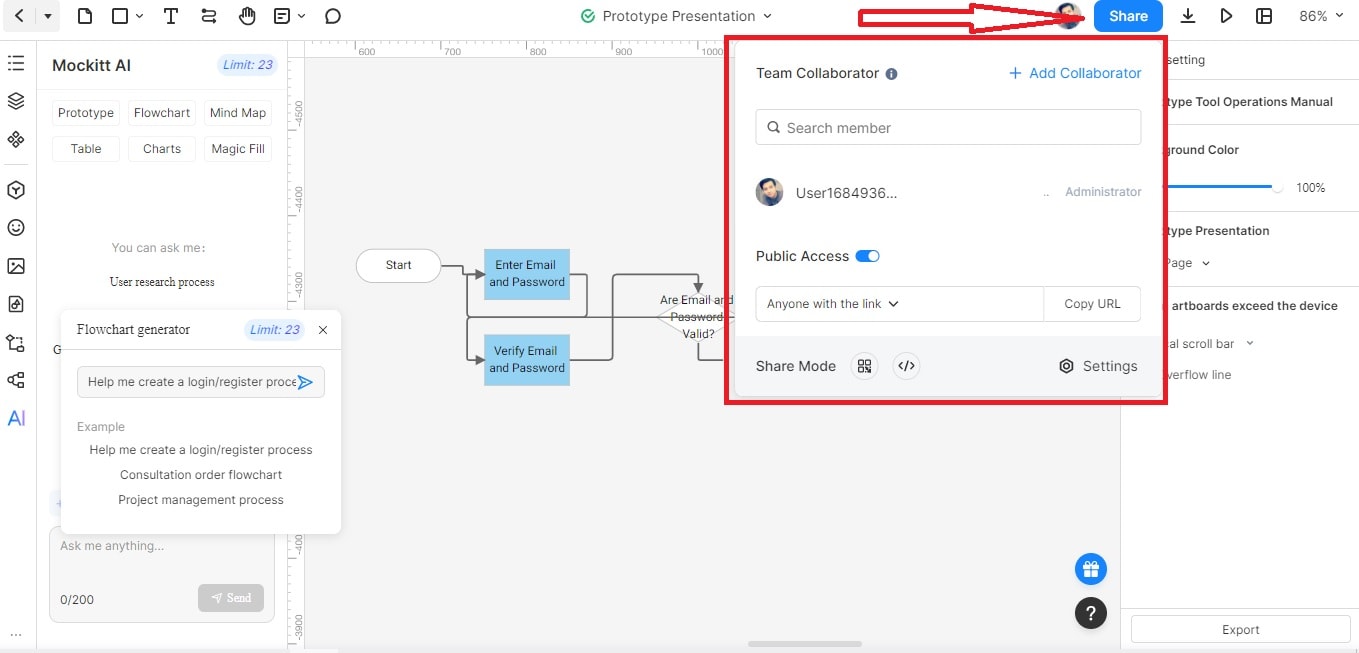
Invite the relevant reviewers with appropriate access. Give each person a concrete task, such as tracing an incomplete request or locating who decides the budget.
Share the current project link and record decisions in the review. Avoid treating a reviewer’s access to the diagram as approval of all its contents.
Step 5: Review and Share the Finished Draft
Inspect the diagram at its intended viewing size and use the export options currently supported by the workspace. Check that labels and connectors remain readable in the exported file. An old HTML or APK prototype-export menu does not establish the correct export format for a flowchart.
Use these answers to resolve common drafting and review problems.
What Are the Best Practices for Utilizing Mockitt's AI in Flowchart Creation?
Give the AI clear process notes and evaluate its output with real cases. If a diagram is too broad, narrow the scope. If a branch is missing, specify its condition and outcome. Keep confidential process data within your organization’s approved tools and access rules.
What Industries or Professions Can Benefit From Using an AI Flowchart Generator?
Teams may use AI-assisted drafts for software workflows, project handoffs, business processes, or learning. The method is useful when the process can be described clearly and someone can verify the result. The diagram should not replace specialist judgment for consequential decisions.
What If the Draft Looks Correct but Misses an Exception?
A polished diagram is not a logic test. Write a short example for each outcome and follow its path from start to finish. Compare the flow with the responsible person’s account of the real process. If you cannot identify the next action, owner, or end state, the draft still needs work.
Conclusion
An AI-generated flowchart is most useful as a reviewable starting point. Clear input, explicit decision labels, and an exception walkthrough help reveal problems that appearance alone cannot show.
Keep the process scope and unresolved questions with the diagram. When the process changes, update the affected branch and review it again before sharing the new version.