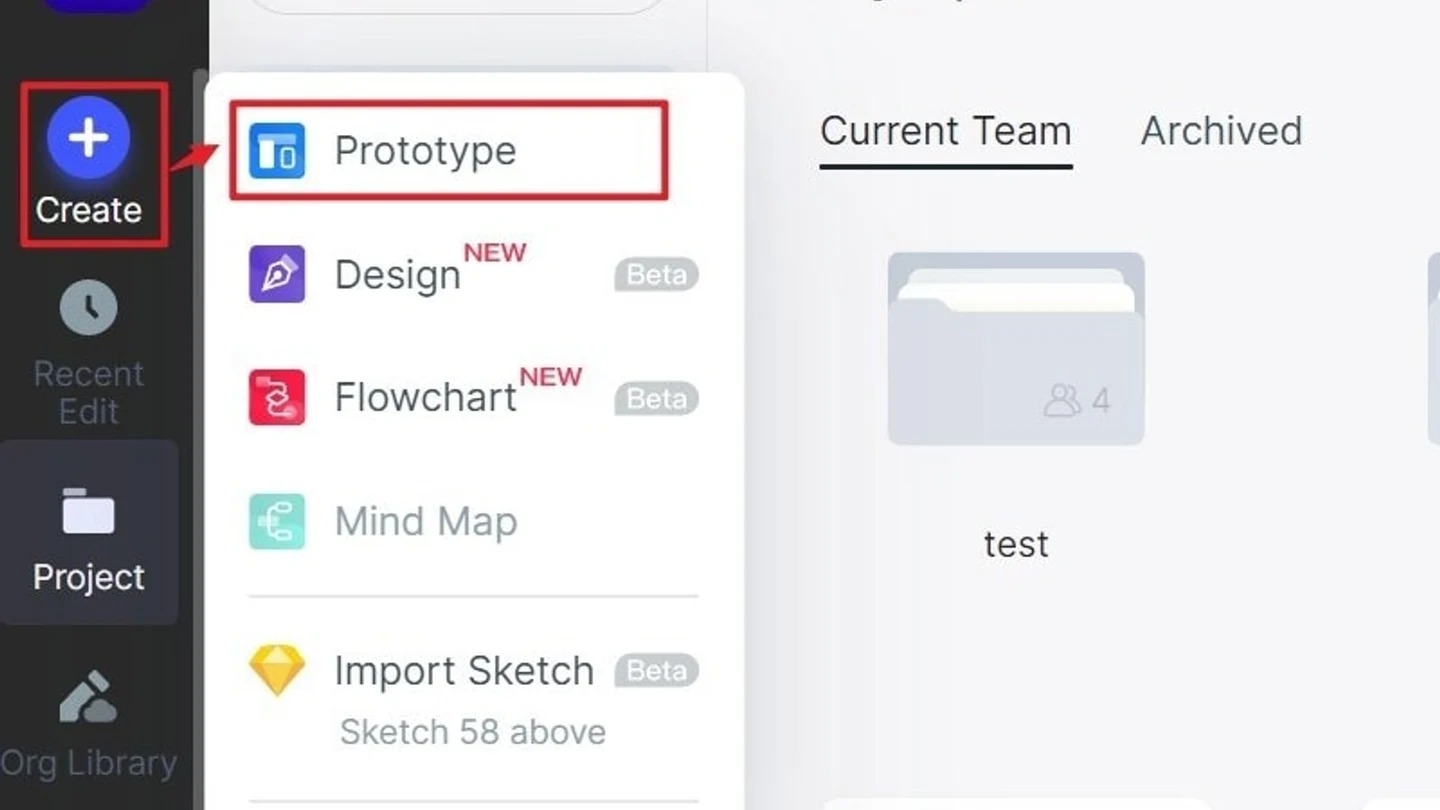

When the route needs editable screens and a shareable preview, Mockitt's online workspace lets the team inspect the same task before implementation.
A flowchart tool should match how you prefer to describe a process and where your team will maintain it. Some tools emphasize dragging shapes, others structured text, shared whiteboards or a specific documentation platform.
The ten options below compare those differences. For a support-triage chart, evaluate the same decisions and request-for-details loop in each shortlisted tool; a familiar editor is useful only if the finished chart stays clear and editable.
Ten flowchart tools by editing style and team needs
1. Mockitt: visual diagrams in a product workspace
Mockitt Diagram provides browser-based shapes, connectors, templates and alignment. It is useful when a process discussion belongs close to product planning and interface design work.
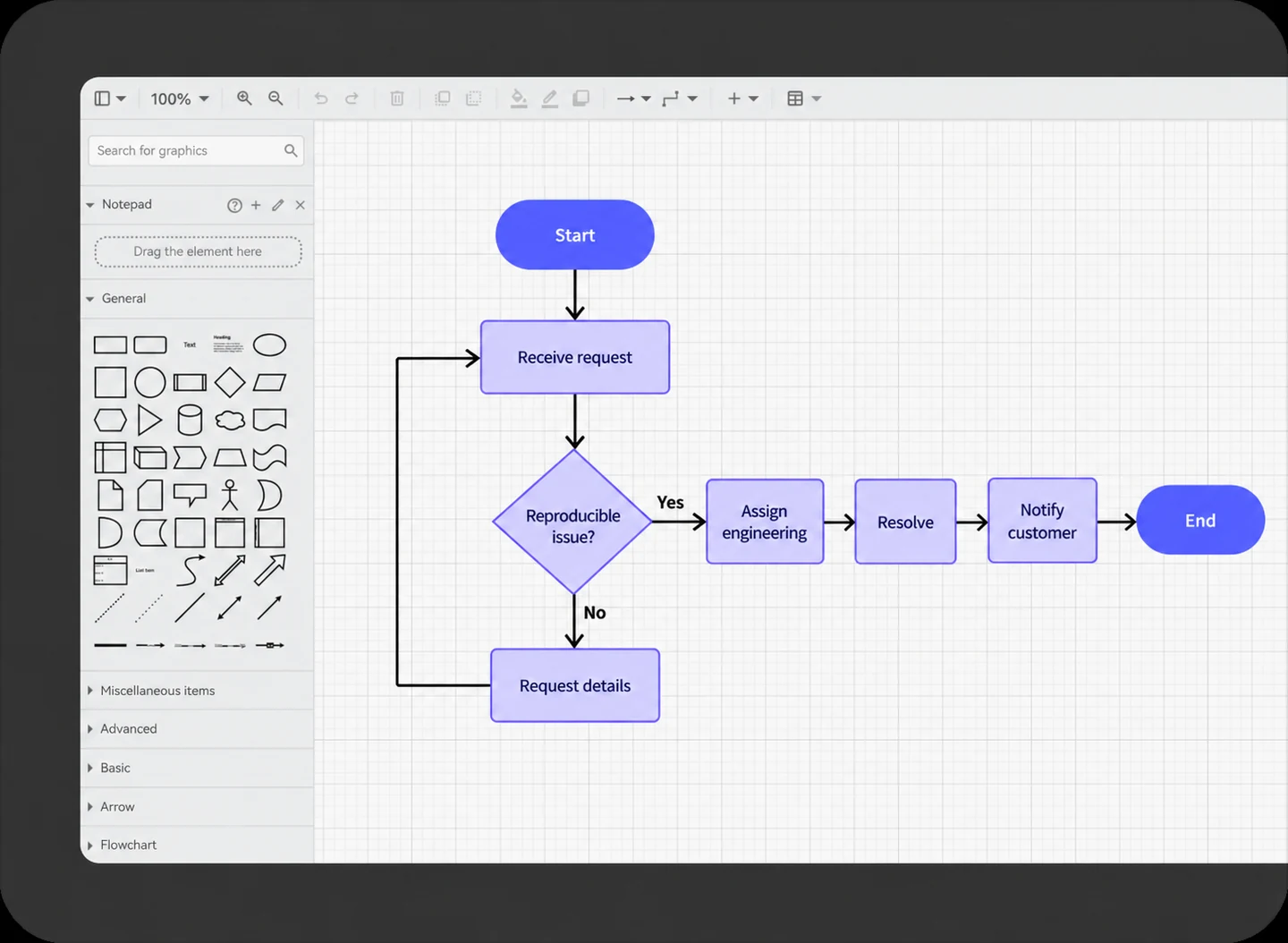
Map support triage with explicit actions: receive the request, check whether the issue can be reproduced, ask for details when needed, and notify the customer after resolution. A diagram and an interface prototype answer different review questions.
Check file, sharing and output limits for the intended plan. Do not assume that every workspace feature is available without a paid plan.
2. Boardmix: collaborative process mapping on a whiteboard
Boardmix provides flowchart templates, shapes and connectors alongside notes, comments and real-time editing. Choose it when people need to agree on the process while looking at the same board.
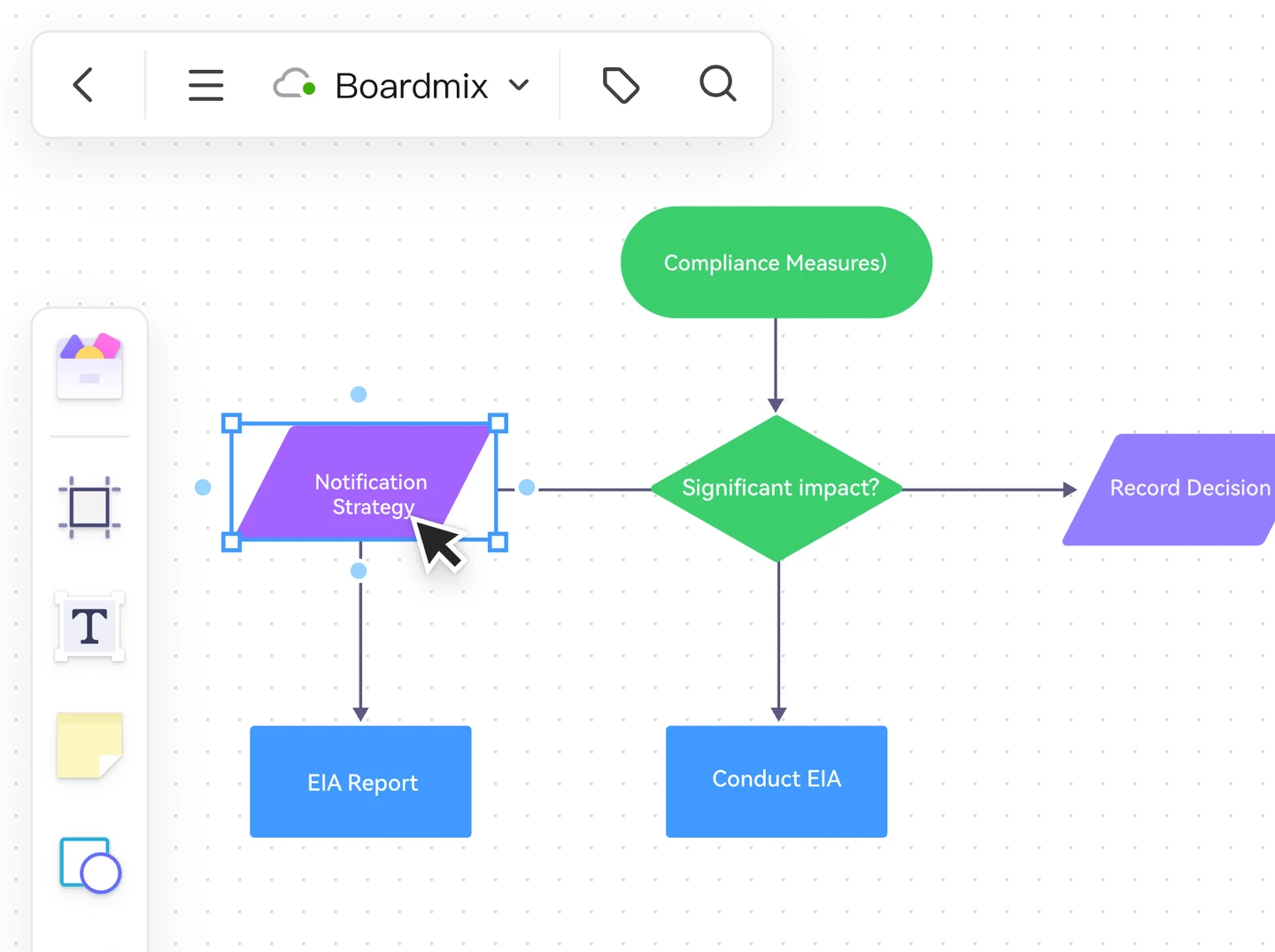
Keep unresolved questions beside the triage flow, then turn each agreed rule into a labeled condition or action. Free-plan boards and objects are limited, and AI generation has separate credit conditions.
3. Lucidchart: shared diagram documents
Lucidchart offers templates, shape libraries and collaborative editing. It is a fit to evaluate when the chart will remain a shared document that several reviewers revisit.
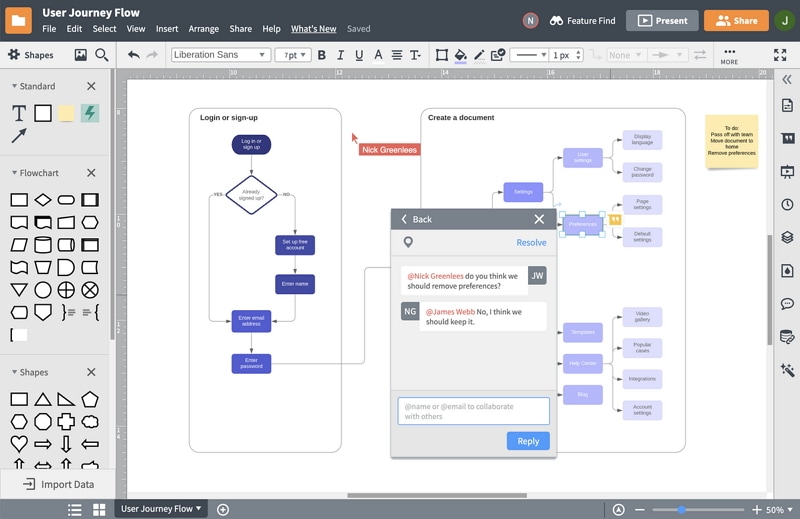
Confirm the imports, exports and document limits your plan supports with a representative file. If another team must receive an editable diagram, verify that handoff before building a large document.
4. Microsoft Visio: Microsoft-centered diagramming
Visio provides dedicated flowchart and other diagramming capabilities. Its web and desktop experiences depend on the license; select the edition around the diagram type and the team’s Microsoft environment.
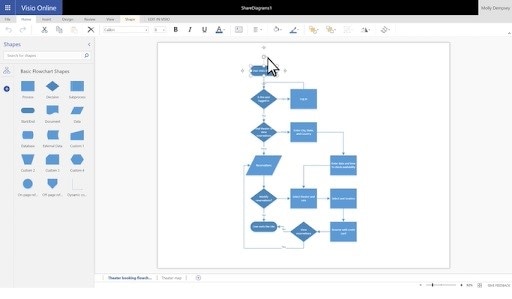
If your organization already has Microsoft 365, verify its included Visio features before purchasing another plan. Decide whether basic web editing is sufficient or whether the process needs additional diagram types or desktop capabilities.
5. Textografo: text as the diagram input
Textografo generates diagrams from simple text syntax. Consider it when writing and revising a structured description is more natural than positioning each shape.
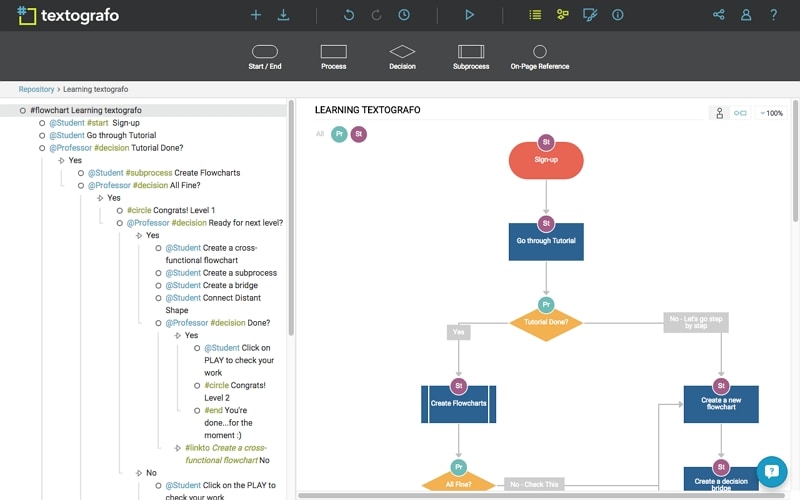
Try a condition with two outcomes and a loop to see how the syntax expresses them. Automatic layout still needs a review of the resulting connections and labels.
6. draw.io: editor and file control
draw.io is a free diagram editor with browser and desktop options. Basic use does not require a draw.io account, and the editable file can be kept in a storage location appropriate to your team.
Its desktop option is relevant to local-file or offline work. Any selected cloud storage or integration has its own permissions and collaboration requirements.
7. OmniGraffle: native Apple diagramming
OmniGraffle is native diagramming software for Mac, iPad and iPhone, with drawing, grouping and alignment tools. It belongs on a shortlist for an Apple-based workflow, not as a browser editor for every operating system.
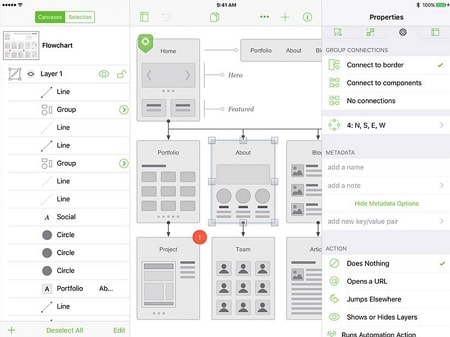
Use the trial to check the document and export workflow. Its broader vector-drawing capabilities do not make it unsuitable for flowcharts, but they may be more than a small process needs.
8. SmartDraw: structured diagram work
SmartDraw offers flowchart templates and diagramming tools. It is useful to compare when structured diagrams are part of a larger documentation workflow.
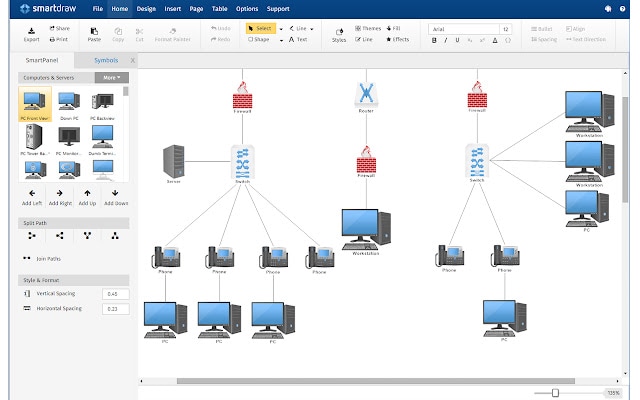
Check the license, file handling and integrations against the place where the diagram will be maintained. Try inserting a step into a representative flow and confirm that the resulting connections still read correctly.
9. Gliffy: Confluence documentation
Gliffy is most relevant to a team documenting work in Confluence. Keep the flowchart next to the page that explains the rules and exceptions.
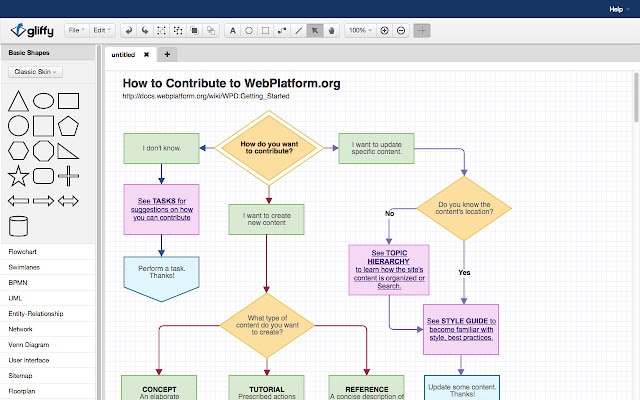
Its licensing focuses on Confluence apps. Verify the hosting model, user tier and access needed by the people maintaining that documentation.
10. Cacoo: collaborative diagram review
Cacoo includes standard flowchart shapes, templates, comments and real-time editing. It can help a team review the same diagram while discussing its decisions.
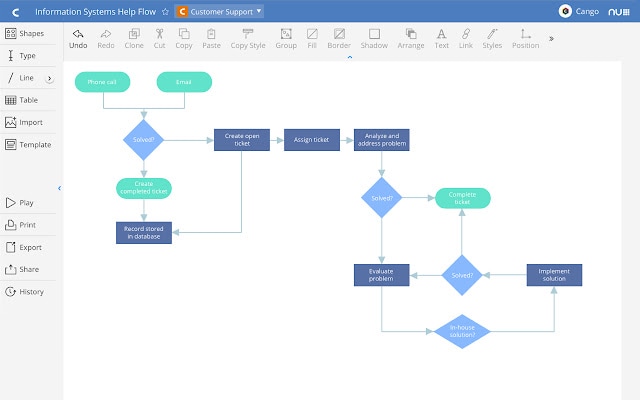
Use comments to resolve ambiguity, and confirm the needed document and export features in your plan. Data and chart features are additional capabilities; they do not replace clear process logic.
Shortlist by input, workspace and handoff
| Tool | Choose it when | Trade-off to check |
|---|---|---|
| Mockitt | You draw shapes visually and need the flow near product-design discussion. | Confirm the maintained diagram and the separate prototype each answer the right review question. |
| Boardmix | The process is being agreed on a whiteboard with comments and notes. | Keep tentative ideas outside the approved flow; include notes in your board-size check. |
| Lucidchart | The team wants a shared diagram document with templates and review. | Use an actual imported or exported file to check compatibility and plan support. |
| Microsoft Visio | The organization already manages diagrams through Microsoft products. | Check included web access versus the paid web or desktop feature set. |
| Textografo | You prefer describing steps in text syntax to arranging every box. | Make sure the syntax expresses your conditions and return paths clearly. |
| draw.io | Editable files and a choice of storage matter more than a vendor document list. | Plan how the source is backed up and how collaborators receive the current file. |
| OmniGraffle | You need a native Apple drawing and diagramming environment. | It is a licensed Apple-platform application, not a browser tool for all computers. |
| SmartDraw | Flowcharts belong in a wider structured-diagram workflow. | Verify the current license, file exchange and integrations you will actually use. |
| Gliffy | The chart’s explanation and maintenance live in Confluence. | Confirm the app, hosting model and licensed user tier with the administrator. |
| Cacoo | The team needs to edit and discuss the same diagram together. | Confirm the document, version and export workflow for the intended reviewers. |
Use a reproducibility check to compare the shortlisted editors: after Receive request, a decision routes Yes to engineering and No to Request details. The No route returns to review only after the details arrive. Move that decision, insert a notification step and ask another person to find the latest editable version. Record which part of the workflow needs extra effort; do not substitute a claimed universal ease-of-use score.
How to Create a Simple Flowchart Online
Step 1. Create a Flowchart Project
Open a Mockitt diagram workspace and choose a suitable template or blank canvas. Write the starting event and intended result before adding intermediate steps.
Step 2. Drag the Elements into Your Canvas
Place the actions and decisions, then connect them. For the support example, the request-for-details route must return to an explicit review step.
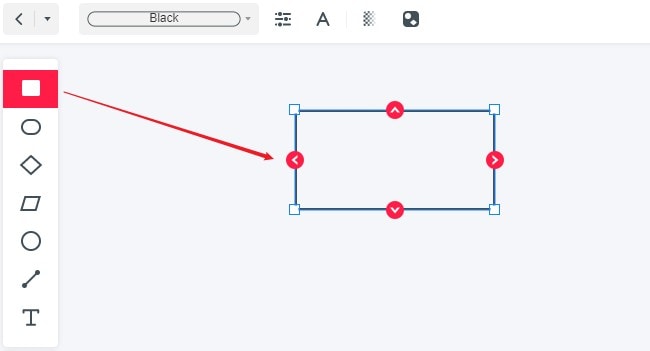
Step 3. Finish Your Flowcharts
Label each outgoing decision path, check line attachment after moving shapes, and review the chart with the process owner. Keep an editable version before sharing or exporting the result.
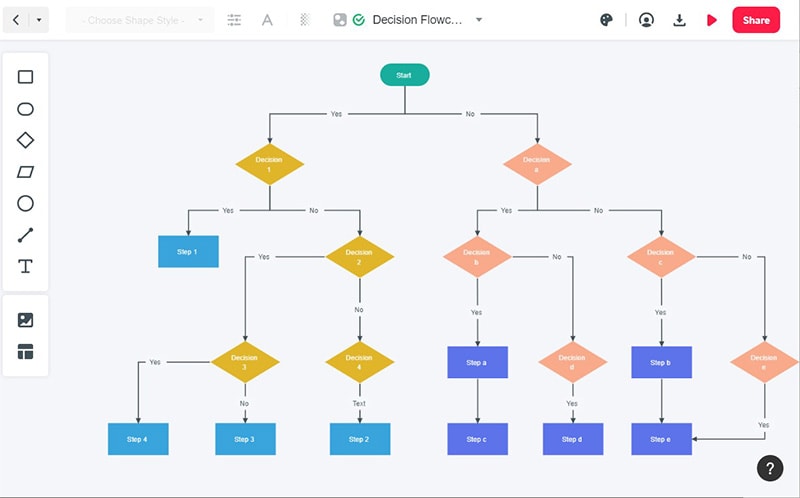
Make each prototype step produce review evidence
For a checkout example, define the starting assumption, create only the screens needed to test it, connect the primary path, and add the error or recovery state that could change the decision. Ask a reviewer to complete the task from the beginning, then record the expected result, observed confusion, and next revision.
| Step | Input | Evidence to keep |
|---|---|---|
| Scope | One uncertain product decision | Decision statement and success condition |
| Build | Minimum screens and states | Connected route and visible labels |
| Review | Known task and starting state | Observed issue and assigned change |