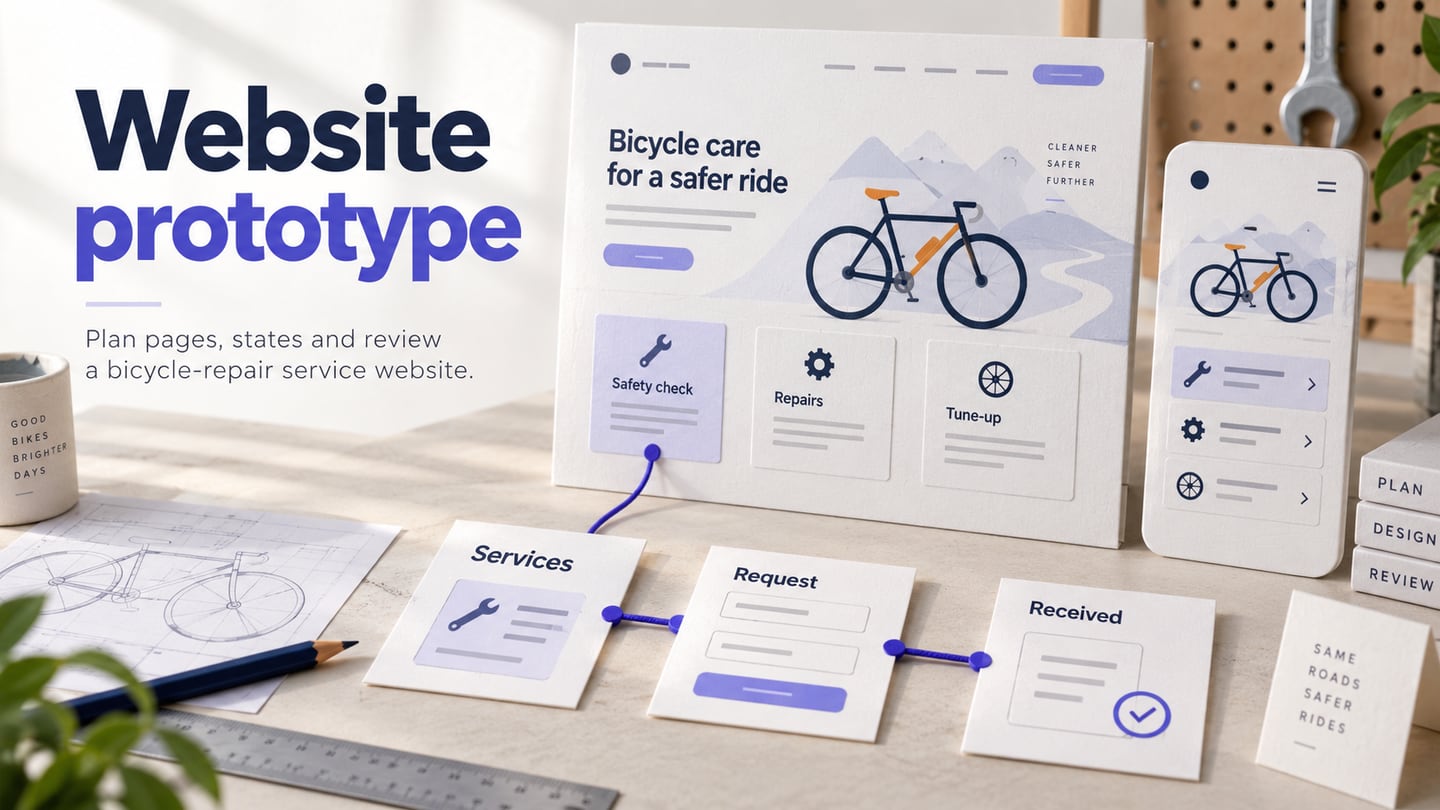
For a connected, reviewable flow, use Mockitt's online prototyping workspace to link pages and preview the route before implementation.
Set acceptance criteria before drawing every page
Write the task in one sentence, such as “A first-time visitor compares two plans and sends an enquiry.” Then list the minimum evidence: the entry point, comparison state, validation message, success confirmation, and a way back. This keeps the prototype focused and prevents a polished but incomplete page collection.
| Viewport | Check in the prototype | Evidence to capture |
|---|---|---|
| Wide desktop | Navigation, comparison, and primary action remain visible together | Task completion path and decision copy |
| Narrow mobile | Menu, form fields, and sticky actions remain reachable | Scroll position and validation state |
| Recovery | Empty, error, and return paths explain the next step | Message plus action that restores progress |
A website prototype is a model of the pages, navigation, and interface states a visitor will use. It can show how someone moves from a service listing to a detail page and then to a request form before the website is implemented. Unlike a static mockup, an interactive prototype lets a reviewer try that route and inspect what happens after a choice.
This beginner walkthrough applies an eight-step Mockitt process to a bicycle-repair service website. The goal is concrete: a visitor should find the right repair service, understand what is included, and request a time on both a wide and a narrow screen. The booking is a design example, not a live appointment system.
Prepare the Pages and Visitor Task
Mockitt can be used to arrange website screens, connect interactions, and share the prototype for review. Start with the visitor’s question rather than a collection of polished pages. For this example, the visitor needs a commuter-bike safety check and wants to know the service scope before requesting an appointment.
List the information required to complete the task: service categories, the selected service’s scope, an appointment request form, and a confirmation. Sketch their order before choosing fonts or imagery. Keep contact details and opening hours available where the visitor may need reassurance. A good route supplies the right information at the right point; fewer clicks alone do not establish a better experience.
| Page or state | Visitor question | Content to include |
|---|---|---|
| Services | Which repair fits my need? | Service names, a short scope, and a clear route to details. |
| Safety check details | What will the shop inspect? | Inclusions, exclusions, and a request-appointment action. |
| Appointment request | What must I provide? | Contact fields, preferred date, and an explanation of how confirmation works. |
| Request received | What happens next? | A summary and a clear statement that the shop must confirm the slot. |
| Missing contact detail | How do I fix the request? | An error beside the relevant field and a way to continue without restarting. |
Build the Website Prototype in Mockitt
Use the steps below to build the route. The screenshots illustrate an earlier Mockitt editor; current controls may appear in a different place. Follow the task and check the resulting page or interaction at each stage.
Step 1: Create a Project
Sign in to the current Mockitt website and create a prototype project. Name it “Bicycle service — booking review.” Start with a blank project or remove unrelated sections from a template. Add Services, Safety check details, Appointment request, and Request received as clearly named screens so the eventual connectors are easy to inspect.

Step 2: Prepare Wide and Narrow Layouts
Set a wide-screen canvas and a narrow-screen canvas for the pages you want to review. For example, use a desktop service grid and a phone layout that stacks service cards. Keep the same information and task in both. Changing a canvas size does not automatically produce a responsive website; you still need to decide how navigation, content order, and controls adapt.
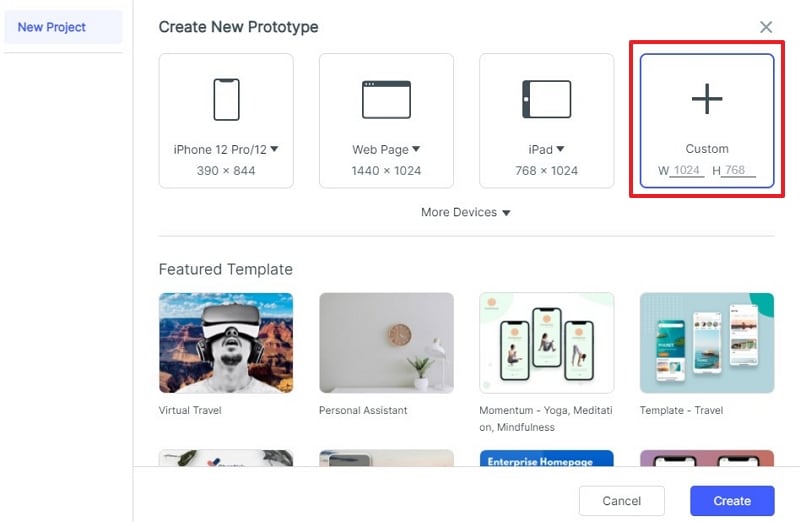
Step 3: Add Widgets and Icons to Your Web Prototype Project
Add text, cards, buttons, and form fields from the widget library. On Services, show “Safety check” as a recognizable choice. On its detail page, list the inspection scope before the appointment action. Use specific content instead of placeholder paragraphs so you can test whether the page answers the visitor’s question.
Use icons to support labels rather than replace them. The narrow-screen navigation should make Services and Contact findable without requiring the visitor to recognize an unfamiliar symbol. Create an open-menu state as well as the closed header.
Edit widget properties to establish a readable heading hierarchy and consistent controls. Test a longer service name and a multiline description. They should wrap without covering the next action or making adjacent cards appear to describe different categories.
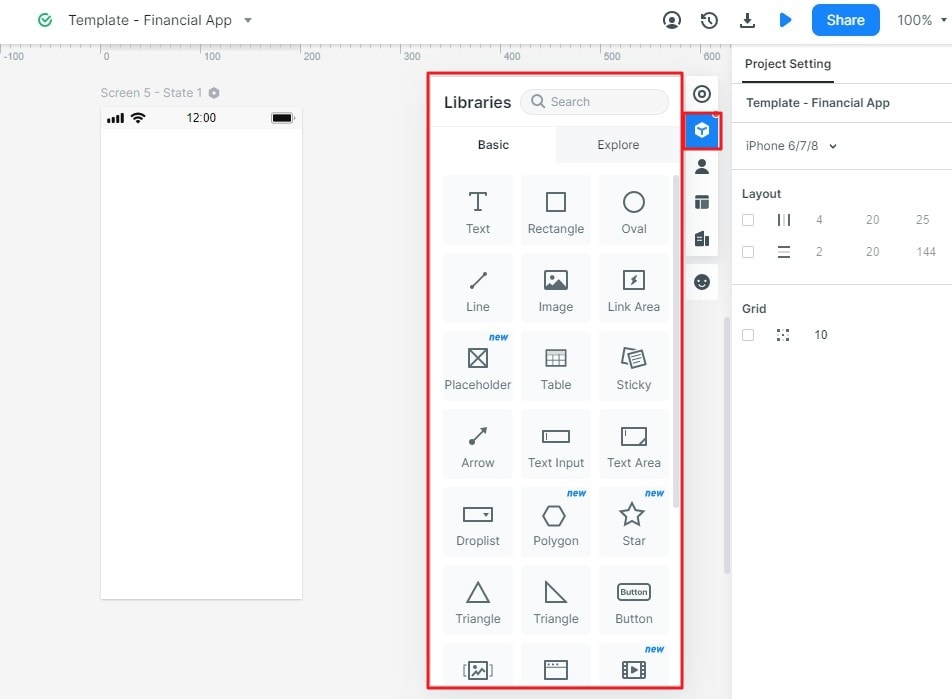
Step 4: Save Widgets
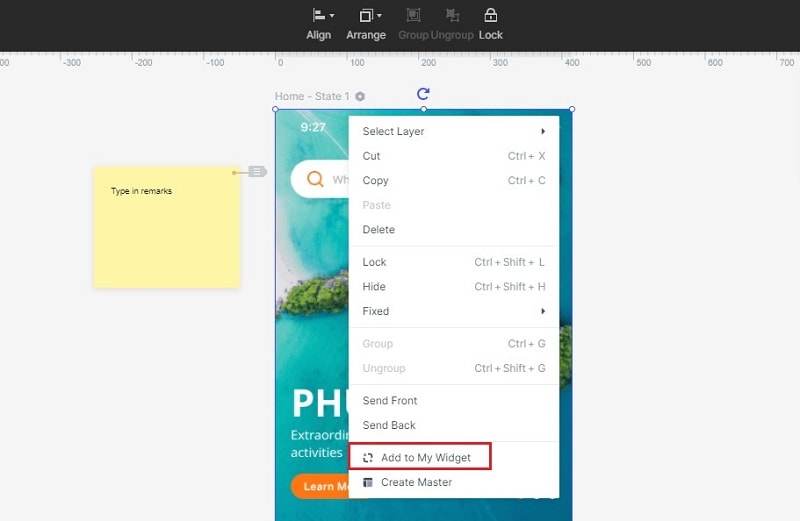
Save a useful widget or grouped pattern for reuse instead of redrawing it on every page. For this site, a service card should keep the same title, description, and action order across categories. The original My Widget example below illustrates saving such a reusable element.
Step 5: Add Links for the Web Prototype Project
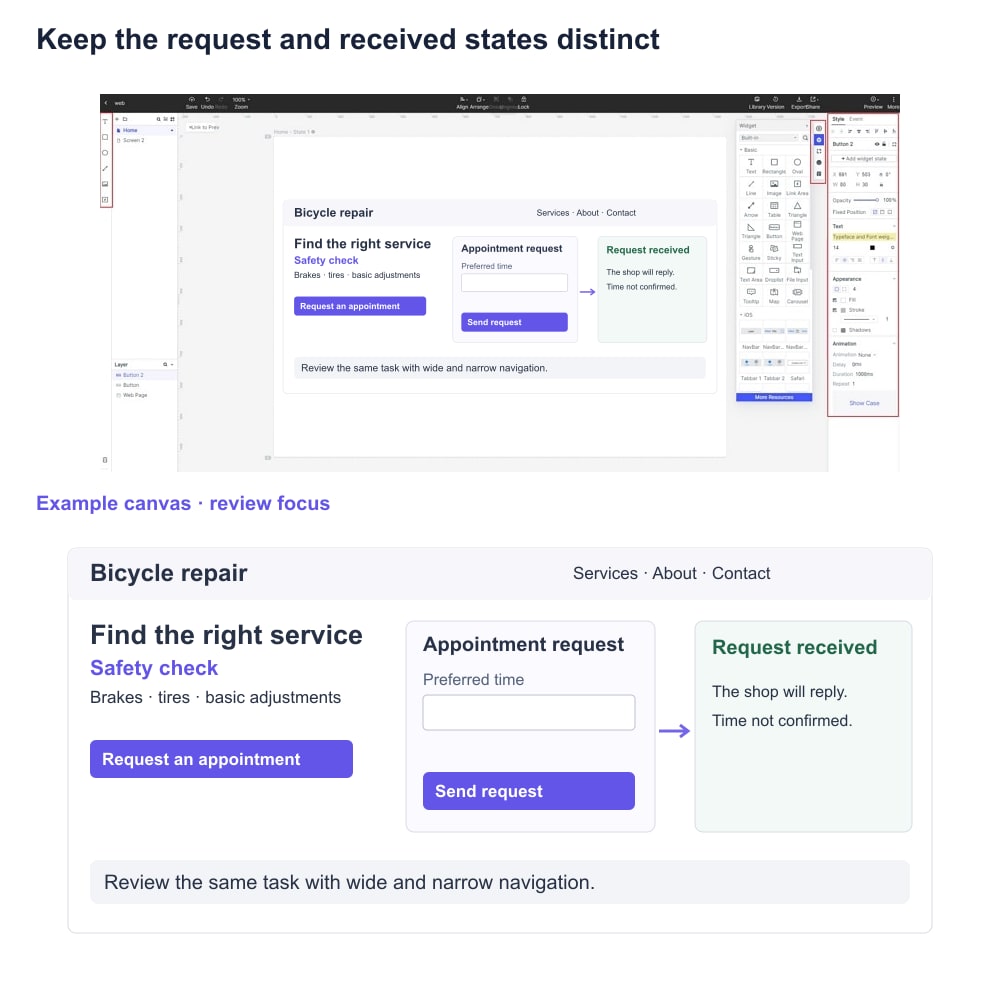
Connect Safety check on Services to the matching detail page. Connect Request appointment to the form, and the scripted Submit action to Request received. Set the trigger and destination for each interaction, then add Back or Cancel where a visitor may change their mind. Do not connect every card to the same detail screen merely to make the prototype seem clickable.
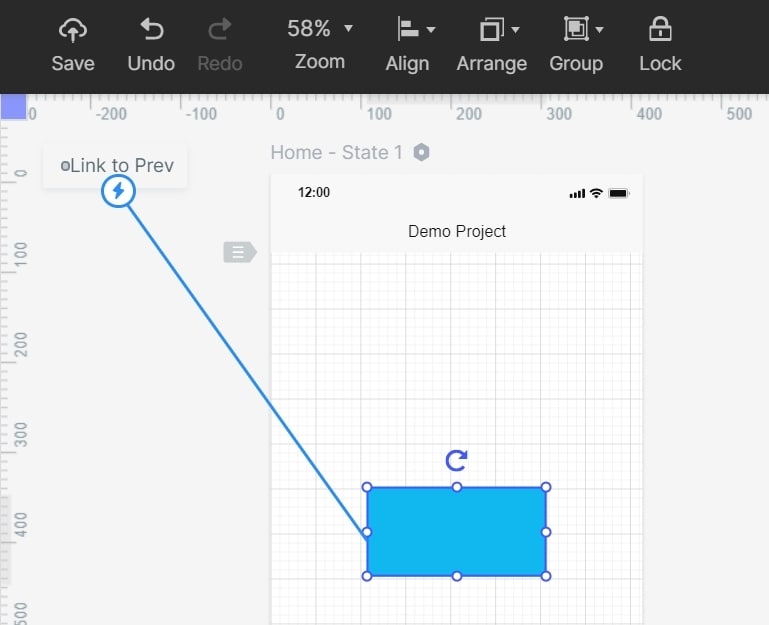
Step 6: Convert Widget to Master
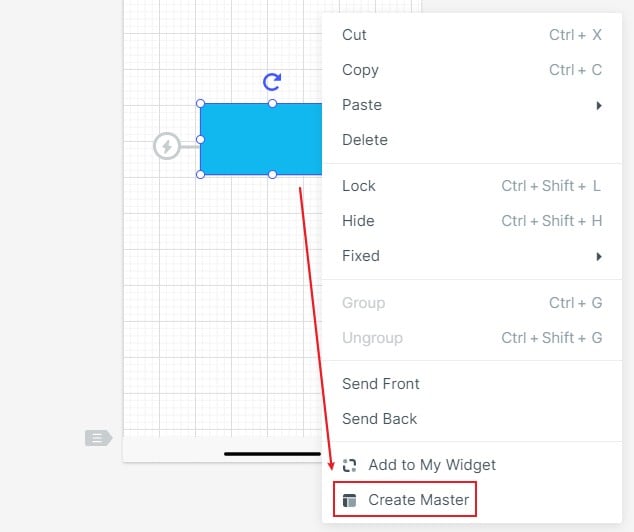
The original Create Master operation demonstrates why repeated elements should have a shared source. Use a reusable header or navigation pattern so a label change can be applied consistently. Check each instance after changing it: a page may need a different active state or a different link target even when the appearance is shared.
Step 7: Add Notes to Your Web Prototype Design
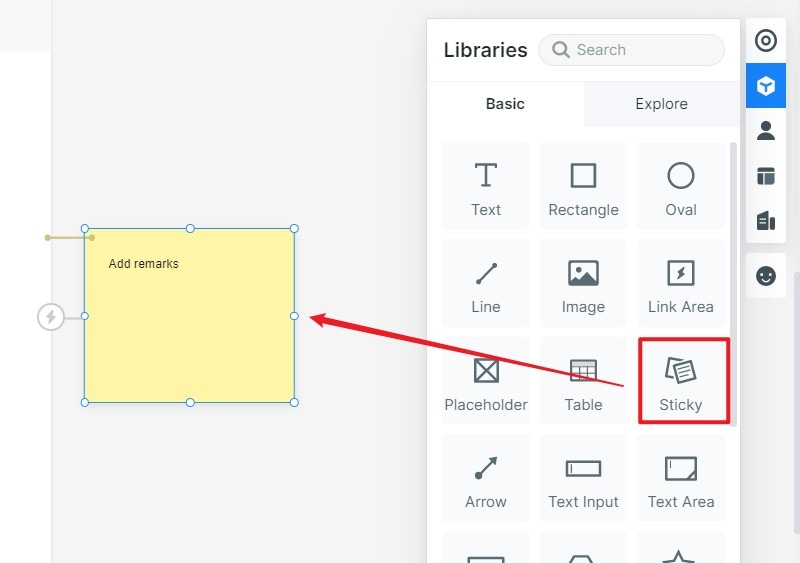
Add notes beside behavior the prototype cannot fully demonstrate. For this site, note that submitting a request does not reserve an appointment until the shop confirms it. Specify required fields, who receives the request, and what should happen if submission fails. These notes are requirements for implementation, not proof that the prototype performs those actions.
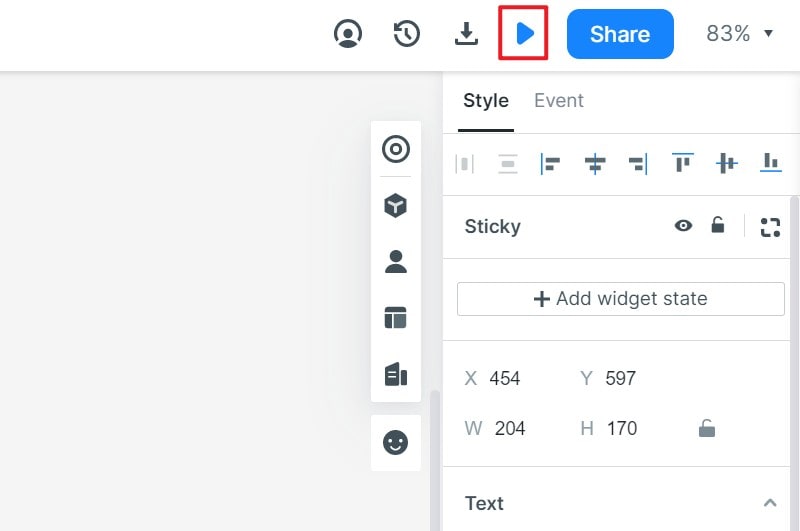
Step 8: Preview and Share the Complete Route
Preview from Services and follow the booking request without using the editor’s screen list. Repeat the route at the narrow-screen size and open and close its navigation menu. Check that the selected service remains clear on the form and confirmation, and that a visitor can return to change it.
Create a review link with the intended permissions and open it as a recipient before sending it. Ask the reviewer to find the safety-check service, explain what it includes, and request a time. Use “Where would you go next?” when they pause, rather than telling them which button to choose.
Review the Content and the Route Together
Collect evidence for the decisions this prototype is intended to support. The examples below describe observations to look for; they are not reported test results.
- Findability: note the first service category a participant chooses. If they select the wrong category, record the label and what they expected to find there.
- Scope comprehension: ask what the safety check includes before the participant opens the form. If they infer a repair that is not included, revise the service description rather than simply enlarging the CTA.
- Request status: after the final screen, ask whether the appointment is confirmed. “Request received” and “Appointment booked” represent different commitments; the design should express the intended one.
- Narrow-screen recovery: observe whether the participant can close the menu, read a field error, and return to the previous page without losing the context of the selected service.
For handoff, attach the agreed page/state list, unresolved questions, and a screenshot or link for each observed issue. Mark keyboard order, semantic headings, form labels, and responsive rules as implementation checks where the prototype cannot verify them. A visual preview alone is not evidence that the delivered website meets those requirements. If the page structure is still unsettled, develop it first with the low-fidelity wireframe workflow.
Resources for the Next Website Design Decision
Use a resource for a specific question you encounter while building the prototype. The sources below help with page structure, responsive behavior, design judgement, and choosing further training.
W3C: Page Structure
The W3C page-structure tutorial explains page regions and headings. Use it to document the intended header, navigation, main content, and footer relationships for implementation. Your visual prototype can express this hierarchy, while the built website must supply the appropriate semantics.
MDN: Responsive Design
MDN’s responsive design guide explains how layouts adapt to different viewports. Use it when writing notes about wrapping navigation, stacked cards, and content order, then verify those behaviors in the implemented website.
Choose Training with a Relevant Project
Before choosing a course, look for a recent example project, accessible lesson previews, and instruction for the tool you will actually use. A course should show its design decisions and review process, not only a polished final screen.
Udemy
Udemy has a user-experience design course catalog. Evaluate individual courses by their current syllabus, project work, and instructor evidence; do not choose one solely because it teaches a product named in an old tutorial.
Hack Design
Hack Design’s lessons offer further reading on design fundamentals. Select a lesson that addresses a specific weakness in your prototype, such as information hierarchy or interaction decisions, and apply it to the next revision of your service page.