Meta AI text to video spans several different projects. Make-A-Video was Meta's 2022 research system for generating short clips from written descriptions. Movie Gen later demonstrated video generation, editing, and audio capabilities. Vibes brought a video creation and remixing experience to consumers in a 2025 preview. Those names describe different stages of Meta's work; finding a research demo does not mean you have access to that model in your account.
If you want to make a video, first identify the creation tools available to you, then prepare one clear shot and build from there. For a product concept clip, you can also explore Mockitt's AI video generator using the same brief. Keep the production choice separate from the creative plan: a useful brief travels between tools without depending on a particular model name.
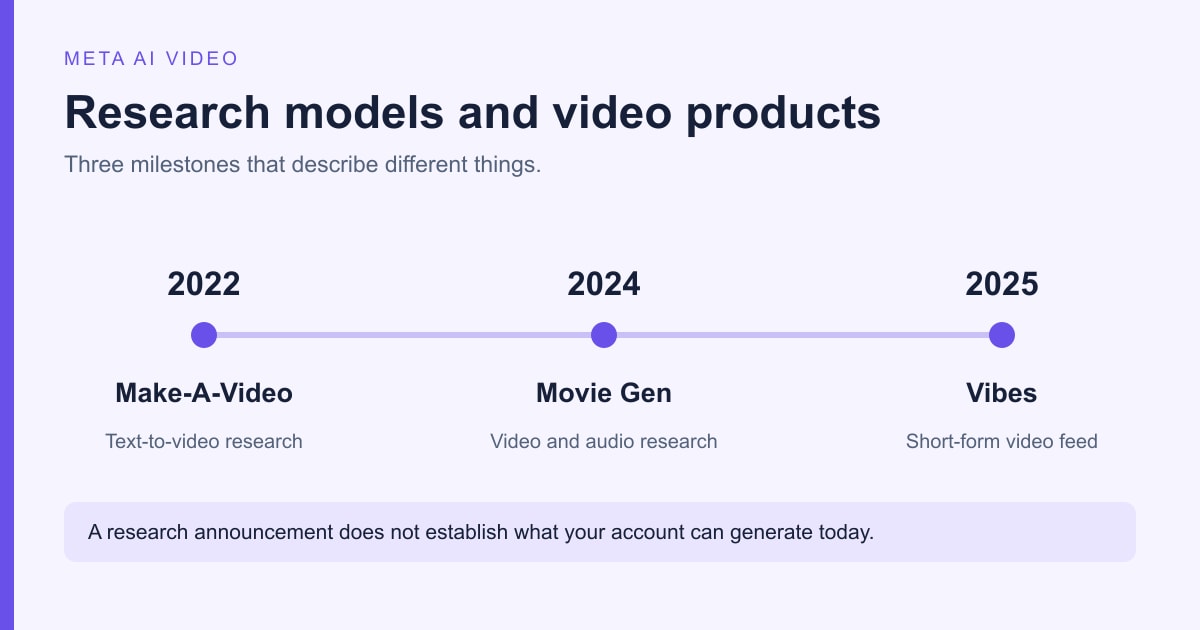
Make-A-Video, Movie Gen, and Vibes: what is the difference?
The phrase “Meta AI video generator” can lead to research announcements, sample clips, or a consumer creation feature. Knowing which one you are looking at prevents a common dead end: following instructions for a research project as though it were an app you can install.
Make-A-Video: the original text-to-video research
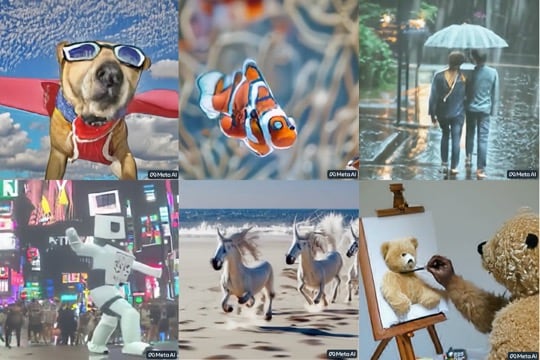
Meta announced Make-A-Video on September 29, 2022. Its researchers combined information learned from image-and-text pairs with motion learned from videos that did not need matching descriptions. The system could produce short clips from text, animate images, and make variations of an existing video.
Make-A-Video generated visual sequences from a written scene description. Turning those clips into a finished video still involves planning the sequence, editing the shots, and adding any dialogue or soundtrack.
The original announcement shared research and said a demo experience was planned. It is useful for understanding how text-to-video developed, but it is not a reliable source for today's sign-up instructions, account limits, or download options.
Movie Gen: video and audio research
Meta's Movie Gen research, introduced in 2024, covered a wider set of tasks: creating video from text, changing an existing video with instructions, personalizing a video using an image, and generating audio. The research paper describes high-definition output and synchronized audio capabilities across its model family.
These are research capabilities, not a promise that every Meta app offers all of them. For example, a tool that lets you change the style of an uploaded clip may not expose the same controls as a model demonstration. Choose the product by the operation it actually provides, rather than assuming that a shared research name guarantees identical features.
Vibes: a consumer creation and remixing experience
On September 25, 2025, Meta announced an early preview of Vibes in the Meta AI app and on its website. The announcement described creating short AI videos, working from existing content, and remixing videos from a feed. It also described adding music, changing visual styles, and sharing the result.
That launch explains why older instructions mention the Vibes feed. It does not establish the exact screen, model, or allowance that every account has today. Before planning a project around a particular feature, open your available creation experience and confirm whether it accepts text, an image, an existing video, or a combination. The input you can supply determines the workflow you can use.
How to turn an idea into a usable video prompt
Start with a single shot that communicates one thing. “Make a promotional video for my travel app” leaves the setting, action, camera, and purpose unresolved. A more workable request describes what a viewer should see and what changes during the shot.
Write the shot before adding the style
Consider a fictional travel-planning app called Trailside. Its landing page needs a short atmosphere clip above a section about weekend trips. The clip should suggest a quiet getaway; it should not pretend to demonstrate the app's booking system.
- Subject: one traveler with a small backpack.
- Action: the traveler walks toward a lakeside cabin and pauses on the porch.
- Setting: a wooded lakeshore just after sunrise.
- Camera: a steady wide shot with a slow forward movement.
- Look: natural morning light and restrained colors.
- Placement: a wide desktop hero, with enough central space to survive a narrower crop.
- Restrictions: no readable signs, logos, captions, or additional people.
Put those choices into a prompt:
A traveler wearing a dark green backpack walks along a wooden path toward a small cabin beside a calm lake. They stop on the porch and look toward the water. Wide shot, slow forward camera movement, soft sunrise light, natural colors, quiet atmosphere. Keep the traveler and cabin near the center. No visible logos, captions, or readable signs.
This is a proposed creative brief, not a claim that a particular model has produced the result. Set duration and aspect ratio in the tool's controls when those options exist. Adding “six seconds” or “16:9” to a prompt is not a substitute for an actual output setting.
Choose text, an image, or an existing clip
Use text alone when you are exploring a scene and can accept variation. If an available tool supports a reference image, use an image you have permission to use when a specific subject or composition matters. Check whether the tool animates the image or simply treats it as guidance; those can lead to very different results.
Use a video-editing feature when you already have footage and want to change something about it. Describe the requested change and the parts that should remain: “Keep the person's movement and the camera angle; change the background to an evening street.” A request to edit existing footage is different from asking a model to recreate that footage from scratch.
Change one choice at a time
After generating a first version, identify the most important problem. If the camera moves too much, simplify the camera instruction. If the subject disappears behind scenery, change the framing. If a hand or object changes shape, try a less complex action before adding more descriptive language.
Keep the brief and a short note next to each version. “Version B: fixed camera, one person, no turn toward camera” is more useful than “better version.” It lets a teammate understand what changed and gives you a repeatable way to compare results.
Finish the details in an editor
Add exact brand text, captions, and a call to action as separate editable elements. That keeps spelling, placement, and timing under your control. For Trailside, the line “Plan your next weekend away” belongs in the page design or editing timeline, rather than being baked into the generated scenery.
Watch the entire exported clip, including its first and last frames. Check that objects remain recognizable, movement is believable for the intended style, and any audio fits the scene. If the clip loops, compare the ending with the opening; an attractive still does not guarantee a smooth loop.
Where AI video fits in marketing, education, and entertainment
AI video is useful when the scene itself helps communicate an idea. Its value is more limited when viewers need exact evidence of a real product, place, or event.
- Marketing: explore a campaign mood, create a fictional setting, or test a visual direction before a shoot. Use real footage for claims that depend on the product's actual appearance or behavior. A generated unboxing is not evidence of what customers receive.
- Education: illustrate an imagined scenario or introduce a discussion topic. When demonstrating a scientific process or historical event, make the explanatory text accurate and identify illustrative scenes so they are not mistaken for documentation.
- Entertainment: experiment with a surreal character, setting, or transition. For a sequence of shots, define recurring features such as clothing and environment before generating variants, then check continuity during editing.
Brand consistency requires more than adding a brand name to the prompt. Choose a visual palette, decide where the logo belongs, and keep typography editable. For personalized clips, obtain permission to use a person's image or voice and review the intended use before sharing. A convincing output does not establish permission to use its source material.
Use a video brief alongside your UX prototype
A generated clip can help a design team discuss a page's mood or storytelling. It cannot replace an interactive prototype when the question is whether people can navigate, complete a form, or understand a purchase flow.
For the Trailside example, separate two deliverables: a travel atmosphere clip and an editable landing-page prototype. The prototype should still communicate the destination, trip details, and next action when the video is paused or replaced with a still image. That makes the design usable in more contexts and makes the clip's actual contribution easier to judge.
Plan the scene beside the page design
The historical Mockitt example below shows a travel-page prototype next to AI Chat, with a request for a text-to-video prompt. The assistant's role here is to help develop the written brief. The video itself is a separate asset to create after choosing a scene.
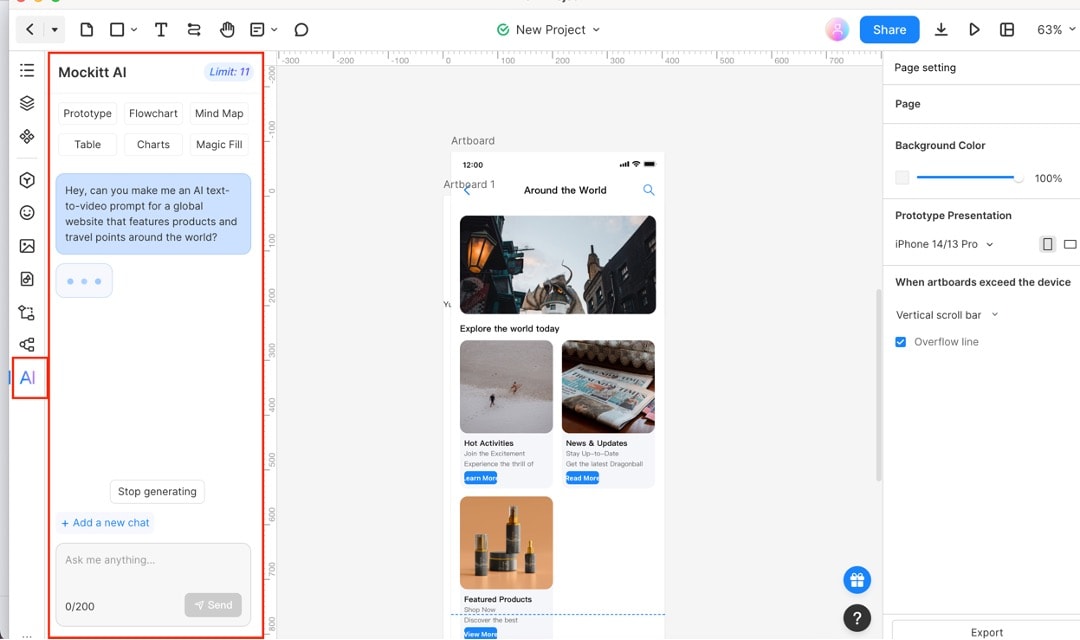
Supply the context explicitly instead of relying on the assistant to infer it. A useful request would be:
Write three single-shot video concepts for a travel-planning landing page. The audience is people planning a quiet two-day trip. The clip sits behind a short headline, so leave uncluttered space and avoid readable text. Describe the subject, action, setting, and camera for each concept. Do not include app screens or imply that a trip has been booked.
Choose a concept, revise it into a shot brief, and take that brief to the video tool you have selected. Move the written brief between the tools yourself; this workflow does not require a direct Mockitt-to-Meta connection.
Judge the clip in the page where it will appear
Review the composition at both wide and narrow sizes. A landscape shot can lose its subject when cropped for a phone. Keep headline text readable against both bright and dark frames, provide a useful still-image fallback, and decide whether motion is necessary on smaller screens.
If the clip contains meaningful speech, provide captions. If it is decorative, the page should explain the offer without sound or motion. Keep important information, buttons, and navigation in the interface rather than inside the video. Your prototype review can then answer a concrete question: does this clip make the page easier to understand, or does it distract from the next action?
What to expect beyond a single clip
Meta's progression from Make-A-Video to later video research shows why text-to-video is broader than generating a moving picture from a sentence. Editing, sound, and consistency across shots all affect whether a clip can become part of a finished piece. Research progress in those areas does not remove the need to assemble and review the final video.
Virtual- and augmented-reality projects can use generated video as one kind of visual asset, but a video file is not automatically an interactive 3D environment. Likewise, personalized scenery does not by itself create a personalized product experience. Build and test the surrounding experience separately.
Start with one shot you can actually use
For a Meta AI video project, identify the available creation feature, write one specific shot, and refine the result before adding more scenes. Keep Make-A-Video and Movie Gen research examples in their historical context. For a website or app, plan the clip alongside the interface, then assess both together. A short video with a clear job is a better starting point than an ambitious prompt with no defined destination.