Mockitt AI · Video planning
AI Video Script Generator
Give every shot a reason to be there.
Bring the product, audience, and intended duration. Use Mockitt AI to develop an opening, arrange the shots, and write narration that fits what viewers will see. Refine the script before recording, editing, or generating the video.
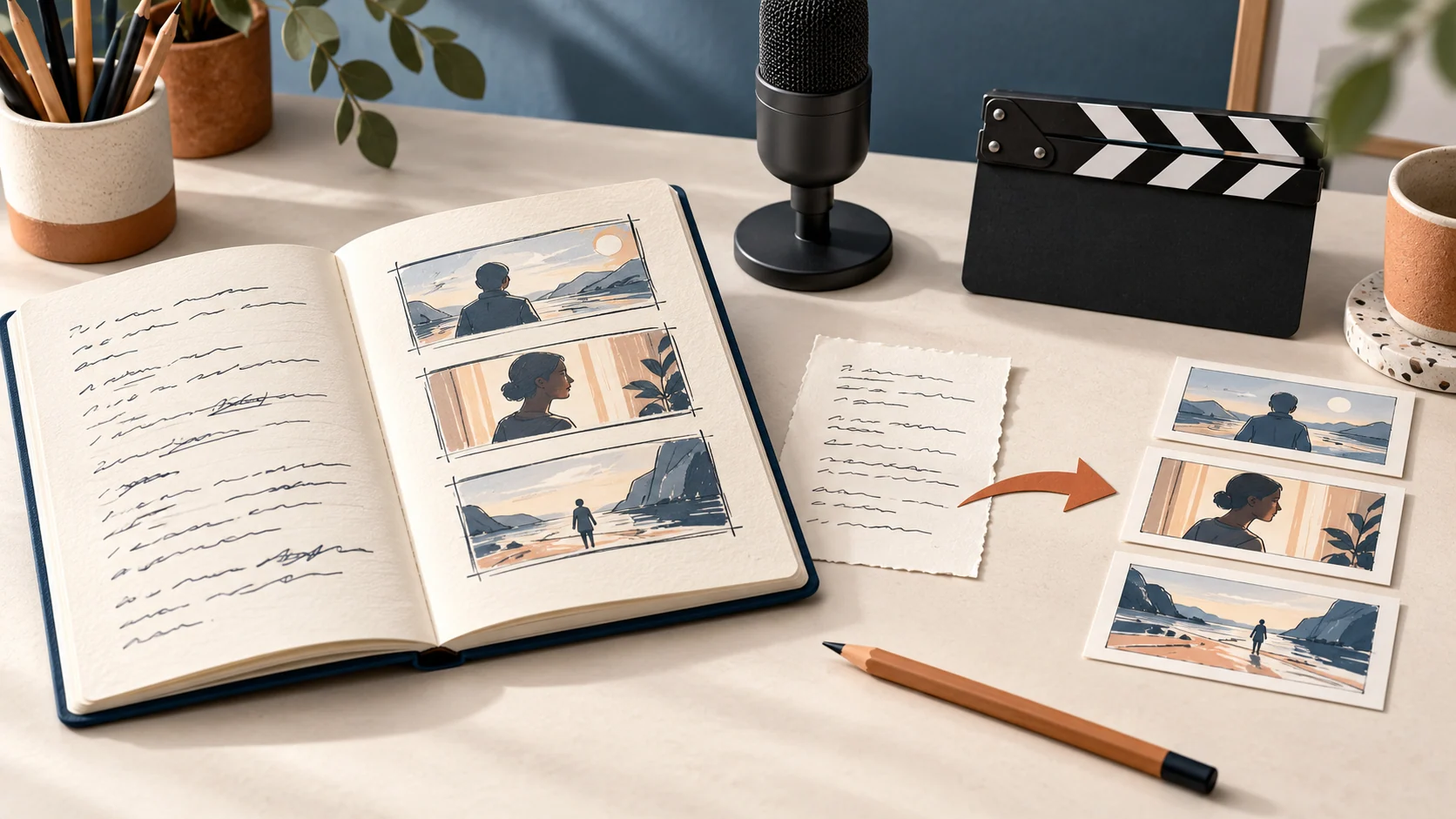
Ask for a plan a production teammate can follow
Narration explains what to say. A shot-by-shot script also explains what appears on screen, how long it stays there, and which assets are needed. That extra detail matters when a product demonstration must show a real action rather than an abstract benefit.
Provide the actual feature list, screenshots or recording options, audience, and next step. Say whether you want a presenter, screen recording, physical product footage, or a combination. Leave unavailable assets visible as a production need rather than inventing their contents.
A recordable action
Replace “show how easy it is” with a specific operation: open the list, add an item, choose it for today, and show the resulting state.
Narration with a purpose
Explain the action or its meaning without reading every button label. Give technical terms and product names enough time to be understood.
Readable screen text
Use a short emphasis line for each shot. Full accessibility captions can be prepared during production; they are different from a large headline on screen.
Illustrative script · Fictional app
A complete 45-second task-app demonstration
FocusList is a fictional app with four features for this example: record tasks, select today's tasks, add subtasks, and mark items complete. The video is for people organizing a busy workday. Its purpose is to show the workflow and invite viewers to create a first list.
| Time | Shot and action | Narration | Emphasis text |
|---|---|---|---|
| 0–5 sec | Film a few desk notes, then cut to a phone showing an empty list. | You wrote it all down. What needs your attention today? | Start with today. |
| 5–12 sec | Record adding Finish the proposal, Reply to the client, and Book a room. | Capture the tasks in FocusList so you can see what is waiting. | Get the tasks in one place. |
| 12–20 sec | Select Finish the proposal and add it to the Today list; hold on the changed view. | Choose the work you want to move forward today, without losing the rest of the list. | Choose today's focus. |
| 20–29 sec | Open the task and show three subtasks: outline the problem, sketch the flow, and add notes. | Break a large task into a few actions you can begin: outline, sketch, and explain. | Make the next action clear. |
| 29–38 sec | Mark the first subtask complete. Return to the Today list and show what remains. | Mark a step complete when it is done. Keep the remaining work visible for the next pass. | See what is done and what is next. |
| 38–45 sec | Hold on the list, then show the product name with one action. | Start with one task that matters. Create your first Today list in FocusList. | FocusList · Create your first list |
On a small screen, swipe across the table to see every column.
The intervals total 45 seconds. Read the narration aloud and record the real actions before locking the timing. A click sequence may take longer than its description, and a name or caption may need more reading time.
For a shorter version, tell a smaller story
A 15-second version should not cram the entire 45-second demo into faster cuts. Retain the essentials: capture a task, choose it for today, and mark it complete. Save the subtask explanation for a separate video.
One workable plan is three seconds for the problem, five for adding and selecting a task, four for the completed state, and three for the closing action. Shorten the narration and screen text with the shots; otherwise, the new timing only works on paper.
Revision request: Rewrite the 45-second script as four shots totaling 15 seconds. Keep task capture, the Today list, and marking complete. Remove the subtask sequence. Reserve the final three seconds for the product name and one next step.
Develop the script around the material you have
Name the viewer and objective
Explain who the video is for, what they should understand, and the intended duration and frame. Give one primary next step.
Supply the product facts
Share confirmed capabilities, approved terminology, and available screenshots or recordings. Identify anything that cannot be shown.
Review the storyboard
Ask for time, action, narration, screen text, and assets in each row. Check that every claim has a corresponding fact or visible demonstration.
Hand off or continue production
Confirm timing with an actual read-through and recording. Then hand the script to production or continue with the separate video-generation workflow.
Write the brief before the opening line
A few useful details
AI Video Script Generator questions
Will this script automatically become a finished video?
The script is a production plan. Recording, visuals, voice, editing, and export are later steps. Use the separate video-generation workflow if you want to continue from planning into video creation.
Can I start from an existing script?
Yes. Provide it with the intended audience, duration, and available assets. Point out whether the problem is the opening, missing visual detail, tone, or runtime.
How do I know the narration fits?
Read it aloud at the intended pace and include natural pauses. Compare the spoken timing with the real on-screen action; revise the script or shot lengths when they differ.
Can I keep an established brand voice?
Provide approved examples and terminology, then explain which phrases or claims to avoid. Confirm the opening before applying the voice across the entire script.
Can I create a thumbnail and launch copy next?
Use the approved script as shared context. Develop the thumbnail and short introduction separately, keeping the product facts and call to action consistent.
Bring your next task to Mockitt AI
Start with the materials you have and the result you need. Build a first version, review it, and keep working from there.