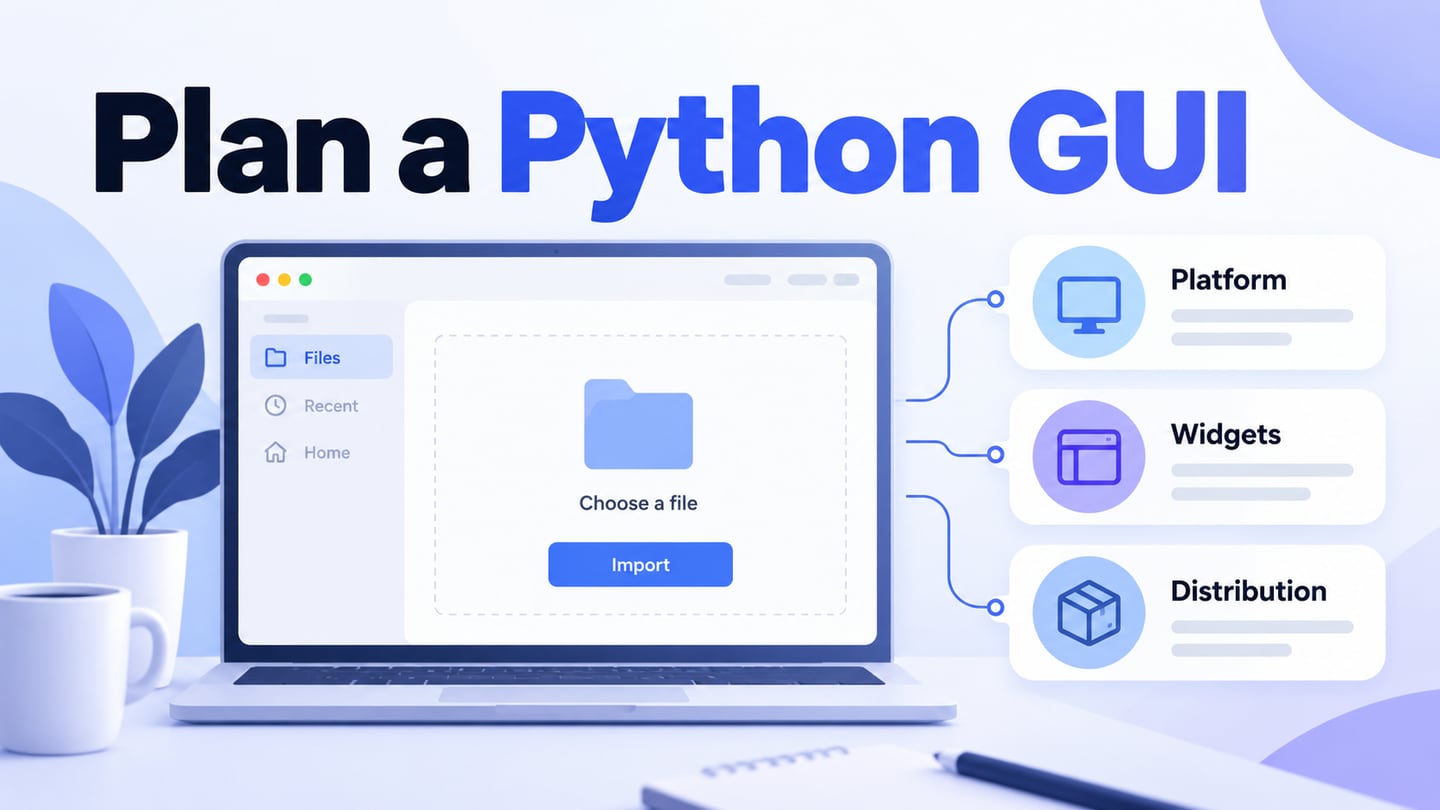
Python can be used to build graphical applications through GUI libraries and frameworks. “GUI Python” is not a separate language or a no-code design program. This guide explains the basic roles and reviews thirteen names you may encounter, including legacy projects that need caution. Before implementation, you can plan a Python application’s interface in Mockitt to review the flow; the prototype is not a Python runtime or an exported application.
Part 1. What is GUI? - Graphical User Interfaces
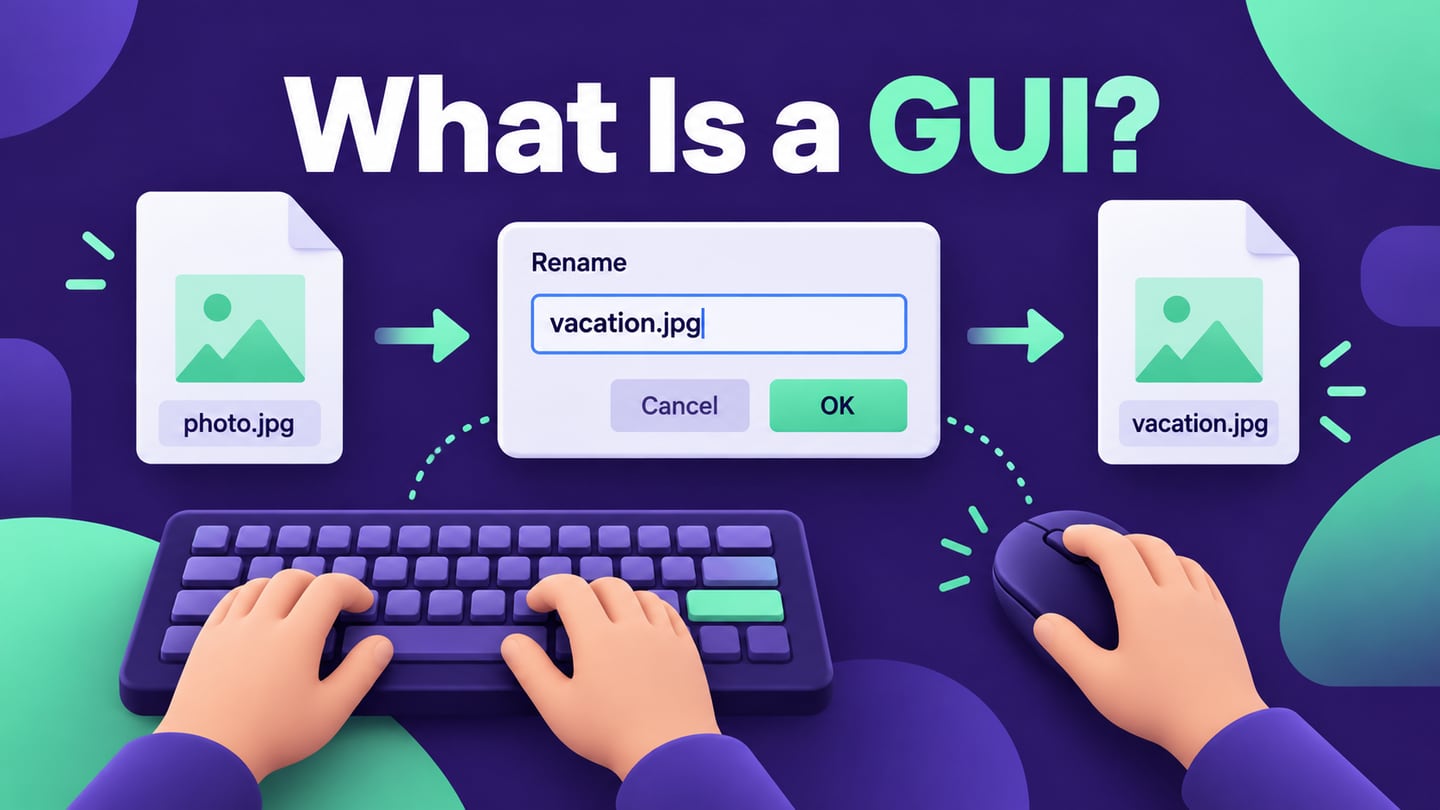
A graphical user interface, or GUI, lets people interact with an application through visible controls such as windows, buttons, menus, and fields. A file-import dialog, for example, can let someone choose a file, review its contents, and correct a problem without entering a command. The application still needs code to carry out those actions.
GUI work combines layout with event handling, state, validation, and platform behavior. A library supplies building blocks, while the developer decides how they work together. Evaluate a toolkit against the target operating systems, accessibility needs, packaging requirements, and the team’s ability to maintain the application.
Part 2. Why Need to Use GUI Python?
Python may be a practical choice when an application already uses Python for data or business logic. A command-line interface can be appropriate for technical workflows; a GUI can make a task more discoverable for people who need visible choices and feedback. Neither interface is automatically better. Start with the audience and the task, then decide what the application should expose.
Tkinter, wxPython, and Qt bindings are among the options for Python GUIs. Other projects address web-rendered interfaces or touch-oriented applications. Compare their supported environments and documentation before choosing. Python supports object-oriented programming, so using that paradigm does not itself require moving to Java or .NET.
Part 3. Python and GUI Libraries
1. Python
Python is dynamically typed and supports several programming styles, including object-oriented and procedural code. Its standard library includes many utilities, but not every GUI toolkit. Additional packages, native dependencies, and packaging work depend on the toolkit and target environment.
A GUI program usually creates controls, responds to events, and updates state through the toolkit’s event loop. Keeping slow work from blocking that loop is part of implementation. The screen layout alone does not define what happens when a file cannot be read, an operation is canceled, or a network request fails.
These are some of the programming paradigms that Python supports:
- object-oriented;
- imperative;
- functional;
- procedural.
2. GUI library
A GUI library provides widgets such as buttons and fields, plus layout and event mechanisms. Widgets are arranged using the toolkit’s layout system rather than simply stacked on top of each other. Define the reading order, resizing behavior, and focus sequence alongside the visible arrangement.
Plan Widgets Visually Before Coding
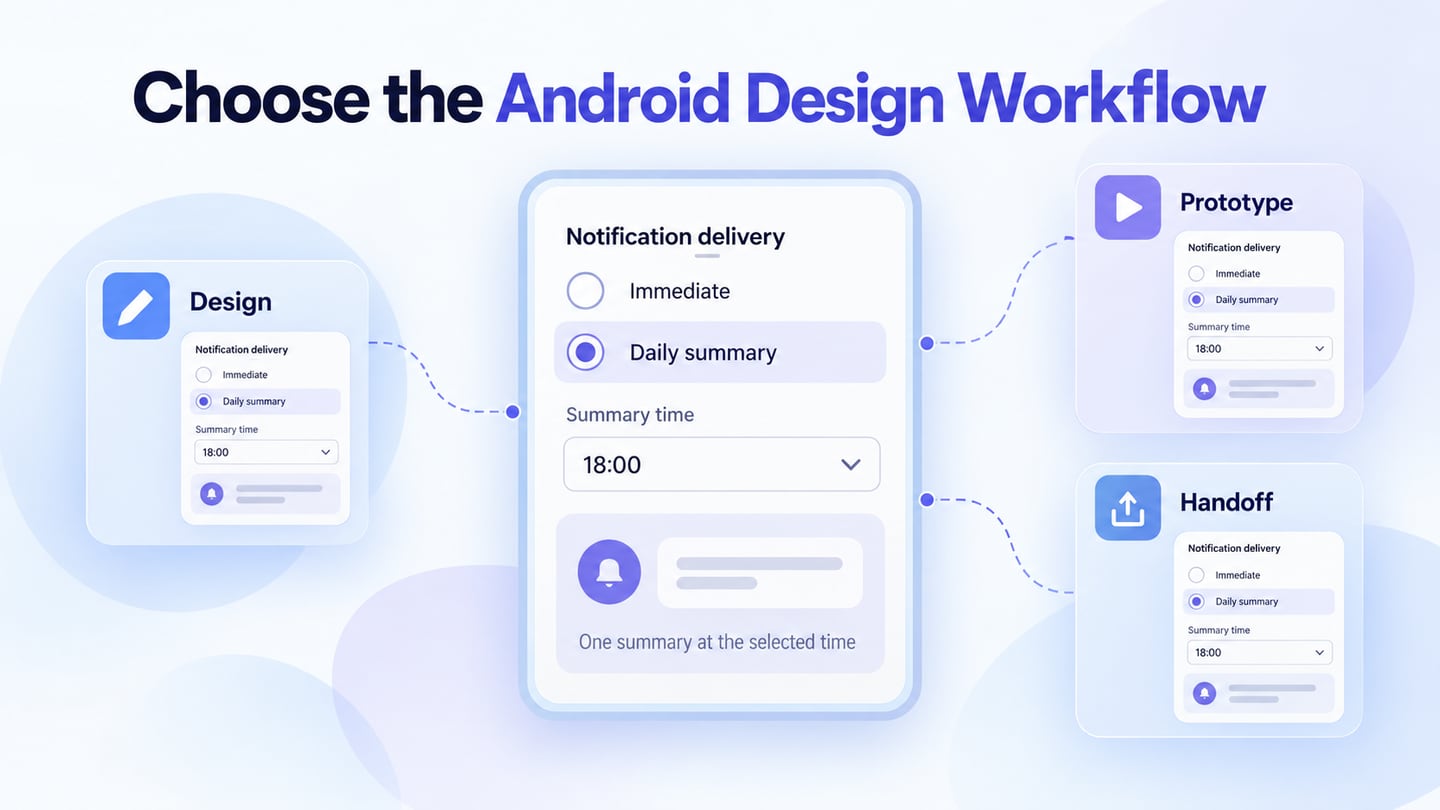
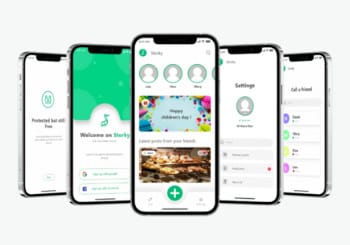
Use a visual prototype to explain what a control should do, then implement it in the chosen toolkit. The historical mobile-template image below is an interface-design reference, not a Python widget library or a working Python application.
3. Python GUI
Not every Python application needs a GUI. If yours does, the following thirteen entries provide orientation, not a ranked list of equally current recommendations. Several are historical projects. Check the official source for maintenance, Python-version support, platform support, licensing, and installation details before committing to one.
1) Tkinter
Tkinter is Python’s standard interface to Tcl/Tk. It provides widgets and an event-driven model for desktop interfaces. Verify that Tcl/Tk support is installed in your Python environment and review the themed ttk widgets where appropriate.
2) Flexx
Flexx uses Python and web technologies to create interfaces rendered in a browser. That architecture differs from a native desktop widget toolkit. Before adoption, test the current package with your Python environment and the deployment model you need.
3) CEF Python
CEF Python embeds the Chromium browser framework in Python applications. Its published support information includes older Python and Chromium environments. Treat it as an option requiring careful compatibility and security review, not a general recommendation for a new application on the latest Python.
4) Dabo
Dabo is a framework built around wxPython with database, business, and UI layers. Use the project’s maintained repository for setup information. Confirm which parts suit your application and verify the stated Python and wxPython requirements before following an older tutorial.
5) Kivy
Kivy is a Python framework for cross-platform GUI applications with support for touch input. Its custom widget approach can suit touch-oriented interfaces. Platform packaging and device behavior still require testing; support for touch does not make every Kivy application a game.
6) Pyforms
Pyforms documents a Python 3 framework family for GUI, terminal, and web interfaces. Choose the relevant package and check its dependencies. Do not use an old Python 2.7 claim as the basis for a new environment.
7) PyGObject
PyGObject provides Python bindings for GObject-based libraries, including GTK. It is relevant to Python applications using the GNOME platform and related libraries. Follow current installation guidance for the operating system you intend to support.
8) PyQt
PyQt provides Python bindings for Qt. Check the specific Qt/PyQt version and module requirements for your application. Riverbank’s licensing information describes GPL and commercial options; do not assume that PyQt has the same license terms as another Qt binding or as every Qt module.
9) PySide
PySide is the Qt for Python binding family; PySide6 targets Qt 6. Qt for Python has open-source and commercial licensing paths subject to the applicable terms, so “only PyQt is commercial” is not a valid distinction. Consult the Qt for Python FAQ and relevant licensing documents for the package you select.
10) PyGUI
Gregory Ewing’s PyGUI project aimed to provide a Python-oriented API across desktop platforms. The project page lists a 2017 release and old platform dependencies. Retain it as a historical reference; do not assume compatibility with current systems without verification.
11) libavg
libavg is a C++ media-application platform scripted with Python. Its project notice says it is no longer being developed. The capabilities listed below explain its historical purpose; a new project needs a maintenance and compatibility assessment before considering it:
- displaying items in the form of Python variables;
- event management system;
- timers;
- support for logs.
12) PyGTK and PyGObject: Migration Context
The archived GNOME PyGTK page identifies PyGTK as a GTK 2 binding and advises against using it for new projects. PyGObject, already listed above, is the successor path to investigate. This is a migration distinction, not an additional independent modern framework.
13) wxPython
wxPython provides Python bindings around wxWidgets for desktop interfaces. Check available binary packages and platform requirements before installation. The choice between it and another toolkit depends on the application, deployment constraints, and maintainers’ experience.
Part 4. Plan the Interface Before Coding
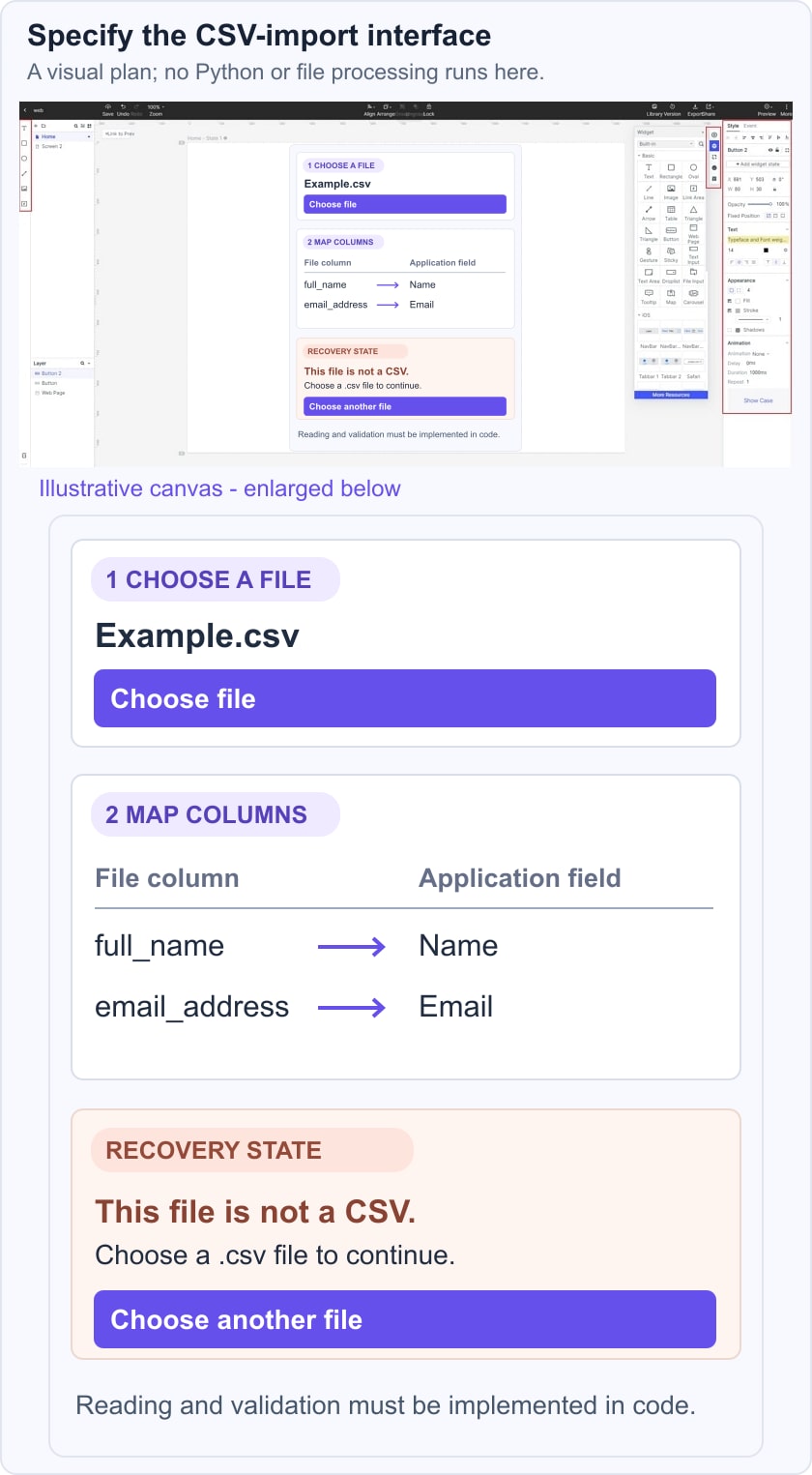
Mockitt can help you plan an application’s interface before implementing it with a Python toolkit. For an illustrative CSV-import utility, prepare a file-selection state, a column-mapping state, and an error that explains how to recover from an unsupported file. These are design specifications; the Python application must actually read, validate, and process the file.
Why choose Mockitt
Focus the review on the decisions the user needs to make. The CSV utility should say which file types it accepts, show what will be imported, and provide a safe way to go back. Prototype the behavior you want to discuss, then confirm its feasibility with the developer rather than treating a visual design as a runtime feature.
1) More flexible components
Reuse appropriate visual components for repeated controls, such as file actions and status messages. Keep labels and states consistent across the import steps. A reusable design component does not automatically become a reusable Python widget.
2) Interactive prototype
Connect the file-selection, mapping, and recovery screens to demonstrate the path. Ask a reviewer to explain what will happen next. Use usability testing when you need evidence about whether that explanation is clear.
3) Component Library
Use a shared set of typography, colors, and control styles where the design workspace supports them. Record important states and rules with the design. The library is a design resource, not a database of application records or a substitute for the Python codebase.
4) Clean and minimalistic interface
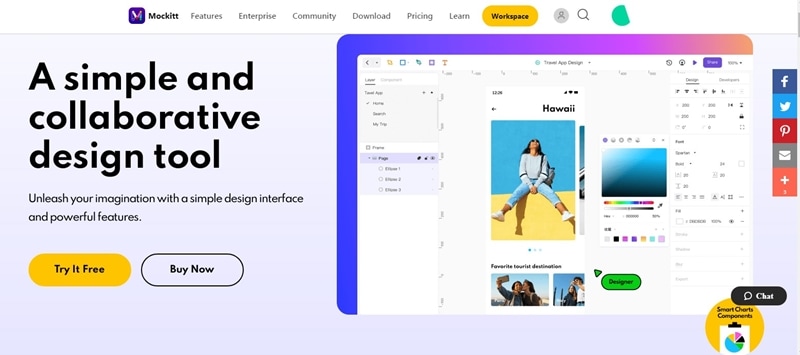
Keep the working canvas organized around the screens and states under review. Name them clearly and separate annotations from user-facing content. The older marketing screenshot below is retained as a historical product illustration; it does not document the current editor’s exact panel arrangement.
Before handoff, review the import flow with realistic examples: a valid CSV, a missing required column, and a canceled selection. Note which states are simulated and which validation rules the application must enforce.
Conclusion
Choose a Python GUI toolkit for the implementation requirements, and choose a prototype workflow for the design questions. Verify current maintenance and compatibility instead of treating every historical entry as equally suitable. For related implementation planning, see UI development responsibilities.
Share the prototype with the people responsible for design, content, and development. A useful review ends with clear decisions and unresolved questions, not a claim that the application has already been built. If the project targets another framework, the same separation of design and code applies when planning a Flutter interface.