How to Use Flutter UI Design Tool Easily
As you contemplate of designing a flutter UI design, one of the most critical things you must do is ensure you create one that offers value to the end-users. Unlike in the past, it is not a must that you have a lot of designing skills to be able to create a great UI design. There are many simple to use tools that have been developed to help do the designing work fast, with no need to have complex programming skills or knowledge. Flutter UI design tool is simple to use, so even as a beginner, you do not need a lot of training to use it.
How to Do UI Design with Flutter
Flutter is a Google user interface toolkit that helps you create elegant, well-compiled app design for web, mobile and even desktop from one codebase. Here are guidelines on how to do flutter design UI.
Step 1: Create your flutter environment
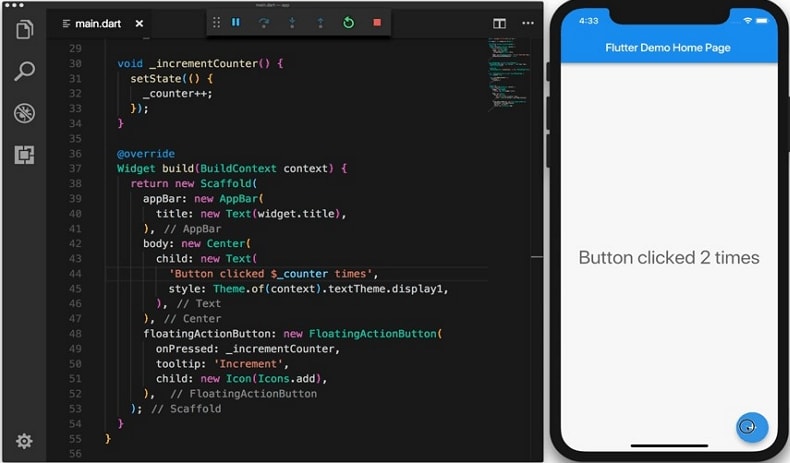
- You require the flutter SDK and an editor to complete a codelab. A codelab helps you be able to write flutter code in the Android Studio IDE. You can run the flutter app design on both mobile and web.
Step 2: Begin a new flutter project
- Develop an easy templated app, which you will modify later to design the finished app design.
- In case you do not have new projects, choose start a new flutter app from the home page.
- Go to flutter application as the type of the project and then move to next.
- Check that the flutter SDK path shows the SDK's location.
- Enter your preferred project flutter design UI name and tap next.
- Tap finish and wait for the Android studio to install the SDK and create the flutter UI design project.
Step 3: Design the main flutter UI design
- Start to modify the default sample app. The aim here is to build a friendlyChat app that displays text messages fast, where users can input string message and send by pressing send or return key button.
Step 4: Add a user interface for creating messages
- Create a user control that allows users to be able to enter and send chats. In the flutter UI builder, there is a material design widget referred to as TextField that offer properties that help customise behavior of the input field. Add the stateful widget to the friendlyChat app.
Step 5: Add User Interface display messages
- With the app in place, define location where messages are displayed.
Step 6: Animate your flutter UI design app
- Attach the animation objects to the widget.
Step 7: Final touches
- You can opt to give your app design more sophisticated details such as customisation features for certain devices.
How to Make UI Design with Flutter Alternative
You can also create a great UI design with other tools. One of the top flutter drag and drop UI builder alternatives that helps design a perfect User Interface is Wondershare Mockitt. It is a free tool that allows you to create valuable UI and UX for your users. The tool has an asset library that helps individual designers and teams have an efficient and smooth design process. The library is full of icons and widgets. It is easy to edit the widgets, save and use them in future designing. You can also do the UI design work with no coding skills. The tools also allow for easy presentation and preview of the design after you create it. This feature ensures that you launch a product with the feel you desire and offer value to end-users. You can share it with others, get feedback and even do offline presentation of the app design. Other features that make Wondershare Mockitt a valuable tool include cloud editing, handoff and multi-member collaboration.
Steps to Make UI Design
Step 1: Create a Prototype
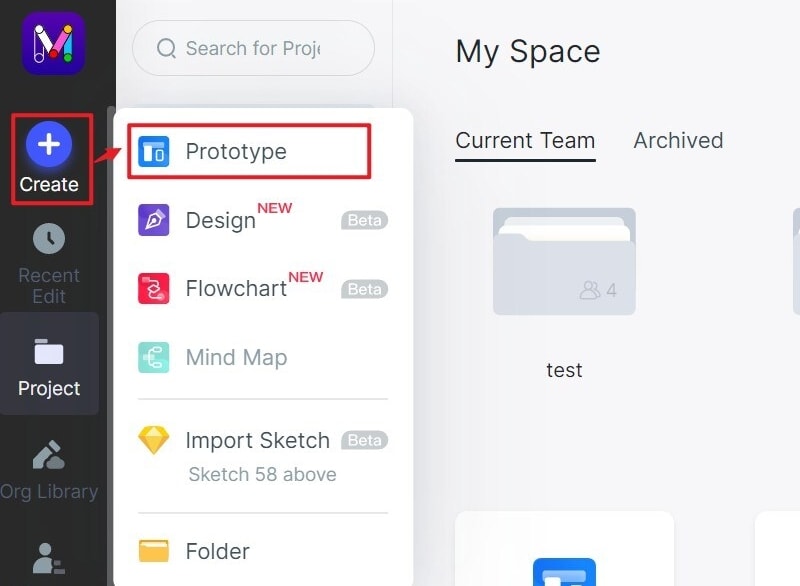
- Login and click on the "Create" > "Prototype" to start the process. Go for a blank prototype or create prototype from templates. Select the device type and name your UI design project.
Step 2: Design the app
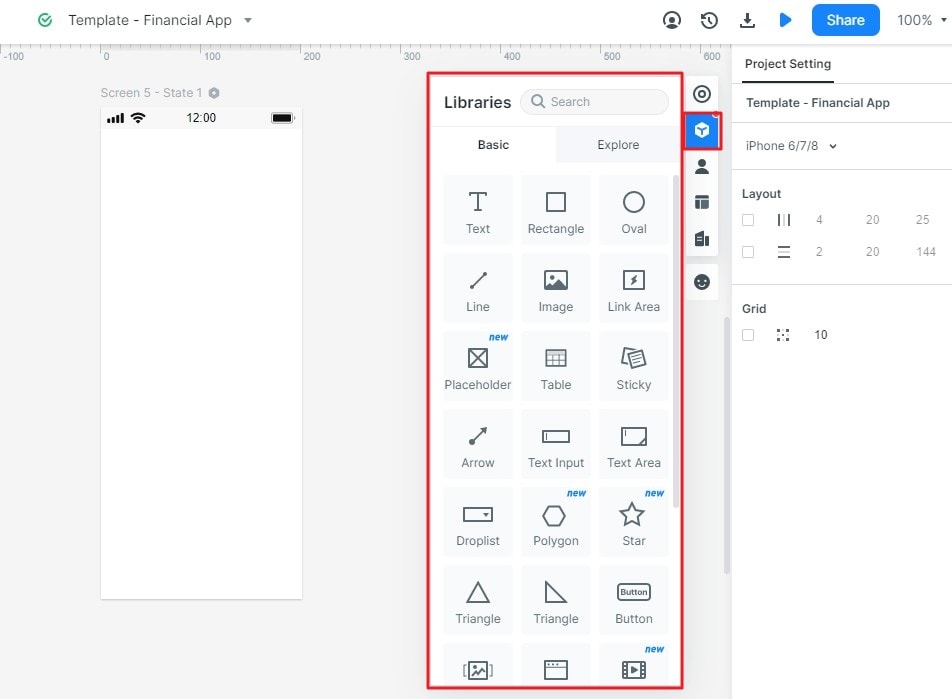
- Add widgets and icons - Add all the widgets and icons that will help you design the kind of UI you want. There are the fast widgets on the left side and icons, my-widgets, and build in widgets to use. Add them by double-clicking or dragging them on the canvas.
- Add links between screens - Do this by selecting one widget and then click the new link in the panel on the right side. You can also add the link by dragging it on the left side of the widget to the screen. Make the necessary adjustments to the action, gesture, and animations.
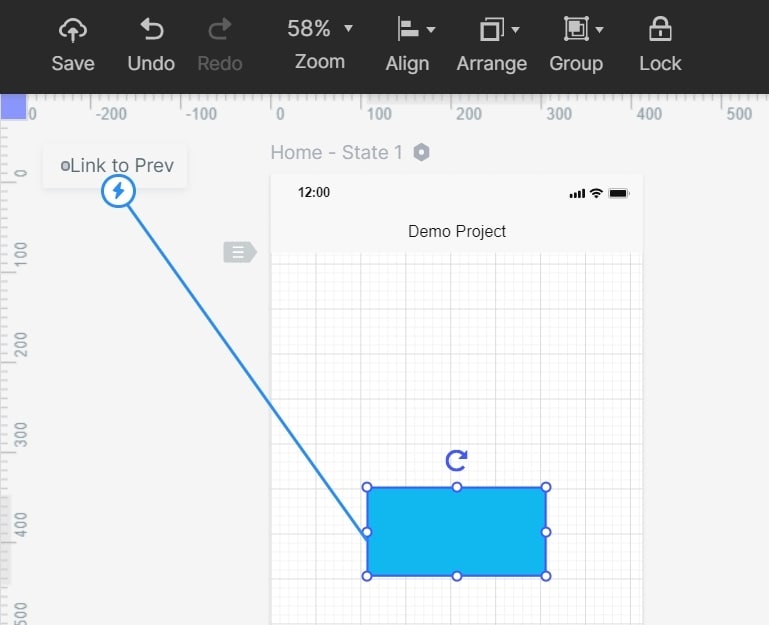
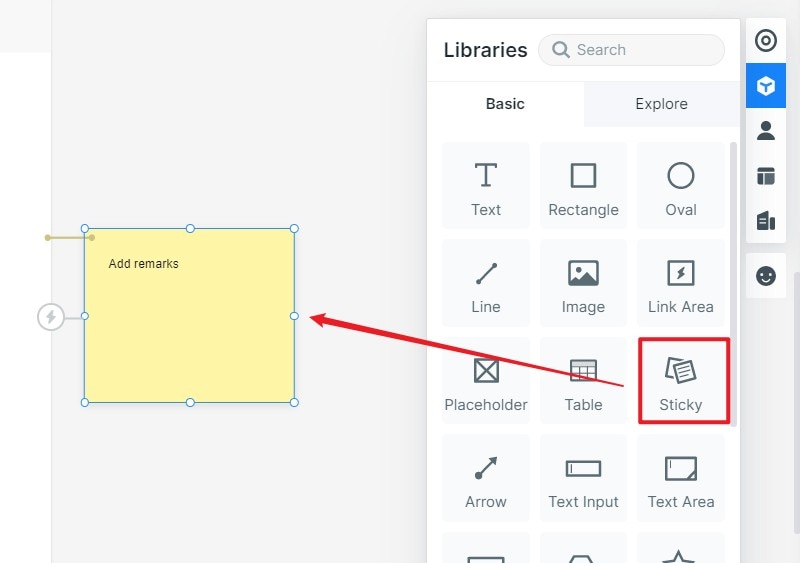
- Add notes - Drag a sticky note widget into the area you want to add it. Input text in the sticky note to give more explanation on your design.
- Create interactive animations - Simply drag the lightning bulb to connent the widget to the target screen. Apply the dynamic widgets to create interactive animations you want your UI design to have.
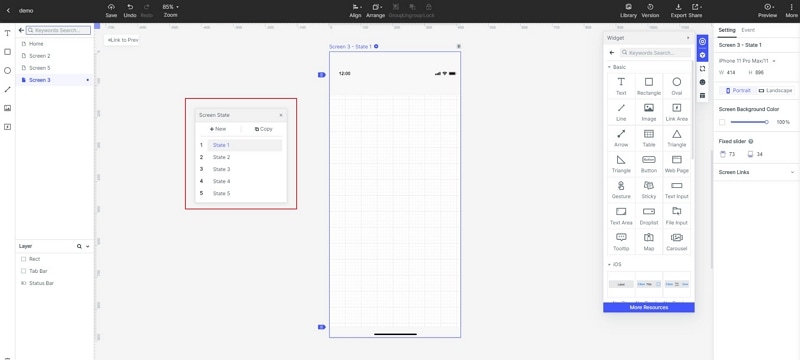
Step 3: Preview the design
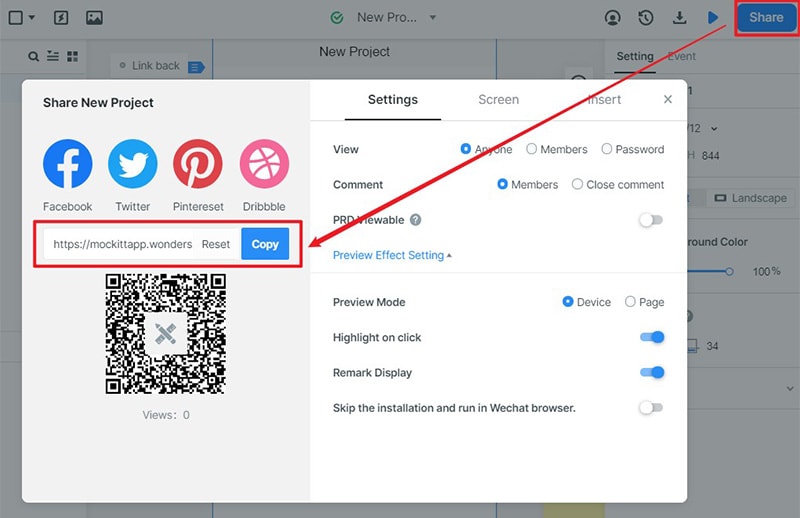
- You can preview your UI design to ensure that it will work well on Mobile devices, PC and even offline. For PC use the top toolbar, for mobile click the share button to receive the QR code and sharing the link to preview.
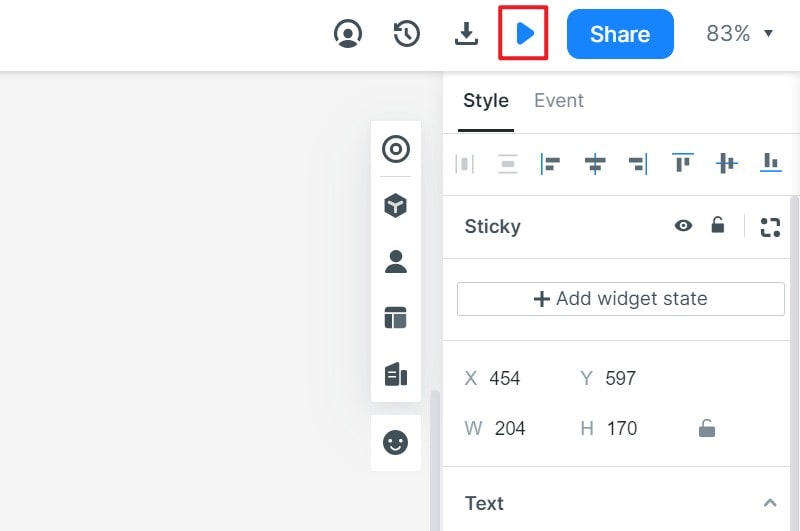
Step 4: Share the design
- Wondershare Mockitt allows you to share your UI design with others for suggestions or comments before launching it. Send the sharing link or the QR code for others so that they can have a look at your design and give suggestions for improvement. The good thing is that they do not have to register to do this.