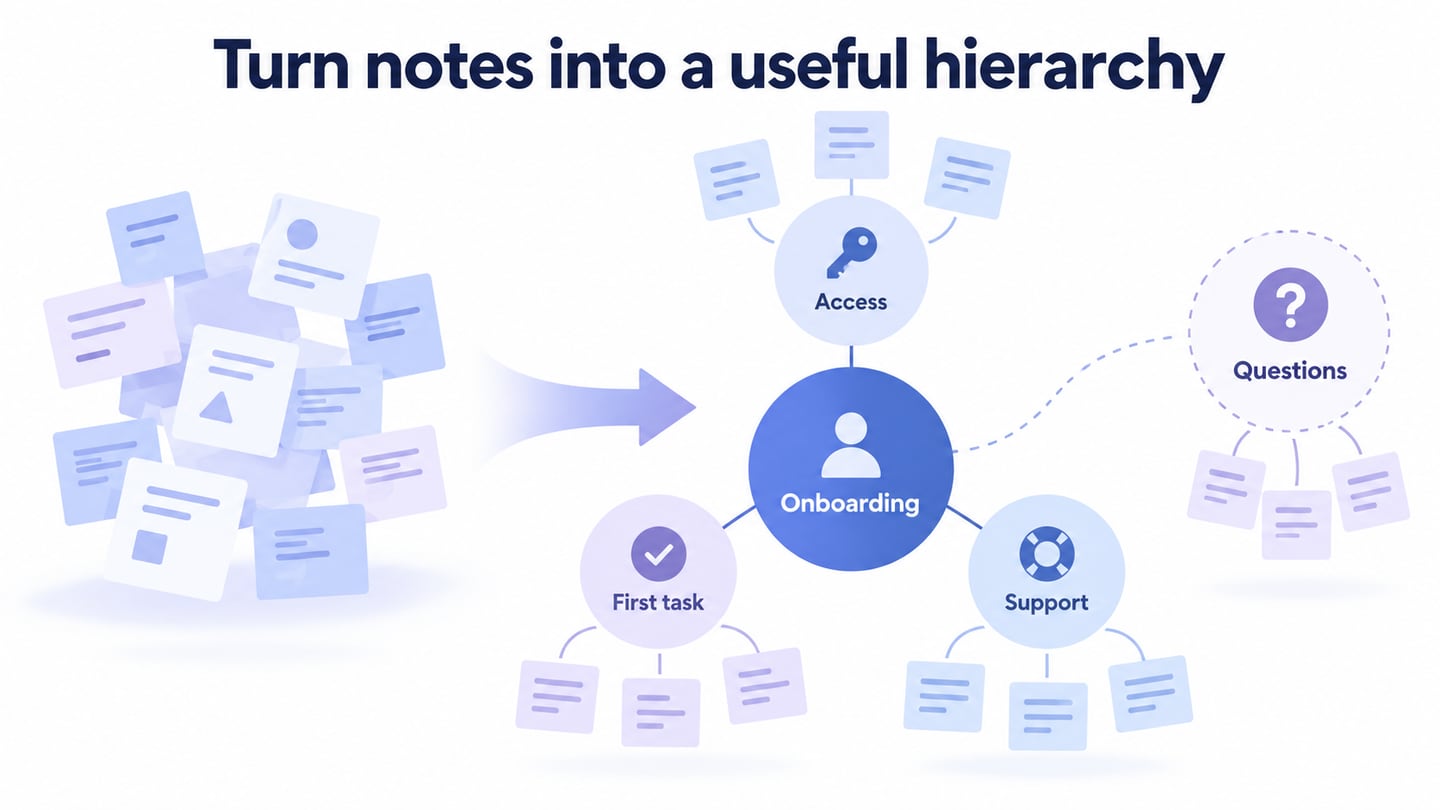
An AI mind map generator can turn a topic or notes into a visual hierarchy. The first result is a draft: you still need to check whether the branches reflect the source, whether ideas are duplicated, and whether generated suggestions have been mistaken for facts.
Generate a draft, edit its branches, and review the relationships before sharing the map. The Mockitt walkthrough below keeps an onboarding example in focus; Boardmix, Lucid and MindMeister provide other working contexts to compare once you know what the map must do.
Understanding AI Mind Maps
A mind map groups related ideas around a central topic. AI can suggest an initial structure, but the reviewer decides whether that structure fits the purpose.
- Visual structure: Branches can make a complex set of notes easier to scan. Keep labels short enough to read without hiding their meaning.
- Organization: Move related ideas together and split branches that combine different questions. Check the relationships instead of accepting the first categorization.
- Learning and explanation: Use the map to identify what you understand and what still needs a source or clarification. A visually complete map does not guarantee comprehension or retention.
- Brainstorming: Treat new branches as ideas to examine. Keep suggestions distinguishable from observations and agreed decisions.
Getting Started With Mockitt AI
Mockitt AI can draft a mind map from a topic or source text, after which the team can rename nodes, move branches, and expand points. The useful original screenshots below show an earlier interface; the current product entry and controls may differ.
Key Features
Focus on the capabilities that support this review:
- Draft from notes: Supply a clear topic and relevant source text, then inspect the proposed hierarchy.
- Edit the structure: Rename or move branches so each one represents a coherent question or category.
- Explore a question: Ask for possible subtopics when needed, while labelling them as suggestions that require review.
- Collaborate: Share the map with relevant colleagues and resolve unclear relationships together.
Check Current Access and Usage Limits
Before planning a session, check the current Mockitt plans and AI usage limits. Historical prices and credit allowances in older tutorials may no longer apply.
Confirm that the participants can open and edit the project as intended. Do not assume AI usage is unlimited on a particular plan.
How To Generate Mind Maps With Mockitt AI
Start with a focused topic and an explicit purpose for the map. A map for a planning meeting needs different detail from one used to summarize source material.
Step 1: Sign in to the current Mockitt workspace and open the available mind-map or AI entry. Choose a suitable project or canvas for the notes.
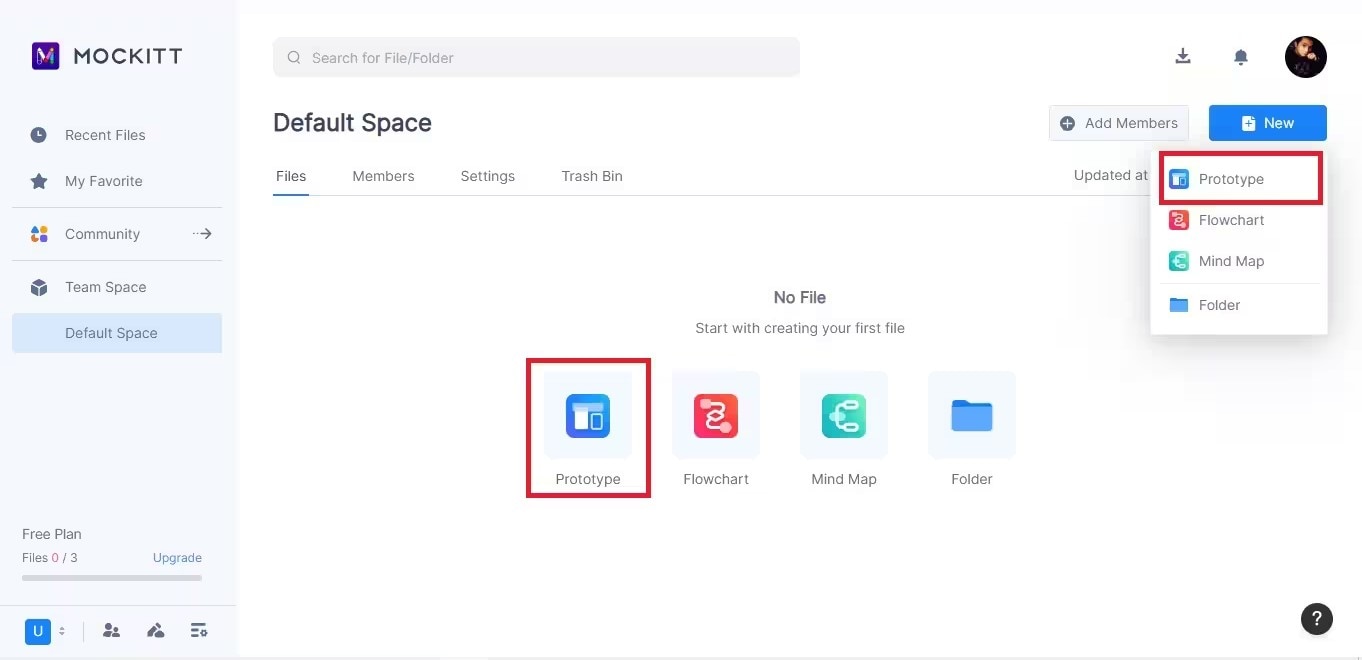
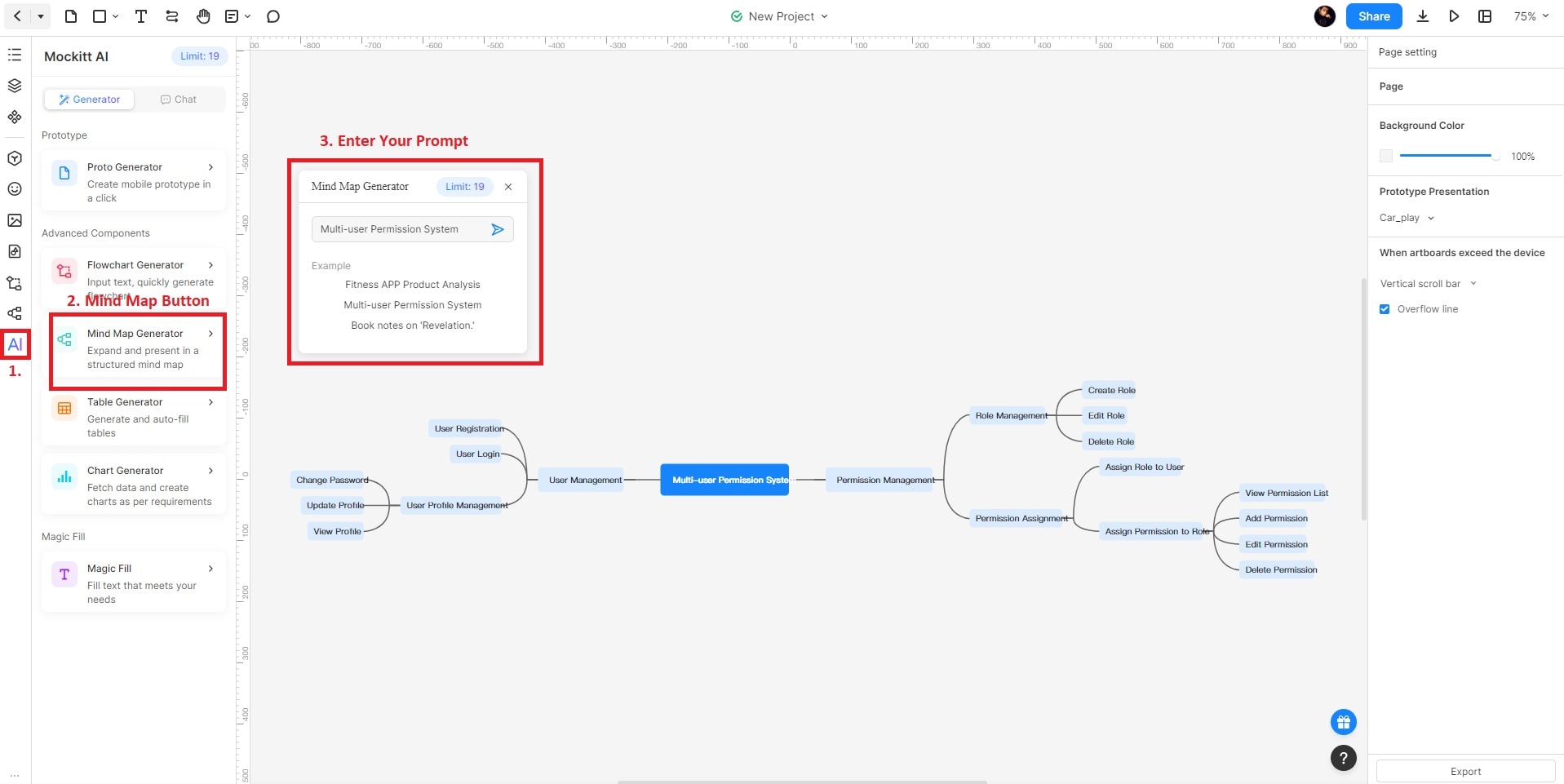
Step 2: Enter the topic or source notes, describe the intended audience, and request a small set of meaningful branches. Ask the tool to flag uncertainty rather than invent missing facts.
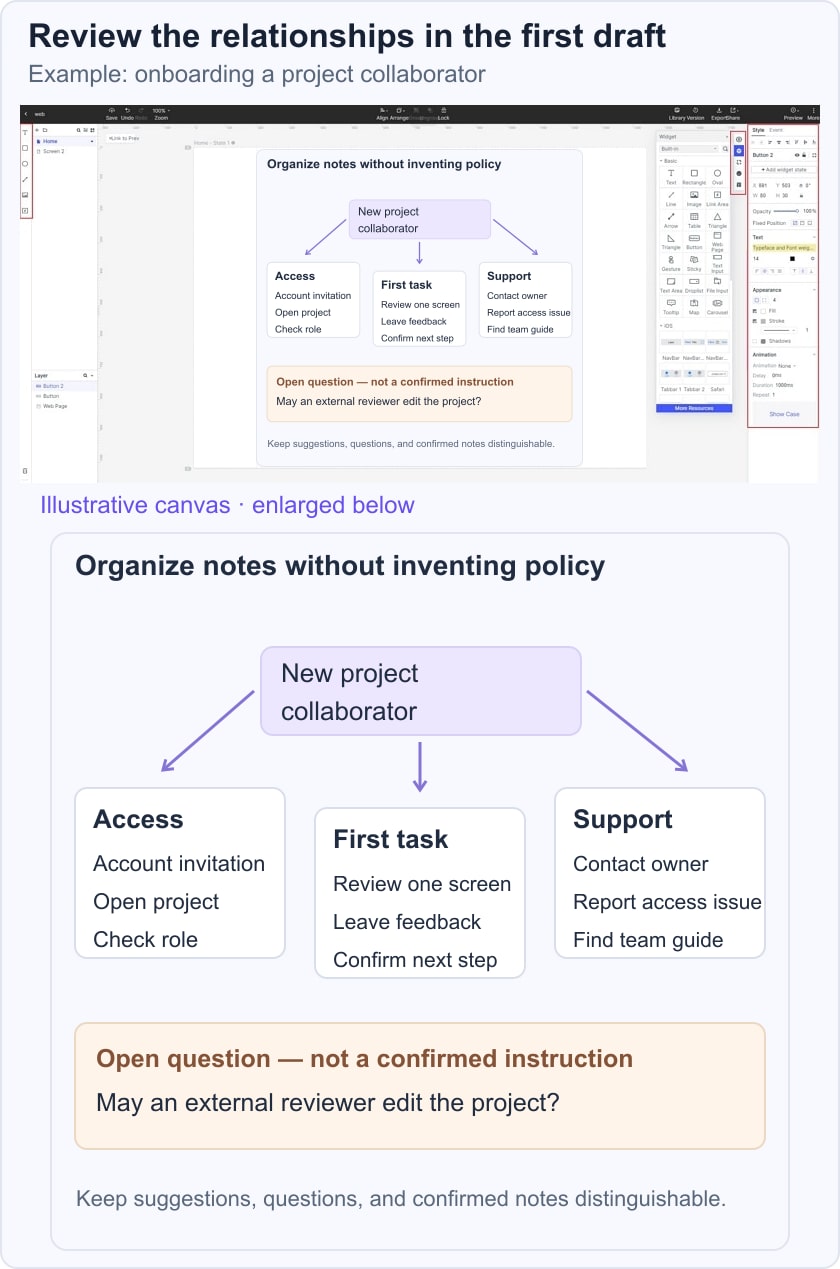
For example, organize notes about onboarding a new project collaborator. The notes cover account access, the first review task, and where to ask for help. One question remains unresolved: whether an external reviewer may edit the project. Keep that question separate from confirmed access instructions instead of letting the draft present a guessed permission rule as fact.
Note
Example prompts can help you understand the input format, but replace their content with the material you intend to organize.
Step 3: Examine the generated mind map and revise the hierarchy.
Check each branch against the notes. Merge duplicate points, split mixed topics, and remove ideas outside the session’s scope. In the onboarding example, account access and edit permissions are related, but an unanswered policy question should not become a confirmed step.
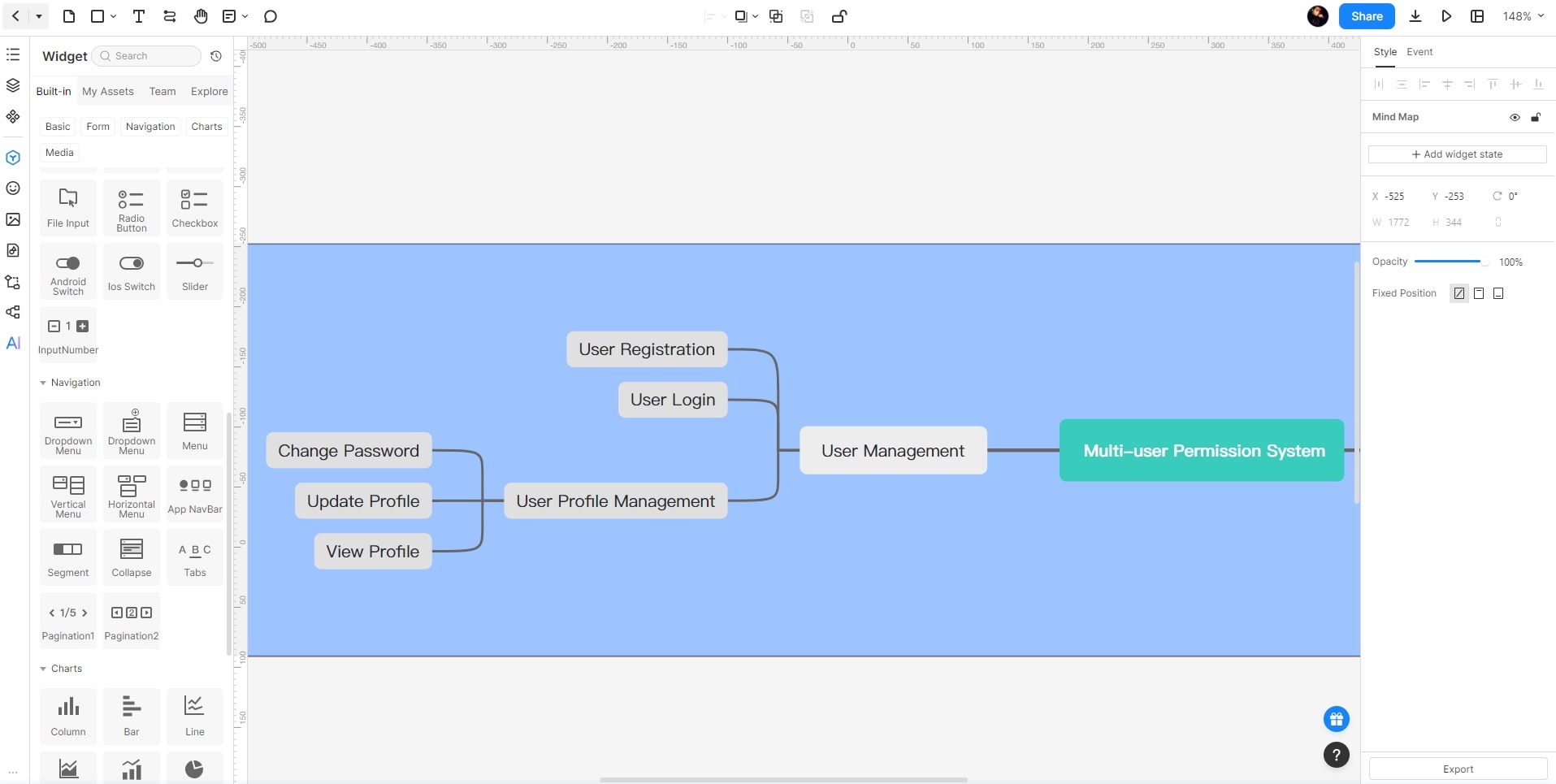
Step 4: Review the map with the intended audience.
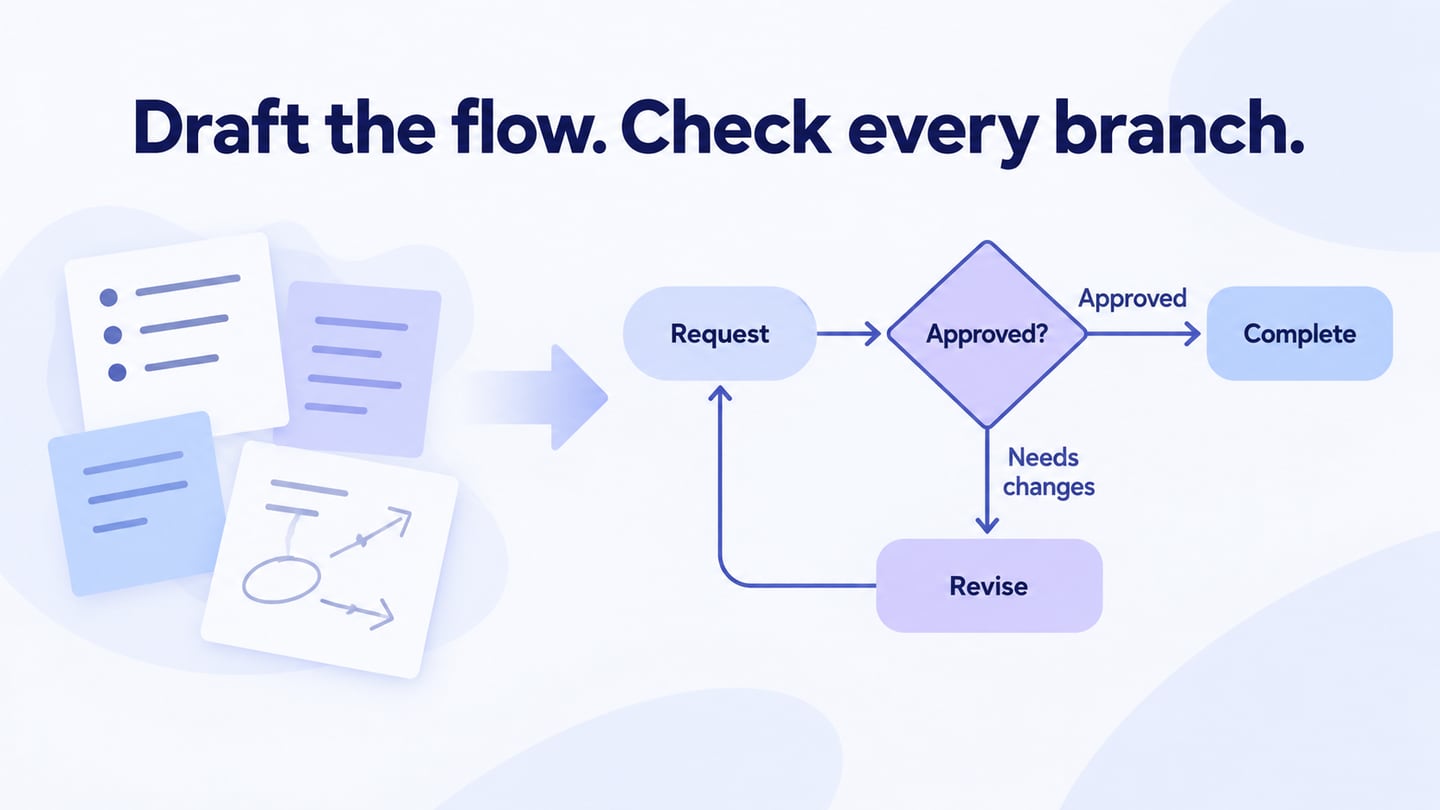
Share the current project with suitable permissions. Ask colleagues to explain the branches and identify missing or misplaced information. Use a supported export format only after checking that labels remain readable. A mind map organizes relationships; use a separate process diagram if the question is about sequence or decision paths.
Other Mind-Mapping Options to Evaluate
Compare these options using the same onboarding notes. Ask whether the first draft separates account access, the first review task and where to get help, and whether an unresolved permission rule remains a question.
Boardmix
Boardmix offers AI-assisted mind mapping in a collaborative whiteboard. It fits an onboarding workshop that needs the map beside source notes, diagrams or discussion material. Give it the same access, first-review and help notes, then check whether the generated branches remain faithful to them.
Keep the external-reviewer permission question outside the confirmed instructions until someone can answer it. Ask a colleague to move one branch and locate the note behind it. Choose Mockitt when the reviewed map will lead into a screen or prototype discussion; consider Boardmix when the shared whiteboard is the working record. AI-credit and sharing limits should fit the session in either tool.
Lucid
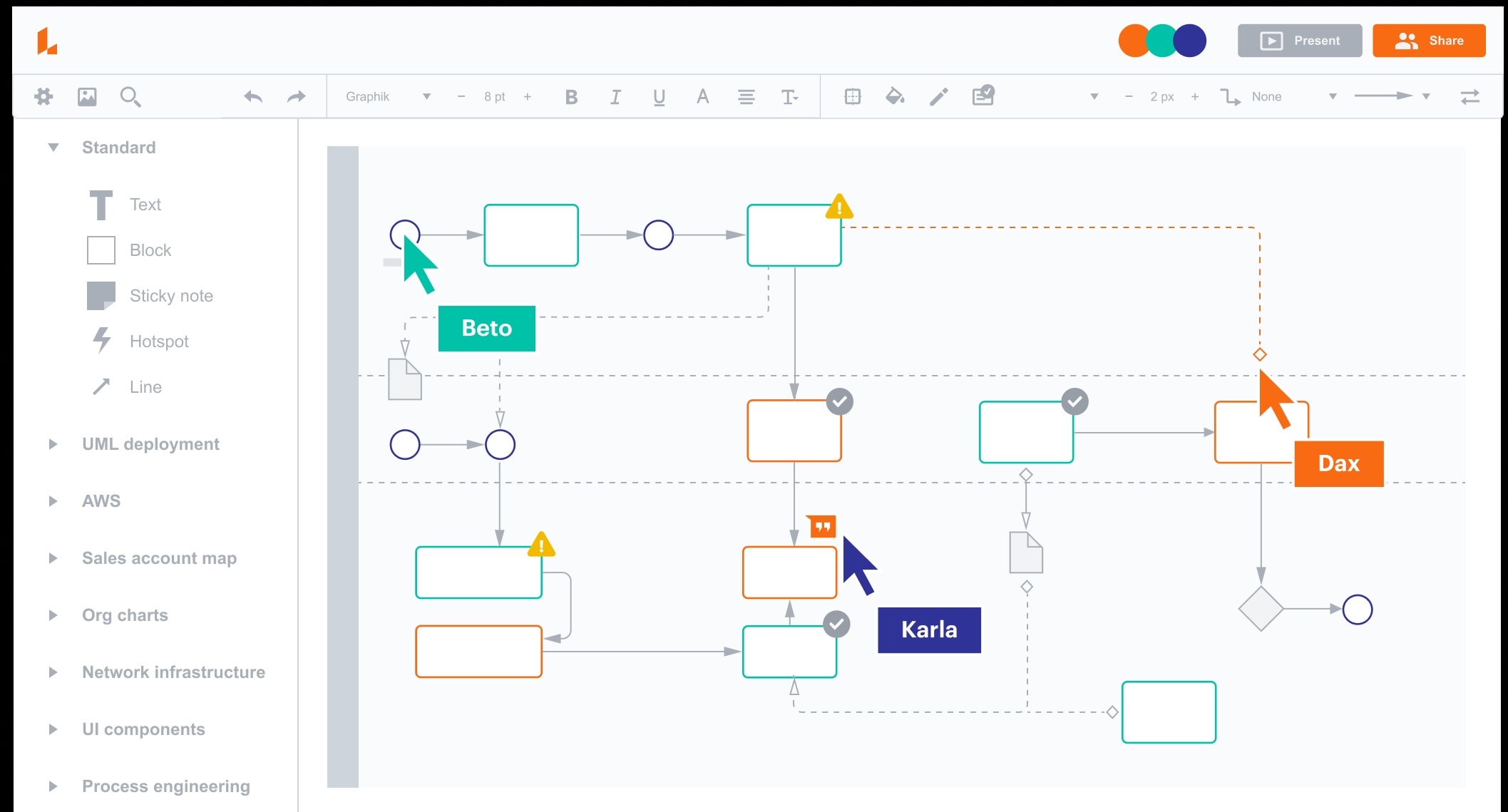
The Lucid platform includes AI diagramming and mind-map workflows. Check the relevant product and supported workflow rather than assuming every capability belongs to Lucidchart; its current mind-map workflow is described for Lucidspark.
MindMeister
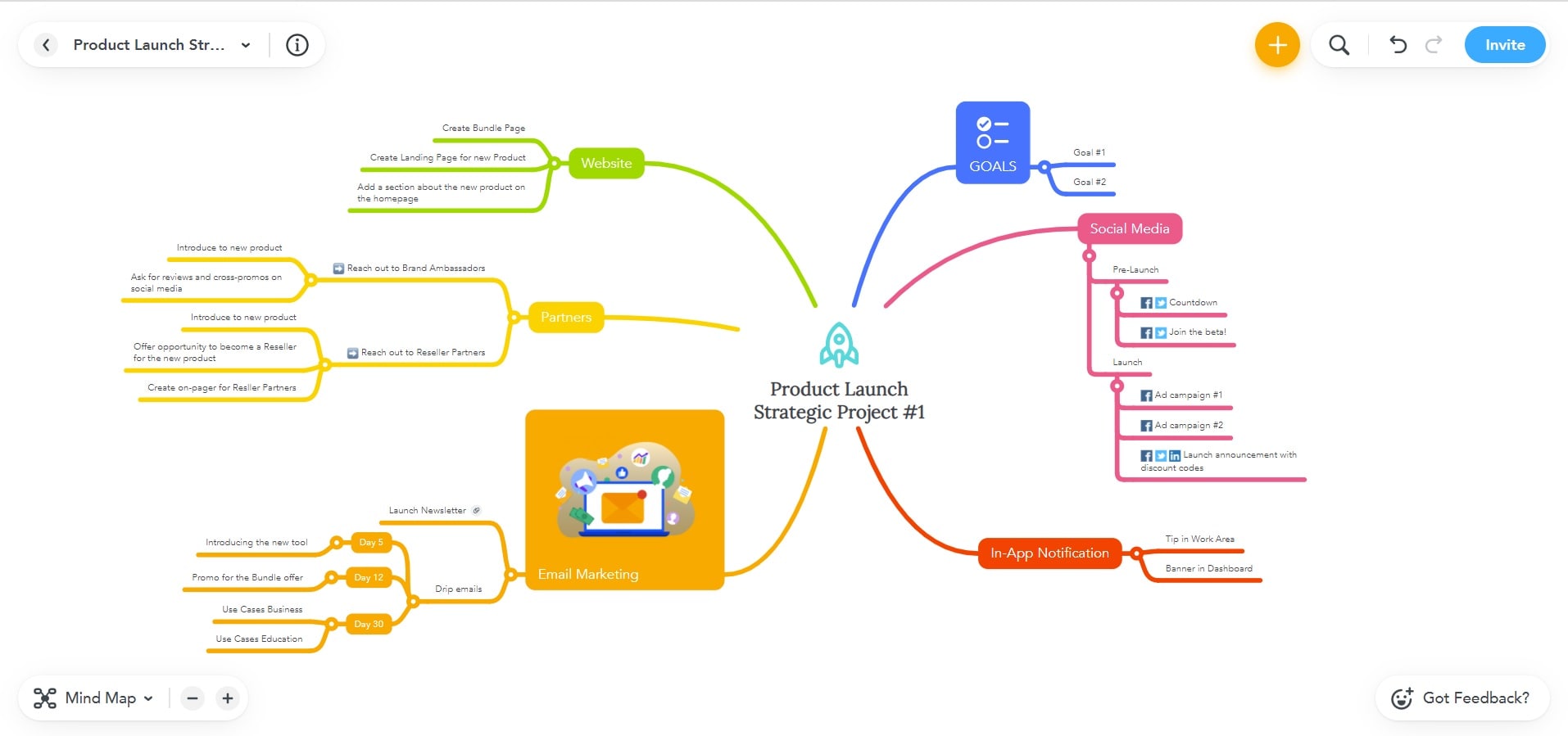
MindMeister focuses on online mind mapping. Its AI generation workflow accepts a prompt, a supported file, or both and is currently web-only. Compare how the resulting branches, notes and exports fit the onboarding task; native mobile mapping does not imply that this AI feature is available in the mobile app.
Conclusion
Choose a tool that supports the structure and collaboration you need. The value of an AI mind map comes from reviewing its relationships and source material, not from the number of branches generated.
For a product-planning discussion, keep a record of which branches are evidence, questions, or proposals. Use the map to decide what to research or define next, then connect those decisions to the relevant project documents.