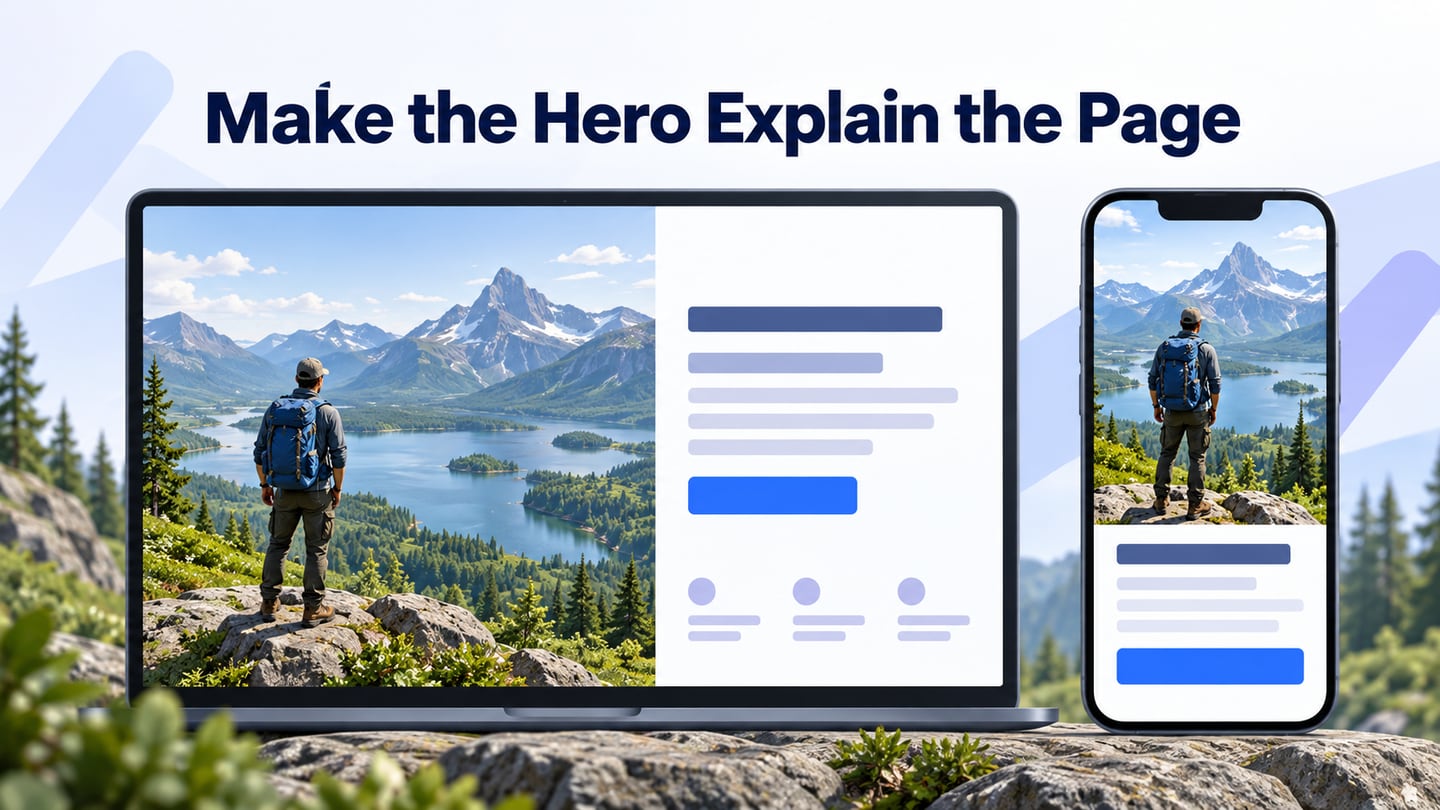
A hero image is a prominent visual near the top of a page that supports its main message. It works best when readers can quickly understand the offer and find the next step. Use a website prototype in Mockitt to compare the hero’s composition at wide and narrow widths before choosing the final image. This guide covers purpose, tradeoffs, crop behavior and practical checks.
Hero Image Definition: What is a Hero Image
A hero image is often part of a larger hero section containing a heading, supporting text and a call to action. It can show a product, a person or an illustrative scene. Its job is to make the page’s subject clearer; size alone does not make an image useful.
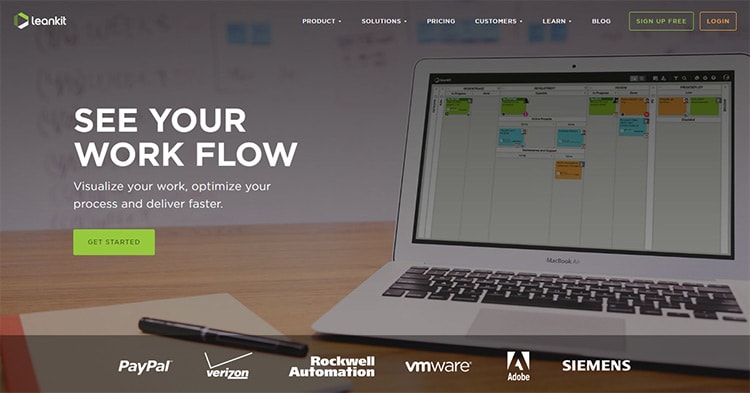
A hero may span the page width or sit beside the text. Resize its image proportionally, crop it deliberately and avoid stretching it to fit an unrelated shape. The preserved LeanKit example below illustrates a product-focused hero layout from an earlier website, not its current homepage.
Source: WhatPixel
Every Important Thing to Know About the Hero Image Design
Before choosing a hero visual, decide what it must communicate and what the visitor should be able to do next. The following questions apply whether the image is photographic, illustrative or a product screenshot.
- Consider the significance of your hero image
Start with the reader’s task. A product page may need to show the interface; a course page may need to show the activity; an article may need a visual summary of its topic. Avoid selecting a dramatic stock photo first and then forcing the message to fit around it.
Write the main message and choose one primary action before arranging the image. The historical Salesforce example below uses the hero area to introduce an offer. Study the relationship between the visual, copy and action rather than treating the composition as a formula that guarantees leads.

Source: Salesforce
- A hero image can be more than just a picture
One focused image can be a good choice. The surrounding hero section can also include a headline, short explanation and useful control, but each element should earn its space. Distinguish the image itself from the whole interactive section.
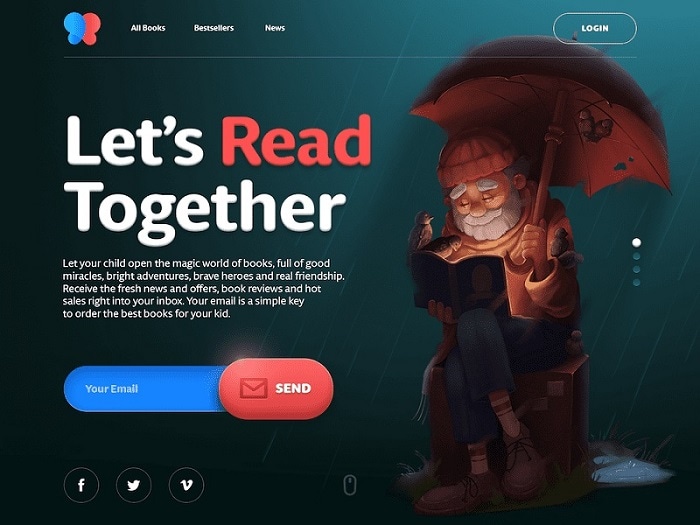
The retained subscription example combines an illustration, introductory copy and an email field. If using this pattern, make the field label and submission outcome clear. Keep the heading, form and button as actual page elements rather than flattening them into the image; that supports resizing, accessibility and interaction.
Source: UX Planet
- Weigh the Pros and Cons of a Hero Image Design
A large visual is not always necessary. A text-led introduction or a smaller product screenshot may explain a complex task more directly. Use these tradeoffs to decide whether a hero image adds enough value to justify its space and download cost.
Pros
- A relevant image can help a visitor identify the page’s subject quickly.
- A product screenshot or concrete scene can explain something that would otherwise need more text.
- Consistent art direction can connect the hero to the rest of the website.
- An article cover can also support sharing when the page’s social metadata points to a suitable crop.
- An image can be replaced later, but the replacement still needs crop, contrast and performance checks.
Cons
- An attractive but vague image can obscure what the page actually offers.
- A tall hero can push useful details or the next action unnecessarily far down the page.
- An oversized or late-discovered image can delay the page’s largest visible content.
- A desktop crop may lose its subject or leave no room for text on a narrow screen.
Pro Tips to Implement Hero Images in your Designs
Use these checks to make the hero’s role specific and keep it usable across screen sizes.
- Don't hesitate to showcase your products
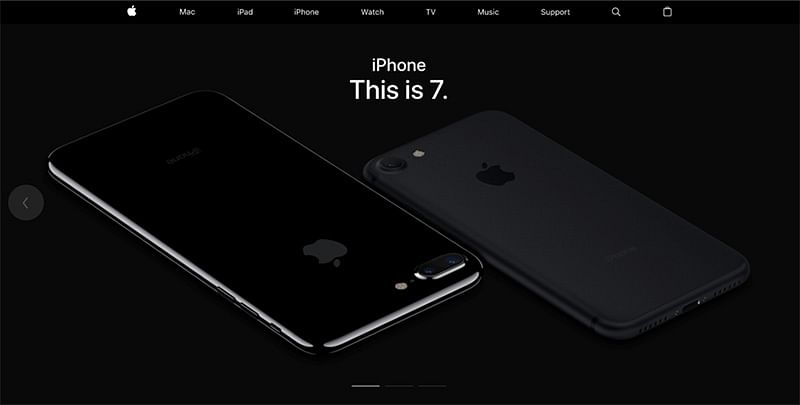
For a product-led page, show the product or a representative task when that is what readers need to evaluate. The retained iPhone 7 example is a historical Apple layout. Its useful lesson is the visual focus on the product, not a recommendation to imitate the same composition or assume it is still current.
Source: Apple
- Always test the design in advance
Compare realistic variants: different crops, text beside or below the image, and a short versus a longer heading. A usability review can reveal misunderstanding or a missed action. An A/B test needs a working page, sufficient traffic and a defined outcome; a static prototype alone cannot establish conversion uplift.
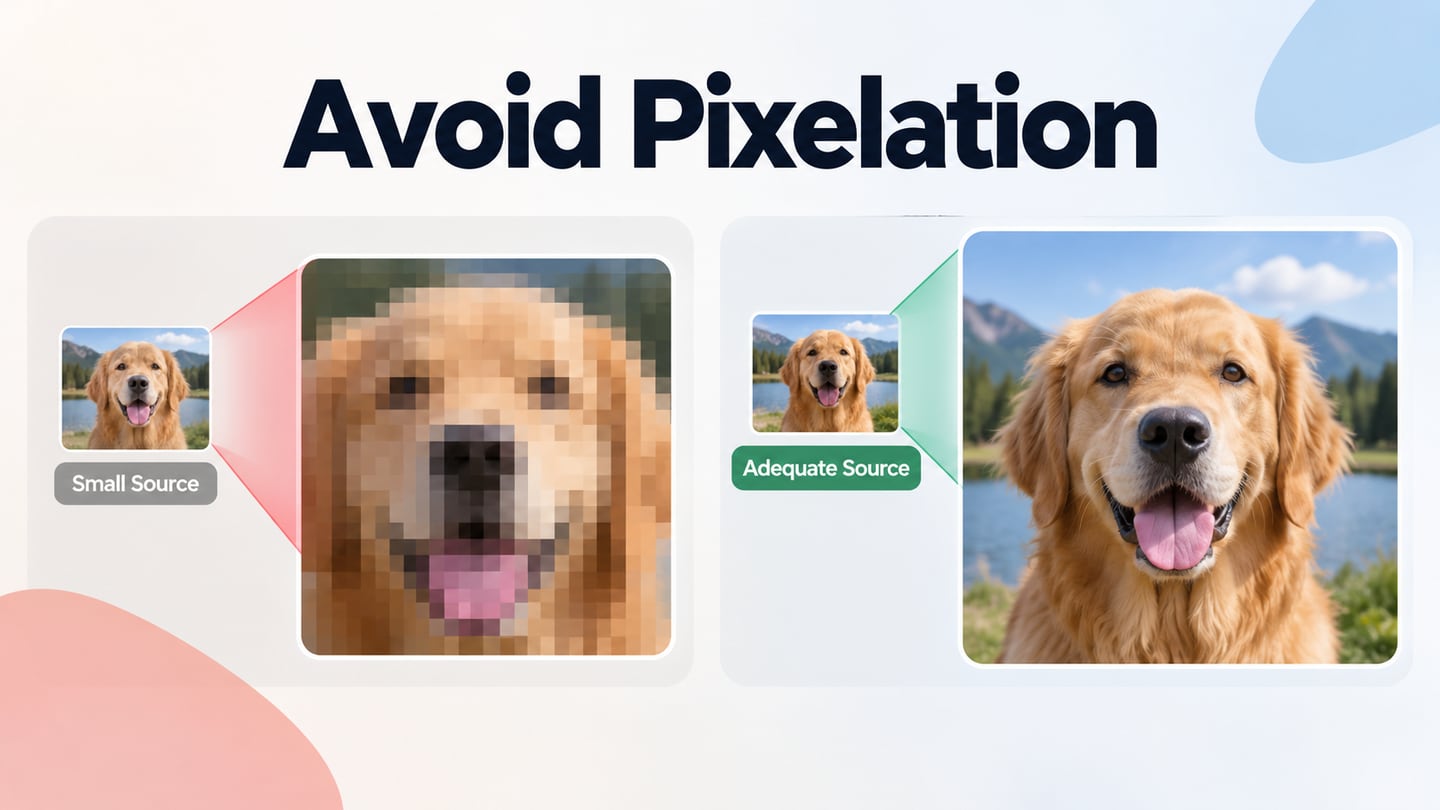
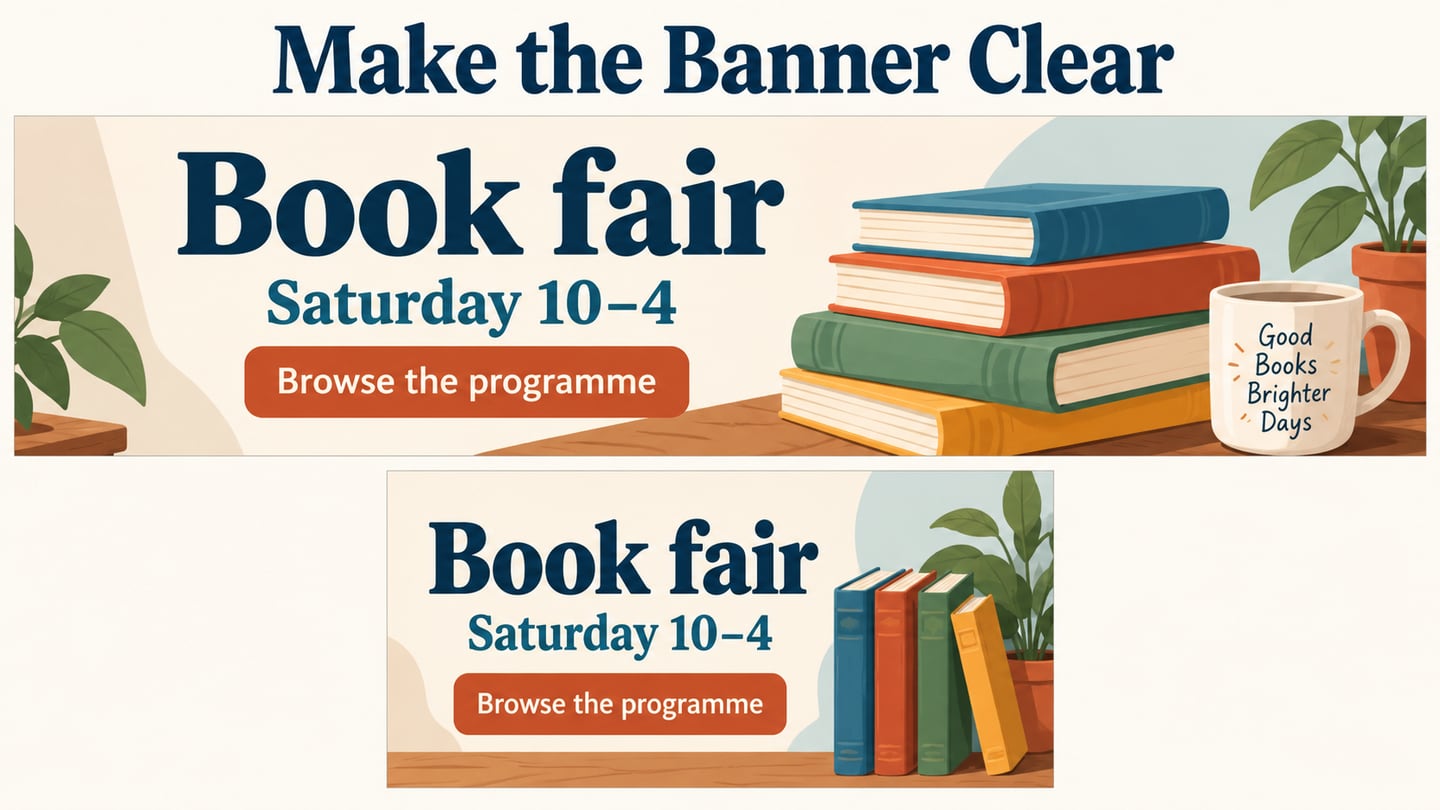
Preview wide and narrow layouts with the actual copy. Check that faces, product details and important labels survive the crop, and that the button remains reachable without overlapping the image. The aspect-ratio guide explains how crop and contain behavior differ without distorting the source.
For an outdoor-skills course hero, place the course title and “View courses” action beside an illustrative hiking scene on desktop. On mobile, put the text below the image so it does not compete with the subject. Keep the same focal point visible, then check that the longer title still leaves a clear reading path to the button.
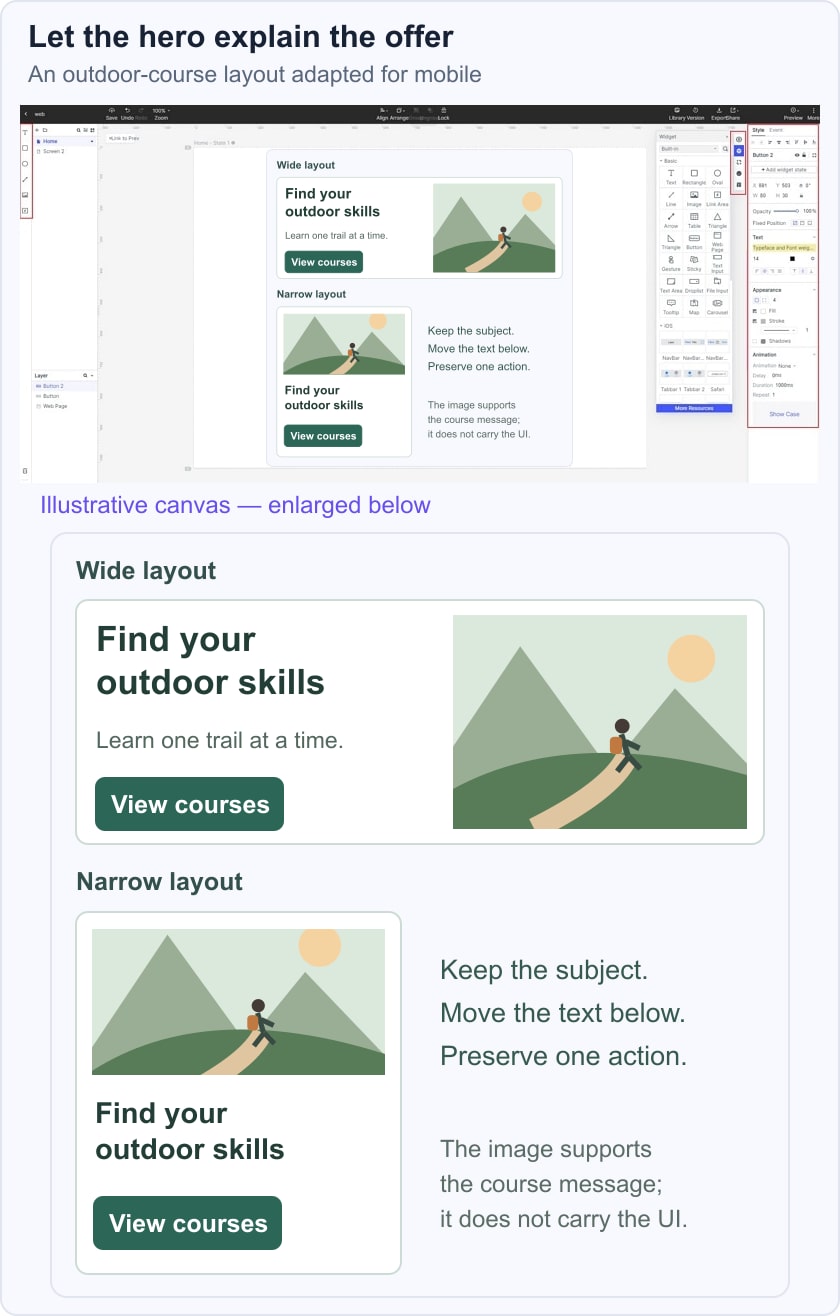
Write a short handoff note stating the intended crop, the smallest text layout to support and which detail must stay visible. If mobile needs a different image composition, specify that rather than asking development to squeeze the desktop arrangement into a narrow box. Responsive image techniques can serve different sizes or compositions; the prototype should make the desired result clear.
- Keep it simple!
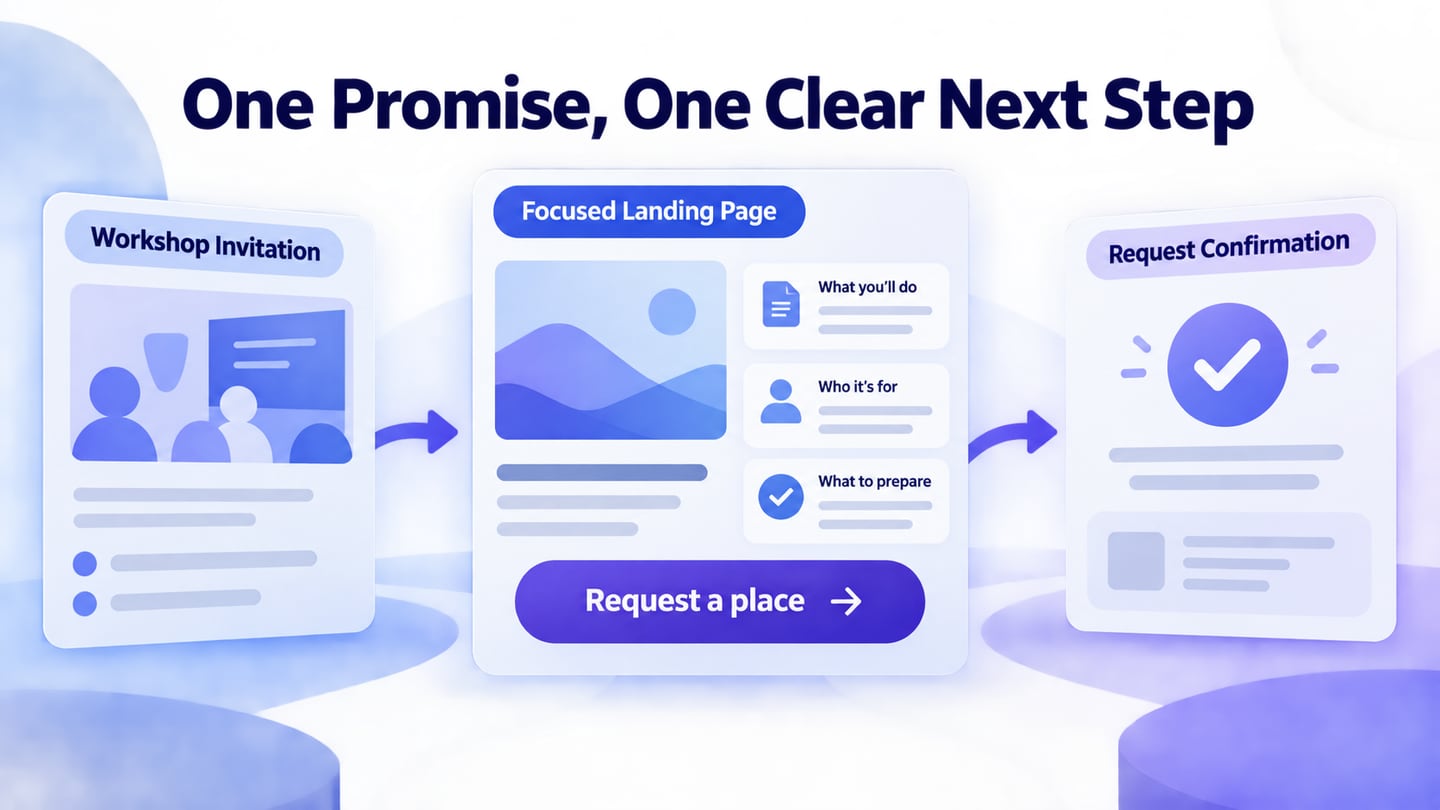
Keep the hierarchy simple: one main message, one supporting visual and a clear primary action. Secondary links may be useful, but several equally prominent buttons, badges and decorative elements make the decision harder. Check the hero in grayscale or at a glance to see what still draws attention.
The retained Buffer example uses a concise message and a simple supporting visual. It is a historical reference for hierarchy, not evidence of a measured business result. Notice the room around the copy and how the action relates to it.
For implementation, provide appropriately sized image variants and reserve the intended image space so loading does not shift the surrounding content. If the hero is the page’s Largest Contentful Paint image, avoid lazy-loading it; web.dev’s LCP guidance explains why early discovery matters. Measure the real page after publication rather than assuming a compressed file alone solves performance.
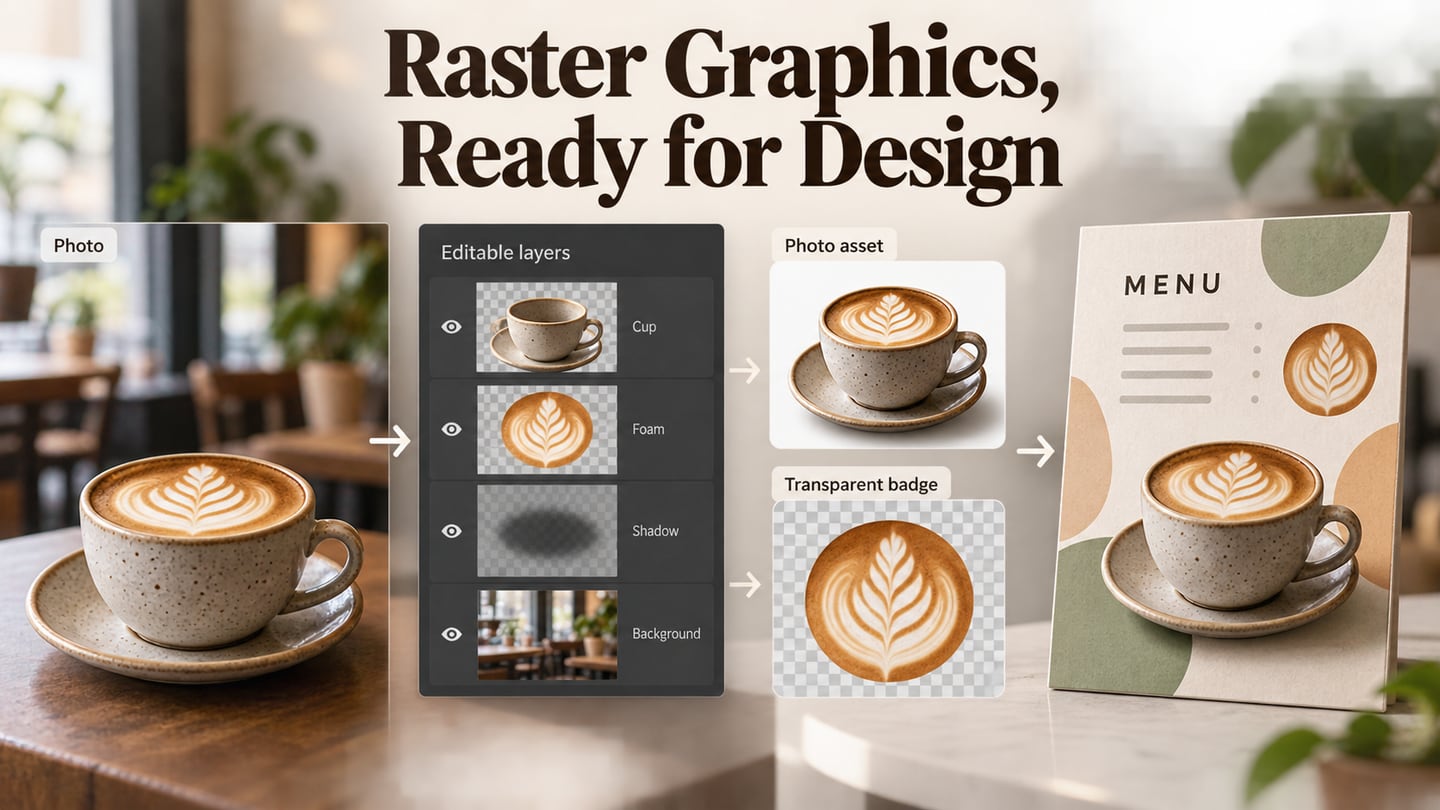
Choose alternative text by purpose. Describe an informative image’s relevant meaning; use an empty alt attribute for a purely decorative image when the nearby text already provides the message. W3C’s alt decision tree helps distinguish those cases. Do not add a string of keywords that repeats the headline without helping someone understand the visual.
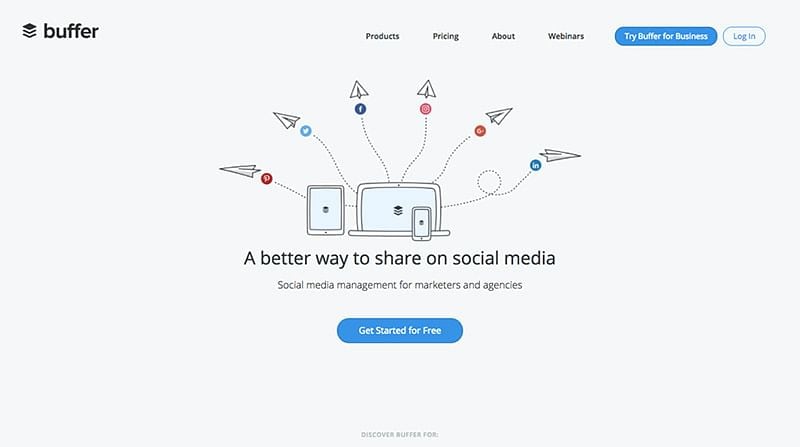
Source: Buffer
A useful hero image clarifies the message without slowing or crowding the page. Decide its role first, test the crop and reading order in Mockitt, and verify the implemented layout on a real device. For the surrounding navigation, continue with the website-header design guide; for the image’s tonal treatment, the gradient guide covers readable foregrounds.