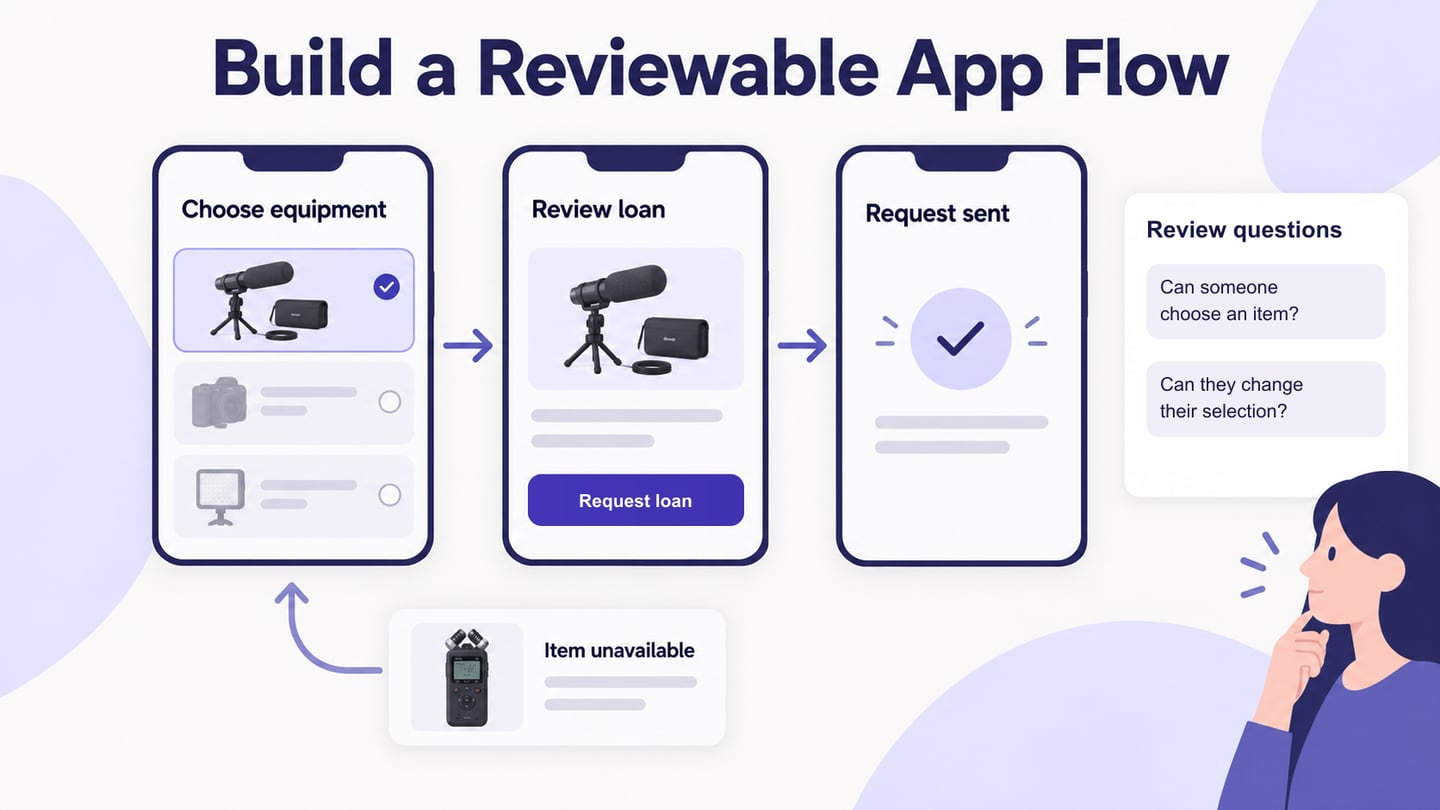
For a browser-based flow that the team can edit and preview together, start with Mockitt's app prototyping workspace and use the same task as the comparison baseline.
A prototype demo script makes the same app task comparable across builders and gives reviewers a clear decision to make.
Run the same app task in every builder
A fair comparison uses one task and the same evidence in every tool. For a mobile equipment-loan flow, ask each builder to cover entry, selection, request, confirmation, and an unavailable-item recovery state.
| Check | Evidence | Why it matters |
|---|---|---|
| Screen coverage | Every step has an editable screen | Missing states do not disappear in the demo |
| Interaction clarity | Triggers and outcomes are visible in preview | Reviewers can test without narration |
| Review workflow | Comments or notes stay with the flow | Decisions survive handoff |
Score the evidence you can reproduce, then choose the builder that fits the task and team review pattern rather than the one with the longest feature list.
A fair app-builder comparison uses one task and four checks
Use a simple scenario such as “A customer selects a device, submits a loan request, and recovers from an unavailable item.” Build only the screens that expose the decision. Check screen editing, interaction wiring, state coverage, and review sharing separately; a builder that creates attractive screens quickly may still leave the recovery route untestable.
| Check | Question | Evidence |
|---|---|---|
| Screen creation | Can the team establish the mobile hierarchy quickly? | Editable screen with real task copy |
| Interaction wiring | Can actions show the correct next state? | Previewed route and return path |
| Review | Can a teammate comment on the same version? | Shared link, comments, and decision notes |
| Handoff | Are assumptions visible before implementation? | States, assets, and open questions |
App prototype builders help you connect mobile screens so a team can review the proposed experience before development. Choose a builder around the flow you need to demonstrate, then make that flow usable from its starting screen through its return and recovery paths. Compare Mockitt and Axure RP, then follow the create, edit, preview, and share walkthrough.
Two App Prototype Builders to Evaluate
Mockitt suits a visual screen-and-flow discussion. Axure RP is another option when the review needs more explicit conditions or data-driven behavior. The decision is about the behavior your team needs to inspect, not which tool has the longest feature list.
1. Mockitt
Mockitt provides an online prototyping tool for arranging editable screens, connecting interactions, and sharing a preview. Start with a blank project or an appropriate template, add the controls needed for the task, and connect the screens. Keep the working design distinct from the preview you send to colleagues.

Useful capabilities
- Reusable widgets and templates for repeated interface elements.
- Screen connections and local states for a reviewable user journey.
- Preview and sharing so feedback refers to a specific design.
Selection check
Confirm the collaboration and sharing features in the plan your team intends to use. A link that works for the file owner may not be accessible to an invited reviewer; test it from the recipient’s perspective.
2. Axure RP
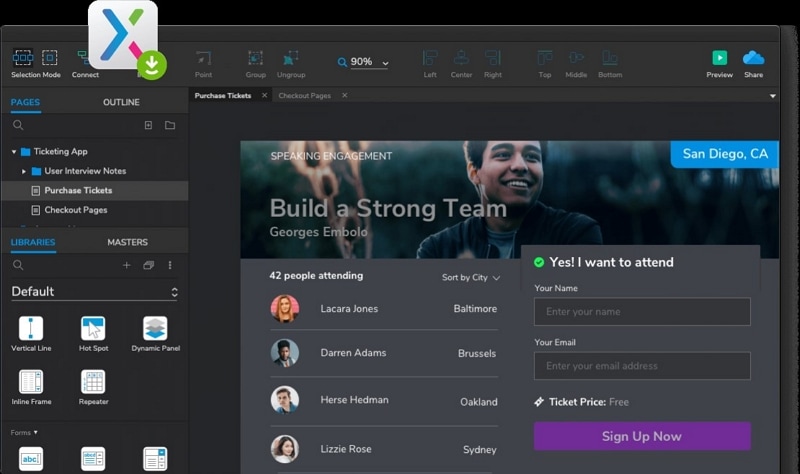
Axure RP supports event triggers, conditions, variables, and dynamic panels. It is useful when a prototype needs to express a rule rather than simply move from one screen to another. Its official product overview also describes working form controls and data-driven repeaters.
Useful capabilities
- Conditions and variables for alternative paths.
- Dynamic panels and input controls for interface behavior.
- Publishing through Axure Cloud for review and inspection.
Selection check
Build only the rules needed for the review. More logic creates more states to maintain and test. Axure offers a time-limited trial. Evaluate the required behavior before choosing a subscription for continued authoring.
Build a Mobile App Prototype
Before opening the editor, describe what the app should help someone accomplish. For this walkthrough, a staff member needs to borrow equipment: choose an item, review the requested dates, and submit a loan request. Add an unavailable-item path so the person can choose something else. The review concerns the interface; it does not reserve equipment in a real inventory system.
Prepare the screens and controls
- Use a mobile viewport that matches the intended review.
- Keep the equipment name and availability visible before the selection.
- Reuse the same item card and button styles across screens.
- Name the list, unavailable state, and review screen before linking them.
- Add notes where the design represents data or a rule that development must implement.
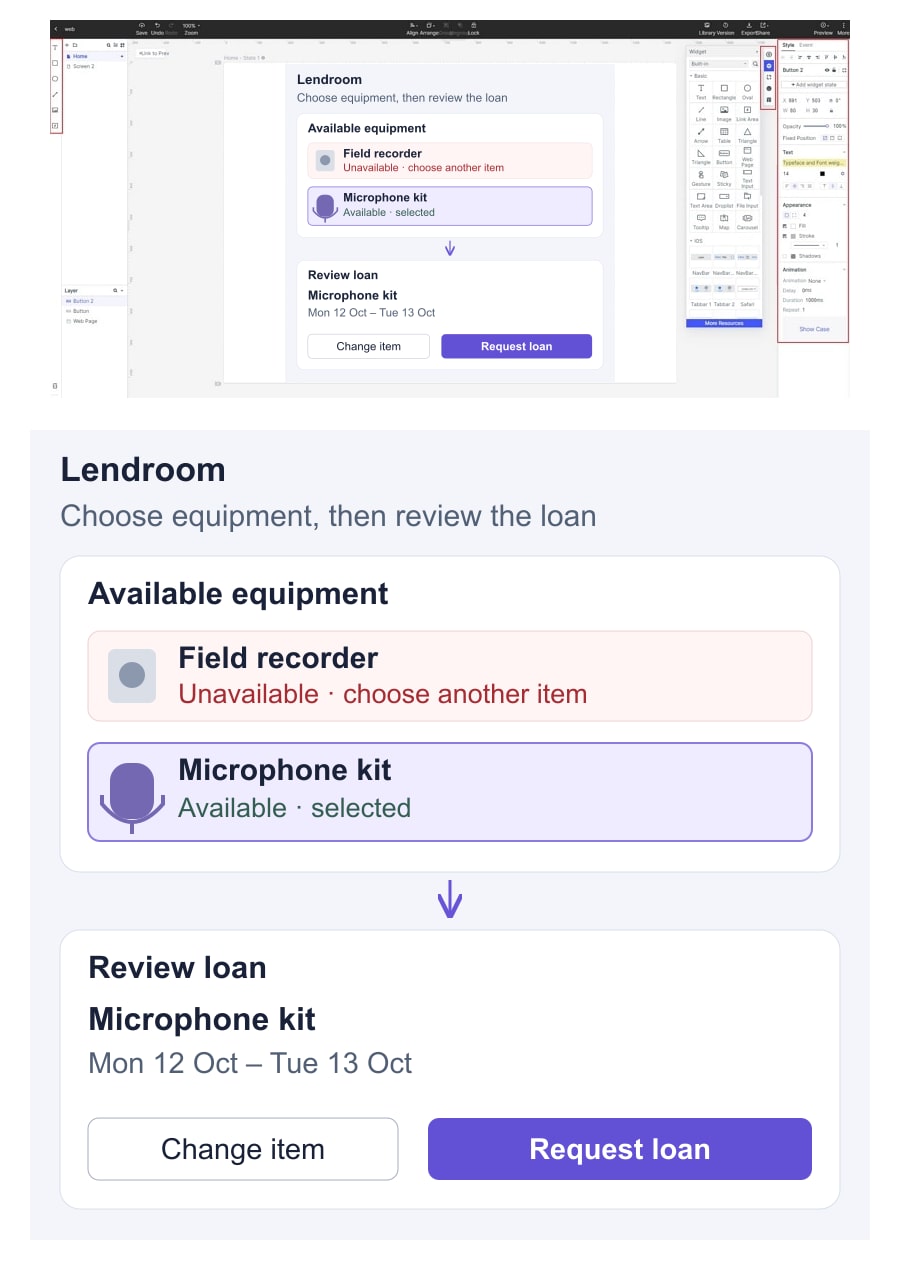
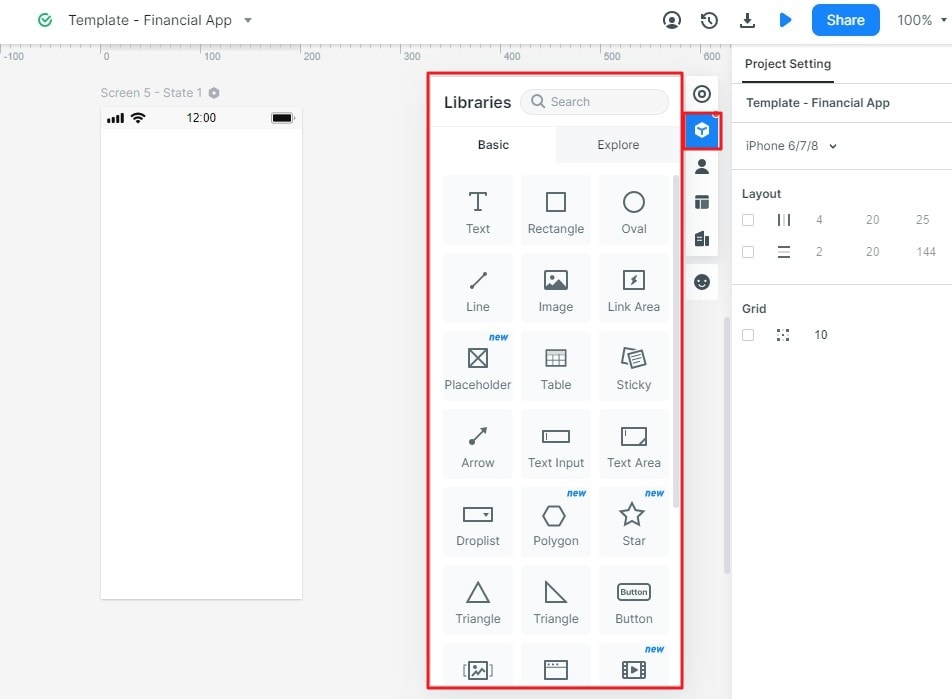
Follow the sequence below to create, edit, and preview the equipment-loan flow. The screenshots show an earlier Mockitt editor and illustrate the main operations; current menu positions may differ.
Step 1: Sign in and Create a Project
Open your Mockitt workspace and create a prototype project. Name it “Equipment loan — review draft” so colleagues can distinguish this exercise from approved work.
Choose a blank mobile project or a template whose structure fits the task. Create separate screens for Available equipment and Review loan, and include an unavailable-item state. A device preset sets the drawing area; inspect the finished preview on the intended phone as well.

Step 2: Add Widgets and Icons
Add text, item cards, and buttons from the widget library, then edit their labels and appearance. Use fictional equipment and dates. Save or reuse repeated controls so a wording change is reflected consistently instead of maintaining unrelated copies.
Give the equipment list a selected-item state, then connect it to Review loan. Add an unavailable-item state with a clear way back to the list. A reviewer should be able to change the item before choosing Request loan; the prototype represents that decision without reserving real equipment.
Step 3: Preview and Share Your App Prototype
Start Preview from Available equipment. Follow the successful route, return to change the item, and try the unavailable-item path. Check that each visible action reaches the expected screen or state before adding decorative transitions.
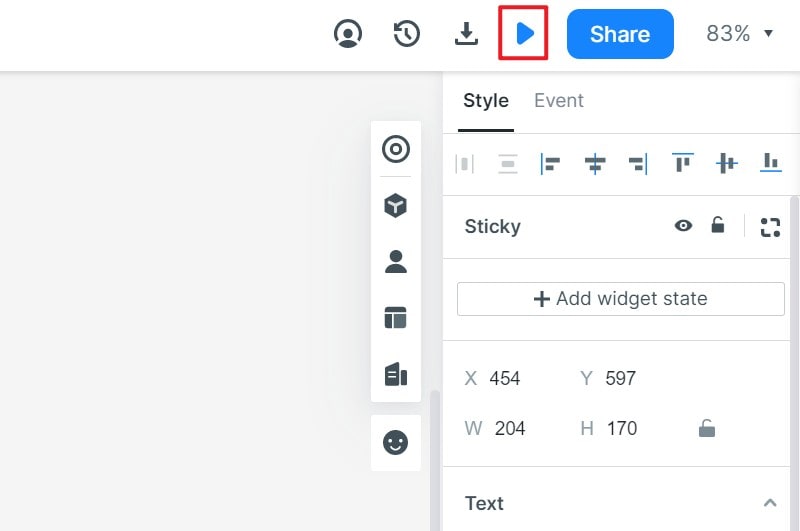
Use Share to send the intended preview to a colleague, then ask them to open it using their own account or the permitted guest route. Include the starting task and identify sample availability as fictional. Keep edit access limited to the people who need to change the file.
For a fuller review setup, use the prototype usability testing plan. It explains how to write a neutral task and record what a participant does, rather than treating a successful editor preview as user evidence.
Prepare the Prototype for Review
A reviewable prototype answers a specific question. For the equipment example, the question is whether a colleague can find an available item and correct a choice before requesting it. Use the following checks to keep the review focused.
- Make the business need concrete: request the right equipment for the intended dates.
- Trace both the main route and the most important alternative, such as an unavailable item.
- Give controls meaningful labels; a reviewer should not need a tour of the editor.
- Keep sample data consistent between the list and review screens.
- Record unresolved rules and decisions beside the relevant state.
Estimate the work from the screens, states, rules, and review rounds you need. An app’s size alone does not justify a fixed “two weeks” or “nine weeks” promise. A small first route gives the team something concrete to assess before extending the scope.
Conclusion
Choose the builder that lets your team maintain the behavior it needs to review. Mockitt is a practical option for editable visual flows; Axure RP provides explicit logic when the task calls for it. Before development, turn the review decisions into a design handoff checklist that identifies the intended version, states, and unanswered implementation questions.