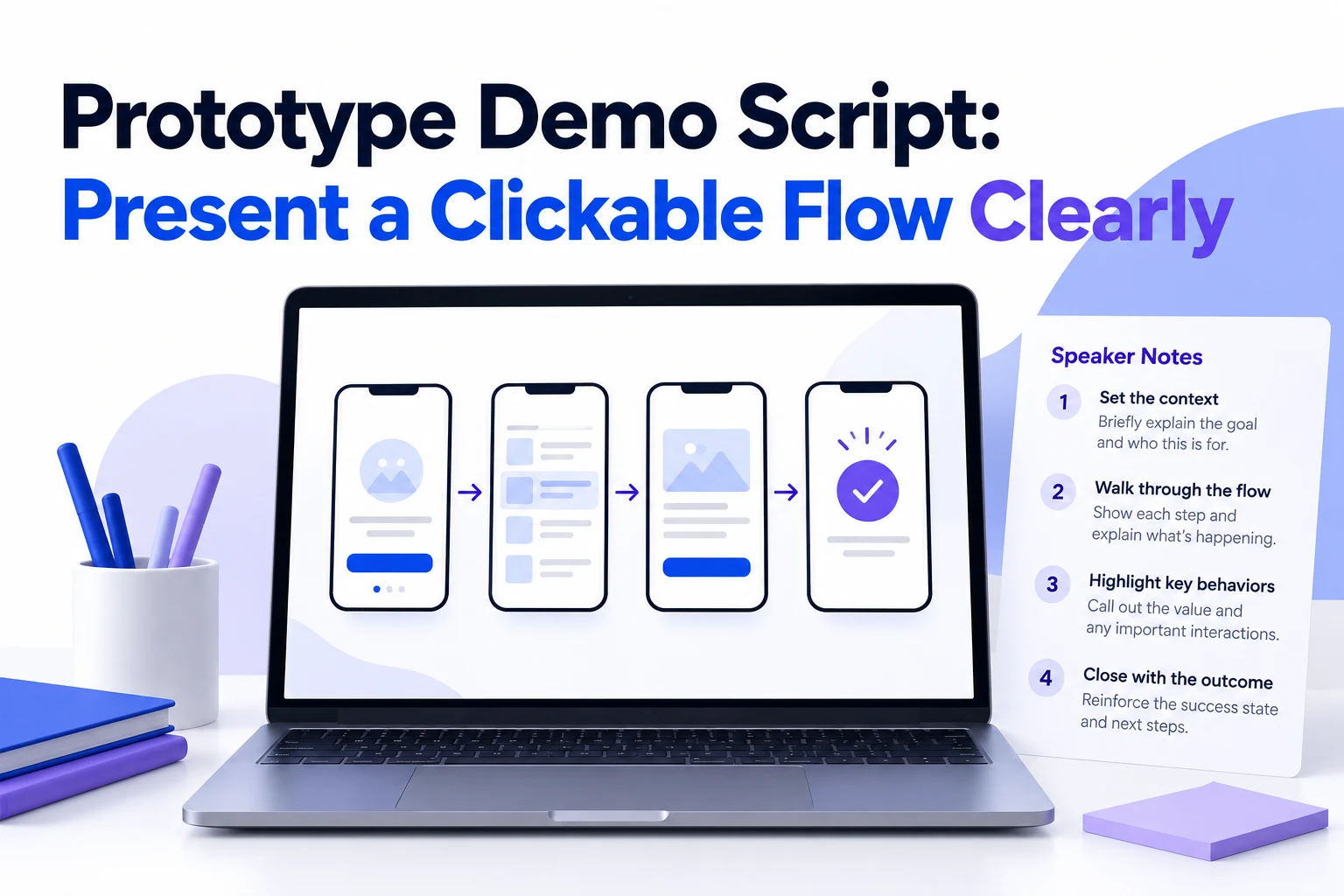
A clear prototype demo follows one user task from entry to outcome. Open with the problem, walk the clickable path in Mockitt's online prototyping workspace, call out the state changes that need feedback, and finish with one decision or next step. The script below uses a fictional device-borrowing service: a staff member needs a microphone for tomorrow's workshop, but the requested item may become unavailable.
Open with the task and the ask
Name the user, task, and decision in the opening minute. For example: “Today we are reviewing whether a staff member can request equipment and recover when it is unavailable. We need to decide whether the replacement choice is clear enough to take into the next design iteration.” This gives reviewers a reason to watch each screen instead of judging isolated visuals.
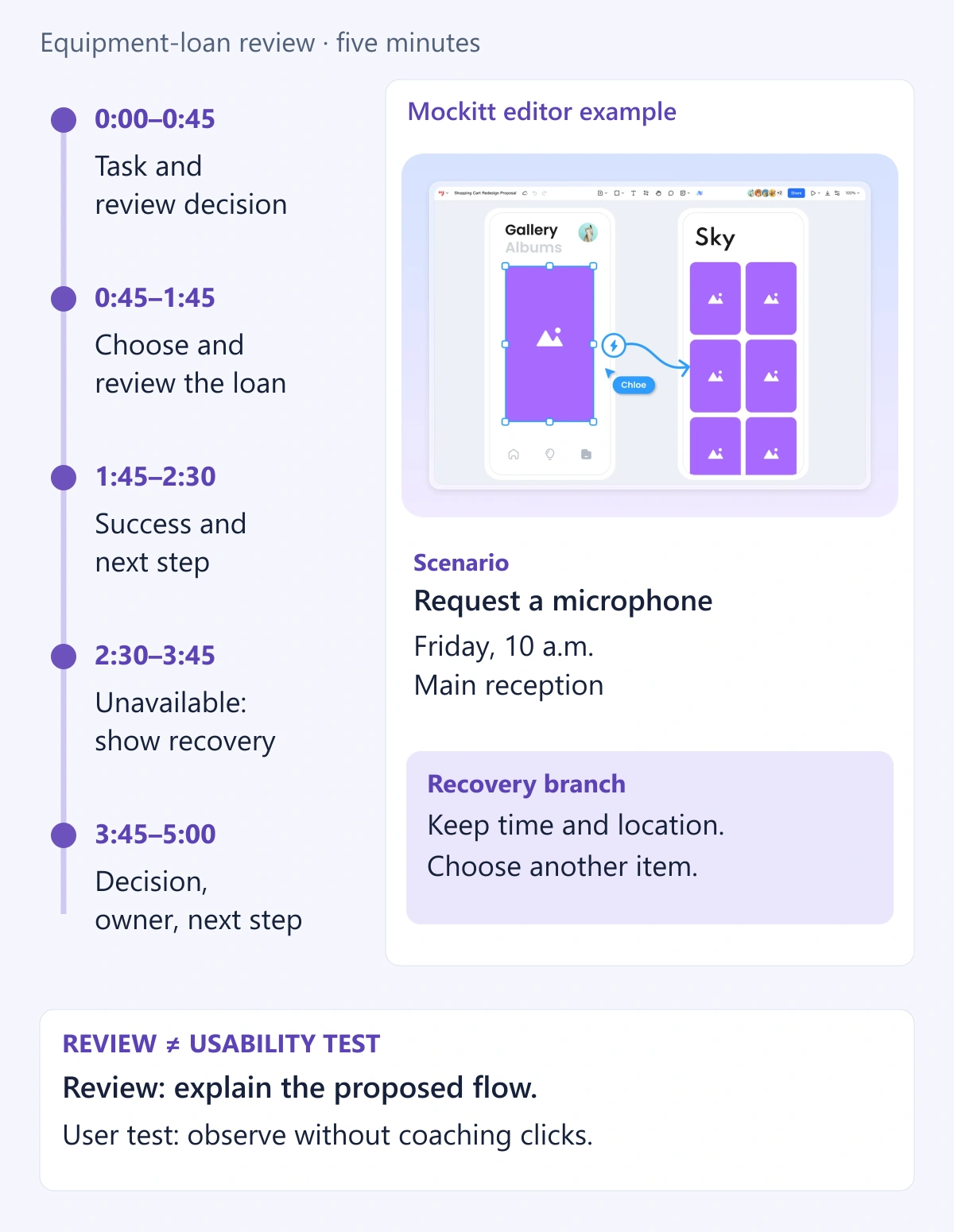
Establish whether this is a product review or a usability test. In a product review, you explain the proposed behavior and invite the team to challenge assumptions. In a usability test, a participant attempts a realistic task while you observe. Reading them the intended clicks would reveal the answer. Use the script below for a review; for a test, give a neutral task such as “You need a microphone for tomorrow's workshop. Show me how you would arrange it,” then allow the participant to act without coaching.
Walk one path before showing options
Prepare one start screen, one complete route, and one recovery branch. For this example, the person chooses a microphone, enters a date and pickup location, reviews the request, and sees confirmation. The recovery branch keeps the date and location while offering another microphone. Build only the states needed to explain these decisions; a review does not need an invented backend to tell a coherent story.
Pause after each action so the audience can read the result. Explain what remains visible and what the person can do next. Show alternatives only after the main route is understood. If someone requests an unrelated branch, note the question and return to it after the decision discussion.
Narrate the state change
Connect the action to its visible consequence: “I choose Friday at 10 a.m. The summary now shows that time and the pickup location. I can review both before submitting.” This is more useful than describing the visual style or clicking silently. Point out information that protects the user from mistakes, such as the selected item and time remaining visible on the review screen.
Describe simulated behavior accurately. A confirmation screen demonstrates the proposed message and next action; it does not prove that a live request was saved or a notification was sent. Similarly, an unavailable state can demonstrate recovery without checking real inventory. Keep implementation questions in a separate discussion so reviewers can judge the visible flow without assuming the underlying service already exists.
Collect feedback that leads to a decision
Ask a specific question about a specific state. “What would you do if this microphone were unavailable?” invites a response about recovery. “Which detail is missing before you could submit?” asks about information sufficiency. “Where would you look for this request later?” examines the next step. Avoid “Do you like it?”; it rarely identifies what needs to change.
Distinguish an observation from a solution. “The reviewer looked for status in the profile menu” records behavior; “add a status shortcut” is a proposed response. Capture the screen, observation, decision, owner, and next check. A practical note might read: “Unavailable state — preserve date and location when switching items; designer to revise the replacement label; product manager to confirm the substitution policy before the next review.” Unresolved issues need an owner and missing input, not forced consensus.
Prototype demo script template
Use the following five-minute run of show. The spoken portions leave room for the clicks, reading pauses, and brief answers shown in the cues. Replace the example labels with the screens your prototype actually contains.
0:00–0:45 — Introduce the task
“A staff member needs a microphone for tomorrow's workshop. This review follows the request from choosing equipment to checking its status. We will also see one unavailable-item state. By the end, we need to decide whether the recovery path is clear and who will resolve any open policy question.”
Keep the starting screen visible while speaking. Ask whether the audience agrees with that scope, then begin.
0:45–1:45 — Choose and review
“I start on the equipment page and choose ‘Request equipment.’ I select a microphone, Friday at 10 a.m., and the main reception desk for pickup. The review screen keeps those choices together. Before I submit, can you identify what equipment I am requesting, when I need it, and where I will collect it?”
Perform each action as it is named. Pause on the review screen for an answer; note a missing detail rather than immediately explaining it away.
1:45–2:30 — Show success and the next step
“I submit the request. This confirmation shows the intended request summary and a route back to ‘My requests.’ I follow that route so you can see where someone would return to check progress. These are prototype states; this demonstration has not reserved real equipment or sent a notification.”
Pause on the request list. Ask: “What status would you expect to see before pickup?” Record a policy gap if the answer is unresolved.
2:30–3:45 — Show the unavailable-item recovery
“Now I return to the review step and show the case where this microphone is unavailable. The selected time and location remain. I can choose another microphone or change the time. I select the alternative and return to the summary. Is it clear that I am changing the equipment without restarting the request?”
Show the recovery branch slowly. Ask what would happen if no suitable alternative existed. Keep that as a separate decision if your prototype does not include the answer.
3:45–5:00 — Close with a decision
“We have reviewed the request, confirmation, and one recovery path. My proposed next step is to preserve the date and location during substitution and clarify the replacement label. Do we agree, or is there a specific risk we have not addressed? Who owns the policy decision, and when should we review the revision?”
Read back the agreed decision and owner. If the group cannot decide, state the evidence or input needed and assign responsibility for obtaining it.
Prepare for a remote demo and a failed transition
Test the starting link with the access level your audience will use. Rehearse the main route and recovery branch, close unrelated tabs, and check that labels are readable in screen sharing. Keep an ordered set of screenshots ready as a fallback. If a transition fails, say what failed, move to the corresponding static state, and continue the same question. Do not treat a screenshot as proof that the interaction works. For a usability test, a broken transition may interrupt the task; record the interruption rather than counting a guided recovery as independent completion.
Conclusion
A useful prototype demo gives the audience a task to follow and a decision to make. Rehearse one complete route, explain visible state changes, and include a recovery path that matters. Close with the agreed action and owner so the review produces a concrete next iteration.