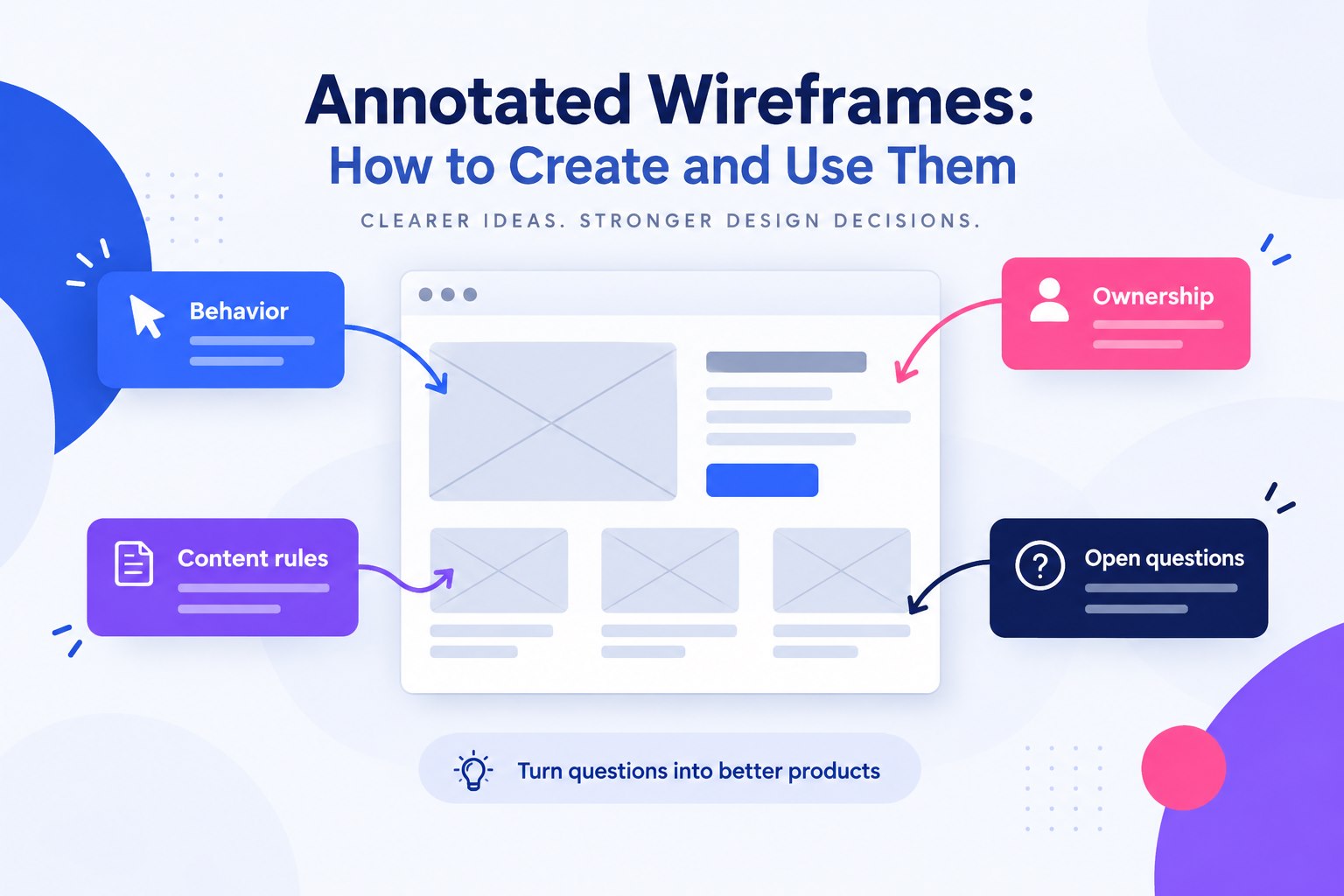
Annotated wireframes combine a simplified screen layout with notes about behavior, content, and decisions. They help a reviewer understand the parts that the layout alone cannot show, such as what happens after a button is pressed or which information is still missing.
- Part 1: What Is an Annotated Wireframe?
- Part 2: A Tool for Annotated Wireframes
- Part 3: How to Create an Annotated Wireframe
What Is an Annotated Wireframe?
A wireframe explains the screen’s structure; an annotation adds the context needed to interpret it. Describe the purpose of important elements, the expected response to user actions, and any unresolved questions that could affect implementation. For example, a note beside a form field can define an accepted format, an error message, or a dependency on another field. This makes the reasoning visible without asking a reviewer to infer it from the boxes.
Annotations can also explain navigation and states: where a link leads, what input a field expects, and what should happen when data is missing. They document intended behavior; they do not replace testing the eventual implementation.
Useful annotations reduce ambiguity for the next person reviewing or building the screen. They should state a requirement or question clearly, rather than promising business outcomes.
A Tool for Annotated Wireframes
Mockitt can be used to arrange wireframe screens and add notes beside the relevant elements. Use its widgets for the layout, then add a short explanation wherever a behavior or content rule would otherwise be unclear.

Share the wireframe with the people who will review or implement it, and give them a specific question to answer. Check the sharing permissions and preview the link on the intended device before sending it.
The guide below will greatly help you in creating your prototype without getting confused.
How to Annotate Wireframe Step-by-Step
Step 1: Create a Wireframe Project
After signing in to Mockitt, create a prototype project and choose the device or screen size for your wireframe. The retained screenshots show the earlier editor; exact labels may differ in the current workspace.
Click on "Settings"to edit the device type, project name and the size. Now, save the changes.

Step 2: Adding Widgets to Wireframe
For adding widgets in your designs you can directly click left side on the screen on the left corner to add desired one from the fast widgets. You can also directly drag and drop the widget or double click on the desired to add in the canvas.
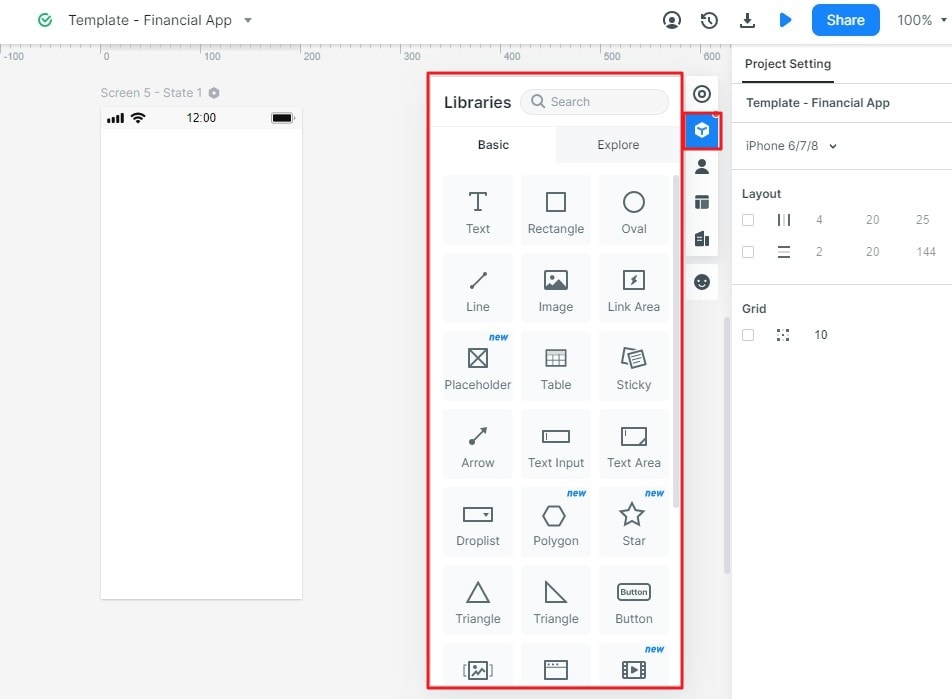
- You can also add some Built-in widgets, My widgets and Icon given on the right side.
- It allows you to change the property directly after entering the widgets in the canvas.
- After creating the mockup, save the designed widgets for future. You can save your widgets in "My Widget"library either by dragging it to "My Widget"panel or you can right click the widget to save it in "Add to widgets"option.
- You can also convert widgets to master for editing in bulk.
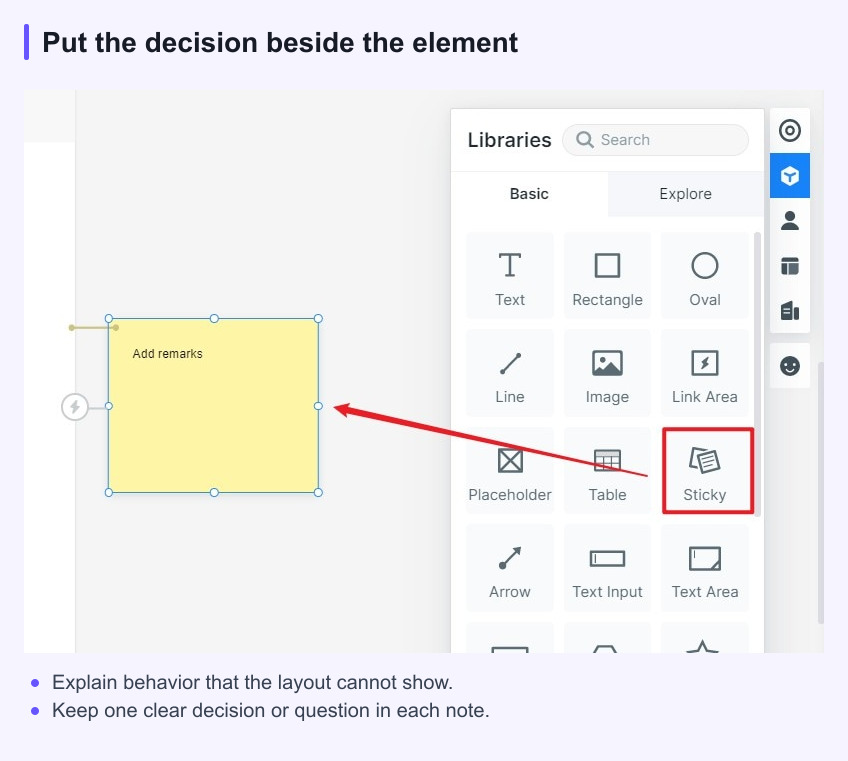
Step 3: Add Notes to Make it Annotated Wireframe
You can also add the notes by selecting the "Sticky"option of the widget library.
Use a Sticky note to explain the behavior or content rule beside the relevant element. For example, an annotation beside a required email field can specify the missing-input message and what the user can do next.
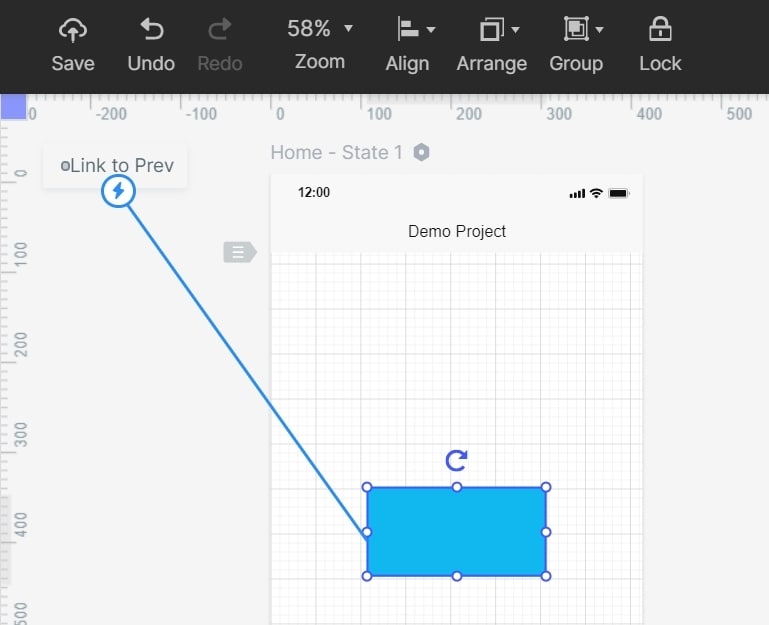
Step 4: Add Links and Interactive Content
Click on one widget to add a link. Select "New Link"in the panel on the right side. Now, set the gesture, animation, target screen and action for the widget.
If you are willing to add some interactive and engaging content to your website designing then you can use it via Screen state. You can also change the size, shape and color of the image according to your need and preference. This is the best thing you can easily do with the help of the software in your design without struggling too much.
Make annotations useful to the next reader
An annotation should explain a decision that the wireframe alone cannot show. Use short labels for behavior, content rules, ownership, or an unresolved question, and keep each note close to the related element.
Before a review, remove notes that no longer apply. A smaller set of current annotations helps the team distinguish a requirement from a discussion point.