A web form collects information needed to complete a task: placing an order, registering for a service or requesting help. Good form design makes the purpose, required information and next step clear. The following tips focus on that task rather than treating every additional field as an opportunity to collect more data.
Forms can create friction when they ask for unnecessary information, lose completed answers or explain errors poorly. Review the actual task and audience before changing the design. A published abandonment percentage from another website is not a reliable prediction for your form.
10 UX Form Design Tips for Beginners
These ten tips cover decisions you can discuss in a prototype and verify in implementation. They do not guarantee a particular conversion rate; their value depends on making the form understandable and usable for its intended audience.
Tip 1: Know the Task and the Users
Start by asking what someone is trying to accomplish and which information is necessary. An equipment-return request may need an order reference and a reason; it may not need a new account or a full customer profile. Explain why any less obvious information is requested.
Include people with visual, motor and cognitive access needs when reviewing the experience. The W3C forms tutorial explains the importance of labels, grouping, instructions and feedback. Design review should be followed by keyboard and assistive-technology checks on the implemented form.
Trying the form yourself can expose obvious friction, but your experience is not a substitute for research with the intended audience. Observe which instructions people need and which questions they interpret differently.
Tip 2: Keep the Form Focused
Ask only for information required for the task and remove duplicate requests. A single-column layout often makes the reading order easier to follow; use side-by-side fields only when their relationship remains clear at small widths. Shorter is useful when it means less unnecessary work, not when it hides essential instructions.
If the form takes substantial preparation, explain what someone will need before they begin. Give a time estimate only when there is evidence for it, and clarify whether progress can be saved.
Arrange options so their labels are easy to scan and select. Long checkbox labels are usually easier to compare in a vertical list than when they wrap into several uneven columns.
Tip 3: Use Multiple Steps When They Help
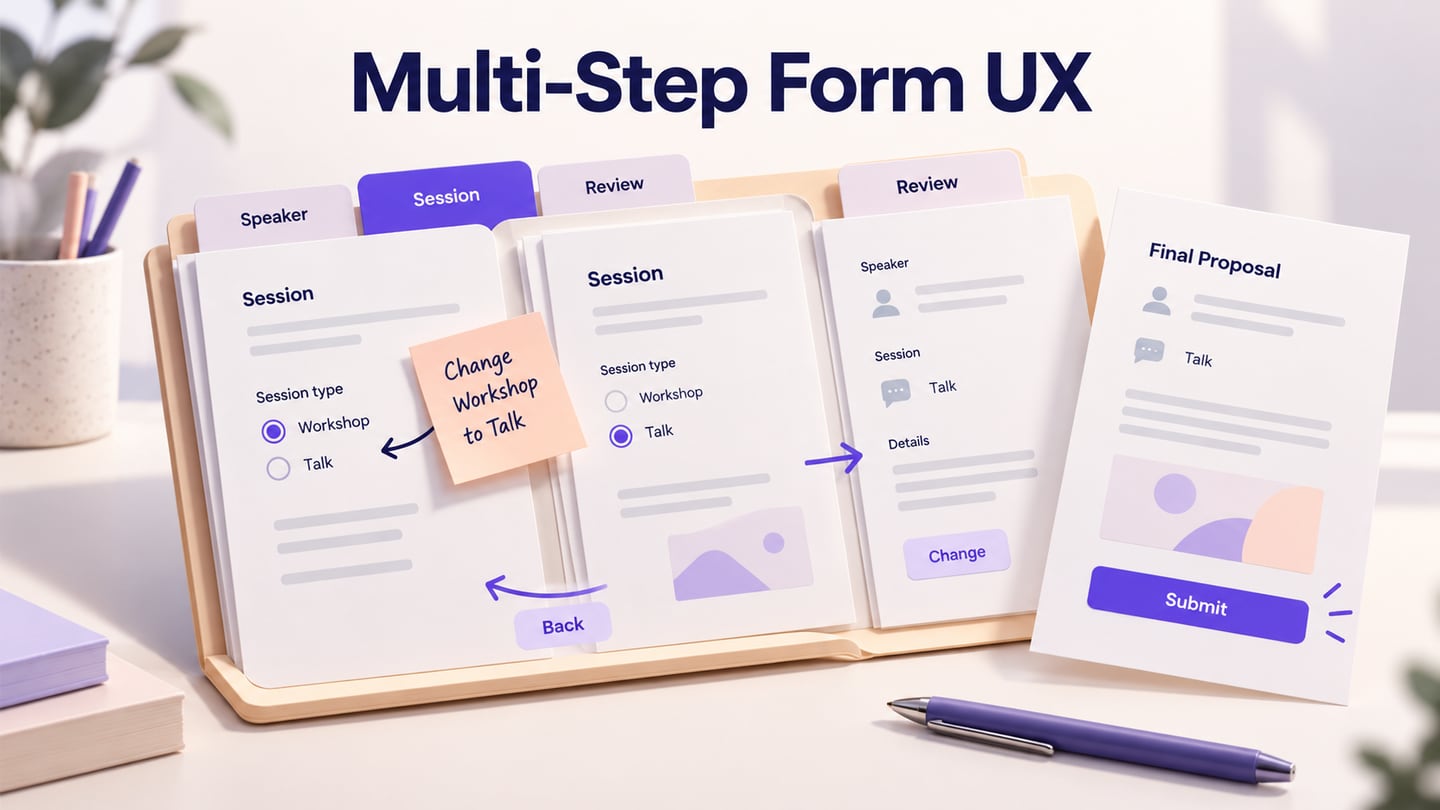
A short form can work well on one page. Split a longer task into steps when the sections are meaningful and people need a manageable sequence. Do not add a separate page for every field automatically; that can create unnecessary navigation.
For an equipment return, a sequence might be Item details, Pickup and Review. Show progress, preserve answers when someone goes back, and explain the final action. W3C’s multi-page form guidance covers orientation and progress for longer forms.
Tip 4: Make Autofill Predictable
Autofill suggests or supplies previously stored information; keyboard focus identifies the control currently receiving input. They solve different problems. Label fields clearly and use appropriate autocomplete purposes in implementation so browser assistance can work as expected.
Let people review and correct suggested values. Avoid moving focus while they are typing or opening a mobile keyboard before they choose an input. If location or account information is used, make that use appropriate to the task and the person’s permissions.
Tip 5: Keep Labels Visible
Place a persistent label where its relationship to the control is clear. A label outside the input remains visible after someone enters a value and helps them check what the value means.
Labels above fields are a practical starting point for narrow layouts. Other arrangements may work for a particular task, but check text wrapping and the association between label and input rather than assume one placement always produces better results.
Use concise, readable labels in a consistent style. Keep them close to their fields, allow enough contrast and avoid making them smaller merely to fit a crowded layout.
Tip 6: Group Related Questions
Divide a long form into meaningful sections. In the equipment-return example, item details belong together, while pickup information is a separate group. A section name should explain the questions beneath it rather than act as decoration. For optional detail, progressive disclosure keeps the main task visible while revealing the extra controls.
Order the groups according to the task and dependencies. Ask for the item before presenting pickup options that depend on its size or location. In implementation, related controls may also need programmatic grouping.
Tip 7: Use Hints Without Replacing Labels
A placeholder can show an example, but it disappears when typing begins. Keep essential instructions outside the field so people can refer to them while completing the form. Do not add placeholder text to every input without a reason.
Distinguish a suggested example from a value that will actually be submitted. For a return reference, a persistent hint such as “Use the reference from your order confirmation” is more useful than a faint placeholder that looks like completed data.
Tip 8: Give Useful Error Feedback
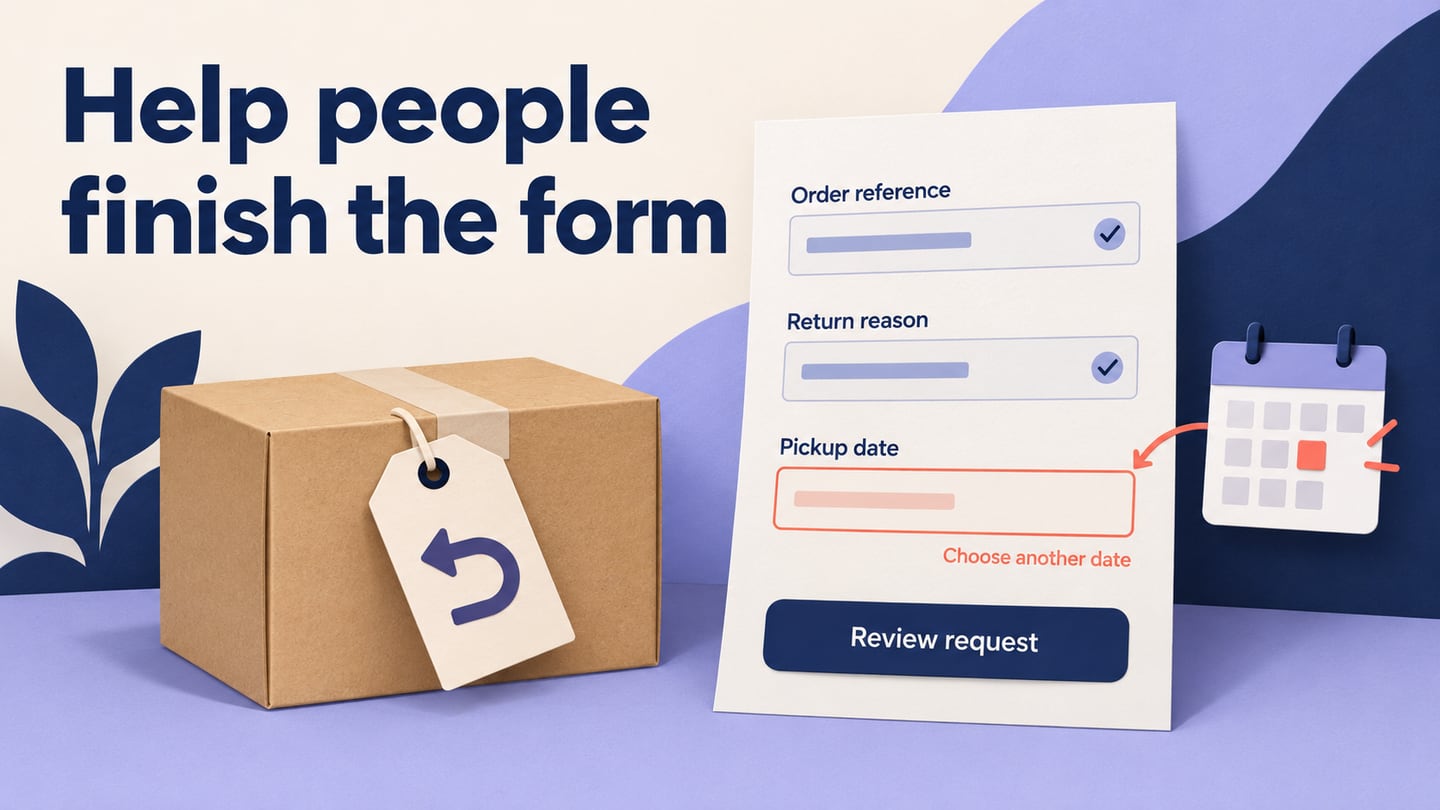
For an equipment-return request, keep the order reference and return reason when a pickup date is invalid. Explain the correction beside the date: “Choose today or a later available date.” In a Mockitt prototype, show the error and recovery together so reviewers can see that previously entered answers are retained.
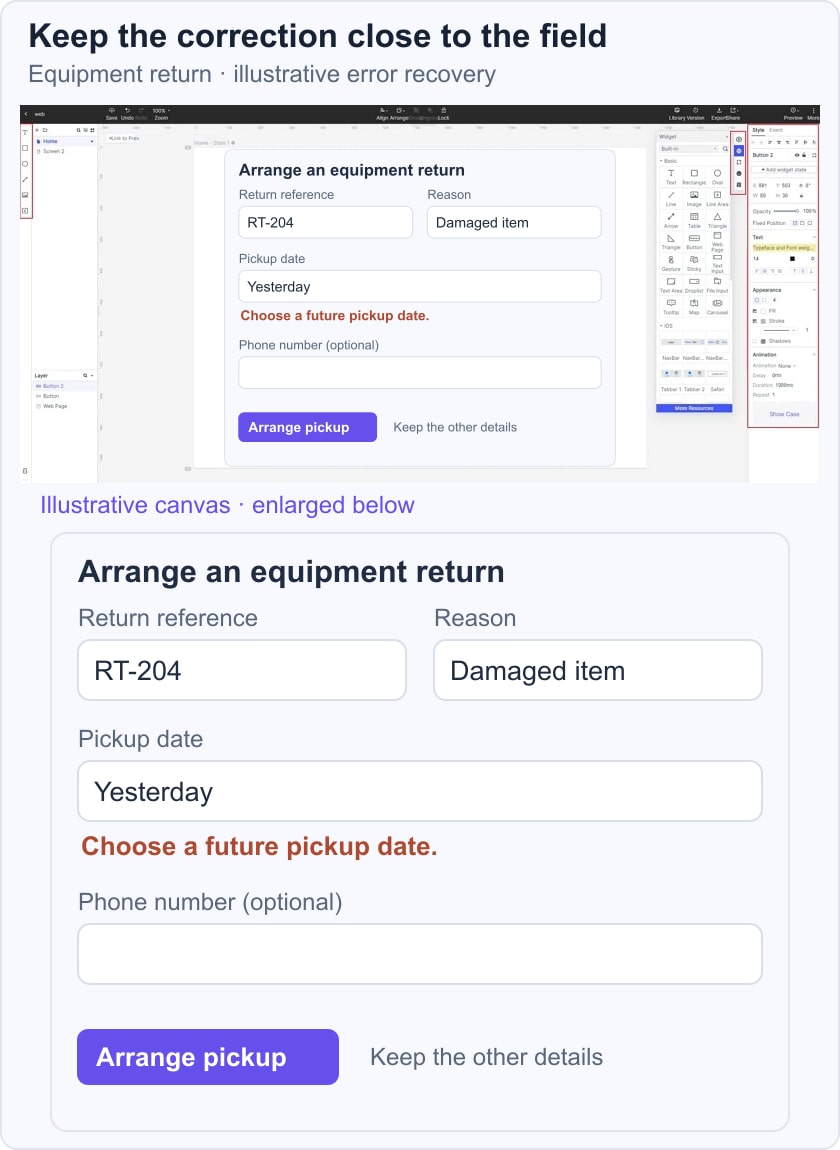
Useful error feedback should let the person:
- Identify which field needs attention.
- Understand what prevented the request from continuing.
- Correct the answer without repeating unrelated work.
Use text to explain an error; color can reinforce the message but should not carry it alone. For several errors, a summary can help people find the affected fields. W3C’s notification guidance describes both summary and inline feedback.
Remove or update an error when the corrected value has been checked. Avoid marking an unfinished answer wrong on every keystroke. A success message should confirm the actual outcome, not merely that the person clicked the submission button.
Tip 9: Review the Mobile Experience
Check narrow screens, text enlargement, touch targets and how the form behaves with an on-screen keyboard. Essential instructions and the current error should remain easy to find without horizontal scrolling.
Use appropriate input types and keyboard hints in implementation, such as email input for an email address. Do not force the keyboard open just because a page loaded. Test the experience on the devices and browsers relevant to the audience.
Tip 10: Explain Required and Optional Fields
Make it clear which information is necessary. If a phone number is optional, say so beside the label and explain when it would be useful. Do not imply that optional information is required by making the form difficult to submit without it.
If using a symbol for required fields, explain it and provide the same information programmatically. Apply one consistent convention throughout the form, then verify it with realistic completed, incomplete and error states.
Conclusion
A useful web form asks for the information needed, explains uncertainty and helps people recover without losing work. Review these ten decisions in the prototype, then validate behavior and accessibility in the real implementation. Measure the results of a change rather than promise an unsupported sales increase.