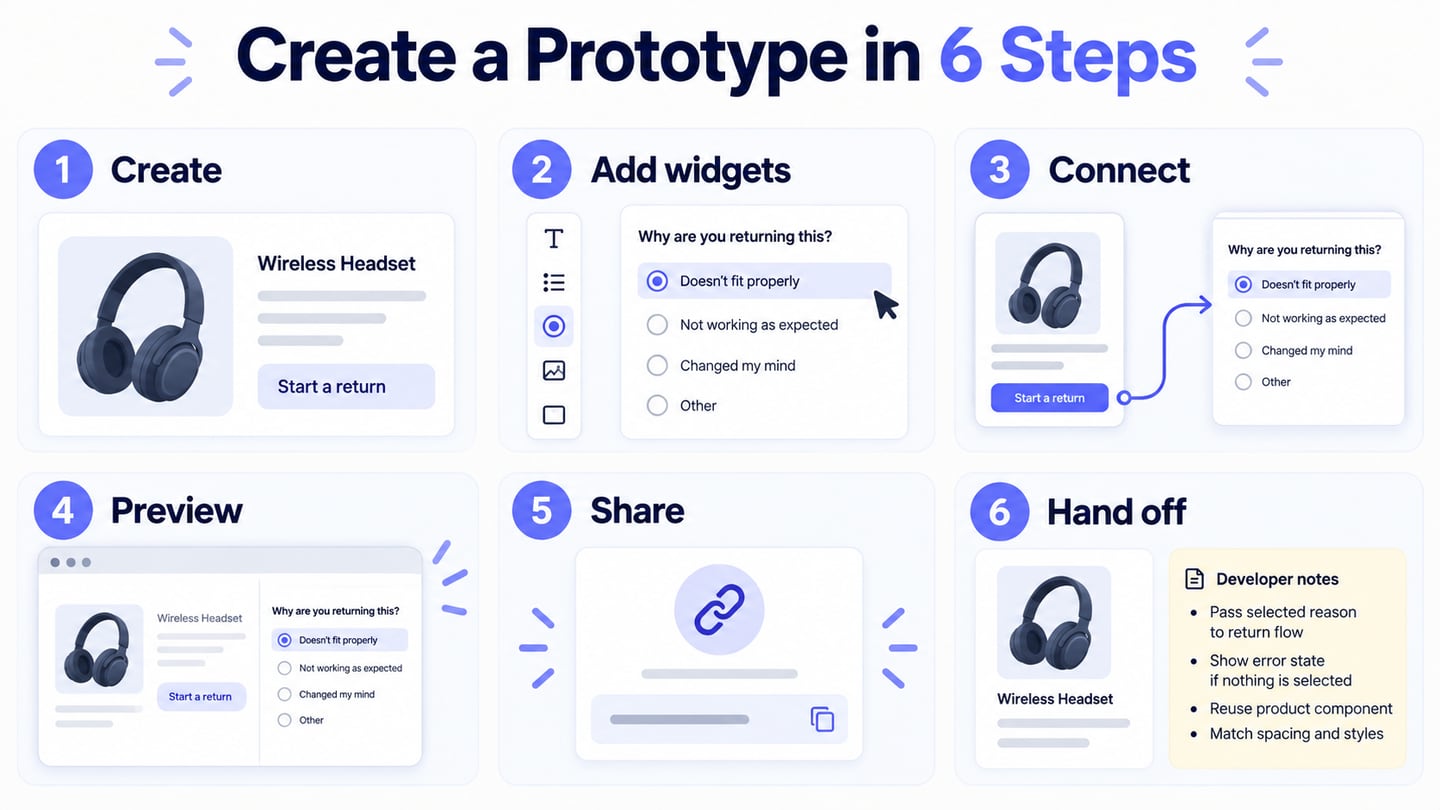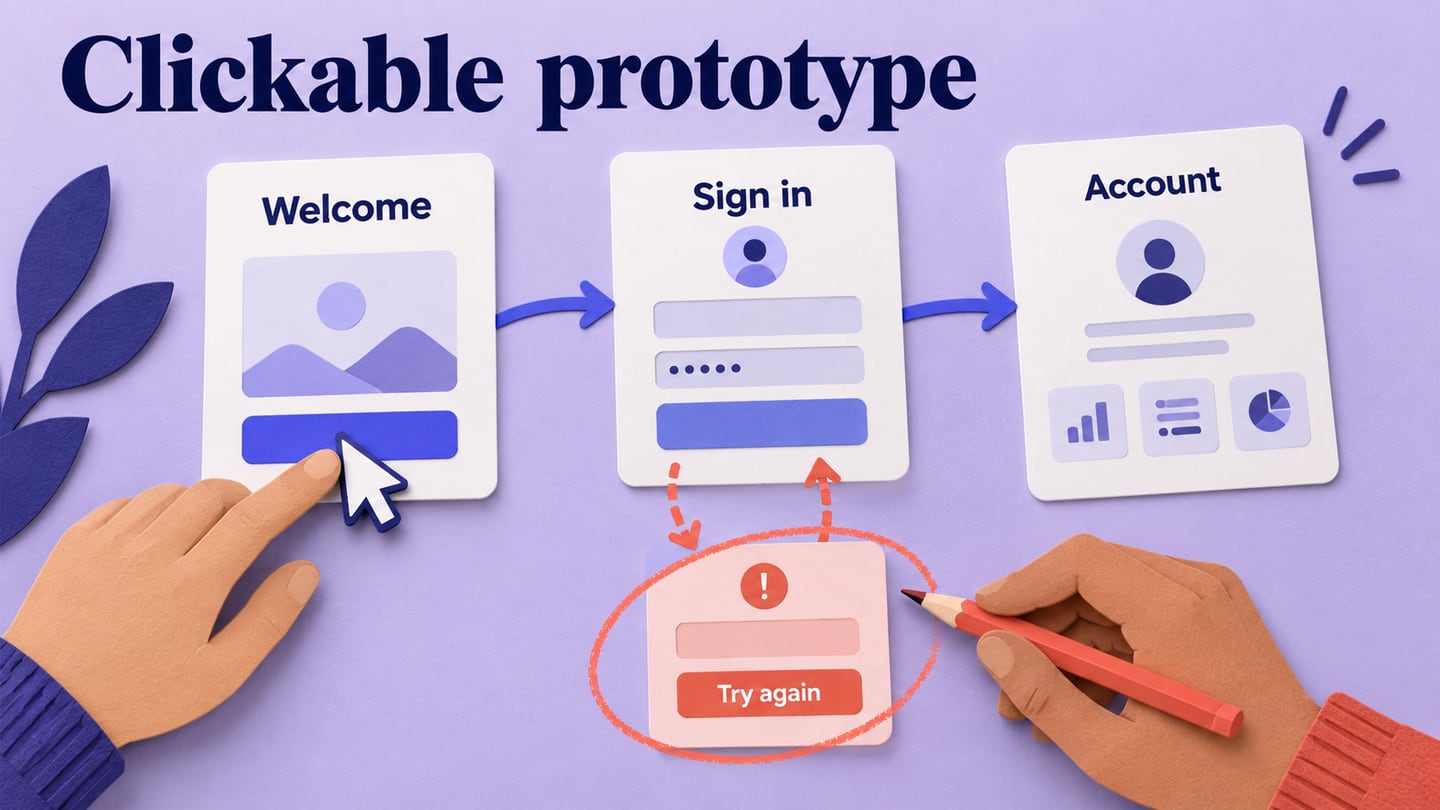
A clickable prototype connects interface screens and states so someone can try a task before the product is built. It helps a team check whether a button leads to the expected place, whether feedback is understandable, and whether users can recover from a mistake. Follow the screen-linking walkthrough to build a sign-in example with success, error, and return paths. The guide also explains how the same interaction model applies in Figma and Sketch, with separate notes for older Adobe XD and InVision projects.
Choose What the Clickable Prototype Needs to Demonstrate
Mockitt provides a browser workspace for arranging screens, connecting interactions, previewing a flow, and sharing it for review. For a clickable prototype, start with the smallest complete task you want to evaluate. A sign-in flow needs more than a working Log in button: it needs a destination, feedback when the attempt fails, and a way to try again. Check these capabilities when choosing a tool:
- Reusable widgets and templates for the screens your task needs.
- Drag-and-drop layout editing so labels, fields, and controls stay editable.
- Interaction links with a clear trigger, destination, and transition.
- Widget states for local changes such as an expanded panel or submission feedback.
- Reusable components when the same navigation or control appears on several screens.
- A preview that lets you follow the task from its intended start.
- A shareable preview with access settings appropriate for the reviewers.
- Screen organization and notes that distinguish simulated behavior from implementation requirements.
- A workflow your team can maintain when screens, labels, and decisions change.
How to Create a Clickable Prototype in Mockitt
Step 1: Add Widgets to the Prototype
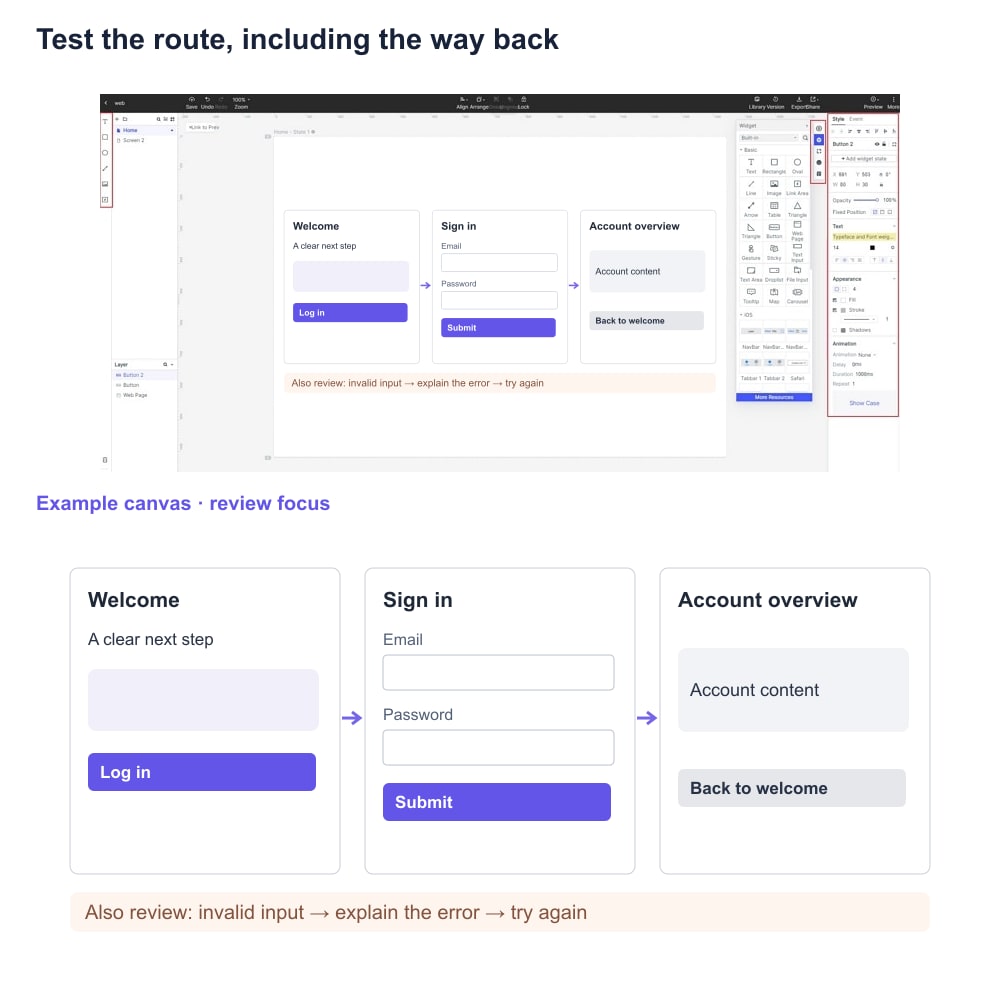
Once you enter your workspace, create the screens you need and add text, fields, and buttons from the widget library. For this exercise, name them Welcome, Sign in, and Account overview. Use fictional content and a visible “Demo” note. The retained screenshots below show an earlier Mockitt interface; use them to understand the relationship between screens and events, rather than to locate every control in the current release.
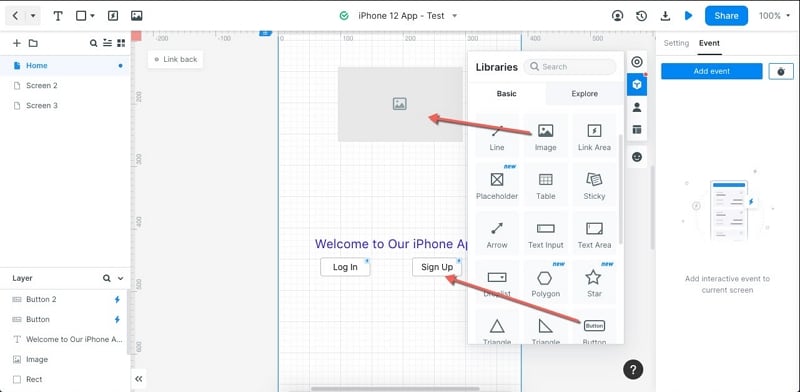
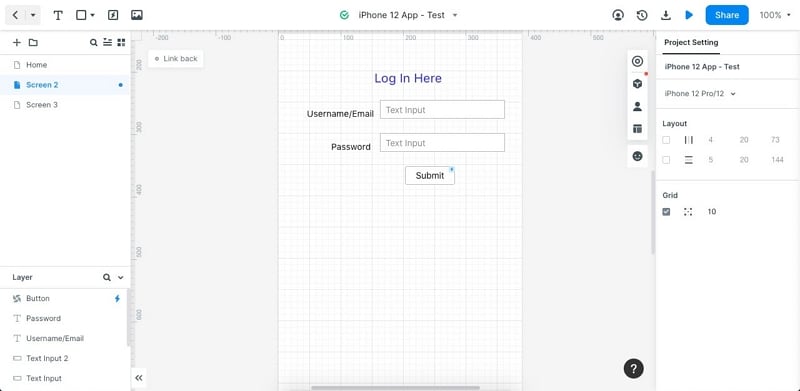
The original example uses Home, Screen 2, and Screen 3. In the exercise, those correspond to Welcome, Sign in, and Account overview. Welcome contains Log in and Sign up actions; Sign in contains sample email and password fields plus Submit; Account overview contains an account summary and a way back. Leave any out-of-scope action visibly labelled so testers do not mistake a dead control for a design decision.
Step 2: Add a Screen Transition
Select the Log in button on Welcome and connect it to Sign in. In Mockitt, page interactions associate a trigger with an action and target page. Use a tap/click interaction for this button and choose the Sign in destination. Name screens before wiring them so similarly shaped frames do not lead to the wrong target.
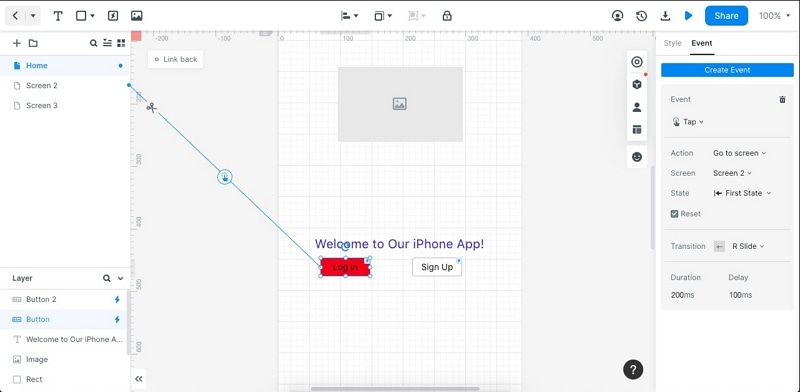
In the original capture, the Event panel shows the selected interaction. Check the destination as well as the trigger: a connector drawn to Screen 2 should open the sign-in form, not merely highlight the button. Keep the first transition simple so the reviewer can judge navigation without waiting for an animation.
Open the prototype preview from Welcome and choose Log in. This checks the connection in the experience the reviewer sees, rather than only in the editor. If the button does not respond, inspect the trigger and target, then check whether another layer covers the clickable area.
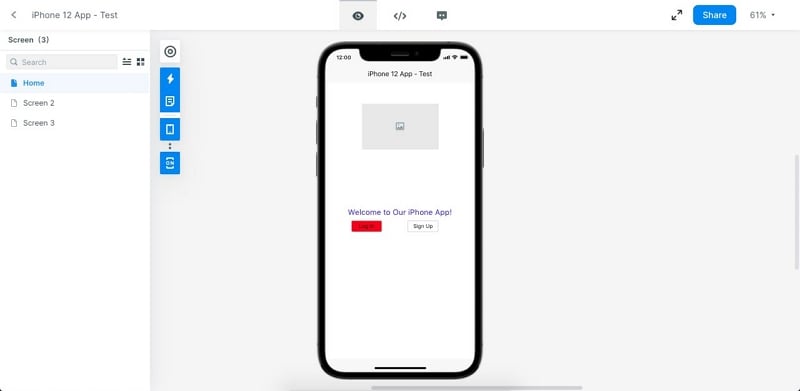
The expected result is the Sign in screen, with a visible form and a clear next action. If a different screen opens, fix the target before adding more interactions.
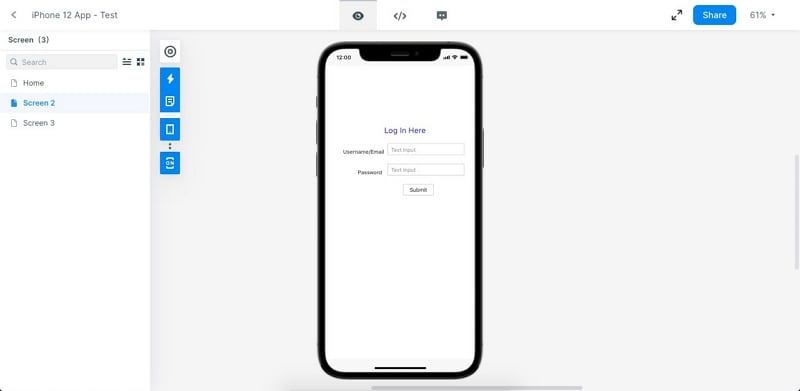
Add a Back or Cancel action to return to Welcome. For a test participant, a recoverable route is more useful than a polished one-way demonstration.
Step 3: Add a Widget State
Use widget states for a change that belongs to the current screen, such as showing an error message below a field. Use a separate screen when the user has reached a different destination. Keeping this distinction clear prevents a prototype from accumulating duplicate screens for every small visual change.
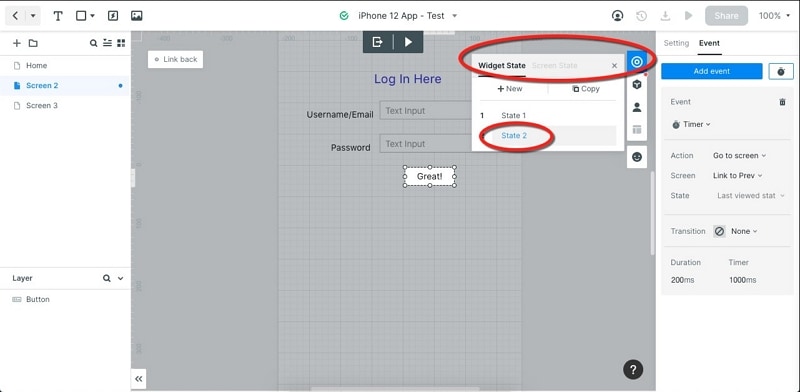
The original screenshot changes Submit to “Great!” in a second widget state. That is a simulated visual response; it does not authenticate a user or validate credentials. For the exercise, make the error state explain what to do next: “These demo details were not accepted. Try again.” Then provide a separate success route to Account overview. If the prototype does not evaluate input, label these as two scripted branches and choose the branch deliberately during the review.
Preview both branches from the same starting point. On failure, the form remains available and the participant can retry; on success, the account summary appears. Share the presentation only after checking its start screen and access permissions. Ask the reviewer to use the shared link, because an editor session can hide an access problem.
Before inviting a team, check the current Mockitt plan limits for the files, collaboration, and sharing options you need. A free entry point is not evidence that every feature is available without limits.
Record What Happens in the Sign-in Test
Give a participant this task: “You already have an account. Find the sign-in form, try the unsuccessful demo route, then reach your account summary.” Do not point to the next control. The following is a test script to fill in, not a report of measured user results.
| Checkpoint | Expected visible result | Evidence to record |
|---|---|---|
| Welcome → Log in | The sign-in form opens. | The first control chosen and any hesitation about its label. |
| Unsuccessful demo submission | A specific error appears near the form; retry is available. | Whether the participant can explain the problem and identify a next step. |
| Retry → success route | The account summary appears with a recognizable signed-in state. | Whether the participant knows the task is complete. |
| Back or Cancel | The user returns to the intended prior screen. | Any loop, dead end, or unexpected loss of the simulated form state. |
For example, if a participant repeatedly chooses Sign up instead of Log in, record the label they chose and what they expected. Change the labels or their hierarchy, then repeat the same task. Do not record “users prefer the new design” from a single comment. The prototype acceptance criteria guide shows how to turn observations into explicit review decisions.
What is a Clickable Prototype?
A clickable prototype is an interactive visual model of selected user journeys. It can range from linked wireframes to detailed screens with overlays and component states. Unlike a static mockup, it allows someone to make choices and see the interface respond. It is useful for checking navigation, labels, feedback, and the order of steps.
A successful click-through shows that the connected path can run as designed. To assess whether the path is understandable, observe someone attempting the task and ask them to explain the result. It does not prove that a backend can save data, a payment can settle, or an account is secure. Record those implementation requirements separately. For website-specific navigation and narrow-screen behavior, continue with the website prototype walkthrough.
How to Create a Clickable Prototype in Figma
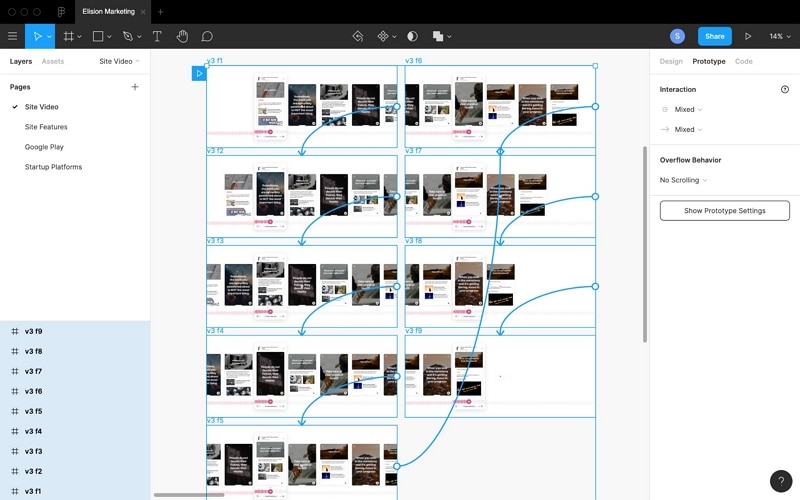
In Figma, open the Prototype tab after arranging the frames for your flow. Select the layer that should respond and connect it to the destination frame. The retained screenshots show an earlier Figma interface, but the underlying trigger-and-destination relationship remains the point of the example.
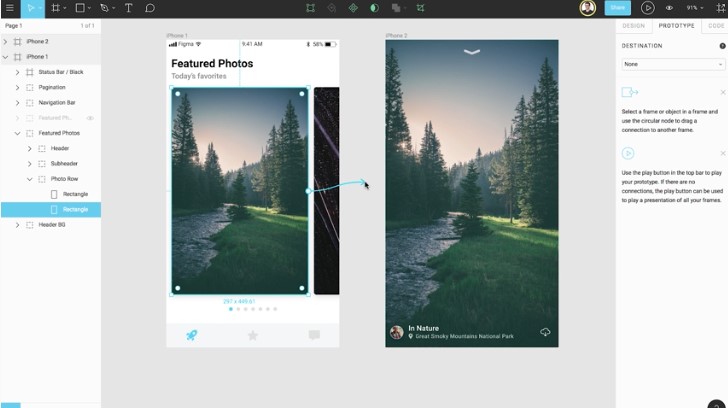
Set the interaction trigger and action, confirm the destination, and preview the flow from its intended starting frame. Choose transition behavior only after the navigation works. Figma’s official prototyping guide describes current flows and presentation controls.
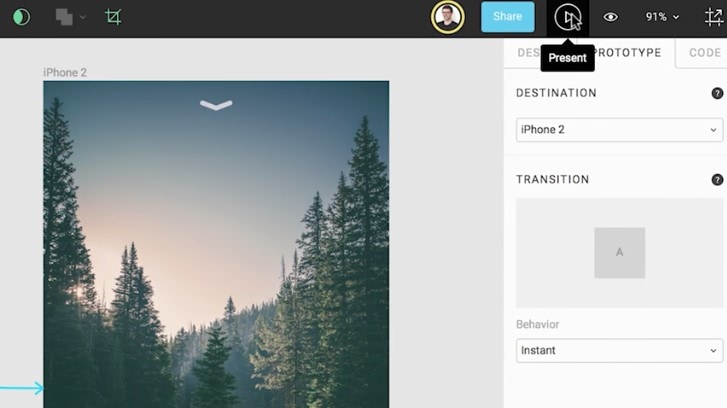
To apply the sign-in exercise in Figma, use the same task and expected results:
- Arrange Welcome, Sign in, and Account overview in separate frames.
- Connect the Log in control to Sign in, then create the account destination and a recovery route.
- Set the trigger, destination, and any local state change. Identify scripted validation separately from real input logic.
- Present the flow from Welcome and check that a reviewer can open the shared prototype with the intended access.
Maintaining an Existing Adobe XD Prototype
Adobe XD is in maintenance mode. The following retained steps are relevant to teams who already have access and need to understand an existing XD file. They are not a recommendation to start a new tool rollout in XD. Its artboard links and component states still provide useful examples of the difference between navigation and local interface changes.
In an existing XD project, use Prototype mode to inspect the artboard connections. Start with the entry artboard and identify the first control a participant must use.
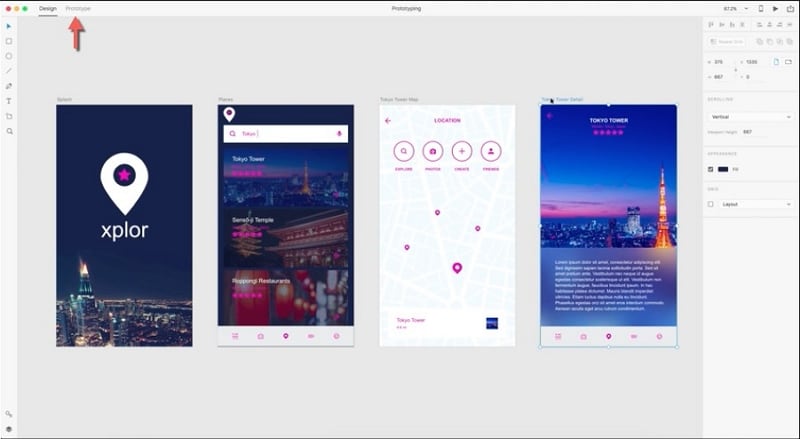
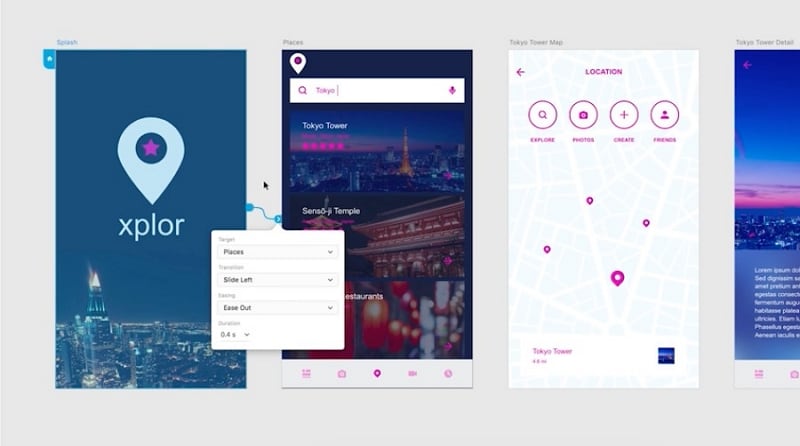
Select an artboard or layer and inspect its connection to the destination artboard. Repair missing targets before changing visual transitions.
Check the interaction settings for the selected connection, including its trigger and transition.
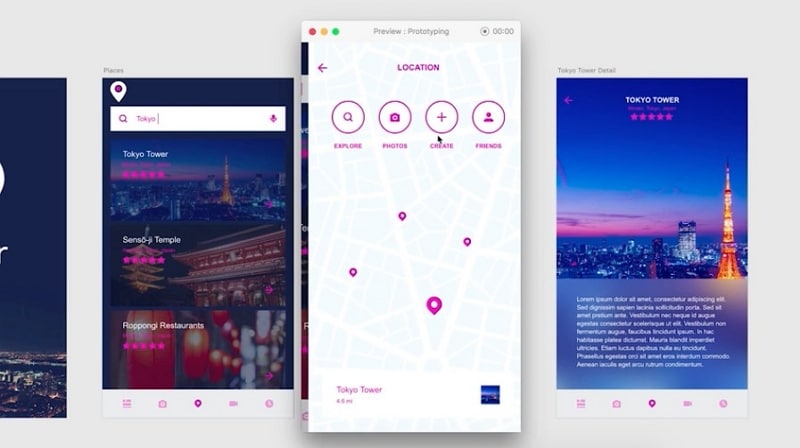
Run the preview from the starting artboard and verify the complete route, including Back and Cancel.
Check the sharing options available to the existing account and test the resulting link with a reviewer. Do not assume an old published link or account entitlement still works.
Component states can show local feedback without making another artboard. In an inherited file, document which states are interactive and which are only visual examples before handing the flow to another designer.
Rebuilding an Archived InVision Flow
This article originally showed InVision’s Build mode. InVision is no longer a current starting point for this workflow; its public website now redirects to Miro. If your team has exported screens or an old interaction record, use them as source material to rebuild the flow in a supported tool. The retained image below explains the historical hotspot concept, not an available sign-up or editing path.
Inventory the screens you actually possess. For each visible control, record its label, target screen, trigger, and any requirement to preserve the scroll position. A flat image will not contain the original interaction logic.
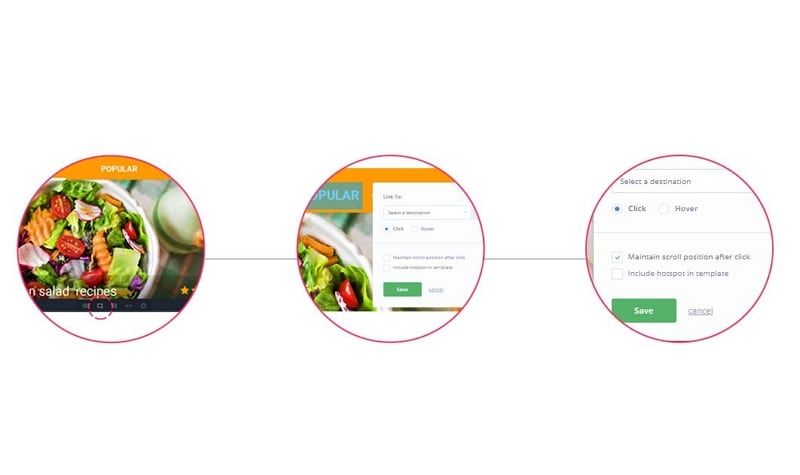
The old hotspot dialog stored a destination and behavior for a clickable region. Recreate that relationship explicitly in your new file, then test the region in preview. Do not assume that importing a screen image also transfers hotspots.
Where the archived design used an overlay, record whether it blocked the page, how it opened, and how it closed. Rebuild both entry and dismissal; a modal that can only open is an incomplete interaction.
Use the same sign-in test record above to check the rebuilt route. This keeps the validation about the user task rather than whether the old and new editors look alike.
How to Create a Clickable Prototype in Sketch
In Sketch, links connect a layer to a destination frame. The original screenshots use the older artboard terminology. For current controls, refer to Sketch’s linking documentation; the same Welcome → Sign in → Account overview exercise can be built with frames.
Select the trigger layer and add an interaction to the destination frame. Confirm the starting frame so preview opens at the beginning of the task.
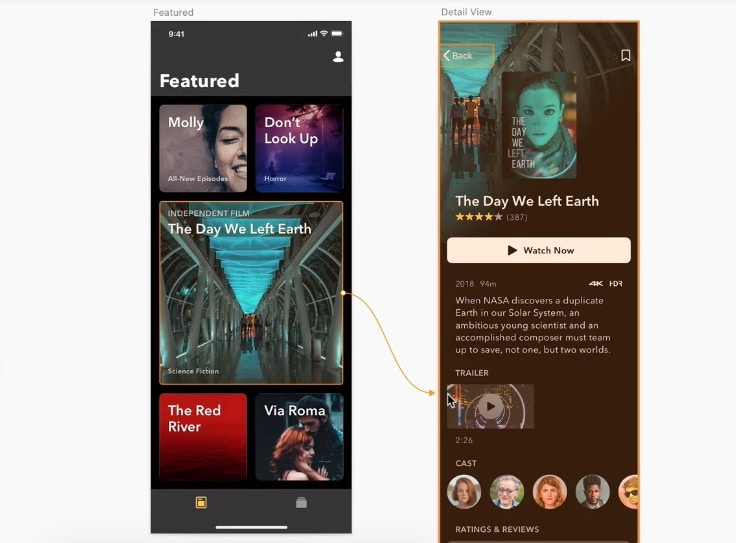
Use the prototyping controls to check the target and animation. Keep transitions restrained while validating labels and return paths.
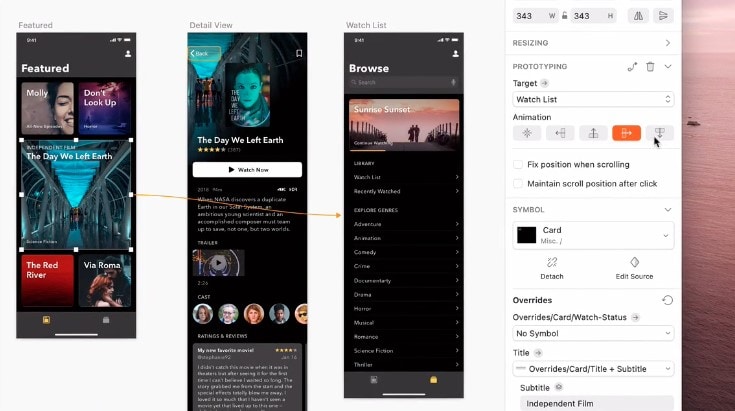
Use a hotspot when the intended clickable area is larger than a single visible layer. Check that it neither overlaps another control nor blocks a nearby action. Preview the route and its return links before sharing; an editor connector alone does not establish that the intended area responds.
Finish with a Testable Flow
A useful clickable prototype has a clear start, a meaningful destination, and feedback for the choices that matter. Keep the original design editable, test the path through the shared preview, and record what reviewers actually do. When the sign-in task works as intended, extend the same approach to the next user journey instead of adding interactions that do not answer a review question.