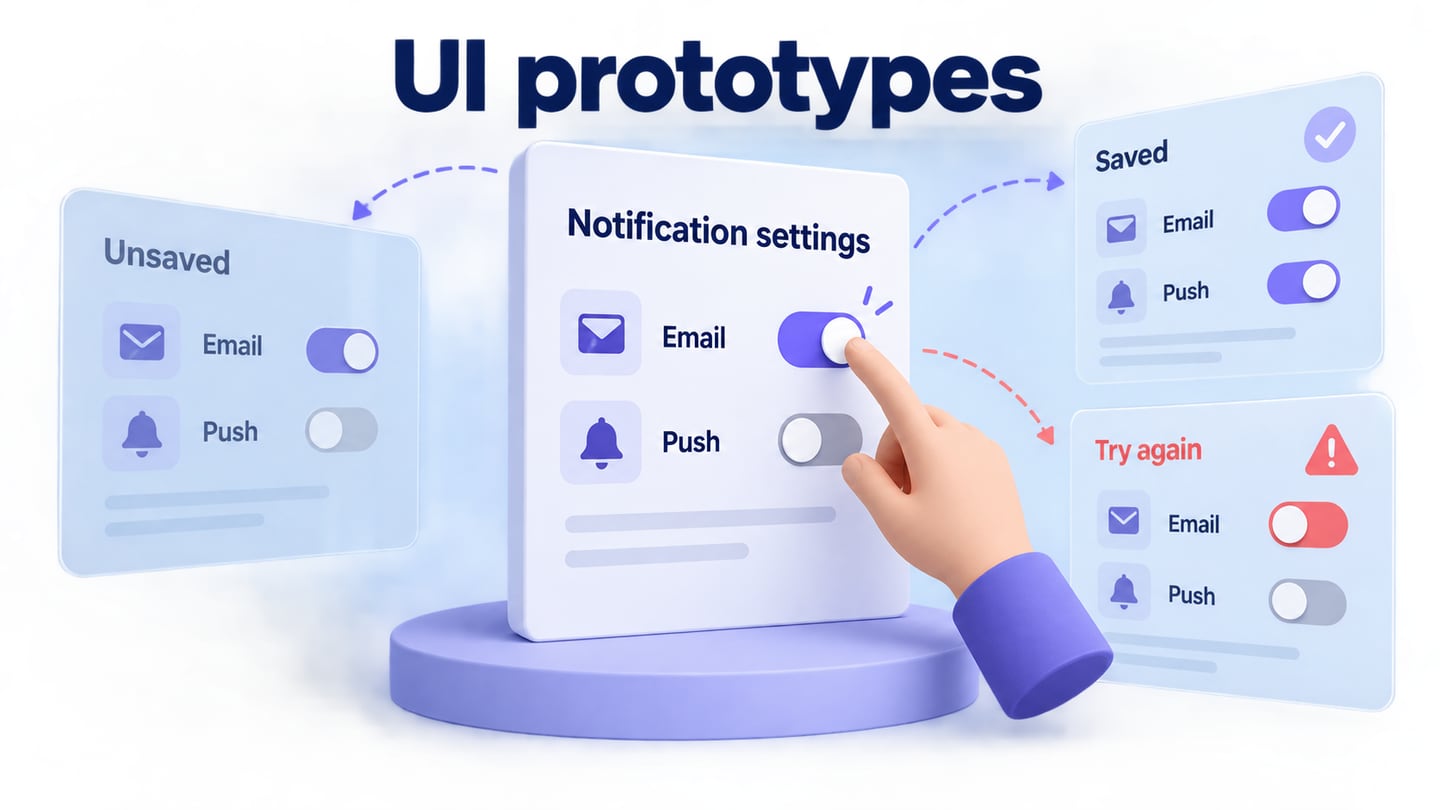
A high-fidelity prototype represents selected parts of an interface in enough detail to investigate a realistic design question. It can help a team review content, visual hierarchy and interaction, but it does not guarantee a successful product or replace testing of the implemented system.
Fidelity can differ across appearance, content and behavior. A screen may look finished while its data and responses are simulated. State those limits before a review so people do not mistake the demonstration for a working service.
A fictional cinema seat-selection task connects the definitions, creation steps and visual examples to concrete review decisions.
Part 1: What is the high-fidelity prototype?
Prototype
A prototype represents a proposed solution so people can explore a question about it. It can be a sketch, connected screens or code; the medium should match what you need to learn.
Fidelity
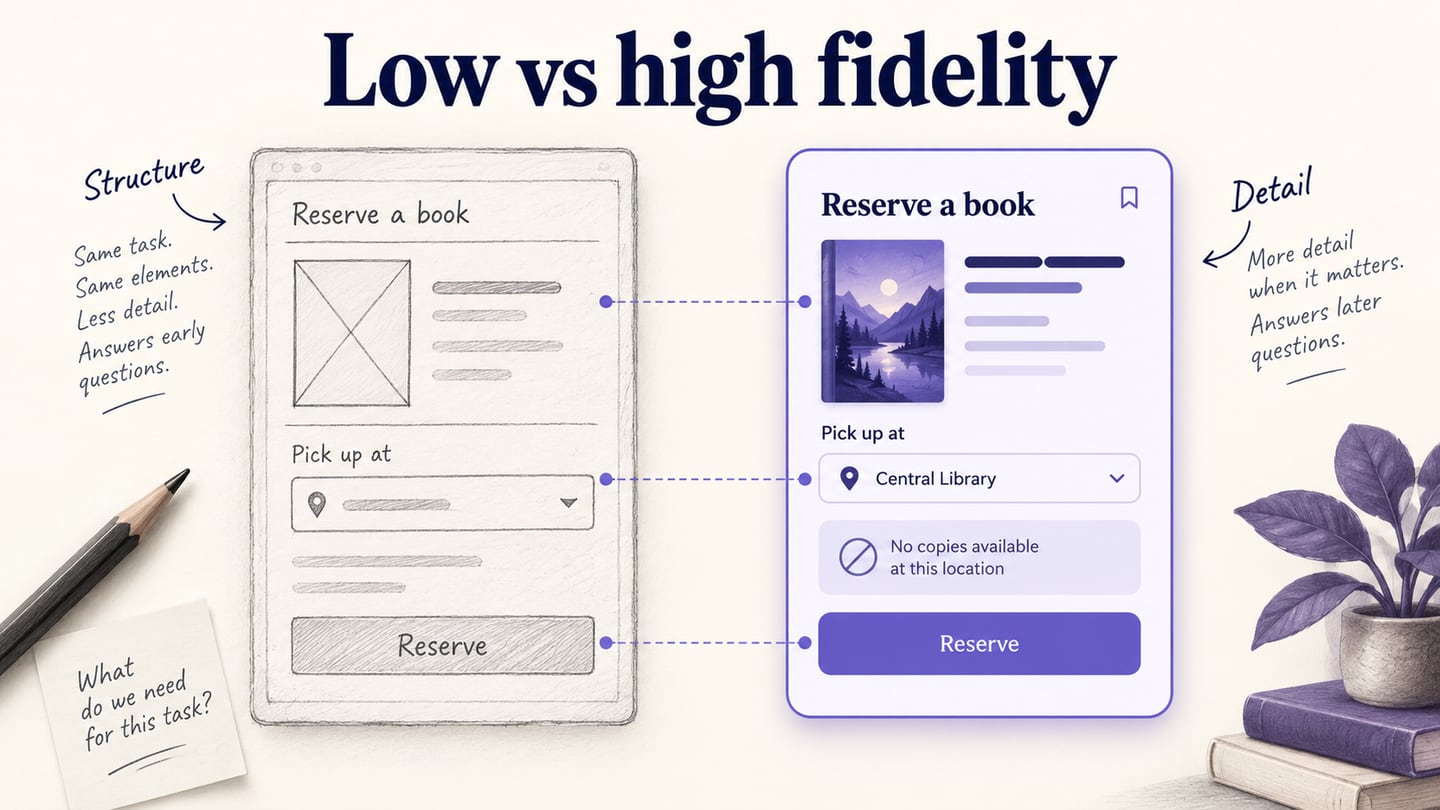
Fidelity describes how closely relevant aspects of the prototype resemble the intended experience. Low, medium and high are practical labels, not three mandatory stages. Appearance, content and interaction can have different levels of fidelity.
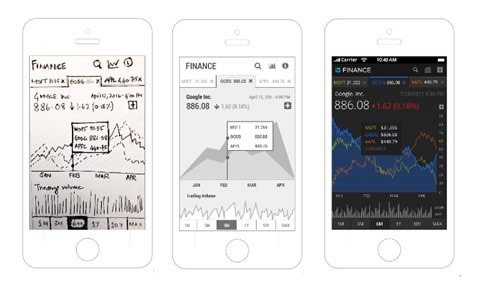
Choose the dimensions that matter to the review rather than increasing detail everywhere.
High-Fidelity Prototype
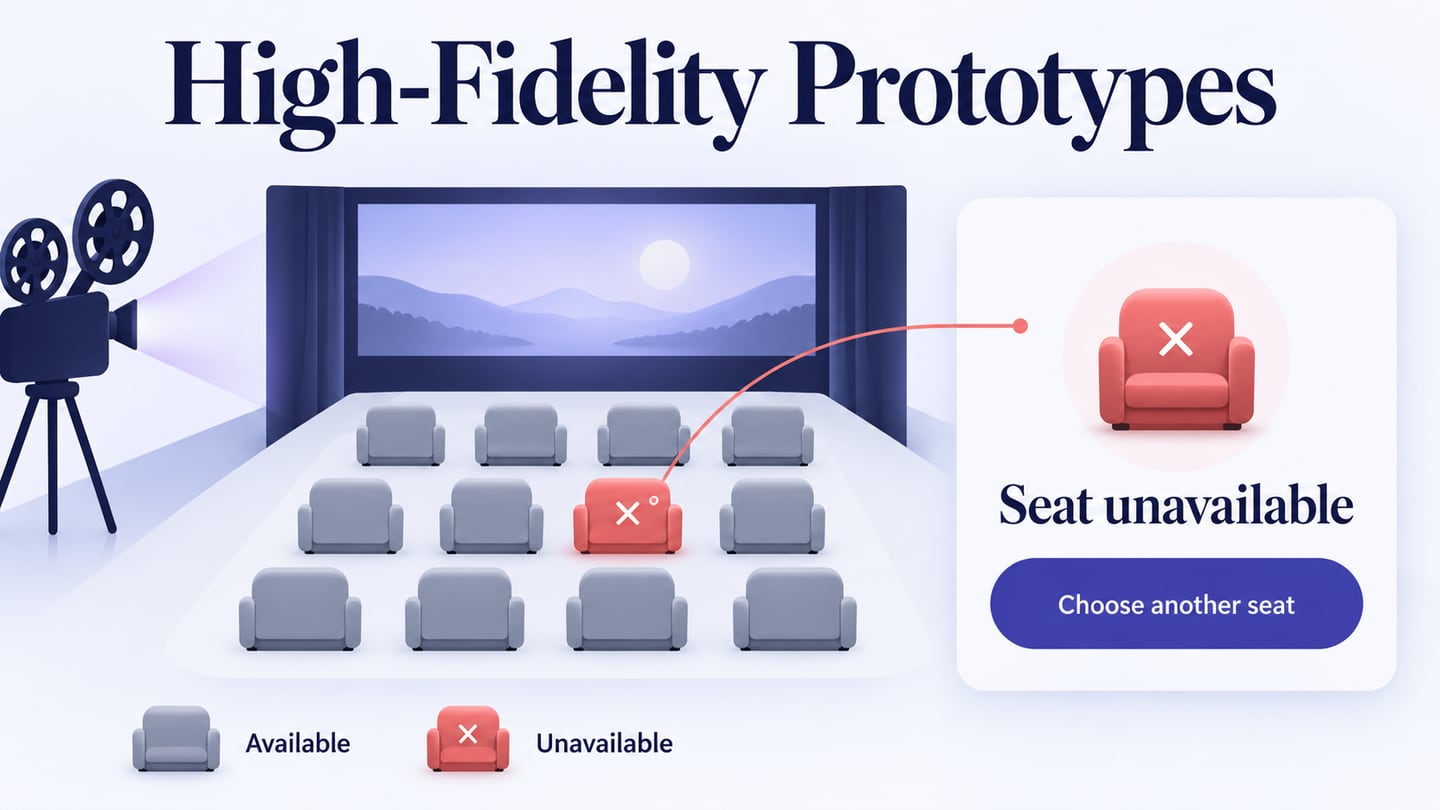
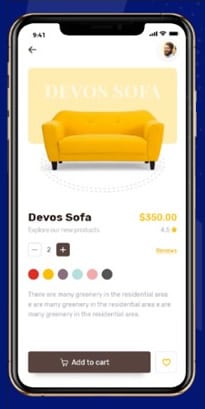
A high-fidelity prototype includes realistic detail in the dimensions under investigation. For example, a seat-selection review may need clear selected and unavailable states, realistic labels and a connected confirmation route, while payment and live seat inventory remain outside its scope.
Observed task behavior can inform a design decision when the prototype and study are appropriate. Visual realism alone does not make performance measurements representative of the finished product.
Part 2: Difference between high-fidelity and low-fidelity prototypes
Compare the dimensions separately. A low-visual-detail prototype can contain realistic wording or meaningful interaction; a polished static screen can contain neither.
Content
A visually simple prototype can still use real labels and representative sample values when those affect the task. Placeholder content is a choice, not a defining requirement of low fidelity.
A more complete content representation helps when wording, amounts or long entries influence decisions. It should not include real personal data merely to look realistic.
Visual Design
Low visual fidelity may emphasize regions, hierarchy and controls without final typography or imagery. It can still reveal structural or interaction questions.
High visual fidelity uses a more deliberate visual treatment. Check spacing, contrast and states instead of assuming that detailed graphics make the proposal correct.
Interaction
Interaction fidelity concerns how the prototype responds. It is separate from visual polish. A paper facilitator can simulate a route, while a detailed mockup may be static; neither appearance nor the number of screens proves completeness.
Part 3: When to use the hi-fi prototype?
Use high fidelity when the question depends on details such as state distinction, content hierarchy, a complex component or the relationship between related screens. Use a simpler representation when those details would not change the decision.
A cinema seat-selection review needs a clear legend, available and selected seats, an unavailable-seat response and a summary. It does not need a live payment system to investigate whether someone understands their selection. Technical accessibility and transaction checks still need the implemented product.
Part 4: How to create a high-fidelity prototype?
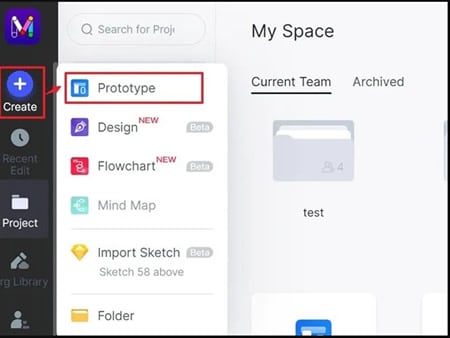
Use Mockitt to compose the selected screens and connect the review route. The following five steps build a fictional cinema booking interface without claiming to reserve real seats.
Prepare Seat map, Selection summary and Seat no longer available states. Keep the same fictional show time and seat labels throughout the prototype. The retained editor screenshots show historical operations; current controls may differ.
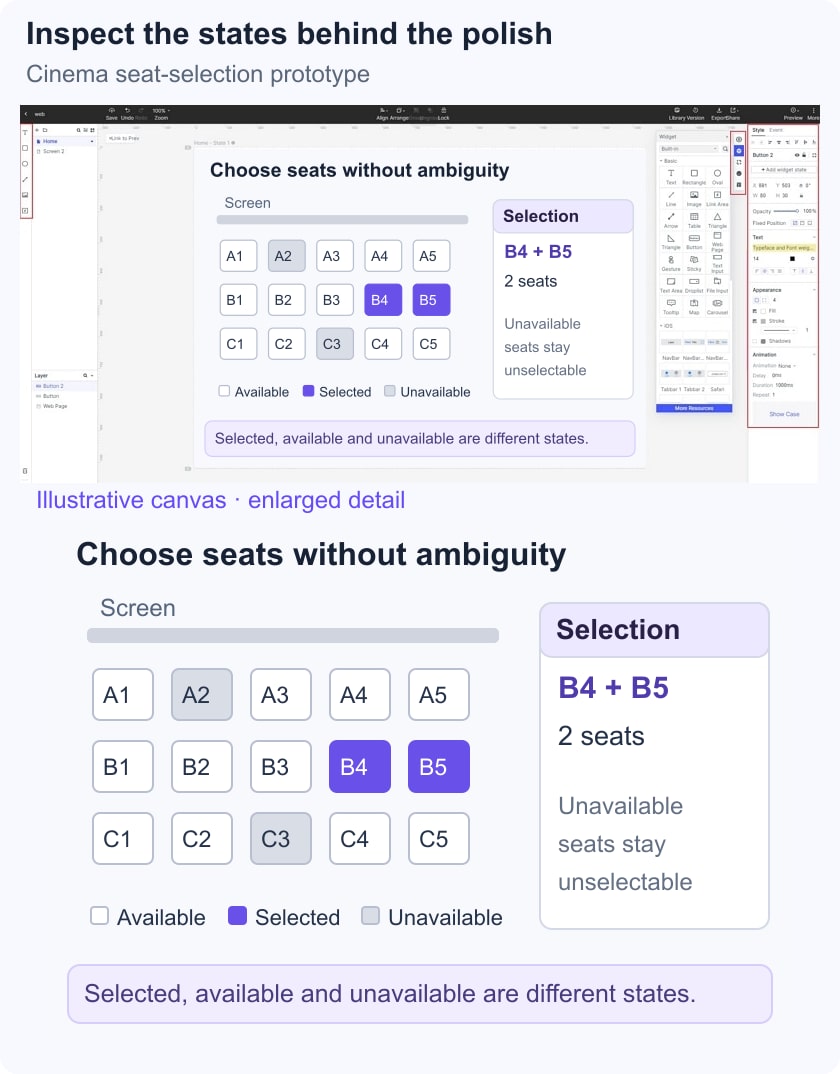
Define the review question first: can a person select two seats together, explain the legend, and recover when one chosen seat becomes unavailable?
Step 1: Create the Project
Create a project for the intended viewport and name the task screens. Include only the portion of booking you need to investigate; do not add a working-payment promise to a demonstration.
Step 2: Add Widgets and Content
Add the seat grid, row and seat labels, legend, show details and selection summary. Reuse the same selected and unavailable styles. Include text labels so state meaning is not communicated only by color.
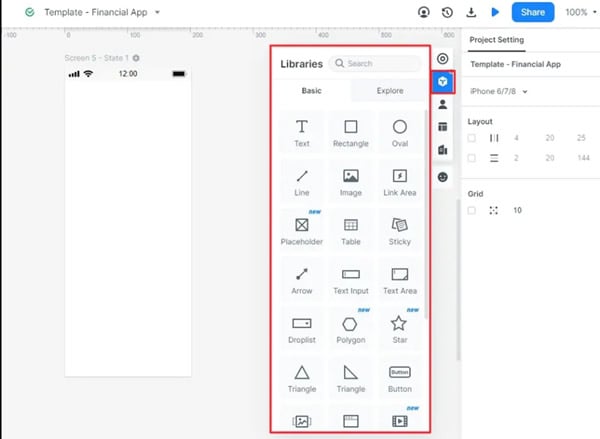
Step 3: Connect the States
Connect selecting a seat to the proposed updated summary. Add a prepared unavailable-seat state and a clear return to selection. These are simulated responses: the prototype does not query live seat inventory.
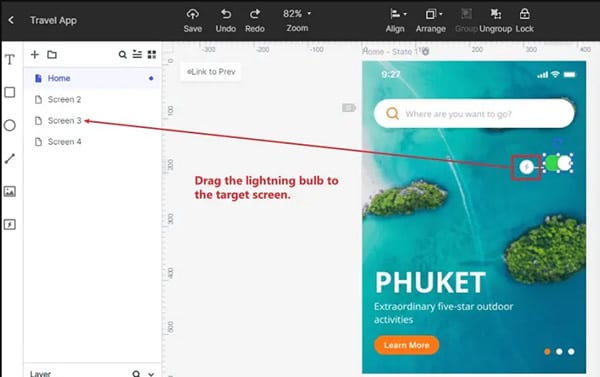
Step 4: Preview the Prototype
Preview the main route and exception. Check that seat labels and the summary agree, the selected count is clear and the recovery action does not appear to erase unrelated choices.
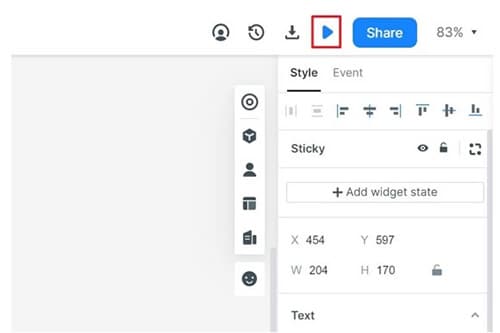
Record inconsistencies before inviting reviewers. A complete-looking screen is not yet a validated experience.
Step 5: Share the Reviewed Version
Share the intended starting screen with appropriate access. Ask a reviewer to select two adjacent seats and explain the result without coaching them toward the controls. Record observed confusion, assistance and unresolved questions; do not invent completion rates from the example.
Examples of Detailed Interface Proposals
The following retained images are historical learning examples. They illustrate design detail, not verified current brand interfaces, endorsements or live template availability.
Example 1: IKEA-Inspired Website Exercise
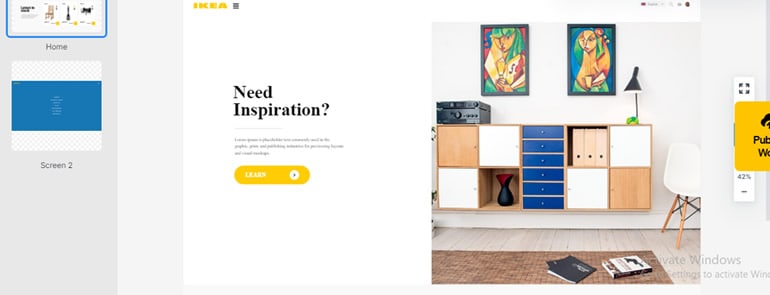
The archived website exercise explores a furniture-retail layout. Treat the branding as context for that historical example, not permission to reuse it in a commercial product. Useful decisions include navigation hierarchy, menu states and the relationship between a featured item and its destination.
Step 1: Define the exercise and use authorized assets for any new work.
Step 2: Lay out navigation with meaningful categories.
Step 3: Describe hover and keyboard-focus expectations separately.
Step 4: Include open and closed menu states.
Step 5: Explain what a quick-access control changes.
Step 6: Review the complete route to the selected content.
Example 2: Mobile App high-fidelity prototype
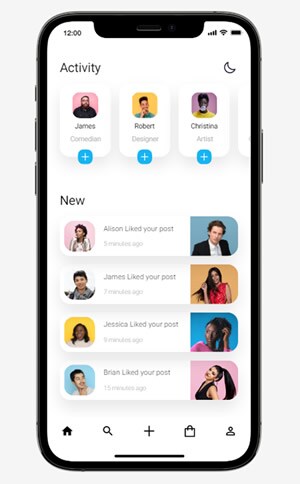
The mobile activity-screen example shows a detailed arrangement of suggestions and recent events. It does not by itself demonstrate usability or a functioning social service.
Use the archived activity-screen redesign to inspect the following decisions:
Step 1: Define the event types that belong on the activity screen.
Step 2: Distinguish suggestions from recent activity with clear headings.
Step 3: Order cards using a stated rule, such as recency, rather than decoration alone.
Step 4: Keep navigation and primary actions consistent across screens.
Step 5: Review selected, empty and alternate-theme states if they are within scope.
Example 3: Configuration Management System high-fidelity Prototype
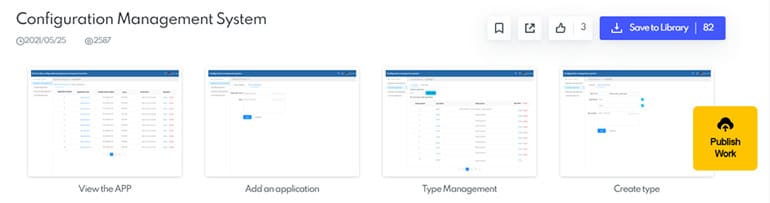
The configuration-management example contains listing and creation screens. A useful review would ask whether an administrator understands an item’s type, can identify the intended change and can recover from an invalid entry. The image does not verify permissions, data persistence or safe system changes.
Part 6: High-fidelity prototype FAQs
1. Is a 3D model a high-fidelity prototype?
Not necessarily. A 3D model can have low or high detail in different dimensions. Its fidelity and usefulness depend on the intended product and the question being investigated.
2. What are the 3 levels of prototyping fidelity?
Low, medium and high fidelity are common shorthand. They do not define a compulsory sequence:
Low fidelity: enough structure or behavior to explore an early question.
Mid fidelity: more explicit content and components where those details matter.
High fidelity: a realistic representation of selected aspects of the intended experience.
3. How Do You Know the Prototype Is Ready for Review?
Use readiness checks tied to the task rather than a universal definition of completeness:
Representation: the screens contain the information needed for the review question.
Clarity: sample content, labels and states are consistent.
Behavior: the intended route and relevant exception can be demonstrated reliably.
Revision: feedback can be traced to a screen and a decision for the next version.
Conclusion
Increase fidelity only where it helps answer the design question. For the seat-selection example, the deliverable is a clear set of states and observations about selection and recovery; real inventory, payment and implementation accessibility remain separate work.
High-fidelity prototype acceptance: one task, five checks
Use one realistic task to decide whether the prototype is ready for review. For a mobile booking flow, ask a participant to select a date, choose a time, review the total, recover from an invalid slot, and confirm the request. Record evidence for five checks: visual hierarchy, interaction states, content clarity, responsive behavior, and accessibility.
- Visual: compare spacing, type scale, contrast, and component states with the intended UI.
- Interaction: test the happy path, back navigation, loading, empty, error, and confirmation states.
- Content: verify labels, prices, dates, validation messages, and consent language.
- Responsive: replay the task at the target phone and desktop widths; note any clipped or unreachable control.
- Accessibility: check keyboard order, focus visibility, tap target size, and meaningful alternative text.
A high-fidelity prototype is evidence for a decision, not proof that the implementation is complete. Attach the tested path, open questions, and the next owner to the review record.