Low-fidelity and high-fidelity prototypes differ in how closely they represent the proposed experience. Fidelity is not a single switch: a plain wireframe can contain realistic text and working links, while a polished screen can remain static. Choose detail according to the question you need to answer, not because a more finished appearance is always better.
Low-Fidelity and High-Fidelity Prototypes Compared
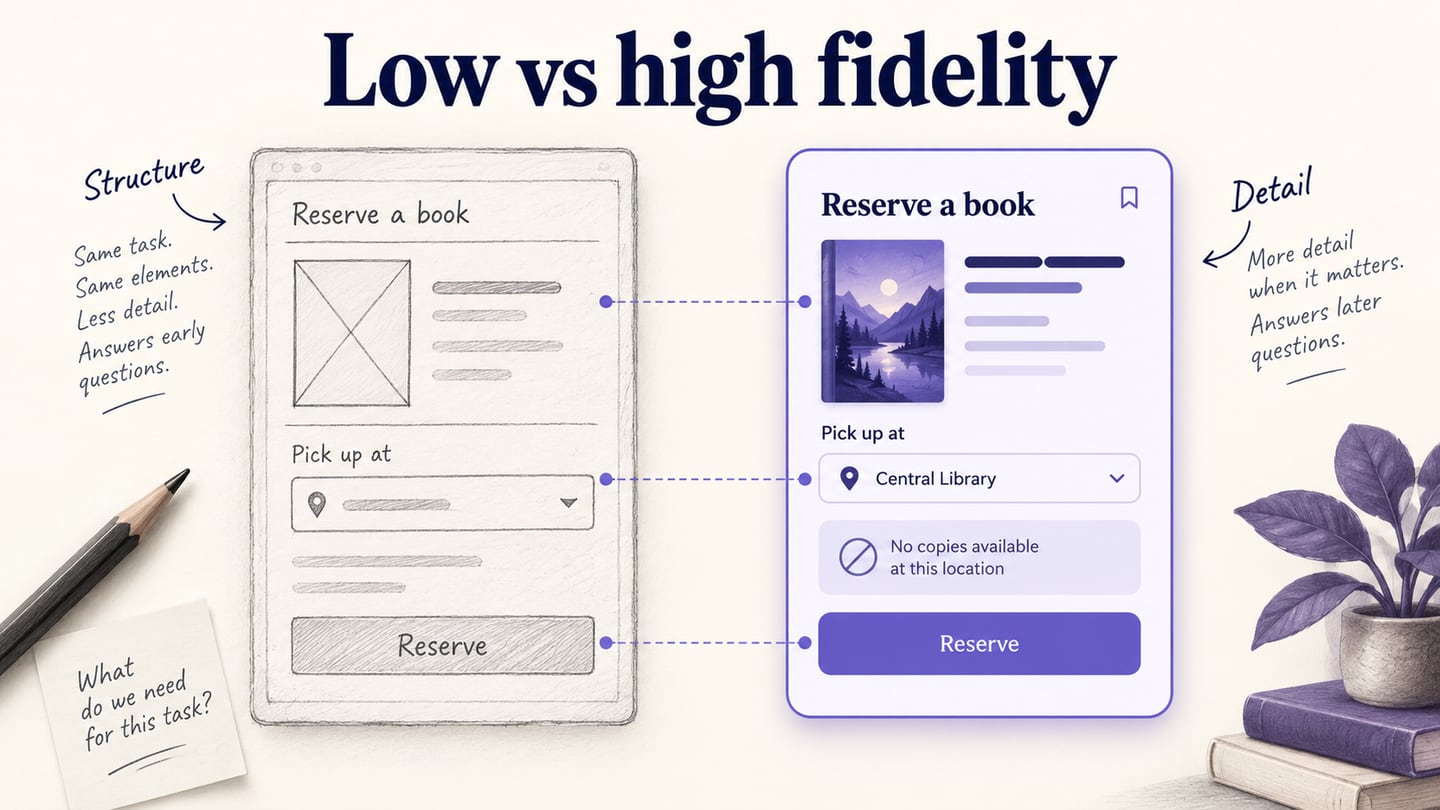
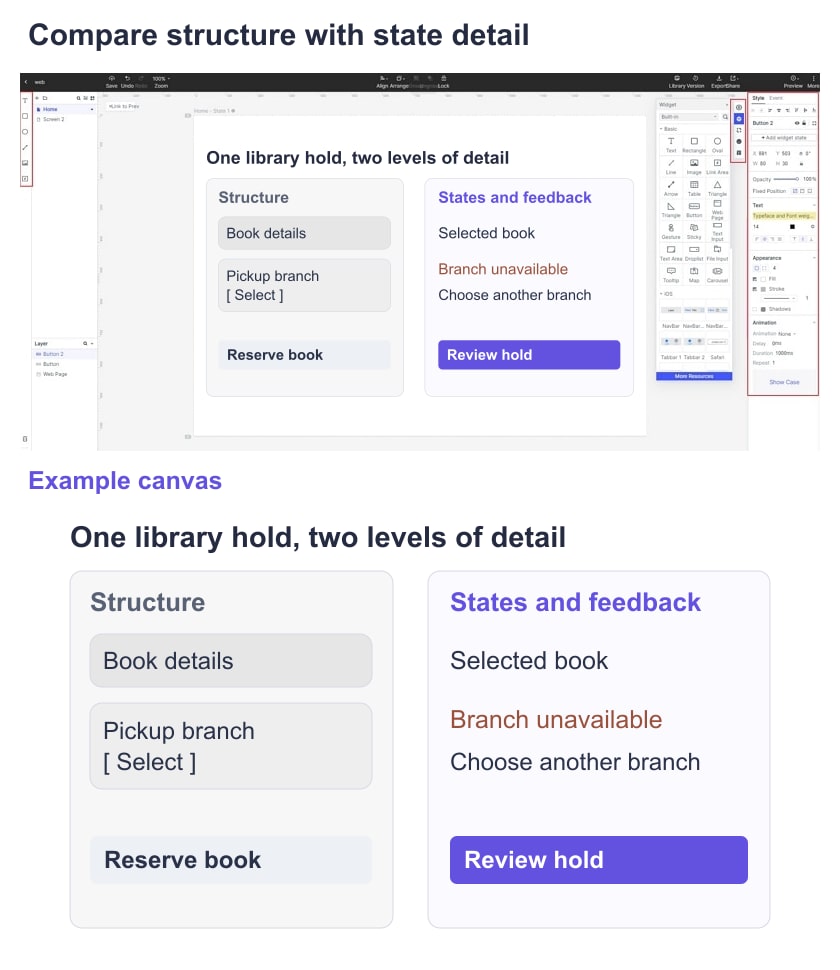
Fidelity describes the detail and realism represented in a prototype. Compare visual treatment, content and behavior separately. For a library reservation, the same task can start as boxes for a book, pickup branch and confirmation, then gain realistic labels and states when those details matter to the review.
1. Visual Design
Low visual fidelity uses simple shapes and restrained styling to discuss layout and priority. Higher visual fidelity includes typography, spacing, color and component appearance closer to the intended product. Neither level automatically determines how much interaction is available.
2. Content
Use meaningful content whenever it affects a decision. Even a rough library wireframe needs a recognizable book title and pickup-branch label. Detailed legal or operational copy can wait until it is part of the question, but placeholder text must not conceal a layout or comprehension problem.
3. Interactivity
Interaction fidelity concerns what happens after an action. A facilitator can swap paper screens; linked wireframes can demonstrate navigation; a richer prototype can represent validation, overlays or conditional states. A visually detailed screen without those connections is not automatically a more interactive prototype.
4. Popularly Used Techniques
Paper, digital wireframes and coded experiments are techniques rather than fixed fidelity levels. A digital editor can make both rough and detailed designs. Choose the medium that lets you change the uncertain parts and observe the relevant task.
5. Cost
More detail usually means more decisions to create and maintain, but cost depends on reusable components, scope and the team’s tools. A small detailed form may take less effort than a large rough flow. Estimate the work needed for the specific review rather than assigning a universal price to each level. For a sprint, use a timeboxed prototype build plan.
6. Feedback
Feedback quality depends on the task, participants and facilitation. A rough prototype can reveal a confusing route; a detailed one can expose problems with precise labels or control states. Explain what is simulated, and avoid treating approval of visual polish as evidence that users can complete the task.
When to Use Each Level of Fidelity
Start with the uncertainty. If the team is deciding where reservation starts, rough screens may be enough. If it needs to know whether readers understand an unavailable pickup branch, the message and alternative states need more detail. You can combine different levels within one prototype.
When to use Low-Fidelity Prototype
Use a lower-detail version when the review concerns structure or an early route. Supply meaningful content wherever it affects the task.
- Explore alternative screen structures or navigation routes before committing to one.
- Discuss a new feature within an existing service while keeping established content recognizable.
- Observe whether the intended audience can follow a proposed path before investing in visual treatment.
- Include external participants when the prototype contains enough context for the task; low fidelity is not restricted to internal teams.
When to use higher fidelity
Use higher fidelity when the review question depends on specific content, visual hierarchy or interaction behavior.
- Check a precise form, validation message or component state before implementation.
- Investigate an issue that a rough version could not represent adequately.
- Compare changes to an established interface where realistic context affects expectations.
- Help reviewers inspect details they would otherwise have to imagine, without presenting simulated behavior as a live service.
- Reserve additional effort for the parts that influence the decision, rather than polishing every screen equally.
Low fidelity remains useful after a product launches: it can help explore a new route without distracting the team with final styling. High fidelity is useful when the decision requires it. The stages can alternate as new questions appear.
Create Two Versions of the Same Task
A visual editor such as Mockitt can hold both versions of the same task. In the example below, compare a library hold with the same book, branch choices and intended outcome. The higher-fidelity version adds meaningful states rather than only decoration.
Keep these capabilities in view
- Reuse the same screen content in both versions so the comparison is fair.
- Use components and consistent labels to reduce unrelated differences.
- Add transitions only where behavior is part of the review question.
- Preview the full path and check what a recipient sees through the sharing workflow.
- Keep the intended outcome and known limitations visible in the review notes.
Build and review the library reservation
Step 1. Start New Project
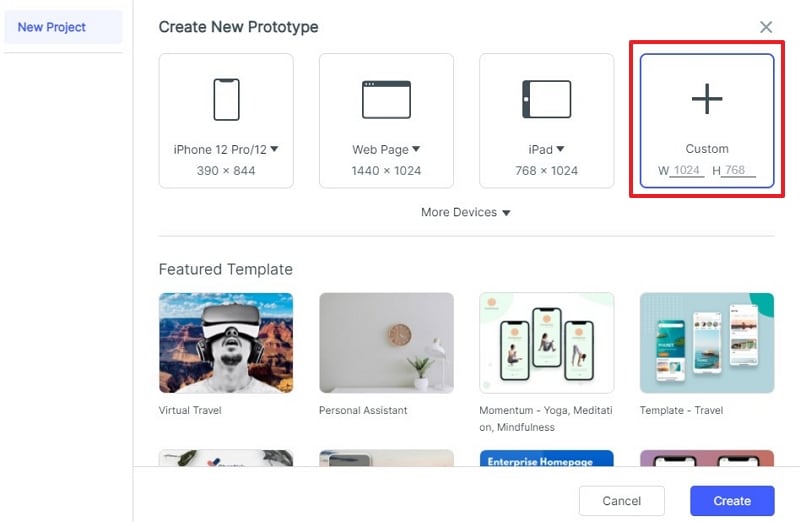
Create a project for the intended viewport and add three screens: book details, pickup selection and an example hold confirmation. The archived screenshots below illustrate earlier editor layouts; labels and control positions may differ in the current workspace.
Step 2. Add Widgets
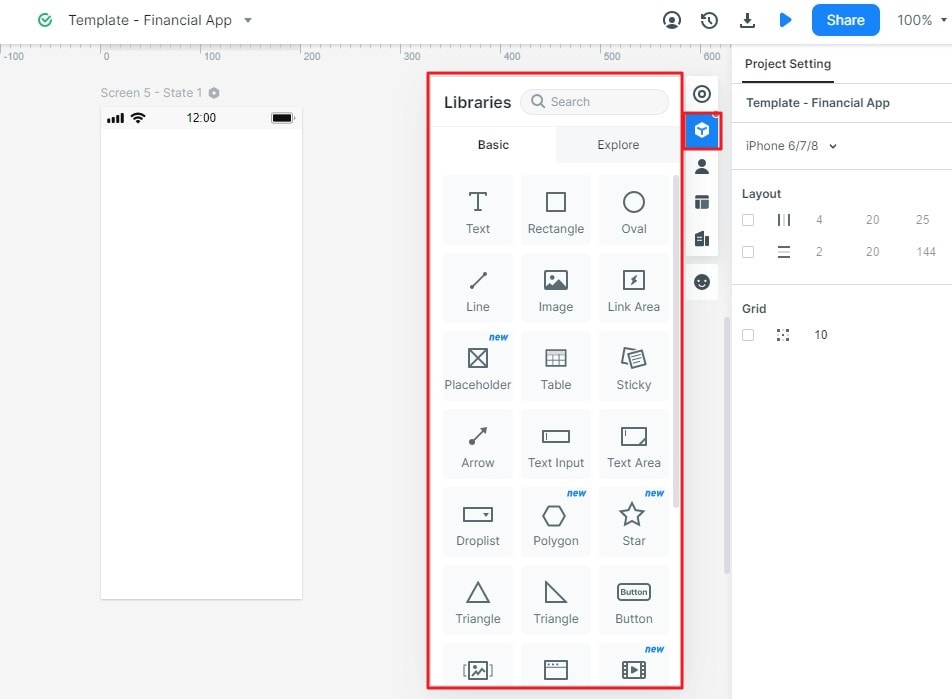
In the rough version, place the book title, branch options and “Reserve book” action in a clear hierarchy. In the detailed version, add opening-hour context and exact labels. Keep the same task and book so the difference is the fidelity, not a different scenario.
Step 3. Create Interactions
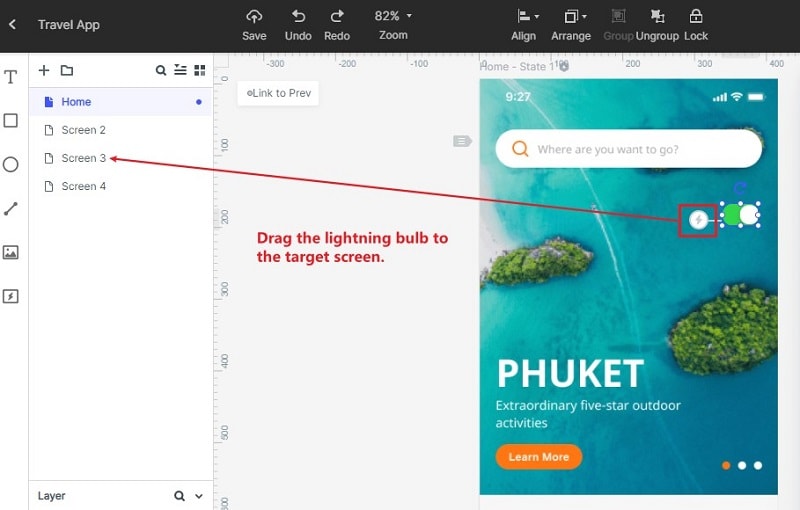
Connect book details to pickup selection, then to confirmation. Add an unavailable-branch state with a route to another branch, and a back action that preserves the reader’s context. The prototype demonstrates these states; it does not query a live library catalogue.
Step 4. Preview
Ask a reviewer to reserve the book at a branch they can visit and explain what the confirmation means. Record where they pause, which label they use, and whether they recover from an unavailable branch. Compare those observations with the question you set out to answer; do not infer that the more polished version is automatically better.