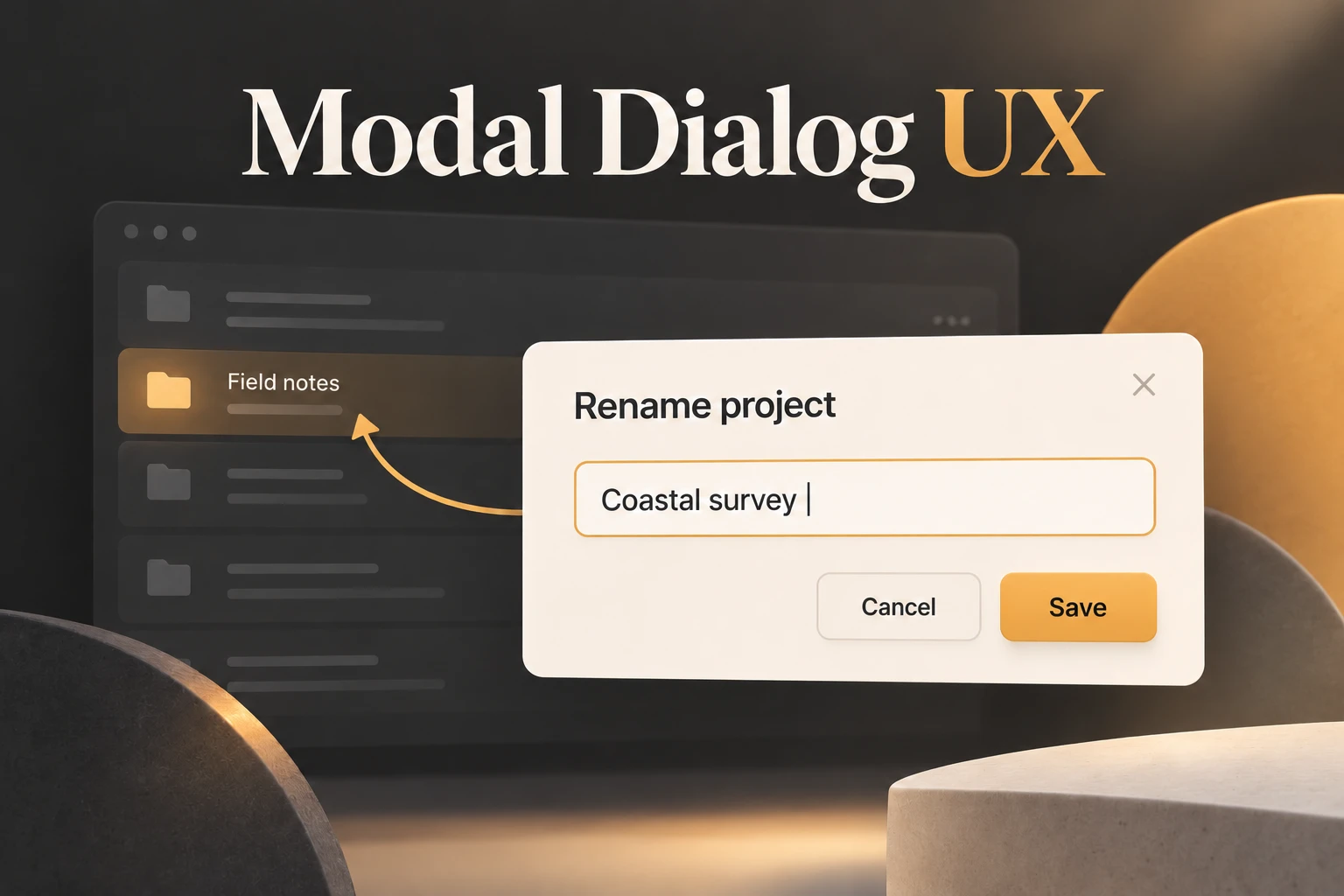
Use a modal dialog for a short task that needs a temporary decision while the parent page stays in context. Keep the background unavailable during the task, provide a visible way to leave, and return people to a meaningful place afterward. If the task needs extensive reading, several steps, or a direct URL, use a page instead. An interactive prototype in Mockitt can show these alternatives before the team commits to one.
A centered box with a dark backdrop is not the whole pattern. The important behavior is what happens to the work behind it, where interaction moves on entry, what Save and Cancel mean, and what remains after the box closes.
Choose between inline editing, a modal, and a page
Begin with the task's relationship to its parent. Changing a simple label may work directly in the list. A short self-contained choice may benefit from a modal. Editing a complete project brief usually needs more space and a destination that people can return to independently.
| Task condition | Useful starting point | Reason to reconsider |
|---|---|---|
| A small edit belongs beside the value | Inline editor | Instructions, validation, or related fields make the row hard to understand. |
| A brief task needs a clear beginning and end | Modal dialog | People need to consult the background while completing it. |
| The task requires several sections or a shareable destination | Dedicated page | The page removes useful context for an otherwise tiny action. |
| The task is supplementary and should not block the main work | Non-modal panel or inline content | The product incorrectly treats the background as unavailable. |
For this example, Cedar is a fictional project library. A person opens a row's Rename action to change “Field notes” to “Coastal survey.” The team chooses a modal because renaming is a short, explicit edit and the surrounding project list gives useful context. Inline editing remains a credible alternative; the modal is a choice for this design, not a universal requirement for renaming.
A modal should not appear just because a page has information to advertise. Interrupting someone to announce a feature is a different decision from helping them complete an action they just initiated. Consider whether an inline message would meet the need.
Give the dialog one understandable task
Cedar's dialog has the title “Rename project,” one Project name field, Cancel, and Save. The existing name appears in the field. A short hint can explain a real naming constraint; the dialog does not add unrelated project settings or a product tour.
Name the action in its context. “Save” is understandable beside a single Project name field; “Save project name” may be preferable if nearby controls create ambiguity. An icon-only close control still needs an accessible name and a usable target. Do not make a precise click on the backdrop the only way to exit.
Keep the heading, explanation, field, error, and actions in a sensible reading order. The screen should make sense when text wraps to more lines. A heading that is truncated into an ellipsis can hide the very purpose of the interruption.
Do not place another modal inside the rename dialog to explain routine naming rules. Show short guidance in place. If the person has reached a genuinely different task, consider taking them to a suitable page rather than stacking windows that each need their own dismissal and return rules.
Separate the draft name from the saved name
When Cedar opens the dialog, the list still shows Field notes. Typing Coastal survey changes the draft in the dialog, not the saved project behind it. Cancel discards that draft. Save submits it, and the list changes only after a successful result.
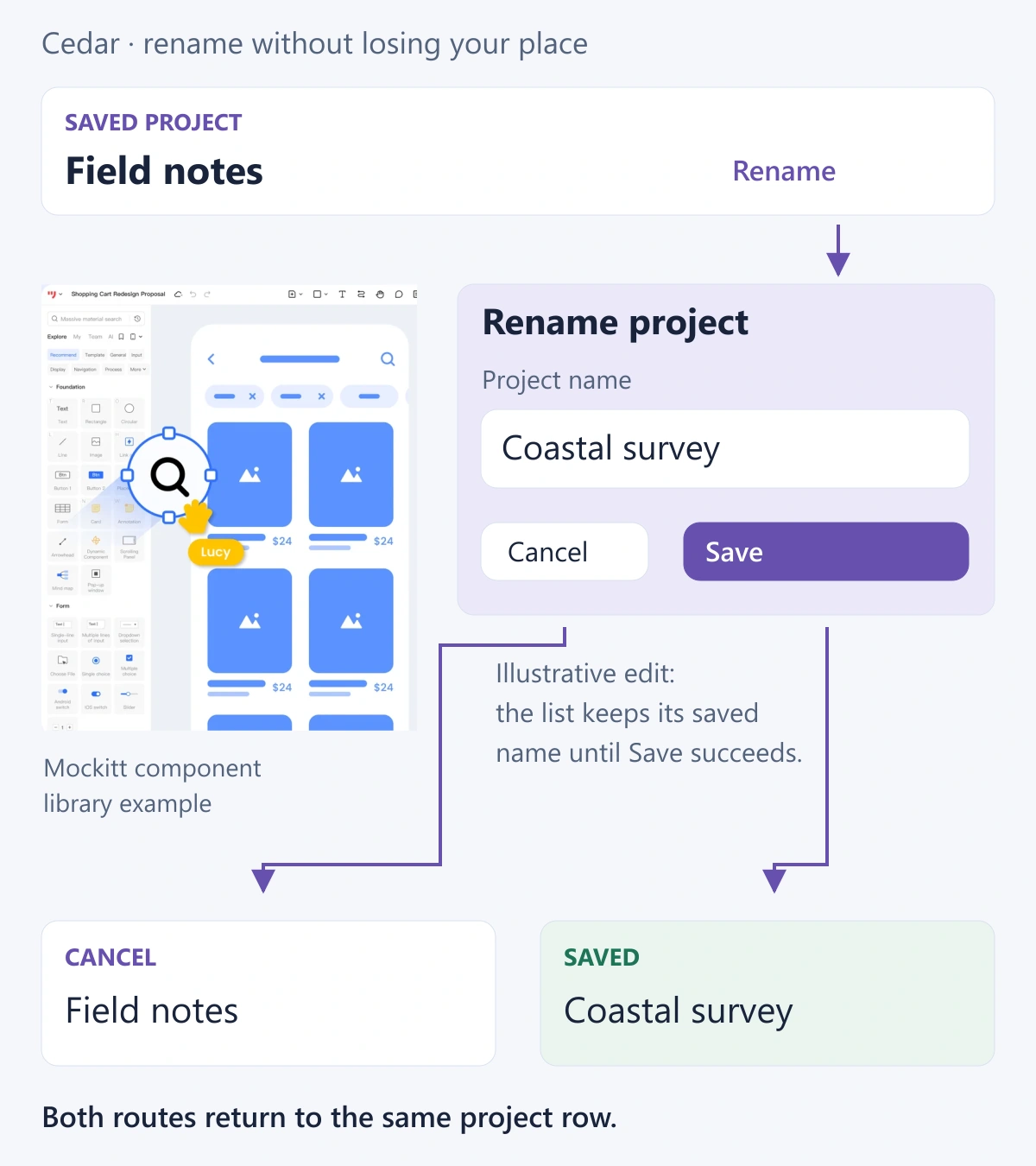
That simple distinction keeps several routes consistent. Reopening after Cancel shows Field notes. Reopening after successful Save shows Coastal survey. If saving fails, the dialog remains available with the proposed name and an explanation of the failure. Clearing the field would force the person to repeat work without resolving the underlying problem.
For an empty name, explain the correction beside the field. For a rejected name, use the rule the service actually enforces. Do not invent uniqueness requirements just because another application requires unique project names. The form validation guide covers when checks run and how errors should clear after correction.
Choose background-click behavior deliberately. Cedar ignores clicks outside the rename dialog and keeps Cancel and the close control visible. Escape closes it with the same discard behavior as Cancel. A different design may allow backdrop dismissal, but it must not silently save a value that the labeled Cancel action would discard.
While saving, avoid a second activation that creates an ambiguous result. If a save request times out, the interface needs a way to establish the actual name before claiming failure or issuing an unexplained duplicate action. That detail belongs in the behavior specification alongside the visible pending state.
Plan where focus enters and where it returns
For Cedar's short rename task, initial focus goes to the Project name field. The dialog title must still identify the surface to assistive technology. Do not assume that focus always belongs on the first action button: a longer explanation or consequential decision may need a different starting point.
The W3C modal-dialog pattern describes moving focus into the dialog, keeping Tab and Shift+Tab within its controls, closing with Escape, and usually returning focus to the invoking control. It also explains when content or workflow makes another entry or return target more appropriate.
Cedar returns to the Rename control on the same project row after Cancel or successful Save. That row remains identifiable even though its title changed. If the action removed or relocated the row, returning to a control that no longer exists would be impossible; the design would need an explicit next destination.
Keep background controls unavailable in the working modal, including to keyboard and assistive-technology users. Dimming them visually is not sufficient. The same implementation must expose the dialog's name and modal state. A linked screen prototype can communicate the intended route, but these behaviors need testing in the actual component.
Use a few targeted accessibility annotations for the local choices: Project name receives initial focus; Escape cancels; return goes to the same row's Rename control. Reference the team's shared component behavior instead of copying a long specification onto every instance.
Make small and enlarged-text layouts work
A short desktop dialog can become a tall mobile surface when hints and errors wrap. Give it space inside the viewport and allow the appropriate content area to scroll. Keep the title and current field understandable when the on-screen keyboard appears; a fixed footer must not cover the error the person needs to correct.
Inspect the longest realistic project name, a two-line error, and enlarged text together. Shrinking the font until everything fits avoids the layout problem by making reading harder. Stack actions if necessary while preserving the relationship between the primary action and Cancel.
A mobile sheet can be a useful presentation of a short task, but its position does not determine whether it is modal. The bottom-sheet guide addresses gesture dismissal and applied versus pending selections when that form suits the task.
Build the rename example as a connected flow
Prepare a Cedar project-list screen, the opened rename dialog, an edited draft, a missing-name error, a saving state, and the successful list result. Keep Field notes and Coastal survey consistent across them. Connect Cancel to the unchanged list and Save to the appropriate pending or result state rather than linking every action to success.
In the review, ask a person to give Field notes the new name Coastal survey, then ask them to begin another rename and abandon it. Observe whether they understand which name is saved and where they return. Compare the modal with an inline version if that choice is still uncertain.
A useful modal feels like a short detour with a clear return. If people repeatedly need the background, lose their place after closing, or encounter several tasks inside the same window, the better correction may be a different surface rather than a more polished dialog.