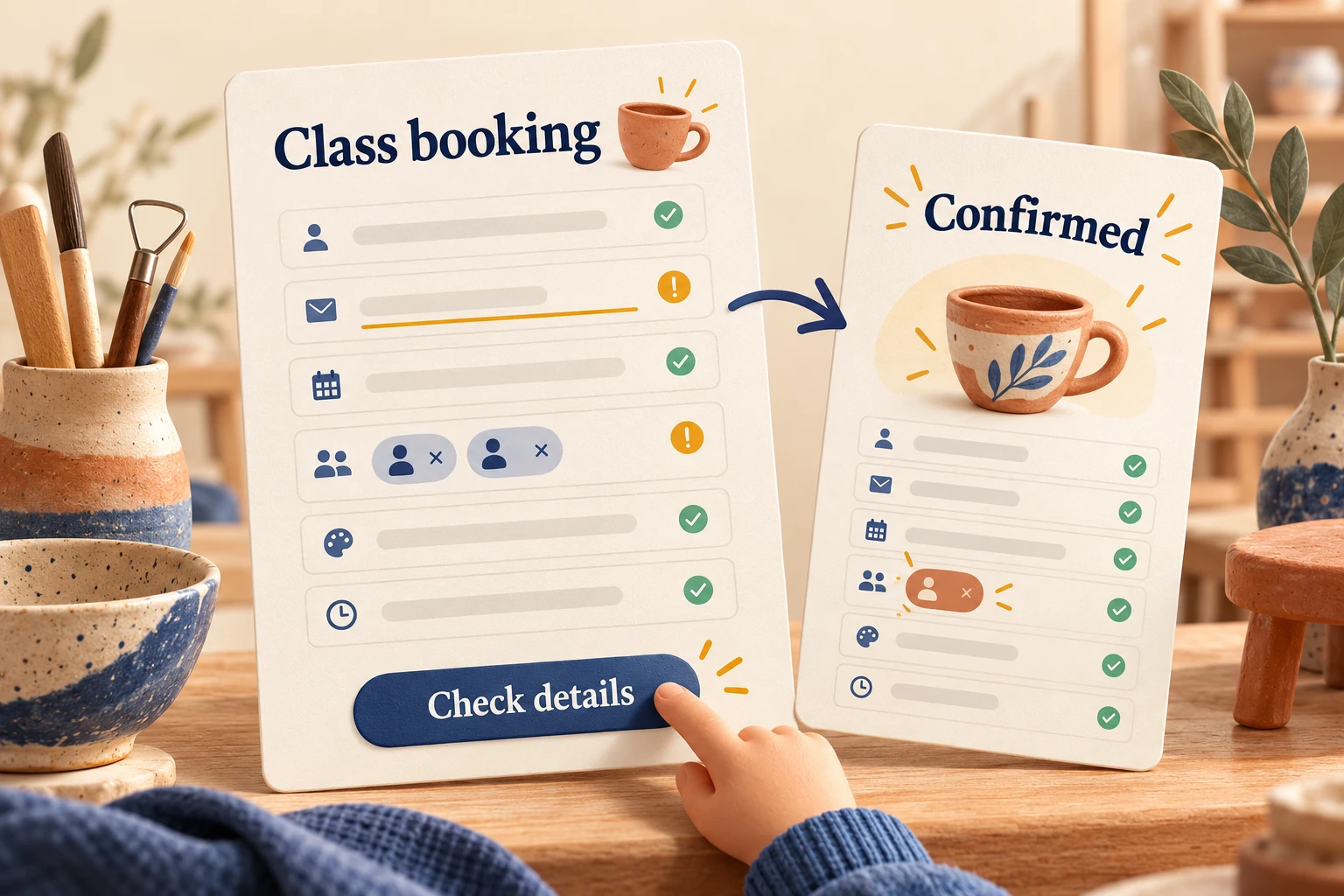
Good form validation tells people what needs attention when they can reasonably act on it. Give instructions before entry, check meaningful answers, and make submission errors easy to correct without erasing other work. In Mockitt's interactive prototype workspace, you can arrange the entered, invalid, corrected, and confirmed states before developers implement the validation rules.
The difficult decision is rarely the color of an error border. It is whether the form should interrupt someone who is still typing, what happens after a correction, and how to explain a failure that the person did not cause.
Choose an event for each kind of check
Do not treat every field as invalid when the page opens. An untouched required field is unfinished work, not necessarily a mistake. Show its label, requirement, and useful instructions; reserve error feedback for a check the person has actually triggered.
For a short class-booking form, start with submission checks for required answers. Consider checking an edited field after it loses focus when the feedback is useful and the answer is complete enough to judge. Once an error has been shown, recheck the correction at a defined point so an obsolete warning does not remain beside a valid answer.
These are design choices to test with your audience, not a universal demand to validate every field on blur. A password-strength meter, a date range, and a booking quantity have different dependencies. The W3C forms notification guidance describes several feedback timings. Choose the event that helps this task rather than copying a red-on-every-keystroke pattern.
Work through a class-booking example
Imagine Clayroom, a fictional pottery studio. Someone wants to book two places for a Wednesday class at 6 p.m. The form asks for their name, email, session, and attendee count. It does not need a postal address to reserve a place.
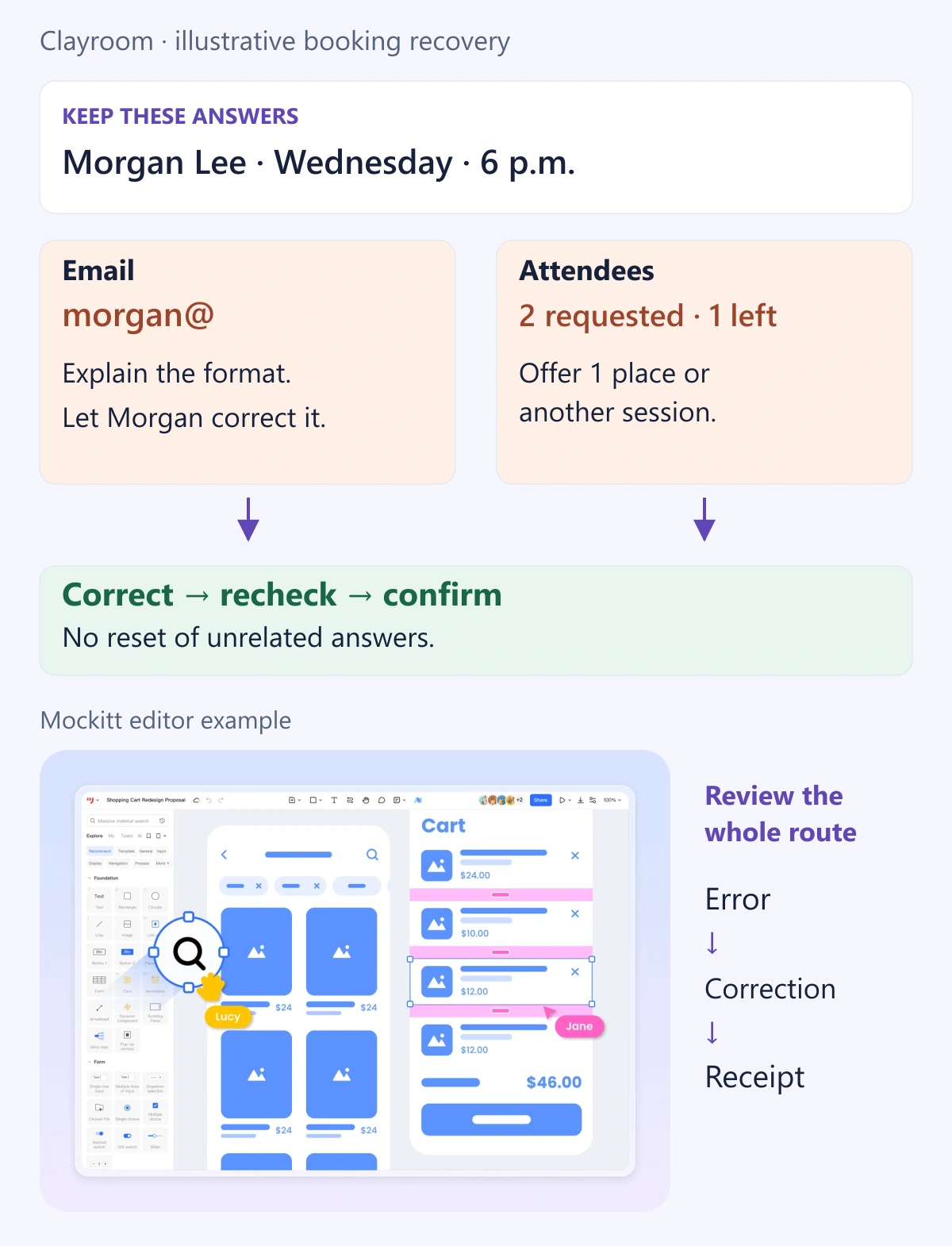
The person enters “Morgan Lee,” begins an email as “morgan@,” selects the session, and chooses two attendees. While they are still editing the email, a warning would compete with the work they are already doing. On submission, however, the form must identify the incomplete address. If the service reports that only one place remains, that is a separate availability problem.
| Situation | Check and feedback | What remains |
|---|---|---|
| The form has just opened | Show labels, required information, and session details; no blanket error state. | Any deliberately supplied defaults. |
| Morgan is typing an email | Allow normal editing. Do not repeatedly announce that unfinished text is invalid. | The exact editable value. |
| Submit is chosen with an incomplete email | Identify Email in the summary and beside the field. | Name, session, and attendee count. |
| The email is corrected | Recheck at the agreed event and remove the resolved warning. | Other unresolved errors. |
| Only one place is available | Explain the conflict and offer a smaller party or another session. | Contact details and current choices. |
| The booking service cannot respond | Explain that availability or completion could not be confirmed. | The completed form and a safe recovery route. |
This table gives design and engineering a shared sequence. The prototype shows the intended messages and routes; it does not reserve seats or establish that a confirmation email was delivered.
Write errors that point to a correction
“Something went wrong” does not tell Morgan whether to edit the address, change the class, or try again later. Name the affected answer and explain the relevant constraint. Use “Enter an email address in the format name@example.com” for the incomplete address. A format check still cannot establish that the mailbox exists or belongs to Morgan.
For the availability conflict, use “Only 1 place is available. Choose 1 attendee or another session.” Do not silently change two attendees to one: that would submit a different booking. If availability changes while someone is editing, show the current result when the service can confirm it.
WCAG's error-identification guidance requires an automatically detected input error to identify the affected item and describe the error in text. A red outline can reinforce that message, but cannot carry the explanation alone. Keep wording understandable without relying on technical field names.
Place persistent hints near the field before the error occurs. Do not use an error message to reveal an important rule for the first time if it could have been explained earlier. The broader web form design guide covers labels, grouping, and asking only for necessary information.
Connect the summary to the affected fields
After an unsuccessful submission, people need to know that the booking did not complete and where to act. For Clayroom, put an error summary above the form and matching messages beside Email and Attendees. Each summary item should take the person to the relevant field.
The GOV.UK error summary component provides a concrete convention: focus the summary after validation, link to affected answers, and use the same wording in the summary and inline messages. That is a design-system pattern, not proof that every implementation automatically meets accessibility requirements.
Check the narrow layout with the keyboard open. The error should not be hidden behind a sticky footer or detached from its field by a large illustration. Record focus and announcement behavior for implementation using your accessibility annotations. A visually connected prototype cannot verify screen-reader announcements.
Preserve answers and clear only resolved errors
Correcting Email should not reset the session or attendee count. Changing the session, however, means availability must be checked for the new class. Keep independent answers and deliberately revalidate dependent ones.
Suppose Morgan chooses one attendee. Remove the quantity warning after the relevant check succeeds, while leaving any unresolved email warning visible. Avoid keeping a stale “2 errors” summary after one issue is fixed. Equally, do not show “Booking confirmed” because the format checks passed; that message belongs to confirmed completion.
For longer journeys, the multi-step form guide explains how changing an earlier answer affects later steps. A single-page form still needs the same clarity about which answers depend on each other.
Keep service failures separate from invalid input
A timeout does not mean Morgan's name is wrong. Show a task-level message when the service is unavailable, retain the answers, and explain what can happen next. If the booking outcome is unknown, check its status before encouraging another submission; otherwise a retry could request the same booking twice.
Engineering must enforce submission handling, capacity checks, and duplicate prevention. In the prototype, distinguish “Could not check availability,” “No place remains,” and “Booking not yet confirmed.” They lead to different actions even when all three use a prominent message.
Review the correction route from start to finish
Prepare the Clayroom form with the incomplete email, the two-error result, a corrected email, an adjusted attendee count, and a final receipt. Connect the summary links and correction routes. Keep Morgan's other answers identical across screens so a reviewer can notice accidental loss.
Ask someone to book the class, then present the availability conflict. Watch whether they understand what failed, locate the correction, and recognize when the booking is actually complete. Finish by handing off the validation events, dependencies, messages, and success condition. Those rules make the form dependable; the border color is only their visible expression.