Mockitt - Best Free Wireframe Tool
Helpful Tips About Wireframe
- How To Create A Wireframe
- Wireframe Tools You Should Know
- Wireframe Templates for Your Inspiration
- Free-to-use Wireframe Kit

Accessibility Annotations: Document Semantics, Focus and Feedback for Handoff
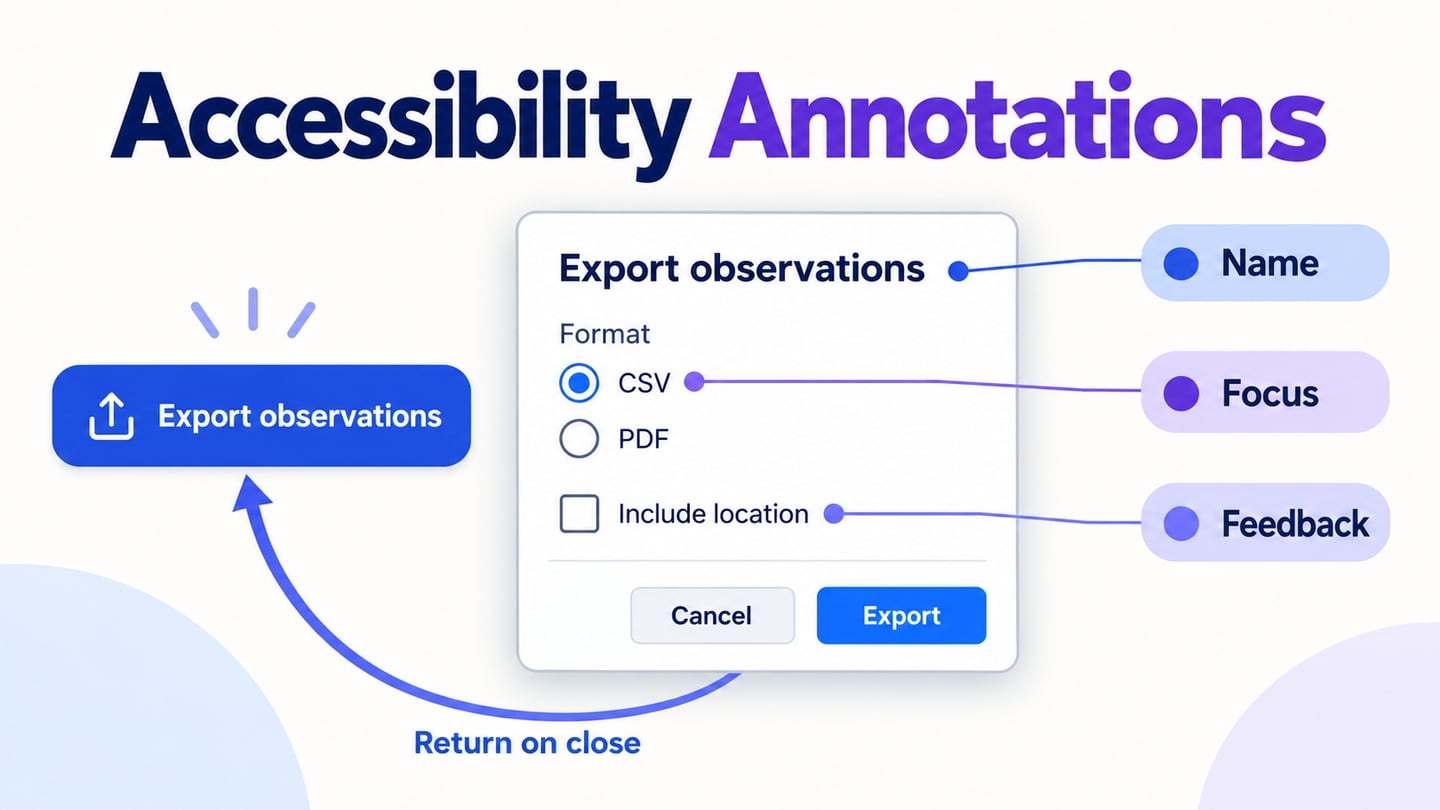
A designer draws an export dialog, complete with a visible focus outline. Development still has unanswered questions: what is the dialog called, where does focus enter, and how will someone know the export is ready without seeing the message? Accessibility annotations make those intended behaviors explicit. They connect the picture to decisions that must exist in the working interface.
Keep them inside the wider design handoff package, alongside the approved flow and component references. An annotation is an instruction to implement and verify, not evidence that the implementation is already accessible. This guide uses a fictional Harbour sightings dashboard to build a compact, practical record for one export flow.
Annotate the decisions a picture cannot settle
A screenshot can show a label, a selected option and a focus treatment. It cannot establish which name assistive technology receives, whether a control responds to the keyboard, or where focus goes when new content appears. Those are the important gaps to document.
Start with the component library the implementation will use. If an approved dialog already specifies its keyboard behavior, reference that specification and identify the flow-specific choices. Do not copy a long generic accessibility checklist beside every instance; duplicated rules become contradictory when one copy changes.
A useful annotation has five parts: a stable reference, the affected element or transition, the intended behavior, the reason it matters in this flow, and the person or check that will verify it. Numbered pins can connect a drawing to the record, but the number is only an identifier. Pin A3 does not mean the element must receive the third tab stop.
Prepare the reference in Mockitt's UI design workspace using the relevant screens and a separate notes area. Keep implementation notes outside the user-facing interface. The design canvas supports the discussion; it does not turn the annotations into DOM semantics or an assistive-technology test.
Establish one exact export reference
The example dashboard displays a fictional observation collection. Its Export observations button opens a short modal with the same title. The user chooses CSV or PDF in a Format group, can include location information, then chooses Cancel or Export. CSV is initially selected; Include location is initially unchecked.
Name this reference Export E1 and keep those values consistent in the drawing and notes. The flow has three important transitions: opening the dialog, dismissing it without proceeding, and starting an export. A separate completion event makes a download available. A prototype can illustrate these transitions without producing a real file.
Decide which component rules are inherited and which decisions belong to this flow. E1 uses the team's approved modal, radio group, checkbox and button patterns. The flow-specific decisions are the dialog name, initial selection, entry focus, return destination, and export feedback. If the actual library behaves differently, resolve that difference with engineering before calling the record ready.
Describe names, roles and states in plain language
For each relevant control, record what it is and what people should understand about it. W3C's Name, Role, Value guidance explains why the working interface must expose these properties programmatically. Prefer the appropriate native control or an agreed component rather than inventing additional ARIA instructions from appearance alone.
- A1 — Export observations: an action button that opens the modal. Its visible label supplies the intended accessible name.
- A2 — Export observations dialog: a modal dialog named by its visible title. Background dashboard controls are unavailable while it is open.
- A3 — Format: a labeled group of mutually exclusive choices, CSV and PDF. The selected state belongs to the chosen option; the group label should provide context for both.
- A4 — Include location: a checkbox whose checked or unchecked state is available along with its label. Changing it does not itself start the export.
- A5 — Cancel and Export: distinct actions. Cancel dismisses the proposal; Export starts the agreed process. Neither label is replaced by an unexplained icon.
Do not prescribe a single sentence that every screen reader must speak. Announcement wording and order can vary across browser and assistive-technology combinations. Specify the information that must be available, then verify it in the supported environments. Likewise, a visible heading does not automatically need to become a keyboard stop.
The button type and state reference can remain the source for shared visual behavior. This annotation record adds the surrounding relationships and the flow-specific consequences.
Draw focus transitions, not just a numbered tour
Separate the reading structure from keyboard movement. A heading helps someone understand a section; a radio group lets them make one selection. Treating every word as a tab stop would make the dialog harder to use. W3C's focus-order guidance centers the sequence on meaning and operability, rather than requiring a mechanical tour of every visible object.
For this short E1 dialog, the proposed initial focus is the selected CSV option. The title and Format group must still be available to assistive technology. A longer dialog with essential introductory material could need a different initial target; choose it from the content and task, not a universal rule to focus the first button.
Record the intended sequence precisely:
- Activating Export observations opens the modal and moves focus to the selected format option.
- Arrow keys move among the format options according to the agreed radio-group pattern. The radio options are not described as separate stops in the ordinary Tab sequence.
- Tab moves onward to Include location, Cancel, and Export. Shift+Tab reverses the sequence, and focus stays within the open modal.
- Escape or Cancel closes the dialog and returns focus to the original Export observations button.
The W3C modal-dialog pattern provides the behavior reference, including cases where a different entry or return target makes sense. If the invoking control disappears after an action, name the logical replacement destination explicitly. E1 keeps the original button, so no replacement is needed.
The illustrated export dialog connects its format choice, checkbox and actions to separate notes for entry focus, movement and return focus.
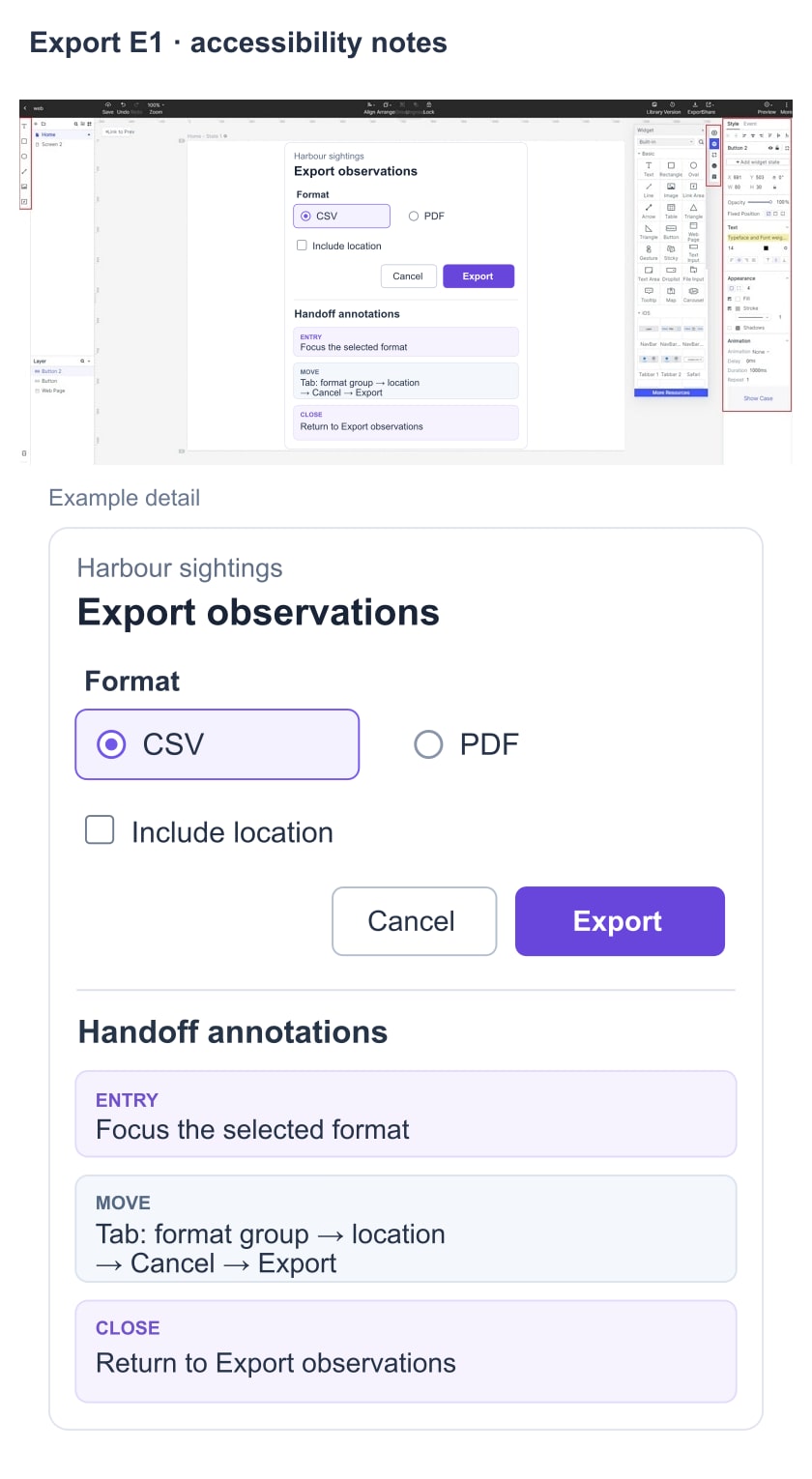
A purple outline in the drawing shows the proposed focus treatment. The implementation must still make it visible against its actual background and keep the focused control in view. Inspect the dialog when text wraps and when the viewport is short; a pinned action row must not hide the current control.
Specify feedback without moving focus unnecessarily
Complete the contract beyond the modal. In E1, once an export request is accepted for processing, the dialog closes, focus returns to Export observations, and the dashboard displays Preparing export…. When that process reports completion, the message changes to Export ready and a Download CSV link becomes available. This is an illustrative policy for the fictional service, not a claim that a file was generated.
Write the condition for each message. Starting a request is not completion, so the first state must not say that the download is ready. A failed request must not leave a successful-looking link. If a failure leaves the outcome uncertain, agree with engineering how the interface determines the real status before offering another action.
For the completion update, E1 preserves the user's current focus. Its annotation asks for the status change to be conveyed to assistive technology without moving focus to the message. W3C's status-message guidance distinguishes this feedback from a change of context. The engineer should select the appropriate implementation; adding an interruptive announcement to every changing value is not the design goal.
Keep the result reachable as well as announced. A message that vanishes before someone can find the download leaves a different problem. The ready state retains the link near the export action until the agreed expiry or replacement rule applies. If expiry matters to the actual product, document it separately rather than inventing a convenient duration.
Make the notes small enough to maintain
Store one annotation record per agreed behavior, with links from the relevant screens. E1 might carry a short reference such as A3 / Format group / component specification RG-2 / CSV selected on entry. The component reference supplies the common keyboard rules; the last clause supplies the local decision.
Use a status that describes real progress. Decision agreed means the team has chosen the behavior. Implemented means it exists in a named build. Verified requires a recorded check of that build and environment. These labels avoid turning a reviewed drawing into a claim of tested accessibility.
When the format group changes to a different control, update its semantic and focus notes together. When only a label changes, inspect the visible and accessible names together, keeping tooltip descriptions distinct from the control's name. Attach unresolved questions to an owner: design chooses the intended task behavior with engineering, engineering implements it, and the relevant tester or specialist verifies the result. A team may combine roles, but the responsibility should remain visible.
Turn each important annotation into a working-interface check
Review E1 with development before implementation, then repeat the relevant checks in the working product. The visual file is a reference for what should happen, not the environment in which every behavior can be proved.
- Open: reach and activate the export button with the keyboard; confirm the dialog is named and focus enters the intended option.
- Operate: change the format, toggle the location choice, move forward and backward, and confirm background controls cannot be operated through the modal.
- Dismiss: use both Cancel and Escape, then confirm focus returns to the intended control.
- Complete: follow the real processing state, verify the result message is available without a focus jump, and reach the correct download link.
- Vary the presentation: inspect visible focus and content at supported widths and enlarged text settings, and test the relevant browser and assistive-technology combinations.
Record expected and observed behavior separately. If Tab escapes behind the open modal, the annotation explains the expectation while the issue record identifies the failing build and reproduction steps. The broader design QA workflow helps manage that correction and retest.
Finish with a concise handoff: the approved reference, inherited component rules, local annotations, open questions and verification evidence. That makes invisible behavior discussable and maintainable, while leaving a clear account of what has actually been checked.