A bottom sheet brings a secondary task up from the lower edge of the screen while retaining some context behind it. It can work well for a short choice, such as changing a cinema location. It becomes frustrating when the user cannot tell whether a tap has applied a change, whether closing will lose it, or how to return to the original screen.
Build a prototype of the sheet and its return paths before deciding how it should move. This guide follows a fictional cinema app, Fernhill. A visitor browsing films at North Park opens a sheet to choose East Quay. The important design decision is when that new choice becomes the active cinema.
Give the sheet one short, connected task
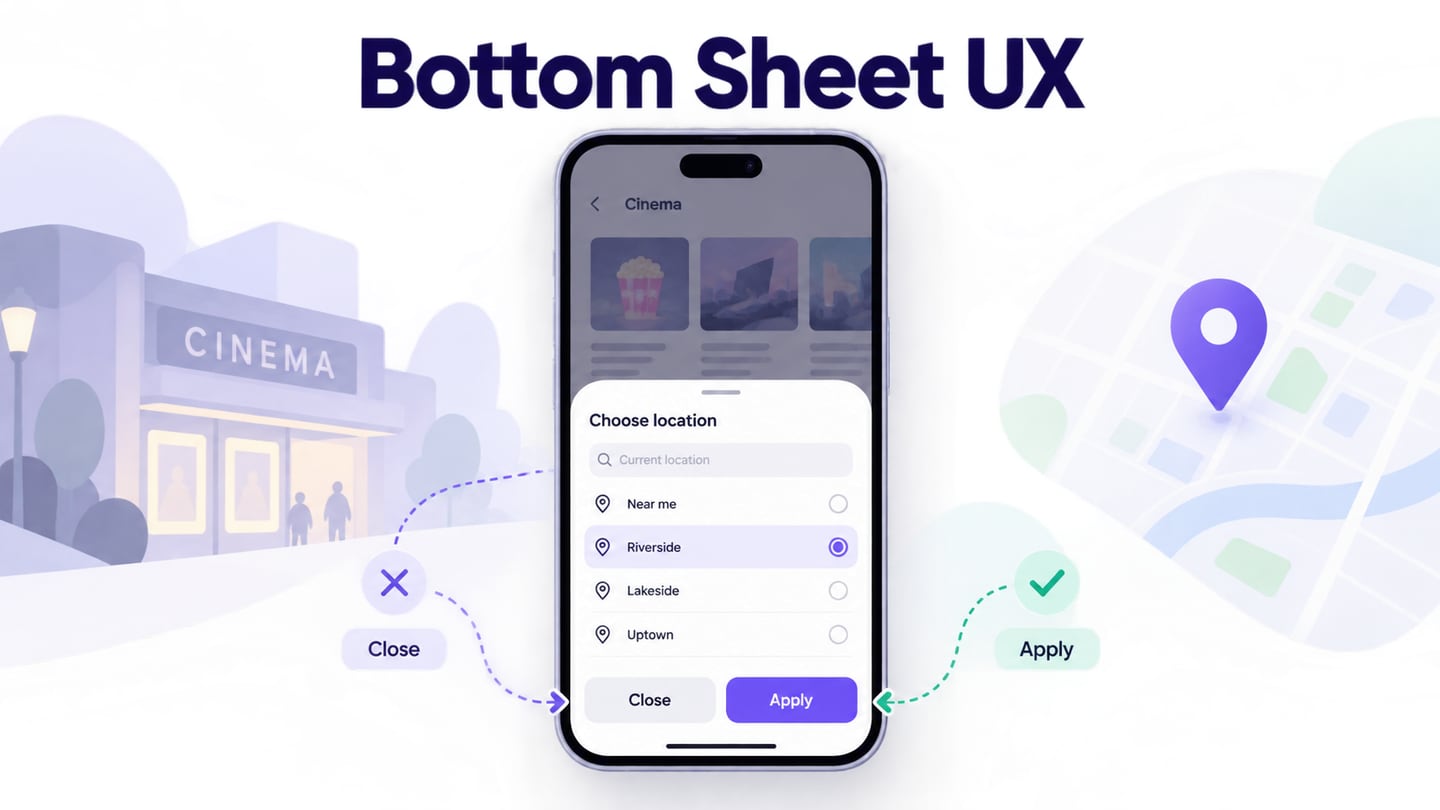
Fernhill's sheet answers “Which cinema do you want to browse?” It belongs to the listings screen because the selected location changes those listings. The film cards remain partly visible behind the surface, helping explain the relationship without asking the visitor to navigate through account settings.
A separate page is a better starting point when the task needs substantial reading, several steps, or information the person must revisit directly. Do not squeeze a complete booking flow into a sheet just because its rounded corners look tidy. An inline control may be enough when the choice is small and does not need a separate surface.
Decide whether the background remains interactive. Fernhill uses a modal sheet: while choosing a cinema, the visitor cannot activate a film card underneath it. A persistent, non-modal panel serves a different purpose. Treat modality as a behavior decision, not simply a choice of backdrop color. The broader UI pattern guide helps put this choice in context.
Separate the highlighted choice from the applied result
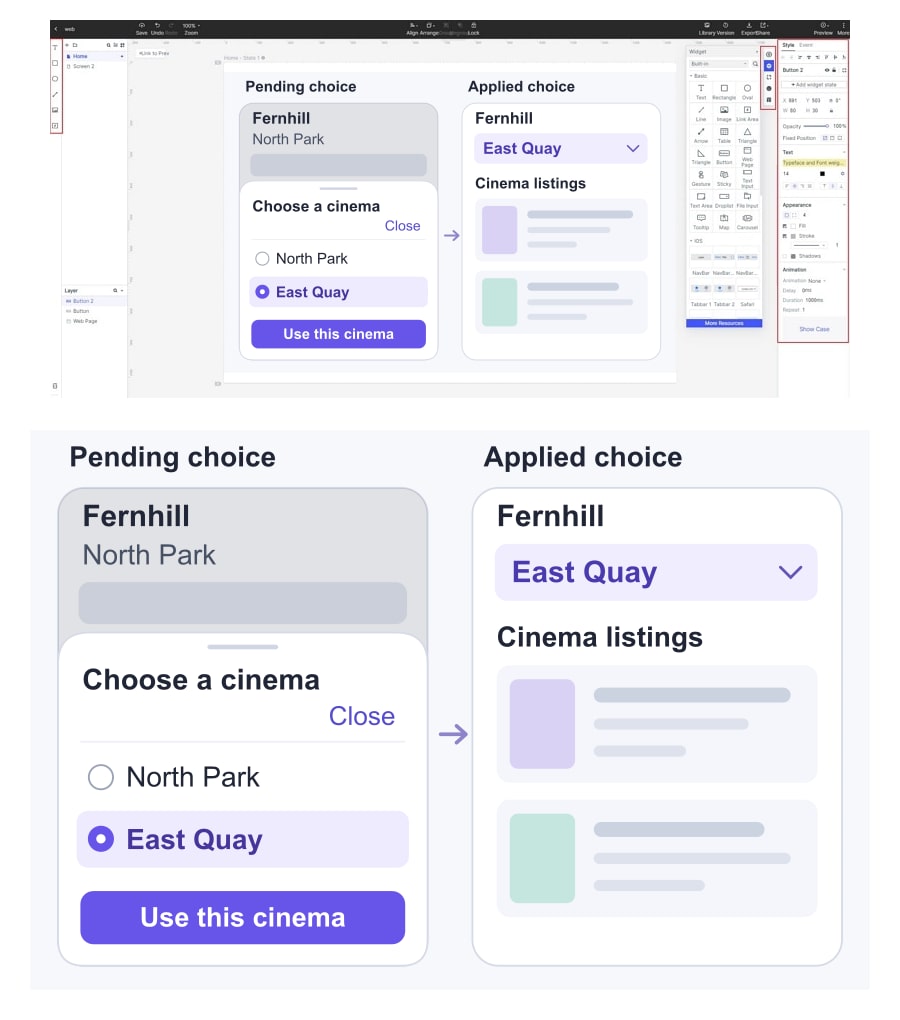
The sheet opens with North Park selected and a heading, “Choose a cinema.” The visitor taps East Quay. That row now has a selected marker, but the listings behind the sheet still belong to North Park. A button labeled “Use this cinema” applies the pending choice and closes the sheet.
This is a deliberate two-stage model. It gives the visitor time to inspect an address before changing the results. A different product could apply a choice immediately, but then it should not also suggest that an Apply button is required. Mixing these models leaves people unsure whether their action has finished.
Show the address beneath each cinema name so nearby locations are distinguishable. Use the same selected treatment for the current and pending options, and retain a visible heading that explains the choice. The underlying listing header should change to “East Quay” only after the visitor selects “Use this cinema.”
Fernhill's pending state shows East Quay selected inside the sheet while the background still reads North Park; the applied state closes the sheet and labels the listings East Quay.
Button wording matters here. “Done” could mean closing, saving, or accepting a choice; “Use this cinema” explains the specific result. Keep the action visible without letting a fixed button cover the last location in a scrollable list. Review button labels and states alongside the sheet.
Make every way out follow the same rule
Fernhill has a visible Close control. In this example, closing without applying discards the pending choice: North Park remains active. If swipe-to-dismiss, a backdrop tap, or the platform's Back action also closes the sheet, they should follow that same rule. Reopening should show the applied cinema, not an abandoned selection from the previous visit.
A drag handle is a useful visual cue, but it is not a complete exit mechanism. Provide a control that someone can activate without performing a drag. Do not turn the first swipe into “save” and the Close button into “cancel” unless the interface clearly explains such an unusual distinction.
The Android bottom-sheet documentation exposes sheet state and dismissal as explicit implementation concerns. It does not decide whether a product should preserve or discard an unfinished choice. Write that rule into the design, then make each supported closing route agree with it.
If a sheet contains meaningful edits rather than a harmless selection, reconsider whether immediate dismissal is appropriate. The cinema example does not need a confirmation dialog every time someone closes it. A longer editing task may need a different saving model or a full page; adding nested prompts is not the only solution.
Use the available space without hiding the task
A short list can fit in a compact sheet. A longer list needs room to scroll, and possibly search, but the title and closing route must remain understandable. Avoid presenting a clipped row as if it were the complete set of choices. If expansion is supported, make the relationship between the initial and expanded views clear.
Try a long cinema name, a two-line address, and increased text size. The selected indicator should stay associated with the correct row. Keep the important content readable rather than reducing all type to preserve a particular sheet height.
If you add a search field, inspect the layout with the on-screen keyboard open. The input, results, and action cannot all assume the same space as the closed-keyboard design. Define what Back does in that situation with the platform team, rather than drawing a single frame and leaving the behavior implicit.
A wider viewport may suit a different presentation, such as a centered dialog. Preserve the task and choice rules when changing the surface. This is different from a list-detail workspace that stays visible in two columns; Fernhill still offers one temporary location choice.
Return people to a meaningful place
For a web implementation that behaves as a modal dialog, the W3C modal-dialog pattern describes moving focus inside, containing keyboard navigation, supporting Escape, and returning focus appropriately when the dialog closes. Include a visible close control. These requirements apply to the working interface, not merely its appearance.
In Fernhill, closing without a change returns to the cinema selector. Applying East Quay also leaves a recognizable selector, now showing that location, above the new listings. The visitor should not land at an unrelated navigation item or lose their place at the top of an entirely different page.
Record the intended focus target and background behavior in the accessibility annotations for handoff. A screenshot can communicate the proposed reading order, but keyboard focus and screen-reader behavior need checking in the implemented product.
Review the choice, cancellation, and return together
In Mockitt, prepare the North Park listings, the open sheet, East Quay selected but not applied, and the resulting East Quay listings. Connect the visible controls between those prepared states. Keep the cinema names and addresses consistent so reviewers can follow the change; the prototype is not retrieving real showtimes.
Ask a reviewer to switch cinema, then try a separate attempt in which they choose East Quay but decide to stay at North Park. Watch whether they understand the difference between selecting and applying. Reopen the sheet in each case and check that the visible selection matches the intended rule.
Hand over those two journeys with the dismissal and focus decisions. The useful result is a short task that remains predictable from opening to closing, regardless of which supported route the visitor takes.