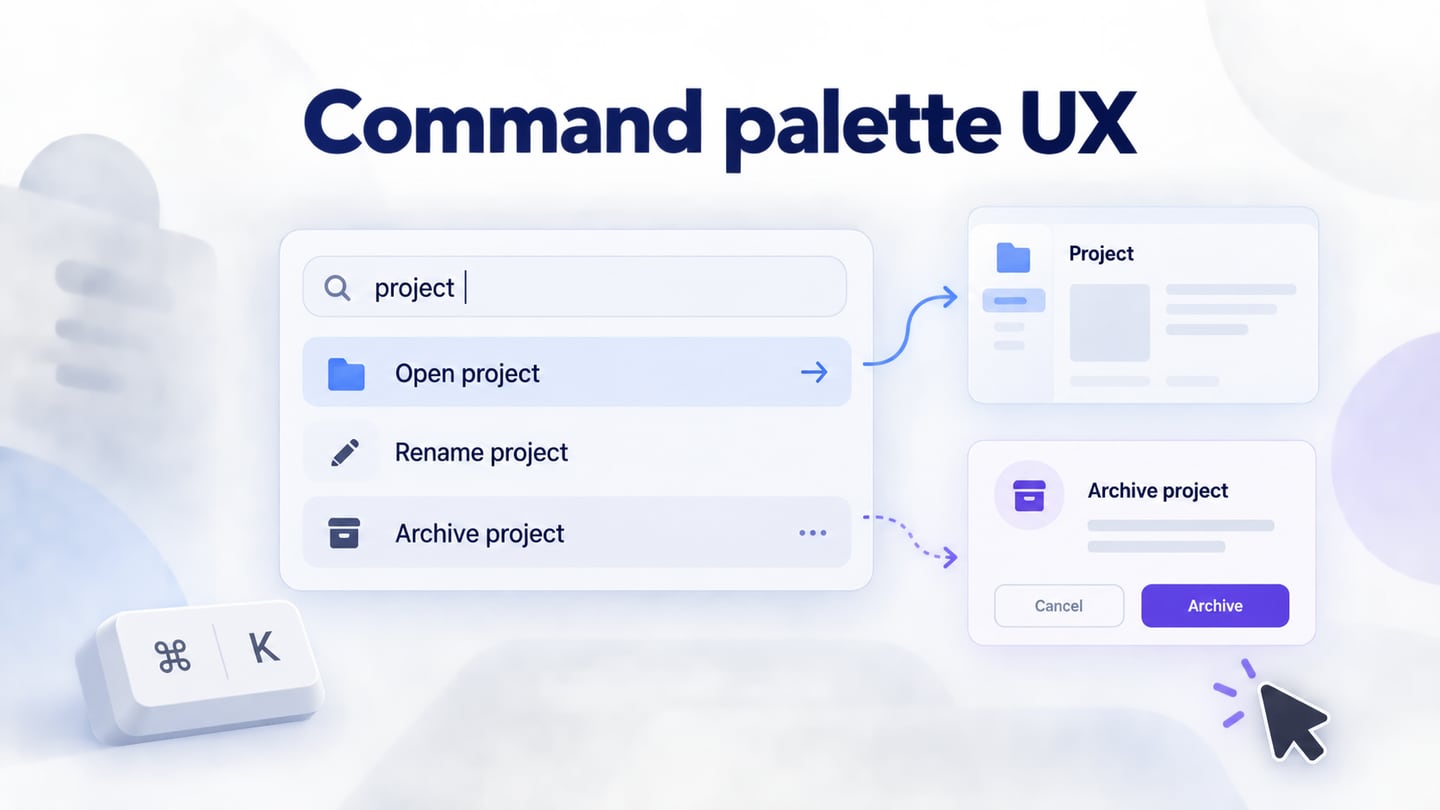
A command palette gives people a searchable way to act inside a product: open a project, create an item, change a view, or start a task. Good command palette UX makes the action, its target, and its consequence clear before execution. Begin with a small set of useful commands, preserve ordinary navigation, and design the states around the search field as carefully as the field itself.
Review the complete interaction in an interactive prototype of the command flow: opening the palette, narrowing results, selecting an action, and returning to work. This guide uses a fictional project workspace called Northstar Studio. Its palette can open a project, rename the current project, or begin archiving it. These are example product decisions, not a claim that Mockitt includes this particular command system.
Decide which tasks deserve a command
A palette is most useful when people know roughly what they want but do not want to navigate several layers of menus to reach it. Start by listing recurring tasks and the contexts in which they occur. Do not begin by copying every menu item into a search result list.
Northstar's designer is viewing a project named Harbour Identity. Opening another project changes location. Renaming Harbour Identity changes one record. Archiving it changes its availability to collaborators. Those actions may share an entry point, but they should not share an indistinguishable execution path.
| Command | Context needed | Next state |
|---|---|---|
| Open project | A chosen project the person can access. | The selected project's working view. |
| Rename Harbour Identity | Current project and permission to rename it. | A name field showing the existing value. |
| Archive Harbour Identity | Current project and permission to archive it. | A review of the effect before committing the change. |
Retain conventional paths for these tasks. A new team member may never discover a keyboard shortcut, and a person on a touch device needs a visible entry. A command palette supplements the product's navigation structure; it should not become the only way to find an important feature.
Choose names with a clear verb and object. Open, Rename, and Archive communicate different actions. A result labeled only Harbour Identity forces the reader to infer whether selecting it opens the project, inserts its name, or acts on it. If the palette mixes navigation and commands, make those groups visibly distinct.
Show the context before the person types
At opening, show where the commands apply. Northstar might display "In Harbour Identity" above project-specific actions and put workspace actions in a separate group. The distinction prevents a broad command such as Export from silently changing scope between a selected board and the whole project.
The example palette separates opening a project from actions on Harbour Identity, then carries that project name into the archive review.
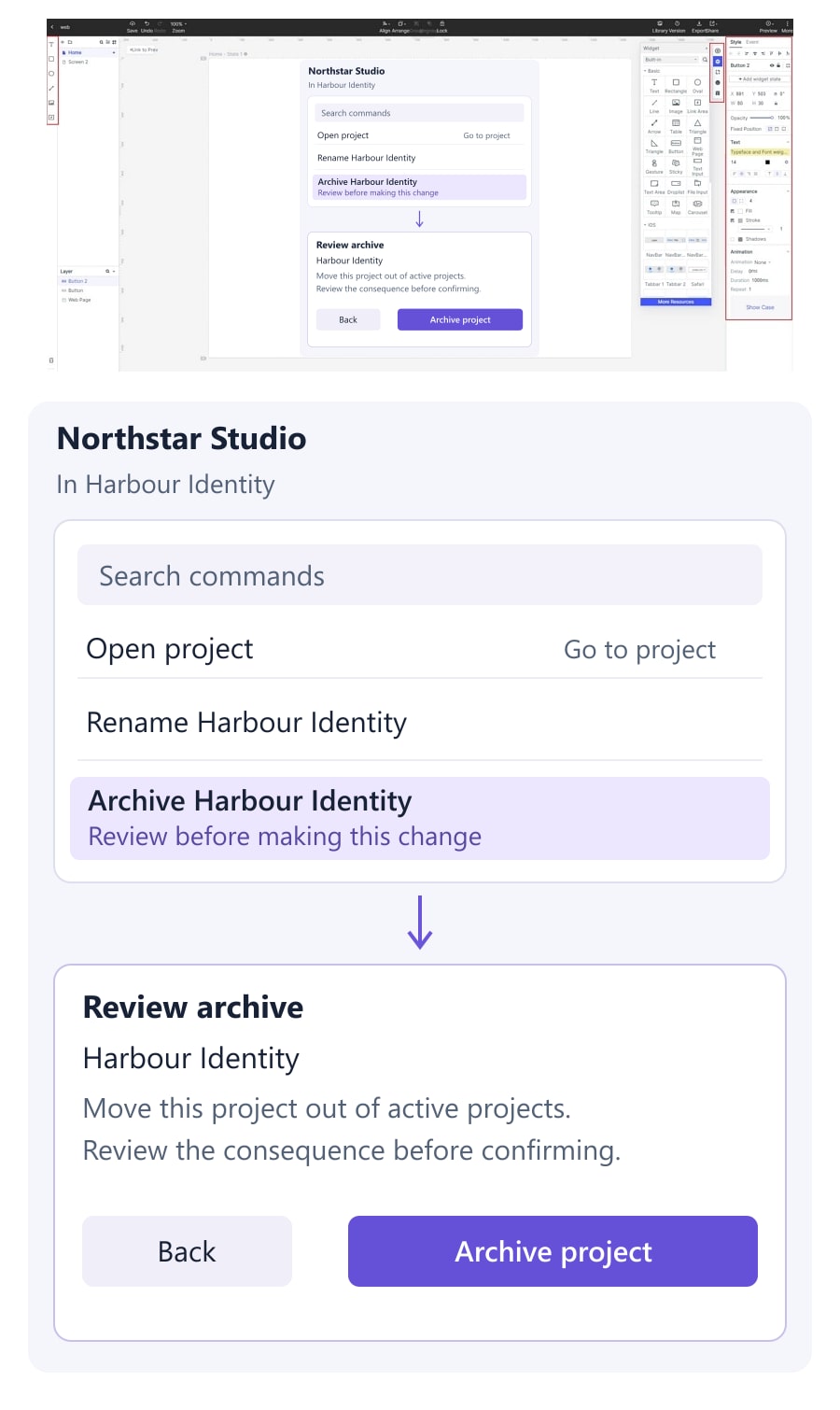
Decide whether selection outside the palette affects its commands. If a person selects three files and then opens it, an action labeled Move selected files can state that selection explicitly. If the background selection changes while the palette remains open, freeze the intended target or update the display clearly. The person should not have to infer which background state the command will use.
An empty query is also a design state. Offer a short, useful set of recent or contextual commands, or explain what can be searched. Avoid filling the first view with an unranked catalog of everything the product can do. Recent commands should still be checked against current context and availability; a previously usable action can become unavailable.
Keep examples from becoming instructions that contradict the actual vocabulary. If the placeholder suggests searching "duplicate" but the only command is called Copy as new project, either support that synonym or choose a better prompt. A helpful hint is a promise about the results people can find.
Make search results predictable enough to act on
Build a command vocabulary from the words people use for tasks. A query for "rename" should find the relevant rename action; a query for the project name should help find that project. Synonyms can connect reasonable alternatives, but broad fuzzy matches should not place a consequential action above the clearly intended one.
For each result, show the action name, target or scope where needed, and an optional shortcut. Use secondary text for context, not as a place to hide the consequence. For example, "Archive Harbour Identity" can include "Move this project out of active projects" if that accurately describes the product's behavior.
Separate commands with similar names but different objects. "Archive project" and "Archive selected files" should remain distinguishable after filtering. If the layout truncates both to "Archive...", the palette has removed information at the moment it matters most.
Consider stable selection while results update. A person typing a longer query may press Enter as a delayed result arrives. Define whether selection resets after a changed query, whether an explicit selection is required, and what happens while a result set is loading. Do not execute whichever row happens to occupy the first position at an uncertain instant.
Use the existing search interface guidance for query recovery and result clarity. The additional responsibility here is execution: finding a plausible match must not accidentally perform a different action.
Explain unavailable commands without exposing private information
There are several reasons a command might not run: nothing is selected, a project is read-only, an operation is already running, or the person lacks the required role. Decide which situations merit a visible unavailable result and which should be absent.
Showing "Rename Harbour Identity — project is read-only" can help a person who already has legitimate access understand a restriction. Showing the name of an inaccessible private project as a disabled search result can reveal information that the person should not see. Visibility needs the same deliberate access rules as execution.
Where an action is unavailable, give a useful explanation close to it. "Select a project first" is actionable when selection is the missing context. "Unavailable" is not. Keep the explanation accessible without requiring pointer hover, which does not provide an equivalent path for keyboard and touch users.
Check availability again when the action is submitted. The interface may be out of date because another collaborator changed permissions or archived the project. The prototype can demonstrate the recovery message, but actual authorization and state validation belong to the implemented product.
Specify keyboard and focus behavior explicitly
Provide a visible control to open the palette and show any supported shortcut next to it. Check the shortcut against browser, operating-system, and assistive-technology behavior. Do not assume a familiar key combination is available or discoverable in every environment.
If the palette opens as a modal, define where focus starts, how a person exits, and where focus returns. The W3C modal-dialog pattern describes contained keyboard focus while the dialog is open and an appropriate return destination when it closes. For Northstar, closing without acting should return to the palette's invoker; opening a project may instead move focus to the new working context.
For an editable command search with a popup, the W3C combobox pattern provides relevant keyboard and accessibility semantics. Preserve normal text editing in the input, distinguish the highlighted result from a committed action, and specify how Enter and Escape behave. These individual patterns need to fit together; applying a role name alone does not make a custom palette accessible.
Write a short interaction contract beside the prototype. For this example: opening focuses the search input; typing filters the commands; an arrow key chooses a result; Enter activates the selected action; Escape leaves the current palette level or closes it according to the visible hierarchy. If an action opens a second step, show its title and a clear Back path. Test the implemented behavior with the appropriate keyboard and assistive-technology combinations.
On a phone, consider the space remaining when the software keyboard is visible. Keep results, scope, and an exit control reachable without squeezing the list into a few clipped lines. Touch operation should not depend on learning desktop shortcuts.
Use the keyboard, focus, and zoom review checklist to record which palette behaviors can be inspected in the prototype and which require implementation testing.
Separate choosing an action from committing its consequence
Opening Harbour Identity can go directly to the project. Renaming it should reveal a field with the existing name and a specific Save action. Archiving should show the project name and the actual effect before the irreversible or consequential step, using the product's real recovery rules.
Do not add confirmation to every harmless command. Repeated generic prompts train people to dismiss them. Use a review step where it helps someone notice scope, consequence, or a mistake that is difficult to undo. For the wider decision, see designing confirmation and recovery for destructive actions.
After execution, show a result the person can understand. If the rename succeeds, the changed title should be visible. If archiving fails, preserve the context and explain whether anything changed. If the outcome is unknown, avoid an automatic retry that could repeat the action; provide a way to check the project's state.
When an operation takes time, separate "request accepted" from "finished." Closing the palette does not mean a background action is complete. The command should hand the person to a visible task state or result location rather than vanish with the only evidence that work started.
Review the palette through tasks, not isolated screens
Walk through a small set of meaningful situations: opening a known project, finding Rename with an alternative phrase, trying a command with no selection, and canceling an archive review. Include an empty result set, a failed action, and a context change while the palette is open. Each case should have a defined result and a way back to useful work.
Watch whether reviewers can explain the target before they execute. If they select Archive but cannot say which project it applies to, improving the animation will not solve the main problem. If they keep opening the palette to navigate ordinary sections, the underlying navigation may deserve attention as well.
Hand off the command names, context rules, matching behavior, focus transitions, and outcome states with the prototype. For Northstar, the central distinction should remain visible throughout: opening a project changes location; renaming or archiving changes the project. A compact command interface works when it preserves that understanding while shortening the route to a task.