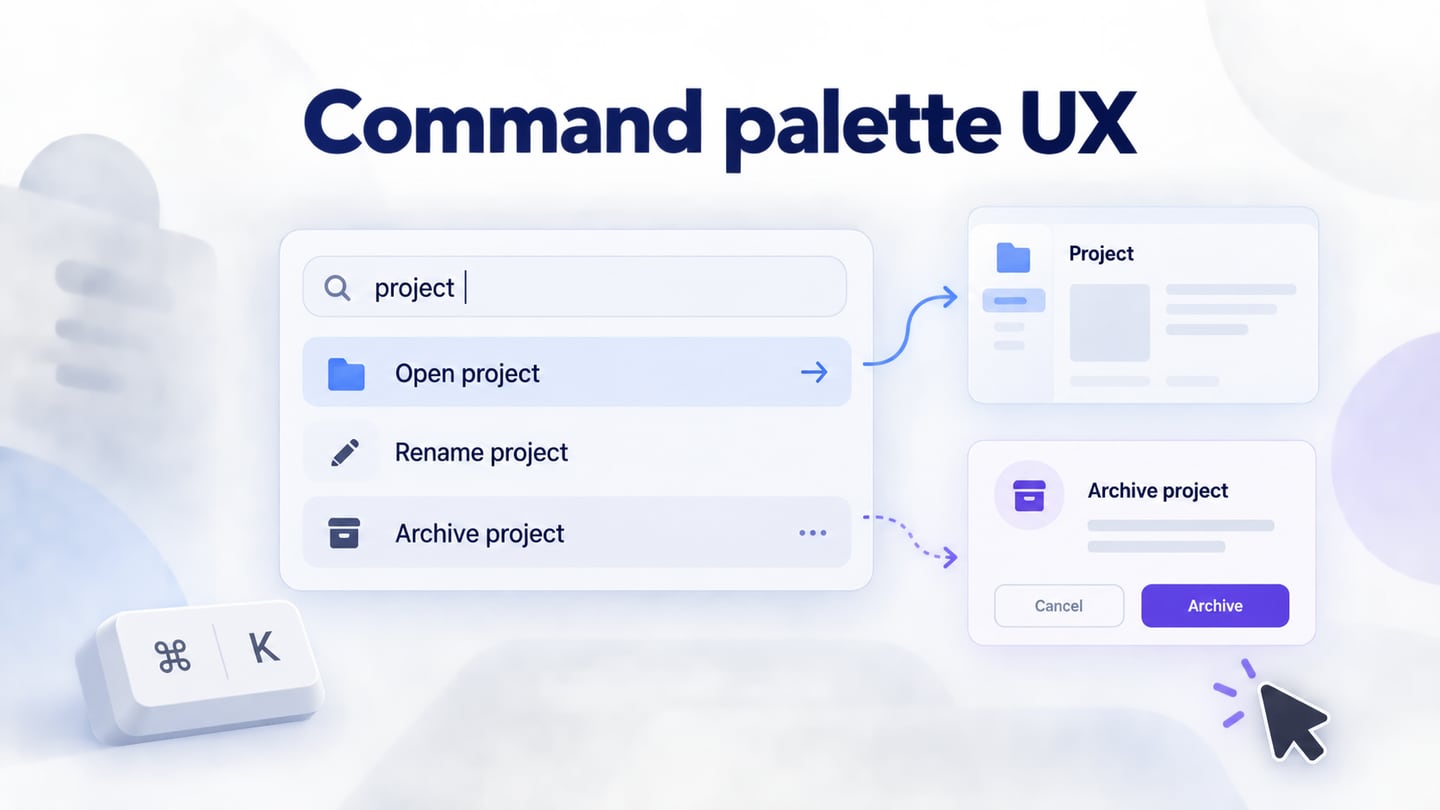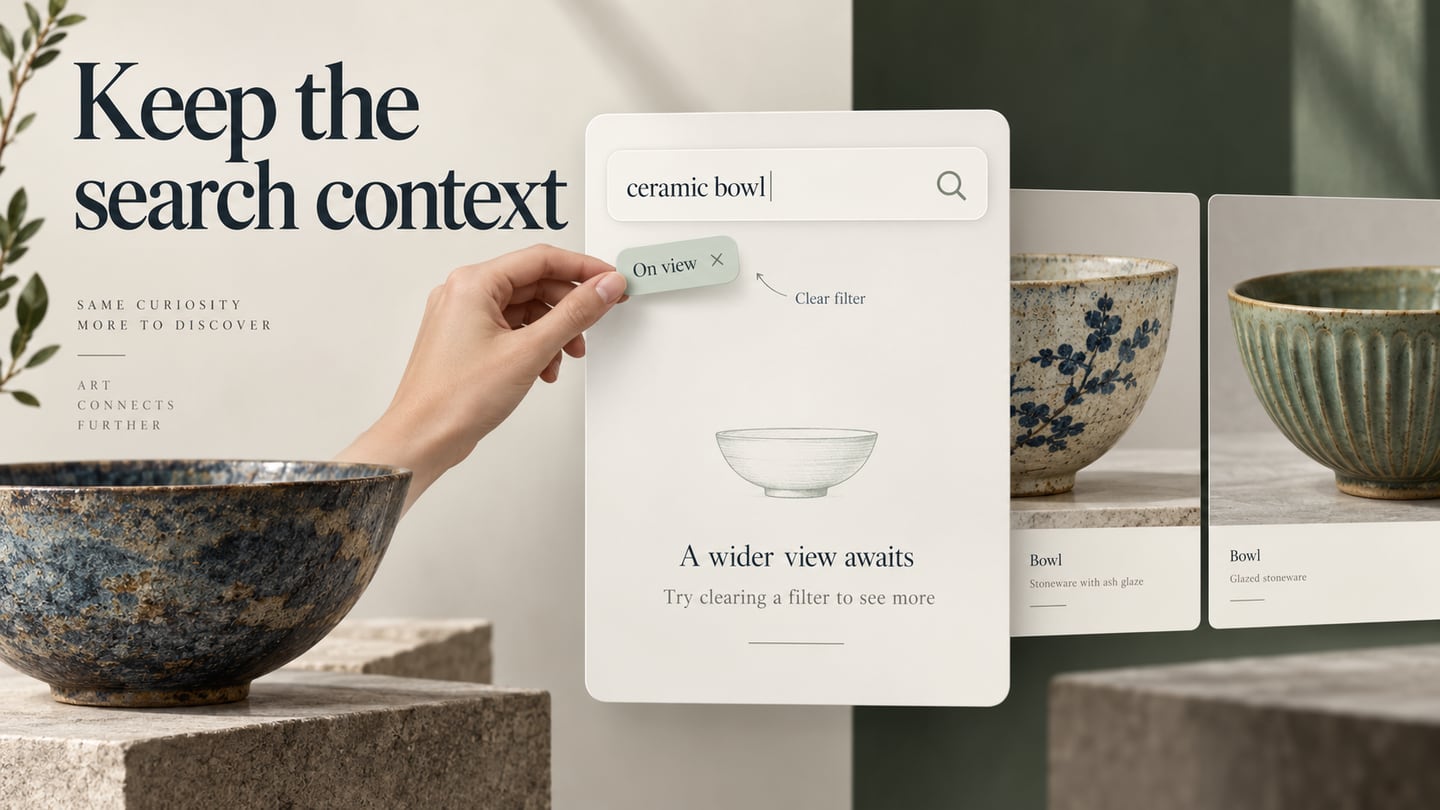
Searching a website or app is a conversation: a person expresses a need, and the interface returns a set of possibilities. Good search UI design makes that exchange understandable. The input matters, but so do the result labels, filters, waiting states and the way someone recovers from an unsuccessful query.
Prototype the Search Experience
Use Mockitt to design the search input, result states and linked interactions for review. A prototype can help the team discuss what the search should do without first building the search service. It does not supply a production index or validate ranking quality.
Create layouts for the intended devices, reuse relevant widgets and share the design for feedback. Decide which states are necessary for the question you are exploring. Check current workspace limits rather than assume unlimited screens or unrestricted collaboration.
How to Create a Search UI Prototype
Step 1: Create a new project
- Create a project for the search task and choose a suitable canvas size. Name the screens by state—initial, results, filtered results and no matches—rather than making several unnamed copies.

Step 2: Design the Search States
In a museum-collection example, a search for ceramic bowl may return items until an On view filter excludes them all. Show the query and selected filter in the empty state, then offer Clear On view without deleting the query. The collection and records in this example are fictional; the goal is to review recovery behavior rather than demonstrate a live museum search.
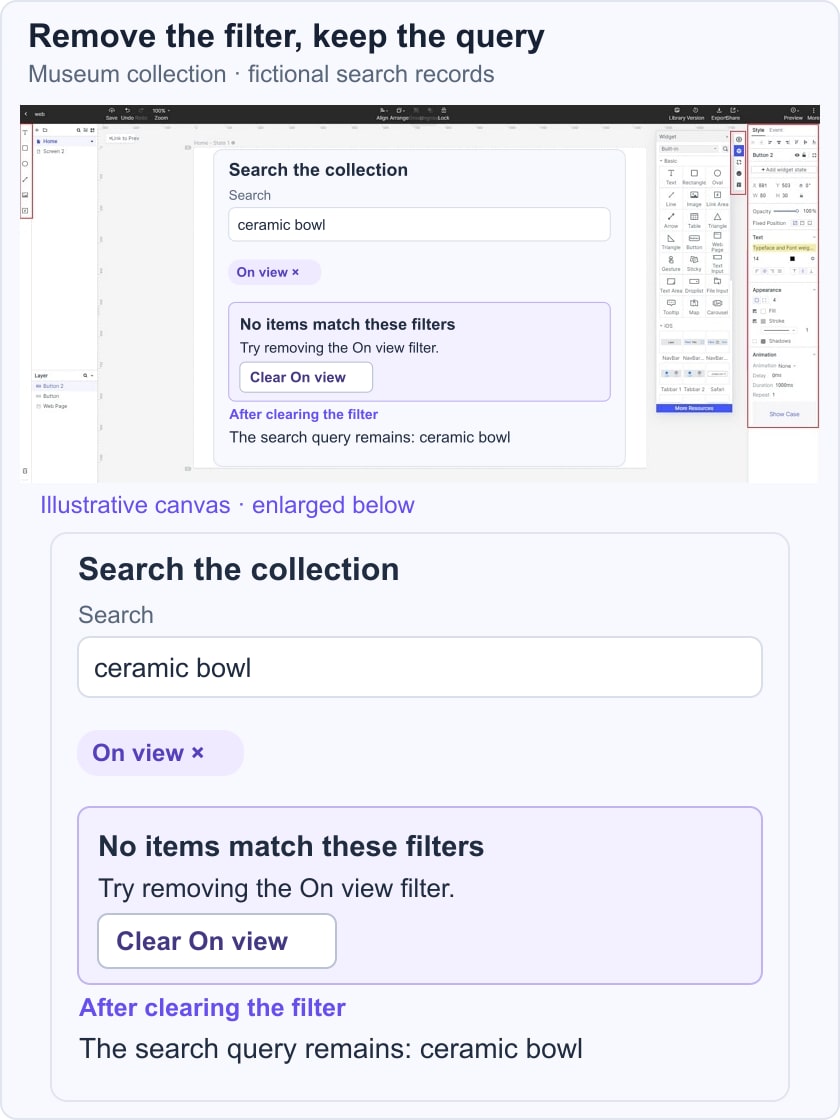
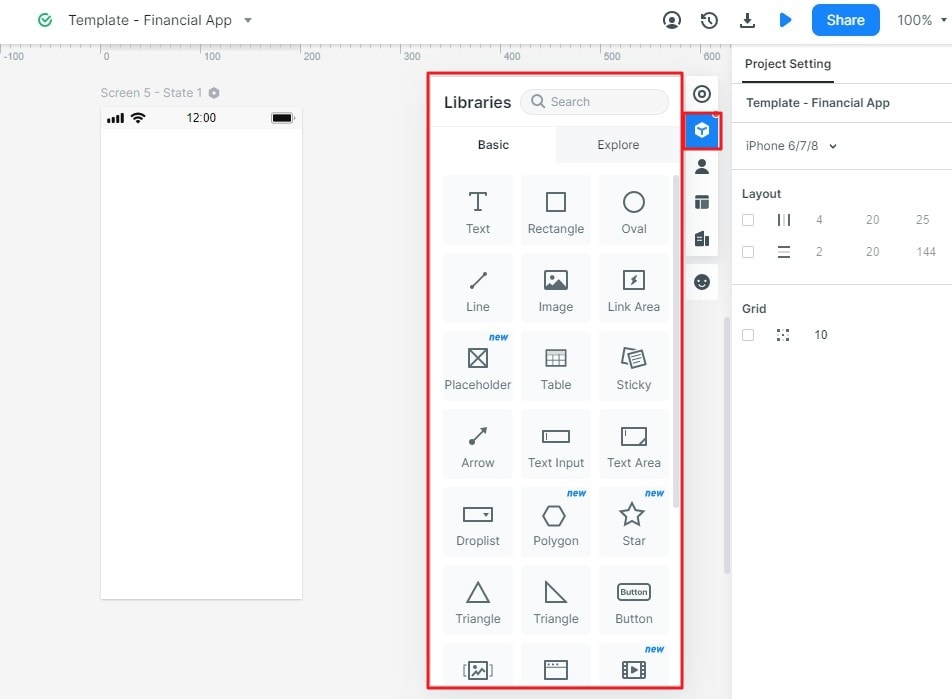
- Add the input, a clear search action, result titles and the information needed to distinguish similar items. Keep result content consistent between the states so reviewers can see the effect of the filter.
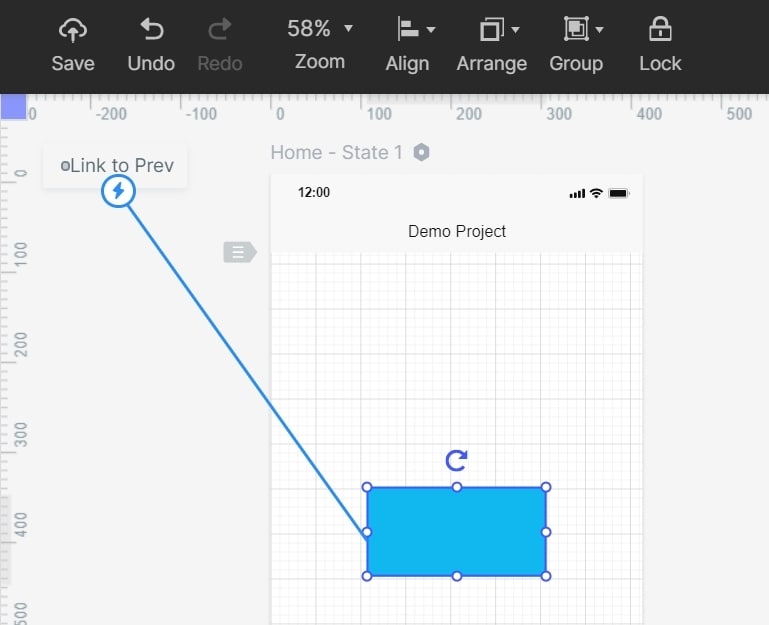
- Link the search action to a results screen and each filter action to the intended state. Include a way to remove a filter independently from clearing the query.
- Add notes for rules that are not visible: which fields are searched, when a request begins, whether filters persist and what happens when a person returns from an item detail page. When users combine conditions, make the AND/OR groups in the query builder visible and check them against a small set of expected matches.
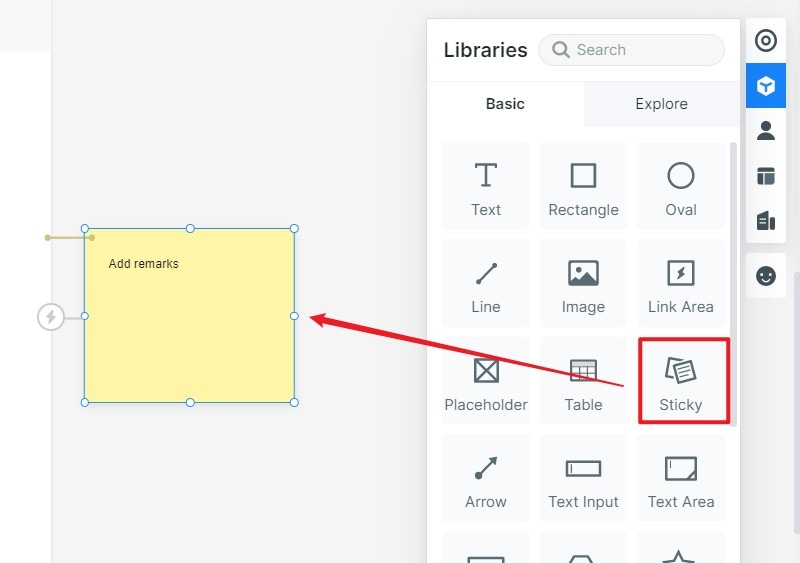
- Represent loading, no matches and service failure separately. A search that has not finished should not say No results. If suggestions are included, review their keyboard behavior using the W3C combobox pattern during implementation.
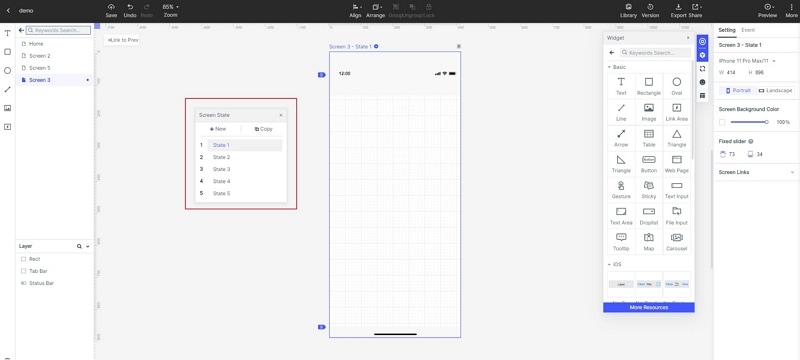
Step 3: Preview the Search Task
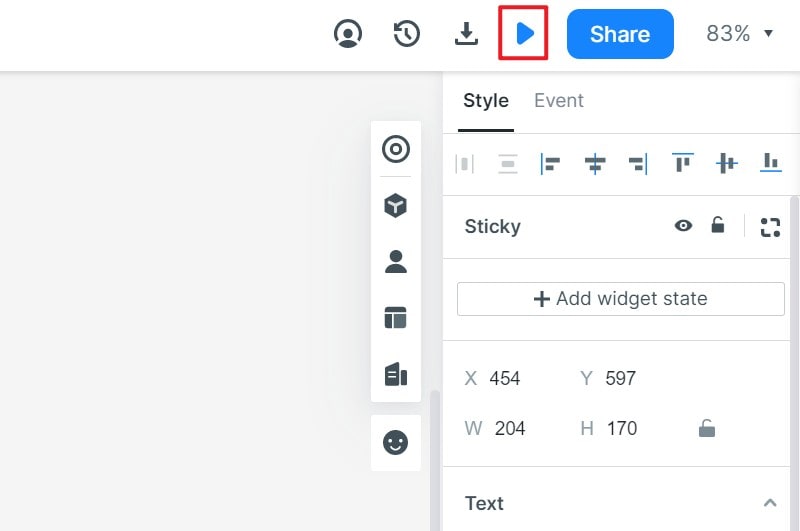
- Preview on the relevant screen sizes. Ask someone to find a ceramic bowl, apply the On view filter and recover when there are no matches. Check whether the query remains visible and whether the next action is understandable without coaching.
Step 4: Share the design
- Share the prototype with designers, developers and the people responsible for content or search relevance. Capture disagreements about labels and filter rules before implementing the behavior.
Step 5: Hand Off and Validate the Implemented Search
- Document the agreed states, content fields and query/filter rules. Developers must connect the interface to the real search service and verify ranking, response time, accessibility and error handling. Publishing a prototype is not the same as launching production search.
Five Search Examples and What to Examine
These five examples illustrate different search decisions: support content, travel criteria, public services, program information and site-search presentation. Public layouts can vary; the observations concern publicly available pages and documentation, not completed account-level interaction tests.
1. AppDynamics Support
Splunk’s AppDynamics support page now directs people to documentation and support resources. This remains a useful example of a search task with different content types: a setup guide and a troubleshooting answer serve different needs. In your own help center, distinguish result type and product/version context rather than assume an attractive result title is enough.
2. BikeTours.com site
BikeTours.com exposes travel criteria such as destination, timing and tour type alongside keyword search. The useful design question is how structured criteria work with a query. In a travel result, duration, location and the type of tour can help a person decide which item to inspect. Preserve selected criteria when someone changes one of them.
3. City of Boston
A city website such as Boston.gov serves people looking for services, places and information. Search labels should help distinguish a service action from an informational page. Make service results easy to distinguish, and let people refine a query without losing the task context.
4. Duke University’s Fuqua School of Business
The Fuqua website covers programs and information for different audiences. A search design for this kind of site should make the context of a result clear—for example, which program a deadline belongs to. Relevant suggestions can clarify the vocabulary, while result labels should distinguish programs, people and deadlines rather than return a title without context.
5. Swiftype and Site-Search Presentation
Elastic’s site-search information provides the current product context for the Swiftype example. A useful interface question is how much space results need: a small suggestion list and a full results page support different amounts of information. Decide when to show each, and ensure people can submit the query and reach the complete results with a keyboard.