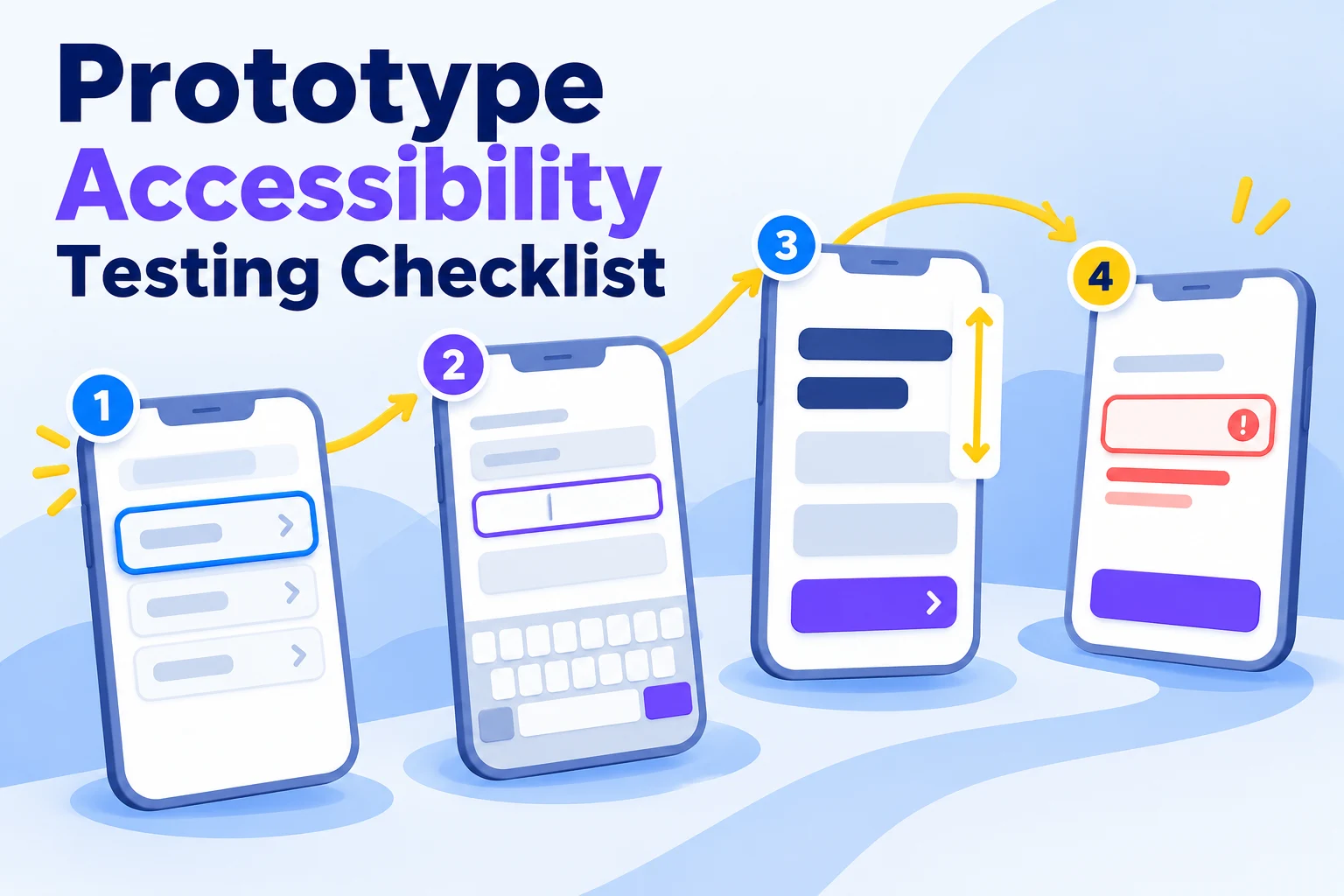
Start a prototype accessibility review with five checks: a logical interaction order, a visible focus design, readable content, understandable errors, and a recovery path. Then separate what the prototype actually implements from what it only illustrates. A screen-based mockup can expose design problems, but it cannot prove that the eventual product works with a keyboard or screen reader.
Use an editable Mockitt prototype to prepare the relevant screens and states before development. This checklist follows a sign-in and password-reset task, showing which decisions can be reviewed in the design and which need a coded implementation.
First, identify what kind of prototype you have
| Prototype | Useful checks | Checks still needed in code |
|---|---|---|
| Static screens | Labels, color contrast, layout, error wording, planned focus order | Keyboard operation, semantics, announcements and responsive behavior |
| Connected screens or hotspots | Task route, recovery states, consistency and the behavior the preview implements | Native control behavior and assistive-technology support unless genuinely implemented |
| Coded prototype | Implemented keyboard, zoom, reflow and screen-reader behavior | Anything replaced by a simulation, plus testing in the production environment |
Label findings as observed, annotated or not yet implemented. This prevents an intended focus ring drawn around a button from being mistaken for a verified keyboard interaction.
1. Prepare a complete state inventory
For sign-in, include an empty form, entered values, a validation error, a submission failure and success. For password reset, include the request form, a confirmation and a way back. Connect the route that reviewers will follow and add an annotation for behavior a screen connection cannot express.
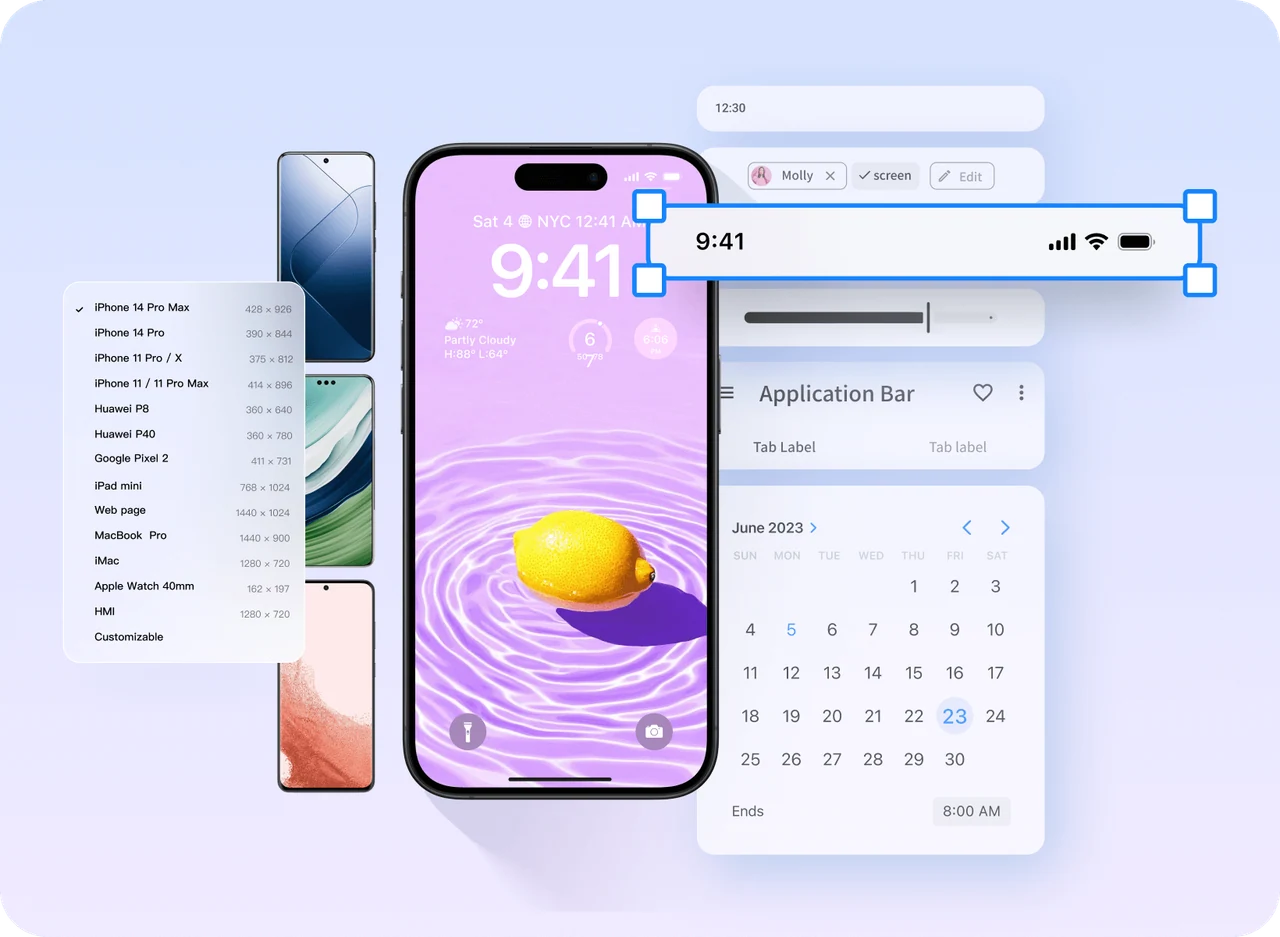
The public product example below shows mobile screen presets and reusable interface components. Choose a representative screen size and prepare the controls and states your task needs; their appearance on a canvas does not establish keyboard or screen-reader behavior.
Write the test task in ordinary language: “You cannot remember your password. Try to regain access and return to sign-in.” Keep the participant's goal separate from the exact controls you expect them to use.
2. Review keyboard order and visible focus
In an implemented form, move forward with Tab and backward with Shift+Tab. For a simple sign-in screen, the focusable sequence might be Email, Password, Show password, Forgot password, and Sign in. The exact sequence should follow the meaningful reading and task order. A page heading is not normally an extra Tab stop merely because it is important.
Check that focus is visible, is not concealed behind a sticky header or overlay, and does not get trapped in a region. Operate native buttons with their expected keyboard controls. If your design preview only supports pointer hotspots, write this as the intended sequence and test it later in a coded version; a failed Tab action in that preview is not automatically a defect in the proposed design.
For a dialog, document where focus moves on opening, how it remains within the modal while open, and where it returns after closing. A static outline cannot demonstrate that behavior.
3. Keep labels and errors understandable
Use a persistent label such as “Email address,” not placeholder text as the only label. Show what went wrong and how to recover: “Enter an email address in the format name@example.com” is more useful than “Invalid input.” Associate each field-level message with the relevant field in the implementation.
Do not rely on red alone to identify an error. Pair the visual treatment with text and a clear connection to the field. After submission, specify how the user learns that something failed and where they can correct it. A screen reader needs programmatic information, not just a message that appears visually.
For password recovery, work with the team's security requirements when writing account-related responses. The prototype should not introduce a promise or disclose account information that the implemented service will handle differently.
4. Check text resizing and reflow separately
Text resizing and reflow answer different questions. WCAG's text-resize guidance concerns enlarging text up to 200% without losing content or functionality, with specified exceptions. Inspect labels, messages and controls when text grows; a magnified screenshot cannot demonstrate how a real layout adapts.
For horizontally written pages that scroll vertically, the reflow criterion uses a width equivalent to 320 CSS pixels. On a 1280 CSS-pixel-wide viewport, 400% zoom gives that width. Test the actual layout at that width and check that ordinary content does not require scrolling in two directions. Content that needs a two-dimensional layout, such as some diagrams and data tables, has exceptions.
In a screen-only prototype, prepare a narrow layout and annotate wrapping and stacking rules. Mark resizing and reflow as implementation checks until the layout responds to a real viewport or text-size change.
5. Measure contrast and review non-color cues
Measure the actual foreground and background colors instead of judging from a compressed image. Check body text, muted hints, errors, focus indicators and controls in their relevant states. Color differences that are obvious on a large design monitor may be difficult to perceive elsewhere.
Look for instructions such as “choose the green option” or error states distinguished only by a colored border. Add a label, icon with an appropriate text equivalent, or other meaningful cue so that color is not the only source of information. Record the exact element and state that needs adjustment.
6. Turn each finding into an implementation check
| Finding | Design correction | Implementation verification |
|---|---|---|
| The error is visible but the affected field is unclear. | Place a specific message beside the field and plan a useful summary where needed. | The message is programmatically associated and the user is informed of the error. |
| A dialog closes with no defined return target. | Annotate the control that should regain focus. | Keyboard focus returns appropriately after closing. |
| The primary action disappears in the narrow layout. | Revise the layout and its overflow behavior. | The action remains reachable at the target viewport and text settings. |
Attach the state, expected behavior, evidence and owner to each finding. Include people who use assistive technology in usability work where possible, and carry unresolved checks into development. A successful prototype review reduces preventable design defects; it does not replace accessibility testing of the working product.