Bulk Actions UX: Selection Scope, Confirmation, and Partial Failure

Design bulk actions that explain what is selected, what an action affects, and how users recover when only some selected items succeed.
Bulk actions let people make one decision about several items. The risk is that the interface and the user disagree about which items are included. A well-designed batch toolbar therefore explains scope before execution and explains each outcome afterward, especially when only part of the operation succeeds.
This guide works through an illustrative campaign asset library. A user selects three assets across two pages and archives them. Two are archived; the third remains unchanged because its protection status changed before execution. The example produces a selection contract, confirmation copy, and a recovery flow that a product team can inspect before implementation.
Define the selected set before designing the toolbar
Write down what selection means in your product. Does it include only visible rows, explicitly selected items across pages, or every item matching the current filter? These are different scopes. A checkbox labeled only “Select all” leaves the most consequential detail unstated.
For the example, selection follows explicit asset IDs across pages. Choosing two assets on page one and another on page two produces “3 assets selected.” Changing the filter does not silently remove those IDs; the interface explains when selected items are hidden and offers Clear selection. This is a proposed policy for the example, not a rule every table must follow.
| Situation | What the user needs to know | Example behavior |
|---|---|---|
| Some visible rows selected | Whether the header checkbox includes the whole page | A mixed checkbox state; a count of explicit selections |
| All visible rows selected | Whether other pages are included | “20 rows on this page selected” |
| All matching results selected | The filter and total affected scope | A separate, explicit option naming the matching result count |
| Filter changes with selection retained | Whether invisible items remain selected | Selected count plus a route to inspect or clear hidden selections |
The last two states may not be appropriate for a small library. Include them only if the product supports them, but decide that deliberately. A selection that expands automatically when new matching rows arrive is especially important to explain. Engineering needs to know whether the action acts on a snapshot of IDs or evaluates a live filter later.
Make batch actions visibly belong to the selection
Place the count, available actions, and clear control together. A user should not need to infer whether an Archive button applies to one focused row, all checked rows, or the entire library. Keep row-level menus visually distinct from the batch toolbar.
The Carbon data-table guidance describes selectable rows and a toolbar for batch actions. It offers a concrete component convention, including how selection changes the available controls. Use it as a reference when defining your own behavior, while preserving conventions already familiar to your users.
Show selected state with more than a subtle background color. The checkbox, label, and count should agree. On narrower screens, do not let a fixed toolbar cover the last row or hide the selected count behind an overflow menu. Test the control order with a keyboard, including how to clear the selection and return to the table.
A good table layout makes row identity easy to recognize. Include the information people need to confirm scope, such as asset name, campaign, and status. Selecting three indistinguishable thumbnails is a content problem as well as a control problem.
Explain eligibility before commitment
Some selected items may not allow the chosen action. A protected asset might be unavailable for archival, or a person might have access to view an item but not modify it. Decide whether the action is blocked for the whole selection, offered only for eligible items, or allowed to return mixed outcomes.
When the interface already knows an item is ineligible, explain it before submission. “Archive 2 eligible assets; 1 protected asset will remain” is a different action from “Archive 3 assets.” Do not present the latter and rely on an avoidable error afterward.
Our worked example covers a separate case: all three appear eligible at review time, but one becomes protected before the request is processed. The interface still needs a partial-result state. Advance eligibility checks improve understanding; they cannot eliminate changes that occur while an operation is running.
For actions affecting mixed item types, identify which types are included. If folders and files obey different rules, a single undifferentiated selected count may be insufficient. Explain the consequence in terms of the objects the user recognizes.
Confirm consequences in proportion to the action
Not every batch action needs a modal. Repeated confirmations for low-consequence, reversible changes can become noise. Use the consequence, reversibility, and scope to decide how much confirmation is warranted, and document that choice with the team.
For this archive action, the confirmation names the three selected assets, states that they will leave the active library, and explains where they can later be found if restoration is supported. Use “Archive 3 assets” for the primary action and a clear way to return without submitting. Do not claim that an archive can be restored unless the application actually provides that behavior.
Large selections need a useful summary, not a dialog containing hundreds of clipped names. Show the count and selection rule, allow inspection of the affected set, and make any exclusions explicit. The summary should be derived from the same set the operation will use.
Treat partial failure as its own result
After submission, the illustrative result is “2 assets archived; 1 asset unchanged.” Show the protected asset by name, explain why it remained, and offer the permitted next action. A green “Success” banner loses the unresolved work; a red “Failed” banner wrongly suggests that nothing happened.
The mixed-result screen identifies the protected asset while leaving the two completed items out of the retry set.
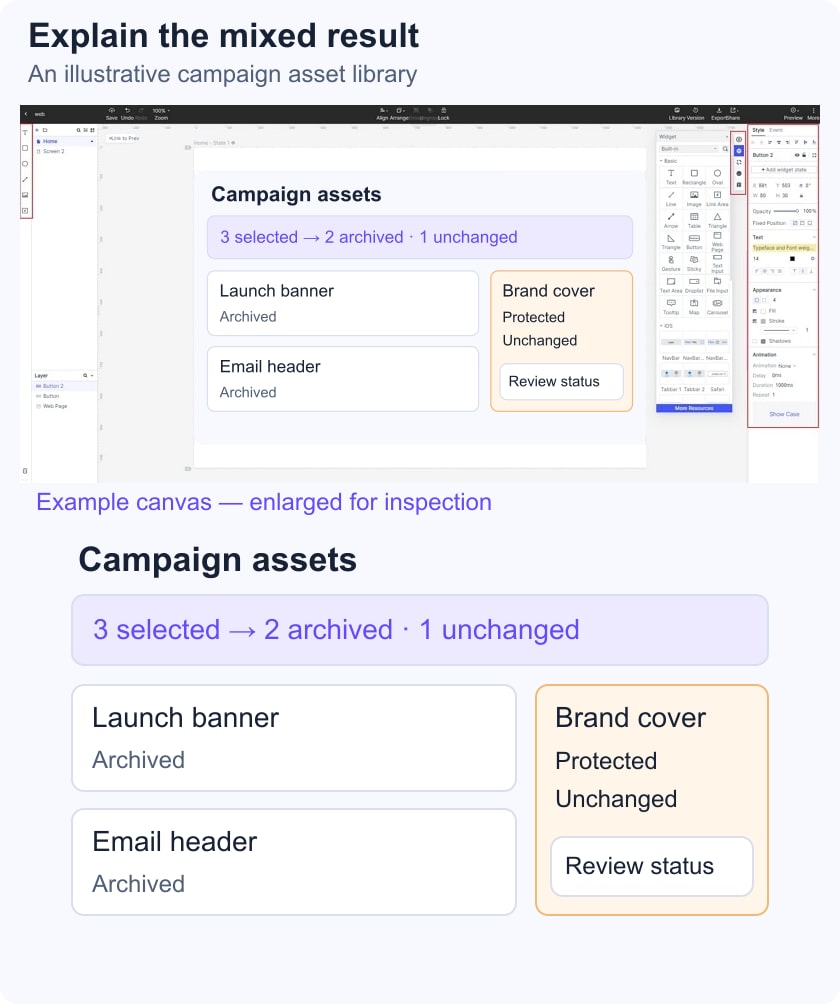
Do not offer Retry all when the successful items no longer need the action. If protection must be reviewed by someone else, say so and provide a relevant route if the product has one. If a transient error is retryable, label the retry with the affected count and recheck eligibility before execution.
- Complete success: show what changed and a route to the resulting items or state.
- Partial result: separate completed and unchanged items, with reasons and next steps.
- Unknown result: explain that completion has not been confirmed and offer a status check before resubmission.
- Cancellation: distinguish closing the result panel from stopping the operation; some changes may already have occurred.
An Undo action needs an actual reversal contract. It must account for items changed again by another person, permissions that have changed, and outcomes that cannot be reversed. A prototype can express the desired recovery choice; it cannot establish those backend guarantees.
Build a reviewable screen sequence
In Mockitt's prototype editor, prepare the unselected table, cross-page selection, confirmation, processing, and mixed-result states. Keep the same three asset names throughout. Connect the controls to these prepared states so reviewers can inspect what each choice appears to do. This models the batch workflow; it does not execute real asset operations.
Start the review with a task: archive the three campaign assets, including the one on the second page. Ask the participant to explain which items are selected before they confirm. Then show the partial-result state and ask what remains to be done. If their answer is “try all three again,” the recovery design has not communicated the outcome clearly.
Repeat the sequence after changing a filter, selecting an ineligible row, and navigating away from the operation. Include a keyboard walkthrough and inspect the narrow-screen layout. Screen-reader announcements, focus handling, permissions, and request processing still require tests in the implemented application.
Hand off rules as well as screenshots
Attach the selection lifetime, page-versus-results behavior, eligibility policy, confirmation text, result categories, and retry set to the prototype. Name who resolves each open issue. The same screenshot can imply very different behavior if these rules are left unstated.
Use a small review record with the affected IDs, starting state, requested action, and expected visible result. Link it to the relevant acceptance criteria for the prototype. A reviewer should be able to explain both what the action will affect and what to do when only part of it completes.