A design tool is useful when it produces the thing you need to hand over: an interactive prototype, an editable vector file, or a finished graphic. These are different jobs. A tool that helps a product team test a checkout flow is not automatically the right choice for drawing a logo or preparing a social post.
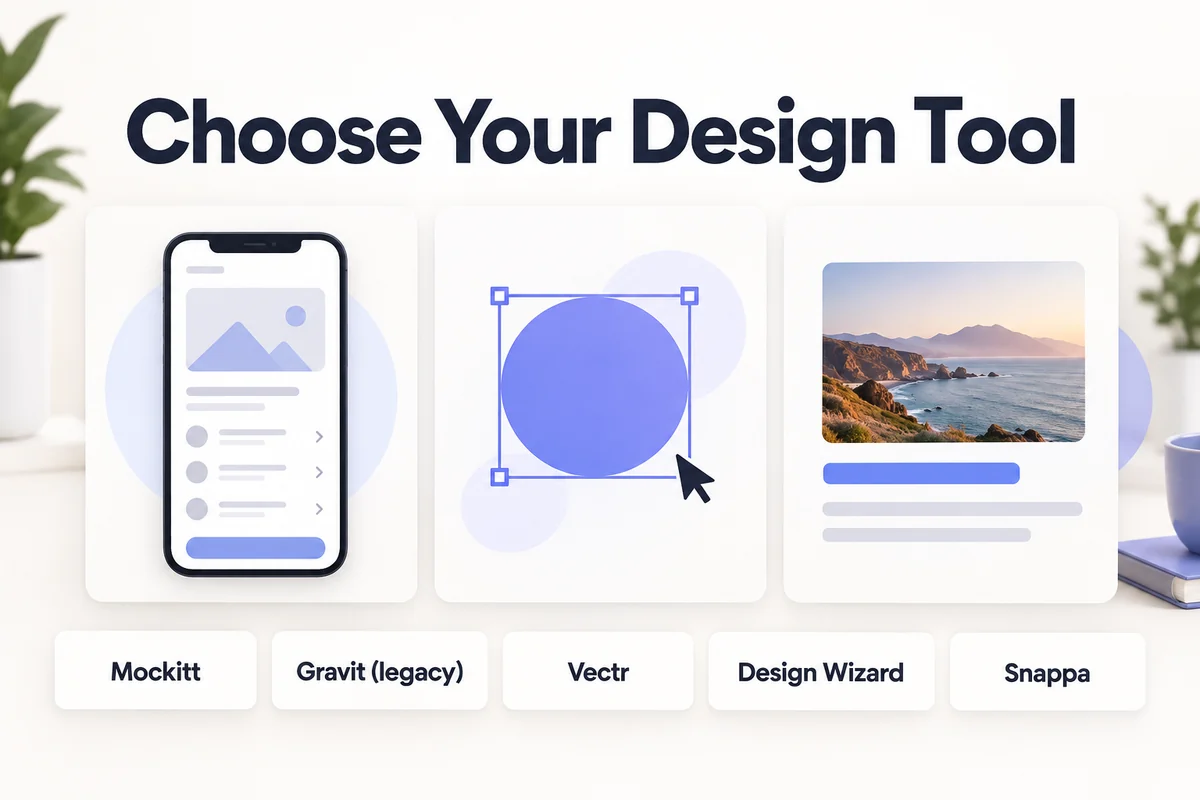
Compare five different options: Mockitt, Gravit Designer, Vectr, Design Wizard, and Snappa. The most important distinction is the output each supports. Gravit Designer is a legacy option that needs an availability check before starting new work; the other entries also require a look at current plans and export requirements.
5 design tools, compared by the work you need to do
| Tool | Best starting task | What to check before choosing |
|---|---|---|
| Mockitt | Screen layouts and interactive product prototypes | Interaction requirements, sharing, and the current plan |
| Gravit Designer | Understanding or maintaining a legacy vector-design workflow | Current access, file compatibility, and an exit plan |
| Vectr | Browser-based vector graphics | Required SVG editing and export features |
| Design Wizard | Template-based promotional graphics | Asset licensing and required output sizes |
| Snappa | Social, blog, and advertising graphics | Download limits, brand assets, and collaboration needs |
1. Mockitt: design screens and test how they connect
Mockitt is relevant when the design is a product experience: a mobile app, a website, or a sequence of screens that someone needs to review. You can organize a layout, reuse interface elements, and connect screens to demonstrate an interaction. The result gives a team something concrete to discuss before implementation.
For example, a travel-app prototype can connect a destination card to a detail screen and then to a booking step. A reviewer can follow that route and identify missing information, confusing labels, or an unexpected return path. This is a more useful evaluation than judging the tool only by how many templates it advertises.

A practical first project follows five steps:
- Define one user task. Use a concrete goal such as finding a destination and checking its details. Avoid designing the entire service in the first file.
- Create the necessary screens. Choose a suitable device size and add the main view, detail view, and a useful empty or error state.
- Build the layout. Add text, images, and controls with a consistent visual hierarchy. Replace placeholder copy with realistic lengths.
- Connect the interactions. Make the primary action, back action, and recovery path work in the prototype.
- Preview and share. Ask a teammate to complete the task without coaching. Record where they hesitate and revise those screens.
The online prototyping tool page explains the current product workflow. Check the current plans for project, collaboration, or export requirements. A clickable prototype demonstrates intended behavior; it does not by itself implement accounts, payments, or a production backend.
2. Gravit Designer: keep the vector workflow, verify the product's status
Gravit Designer's drawing tools, layers, and reusable shapes suited vector work such as icons, logos, and scalable artwork. Unlike a raster image, a vector object can be resized and edited through its paths, fills, and other properties.
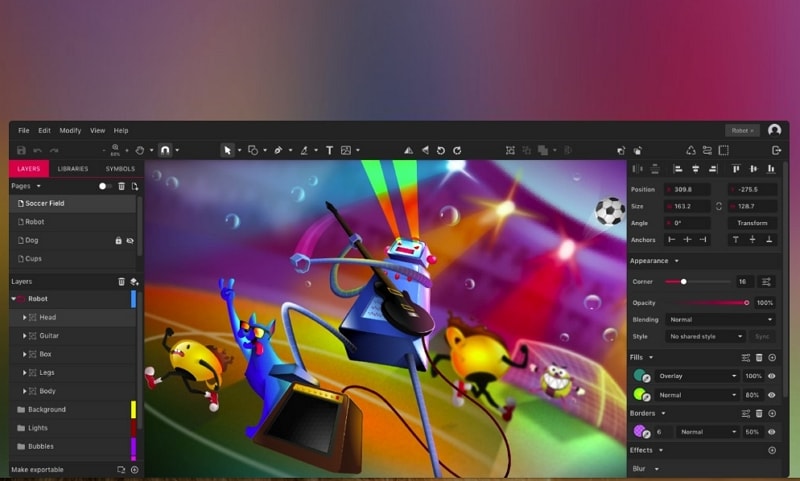
Current availability of the legacy offering is not established by a maintained product page, so this is not a recommendation to start a new project in it. If you already have Gravit files, your first task is to confirm that they still open and export correctly in the software you can access.
Before migrating an illustration, test a small file containing text, gradients, masks, and grouped shapes. Check both its appearance and whether the receiving editor preserves editable objects. Keep the original file and an appropriate export. A visually correct preview alone does not prove that another designer can continue editing it.
3. Vectr: consider a browser-based vector editor
Vectr is another option for vector graphics. Its current website presents browser-based vector design alongside AI-assisted graphics tools. That makes it worth evaluating for simple illustrations, icons, and other graphics that need scalable output. Check the current browser offering rather than assuming an old desktop plan remains available.
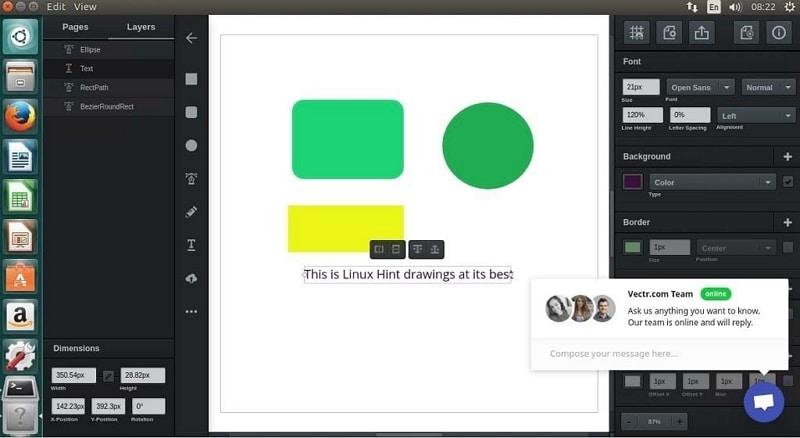
Run a small output test before committing: draw a two-color icon, add text, export the required format, and reopen it in the next tool in your workflow. Inspect strokes, type, and transparency. This reveals whether the editor meets your actual handoff needs more reliably than a feature list. Review Vectr's current product information for access and export details.
4. Design Wizard: start from a promotional template
Design Wizard serves a different task: creating graphics from templates rather than mapping a product interaction or drawing every object from scratch. It can be a useful starting point for a greeting card, promotion, or social visual when the message and target size are already known.
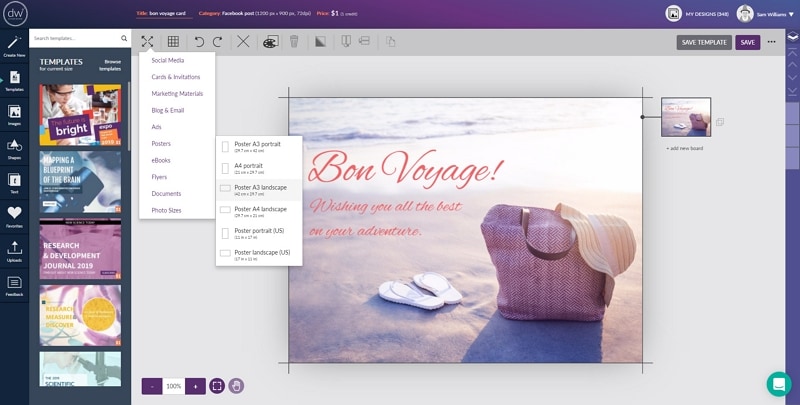
Begin with the channel and message, then choose a template that leaves enough room for real copy. Replace the image, type, and colors deliberately; simply inserting a logo into an unrelated template rarely produces a coherent design. Check the export at its actual display size, especially small text and low-contrast elements.
The Design Wizard website provides current template and product information. Verify the license for the assets and intended commercial use. Access to a stock library is not a blanket guarantee that every image can be used in every context.
5. Snappa: produce graphics for repeated content formats
Snappa focuses on online graphics for social media, blogs, and advertising. It is worth considering when a content team repeatedly needs appropriately sized visuals with consistent colors, type, and image treatment. That is a different requirement from designing and testing a complete application.
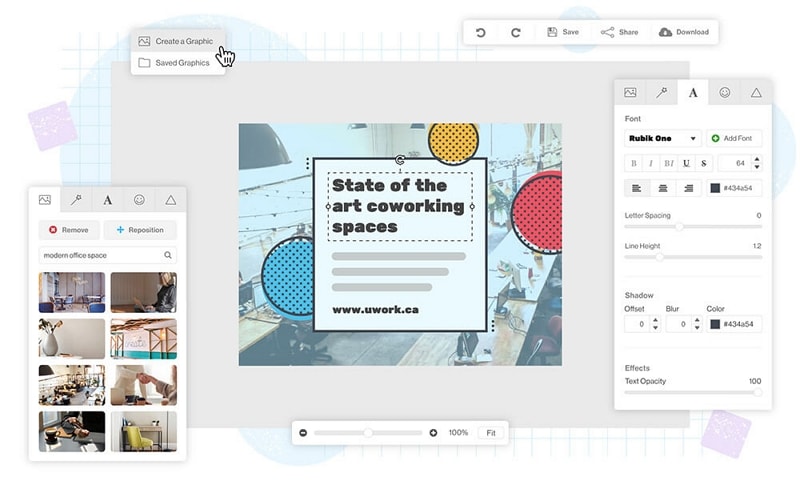
Use one real campaign to evaluate it. Create the primary graphic, adapt it to two channel sizes, and inspect whether the message remains readable after cropping. If several people will work on the files, check how assets, versions, and access are handled. Review Snappa's current offering before assuming a particular download allowance or publishing integration is included.
Choose by deliverable, then test the handoff
Pick Mockitt when the question is how screens and interactions should work. Evaluate a vector editor when you need editable paths and scalable artwork. Consider a template-based graphics tool when the output is a finished content asset. Many teams need more than one category, and that is a reasonable workflow rather than a failure to find an all-purpose tool.
Before paying or migrating a project, finish one representative example and hand it to the person who will use it next. Confirm the file format, editability, dimensions, permissions, and review process. That small test helps you choose based on the work, not a generic claim that one tool is best for every designer.