An app prototype is a model of the screens and behavior a mobile application is intended to provide. It helps a team examine a task before the corresponding service is built. A useful prototype includes the decisions and recovery paths a person needs, not only a row of attractive screens.
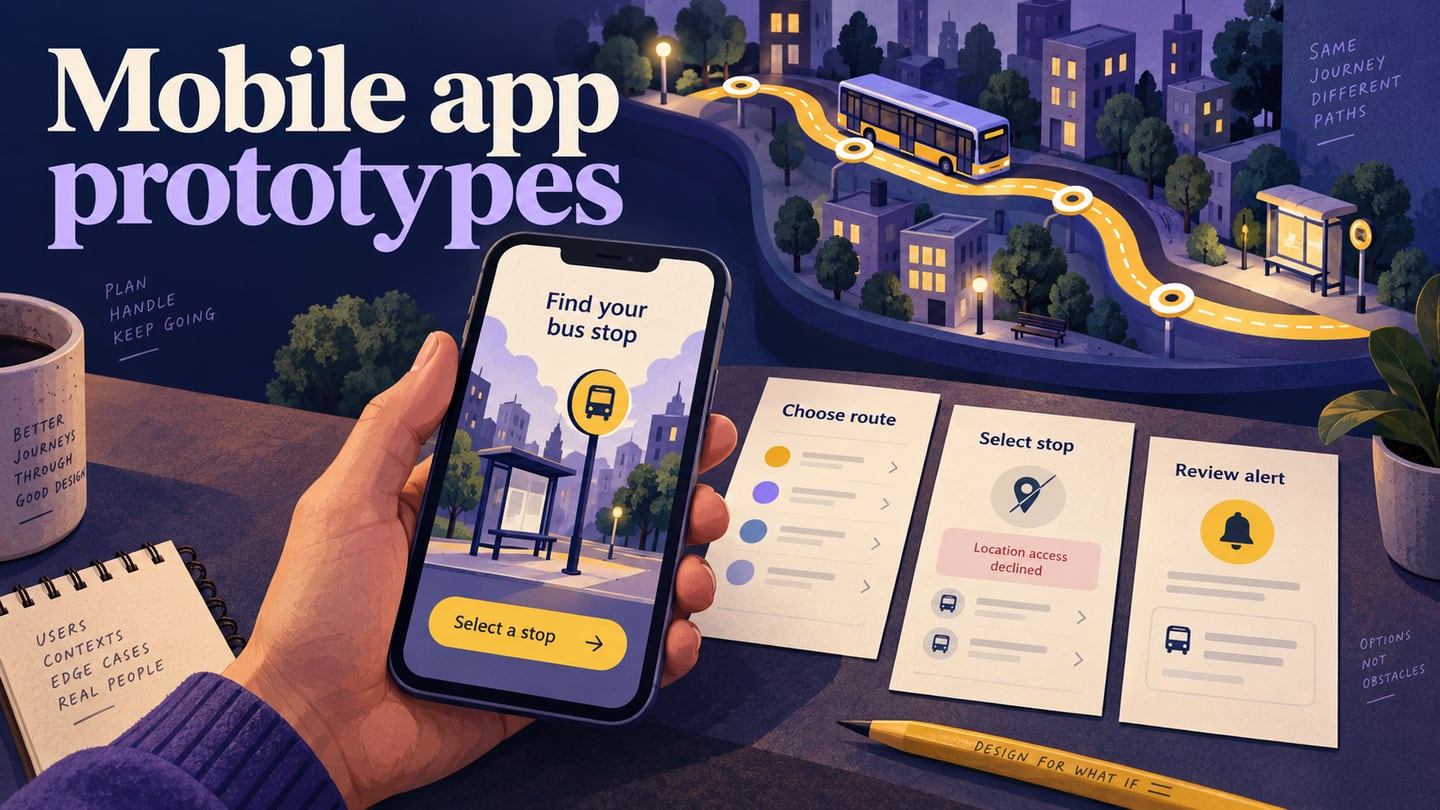
Mobile use introduces constraints such as narrow viewports, interrupted tasks and permission choices. This tutorial follows a bus-arrival reminder: choose a route and stop, review an example arrival, and set a reminder. Location and arrival information are fictional, so the review concerns the proposed experience.
Keep the first version small enough to change. Design the main task, then include the most consequential alternative—in this case, choosing a stop manually when location access is unavailable.
Choose a tool for the prototype you need
Mockitt provides visual screen editing and a shared prototype workflow. It can support the interface review described here. It does not follow that the prototype becomes a native app or can use every device service represented in the design.
- Use a template only if its structure fits the task; replace sample content with the route and stop information your reviewer needs.
- Reusable controls help keep labels and spacing consistent across the route, stop and reminder screens.
- Choose an appropriate viewport and inspect the result on the device intended for review.
- Increase visual detail where it affects understanding, such as the difference between a selected stop and a suggested stop.
- Confirm any required import or export in the current workspace. A prototype link or design export is not an installed app with live transport data.
Build a bus-reminder app prototype
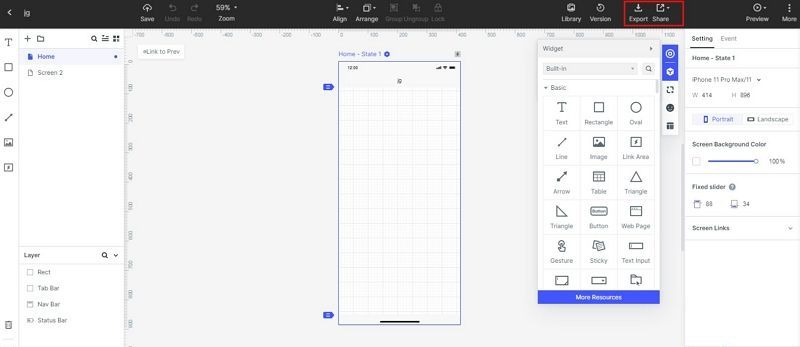
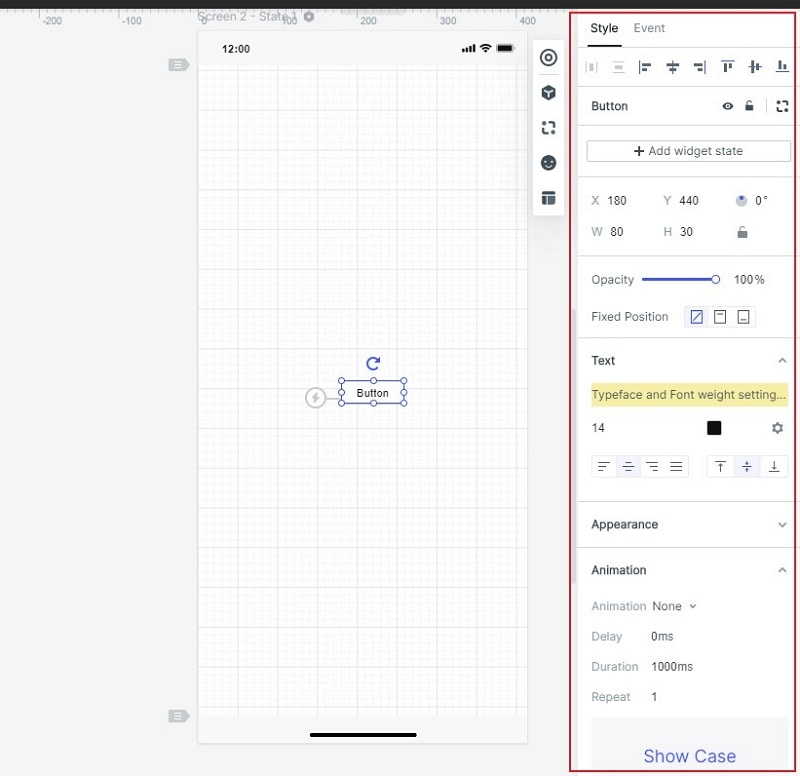
The original create, design, connect and preview sequence remains useful. The archived editor screenshots illustrate those operations; current labels and control positions may differ.
Step 1: Create a Project
Create a project for the mobile viewport and name the task “Set a bus reminder.” Add screens for route selection, stop selection, arrival details and an example reminder confirmation.
Use the target device dimensions as a starting point. Review long stop names, readable labels and the space around the main action; a canvas preset does not automatically establish usability on every phone.

Step 2: Design Your App Prototype Project
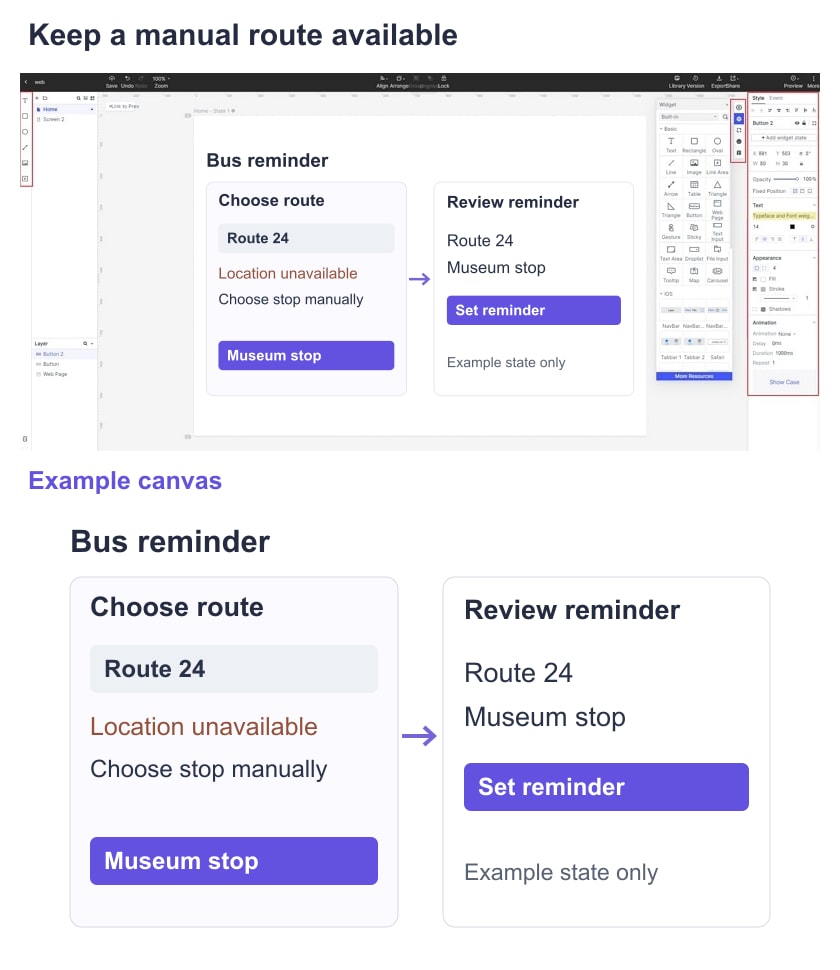
Arrange route and stop choices before the reminder action. Include “Choose stop manually” beside the location-based option so the task does not depend on granting a permission.
Use consistent selected states and navigation. Reuse the route label on the details screen so a reviewer can confirm that they are still looking at the intended bus.
Step 3: Connect the Main and Alternative Paths
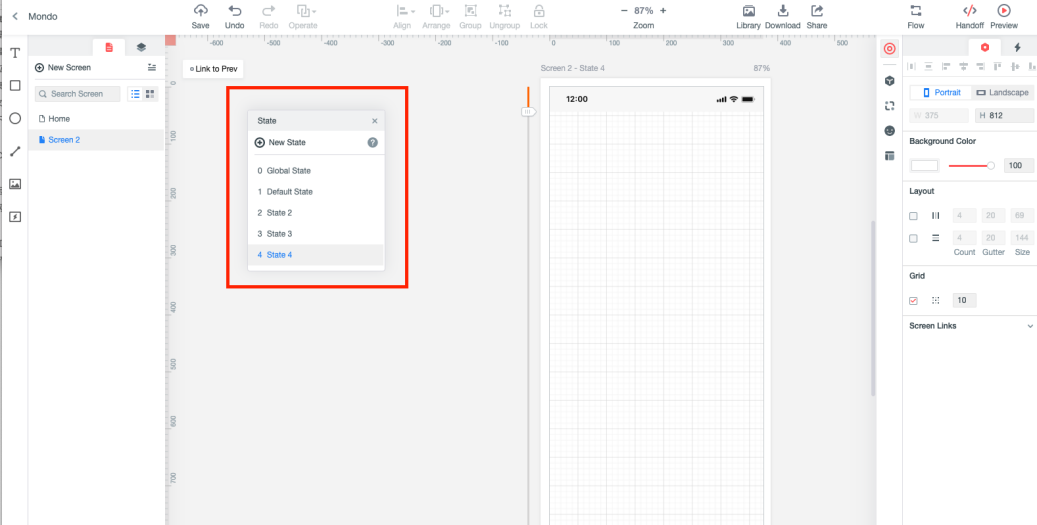
Connect the route list to stop selection and arrival details. Add a location-unavailable branch that leads to manual stop selection, then rejoins the task. A permission screen in a design prototype is an illustration, not a live operating-system permission test.
Step 4: Preview and Share Your App Prototype Online
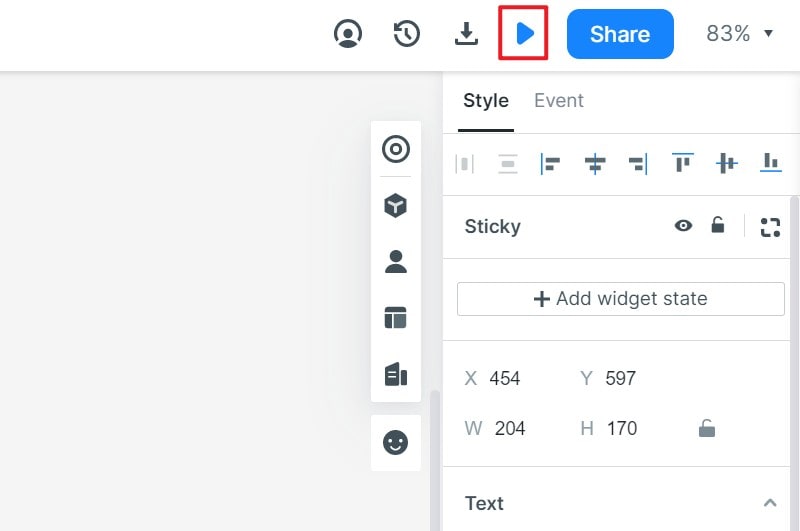
Preview on a phone-sized viewport and ask a reviewer to set a reminder without using location access. Check whether they can select the intended stop, explain the reminder, and return to change it. Record a wrong turn or a misunderstood confirmation before deciding what to revise.
Useful Tips for Mobile App Prototyping
Once the initial route works, refine the parts that affect the task. These principles apply beyond the bus example.
- Iterate around an observation: change a label or route because a reviewer encountered a specific problem, then revisit that task.
- Cover the journey: include entry, the main action, its result and a sensible return path. A successful first tap does not demonstrate the complete experience.
- Choose fidelity deliberately: use rough screens for structure and detailed states for questions that depend on wording, spacing or feedback.
- Keep patterns consistent: repeat the same route names, selected states and action labels unless there is a meaningful reason to change them.
- Check interruptions: decide what the person should see after returning to the task or changing a previous selection.
The prototype is ready for review when its intended task and known limitations are clear. Live arrival accuracy, background reminders, notification permissions and account storage need separate checks in an implementation.
Five Ways to Find Useful App Design References
Use inspiration to solve a specific design question rather than copying a whole interface. For the bus task, investigate how other experiences display uncertain arrival information or provide a manual location alternative.
1. Join a Design Community
Design communities can reveal different ways to organize a task. Compare the structure with your audience’s needs and verify permission before reusing assets.
2. Examine Design Challenges
Design challenges can encourage alternative layouts. Treat their polished outputs as concepts, not evidence that a design has been tested with your users.
3. Direct Chat with Designers.
Discuss a specific state with another designer—for example, what should appear when location access is unavailable. A focused question is more actionable than asking whether the whole app looks good.
4. App Reviews
Product reviews can suggest issues worth investigating, such as confusing stop names or unreliable confirmation. They are a source of questions, not a representative usability study by themselves.
5. Social Media
Screens shared on social platforms can provide visual references. Trace an example to its source and use it to inform your own task-specific design rather than reproducing someone else’s screen.