5 AI Mind Map Generators: Free Access and Workflow Compared
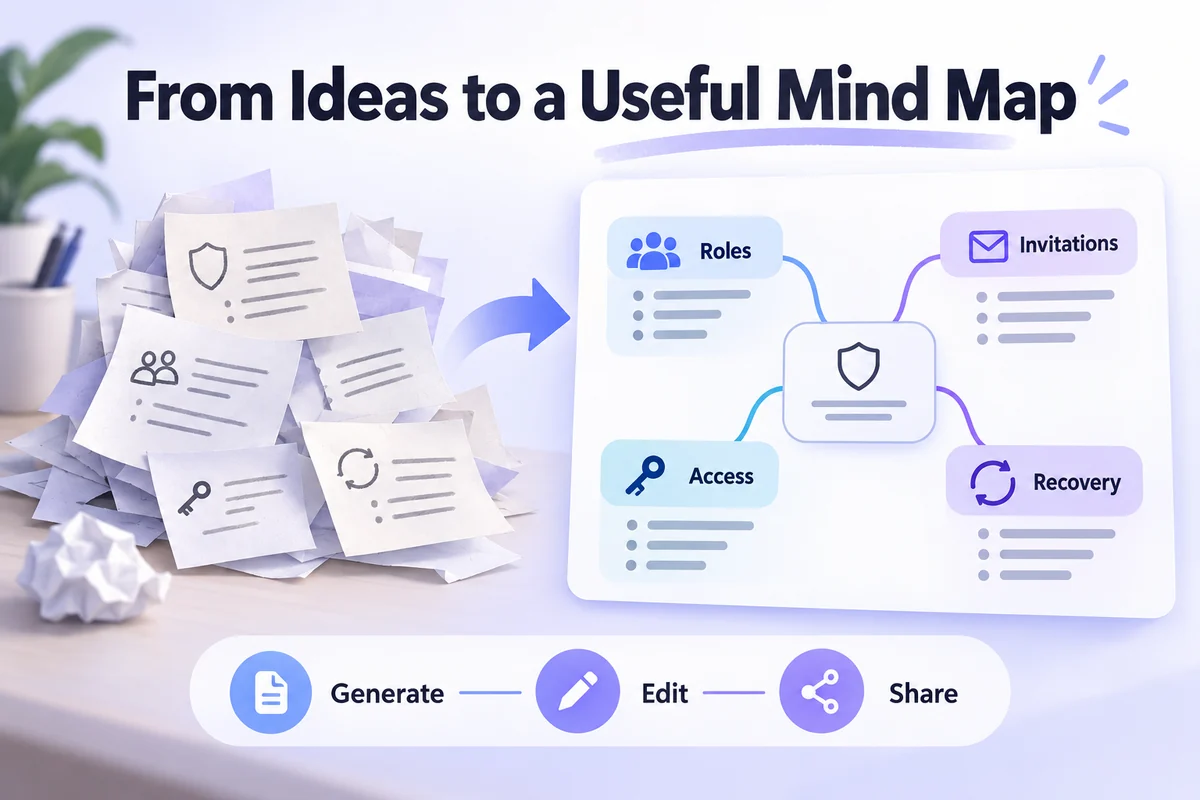
An AI mind map generator can turn a topic or set of notes into a first-pass hierarchy. Its value depends on what you can do next: reorganize the branches, correct missing relationships, add your own evidence, and share a readable result. A large map is not necessarily a useful one.
Compare five tools—Mockitt, Whimsical, EdrawMind, MindMeister, and Taskade—by the workflow they support. “Free” also needs a closer look: an editor may be free while AI credits, the number of saved maps, or exports have separate limits. Verify those details against the current plan before adopting a tool for ongoing team work.
What to check in a free AI mind map generator
Start with the input you already have. A short prompt, a long document, and an existing map require different capabilities. Then check whether the output remains editable, whether a colleague can comment or collaborate, and whether you can take the map into the next part of your workflow.
| Tool | Workflow to evaluate | Important decision |
|---|---|---|
| Mockitt | Organize a product idea alongside design work | How the map supports your next screen or prototype task |
| Whimsical | Expand a topic on a collaborative visual canvas | Whether generated branches are easy to refine together |
| EdrawMind | Build a structured map from prompts or supporting material | Input support and the export you need |
| MindMeister | Create and develop a map in a dedicated mind-mapping editor | AI beta availability and free-plan restrictions |
| Taskade | Connect an outline or map to actionable project work | Whether a task-based project is the right home for the idea |
Which options actually have free access?
The following public plan details were checked on October 4, 2026. An ongoing free editor is different from a renewable AI allowance. None of the credit-based entries below should be read as unlimited free generation.
| Tool | Access category | What is included or limited | Official source |
|---|---|---|---|
| Mockitt | Free plan with AI trial credits | 1 workspace, 3 files, and 200 AI trial credits per person are listed. A recurring free AI allowance is not stated. | Mockitt plans |
| Whimsical | Free editor with limited AI credits | 50 new board objects per month and watermarked exports; the pricing FAQ lists 10 AI credits per member. Additional AI credits are purchased separately. | Whimsical pricing |
| EdrawMind Online | Feature-limited free plan with AI trial tokens | 500 AI tokens for trial, 100 MB storage, and graphics/PDF export are listed. Export watermark and other restrictions apply. | EdrawMind Online pricing |
| MindMeister | Free plan; AI currently included during beta | Up to 3 saved maps. The beta allows up to 5 AI-generated maps per user per day; export and printing need a paid plan. | MindMeister pricing; free-plan details |
| Taskade | Free workspace with one-time AI credits | The free offer lists 6,000 welcome credits: 1,000 after verification and 5,000 on a first app build. They do not renew monthly; do not assume a separate monthly mind-map allowance. | Taskade pricing |
For repeat no-cost generation, MindMeister's current beta is the clearest recurring allowance in this group, provided three saved maps and no export are workable for you. For occasional exploration, a limited credit grant may be sufficient. If you need a portable deliverable, inspect export restrictions before spending the available AI credits.
5 tools and the differences that matter
1. Mockitt: develop a product idea into a map you can review
Mockitt is relevant when a mind map is part of product planning rather than the final deliverable. For instance, a team designing a multi-user permission system can organize roles, invitations, access rules, and recovery scenarios before deciding which screens to prototype. See the AI mind map workflow for the current product introduction.
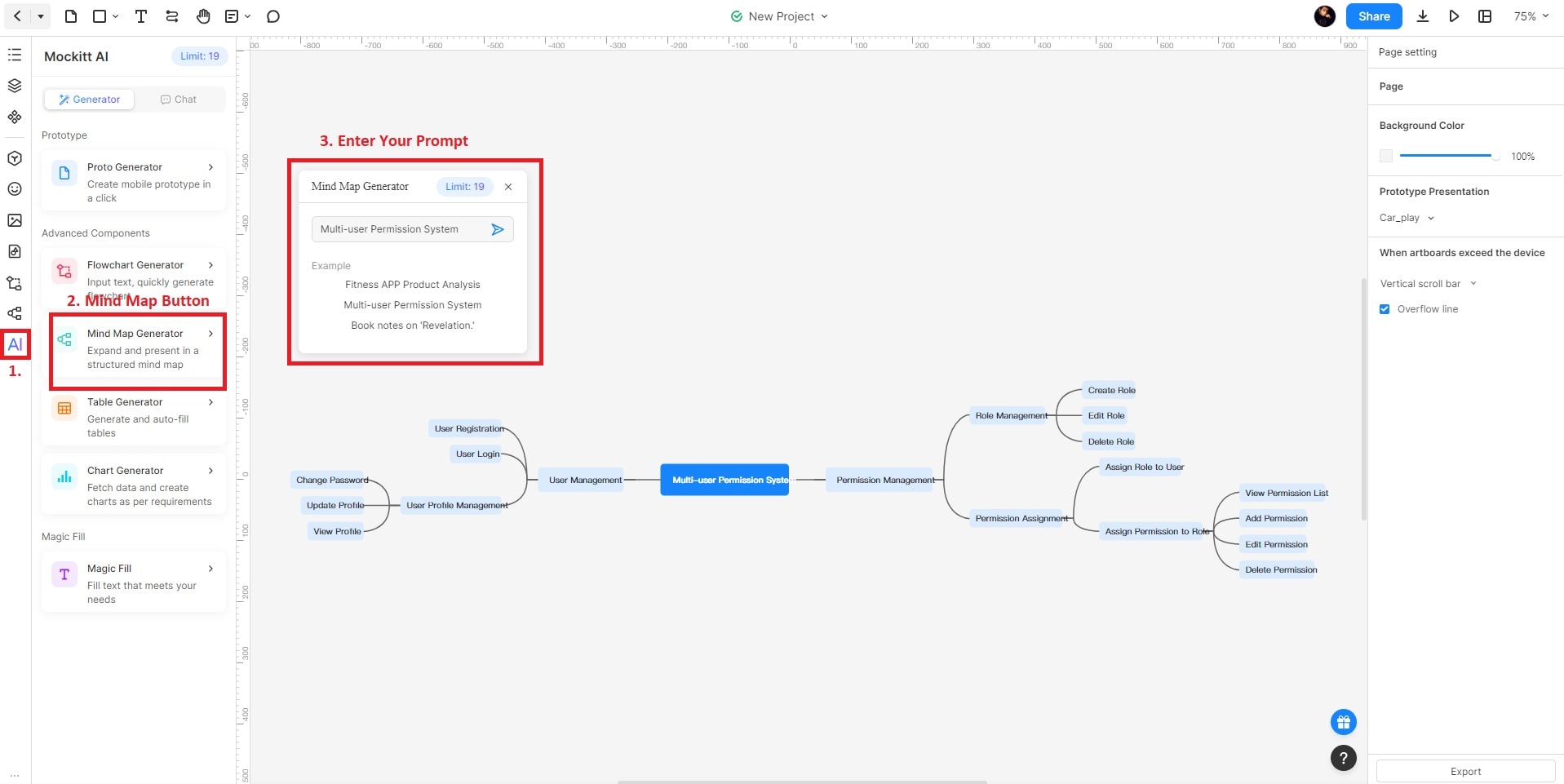
Consider a “Multi-user Permission System” prompt. The output is testable: the team can check whether the map distinguishes an administrator from a member, includes an invitation flow, and accounts for a revoked permission. These relationships matter more than an attractive arrangement of nodes. The screenshots below use the legacy editor; current navigation may differ.
A three-step workflow in Mockitt
- Open a suitable workspace or project. Locate the available mind-mapping feature. The illustrated workflow accesses AI tools through a prototype project.
- Give the generator a scoped brief. Describe the system, audience, and branches that must be covered. Ask for a manageable first draft rather than an exhaustive tree.
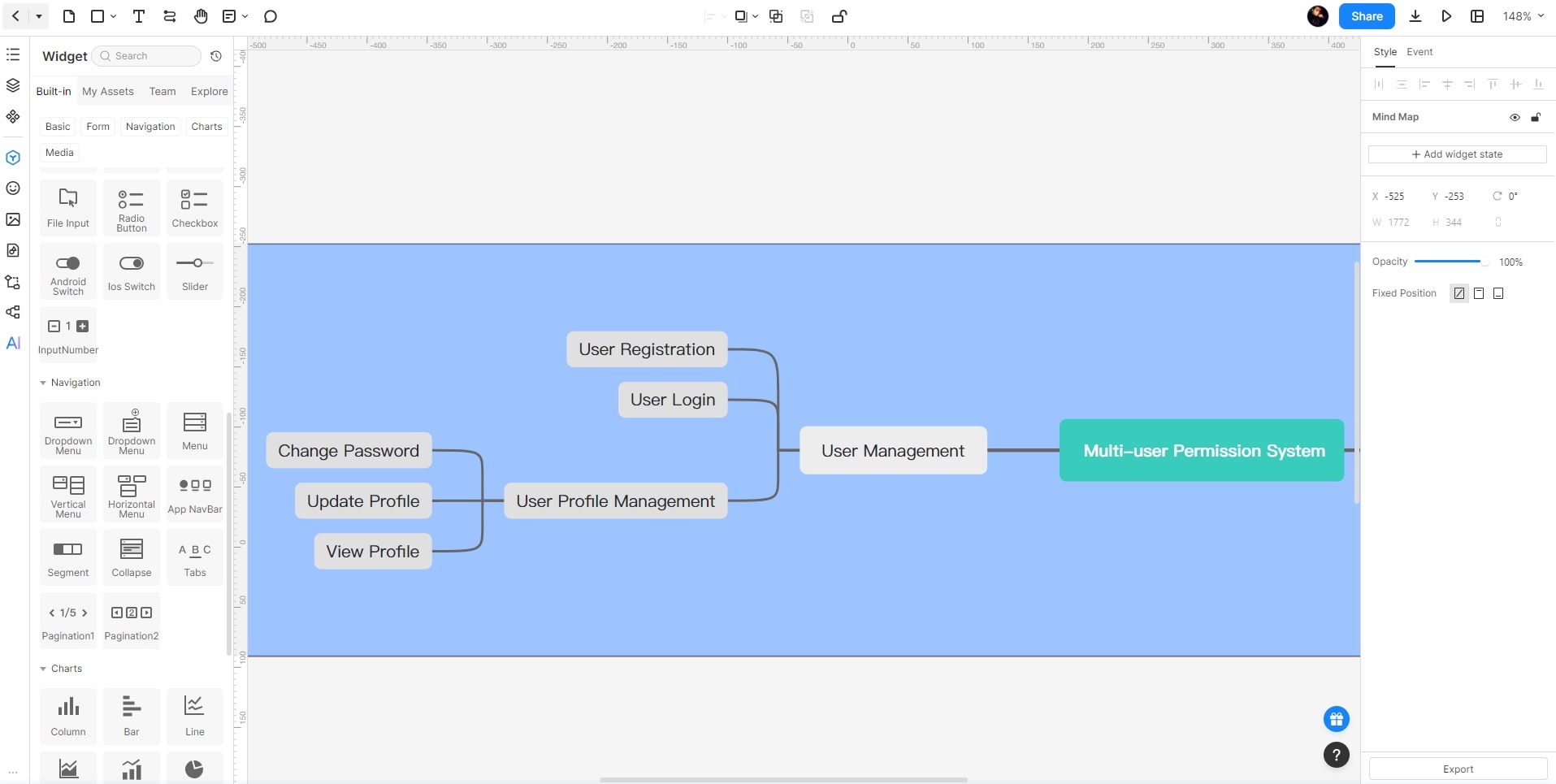
- Edit, inspect, and share the map. Rename vague nodes, move misplaced branches, and add missing states. Review the result before using it to guide screens or requirements.
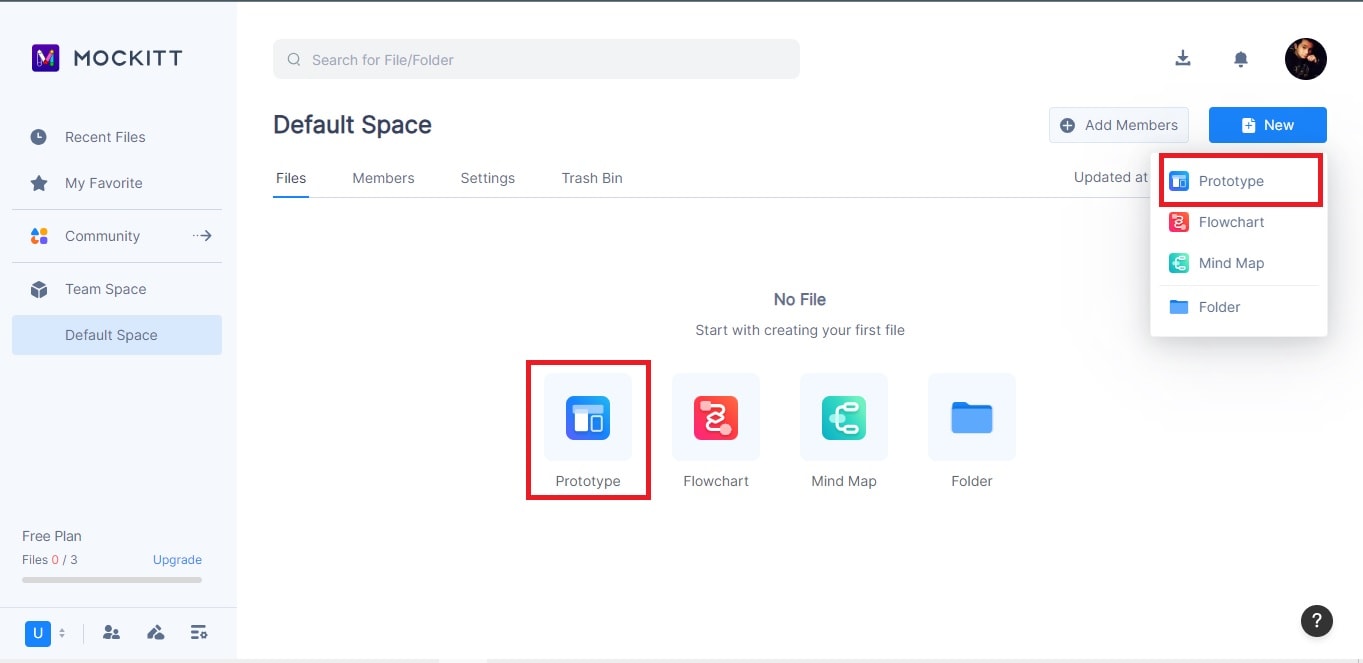
For a more specific practice brief, try: “Create a mind map for a multi-user permission system in a team workspace. Include administrator and member roles, invitations, access changes, revoked access, and recovery. Keep actions separate from permission rules. Mark questions the team still needs to answer.” The prompt defines the task without pretending that the generated branches are approved requirements.
Review one branch at a time. “Invite a member” might need states for an expired link, a duplicate invitation, and an invitee who already belongs to another workspace. “Remove access” should raise a separate question about ownership of existing work. Add these distinctions where they are relevant to your actual product, then identify which branches require a prototype or a written decision.
If your next step is screen design, use the map to identify the invitation, role-editing, and access-recovery screens that the team needs to prototype. For a more general introduction, the AI mind map guide explains the generation concept beyond this five-tool comparison.
2. Whimsical: expand an idea in a shared visual workspace
Whimsical offers AI-assisted mind-map generation on its visual canvas. It is a sensible tool to evaluate when the immediate goal is collaborative exploration: draft the branches, discuss them, and organize the result together. The example below uses a business idea with surrounding topics, making the branching structure easy to see.
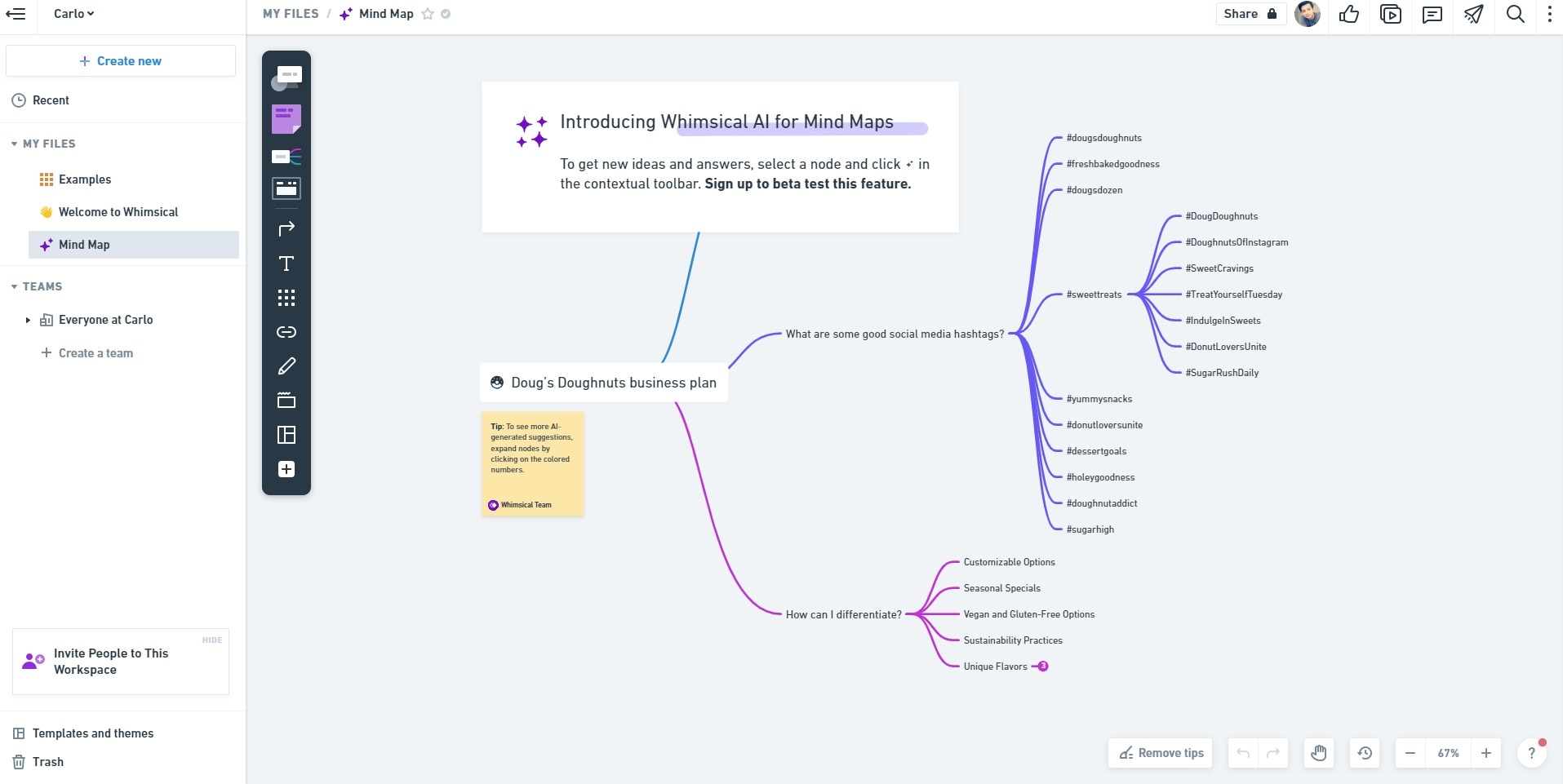
Test whether teammates can follow the hierarchy without an explanation. A good draft should separate goals, customers, operations, and open questions instead of mixing them at the same level. Consult Whimsical's AI mind-map page and its plan information for current access.
3. EdrawMind: evaluate structured inputs and output formats
EdrawMind is a dedicated mind-mapping product. Its current AI offering includes generating and refining maps from prompts and other material. This can suit a team that needs to transform a longer source into a structured outline, but the supported input and export formats still need to match the job.
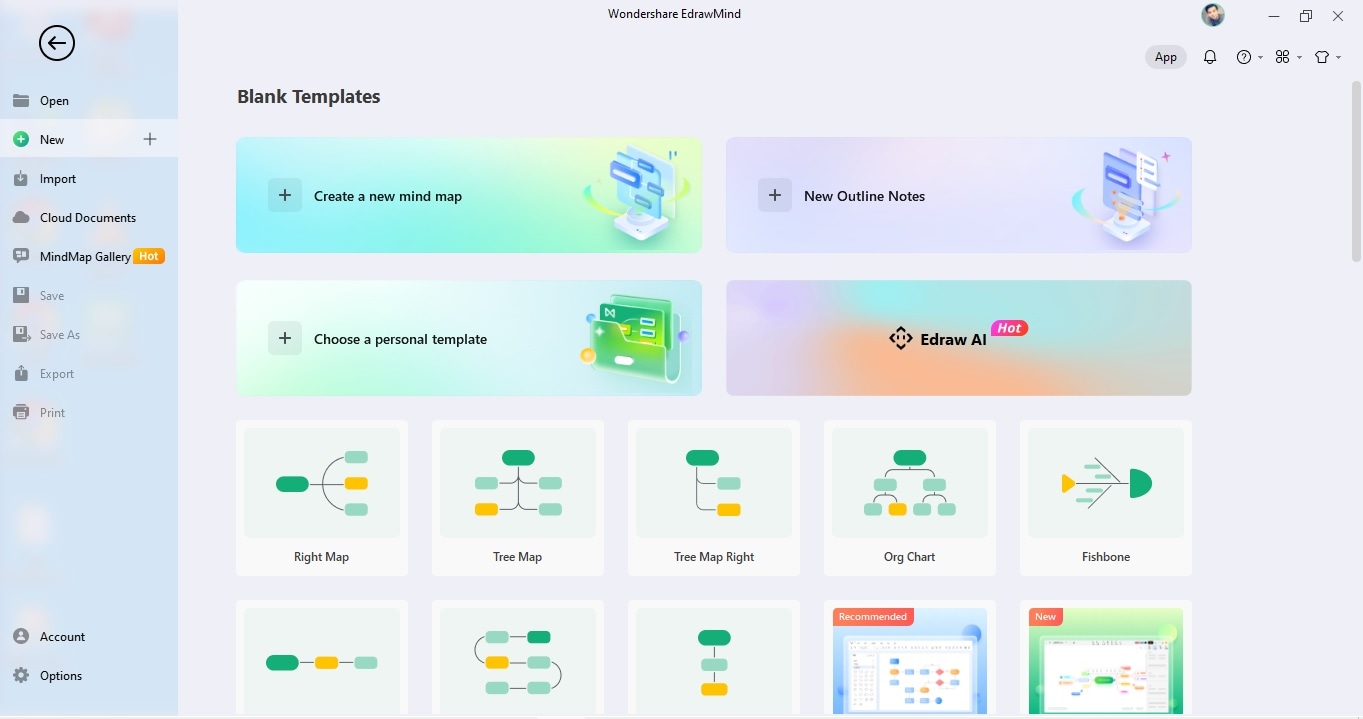
When testing document-based generation, compare the map with the source. Look for missing exceptions, invented relationships, and headings that collapse several distinct decisions into one. The official EdrawMind site is the appropriate source for current supported workflows and licensing.
4. MindMeister: distinguish a mature map editor from its newer AI feature
MindMeister provides a dedicated environment for creating and sharing mind maps. Its official September 2026 announcement describes an AI mind-map generator in beta. That is an important distinction from assuming that every capability described in an older comparison was already available in the same form.
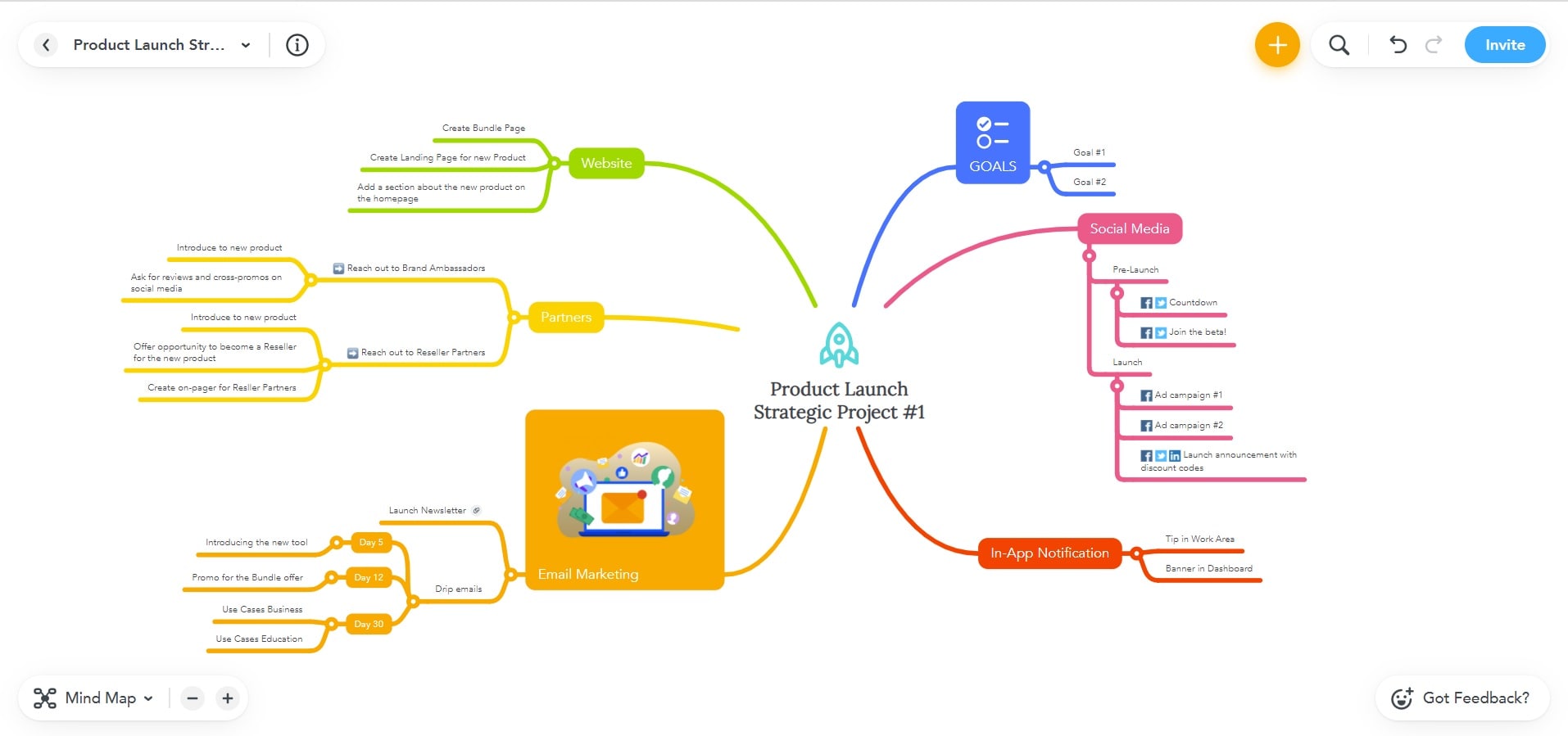
Evaluate editing and collaboration as well as generation. If the finished map must be printed, exported, or stored alongside several other maps, inspect the plan restrictions before building the whole project. Read the official AI feature announcement for the current beta's scope.
5. Taskade: connect the outline to work that follows
Taskade presents mind maps as one way to view and organize project information. It is worth evaluating when your branches will become tasks, sub-tasks, or an actionable project outline. That differs from a map whose sole purpose is to communicate a concept in a document or presentation.
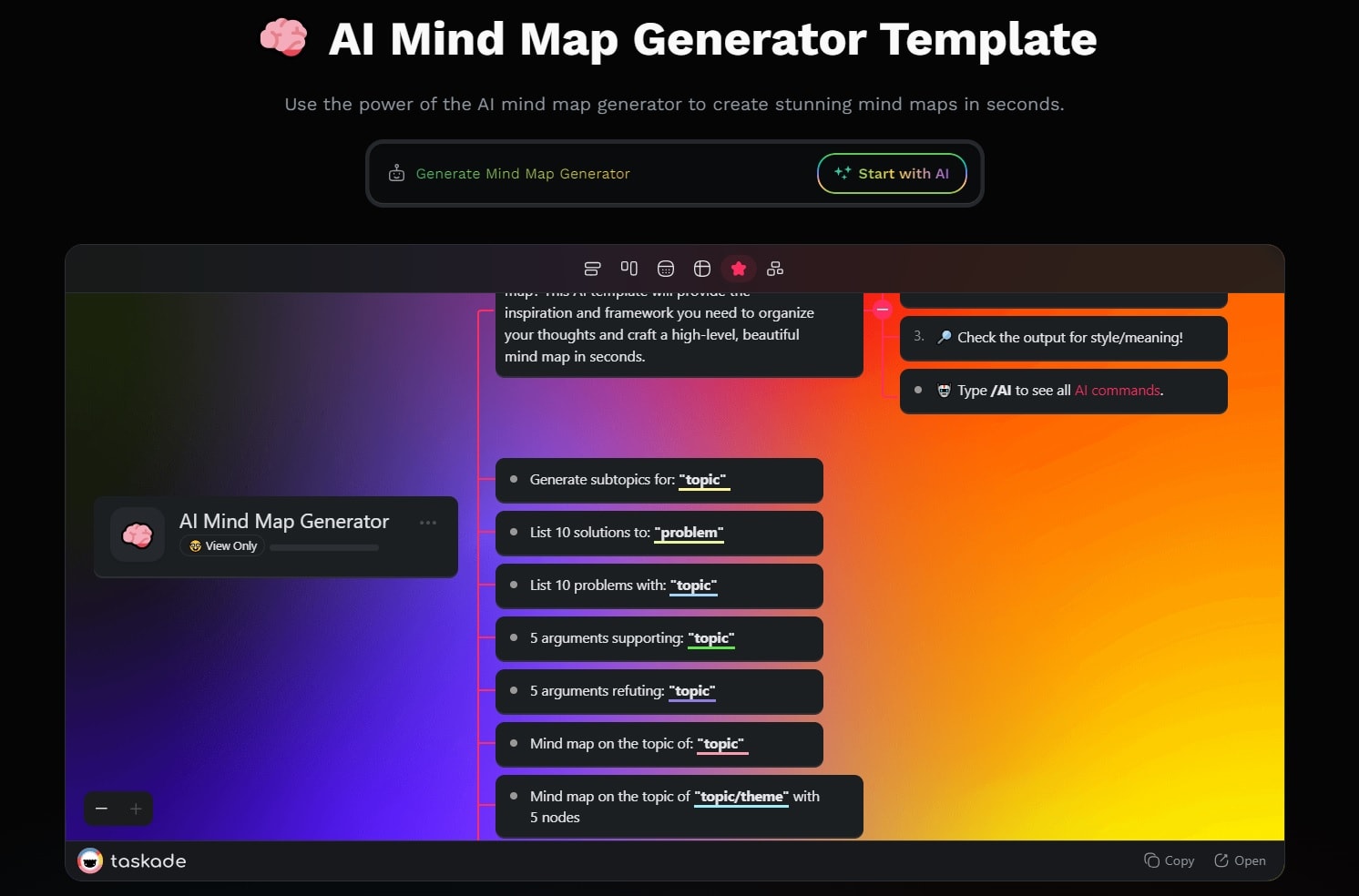
Try a small project with an owner, a next action, and a decision on each major branch. If the result feels like an awkward task list rather than a useful map, another editor may fit better. See Taskade's current mind-map overview for its available workflow.
Review the first map before choosing a tool
Use the same brief in the tools you are seriously considering. Compare the clarity of the first level, the effort needed to correct branches, and the ease of sharing the result with the next person. Do not choose solely by which system produces the most nodes.
For the permission-system example, the map is ready for the next stage when the team can distinguish roles from actions, see important failure states, and identify unresolved decisions. That is the useful outcome. AI can help create the starting structure, while the people responsible for the product decide whether the structure is correct.