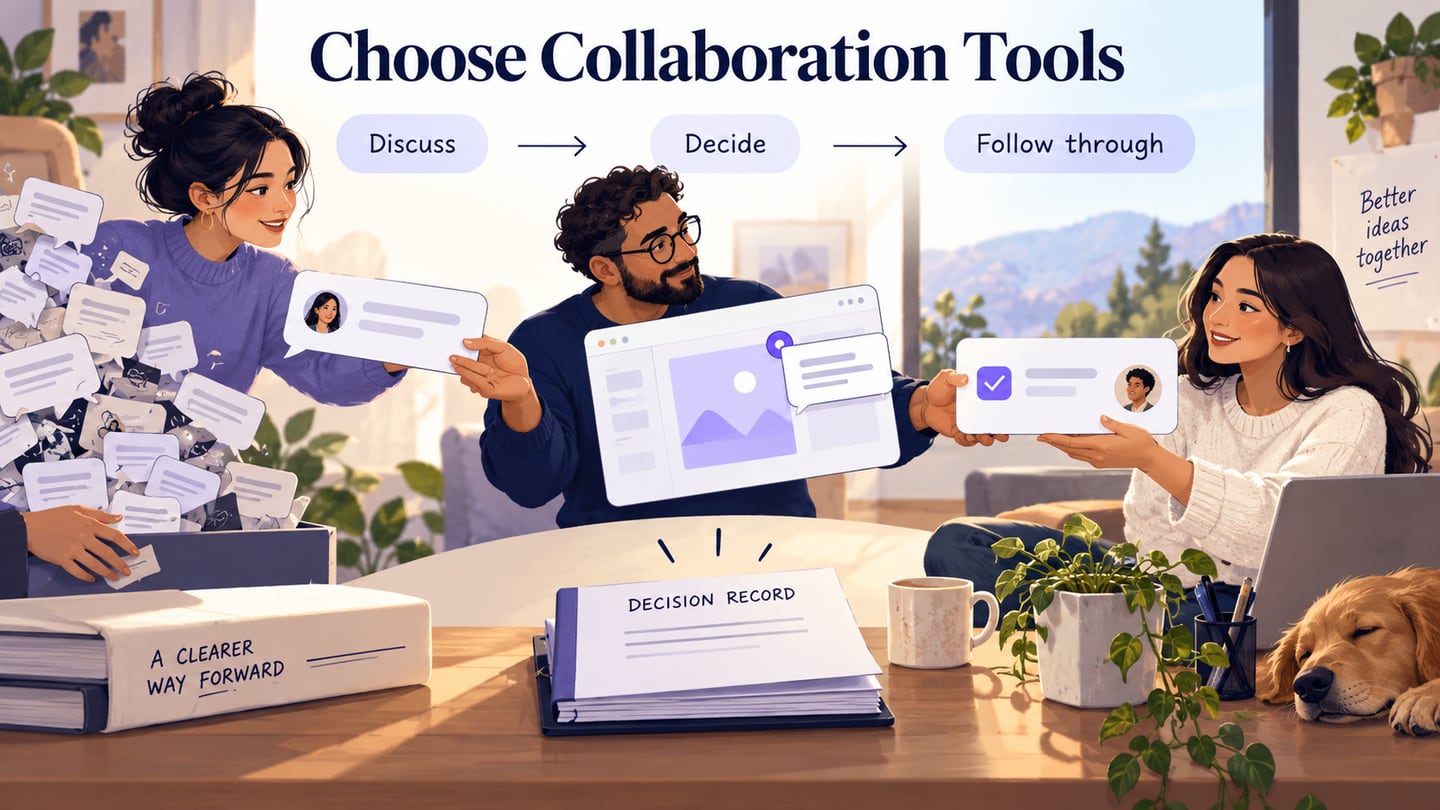
Online collaboration tools support different kinds of work: discussing a problem, reviewing a design, recording a decision, and tracking delivery. Design teams usually need a combination rather than a single universal platform. This guide keeps the original ten-tool structure but compares the jobs each tool serves. Free tiers, trials, guest access, and retention limits vary; check the current plan before relying on it.
10 collaboration tools and where they fit
Choose from the task outward. For each option, ask where the shared artifact lives, who can view or edit it, how feedback becomes a decision, and how that decision reaches the people doing the work. The descriptions below are based on current official product information, not a hands-on performance ranking. Retained screenshots illustrate earlier interfaces.
Collaboration Tools for Communication
1. Zoom
Zoom Meetings supports live discussion with video and screen sharing. It is useful when a design team needs to resolve ambiguity together or observe someone using a prototype. A meeting is less useful when people only need to read a short update. Choose the meeting format and confirm the required participant, duration, recording, and guest-access settings in the relevant plan.

Key Features:
- Design discussion: share the relevant screen or prototype and state the decision the group needs to make.
- Participation: check audio, captions, and access before asking an external participant to join.
- Context: put the design reference and agenda somewhere participants can revisit after the call.
- Recording: use it only with appropriate permission and a clear retention policy; a recording does not replace a concise decision record.
- Follow-through: record the owner, outcome, and next action so absent colleagues can understand the result.
2. Microsoft Teams
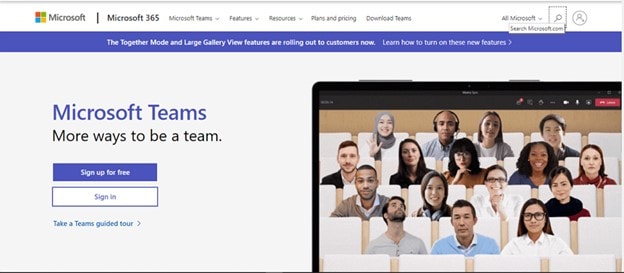
Microsoft Teams combines meetings and communication with Microsoft workspace integrations. It may fit an organization already using that ecosystem. Confirm the policies for guests, files, recording, and external collaboration instead of assuming every colleague has the same access. For design work, keep the relevant artifact linked from the discussion rather than circulating detached screenshots without context.
Key Features
- Meetings: use a live session for a decision that benefits from discussion, not as the only place design rationale is stored.
- Screen sharing: show the exact version under review and identify which states are simulated.
- Participation: choose meeting and accessibility settings suitable for the participants.
- Calling: telephony features depend on licensing and configuration; assess them separately from a basic review meeting.
- Files: check editing and sharing permissions for any linked Microsoft documents.
- Integrations: connect the tools the team actually uses, with an owner for maintaining the workflow.
Tools for design review and ongoing discussion
Keep design feedback close to the screen it describes. Use conversation tools to coordinate the review and a decision record to preserve the outcome.
1. Mockitt
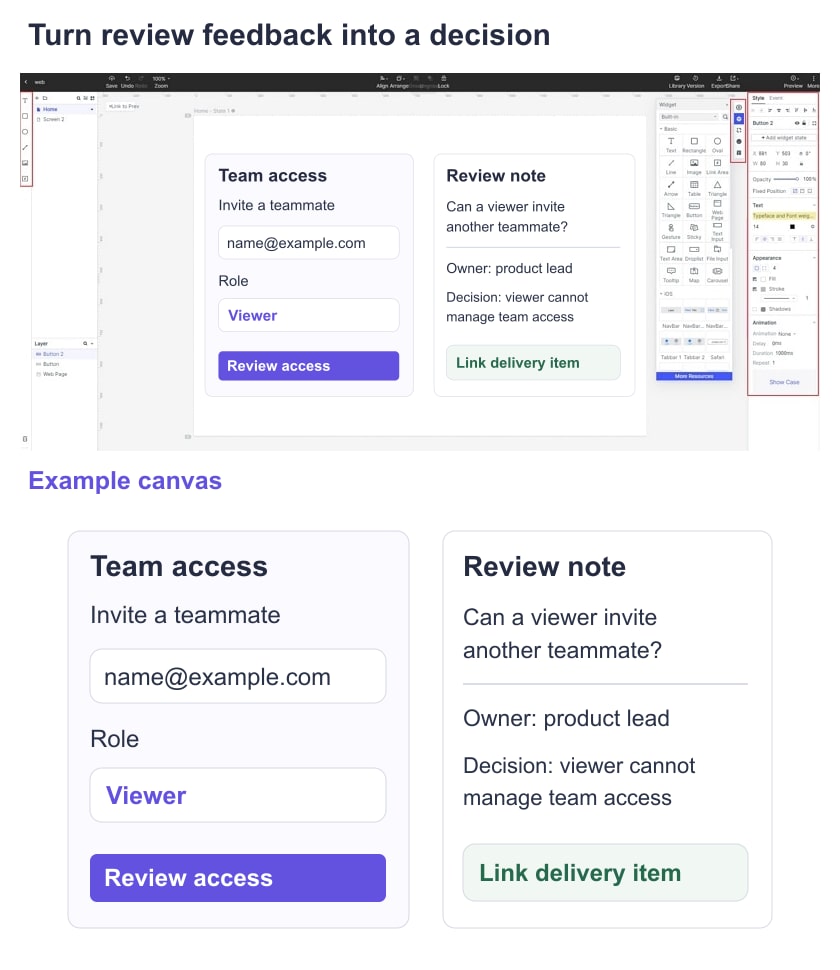
Mockitt supports creating and sharing prototypes for design review. A comment attached to a specific screen is easier to interpret than a message saying “change the button” without context. Use the prototype to discuss navigation, state feedback, and content, while keeping approved requirements and delivery work linked. Prototype review does not verify backend permissions or prove a released product’s performance.
For a team-access review, share the role-selection screen and its invitation, pending, and permission-denied states. Ask the reviewer to identify the access being granted. A product owner can then resolve the policy question, a designer update the label, and an engineer receive the approved requirement. The useful output is a traceable decision, not merely a busy comment thread.
Key Features
- Access: confirm who can edit, comment, or view in the current workspace and plan before inviting reviewers.
- Feedback: attach comments to the relevant state and assign unresolved questions to people who can answer them.
- Design resources: reuse appropriate elements so the discussion focuses on the behavior being reviewed.
- Version context: record which design version supports the decision; check available history and retention in the current plan.
- Sharing: test the review link with the intended audience’s permissions, especially when they are outside the organization.
- Scope: simulate enough of the task to answer the question without implying that a prototype is a working service.
2. Slack
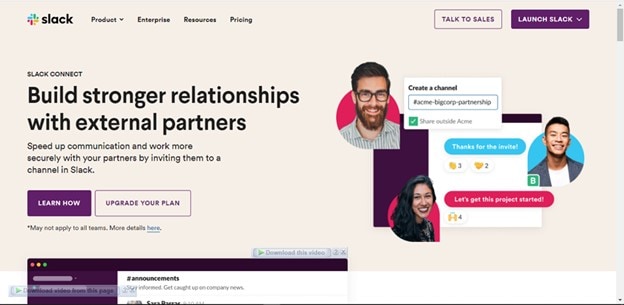
Slack organizes conversations in channels and supports direct messages, shared files, and integrations. It can coordinate a design review, collect questions, and notify a team when a decision changes. A chat thread is not a reliable substitute for the approved design or specification: important context may be difficult to find, and history access depends on the plan. Link the lasting artifact and summarize the outcome there.
Key Features
- Live discussion: use the available calling or huddle features when a short conversation can resolve ambiguity.
- Channels: group discussion by project or purpose and make ownership clear.
- References: share links to the source design or document rather than uncontrolled copies.
- Integrations: use relevant notifications selectively so important review requests are not lost in automated noise.
- Retention: verify the history and access rules the team needs; do not assume a free tier stores everything indefinitely.
Tools for work tracking
1. Trello
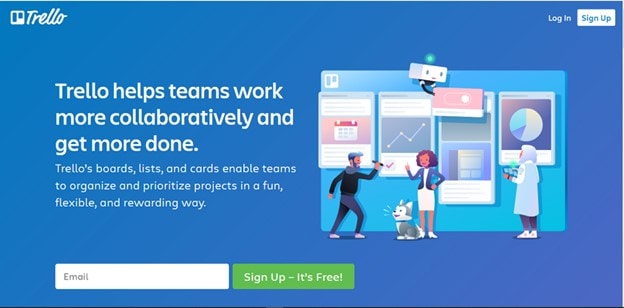
Trello uses boards, lists, and cards to organize work. A design team can track requests, reviews, and implementation follow-up with a clear status and owner. It is suitable when a lightweight shared board is enough. Define what “ready,” “in review,” and “done” mean; moving a card does not establish that a design has passed review or been tested.
Key Features
- Trello allows users to comment, add dates, and attachments to Trello cards.
- It offers automation for supported board actions; check the current plan and usage limits before depending on a rule.
- It allows users to integrate with other tools to boost productivity.
- Users can create boards for any project and then invite a team.
Other Collaboration Tools
1. Wrike
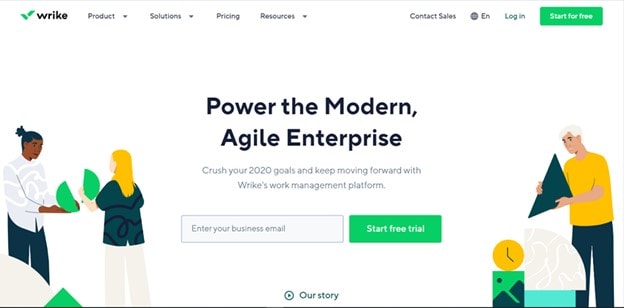
Wrike provides work-management features for planning, collaboration, and reporting. It can help teams coordinate multiple deliverables and review steps. The quality of its status view depends on the information people maintain. A dashboard does not eliminate the need to discuss uncertain scope or validate a design with users.
Key Features
- Work coordination: keep the task, owner, related artifact, and expected outcome together.
- Workflow: adapt statuses and views to the team’s approval process rather than creating extra stages without a purpose.
- Reporting: check the inputs and definitions behind a report before using it to make a staffing or schedule decision.
- Updates: agree when people update work status and how blockers are escalated.
- Integrations: verify that the required connection is available and supported in the selected plan.
2. Portfolio Manager, formerly LiquidPlanner
The former LiquidPlanner site now directs to Tempo’s Portfolio Manager. Its focus is planning work with priorities, capacity, and scheduling uncertainty. Consider this category when a team needs to understand how competing work affects delivery, rather than just arranging cards. Scheduling output still depends on assumptions and maintained inputs; it is not a guarantee that the plan will hold.
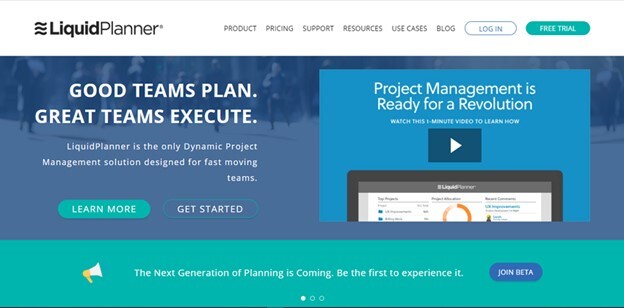 Historical product image. The current official destination is Tempo Portfolio Manager.
Key Features
- Scope: confirm how projects and dependencies in your existing workflow will be represented.
- Priority: make the order of competing work explicit so schedule changes have an understandable cause.
- Estimates: keep uncertainty visible instead of treating an early estimate as a commitment.
- Shared context: communicate changes to the people whose work depends on the plan.
- Capacity: check the assumptions behind availability and workload; a software view cannot determine a healthy workload on its own.
3. Boardmix — visual collaboration
Boardmix supports shared visual work such as mapping a journey, organizing research notes, and comparing ideas. Use it when spatial organization helps a discussion. A board should end with clear decisions or questions; a large collection of sticky notes is not automatically a plan.
Key Features
- Synthesis: group related observations and keep their sources attached.
- Mapping: distinguish the current experience from a proposed flow so participants do not confuse evidence with an idea.
- Decisions: identify which option was selected and which questions still need investigation.
- Handoff: link conclusions to the relevant requirement or design artifact instead of leaving them only on the workshop board.
4. Figma — collaborative interface design
Figma Design supports shared interface files, components, prototyping, and comments. It is relevant when a team’s visual design system and production screen work live there. Agree which file is the review source and how approved changes reach development; simultaneous editing does not by itself mean the team has agreed on a direction.
Key Features
- Shared components: inspect how updates affect the screens under review.
- Feedback: attach comments to the relevant design and distinguish suggestions from approved requirements.
- Roles: check editor, reviewer, and developer access in the selected plan.
- Handoff: document important states and behavior in addition to the visual layout.
5. Notion — decisions and shared documentation
Notion can keep briefs, decisions, and related project information together. It fits the need for a durable reference after a meeting or design review. Define an owner, approval status, and review date for important documents. An editable page with several comments is not necessarily a current source of truth.
Key Features
- Context: connect the problem, research references, and proposed design in one navigable place.
- Ownership: state who is responsible for maintaining the document and resolving questions.
- Status: distinguish a draft, an approved decision, and a superseded version.
- Access: check the permissions for guests and linked artifacts before a cross-company review.
- Traceability: link a decision to implementation work and preserve the reason for changes.
Choose a setup that preserves decisions
Choose tools by the gaps in the team’s workflow rather than collecting a product from every category. For a small team, one communication tool, one design workspace, and one durable place for decisions may cover the task. Larger teams may need more specialized work tracking or planning.
Try a real review before changing the whole stack. Give a reviewer the same permission-state question, ask them to leave feedback, and follow the decision through to the delivery task. Check whether the designer can locate the comment, the owner can resolve it, and a developer can tell which outcome was approved. Record the friction you actually observe.
Finally, verify guest access, current plan limits, export needs, retention, and your organization’s security requirements. These checks are more useful than assuming a tool is universally free, secure, or suitable because it appeared in an old list. Revisit the setup when the team or task changes.