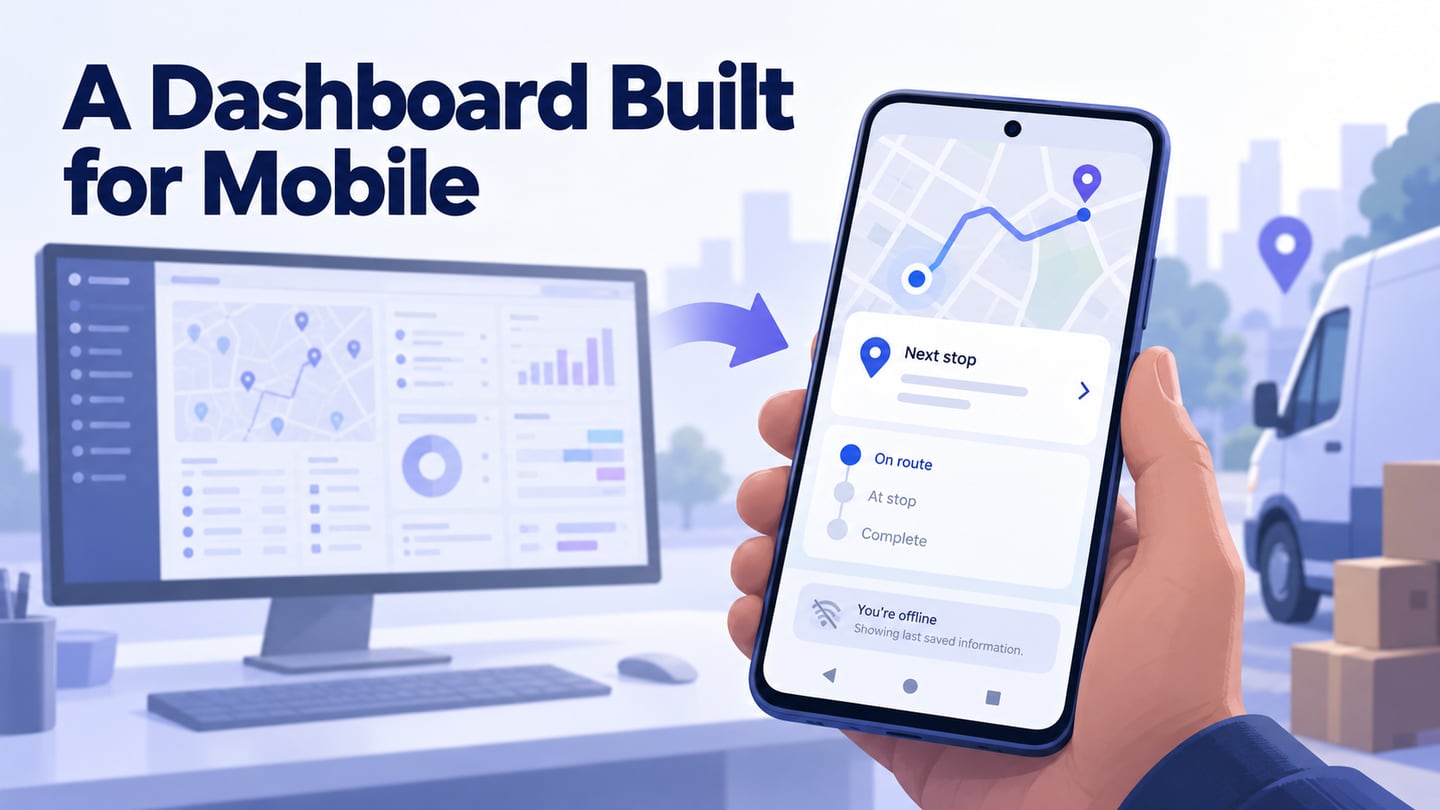
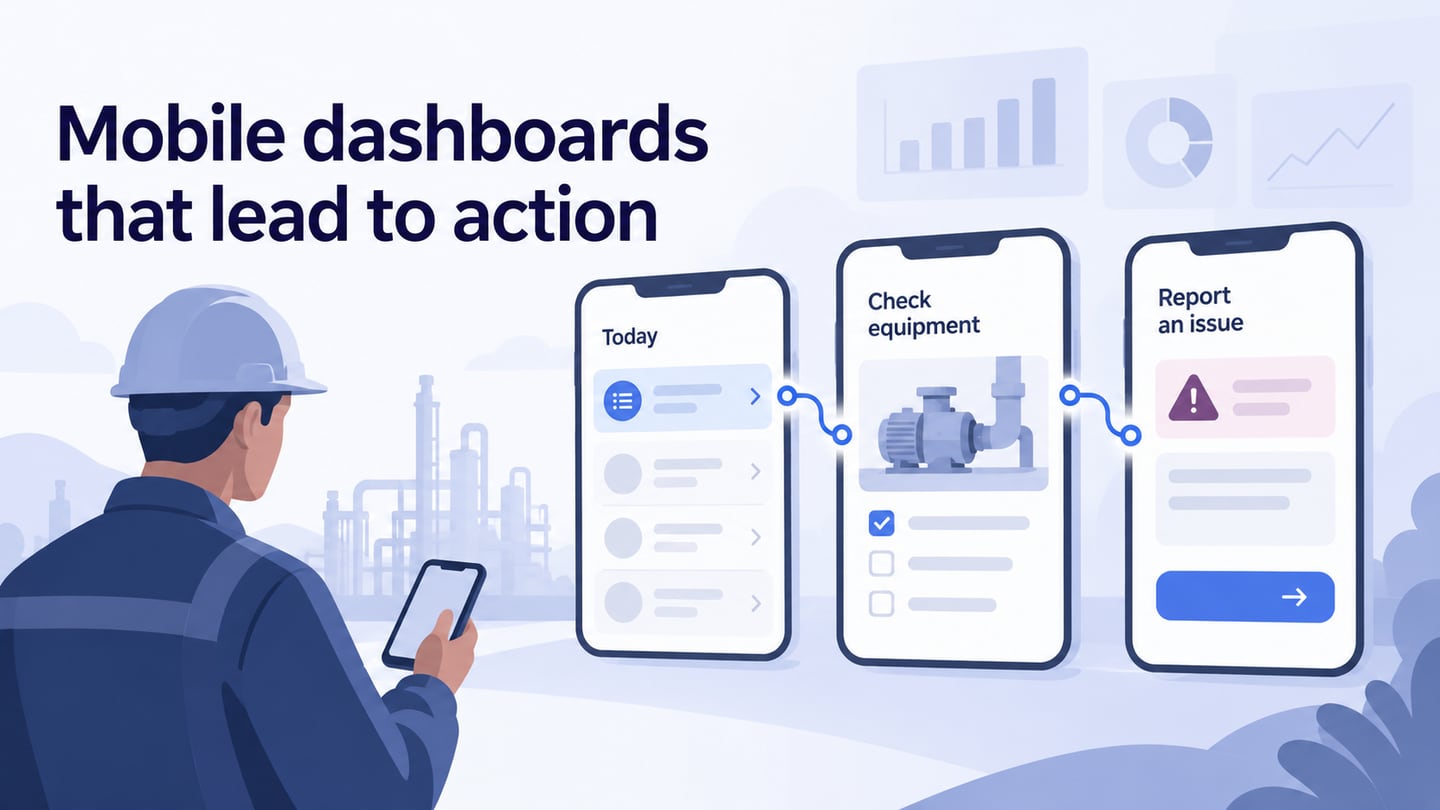
A mobile app dashboard should help someone understand what needs attention and take the next step. If you are new to app dashboard design, start with a small set of useful information rather than a screen full of charts. This guide walks through an interactive dashboard prototype in Mockitt, from creating screens to previewing the connections between them.
When the task depends on filters and data states, a dashboard prototype can make the review path testable before implementation.
A Tool for Prototyping an App Dashboard
Mockitt brings interface design, prototyping, and collaboration into one workspace. You can begin with a blank screen or adapt a suitable template, then reuse components across the dashboard and detail screens. A template gives you a starting layout; the information hierarchy still needs to reflect the work your users actually do.
 Original tutorial screenshot from an earlier Mockitt interface; current panel labels may differ.
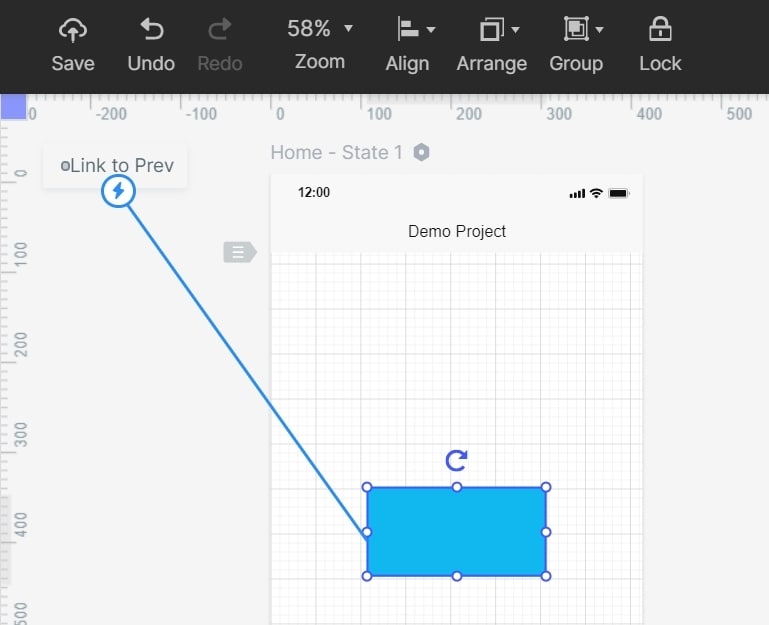
Once you have a starting layout, add widgets and icons from the component libraries, then connect controls to other screens or states. The original screenshots below show earlier Mockitt panels, including Libraries and the interaction handle; current labels may differ. Team members can review the prototype and leave feedback before the interface is implemented.
Features
- It has plenty of UI assets and templates that make it easy and fast to create designs.
- Users can collaborate in real-time and co-edit the project.
- Cloud-based projects let team members access shared work according to their account and project permissions.
- Preview the prototype on the intended device; use the available offline export option when a review requires it.
- It has several built-in widgets and icons that make the design more beautiful.
- It supports interactions and animation features.
How to Do Mobile App Dashboard Design
Creating a mobile dashboard starts with one decision: what should the user be able to do immediately after opening it? The following steps apply a screen-and-widget workflow to a concrete task.
Build the overview, one detail screen, and a result or exception state first. These are enough to review the main path before adding secondary reports.
Step 1. Login
Using your browser, open Mockitt and sign in. Create a prototype project, give it a descriptive name, and select a mobile screen size appropriate for your audience. The archived screenshot illustrates the Create menu; use the equivalent prototype action in your current workspace. Name this example “Inspection rounds” so reviewers understand its purpose.

Step 2. Add Screens for Your Mobile App Dashboard Screen Design
Add a screen for each important step and name it for clarity. Do not create a separate screen for every number on the dashboard: use a detail screen when the user needs to inspect or act on an item.
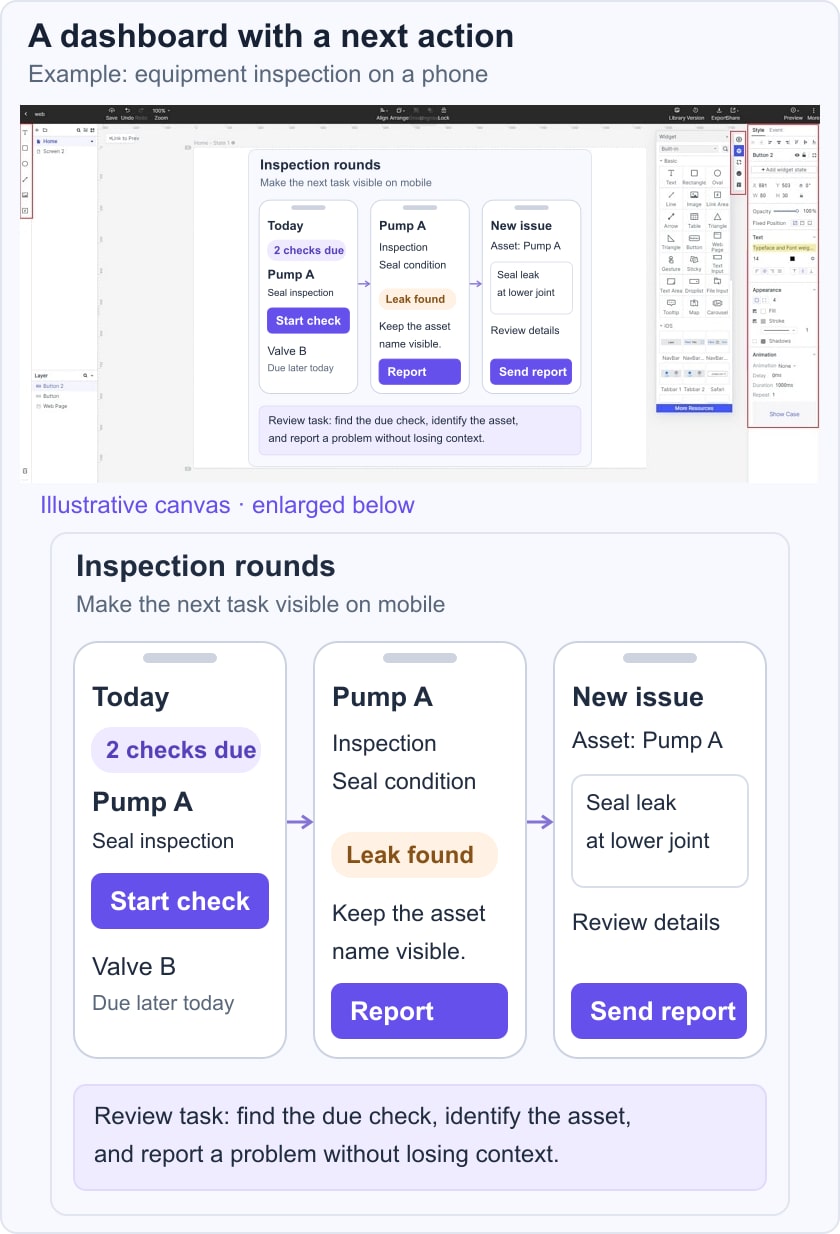
For example, an equipment inspection app could open with today’s two due checks. Tapping “Pump A” opens its inspection details; “Report an issue” opens a form for a seal leak. Keep the equipment name visible across the three screens so the user can tell which asset the report concerns.
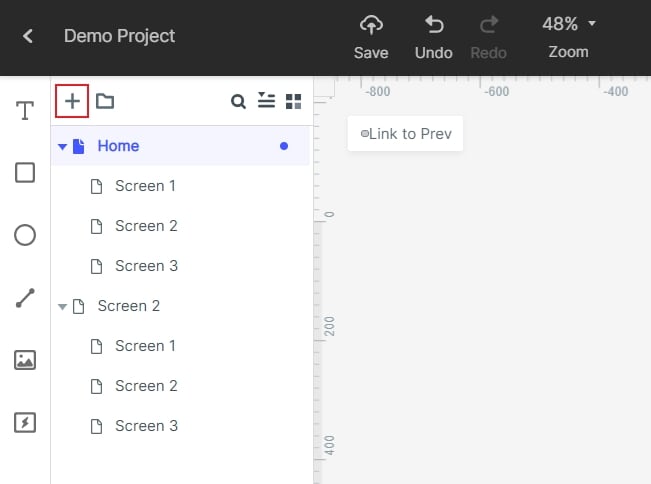
Step 3. Add Widgets and Icons for Your App Design Dashboard
Drag a widget onto the canvas, then edit its text, appearance, and size in the properties panel. Use consistent components for inspection rows, status labels, and buttons. Save a customized widget or component when it will be reused. An icon can support a label such as “Due,” but the label should remain understandable without the icon or color.
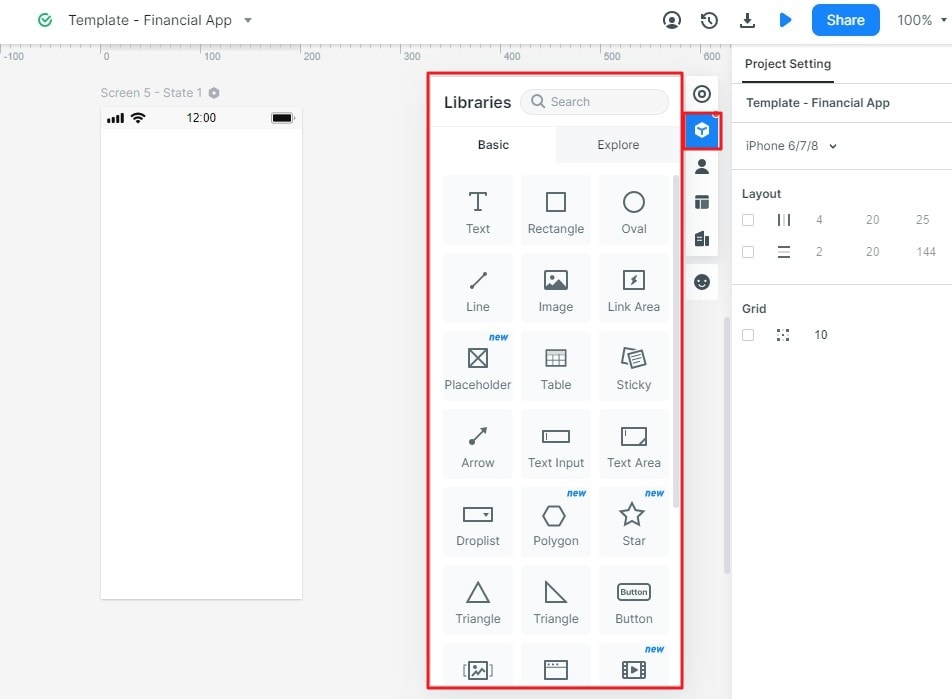
Step 4. Create Connections
Select a button or row and connect it to the target screen with an interaction. The original screenshot shows the linking handle; the interaction guide explains screen links and states. Connect “Pump A” to its details and “Report an issue” to the report form. Add a clear return path, and reserve animation for changes it helps explain.
Step 5. Preview Your Mobile App Dashboard Design
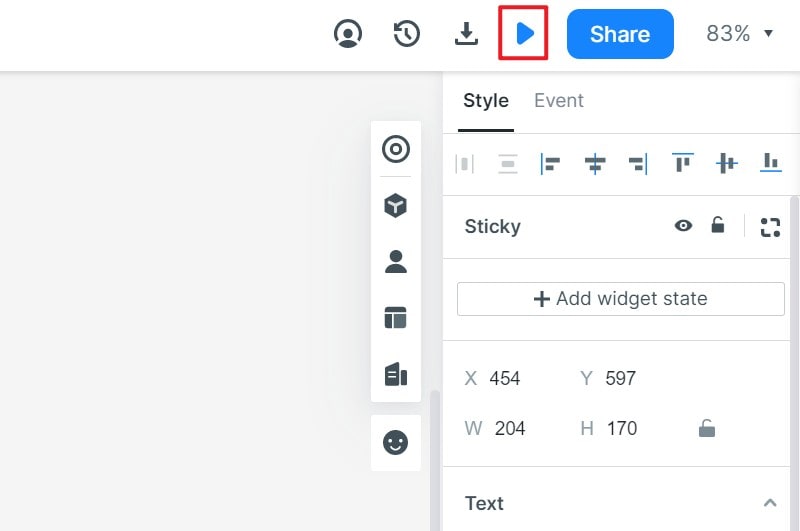
Use Preview to walk through the dashboard at the intended mobile size. This checks the prototype’s layout and interaction flow, not the performance of a deployed application. Ask a reviewer to find the next due check and report a problem without prompting them where to tap.
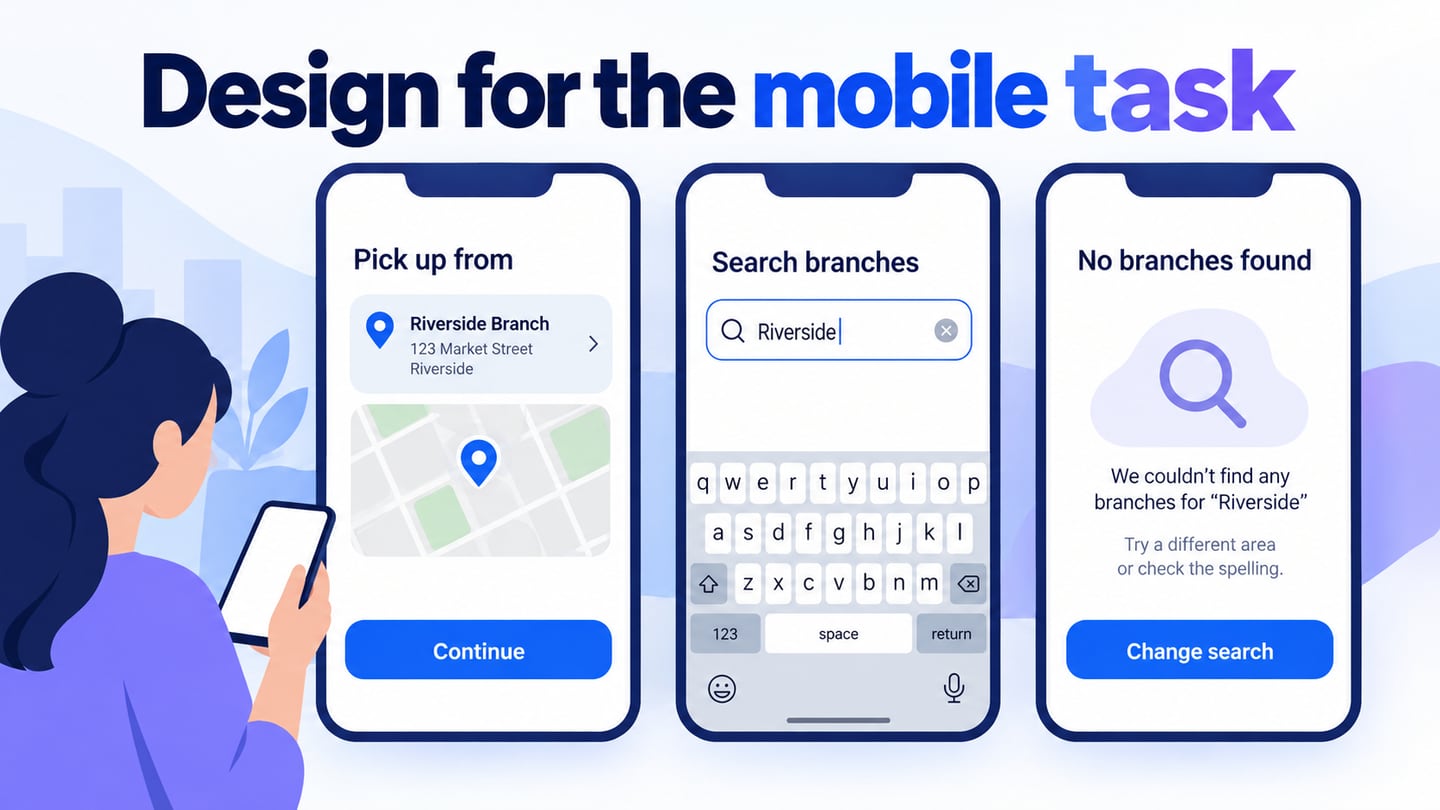
Also prepare an empty dashboard for a day with no assigned checks and a loading or unavailable-data state. In the empty state, explain whether the user is finished or has not yet received an assignment. In the unavailable state, do not display a reassuring “All clear” message simply because the data did not load.
Useful Tips to Do App Dashboard Design
Use these four principles to decide what belongs on the dashboard and what should move to a detail screen.
1. Try Designs that Work
Familiar navigation and status patterns can reduce the work needed to understand a dashboard. Use them as a starting point, then test them with your own tasks. A design that works for a sales manager may be a poor fit for a technician using a phone while standing beside equipment.
2. Make it Simple
Simplicity is not being basic. A small mobile screen leaves less room for competing elements, so put the next action and its context before secondary metrics. For the inspection example, a due check with an equipment name is more useful than a decorative monthly completion chart.
3. Know What Your Users Need
Knowing your target audience is the starting point for a useful dashboard. Ask what they need to notice, decide, and do. Rank the answers instead of trying to fit every metric into one view. Use the broader UX workflow when you need to connect these interface choices to research and review.
4. Use a Good Dashboard Design Tool
Choose a tool that lets you edit the layout, connect screens, share a preview, and collect feedback with the people who will build or use it. Judge the prototype by whether reviewers can complete the inspection task, not by the number of widgets or charts it contains.