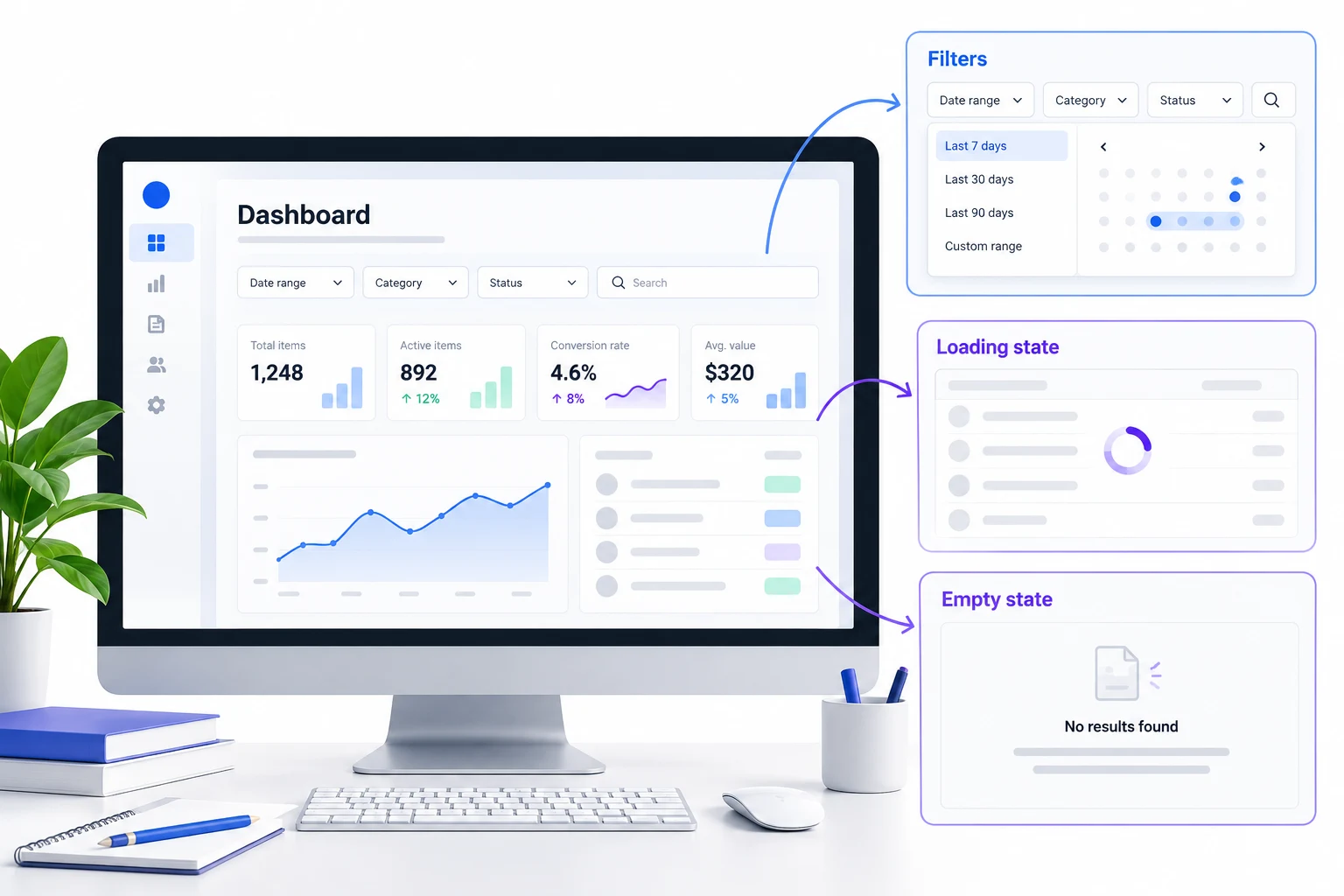
A useful dashboard prototype answers one question quickly: can a person find, filter, and understand the data needed for the next decision? Start with the task and its data states, then connect a small flow in Mockitt's online prototyping workspace before polishing visual details.
Start with the dashboard task
Write the user task as an observable outcome, such as “find overdue equipment requests for one team.” This keeps the prototype focused on the path a reviewer must complete instead of turning it into a gallery of widgets. Define the person, the input, and the decision: an operations lead needs to find overdue microphone and camera requests for the North team during September, then decide which request needs follow-up today.
Use one small fixture dataset across every state. Fix the example's “today” at October 5 so statuses do not change while reviewing it. Use these fictional records:
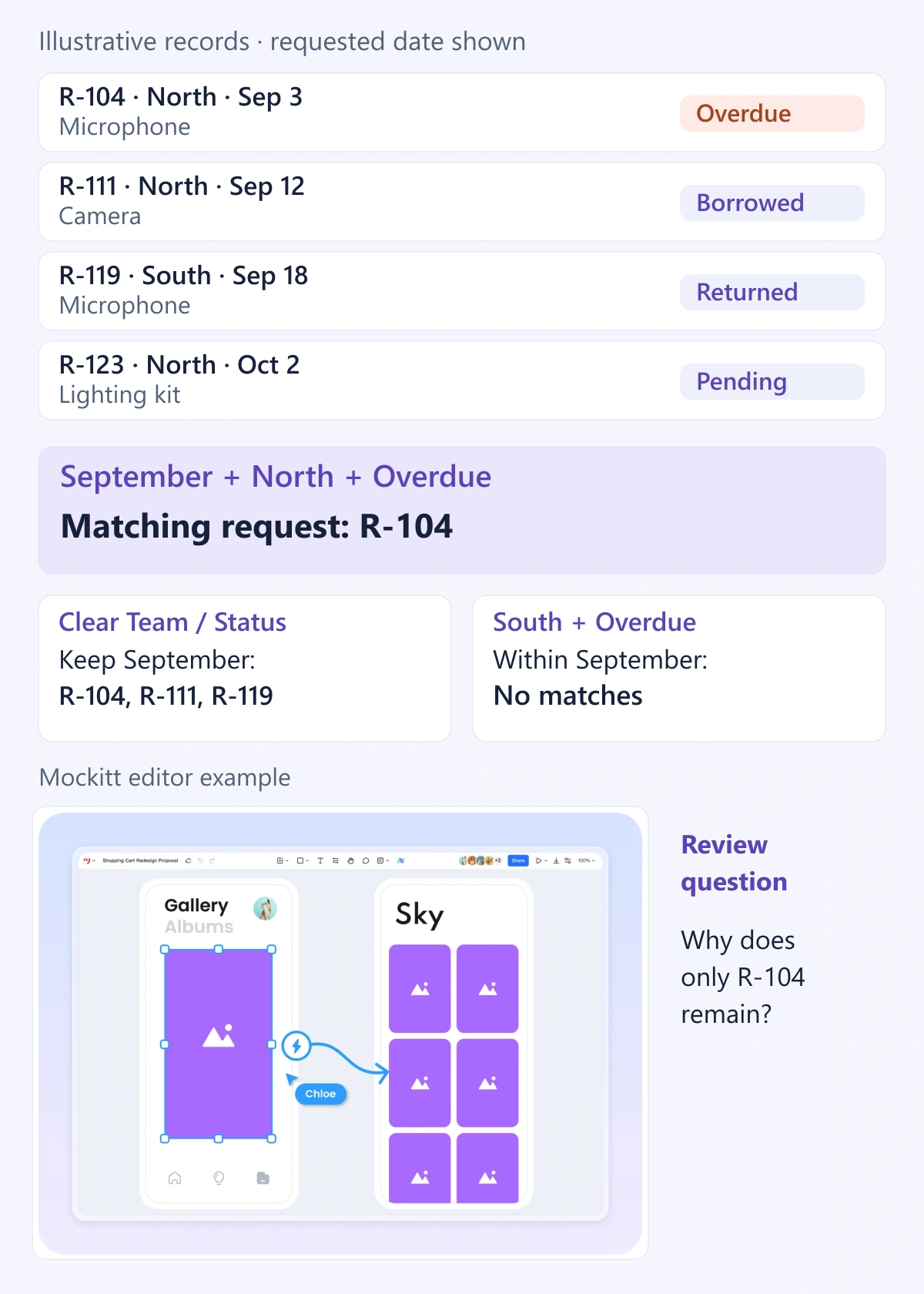
- R-104: North team, microphone, requested September 3, return due September 8, not returned; Overdue.
- R-111: North team, camera, requested September 12, return due October 8, not returned; Borrowed.
- R-119: South team, microphone, requested September 18, return due September 23, returned September 22; Returned.
- R-123: North team, lighting kit, requested October 2, not yet issued; Pending.
The default range, September 1–October 31, shows all four requests. The first task applies Team = North, Status = Overdue, and requested-date range = September 1–30. The expected result is exactly R-104. The date filter uses request date, not the return deadline. This gives reviewers a concrete expected output instead of a table whose numbers change arbitrarily.
Map the states that change the decision
Include a default view, filtered results, loading, no data, no results, permission, and error states. These labels are not interchangeable:
- Loading: the request is in progress. Keep the selected Team, Status, and date range visible, and avoid showing old rows as if they matched the new query.
- No data: a new account has no equipment requests at all. Explain that the dataset is empty and offer a first-request action appropriate to the person's role.
- No results: records exist, but the current filters match none. Keep the applied filters visible and offer “Clear filters” or a broader date range.
- Permission: the person is not allowed to view this dataset. Explain how to request access; do not imply that clearing a filter will fix authorization.
- Error: the request could not be completed. Preserve the query where possible and offer retry, while making clear that the result is unavailable rather than empty.
Each state should answer what happened and what the user can do next. A filter that silently returns an empty table is not a complete interaction. Add a short state contract beside the prototype so product and engineering can agree on inputs, visible output, and recovery behavior; the published prototype documentation guide describes how to record that contract.
Connect the smallest reviewable flow
Connect the screens in an order that exposes the real decision without pretending to query a live database:
- Open the dashboard with the September–October default range and all four fixture records.
- Set the range to September 1–30. Show loading, then R-104, R-111, and R-119.
- Apply Team = North and Status = Overdue. Show only R-104.
- Change Status = Borrowed to show R-111, then clear Status to restore both North-team September requests.
- Set Team = South and Status = Overdue. Show no results. Clear Team and Status to restore all three September requests; Clear filters retains the date range in this design.
- Show permission and error screens as separate branches. Retry keeps the same query; Request access follows the agreed permission path.
Static screens can represent each state safely when the transitions are labeled as a simulation. Use the same fixture IDs, dates, and filter labels in every screen. A click from “Apply filters” to “Loading” to “Results” demonstrates the proposed sequence; it does not prove that a live request ran or that the counts are current. Keep a note of which values are fixtures so nobody copies them into a specification as production data.
Review data questions before styling
In this example, request dates use inclusive boundaries, and Team, Status, and date range combine with AND logic. An issued item is Overdue when its return deadline precedes the fixed October 5 reference date and no return is recorded. Pending requests are excluded from that rule. Label the range “Requested between” so it is not mistaken for “Due between.” If summary cards are shown, make them follow the same filters; the filtered R-104 view should show one request and one overdue item, not account-wide totals.
Define acceptance criteria for the primary task:
- The first screen makes the dashboard purpose and default date range clear.
- Applying the three filters produces the expected single fixture, R-104.
- Loading does not display stale results as the new result.
- No results, no data, permission, and error messages use different wording and recovery actions.
- Clearing a filter restores a predictable subset of the same fixture dataset.
- A reviewer can identify the source date and status for each row before deciding what to follow up.
Use these criteria to discuss the prototype's behavior, not to claim performance or data accuracy. If the source system has a slow response, product and engineering can decide on a loading threshold later; the prototype only needs to make the intended state visible.
Plan responsive behavior around the task. On a wide screen, keep filters and the result table together so the selected query remains visible while scanning R-104. On a narrow screen, prioritize the date range, Team and Status controls, then show the result's item, status, and requested date before secondary columns. Allow the table to scroll or become stacked rows rather than shrinking text until values are unreadable. Keep the active-filter summary and Clear filters action reachable without requiring a return to the top. A responsive prototype should show at least one narrow state for the main results and one narrow state for no results; a desktop screenshot alone cannot establish mobile usability.
Dashboard prototype checklist
- One observable dashboard task and one expected fixture result are visible in the first screen.
- The default date range and filter semantics are stated.
- Loading, no data, no results, permission, and error states are distinct and connected.
- Static screen transitions are labeled as simulations and do not imply live data.
- Applied filters, source dates, and row statuses remain traceable.
- The main results and no-results state have a readable narrow-screen layout.
- The review ends with a concrete acceptance decision, owner, or missing data question.
Conclusion
A dashboard prototype earns its place when it makes data states and decisions testable. Keep one consistent fixture dataset, define what each filter and date means, separate no data from no results, and show recovery for permission and service errors. Connect the smallest set of static states needed to verify the task, then use responsive priorities and explicit acceptance criteria to decide what the product must support next.