Mockitt - Free UI/UX Design Tool
"UI is the saddle, the stirrups and the reins. UX is the feeling you get being able to ride the horse. - Dain Miller
- UX Design vs UI Design | What's the Difference?
- Step-by-Step Guide on How to Do UI/UX Design with Ease.
- Top List of Must-Recommend UI/UI Tools.
- Leading UI/UX Design Trends to Dominate in 2020-2021.
- UI/UX design secrets you need to know.
5 Best Android Dashboard Design Examples
A dashboard is a set of graphical menus and interfaces that give the user easier access to data. It also makes the editing process easy. Android dashboard UI contains information like statistics, analytics, schedules, and messages. The dashboard is designed to interact with the back of a website to make it easy for the user to make changes and access information. This gives the user access to the necessary information to perform the functions of an app. Android dashboard design is not a typical element that designers focus on. They are important to the user experience. When designing a dashboard UI you consider perfect design to create a UX that is useful and intuitive to the users.
- Part 1: 5 Good Android Dashboard UI Design Examples
- Part 2: How to Make Android Dashboard UI Design
- Part 3: Steps on Making Android Dashboard UI Design
5 Good Android Dashboard UI Design Examples
Dashboard requires much planning but the hardest part is to get started. You have to get inspiration in order to decide what metrics and data to include, how to reflect the information architecture, and maintain a visual hierarchy. The following examples show us how to get the message across.
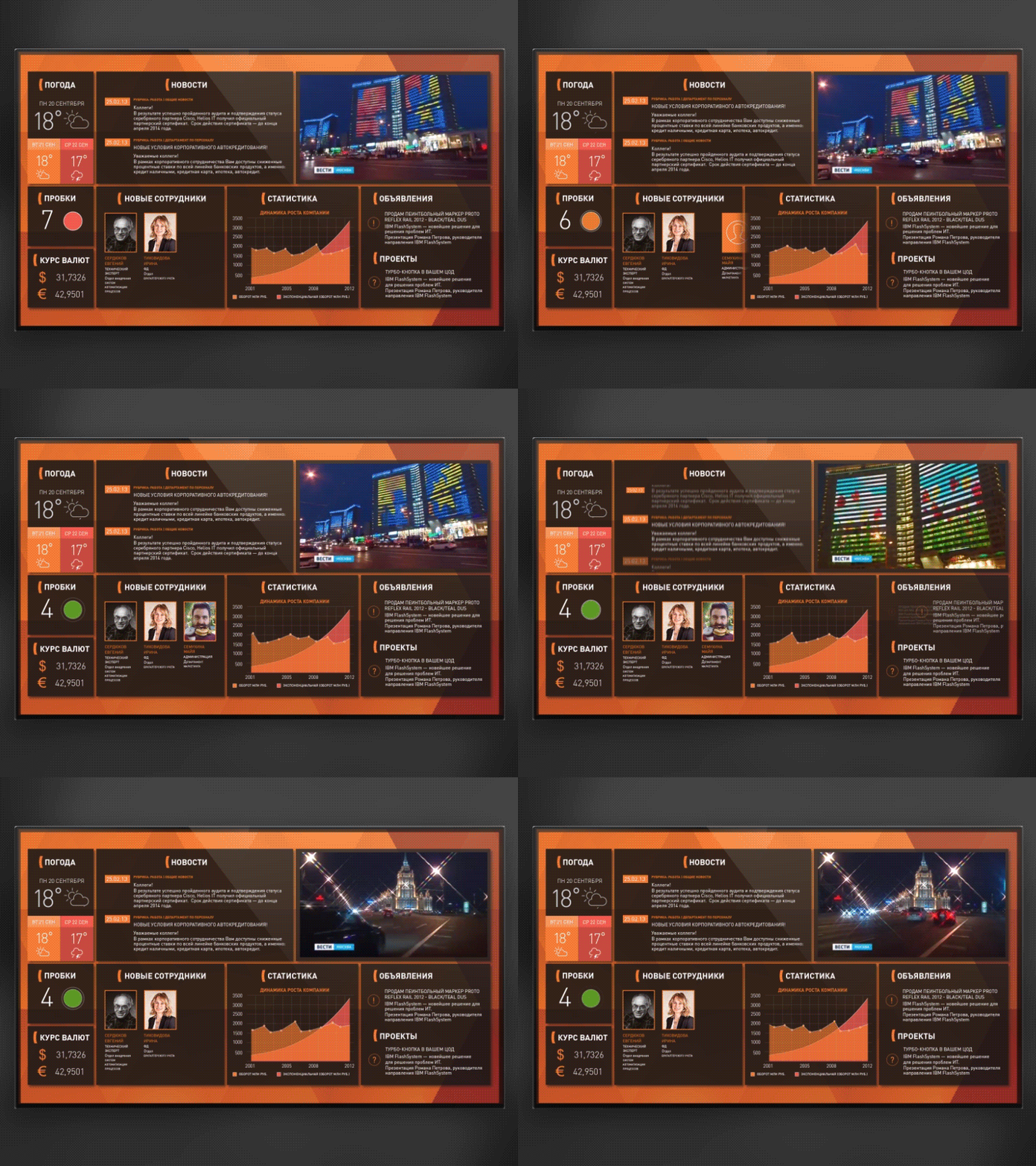
1. Dashboard for Employees and Customers
The designer's name is Aman Singh. This dashboard design for the android app gives a real-time data update system and eye-catching videos. It shows all the related data in a timely manner. The eye-catching videos are in the top right corner. A good dashboard allows users to navigate a website or an app easily.
This example of dashboard UI design highlights the important information and assists users to process data more quickly.
2. VMWare Dashboard Exploration
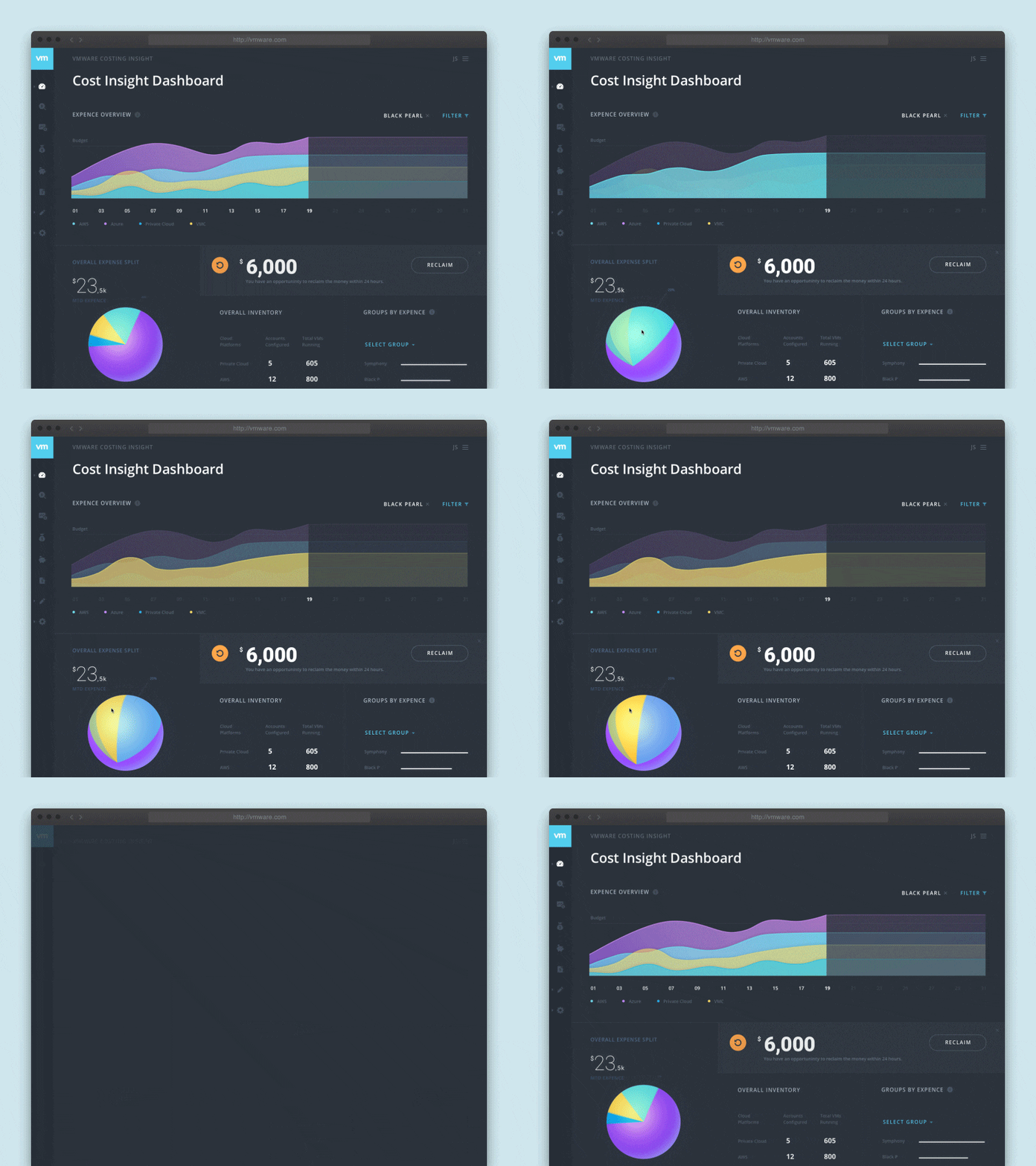
It was designed by Clay. Many designers face the problem of presenting key numbers and content in a straight forward manner. This Android dashboard design example features excellent data visualization. Users can only click on the pie and line charts to see more. You can use intuitive charts to show all the dashboard data. You can easily share the charts among teams and clients. With one-click, data imports automatic chart suggestions and intuitive drag-and-drop functionality. You can create the charts and dashboards you want without having to struggle with complicated BI tools.
3. Dashboard UI Interaction
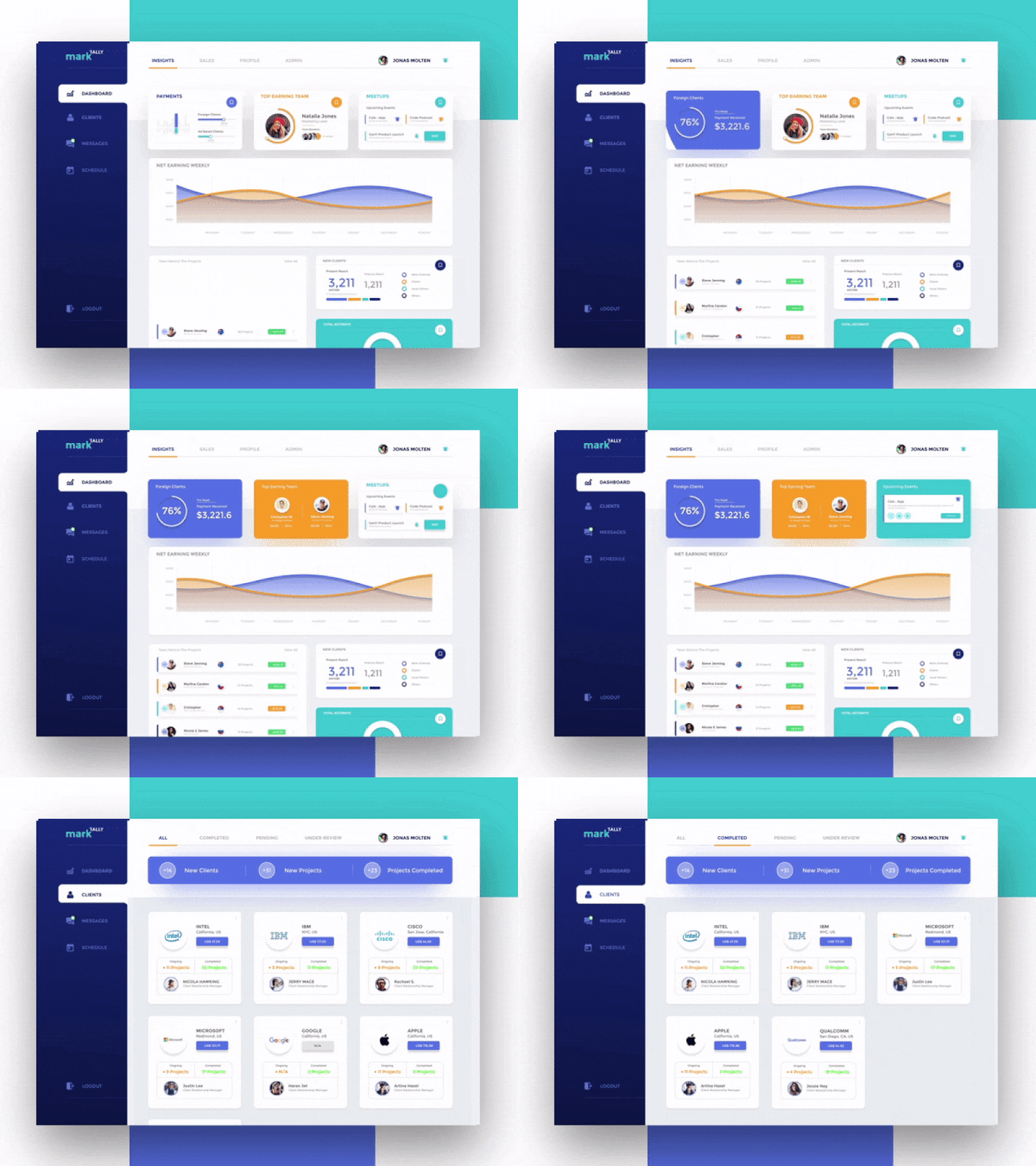
This dashboard was designed by Aman Singh. Interactive designs are more appealing to users than static UI design. It uses interaction designs to improve UX. It also has various transition animation options that improve interaction designs.
The basic principle of interaction is to meet users' needs. To determine users' requirements is the project managers' basic work. There are many tools and ways to assist to identify user's needs like observing user behavior, analyzing data, and building user scenarios. source: mockplus.com
4. Photo Dashboard
The designer's name is Dumnoi Ikechukwu. This is a dashboard design for the photo management website. This design example uses a clear grid layout to present photographers' work intuitively. Its minimalist design style makes the photos noticeable, decorating the entire design.
Dashboard design prototyping skills girds are widely used for creating clear grids with its repeater and autofill functions. Minimalism has become an overwhelming trend in the current website design. Designers who have accepted this influential design style are slowly increasing. They are using it in their designs.
5. Dashboard Design
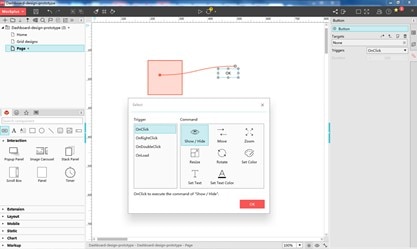
Color is an important visual element for users to create a visually stunning app. The apps use a deep blue color scheme to create an attractive dashboard design. The color blocks help in dividing the app into different functional areas, creating a clear layout for better UX. The designer is Bradley Bussolini.
How to Make Android Dashboard UI Design
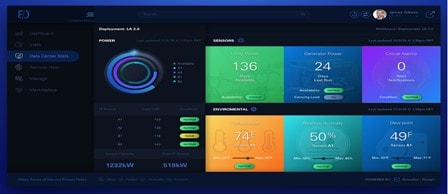
In order to create a dashboard Android design, you may use Wondershare Mockitt. The asset library helps individuals as well as teams to start designing. Here you will enjoy many assets for free. Widgets and icons are directly used. You don't need experience to start designing. You can customize your widgets, save, and reuse them with a click. Soon, you will be able to share a design system with your team to maintain and update assets. This will make your designs consistent.
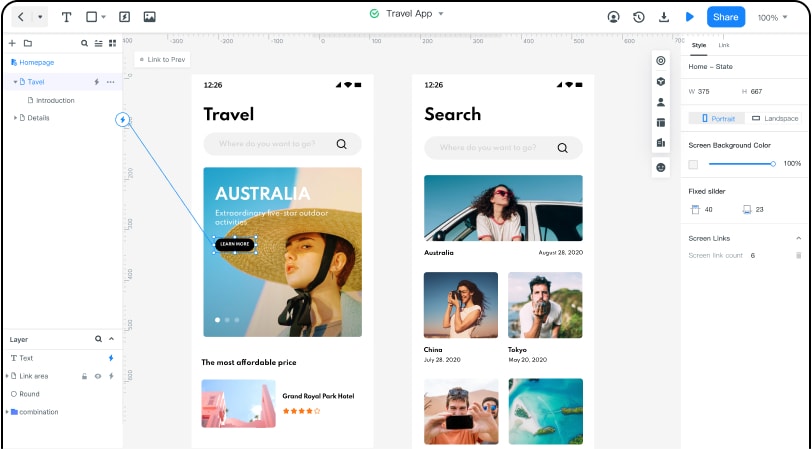
Design prototypes are built faster without coding knowledge. Dashboards and interactions are made quickly. To import design files directly, drag, and import images. By adding "link Area" you can make your design files interactively.
Efficient Presentation and Review: Frame your prototype with the device shell to initiate a real interactive experience. Use black and white full-screen demos to highlight your proposal. By sharing the link, others can view your prototype on their devices. You can get online feedback. Offline demonstrations are available when you download the HTML demo package.
Handoff: Here, you use the color picker to identify and record color. You can also download slices with one click. Handoff allows the manual input of the font size of HTML. Designers can focus on designing and not repetitive work. Designers can share specs online through a URL.
Cloud Editing: With this feature, you don't have to install the app. You can log in through a browser and start creating your dashboard design for the android app. You don't need to send a file manually. You only need to join a collaboration or send a link. Others can edit or view the project. After seeing the project, you can give immediate comments and feedback.
Multi-Member Collaboration: You can co-edit and co-manage projects with your team members in the Wondershare Mockit enterprise. You can view the number of members using your dashboard and the level of activity going on. 128-bit SSL protocol is used for data transmission, encryption, AWS, and multi-level disaster recovery backup.
Steps on Making Android Dashboard UI Design
Step 1: Create a New Project
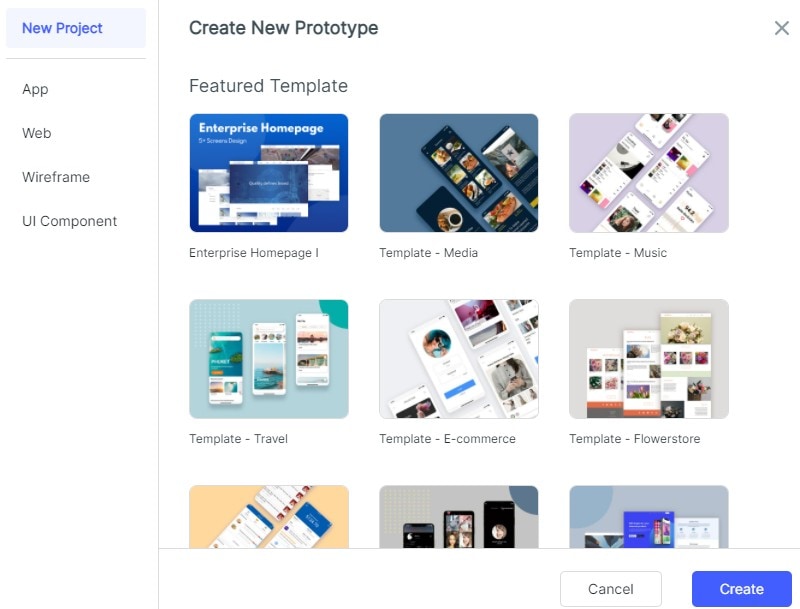
You can create prototypes for mobile (iOS/Android), iPad, Web, TV, or watch. You can also customize the project size for any screen.
When you log in, click "Create > Prototype" to start prototyping. You may create a blank project, choose the device type, and name the project. You may also use the templates to create your project.
Step 2: Design the Dashboard
- Add Widgets and Icons
On the top panel, there are fast widgets. On the right, build-in widgets, my widgets, and icons are the type of assets found. There are two ways to add widgets to canvas. Double click widgets or drag the widgets to the canvas.
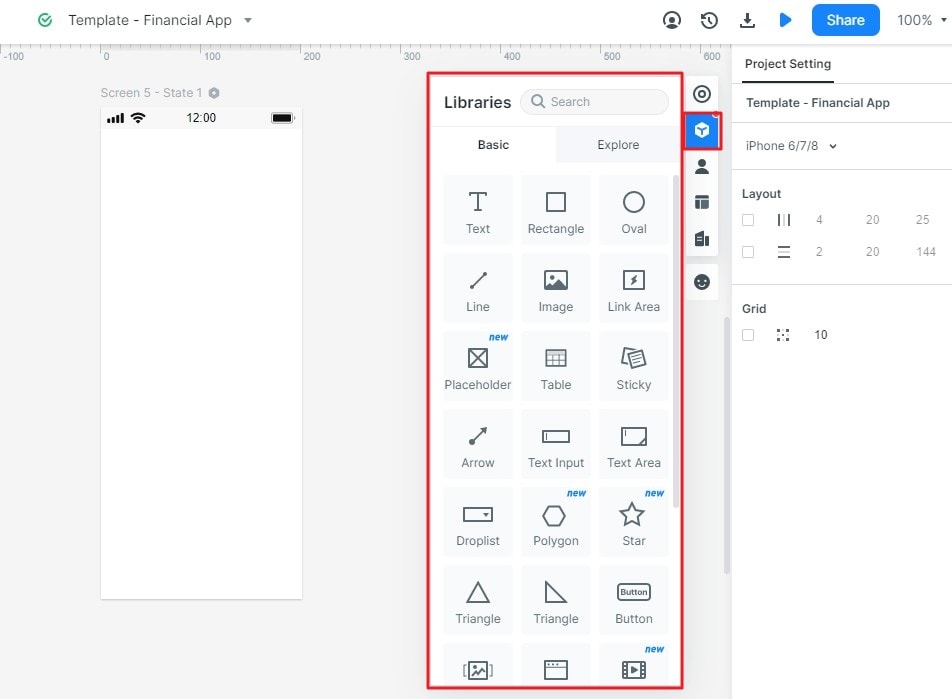
To edit the widgets, click a widget and edit its properties in the inspector panel.
To save the widget, add it to the "my widget" library in the following ways: drag the widget to the "My widget" panel and Right-click the widget to "Add to widgets".
- Add Links between Screens
- There are two ways to do it. Choose one widget, then click "New link" in the link panel on the right. Then set the gesture, action, target screen/state, and animation for the widget.
- Drag the link icon on the left of the widget to the target screen. Then adjust the gesture, action, target, screen/state, and animation on the link panel.
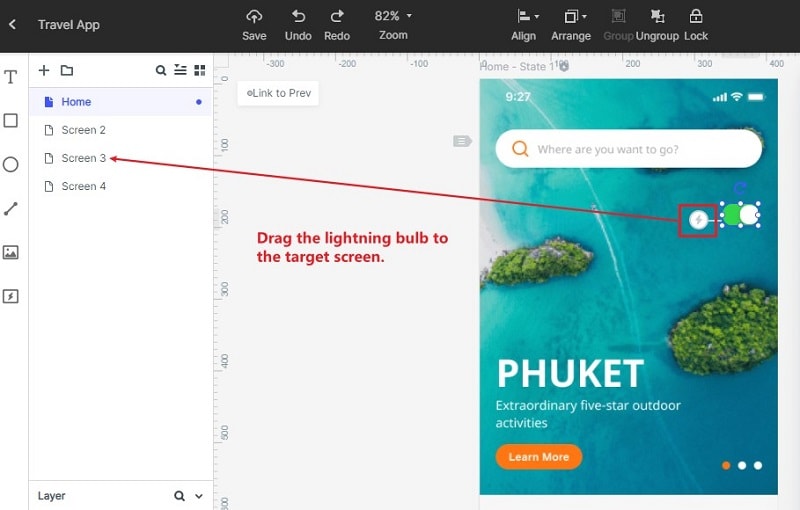
To convert widget to master:
- Right-click the widget to "create master".
- The master will be saved in the master library. Drag the master canvas to create its instances.
- To change the Master, click "edit".
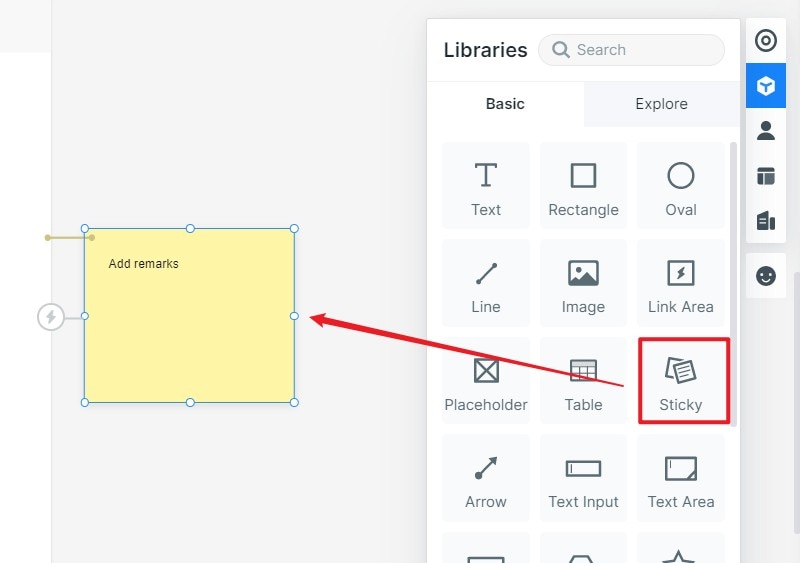
- To Add Notes:
- Use the "Sticky" in the build-in widget library.
- Input texts in the "Sticky".
- The "Sticky" is viewable in preview mode.
Creative interactive animations
Use dynamic widgets to create interaction animation. Animation effects of dynamic widgets and screen states are achieved by the state. It affects the widgets on the whole screen, and the animation effect will only affect the widgets within the dynamic widgets. Users are recommended to use dynamic widgets to achieve interactive effects.
- To make animations using dynamic widget:
- Create a new widget. Click the "widget" icon beside the inspector panel then click "new widget" to create a new widget and name it.
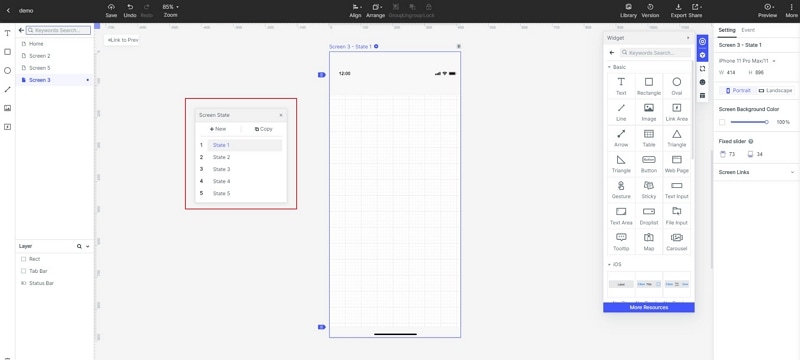
- Create states of the widgets. Click the "state" icon and the state panel will pop up. Click "new state" to create a new state.
- Link the states. Drag the "link" icon to the target state. You can also adjust the animation settings in the link panel.
Step 3: Preview the Dashboard
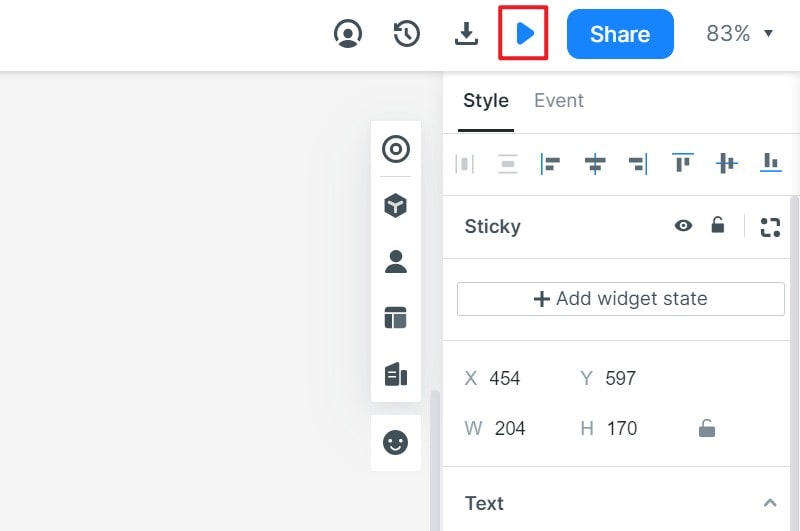
To preview it on a pc:
- Click "preview" on the top toolbar
- Adjust the preview settings such as "page scroll", "highlight on click", "sticky", and "shell".
- To get a more immersive presentation effect, click "full screen".
To preview it on mobile:
- Click the "share" button to get the sharing link and the QR code of the project.
- Open the link on your mobile or scan the QR code to preview the prototype.
- Download and install Wondershare Mockit player. Log in and view the prototype.
To preview offline, there are three ways to do it.
- Download the HTML demo package. Click "download" and download "HTML5 zip". Use chrome to view the index.html file.
- Download APK. Click "download" and get "Android APK" and send it to an Android device and install it.
- Use "Wondershare Mockit player"
Step 4: Share the Dashboard Design
- Click the "Share" button. You will get a QR code or a link.
- Send the link or QR code to others.
- You may change the "Privacy" settings as you wish.
- You can also download your prototype and send the offline file.
