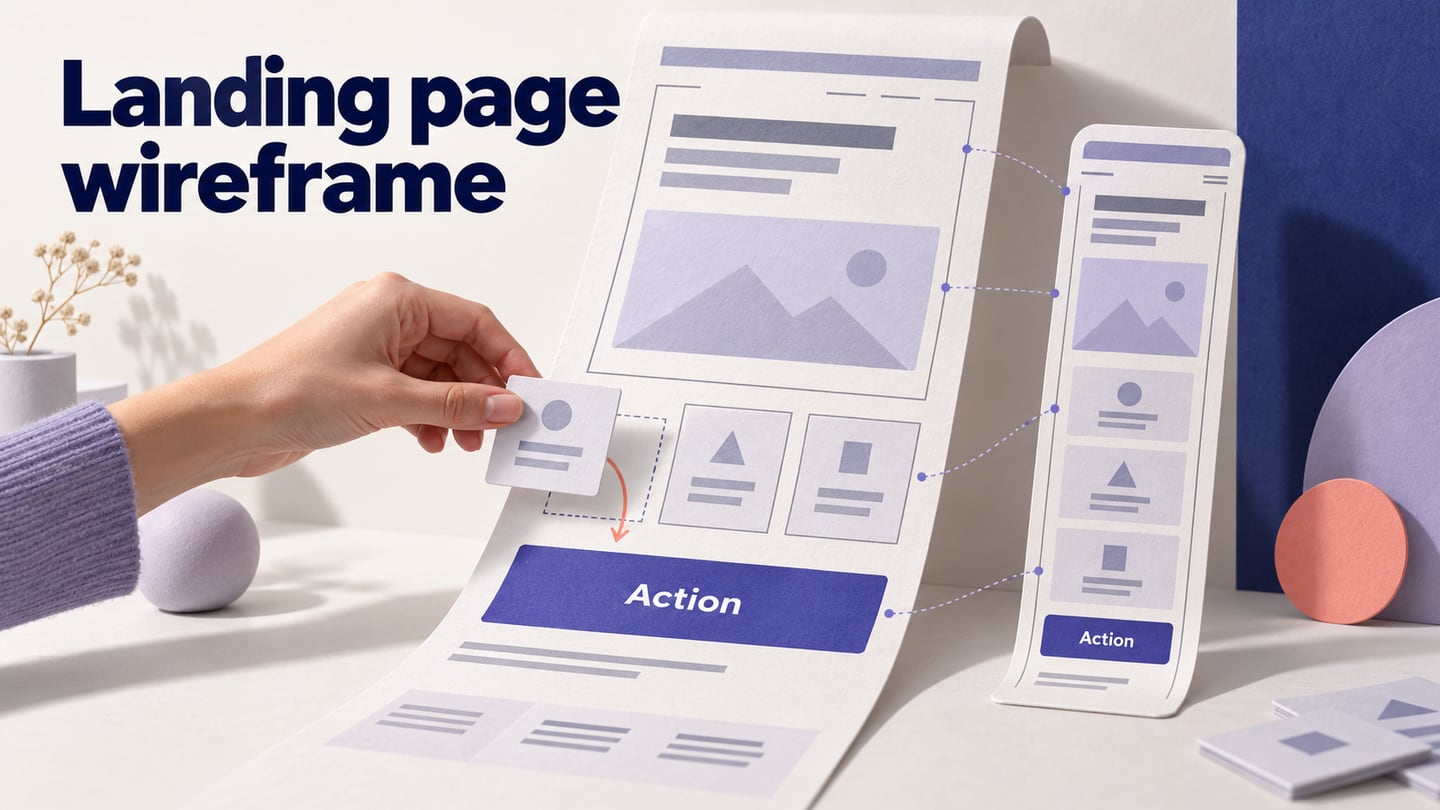
A landing page wireframe decides what a visitor needs to understand before taking one intended action. It sets the order of the message, supporting evidence, form and next step before colors or photography distract from the task. This guide uses a sample online workshop registration page: the visitor needs to understand the topic, check the date and time zone, and register.
Choose a tool that lets you review the whole signup path
Mockitt can be used to arrange the page, link a signup action to another state and share the flow for review. A suitable template may give you a starting layout, but its sections should serve your offer. For the workshop example, a clear agenda and date are more useful than a carousel added only because it came with the template.
- Start with a relevant template or blank page, then name the sections: workshop promise, practical details, agenda, registration and confirmation.
- Use text, rectangles, inputs and buttons to organize content before choosing detailed images or decorative effects.
- Connect the CTA, form and confirmation state so a reviewer can follow the complete registration task.
- Share the prototype for feedback and check which viewing or commenting options your account supports.
- Preview the layout at desktop and mobile sizes. If you need an export for a review, confirm its format and availability in the current plan; a prototype export is not a functioning registration service.
How to Create a Wireframe for Landing Page
The four steps below follow the original project, design, preview and sharing workflow. The example content is illustrative: use your actual workshop date, time zone, duration and registration conditions in a real project. The retained operation captures show an earlier Mockitt interface, so current controls may appear in different places.
Step 1: Set the visitor goal and create the page
Create a new project or choose a layout that suits a landing page. Write the page’s primary action before arranging it: “Register for the workshop.” A page that instead asks people to start a trial or contact sales needs different supporting information, even if it uses the same visual template.
Create a desktop page and a narrow-screen version for mobile review. Add a confirmation screen and an error state for the registration form. On mobile, keep the workshop topic, date, time zone and primary action understandable without forcing the visitor to inspect a wide desktop layout.

Step 2: Arrange the message, evidence and form
Build a rough content sequence before fine styling. Start with the workshop’s topic and intended audience, follow with the date and practical details, show the agenda, and place the registration form where the visitor has enough information to decide. If the page is long, repeating the same registration action can be helpful; competing actions need a stronger reason.
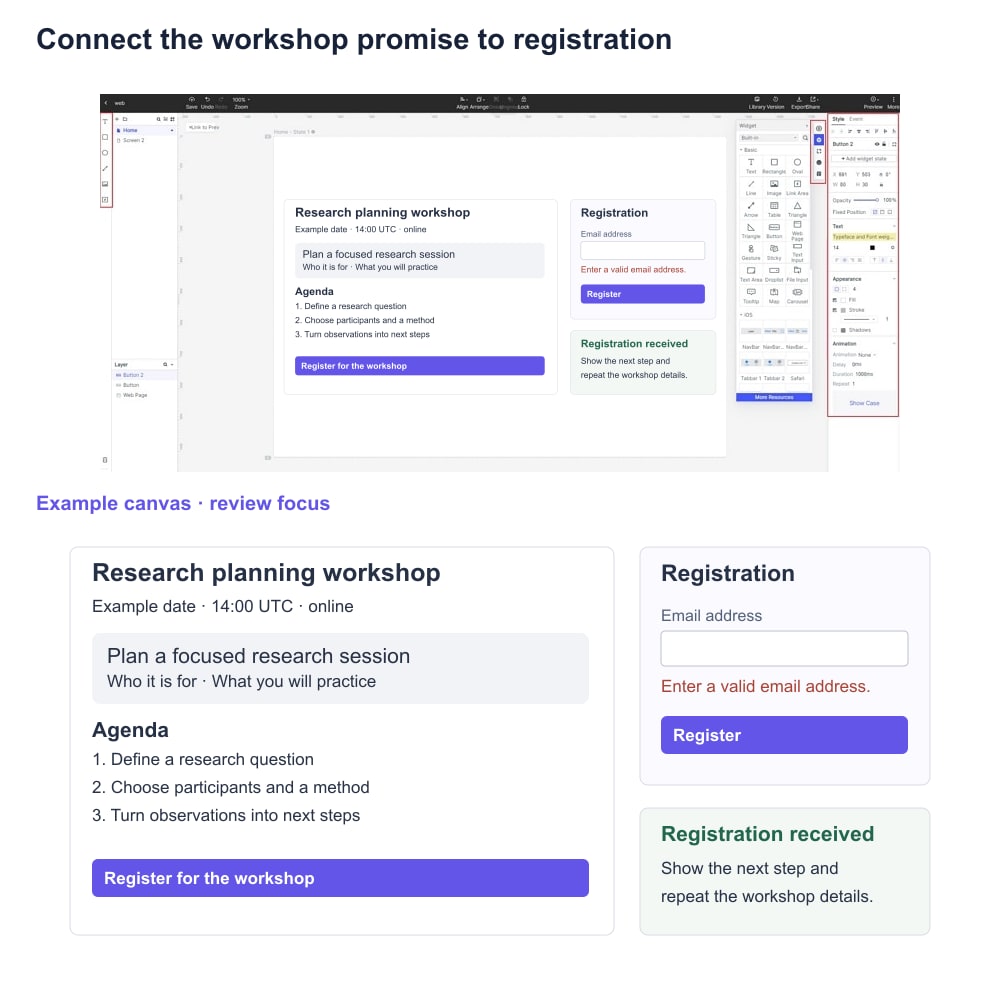
- Add widgets and other elements. Drag text, shapes and form controls onto the canvas. Use short, realistic labels such as “Work email” and “Register,” and reserve space for longer text. A gray image block is enough until the image has a clear job, such as identifying a real speaker.
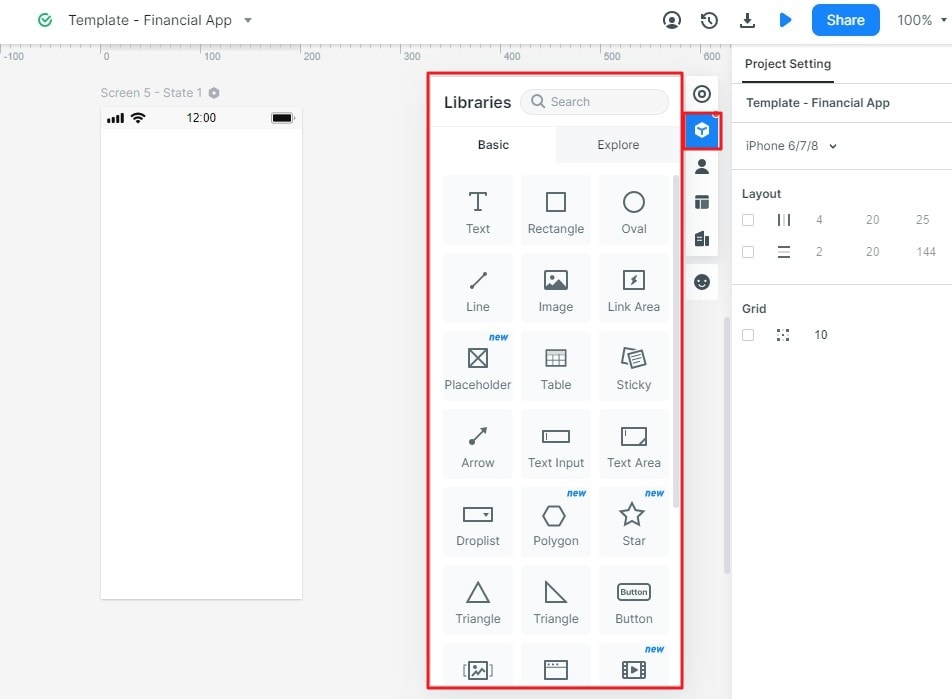
- Edit the added widgets. Adjust the size and spacing of the headline, details and CTA so their hierarchy is clear without relying on color. Reuse the same button style for the same action. Put the time zone beside the date instead of hiding it in a footnote.
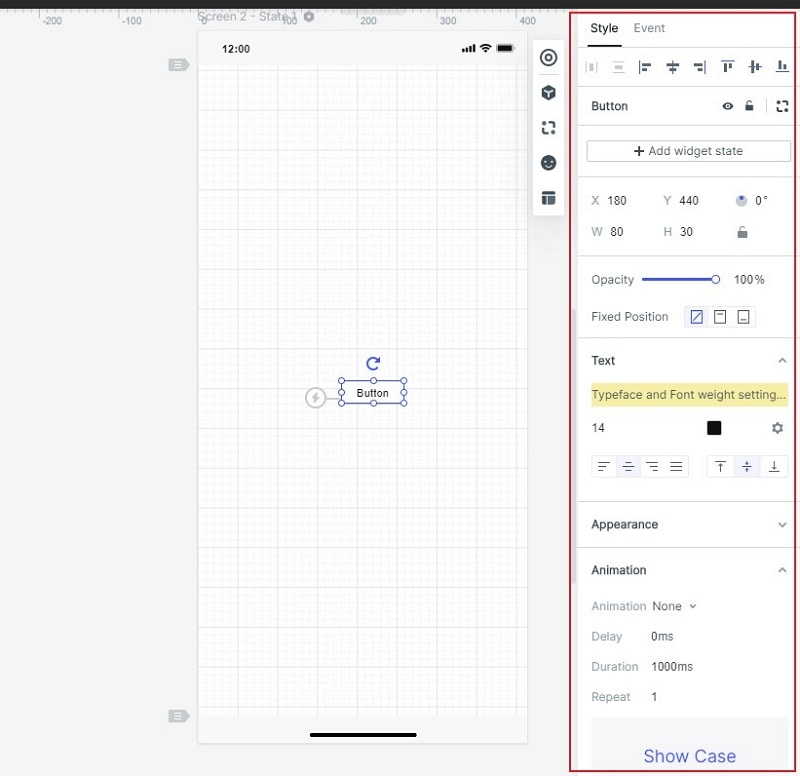
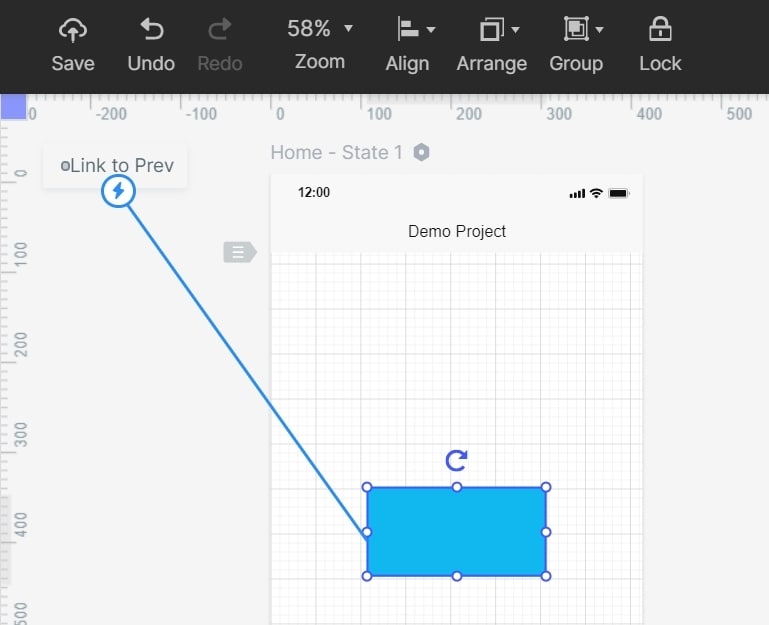
- Link the elements. Connect the registration button to the form or confirmation state. Add an invalid-email state that preserves the other fields, and a route back from confirmation if a correction is allowed. These links simulate the journey; sending confirmation email requires a production implementation.
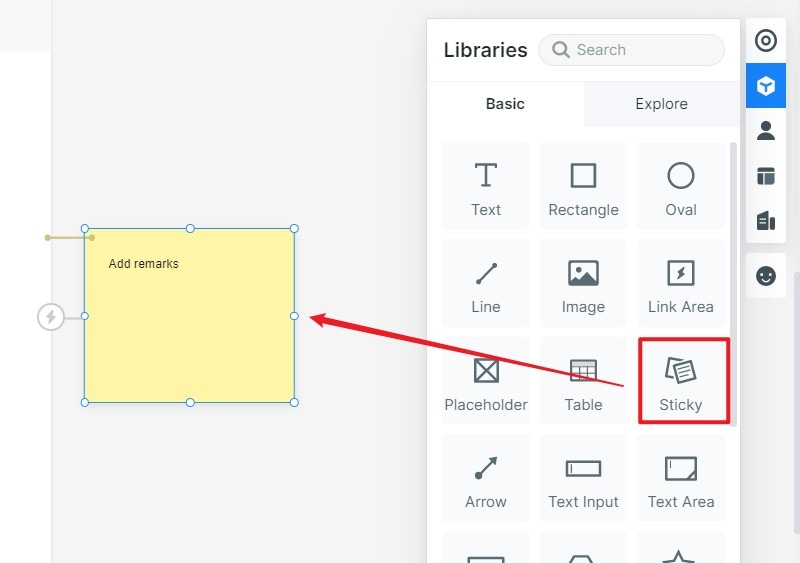
- Add notes to the design. Record which fields are required, what the visitor receives after submitting and who owns the real registration data. Mark any unknown attendance limit or cancellation rule as an open question. Do not invent testimonials or attendee counts to fill the page.
- Model only the interactions that matter. A submitted state, a field error and a clear return path usually provide more useful review material than decorative animation. If a demonstration video is essential to the offer, reserve its space and define the fallback message before deciding how it will be embedded.
Step 3: Preview the page as a first-time visitor
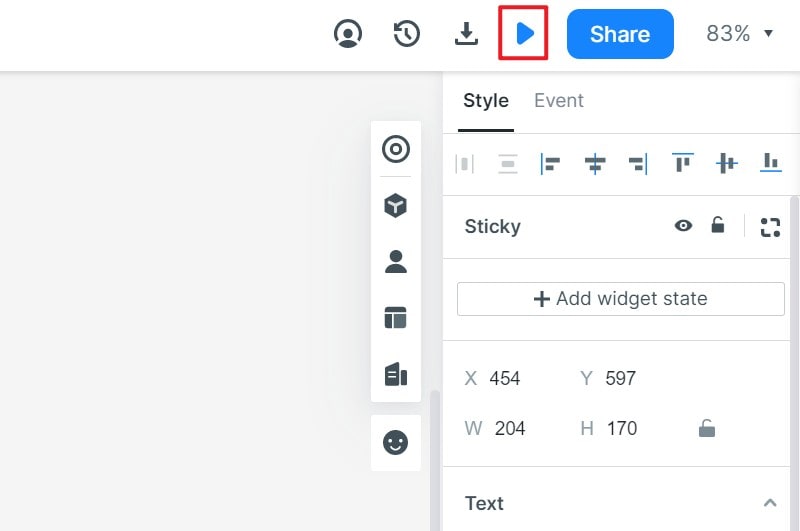
Open Preview and attempt the registration task without using editor controls. Check whether the topic, intended audience, date and time zone are easy to find; then submit the sample form with both a valid and an invalid email. Review the narrow-screen layout as well: labels should stay beside their fields, text should not clip, and the confirmation should say what happens next.
Step 4: Share the flow and resolve unclear decisions
Share a current review link with a colleague who has not seen the draft. Ask, “What is this workshop for, and what would you do to register?” Record what they miss before explaining the page. If they misunderstand the date, revise the information placement; if they hesitate over the form, inspect the fields and next-step message. Test the link’s access settings before sharing outside the team.
Smart Tips for Creating Wireframe for a Landing Page
Use these tips to improve the wireframe’s message and flow before adding detailed visuals. The aim is a comprehensible registration decision, not a guarantee of a particular conversion rate.
- Learn from comparable landing pages. Study pages for the same kind of offer and traffic source. Note which questions they answer before the form rather than copying their section count or decorative effects.
- Choose a template by structure. A workshop needs time, audience, agenda and registration details. Keep those sections even if another template looks more impressive; remove sections that add no useful information.
- Keep the action consistent. Use the same name for the primary action throughout the page. “Register” and “Get a demo” describe different commitments and should not lead to the same unexplained form.
- Add fidelity when it answers a question. Refine typography, image choice and contrast after the information order is agreed. Add interaction detail when reviewers need to understand a form state; high fidelity is not a requirement for every early wireframe.
- Iterate around one observed issue. Keep a copy of the previous layout and record what changed, why it changed and what you will check next. Avoid changing the message, form and CTA simultaneously if you need to understand which revision resolved the confusion.
The finished wireframe should show a coherent path from understanding the workshop to registering and receiving confirmation. Once that path is clear, use the Mockitt prototyping workspace to refine the layout and share the next review. Keep visual approval separate from testing the real form, email delivery and registration system.