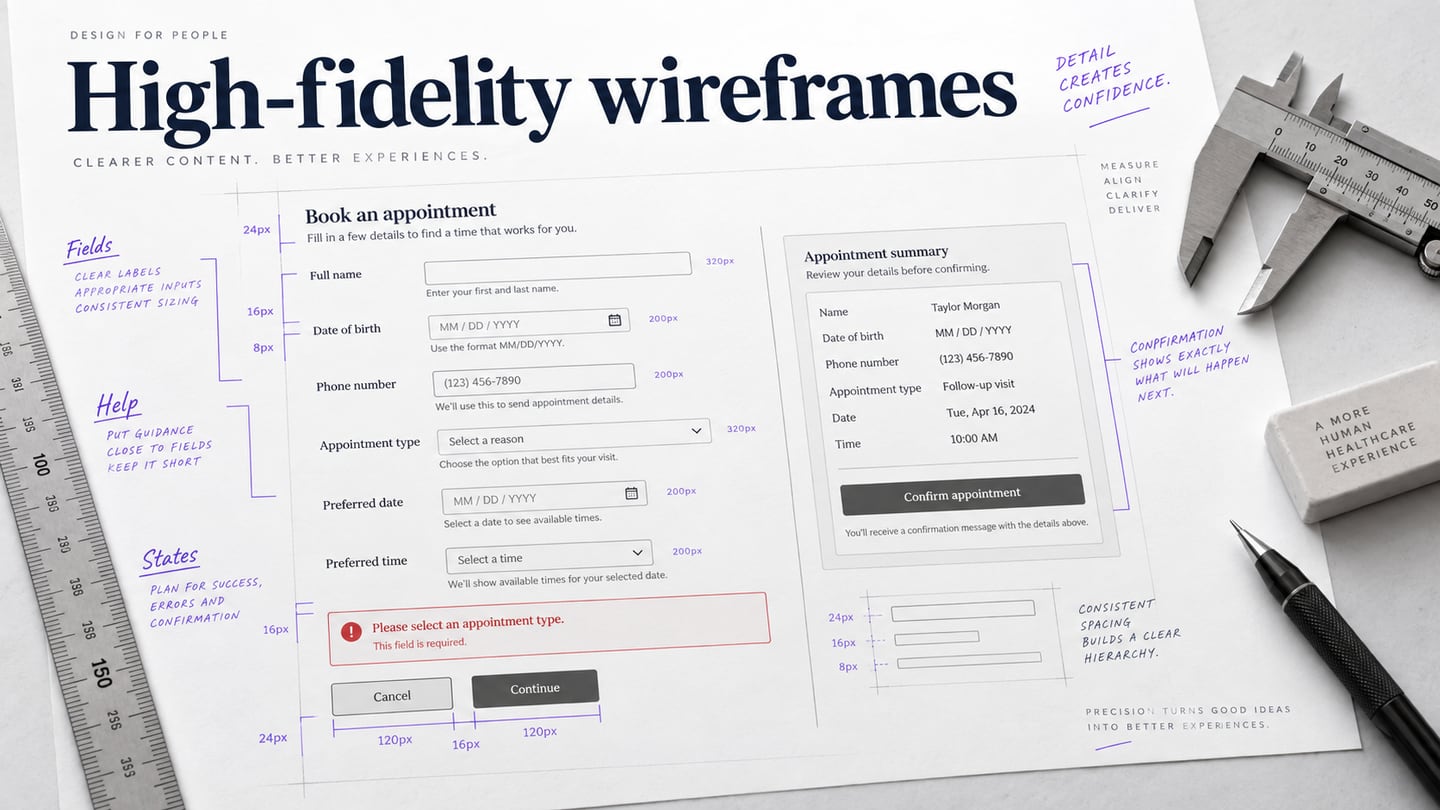
A high-fidelity wireframe describes a screen’s structure in enough detail to review real content, precise spacing and important states. It can remain grayscale and does not have to include working interactions. The aim is to resolve structural questions that a rough sketch leaves open—not to declare the interface finished.
What is High Fidelity Wireframe
The term usually refers to a detailed wireframe with realistic labels, field content and component placement. Teams use fidelity terminology differently, so name the deliverable explicitly: for example, “a grayscale appointment form with validation states.”
- A visual mockup concentrates on the intended appearance; an interactive prototype represents behavior. A detailed wireframe may contribute to either, but neither visual polish nor clickability follows automatically from the label “high fidelity.”
- Use the extra detail to expose decisions: where required-field help appears, how a long label wraps, and what remains visible when an error occurs. A drawing cannot establish that validation, privacy controls or submission work in production.
When to Use a Detailed Wireframe
A detailed wireframe is useful when the page structure is broadly agreed but the team still needs to resolve exact content and form behavior. For a clinic appointment request, those questions include required fields, appointment-type explanations and where an unavailable-slot message belongs.
It is less useful to polish uncertain layouts before the main task is clear. Start rough when comparing different structures, then add the detail needed to review the chosen direction.
Build a Detailed Appointment Form
In Mockitt, create a detailed grayscale form and annotate the states that matter. Use fictional appointment details and keep personal health information out of this example.
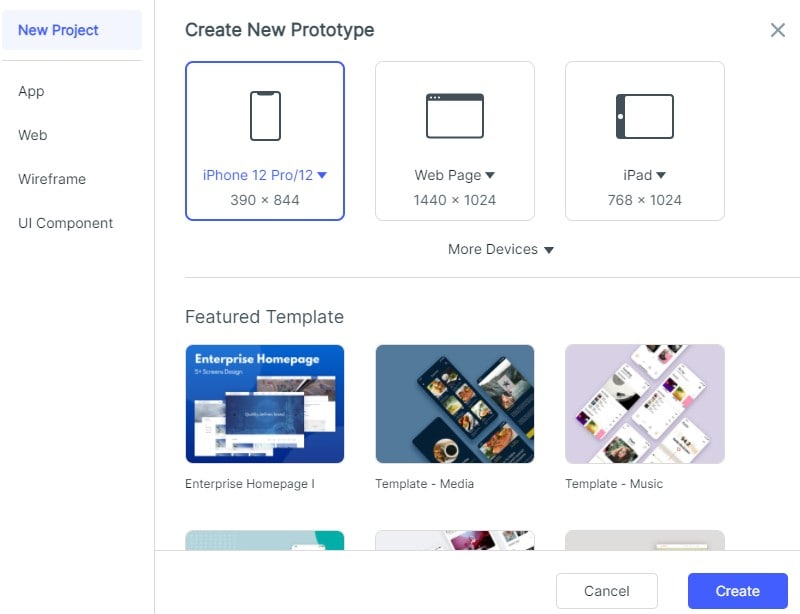
- Begin with a suitable screen size and replace any template content with the actual field labels under discussion.
- Share a specific review version and verify recipient access before collecting comments.
- Add interactive connections only if reviewers need to follow the proposed form states. Static states with clear annotations may be enough for a content and layout review.
The walkthrough below builds a clinic appointment request. The older screenshots retain useful examples of editor operations, while the accompanying form scenario shows what those operations are for.
Step 1: Sign in to Your Mockitt Account
Open your workspace and identify the review goal: can a person understand the appointment type, choose a proposed slot and recover from an incomplete form?
Step 2: Create the Form States
Create a screen for the default form, a required-field error, an unavailable slot and an example request confirmation. These are design states, not proof that a clinic has received an appointment request.
Step 3: Place Fields, Labels and Messages
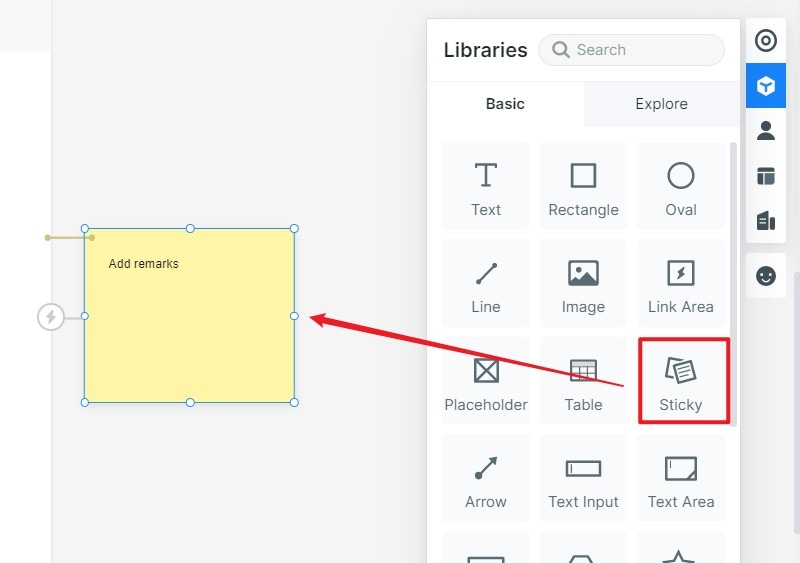
Place a clear page heading above appointment type, preferred date, available time and contact fields. Use example names and addresses only.
Choose controls that match the intended input, and write labels that remain visible after a value is entered. Placeholder text alone should not carry an essential instruction.
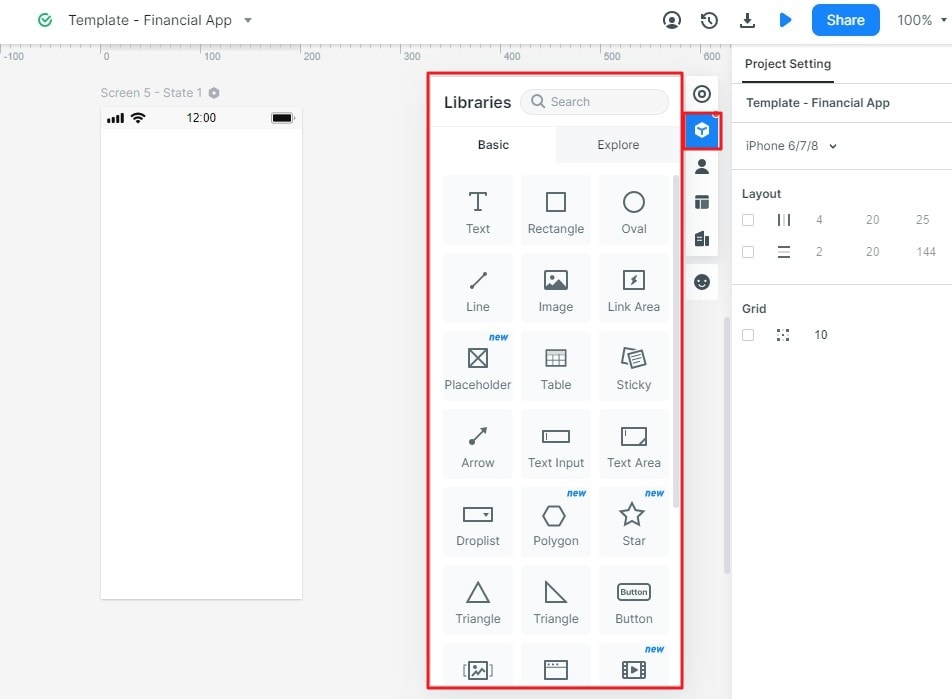
Set consistent spacing between label, control and help text. Add a required-field message beside the affected input and a summary where the proposed design needs one. Keep the main action visible without obscuring the explanation.
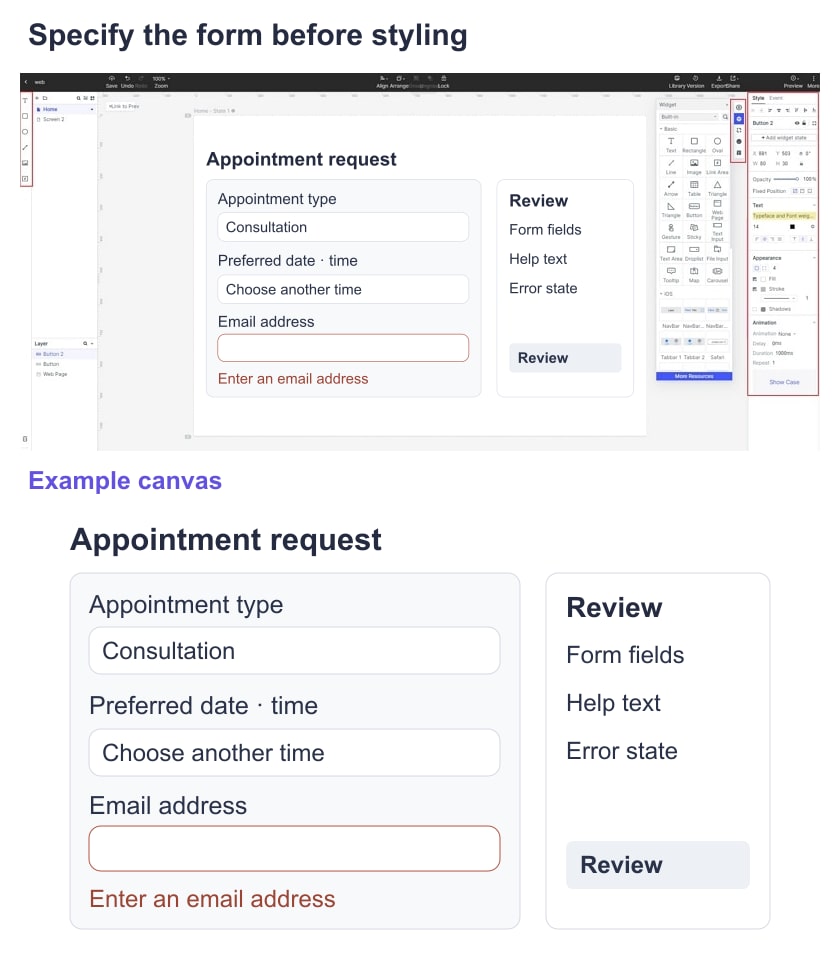
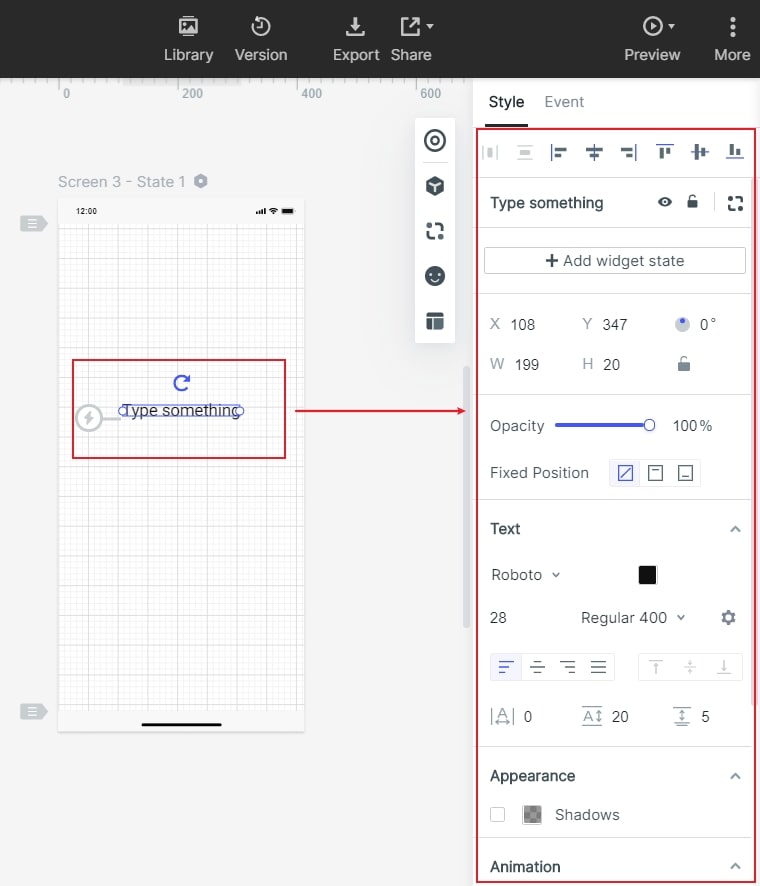
Step 4: Reuse Field Patterns
Reuse field and message patterns across states. If the wording changes, update it consistently so reviewers are comparing behavior rather than accidental copy differences.
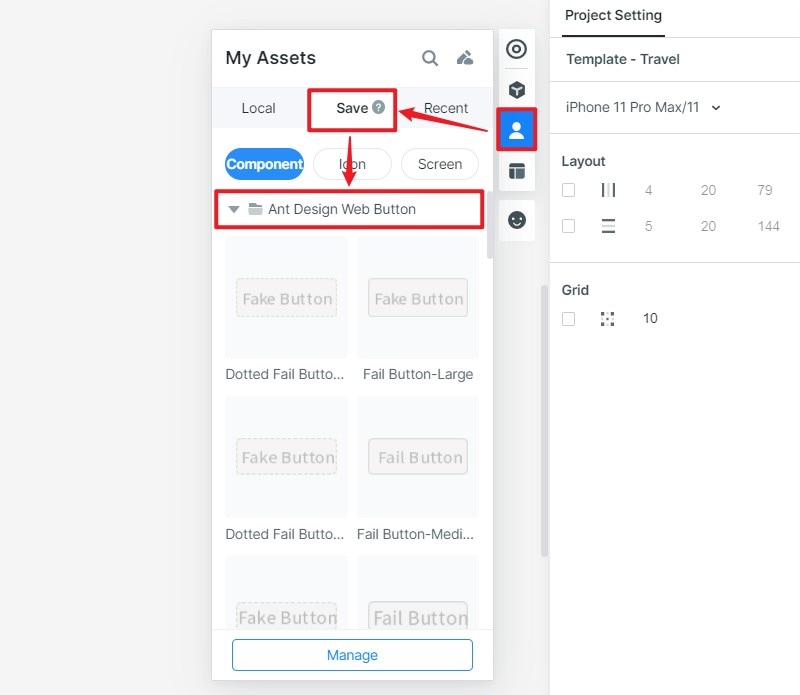
Step 5: Connect States When Needed
When adding links, connect the default form to a review state, then to an example confirmation. Include a route from an unavailable slot back to time selection. Use annotations for conditions that the prototype does not enforce.
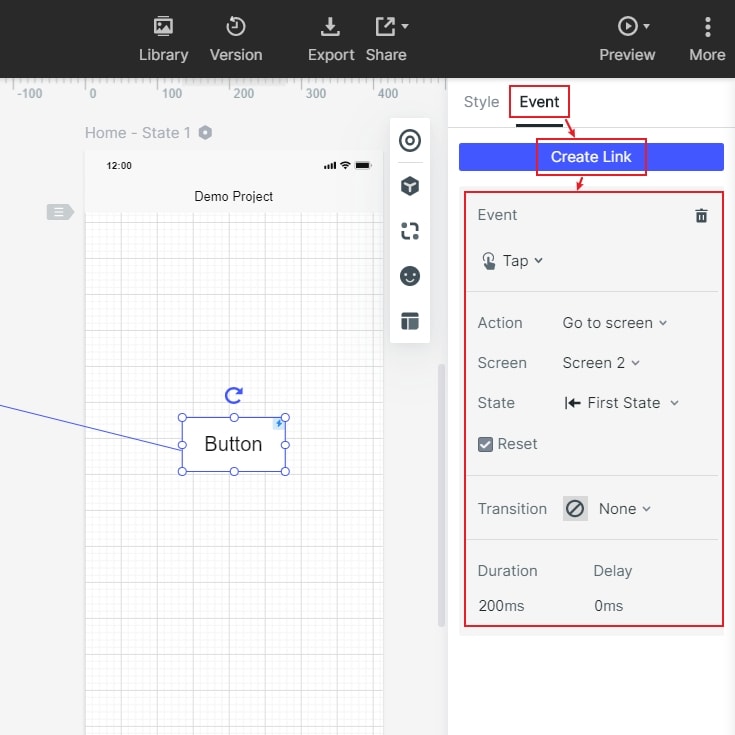
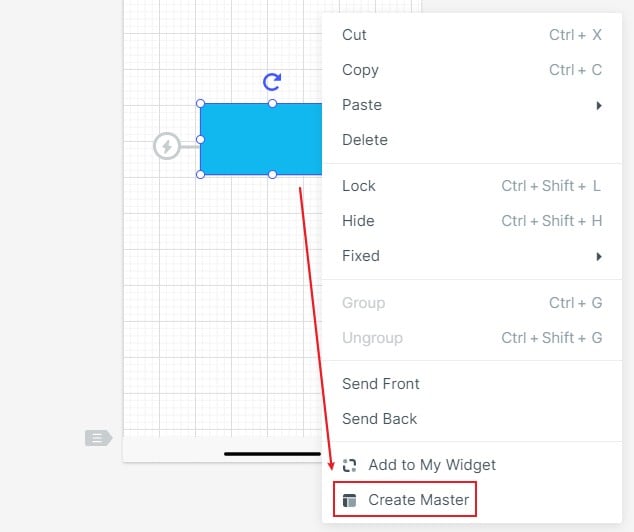
Step 6: Reuse Shared Elements
Reuse common form controls or a shared header so structural changes can be applied consistently. In older editor versions, these reusable groups may be labeled as masters.
Step 7: Annotate Unresolved Decisions
Attach notes to unresolved decisions: which fields are required, when a slot becomes unavailable, and what the confirmation actually means. End the review by recording the agreed field order, error placement and remaining implementation questions; do not replace those decisions with a general approval of the screen.