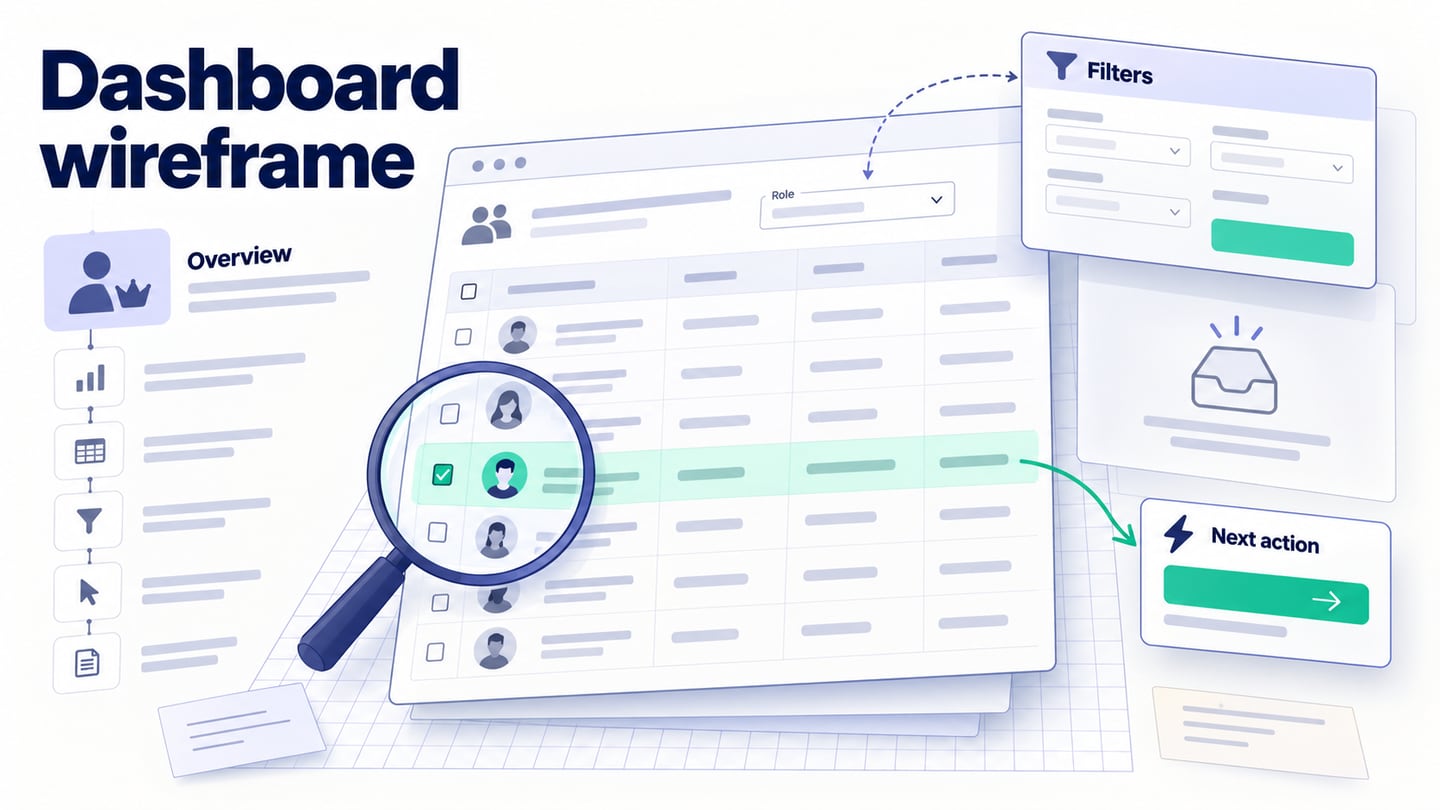
A dashboard wireframe maps the information and actions an administrator needs before the interface is visually polished. It can show a table, a filter or a permission message without implementing the underlying service. This tutorial develops a workspace-members dashboard: an administrator needs to find an inactive member, inspect their role and invite a replacement. The goal is a reviewable task flow, not a screen filled with charts.
Mockitt provides components, page links, preview and shared review for building this kind of dashboard prototype. Start with a small set of reusable elements: navigation, a table row, a filter and a primary action. A template can help with layout, but remove any metric or chart that does not support the administrator’s decision.
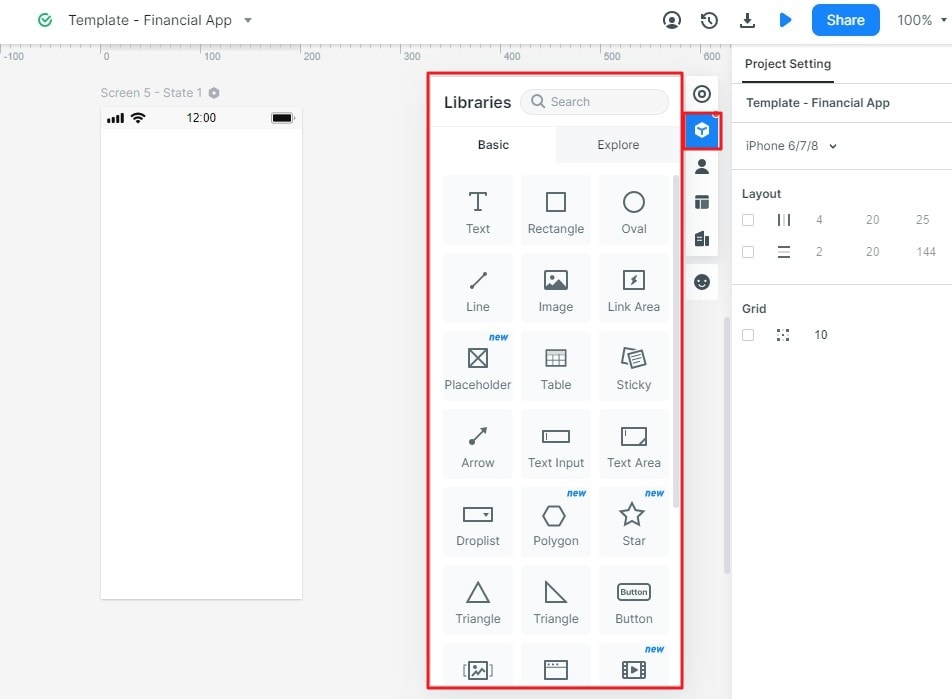
A shared project lets colleagues review the same design rather than reconcile separate attachments. Check the plan and access settings before inviting reviewers. A prototype and its handoff materials describe the interface; authentication, authorization, data queries and audit logging still need implementation. The retained screenshots below document an earlier Mockitt guide interface, so current control placement may differ.
How to Make a Dashboard Wireframe
Begin by writing the administrator’s task in one sentence: “Find a member who no longer needs access and replace them without changing the wrong person’s role.” Use synthetic member names and decide which roles may view, invite, change permissions or remove a member. These rules determine what the wireframe must show.
Step 1: Create a project around the admin task
Create a prototype project and begin with a desktop canvas for the member table. Name the first screen “Members — all,” then add “Member details,” “Invite member” and “Invitation sent.” Plan a narrow-screen version if administrators will use this flow on phones; do not simply shrink a wide table until the text becomes unreadable.

Step 2: Add only the information needed for a decision
Add a page title, member search, a role filter, the member table and an “Invite member” action. For the table, show a name, role, invitation or account status, and last activity. Define what “inactive” means in a nearby note rather than guessing a business rule. If you include a summary card, make its count and time window clear: “Active members in the last 30 days” is a different measure from “Members with an active account.”
Sketch the states before adding more widgets. A new workspace needs an empty state with an invitation action. A filter with no matches needs a way to clear the filter. A viewer without admin rights needs an explanation of what they can see and whom to contact. A loading state should preserve the table’s place instead of making the whole page jump.

Step 3: Connect selection, action and feedback
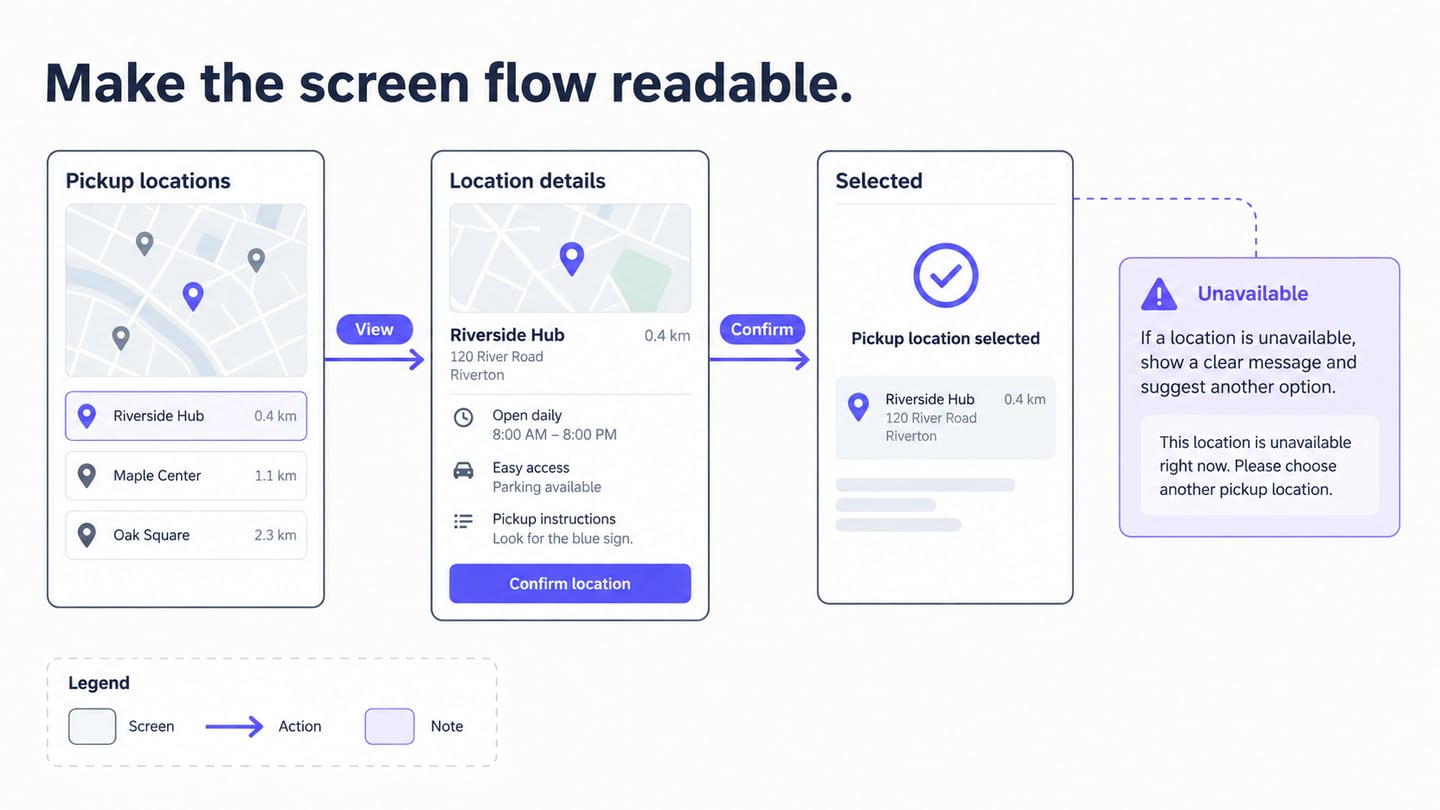
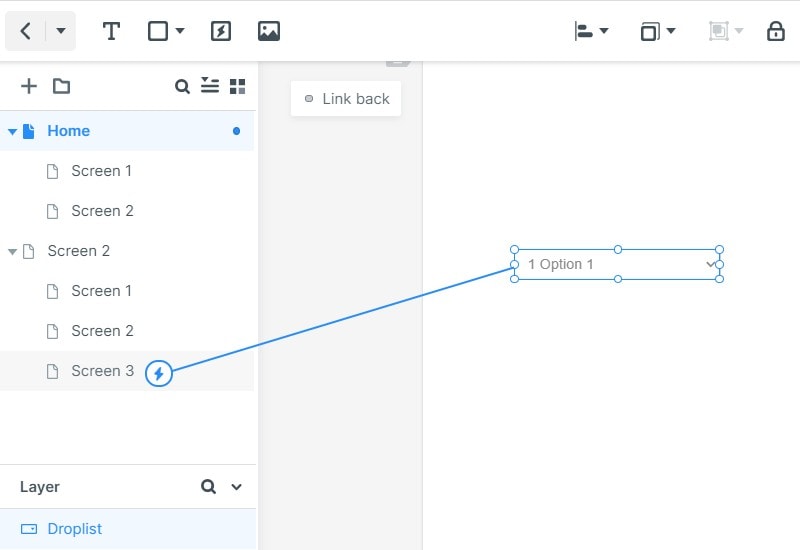
Connect a member row to its details and make the role control lead to a reviewable change state. Link “Invite member” to a form and then to an “Invitation sent” confirmation. The older linking capture below illustrates connecting an element to another screen; use the corresponding interaction controls in your current workspace.
Model the unsuccessful paths as well. An invalid email should explain how to fix the field without clearing other input; an already-invited member needs a distinct message; a failed request needs a retry route. For a destructive action such as removing access, show the affected member and a cancel option before confirmation. These are simulated design states, not evidence that account changes or invitations have been executed.
Step 4: Annotate rules and review with the right roles
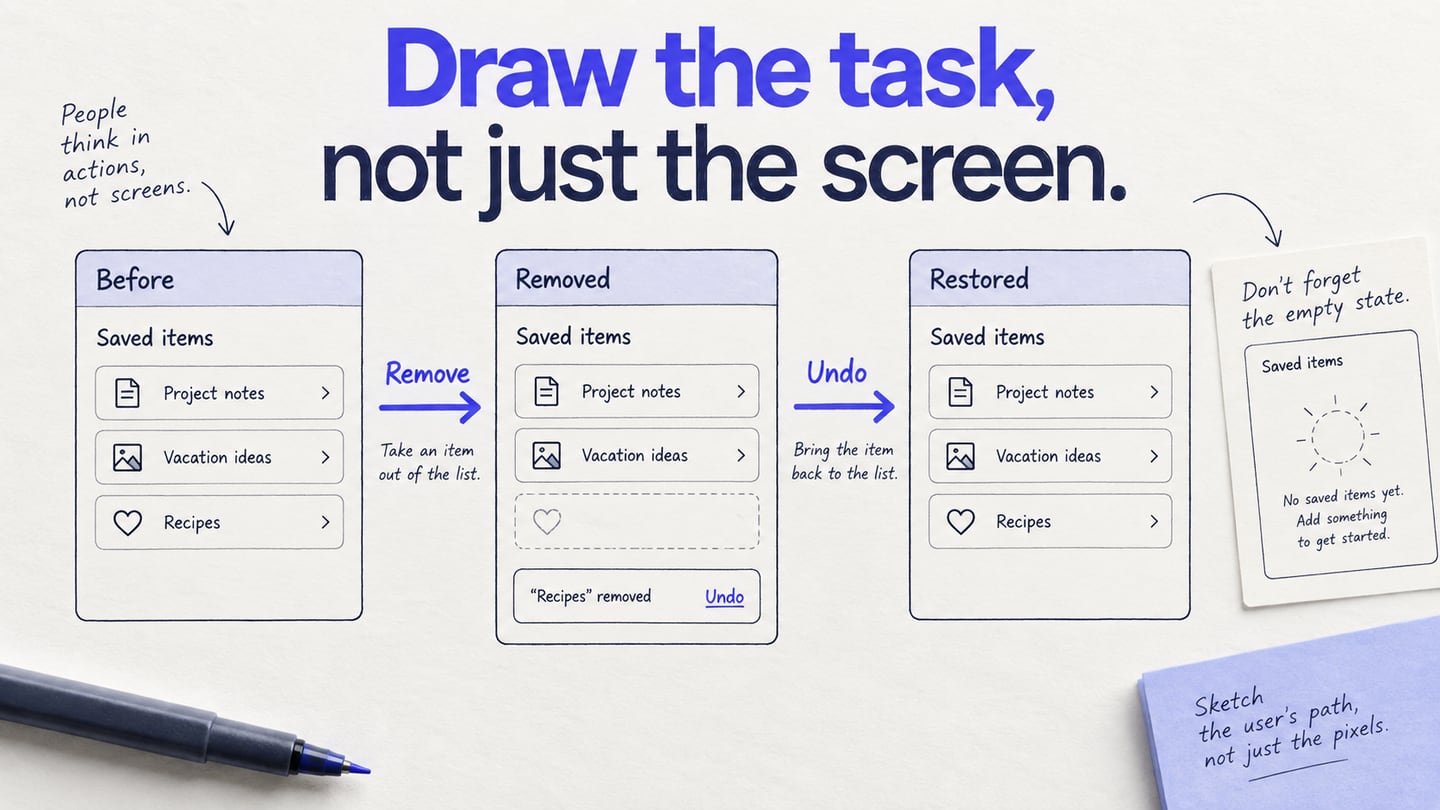
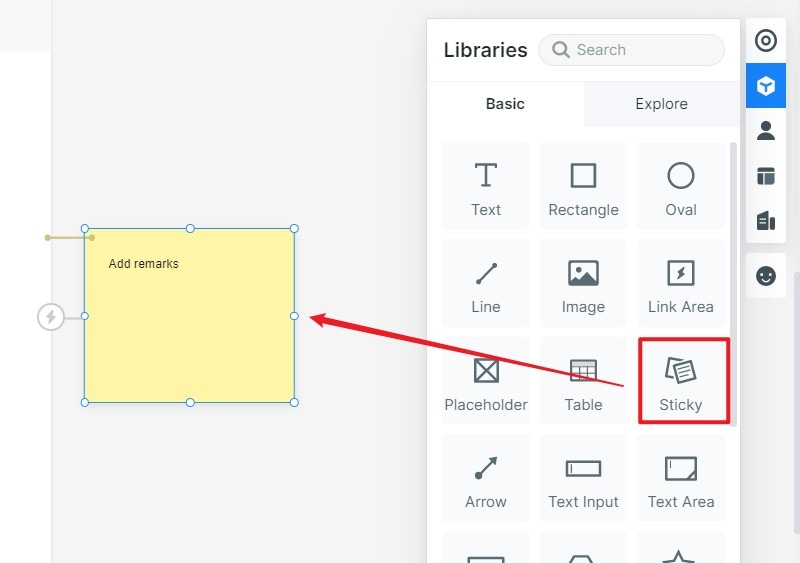
Add notes beside the controls they explain. Specify who may change a role, what happens to owned work when access is removed, how activity is calculated and whether an invitation can be resent. The Sticky example below shows one way to keep such explanations next to a design. Unresolved rules should be marked as questions with an owner, not hidden in a polished screen.
Use a component state when a small change, such as an open role menu or selected table row, needs to be demonstrated. Use a separate screen when it makes the larger task easier to review. Reuse table rows and buttons consistently, but do not let a reusable component dictate an incorrect permission rule.
Share the prototype with someone who performs the admin task and someone responsible for access rules. Ask them to find a member, inspect access and send a sample invitation, then repeat the task as a viewer without admin rights. Record confusion and missing states. A successful walkthrough supports the design decision; it does not test real authorization or data integrity. Add the agreed rules to the handoff before developing the final interface.
Tips for Creating a Dashboard Wireframe
A dashboard wireframe should be simple enough to read and detailed enough to expose a bad decision. For the members example, a short, well-labeled table is more useful than a decorative overview of unrelated numbers. Use these four checks as you refine the original layout.
- Keep it simple but useful. Put the information needed to identify the correct member before secondary statistics. Keep destructive actions distinct from ordinary navigation, and avoid placing every possible action on each row.
- Understand the business rule. Clarify roles, ownership and the definition of activity before selecting widgets. Where a rule is still undecided, sketch the alternatives and mark the decision needed rather than silently inventing an answer.
- Name assets by purpose and state. Use names such as “Members — no results” and “Invite — email error.” Reuse a table row or action button consistently so a later change does not create conflicting behavior across screens.
- Practice the interactions the task needs. Learn how your workspace links screens, presents component states and shares a review. Test those few operations on the sample flow before building a much larger dashboard.
Before moving to visual design, the team should be able to trace the main task, explain each metric, identify who can take each action and point to the empty or failure state for each important control. If any of those answers are missing, revise the wireframe while the cost of changing its structure is still low.