A mobile wireframe reference can help you explore a layout before drawing from a blank canvas. It is useful when you can explain what the arrangement helps a person do: compare items, inspect details, enter information or recover from an empty result.
The eight credited examples below show different approaches to mobile layouts. They are visual references, not a verified collection of downloadable, free-to-use templates. Check the creator’s terms and the availability of an editable file before reusing an asset. The analysis focuses on what to borrow as a design idea and what still needs review.
Eight Mobile Wireframe References
1. Sports App Concept by Kishore
This sports concept separates prominent activity information from supporting controls. Study the hierarchy and grouping rather than assuming that the bright colors or card arrangement will work for every task. If you adapt it, replace the demonstration values with realistic content and check whether the main action remains clear with longer labels.
2. Furniture App by Naresh Bingi
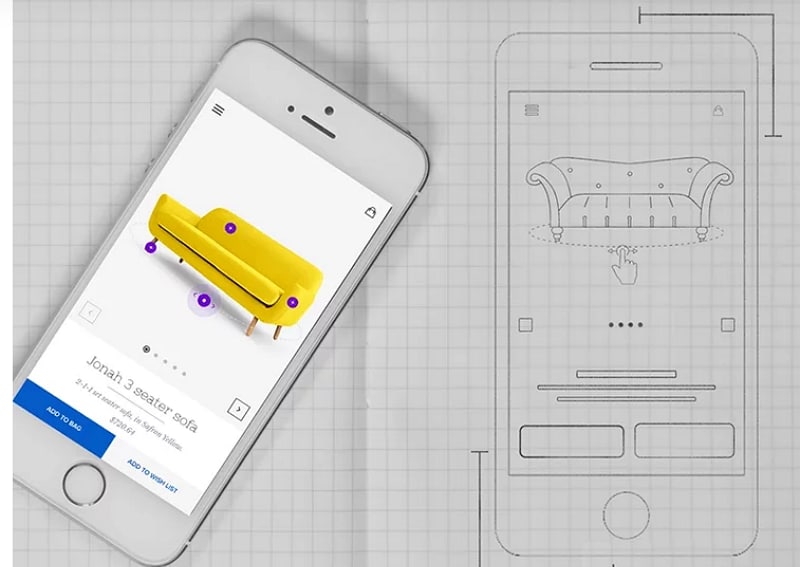
The furniture detail screen gives a product image a clear place above product information and an action. The creator’s original sketch is a useful reference for a focused detail page. The still image does not demonstrate rotating furniture or a tested purchase flow; those would need separate states and behavior.
3. Health App by Son Min
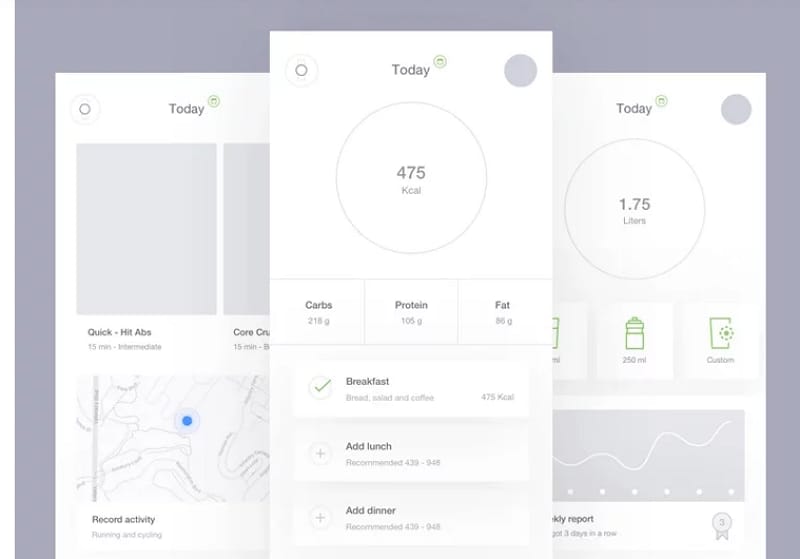
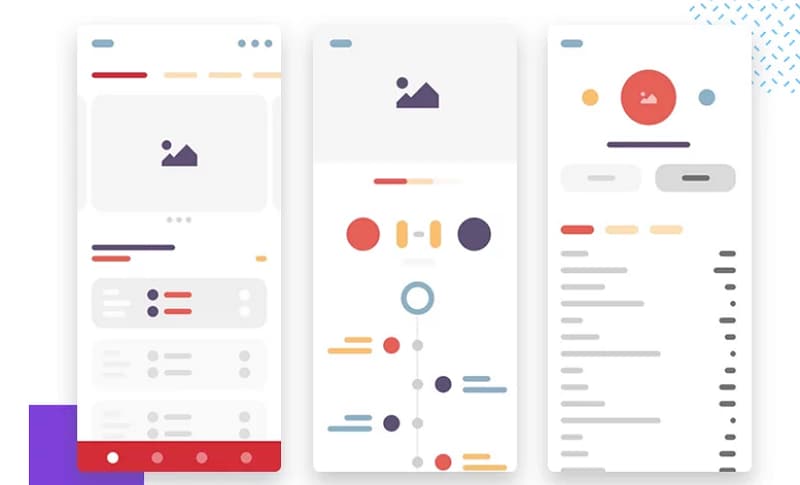
The health-app reference groups activity data into distinct sections. The creator’s activity-timeline concept can inform a discussion about which measure belongs first and how supporting values are labeled. A tidy display alone does not establish that the information is accurate, accessible or easy for a particular audience to interpret.
4. Digital Micro-loan Concept by Tanzir
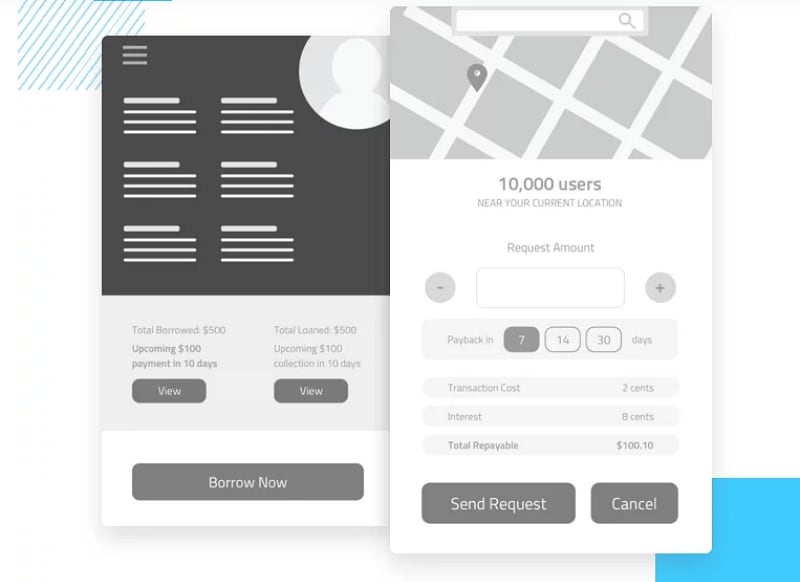
This concept uses spacing to separate content and actions. Observe how the screen moves from information to a decision, then check the terms, units and conditions that the example leaves out. Spacing can support clearer controls, but it does not by itself prevent incorrect taps or make a financial flow suitable for release.
5. Low-Fidelity to High-Fidelity by Heavyweight
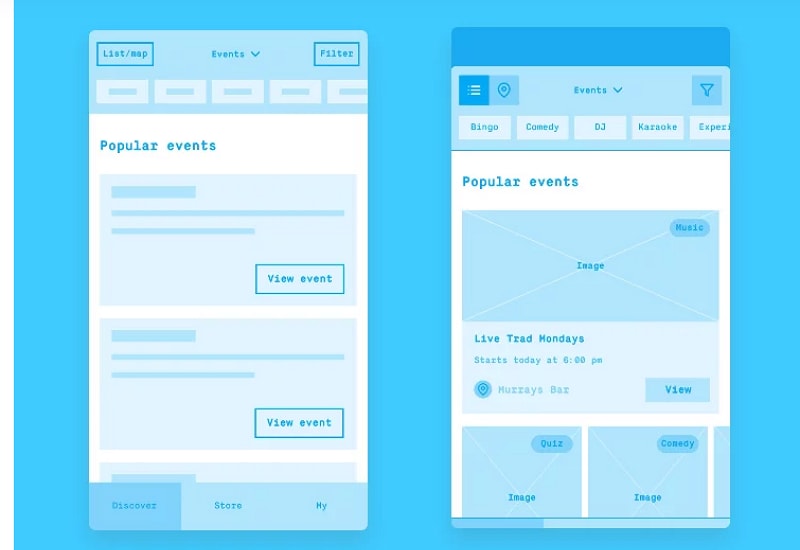
These variations show how a similar structure can be explored at different levels of detail. Compare the position of the content and actions before comparing the colors. Keep the task and sample information constant when reviewing two versions, so a changed result is not caused by entirely different content.
6. App Wireframe and User Flow by Rohit Bind
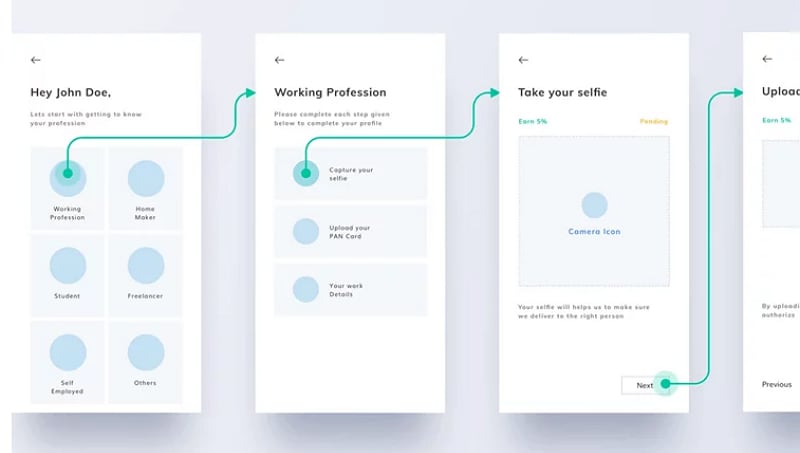
This reference combines individual screens with their connections. It is useful for tracing where a person starts, which choice they make and where they arrive. Inspect the labels on each branch and add a return or correction path where the real task needs one; a clean diagram does not prove that all routes are covered.
7. Finance App by Priscilla Wong
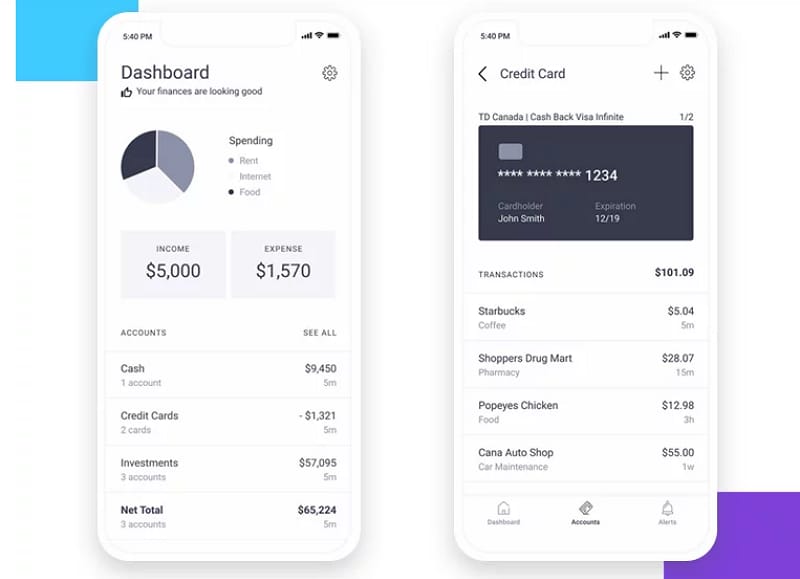
The finance dashboard places account information and actions in a compact screen. Study the grouping, labels and prominence of important values. More data is not always better: a real version needs clear units, dates, unavailable-data states and a deliberate decision about what the person should do first.
8. Workspace Finder App by Kishore
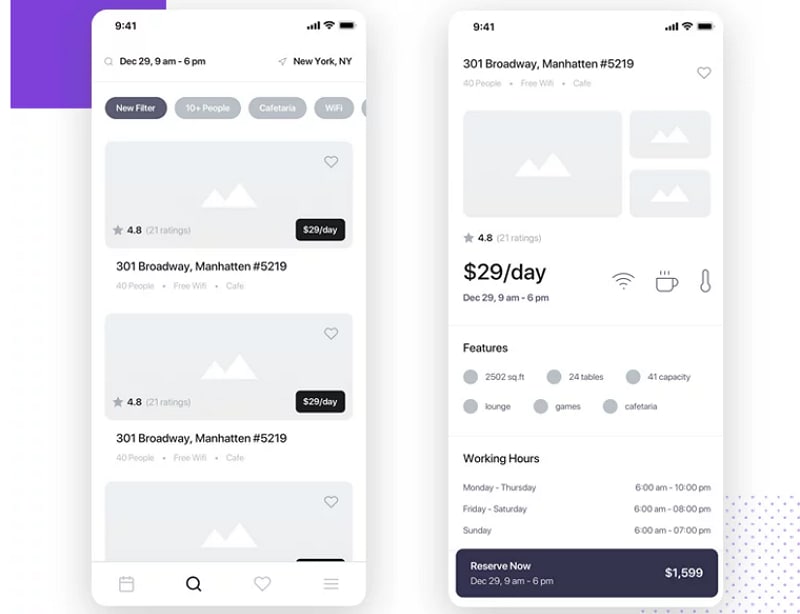
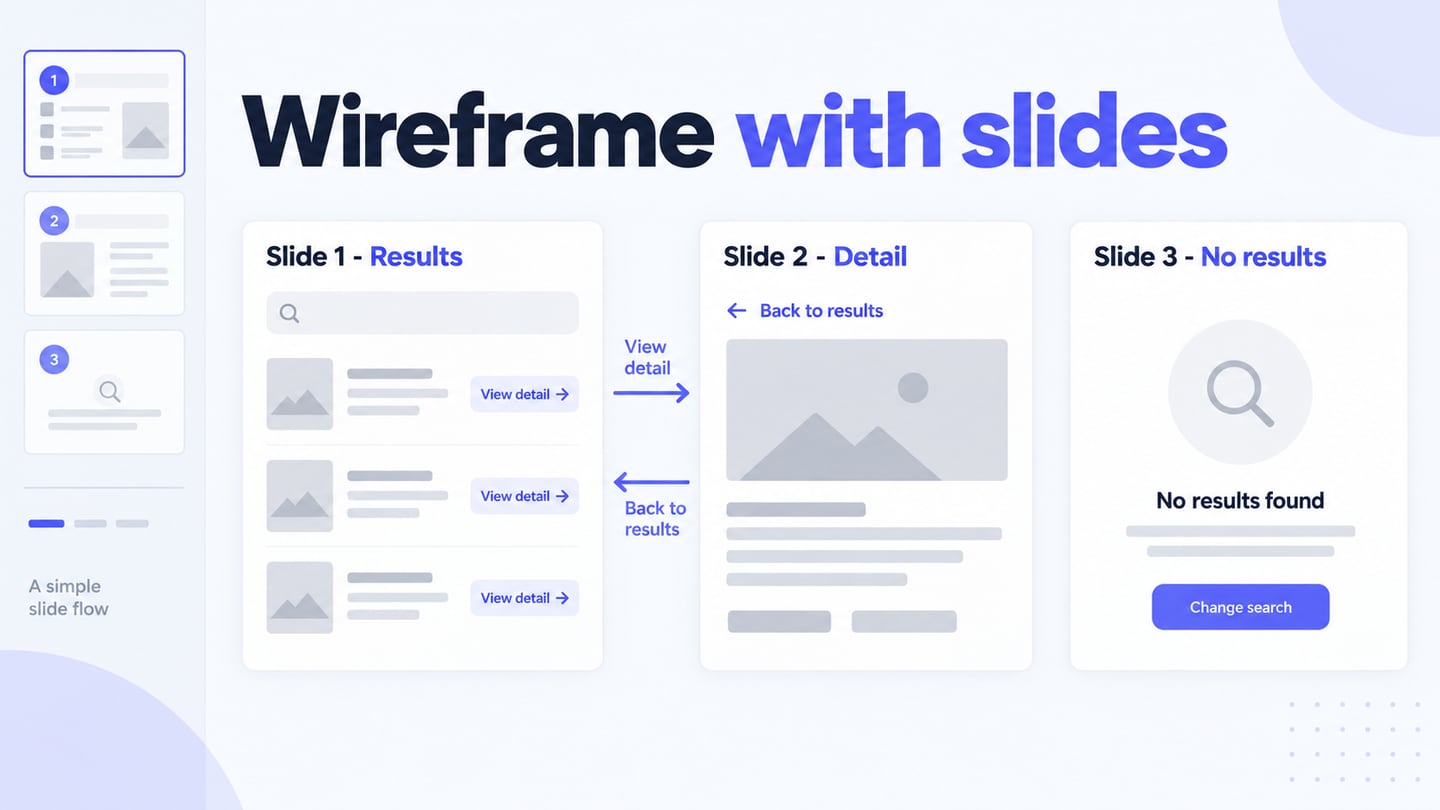
The finder concept connects a list of places with a detail view. It provides a useful starting point for discussing search criteria, comparable attributes and the information needed before choosing an item. Check what happens when there are no matches, a location name is long or an attribute is unavailable rather than assuming the illustrated route is complete.
Adapt a Reference to a Specific Mobile Task
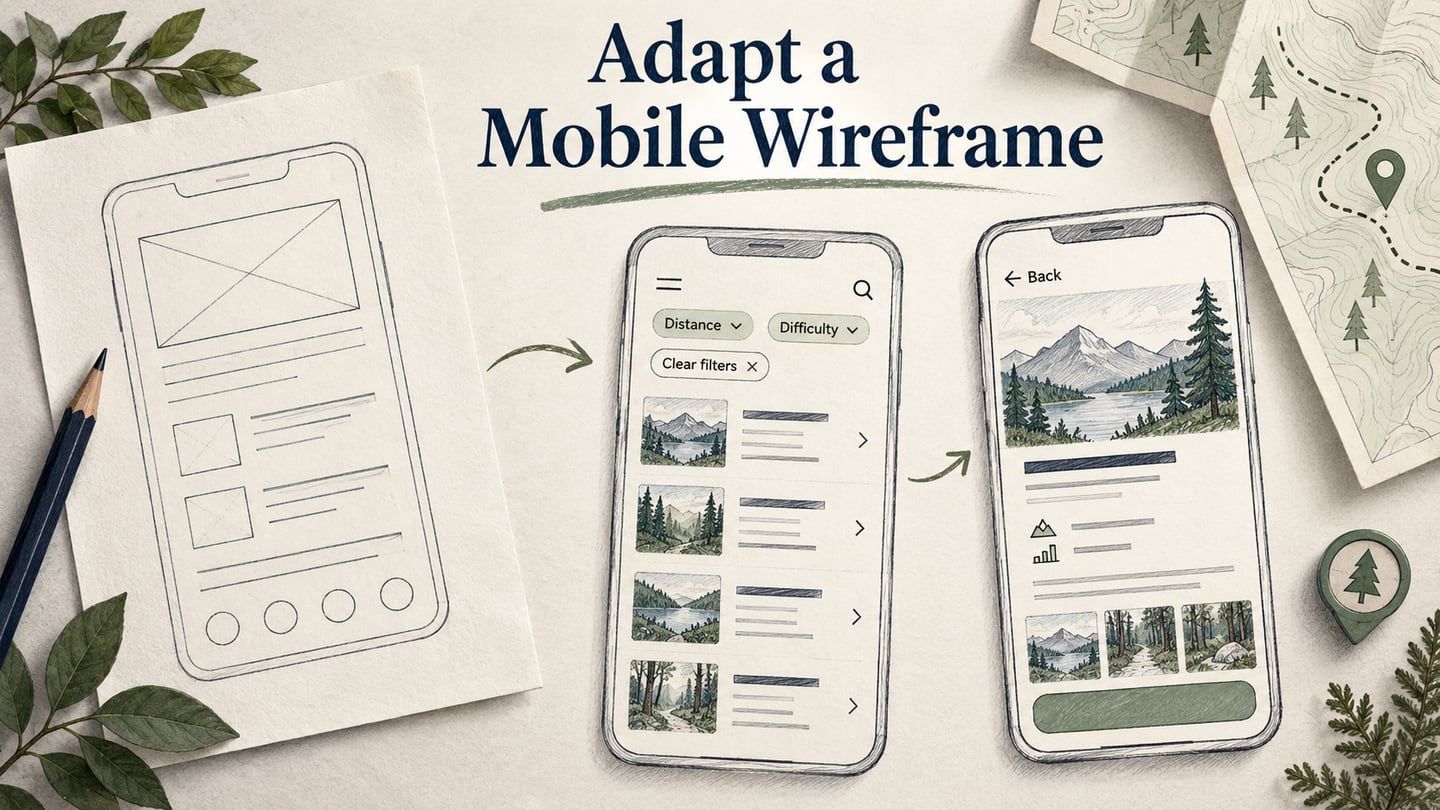
Use Mockitt’s prototype editor to explore the relevant structure with your own content. For a fictional walking-trail directory, borrow the finder’s list-to-detail relationship, not its business data or visual identity. Prepare three states: Trail list, Trail details and No matching trails. The exercise reviews information layout; it is not a source of real trail or safety advice.
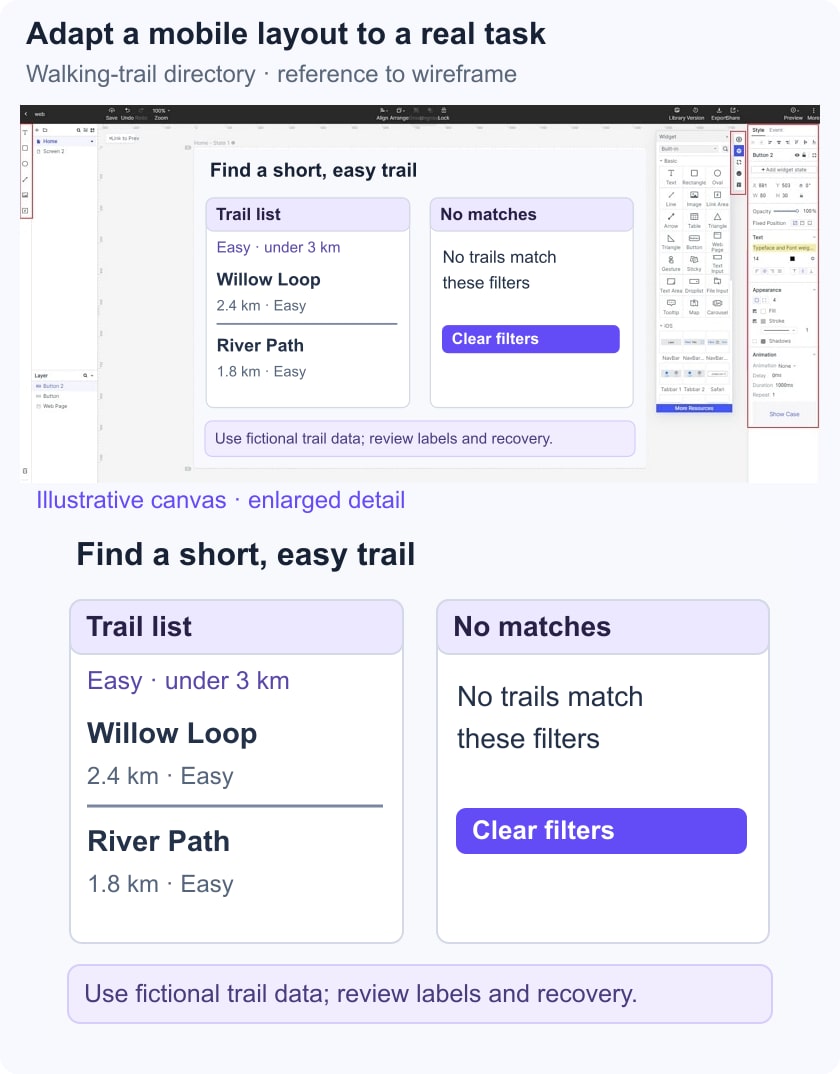
Start with the task “Find a short, easy trail and check its length before opening the details.” Give two fictional results explicit distance and difficulty labels. In a second state, select criteria with no matches and offer a visible way to clear them. Connect Back to the previous list and preserve the selected criteria in the proposed design. During review, record which attributes people compare, whether they understand the units and whether they can recover from the empty result.
Check the Adaptation Before Adding Visual Detail
Use a long trail name and an unavailable distance to test the layout’s limits. Compare the list and detail values so they do not contradict each other. Ask the reviewer to explain the selected trail using the visible information; do not treat a click on a card as proof of understanding.
Keep the original reference, your adapted screens and the reasons for each change together. Reusing a layout idea is different from redistributing a creator’s editable file. The useful outcome is a design decision you can explain, with any content and behavior questions still unresolved clearly recorded.