Want to Create PowerPoint Wireframe with Ease?
Use Mockitt to arrange screens and connect a reviewable flow when a slide-based wireframe no longer fits the task.

PowerPoint can be useful for a simple wireframe when your team already works in slides. Shapes represent interface elements, slides represent screens, and links can model a small navigation path. This guide explains that workflow and its limits before showing how to continue in a dedicated wireframe editor. Start with the structure and task, not a high-fidelity visual treatment.
Can you Use PowerPoint to Make a Wireframe Design
You can use PowerPoint’s shapes, text boxes, alignment tools, and duplicated slides to sketch a page layout. For example, rectangles can stand for a header, content cards, and a primary action. Use a consistent slide size so reviewers compare the layout rather than different canvas proportions.
A template or third-party stencil library can reduce repetitive drawing, but it is optional. The historical screenshot below uses an additional stencil library; those controls are not standard PowerPoint features. Start with built-in shapes if you want a file that colleagues can edit without installing an add-in.

PowerPoint is not limited to a throwaway sketch: you can refine the visuals and use slide links for a basic clickable flow. Its limitation is the amount of manual work needed to maintain many screen states, reusable interface elements, and complex interactions. Choose it for a small discussion or presentation, and reconsider when the number of linked states becomes difficult to review.
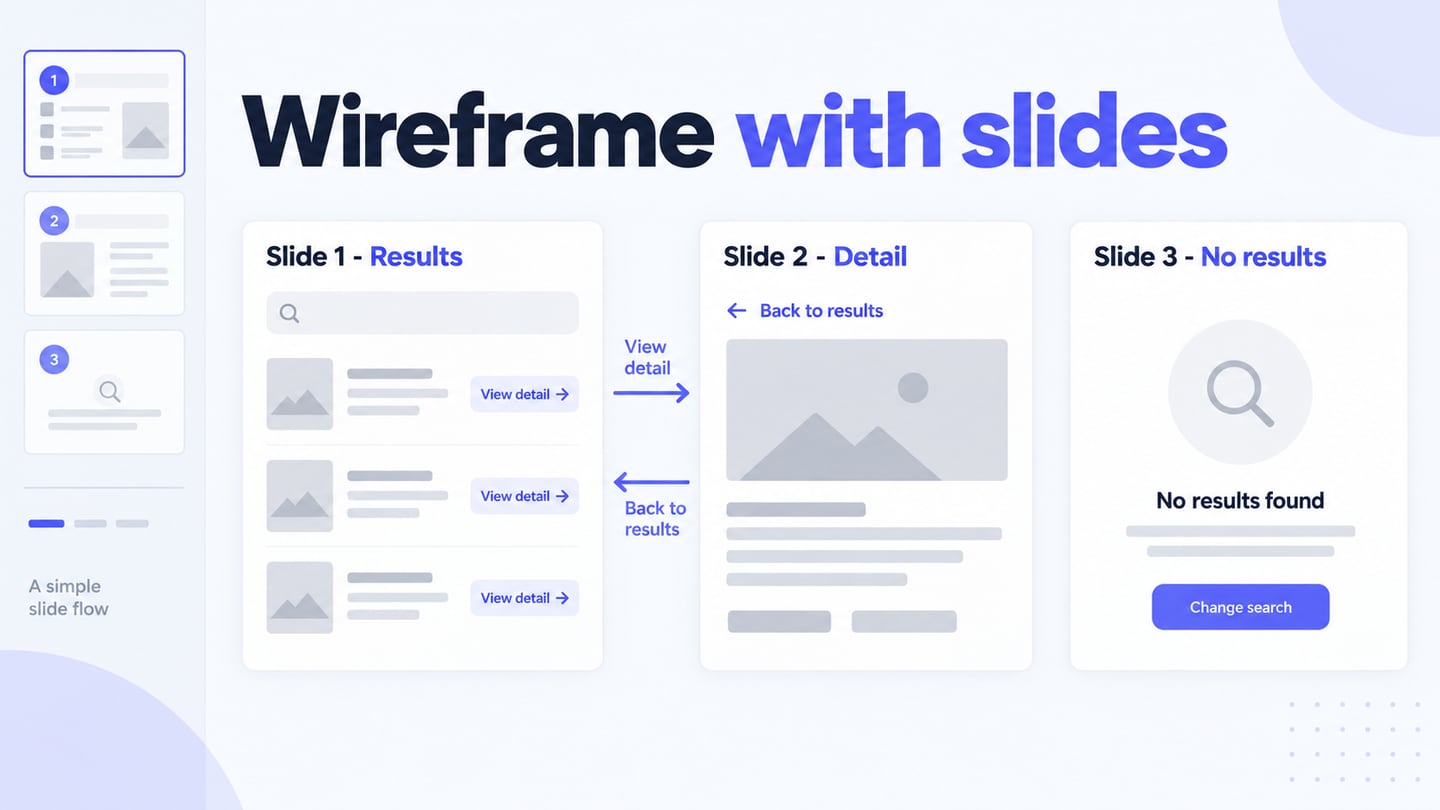
A three-slide PowerPoint wireframe
- Set the canvas. Create a blank presentation and choose a slide size that represents the intended screen. Use a plain background and one consistent text style.
- Draw the results screen. Add a query label, a short list of result cards, and a visible action on each card. Keep the labels realistic, such as “Desk lamp” rather than repeated placeholder text.
- Duplicate for the detail screen. Keep the header in place, replace the results area with item information, and add a Back to results action.
- Add an empty-results slide. Explain that no matches were found and show a way to change the query. This makes the review more useful than a success-only path.
- Link and test. Select a shape and add a link or action to the relevant slide. Test the file in Slide Show mode, including the return path. See Microsoft’s action-button instructions for supported slide-navigation actions.
The slide links simulate navigation; they do not search a database or preserve live query data. Write those assumptions in speaker notes or an adjacent annotation so stakeholders do not mistake the wireframe for a working application.
Continue the Wireframe in a Dedicated Tool
Mockitt offers a browser-based environment for arranging wireframes and connecting screens. It can be a practical next step when the review requires more screen states or interaction detail. Rebuild the necessary editable components rather than assuming a PowerPoint file will convert into a working prototype automatically.

- Work in the browser with the current workspace and project options available to your account.
- It offers an extensive range of templates, demos, widgets, icons, and numerous other design elements that you can readily include in your projects.
- Choose a target canvas size and adjust the layout for the screens you intend to review.
- Use supported links and transitions to demonstrate the paths relevant to the task.
- Preview the modeled flow and share it with reviewers. Check current plan limits and export options before choosing the handoff format.
How to Create Wireframes in PowerPoint Alternative
The steps below keep the same example: a search-results screen leads to an item detail screen and back to the results. The retained screenshots show an earlier Mockitt interface; use the current workspace controls for the same underlying actions.
Step 1: Enter the project details
Create a prototype project and name it “Search results review.” Start with a blank canvas or a suitable template, then set a screen size that matches the intended review device.

Use the same canvas dimensions across the results and detail screens. If mobile behavior matters, prepare a separate narrow layout rather than stretching a desktop slide.
Step 2: Design your Wireframe
Build a results page with a query label, two or three example result cards, and an empty-results state. Use meaningful text so a reviewer can explain which item they would choose.

- Add and edit widgets
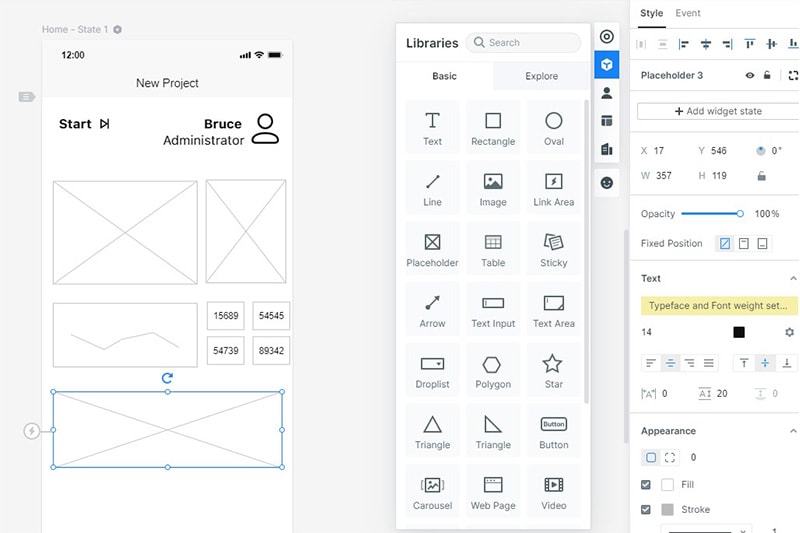
Once the canvas is opened, you can view all kinds of widgets listed on the right side. You can just drag any widget from the libraries and drop it to your canvas.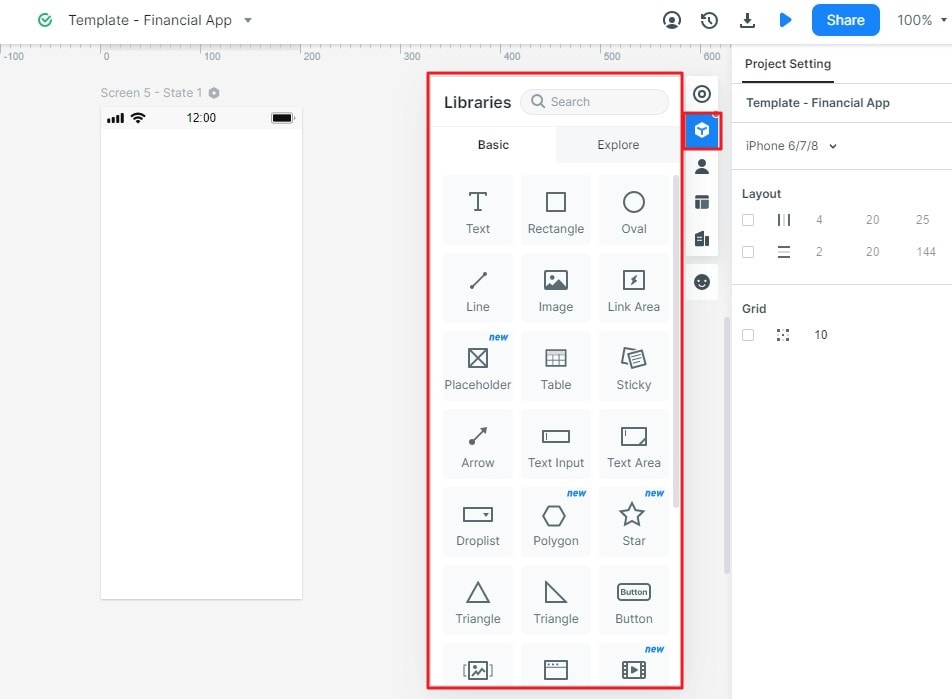
Afterward, you can click on it and get all kinds of options to edit it, change its appearance, and further customize it.
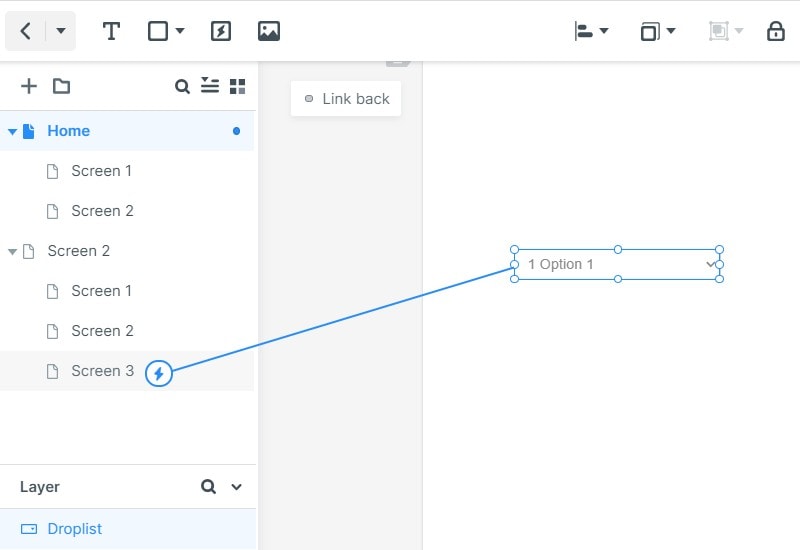
- Connect your screens. Select a result card or its action and link it to the detail screen. Add a return action that leads back to the results. PowerPoint can also link slides; a dedicated prototype becomes useful when the interaction needs more states and repeated components.
- Add notes to the design
Furthermore, you can go to the widget section to add notes to your project as well. You can leave a note for yourself, your colleagues, or a client with this.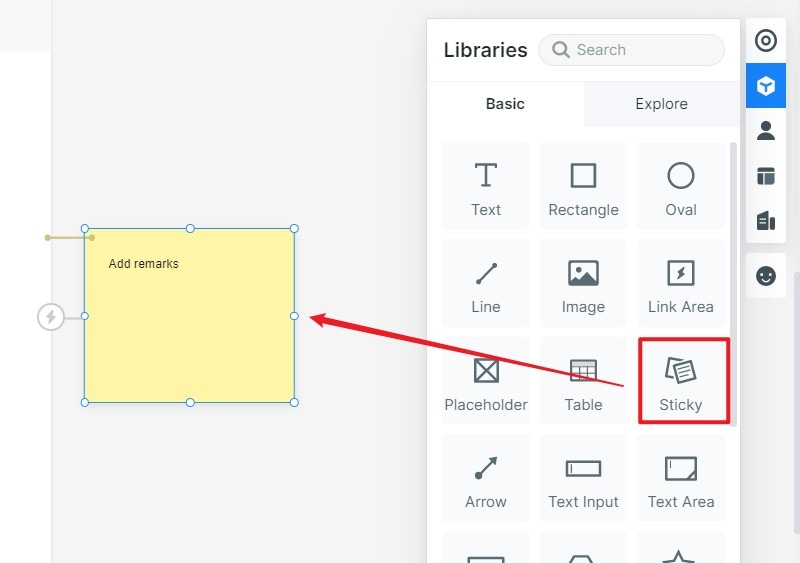
- Add only useful interaction detail. Include a selected state, feedback, or transition when it helps answer a review question. Do not add animation merely to make the wireframe look finished. Keep unsupported behavior in a clear annotation.
Step 3: Preview your Wireframe Design
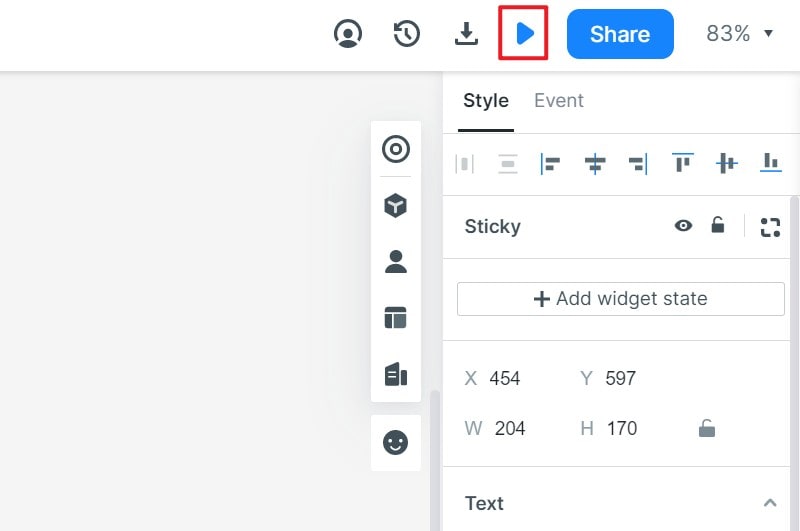
Preview from the results screen. Ask a reviewer to open an item, identify its key information, and return to the previous results. Check that every intended action has a destination and that the back path preserves enough context.
Step 4: Save and Share your project
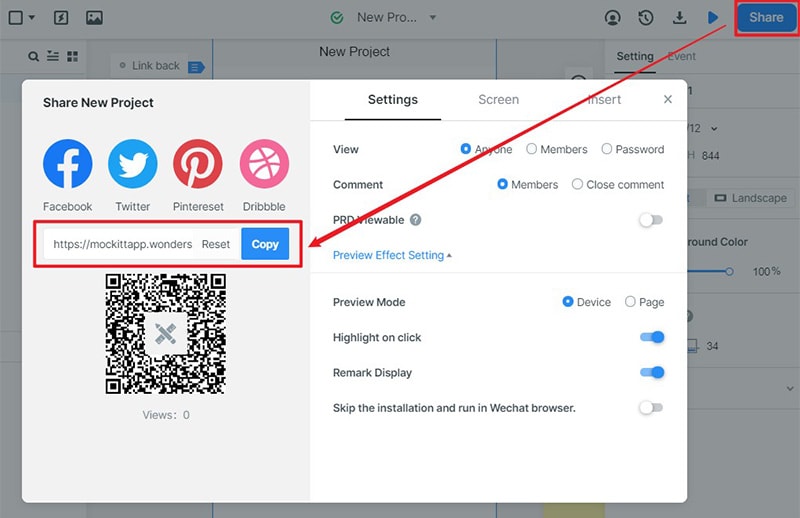
Share the review link with suitable permissions and open it in a separate browser session to check access. If a file export is required, verify the available format in the current workspace. A shared prototype demonstrates the modeled behavior; it does not implement the search service.
Conclusion:
Use PowerPoint when a small set of slides is enough to discuss structure and navigation. Keep shapes editable, label links clearly, and test the flow in Slide Show mode before sending the file.
Move to a dedicated prototype when maintaining states and interactions in slides becomes the main obstacle. For the wider process, see how to create and review a wireframe; for the visual distinction, compare wireframes and mockups.