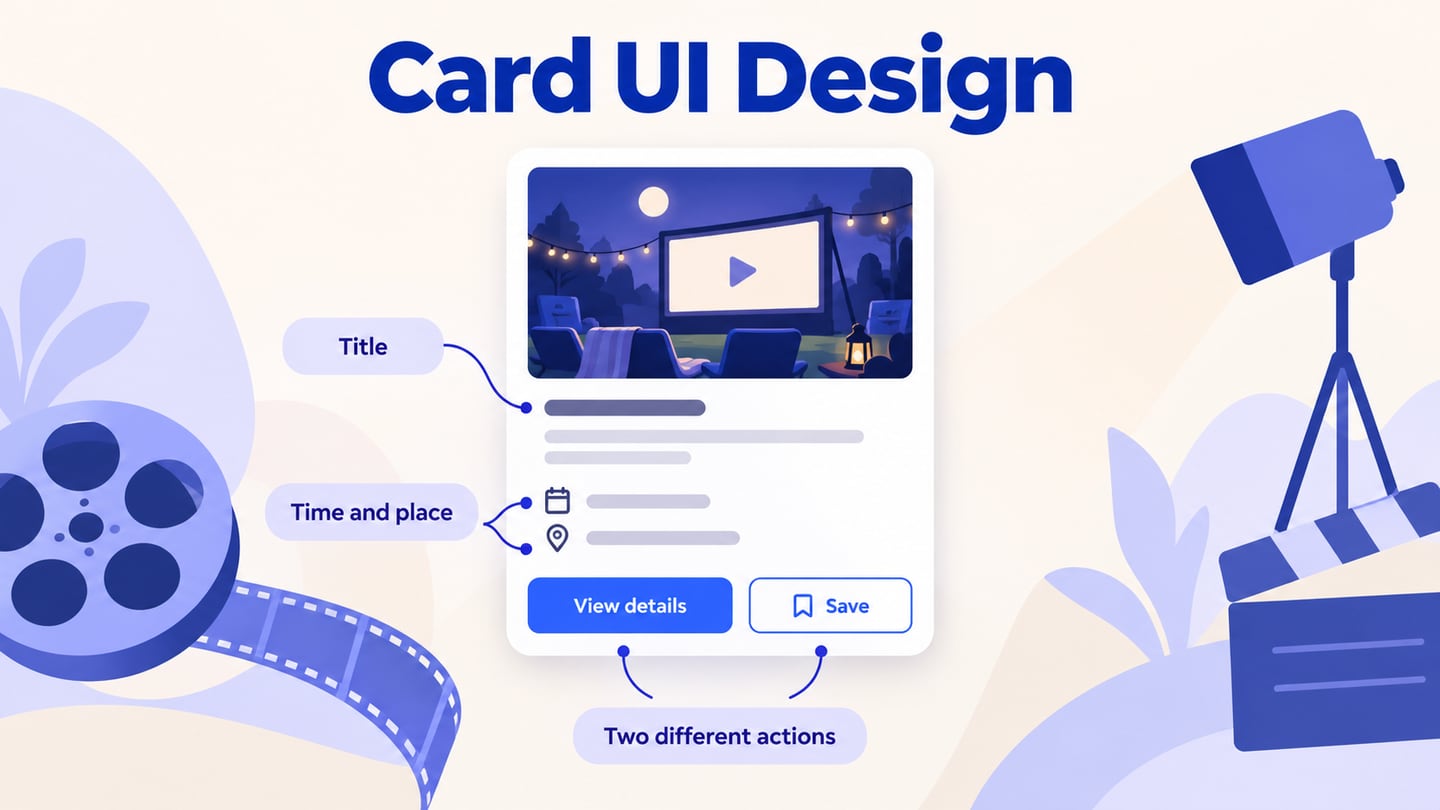
Card UI design groups one item into a compact unit: a title, a short summary, optional media and a clear next action. It works well for collections such as events or articles when readers need to choose what to open. Use Mockitt's UI design workspace to arrange the content, then check how the card behaves in a linked prototype. Follow the four-step create, design, preview and share workflow below, followed by five practical card-design tips.
Design and Prototype Cards in Mockitt
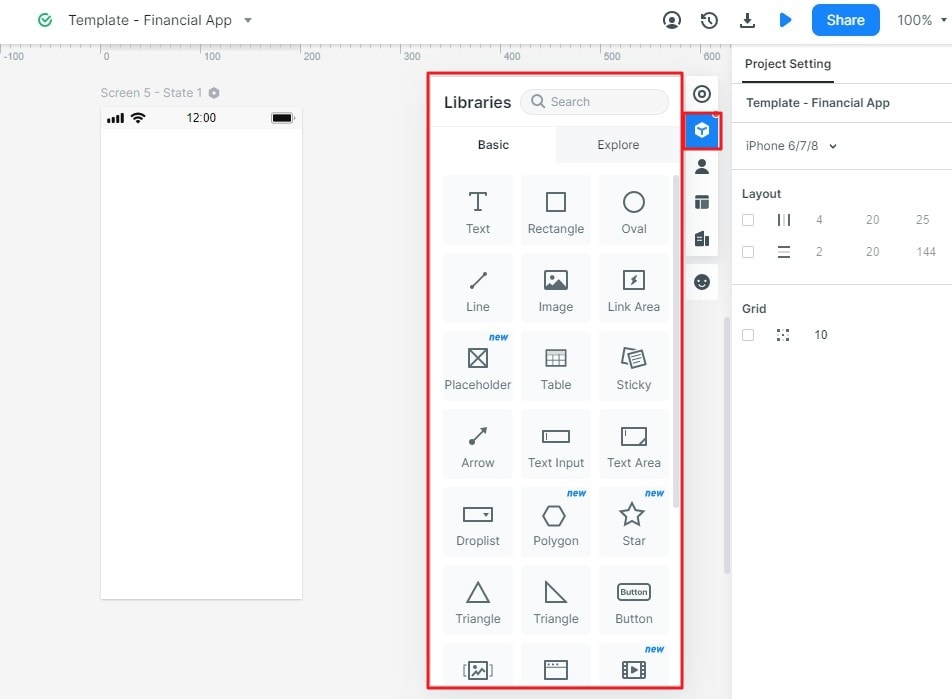
Mockitt provides interface elements you can arrange and reuse across your design. Start with text and shapes, add an image if it helps identify the item, and keep repeated cards consistent through reusable elements. For an interactive review, connect the card's main action to its detail screen and give any secondary action its own behavior. Choose transitions that explain a change; a card does not need animation to be understandable.
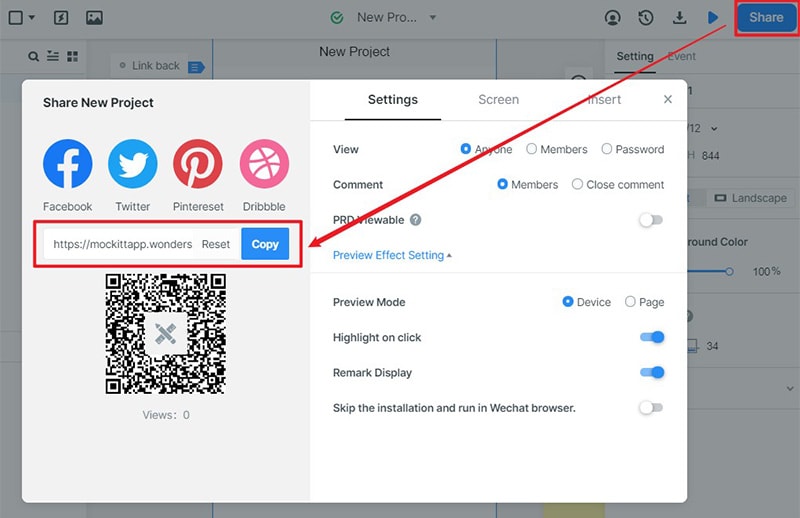
Preview and sharing let other people examine the card layout and the proposed route. Before sending a review link, check what the recipient can access and explain which actions are simulated. The screenshots below show an earlier Mockitt interface and preserve the original tutorial's project, widget, linking and review operations. Current workspace labels may differ.
How to Make Card UI Design Step-by-Step
Step 1: Create a new project
- Create a new prototype project. Choose a canvas appropriate to the screen you are designing, give the project a descriptive name, and save it. For this example, use Community events and make the first screen an event list.

Step 2: Design the Card UI
Build one example before duplicating the card. Community film night at Riverside Hall has a title, Saturday at 7:00 PM, the venue, and two separate actions: View details and Save. View details opens the event page; Save changes the saved state while leaving the person in the list. These actions answer different needs, so do not make them visually indistinguishable.
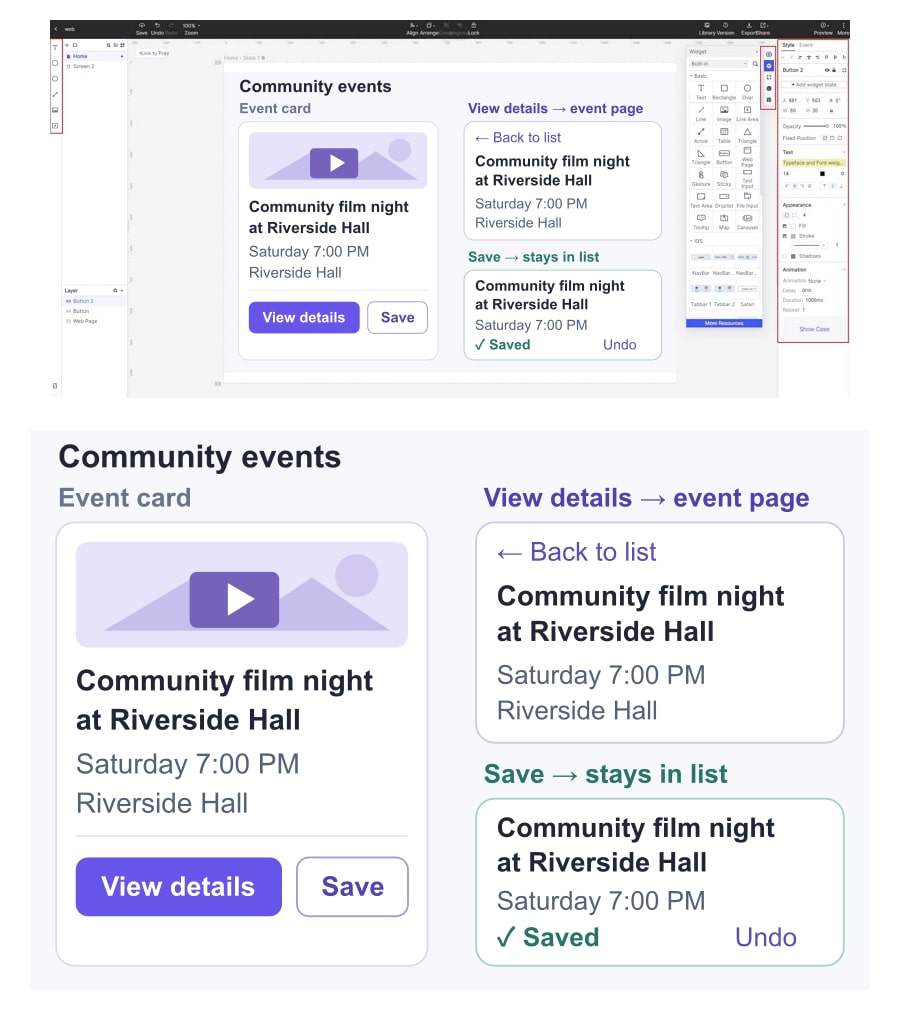
On the detail screen, repeat the event title, time and venue and provide a route back to the list. Keep the saved state consistent when returning. This is a design example with sample event information; it does not require a ticketing system or a real booking.
- Start by adding text, shapes, images and buttons from the widget library. Drag them onto the canvas and set their properties, then reuse the elements for other cards. Keep enough space for the longest realistic title rather than designing only with short placeholder text.
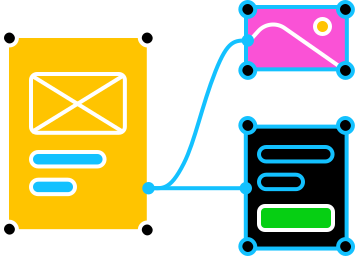
- Now add links between screens. Connect View details to the event detail screen and its Back action to the list. Keep Save separate from that destination: show a Saved state and an option to undo it without opening the detail screen. Document whether selecting the title or image should also open details so the developer does not have to guess.
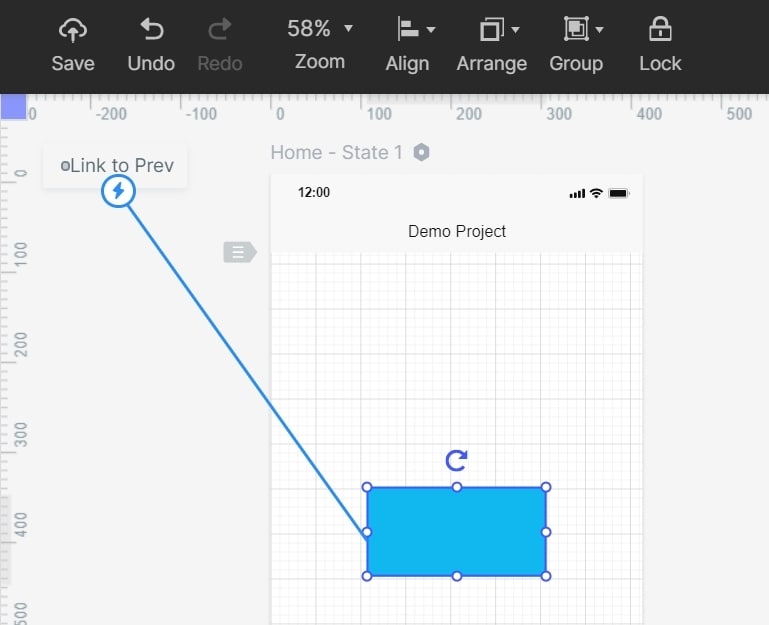
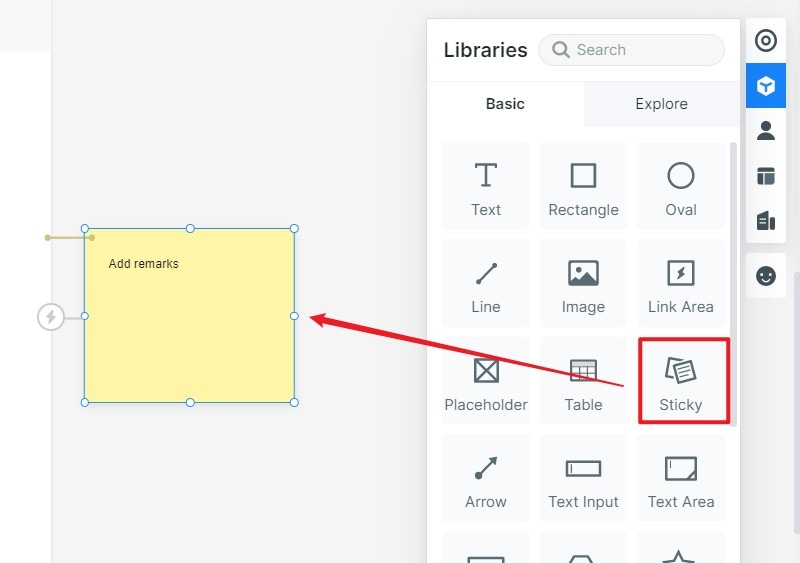
- Add notes to explain your card UI design further. Use a sticky note beside the relevant screen to describe the saved-state behavior, the destination of View details, and what should remain visible when the title wraps.
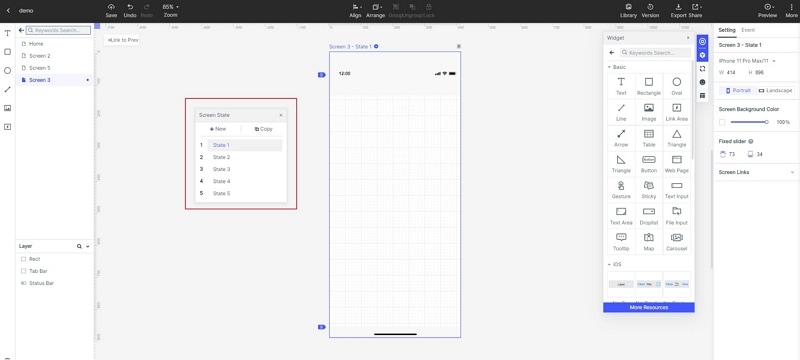
- Use a component state or a separate example screen to show the difference between Save and Saved. The earlier screenshot below illustrates screen states. Add motion only if it helps explain the change.
Step 3: Preview the card UI design
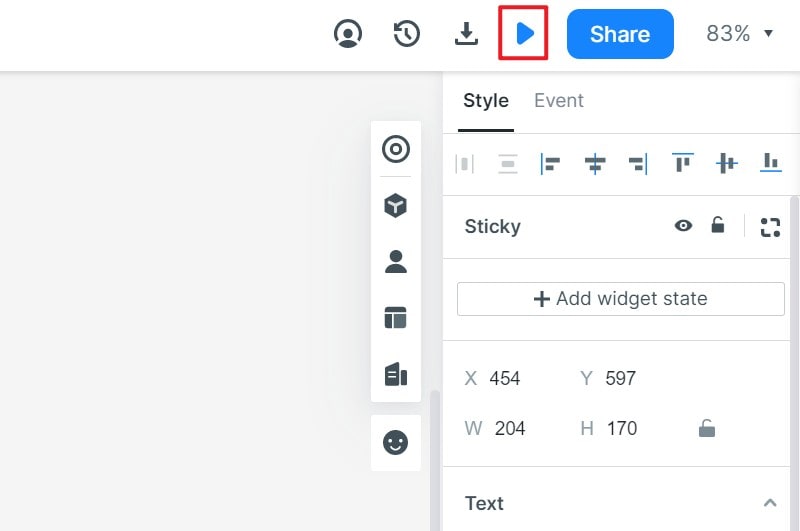
- Preview the card in the intended screen size. Check that View details opens the right event, Back returns to the list, and Save does not trigger navigation. Then try a narrower card and a longer title. The date, venue and both actions should remain understandable rather than overlap or disappear. For broader layout choices, see the guide to responsive UI design.
Step 4: Share the card UI
- Share the prototype with reviewers and ask them to find the event time, open its details and save it for later. Watch whether they confuse the two actions or mistake a saved event for a booking. Record the screen and label involved, make the targeted change, and review that task again.
Five Tips for Clear Card UI Design
Use the right imagery
Choose imagery that helps readers recognize the item, such as a film still or venue photograph for an event. A card does not always need an image: repeated decorative pictures can make a collection harder to scan. Check the crop at narrow widths and keep essential information such as the event time in real text. The USWDS card guidance recommends related, self-contained content and appropriately sized images; use a table when the task is comparing aligned data instead.
Give priority to textual information
Anything created for users to read should be in text. A good card summarizes one item, so keep the overview short and move extended details to the destination page. For the film-night card, preserve the name, date, time and venue before adding descriptive copy. If the title becomes longer, let it wrap rather than cut away the words that distinguish the event.
Apply simple typography
Use a readable typeface and a clear size hierarchy for the title, supporting details and actions. A sans-serif face is an option, not a guarantee of readability. Compare the shortest and longest cards side by side and check that important text remains legible when resized. The guide to typography in UI design explains how to organize those text roles.
Make Card Actions Distinct
Make interactive elements clear. View details should look like navigation to the event, while Save should look like a separate action with visible feedback such as Saved. Dividers can separate regions, but spacing and descriptive labels may be enough. In implementation, preserve keyboard focus visibility and do not place a button inside a link that wraps the whole card; check the actual coded behavior as well as the prototype.
Avoid Unnecessary Scrolling Inside a Card
Card content can be taller than the space available, especially with long titles or larger text. Prefer letting the page scroll and the card grow naturally instead of giving every card a small, independent scrolling area. Put the extended event description on the detail page so the summary remains easy to scan. If a specialized card needs internal scrolling, make that region clear and check that people can reach its content and actions.