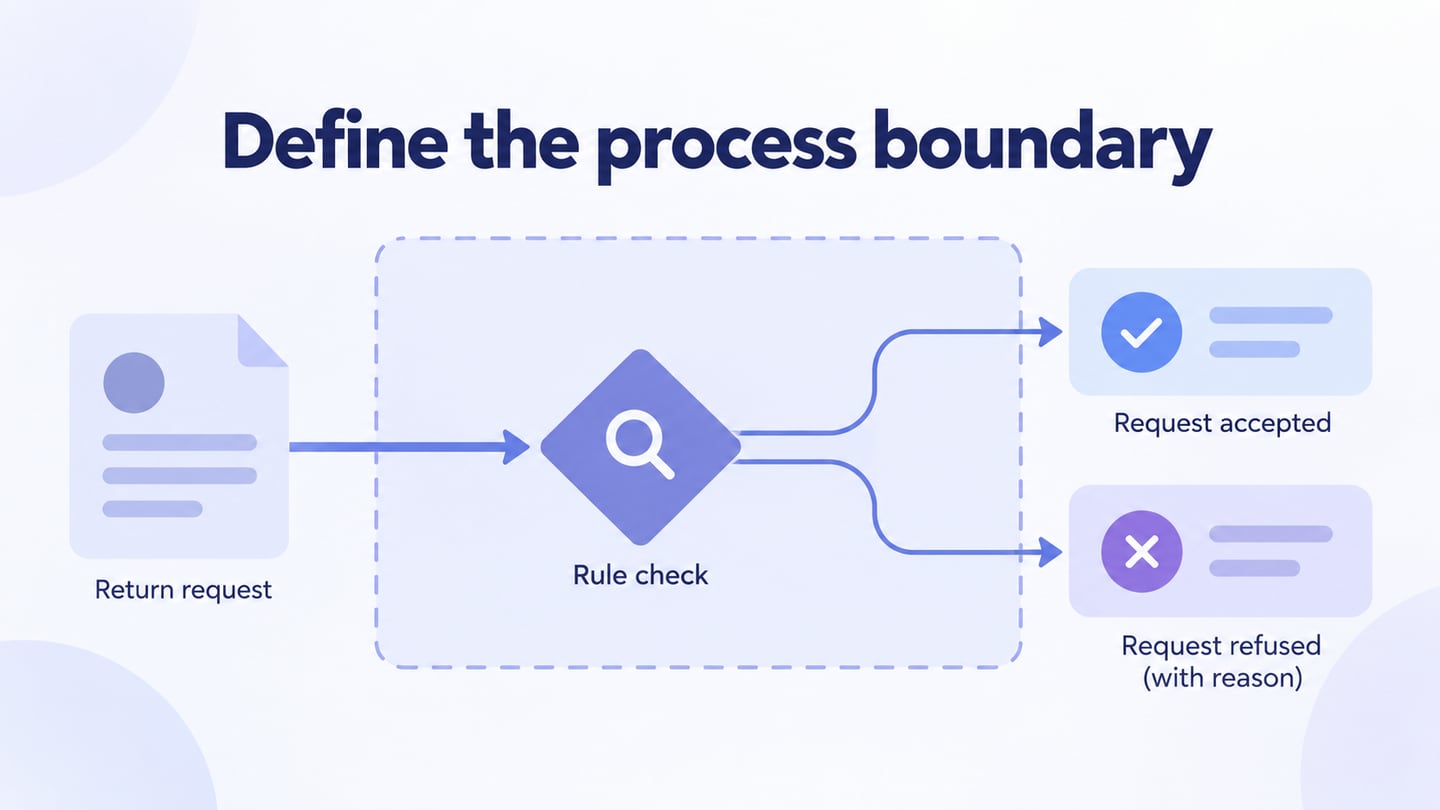
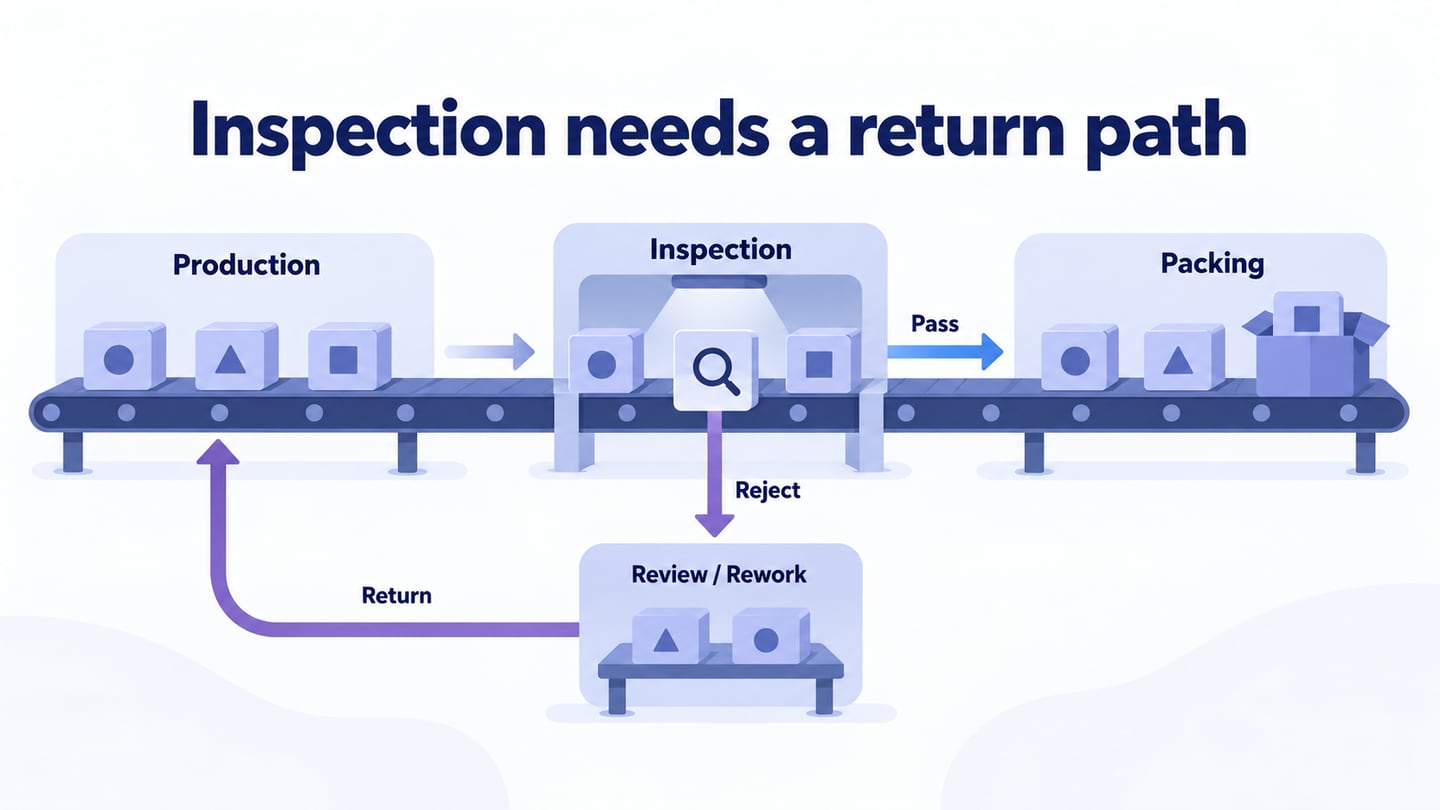
A production flowchart shows how materials or work move through a manufacturing process, including checks, responsibilities, and exceptions. A production flowchart workspace helps the team review those paths before treating the diagram as an operating reference. Use the Visio instructions, manufacturing examples, and Mockitt drawing sequence below to plan and review a production flow.
How to Create a Production Flow Chart in Microsoft Visio and Tips to Edit
Visio supports cross-functional flowcharts for showing work across roles. Check the Microsoft cross-functional flowchart instructions for your edition and licence; desktop and web controls are not identical.
Create a Production Flow Chart Project:
Step 1. Open the Visio edition available to your organization.
Step 2. Create a cross-functional flowchart.
Step 3. Choose a suitable starting template.
Step 4. Set lane orientation and label the responsible roles.
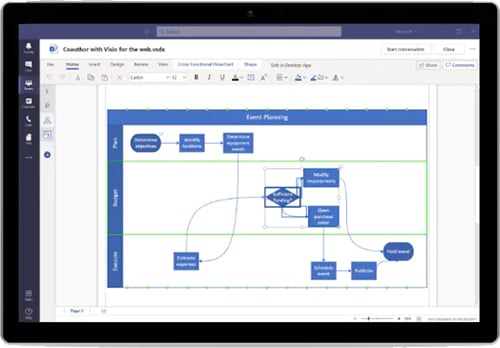
Basic Steps to Add Swimlanes to Production Process Flow Chart Template:
Add a lane through the lane controls supported by your edition.
Place it alongside the relevant roles.
Name the lane for responsibility, not a temporary employee name.
Keep each action in the lane of its accountable owner.
Few Steps to Change The Text in Flowchart:
Replace placeholder labels with the actual process terms.
Move labels where needed without obscuring connectors.
Adjust lane-label orientation if it improves readability.
Tips to Organize and Group Various Shapes:
Use separators for meaningful phases and containers for related activities. Do not let grouping hide the direction of work.
Keep the same meaning for a separator or container throughout the diagram.
The tool controls help arrange the chart; production specialists must still verify the operation, inspection criteria, and exception handling.
Production Flow Chart Templates
The original examples illustrate different levels of detail. They are starting points for discussion, not verified procedures for a particular factory.
Production flow chart template 1
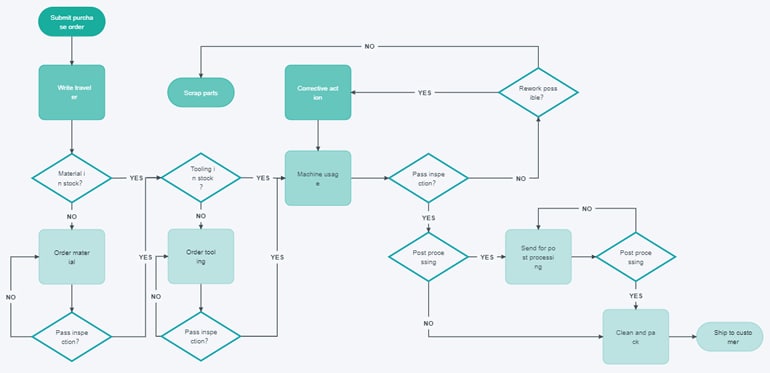
The first example includes material availability, processing, inspection, and a rework decision. Its useful feature is that inspection failure has a route instead of disappearing from the diagram.
For example, map a small assembly batch from released work order to packing. Production completes assembly, inspection checks it against the agreed criteria, and passing work moves to packing. Nonconforming work goes to the responsible disposition decision; where rework is authorized, it returns for inspection before release. Do not draw a shortcut from rework straight to packing.
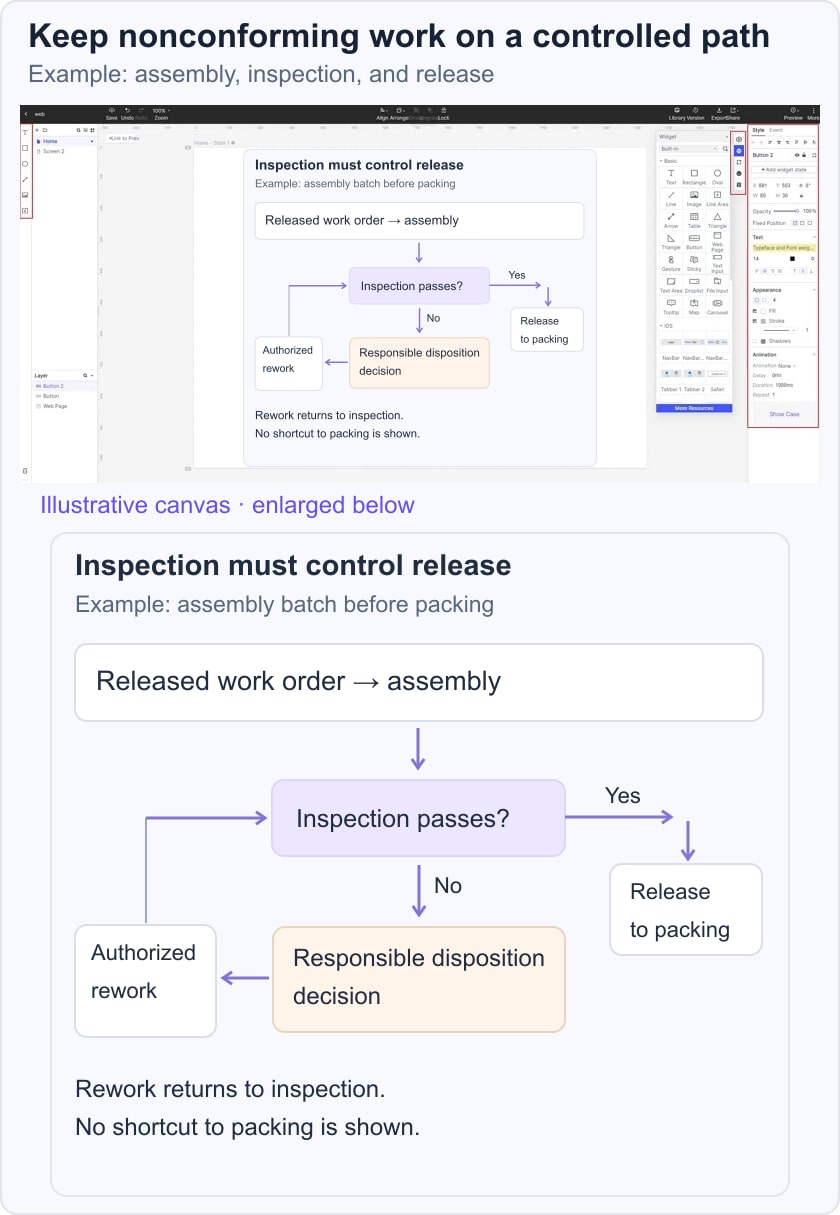
Label who may decide the disposition and where the relevant procedure is recorded. The flowchart summarizes that procedure; it does not replace technical instructions or establish that a batch meets its requirements.
Production flow chart template 2
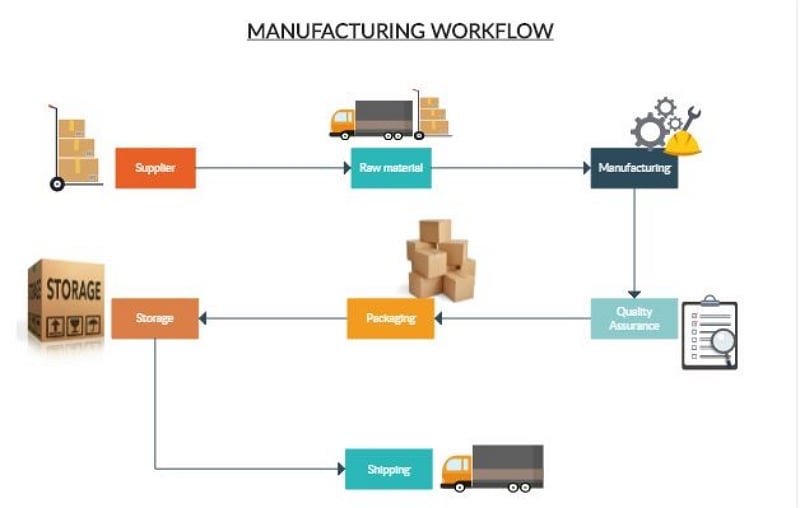
The second example gives a broad view from supplied materials through manufacturing, quality assurance, packaging, storage, and shipping. It is useful for explaining the overall sequence but leaves detailed acceptance and exception rules outside the picture.
Choose this level when the audience needs an overview. If a handoff or quality decision is the question, create a more detailed view and check it with the responsible participants.
Production flow chart template 3
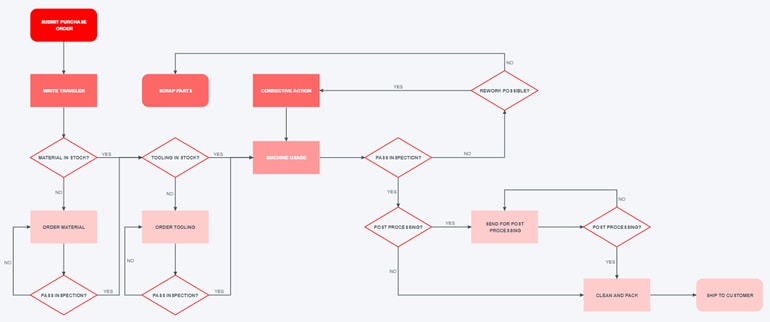
The third example provides another layout for the detailed manufacturing sequence. Compare readability, connector routing, and the visibility of rework. Changing a color scheme does not change the underlying process.
Production flow chart template 4
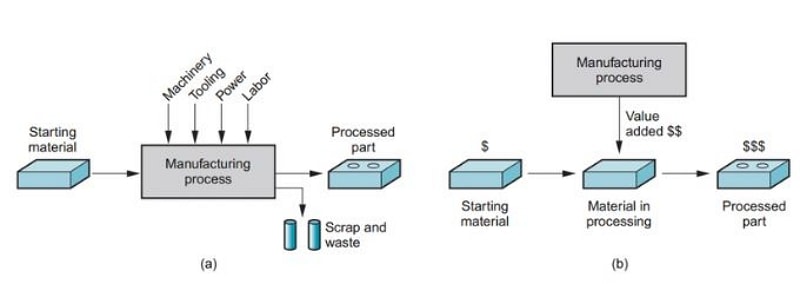
The fourth image is a general illustration of manufacturing inputs, processed material, and waste. It is not a steel-production procedure or investment guide. Use it to distinguish transformation inputs and outputs before selecting a notation and level of detail.
Create a Production Flowchart in Mockitt
Mockitt provides an editable diagramming canvas for arranging the process and sharing it with reviewers.
Begin with verified process notes. The original interface images below show an earlier drawing workflow; use equivalent current controls and check account capabilities.
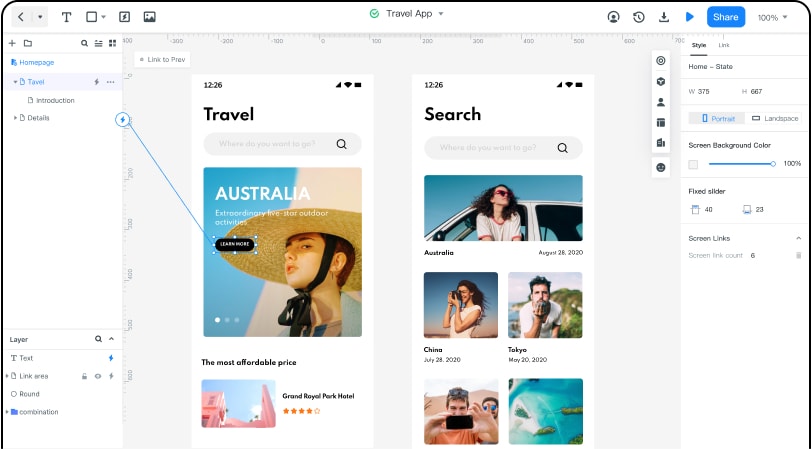
Steps to Create a Flowchart
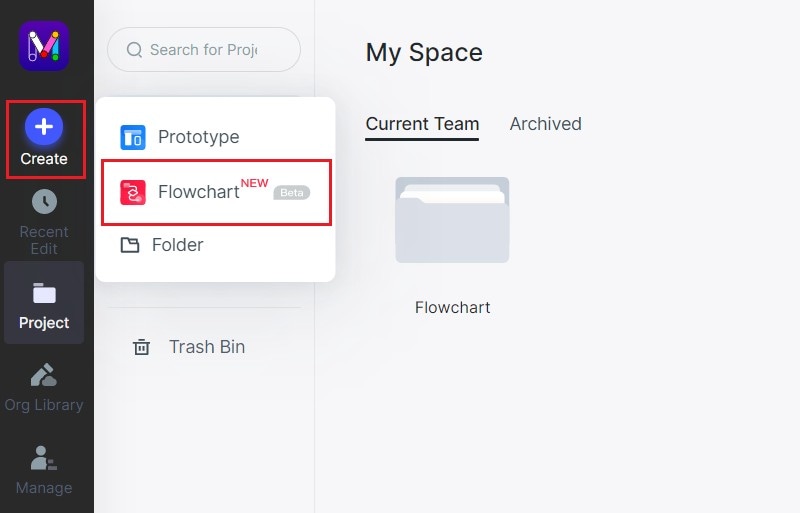
Step 1: Create a Flowchart Project
Open a flowchart project or suitable canvas in the current workspace.
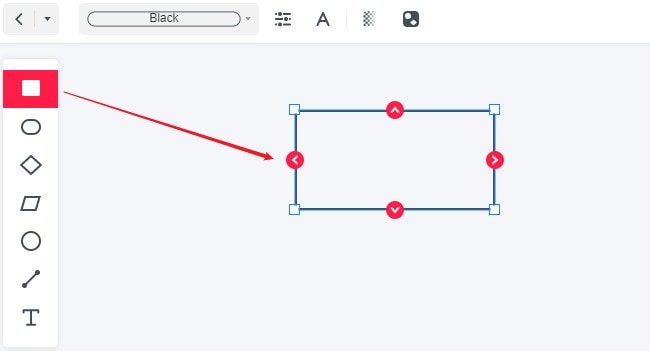
Step 2: Start Drawing the Flowchart
Add the stages and decisions, using a consistent notation and readable labels.
Connect actions and label each decision outcome, including the inspection-failure route.
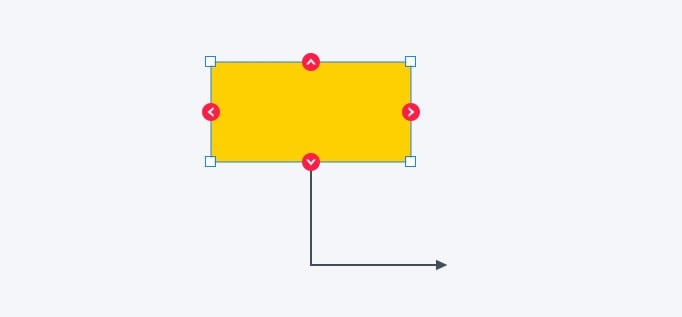
Step 3: Change the Properties of the Flowchart
Use color sparingly, such as to distinguish responsibilities or exception paths.
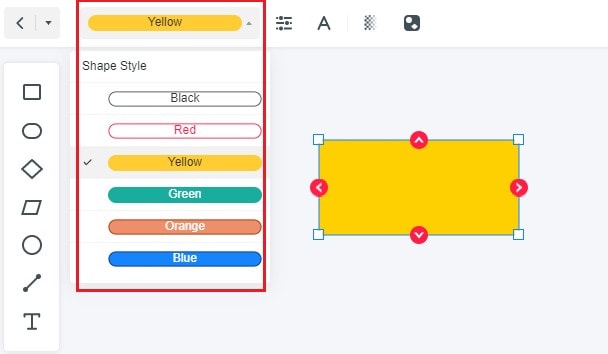
Keep shape styles consistent for the same kind of step.
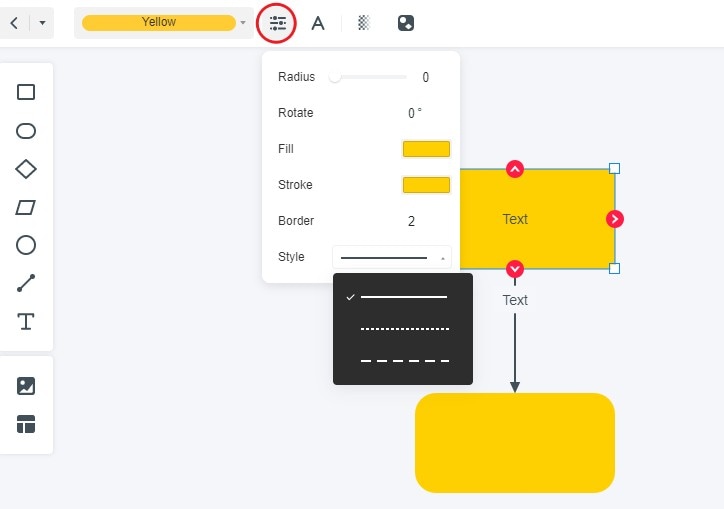
Use text sizes that remain readable at the intended review or print size.
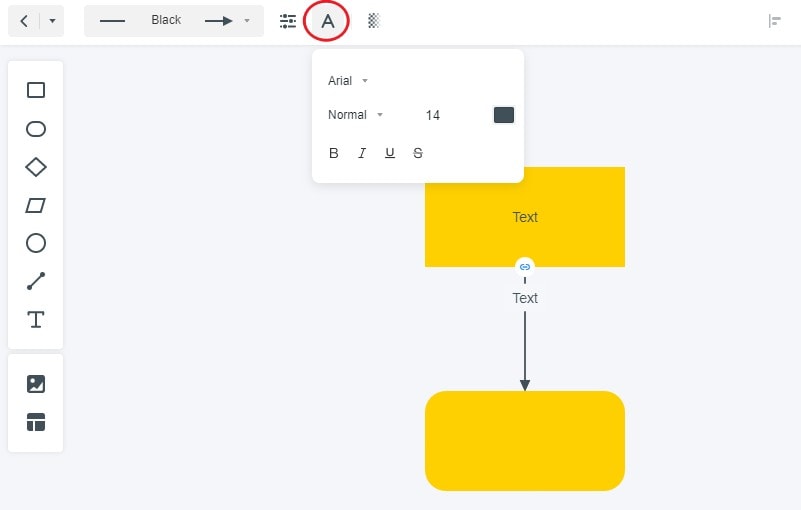
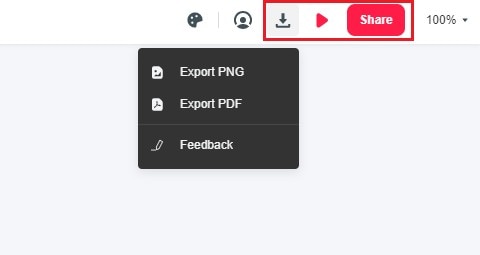
Step 4: Download, Preview and Share the Flowchart
Preview the diagram, share it with process owners, and inspect the exported version if one is required. Confirm that a reader can trace normal work and nonconforming work without guessing.
Features of Mockitt:
- Collaboration supports review by the people responsible for each stage.
- Editable diagrams let the team update an approved process change.
- Flexible layout helps separate an overview from a detailed subprocess.
- Reusable shapes can keep repeated decisions and handoffs consistent.
Keep a named owner and current scope with the diagram. The communication flowchart guide can help clarify who receives an inspection issue or release decision when it crosses a team boundary.