A communication flowchart shows how information moves between people or teams: who sends it, who receives it, what response is expected, and what happens when the handoff fails. Use a communication flowchart tool to make those responsibilities visible instead of relying on an informal assumption that someone has seen a message.
The diagram can support a communication plan, but a clean picture does not guarantee that messages are understood or acted on. Review the actual channels, access, acknowledgement, and escalation rules.
Compare the communication types, follow the four planning steps, and use the Mockitt drawing workflow to map the handoffs in a support request.
What is a communication flow chart?
Communication is the transfer and interpretation of information. A communication flowchart maps a defined communication task, such as routing a support request or distributing an approved project update.
Its arrows should represent a meaningful handoff, not merely a relationship between departments. Label the message or expected action so the recipient can tell what to do.
A diagram can clarify who needs information and where misunderstandings may occur. It cannot eliminate conflicts by itself; the process needs agreed responsibilities and a way to handle missed or unclear messages.
The original communication categories are useful context, but several describe different dimensions and can overlap:
- Internal: Communication within the organization; it is not automatically confidential.
- External: Communication with customers, partners, investors, or other outside parties.
- Upward: Information passed from frontline staff toward supervisors or management.
- Downward: Information passed from management toward the people carrying out work.
- Formal: Communication through an agreed process or official channel, whether written or spoken.
- Informal: Communication outside the formal process; it can be written or spoken.
- Lateral: Communication between peers or teams at a comparable organizational level.
- Grapevine: Informal rumor or second-hand information; do not use it as the authoritative route for a critical update.
How to create a communication flow chart?
Choose simple symbols and explain any special notation used by the organization. The diagram should show a bounded communication task, not every possible conversation.
- Start and end markers identify the trigger and the completed outcome.
- Rectangles identify actions such as recording a request or sending a response.
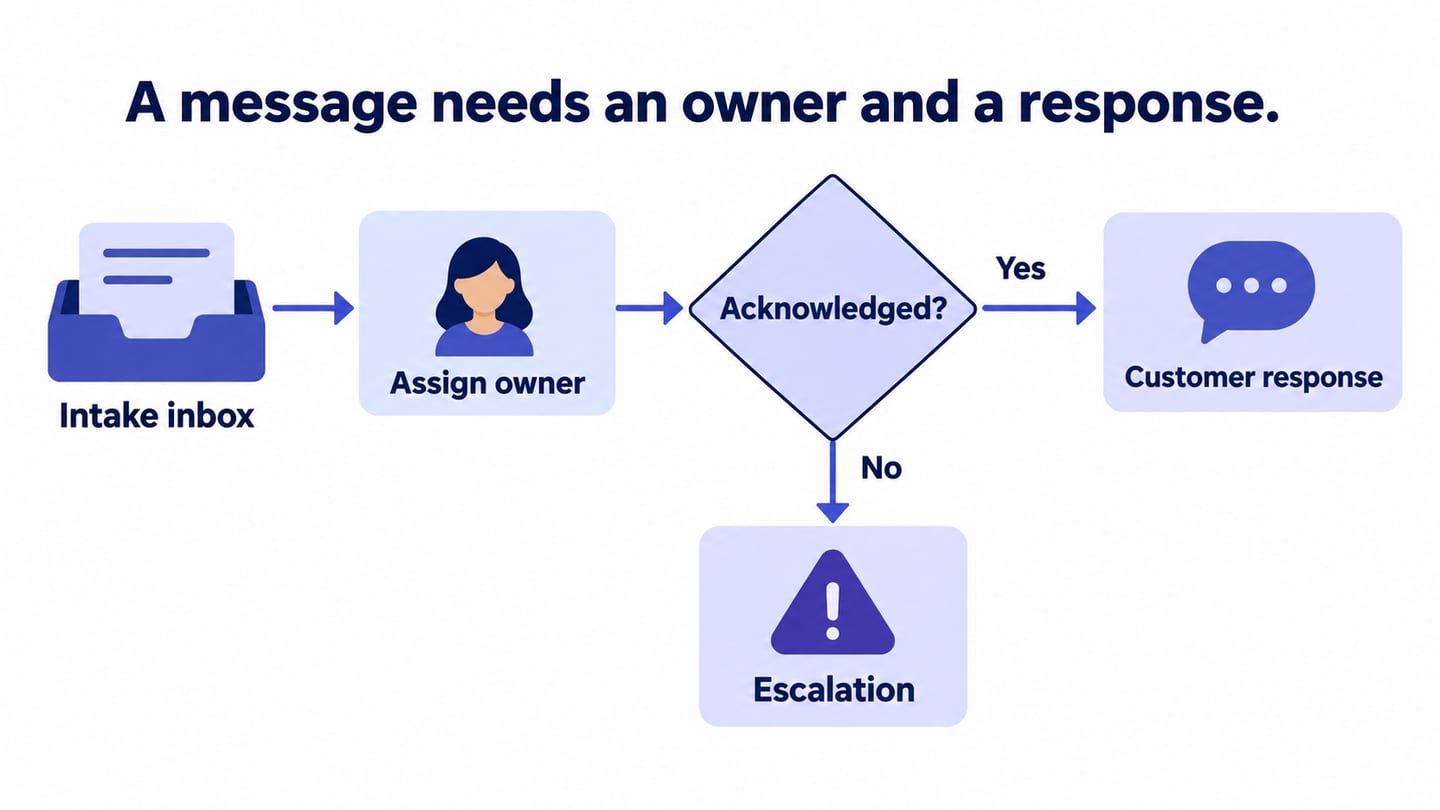
- Diamonds identify decisions such as whether the assigned owner has acknowledged the handoff.
- Input/output symbols can represent information entering or leaving the process when that distinction is useful.
Use the steps below to document a communication route with the people responsible for operating it. The original example images illustrate different diagram styles; they are not universal communication policies.
Step 1: Identify Tasks
Identify the trigger, sender, recipient, required information, and intended result. Include the channel and any access conditions that affect whether the message can reach the recipient.
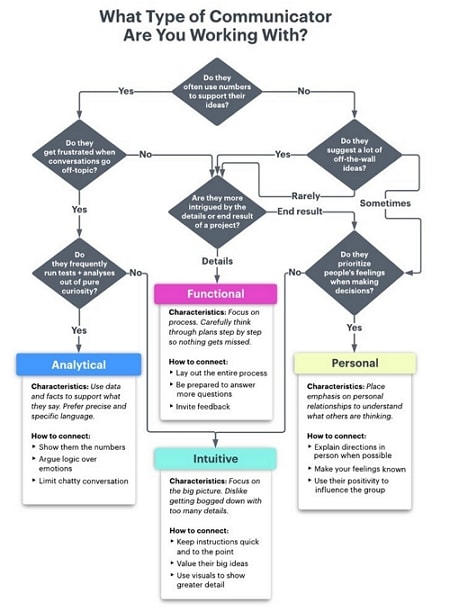
Consult the people responsible for intake, action, and escalation. Ask about a recent missed handoff or incomplete message so the map reflects exceptions as well as the ideal path.
Step 2: Organizing and Documentation
Write the actions and decisions in order, then label the information passed between them. Define the completion condition: a message being sent may not be the same as a request being resolved.
Use a customer-support handoff as the example. An intake owner records the request and assigns it to a suitable person. That person acknowledges the handoff before investigating and responding to the customer. If acknowledgement is missing under the team’s agreed policy, route the request to an escalation owner rather than assuming it is being handled.
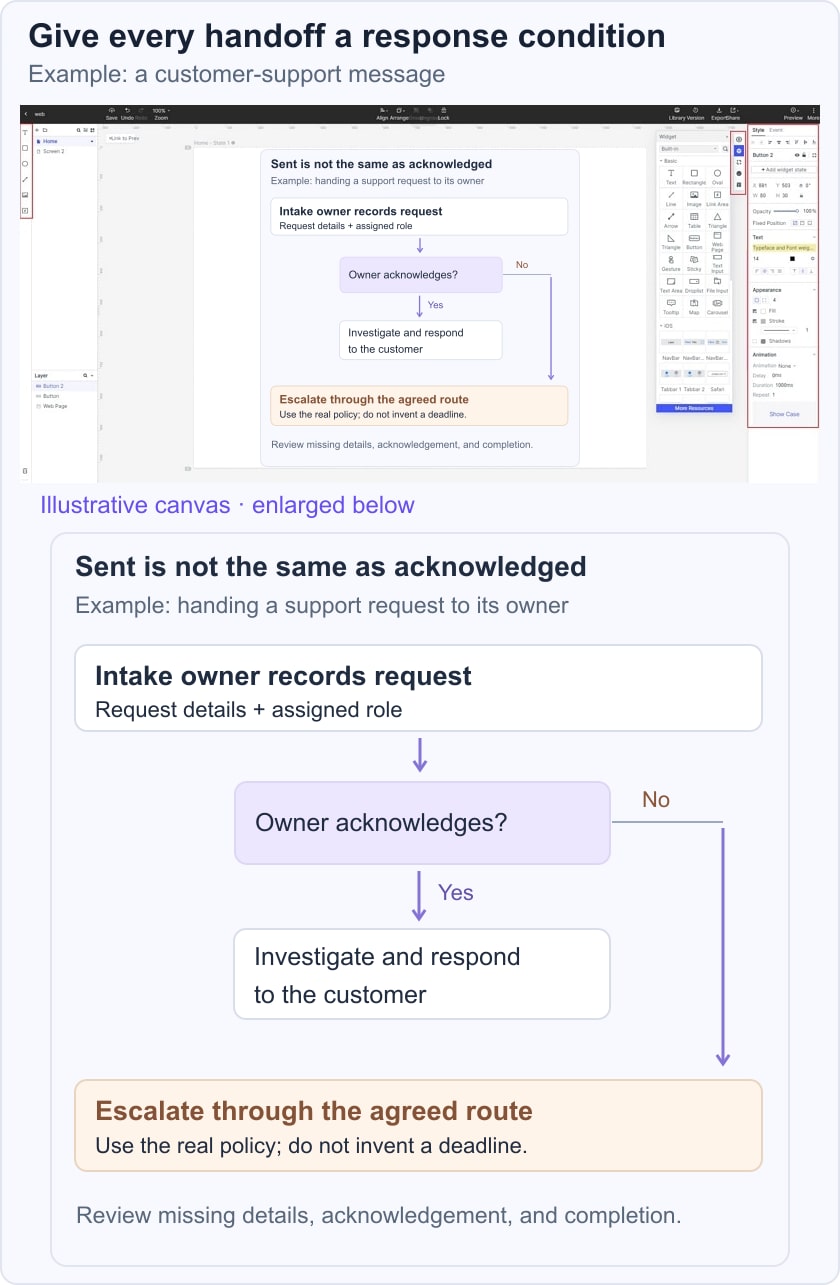
Label every decision outcome and define its next action. Do not invent a response-time commitment to fill the chart; record the team’s actual policy or mark the timing as an unresolved decision.
Step 3: Assemble the Flowchart
Draw the steps and connect them in the intended direction. Use role names where staff may change, and specify who is responsible at the boundaries between teams.
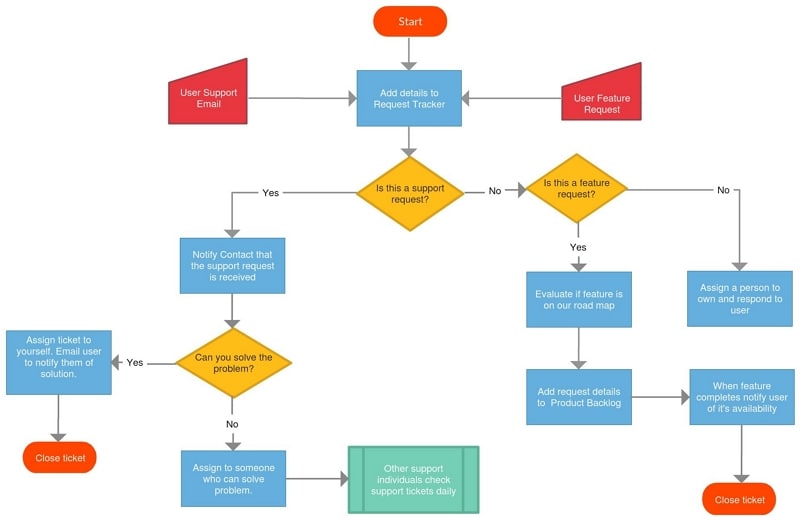
Walk through a normal request, an incomplete request, and an unacknowledged assignment. Ask the participants to identify who acts next in each case.
Step 4: Cross-check & Improve
Review the diagram when responsibilities, channels, or policies change. Look for missing acknowledgements, duplicated notifications, and steps that do not contribute to the outcome.
Keep the map simple enough to use during real work. If a route depends on a complex policy, link or reference that policy rather than compressing it into an unreadable shape.
An easy way to create a flowchart online
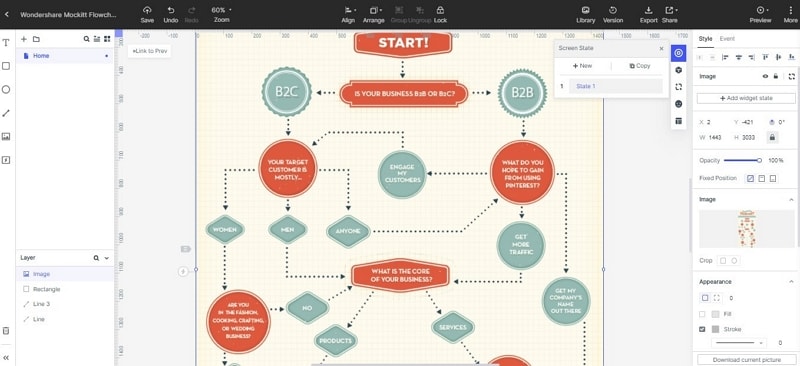
Mockitt provides a workspace for arranging the flow and reviewing it with colleagues. The original interface screenshots below show the drawing sequence; use the equivalent current controls.
Focus on the functions needed to build and maintain the diagram:
- Create a flowchart: Add shapes and connect them to show the route.
- Format consistently: Use a restrained style so roles and decisions remain readable.
- Connect the context: Add relevant screen or project references when they explain the communication task.
- Collaborate: Ask the responsible people to review their handoffs and permissions.
- Adapt templates: Keep only the elements that match the actual communication process.
A template can reduce layout work, but it does not supply your organization’s response or escalation rules.
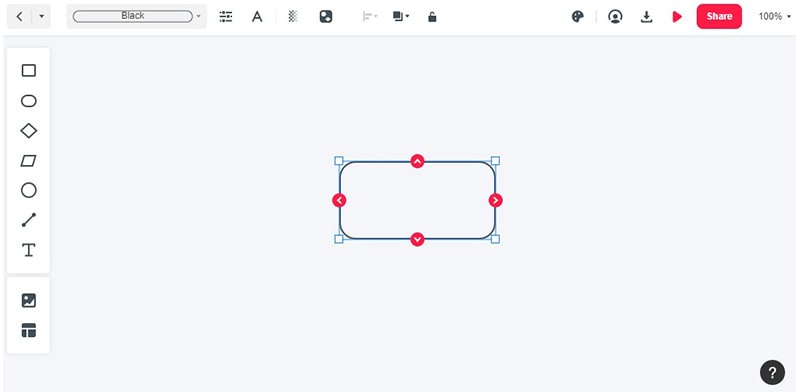
Steps for How to Create a Flowchart with Mockitt
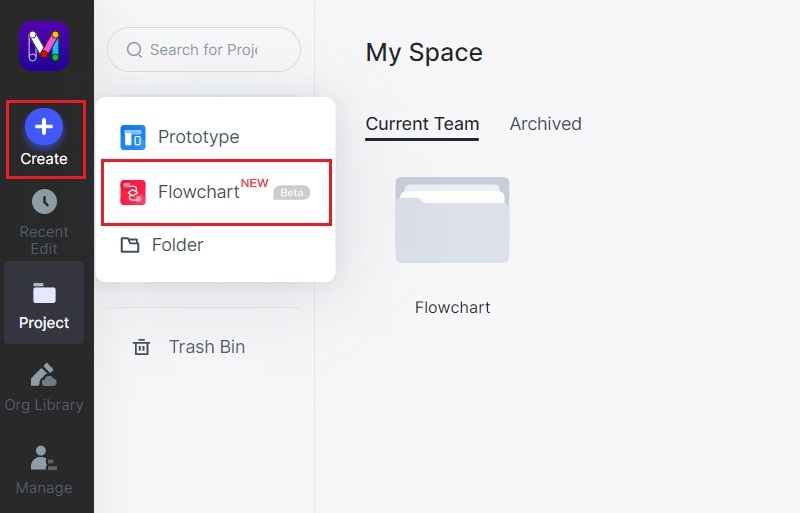
Step 1. Create a Flowchart
Open the current workspace and create a flowchart project or canvas.
Step 2. Start Drawing the Flowchart
Add labelled shapes for the trigger, actions, decisions, and end state.
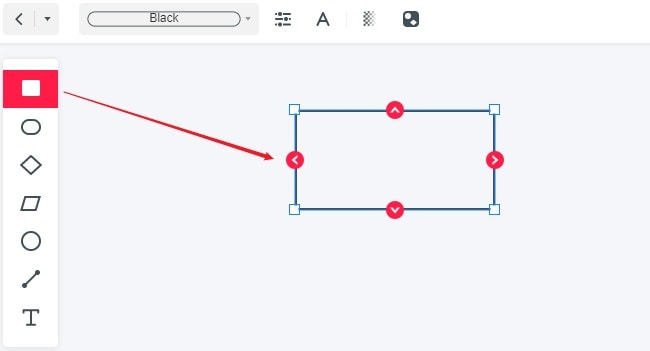
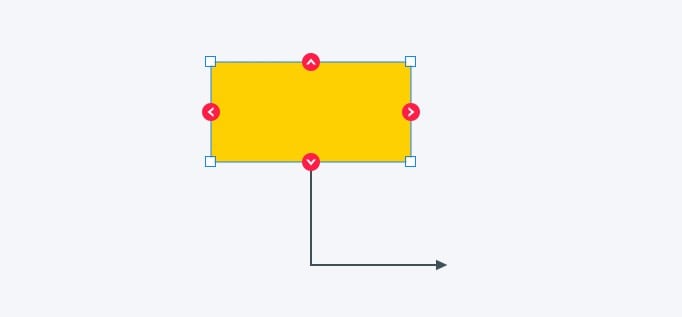
Connect them in order and label the information or decision outcomes on the arrows.
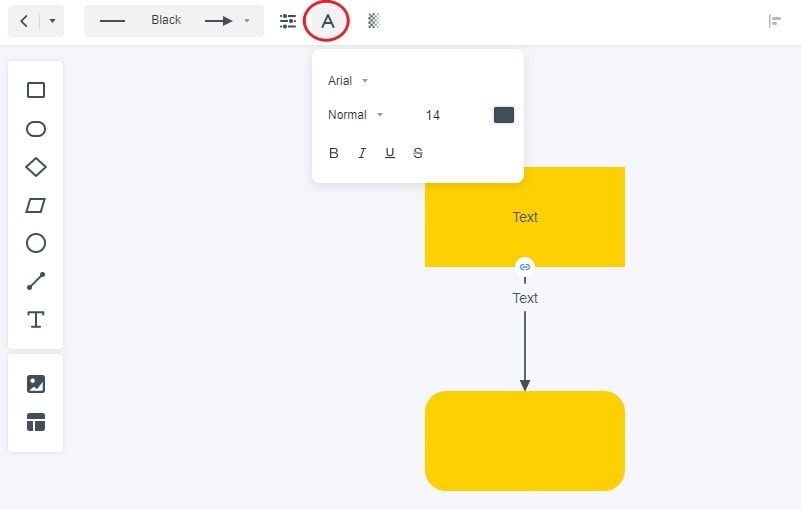
Step 3. Change the Properties of the Flowchart
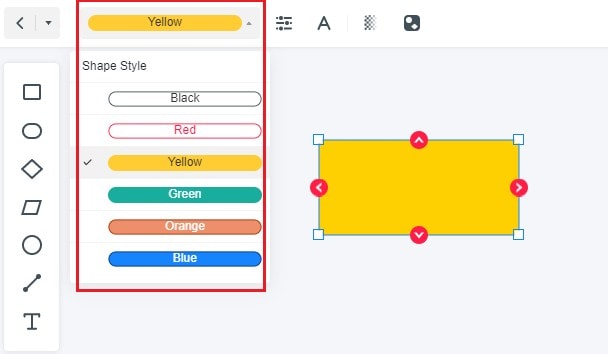
- Use color consistently and do not make it the only way to identify an outcome.
- Keep the same shape convention for the same type of step.
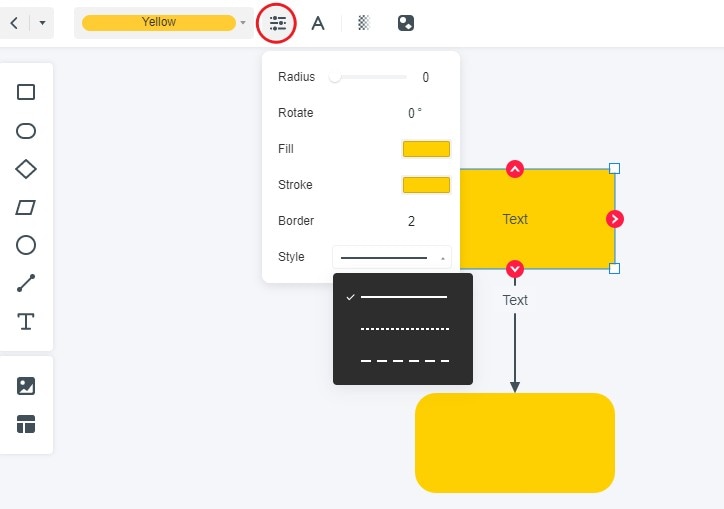
- Make labels readable at the size the diagram will be viewed.
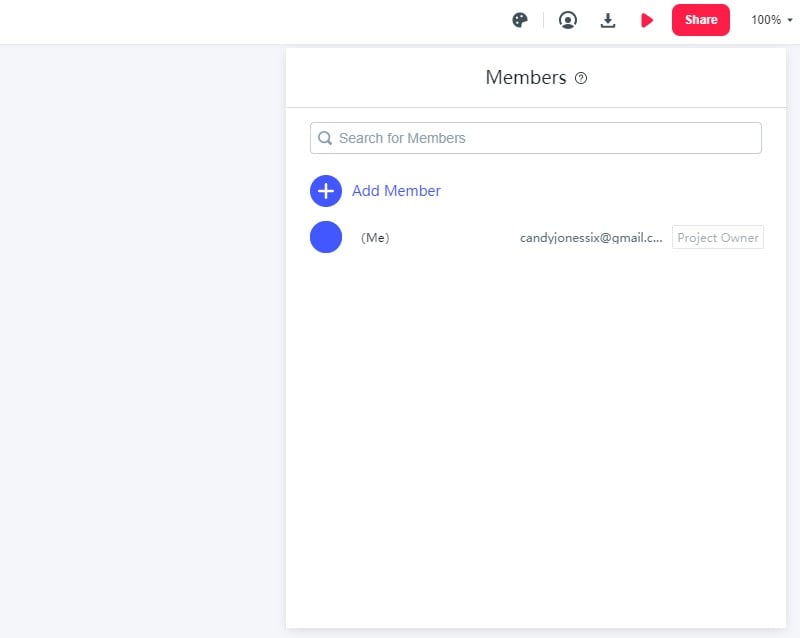
Step 4. Invite the Responsible Reviewers
Share the draft with the people handling intake, action, and escalation. Confirm they can access it and ask them to check their own responsibilities.
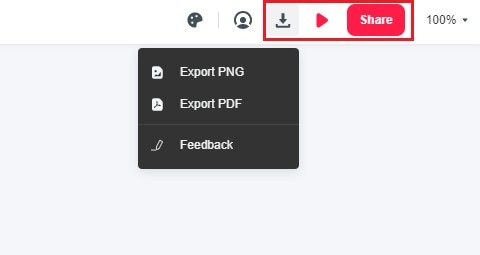
Step 5. Preview, Export, and Share
Preview the diagram and use the current supported export options where needed. Check that text and connectors remain legible in the shared version.
Record the owner and purpose of the diagram so a future reader knows whether it describes the current or proposed process.

If the communication supports a larger workflow, keep the wider process and its message routes consistent:
- Prototype references can illustrate the screen or action that produces a message.
- Reusable components can keep repeated roles and decisions consistent.
- Comments can record review questions without becoming part of the official process.
- Editing should preserve the meaning of the handoff, not merely improve appearance.
- Shared access should fit the intended audience and the sensitivity of the information.
A communication flowchart is useful when it makes an otherwise ambiguous handoff explicit. Check the real process after changes rather than assuming publication of the diagram means adoption.
For the larger action sequence surrounding a communication task, see the process flowchart guide. Keep acknowledgement, responsibility, and completion conditions visible wherever information crosses a boundary.