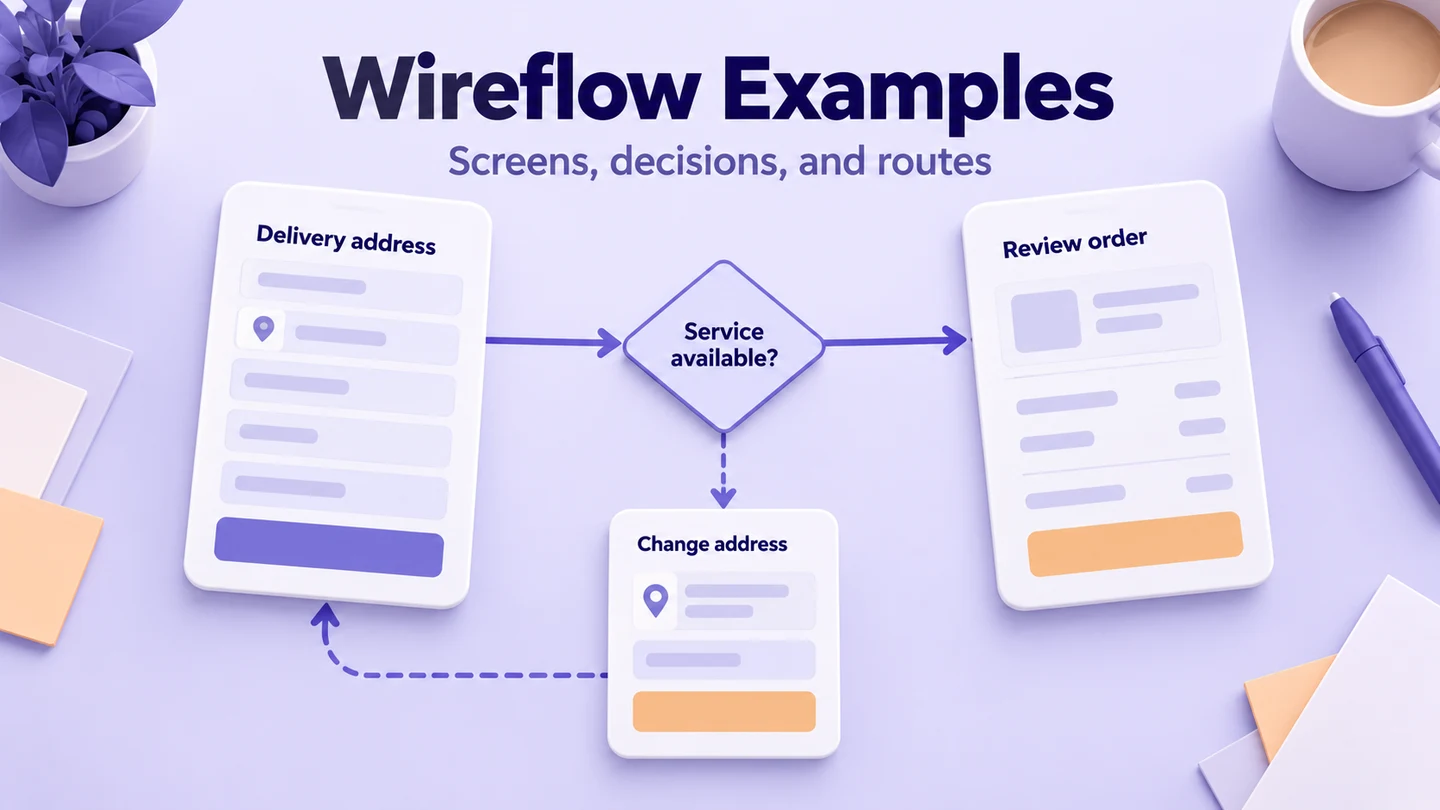
A wireflow connects small screen designs with arrows that explain what someone does and what the interface shows next. Use it when a list of steps hides important screen details, or when separate wireframes leave reviewers guessing how the screens connect. Start with one task, draw the necessary screens or states, label the actions between them, and include a realistic recovery path.
You can develop those screens in Mockitt’s interactive prototype editor, then use the wireflow to discuss the whole route before reviewing it as a clickable experience. The map and the prototype answer different questions: the map exposes the route at a glance; the prototype lets a reviewer experience the sequence.
Wireflow, wireframe, or user flow?
A wireframe shows the arrangement of content and controls. A user flow shows the steps or decisions needed to complete a task. A wireflow combines enough of both to make an interaction understandable without a spoken explanation. Nielsen Norman Group describes this combination of screen layouts and interaction paths as particularly useful for applications whose content changes within a small number of screens.
| What needs review? | Useful artifact | Example question |
|---|---|---|
| Information and control placement | Wireframe | Can someone find the delivery address? |
| Sequence, rules, and responsibility | User flow | What happens when the address is outside the service area? |
| Actions and visible results together | Wireflow | Which control changes the address, and what feedback appears? |
| Experience of moving through the route | Interactive prototype | Can someone complete the change without help? |
Choose the smallest artifact that answers the question. A site map is still more useful for showing a large site’s hierarchy. A technical process diagram is more appropriate for background jobs that have no visible screen. The difference between user flows and wireframes helps establish the boundary before you combine them.
Example: change a delivery address before dispatch
Consider a fictional order-management app. A customer notices that an order will go to an old address. The team needs to explain both the successful change and the point at which a change is no longer available. This is a design example, not a claim about a real delivery service’s policy.
The scope begins on an order-details screen and ends with either an updated address or a clear explanation of the unavailable action. Account creation, payment, and tracking notifications stay outside the map.
| Screen or state | Action or condition | Visible result |
|---|---|---|
| A. Order details, awaiting dispatch | Select “Change address” | B. Address editor opens with the current address |
| B. Address editor | Save an incomplete address | C. The editor identifies the missing field and preserves entered values |
| C. Address needs correction | Complete the field and save | D. Review shows the proposed address and any delivery-date change |
| D. Review address | Confirm change | E. Order details shows the saved address and a confirmation message |
| A or D, order now dispatched | The service can no longer accept a change | F. The interface explains the limit and gives the appropriate next step |
Draw A through E as the main route. Place C beneath the editor so its correction loop remains easy to follow. Put F beside the point where eligibility is checked. Label the arrow to F with the condition, rather than making it look like a button the customer deliberately selected.
The useful discovery is that an address can become unchangeable while someone edits it. A map containing only A → B → E would hide that design question. The team must decide how eligibility is checked and how the customer keeps the information they entered; drawing a diamond alone does not settle those rules.
How to draw a readable wireflow
1. Write the task and its boundaries
Use a sentence with an actor, goal, and starting condition: “A customer with an order awaiting dispatch needs to correct the delivery address.” List the information available at the start and what counts as completion. If the route depends on a policy nobody has agreed on, mark that question instead of silently inventing a rule.
2. Sketch the states people need to understand
Keep the content that affects the decision: order status, current address, editable fields, delivery consequences, and action labels. Remove decorative detail that makes the map difficult to scan. On a desktop interface, a cropped panel can represent a state when the rest of the page stays the same; show enough context to identify where that panel belongs.
Give each state a short ID and a descriptive name. “B. Edit delivery address” is easier to reference than “Screen 12 copy.” Separate a genuinely different state from a duplicate screenshot added only to make the flow longer.
3. Connect the control to its result
Start an action arrow at the relevant control and point it toward the resulting state. Label it “Save address,” “Cancel,” or another concrete action. For a system condition, describe the condition explicitly, such as “Order was dispatched before confirmation.” Use a small legend when action arrows and system transitions have different styles.
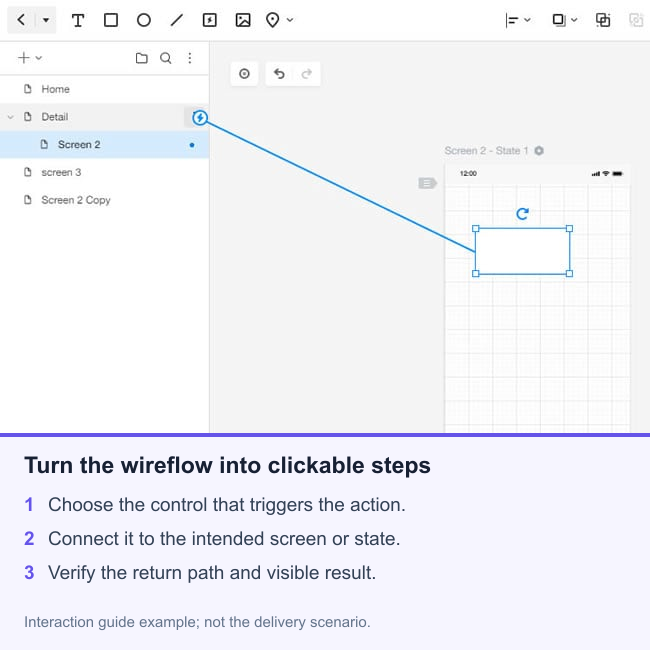
In Mockitt, create the screens needed for the chosen route and connect the relevant elements through the available interaction controls. The interaction guide explains that editor workflow. Keep decision notes alongside the flow; a visual link between screens does not implement a real eligibility service.
4. Add one important recovery route
Include the exception most likely to change the design decision. For the delivery example, an incomplete address and a dispatched order lead to different responses: one is correctable in place, while the other changes what the customer can do. Do not hide both behind a generic “Error” screen.
Show what is preserved, where the customer returns, and whether they can try again. A canceled edit should not look like a saved change. If the prototype cannot simulate a condition, label that branch as a separate scenario for review instead of implying that the underlying logic has been built.
5. Review the map without narrating every arrow
Ask a teammate to trace the task from the starting state. They should be able to name the action, destination, and outcome at each transition. Note where they must ask you to explain a rule or guess which button an arrow refers to. These gaps usually deserve attention before visual polish.
A second example: update a saved filter
Wireflows also work when the page does not change. A support agent opens a saved filter, adjusts its criteria, sees the result count, and chooses whether to overwrite the existing filter or save a new one. Repeating a full desktop screen for every step would make the map unwieldy.
Show the filter panel and the affected result area instead. Map the unchanged, edited, saving, saved, and save-failed states. The final state needs to make the destination clear: did the agent change a shared filter for everyone, or create a personal copy? A wireflow brings that consequence into the discussion before a polished button makes the decision look settled.
What to do after the wireflow is agreed
Move the agreed route into a clickable prototype, keep its state IDs aligned with the map, and link unresolved rules to the team’s requirements. Use the map to check coverage; use the prototype to examine what a person can understand and accomplish. A prototype branch-coverage review is useful when the route gains additional decisions.
A wireflow is ready for that next step when its start and end are clear, each arrow has a reason, important recovery paths are visible, and the screens contain enough realistic content to support the decision. It does not need to describe every feature in the product. It needs to make this task understandable.