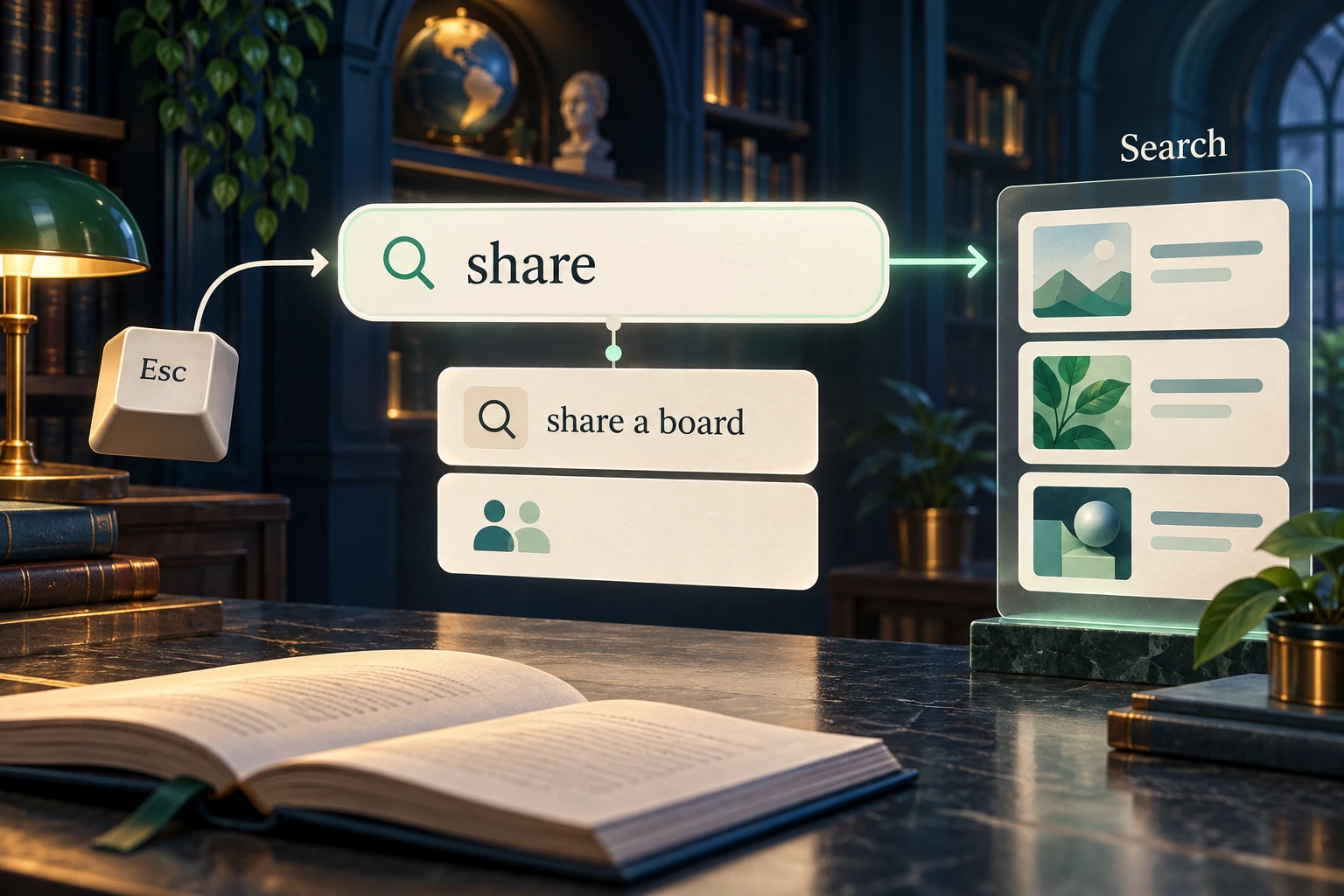
Search autocomplete should help someone express a query without taking control of it. Keep typed text, a highlighted suggestion, and a submitted search distinct. For a search with manual suggestion selection, preserve the person's words until they deliberately choose a suggestion. Model that sequence in Mockitt's prototype editor, including what happens when they dismiss the list or submit a query that has no suggestion.
The examples below use Fieldnotes, a fictional help center. A reader types “share” to find instructions. The interface may suggest “share a board” or “share with guests,” but it must still accept an unfamiliar question such as “share a board outside my team.”
Define what selecting a suggestion does
A query suggestion supplies words for a search. A result suggestion points directly to a destination. They can look similar, yet choosing “share a board” and opening an article called “Share a board with guests” are different actions.
Fieldnotes uses query suggestions. Selecting one places that query in the input and opens its full results. An article title is not quietly mixed into the same list as if it were another phrase. If your product needs both, distinguish the groups and make each destination clear.
Autocomplete is also different from a select control that only accepts a fixed set of values. A city selector may require a known location; this help-center search allows arbitrary text. Do not reject a useful query merely because it was absent from a small suggestion set.
The W3C combobox pattern distinguishes manual selection, automatic selection, and inline completion. Choose deliberately. Fieldnotes uses manual selection so an unchosen first suggestion does not replace the reader's words.
Separate the query from the highlighted option
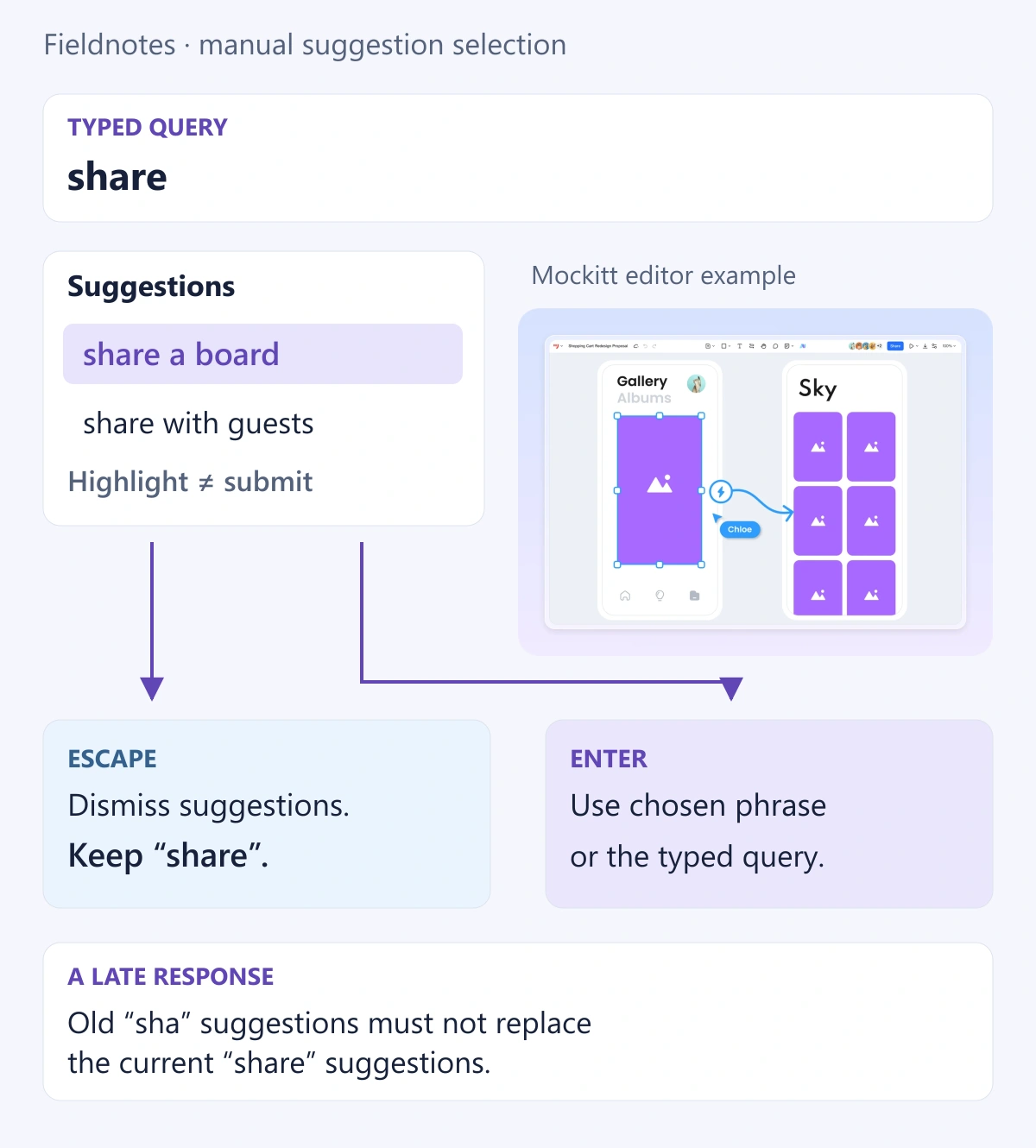
Use three values in the interaction notes: the current query, the active suggestion, and the submitted query. They may temporarily differ. When “share” is typed and “share a board” is highlighted, the interface has not yet submitted either phrase.
Highlighting needs a visible treatment that differs from the input's editing caret. It should be possible to inspect another suggestion and then abandon the list without losing the query. This matters when suggestions are only partly relevant or use vocabulary the reader does not recognize.
| Moment | Typed query | Selected or submitted value |
|---|---|---|
| The reader types | share | No suggestion accepted. |
| The first suggestion is deliberately highlighted | share | “share a board” is the active option; no search yet. |
| The reader dismisses the list | share | No suggestion accepted. |
| The reader submits without an active option | share | Search for “share.” |
| The reader accepts an active suggestion | share a board | Search for “share a board” under this example's policy. |
A separate Clear control can remove the query and return to the initial state. Do not make closing the suggestion popup silently perform that clearing action. Likewise, tapping elsewhere should not commit a suggestion that the reader never chose.
Write a keyboard and touch contract
For this manual-selection example, use Down Arrow to reach an available suggestion, arrow keys to move through the list, Enter to accept the active option, and Escape to dismiss the popup. Ordinary text editing must remain available in the input. The APG pattern also explains how focus and an active option are represented to assistive technology; implement and test those semantics rather than judging only the highlight color.
Fieldnotes makes its own submission policy explicit: Enter with no active suggestion searches the typed phrase. Enter with an active suggestion accepts that phrase and searches it. After Escape, the input retains “share.” Tab moves on without secretly selecting the first row. Other products can choose a different supported autocomplete mode, but the screens and implementation must agree.
On a touch screen, the reader should be able to tap a suggestion without the list disappearing before selection is handled. Avoid tiny rows and icons that obscure the words. Keep the input and useful suggestions visible above the keyboard without forcing a large overlay that hides its dismissal route.
Test the complete sequence in the working component: type “share,” highlight a suggestion, dismiss it, and submit the original query. Check that focus, visible state, and screen-reader announcements agree on the devices your audience uses.
Handle changing text and late responses
A reader may type “sha,” then finish “share” before the first response arrives. Suggestions for the older text must not replace the current set. Associate each response with the query that produced it, and discard or ignore results that are no longer relevant.
Choose when to request suggestions based on the service, the input language, and the task. There is no universal character threshold or delay that works for every help center. If a threshold is used, describe it in the interaction notes and test short but meaningful queries. Input-method composition should not be treated as a series of completed Latin-character queries.
A pending suggestion request is not a failed search. Keep the typed text available, and avoid repeatedly replacing the whole popup with a distracting animation. If a message is needed, keep it brief and announce meaningful state changes without reading out every keystroke. The loading and recovery guide covers how to distinguish pending work from failure.
Treat no suggestions separately from no results
“No suggestions” means this optional aid has nothing to offer. It does not prove that a full search will find nothing. For “share a board outside my team,” let the reader submit the exact phrase and reach the normal results page.
If the suggestion service fails while full search remains available, preserve that route. Do not trap the reader behind a spinner or disable Search merely because suggestions did not load. Explain an actual search-service failure only after that request fails.
Once a query has been submitted, the search UI design guide explains how to organize results, filters, and no-match recovery. Keep those states out of the suggestion list when they need the space and context of a complete page.
Review the suggestion content as carefully as behavior
Suggestions should help the reader decide what to ask. Repeating “share” five times with barely different endings adds little value. Prefer distinct, accurate phrases that reflect the available help content. Do not include private recent searches or account-specific terms in a shared example.
Check long phrases, similar titles, and a query with a spelling mistake. Allow the reader to keep their original wording when a correction is uncertain. If matching text is emphasized, the complete phrase must remain readable; color and bold text are aids, not substitutes for a meaningful label.
Prototype the choice to ignore the suggestions
Prepare an empty input, “share” with suggestions, a manually highlighted option, the dismissed list, and results for a custom phrase. Add one pending response and one unavailable-suggestions state. Connect the intended choices with consistent text so reviewers can see when the query changes.
Ask a participant to find help about sharing outside their team. Observe whether they can ignore irrelevant suggestions, submit their own words, and explain where an accepted suggestion took them. The search page workflow provides the broader destination context.
Hand off the selection mode, submission rule, dismissal rule, request association, and recovery behavior with the screens. A useful autocomplete makes entry easier while leaving the reader in charge of the question.