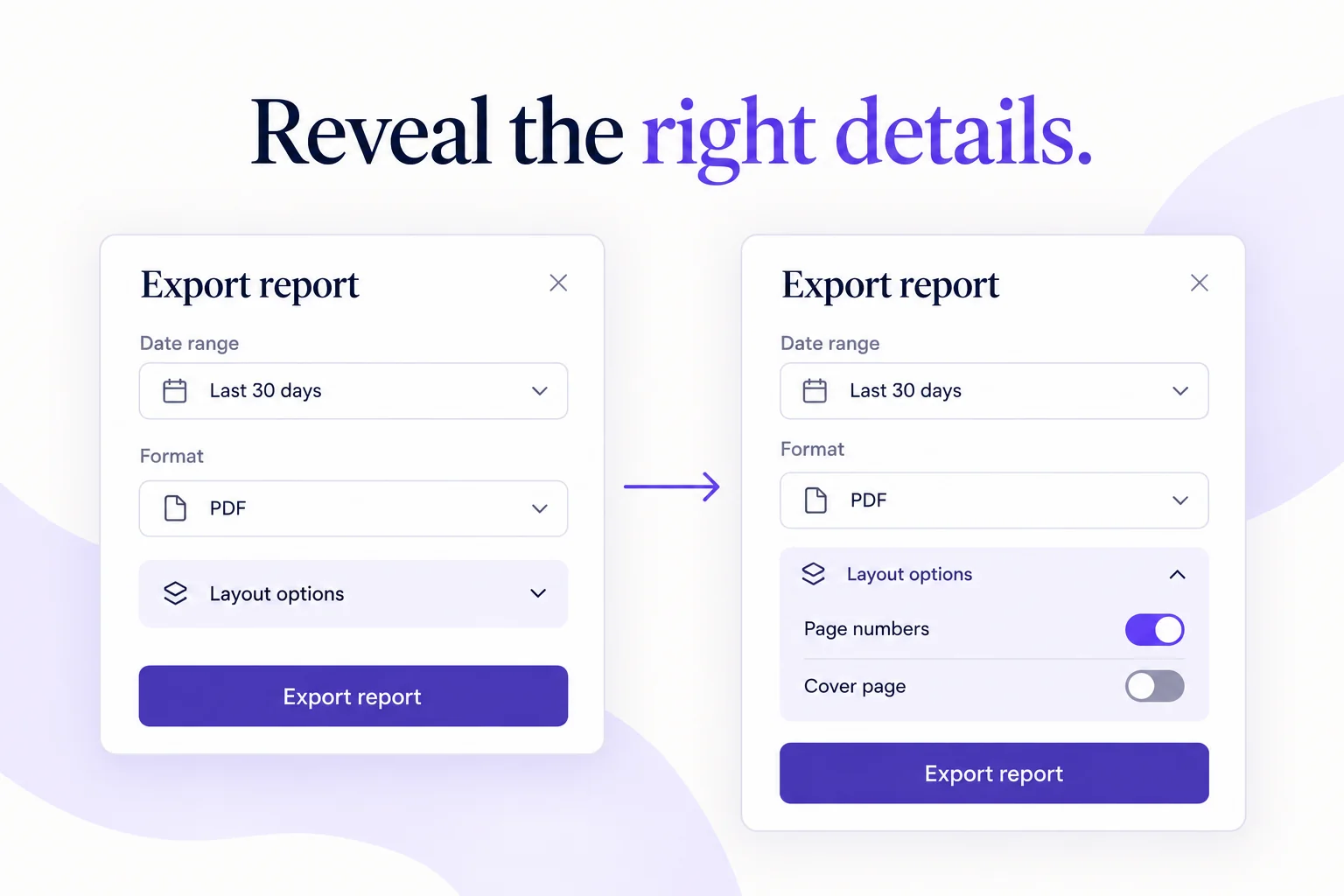
Progressive disclosure keeps the choices needed for the current task visible and reveals optional detail when someone asks for it. The design decision is not simply what to hide. It is what a person must understand before acting, what can wait, and how they will find the extra controls.
Start with two versions of the same screen: the simplest complete task and the expanded state. Use a clickable prototype in Mockitt to connect them, then review whether people can finish the common task and discover the less frequent one. A clean closed panel is only half the design.
This guide uses a fictional report-export dialog. Most people need to choose a date range and download a PDF. Some also need a cover page or page numbers. The challenge is to offer those layout choices without hiding the report's scope, file format or export action.
Choose what stays visible before choosing a component
Nielsen Norman Group's description of progressive disclosure distinguishes primary choices from less frequently needed options. Apply that distinction to a task, rather than labeling every complicated field “advanced.” A control used by a minority can still be essential to completing their task.
For the export dialog, write down each choice and the consequence of missing it. The date range changes which records the report contains, so it stays visible. PDF is the output format, so it stays visible too. Page numbers affect presentation and can sit behind a clearly labeled Layout options control. A warning that the report includes personal information would belong beside the relevant choice, not inside that optional panel.
| Item in the example | Placement | Reason |
|---|---|---|
| Date range and report name | Visible initially | They identify what the person is exporting. |
| PDF format and Export button | Visible initially | They define the output and the main action. |
| Page numbers and cover page | Layout options disclosure | They refine presentation without changing the selected records. |
| Selected layout summary | Visible when the panel closes | It reminds people that their optional settings still apply. |
| Validation error in a layout field | Reveal its field and the error | The person needs to locate and correct the problem. |
Do this inventory before drawing an accordion. It often reveals a different problem: two choices that should be combined, a label that needs clearer wording, or an unnecessary field. Hiding unnecessary work does not remove it.
Use disclosure for optional depth, and steps for sequence
A disclosure expands the current area; a multistep flow moves through parts of a task. In the example, everyone should be able to export without opening Layout options. If everyone had to visit that panel, the controls would be part of the main task rather than optional depth.
A step-by-step checkout, by contrast, might separate delivery information from payment because the task has an ordered sequence. Moving an obligatory choice into a later step is not the same as making it optional. These approaches can coexist, but the labels and navigation should make their purposes clear.
Choose an inline panel when the extra controls need the surrounding context. A separate page may work better for a large settings area that deserves its own navigation and explanation. A tooltip should provide a brief optional hint, not hold interactive form controls or the only explanation of an important consequence.
Build the closed, expanded and changed states
In the initial report dialog, place Report name, Date range and Format above the primary Export action. Below the format, show a text button labeled Layout options with a chevron. “More” gives too little information; “Advanced” implies expertise without describing what is inside.
Opening Layout options reveals Page numbers and Cover page. The export action remains in a predictable position in the flow, and the expanded content does not obscure the selected date range. On a small screen the dialog can grow vertically, with the controls still reachable by scrolling. Do not squeeze the new fields into a short fixed-height box merely to keep the original outline.
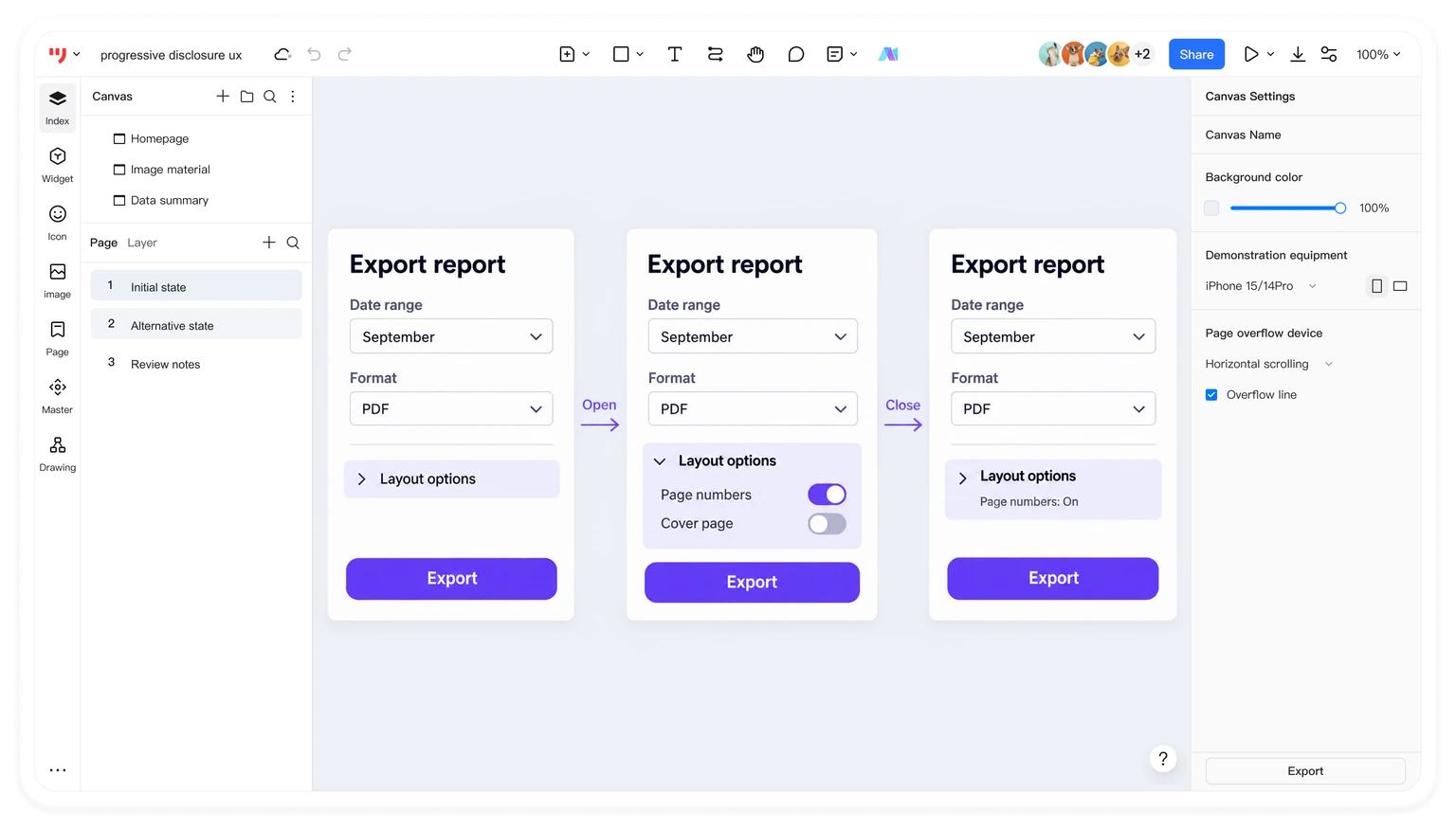
Now change the example: turn on page numbers and close the panel. A summary such as “Page numbers on” beside Layout options tells the person the setting remains active. Closing the panel should not silently reset it. If the product intentionally resets a choice, that behavior needs an explicit explanation and an appropriate action label.
The opposite state also matters. If the person changes the report format and page numbering no longer applies, decide whether to disable the setting, remove it with an explanation, or preserve it for a return to PDF. This is a product behavior decision. The prototype should show it so reviewers do not infer a different rule.
Specify focus and errors alongside the visual states
The W3C disclosure pattern describes a button that exposes its expanded state and can be activated with Enter or Space. The implementation needs the right semantics; an attractive chevron alone does not communicate state to assistive technology.
For the export example, the button's accessible name is Layout options in both states. Its expanded state changes when the panel opens or closes. Opening the panel can leave focus on the button so the next Tab reaches the newly available controls. Hidden controls must not remain in the keyboard sequence. If content closes while focus is inside it, define a sensible focus destination instead of leaving focus on an invisible element.
Do not hide a validation failure in a closed panel. Suppose the cover page includes a required title only when Cover page is selected. When that title is missing, identify the field, reveal the relevant panel and explain how to fix it. Preserve the date range and other valid entries. The team's form error and recovery design should cover this route as well as the ordinary expanded state.
A prototype can communicate the intended focus order and error route with annotations. It does not prove that the production interface has correct keyboard behavior or screen-reader output. Verify those behaviors in the implemented component.
Review the common task and the optional task separately
Give one person the ordinary task: “Export the September report as a PDF.” Do not mention Layout options. Observe whether they can identify the date range, format and final action without opening unrelated controls.
For the second task, ask: “Export that report with page numbers.” The task names the desired result, not the control. Observe where the person looks, whether the label predicts the contents, and whether they can tell that the setting remains active after closing the panel. If they search in the wrong place, improve the grouping or label before adding more help text.
Then review a changed-setting task: enable a cover page, close the panel, return to it and remove the cover page. This exposes persistence and summary problems that a single open-and-close demonstration misses. Include a small-screen and keyboard pass in the implementation review.
Record the point of difficulty rather than only completion. “Could not find page numbers” suggests discoverability; “assumed the setting was cleared when the panel closed” suggests state communication. Those observations lead to different changes. Do not treat a lower number of clicks as the only success measure.
Know when to bring a hidden choice back
If users repeatedly open the same panel to finish the primary task, reconsider the original split. A feature's low activation count can also mean people cannot find it, so usage data alone is not enough to justify hiding it. Compare the data with what people were trying to do.
In this example, a report team might discover that page numbers are required for nearly every exported review packet. The better default might be to enable them, or make the setting visible. The original layout was a hypothesis about the task, not a rule to defend indefinitely.
The deliverable is a small, complete set of states: closed, expanded, changed and summarized, invalid, and restored. Connect those states, explain their rules, and keep the main task understandable throughout. That is where progressive disclosure improves an interface: it gives people the detail they need at a moment when it helps.