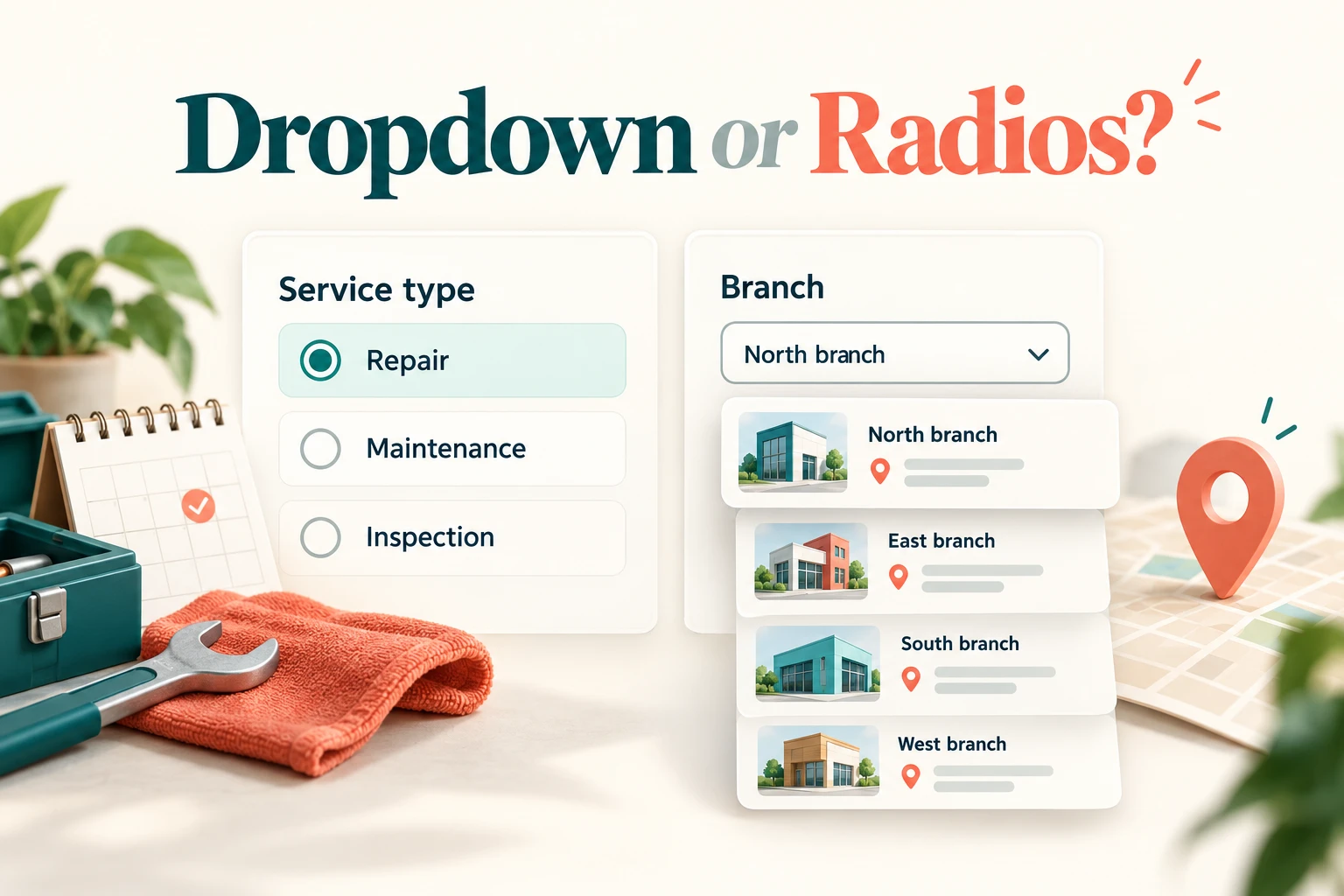
Use radio buttons when people need to see and compare a short set of mutually exclusive answers. Use a select dropdown when a familiar longer list would take too much space, while recognizing that it hides the alternatives. If people cannot easily find or understand an option, reduce the choices or consider a different selection method. Compare the controls in the actual form using Mockitt's UI design workspace, rather than choosing the more compact shape in isolation.
There is no reliable rule that every list above a fixed number must become a dropdown. Three unfamiliar service plans may need explanatory radio options, while a familiar location list may work in a select. The question, option labels, comparison effort, and mobile context matter together.
First decide what the control does
A radio group and a standard single-select dropdown both choose one value from a defined set. They are not interchangeable with a menu of commands. “Repair” as an answer to Service type is a value; “Delete booking” in an action menu performs a command.
If several answers can apply, neither single-choice pattern fits. For example, a service customer may select both email and text updates, subject to the product's actual notification rules. Checkboxes make that multiple-choice task explicit. Do not make people reopen a single-select dropdown several times and guess whether earlier choices remain selected.
Also separate a saved setting from an unanswered question. A current setting can legitimately show its existing value. A new question about the customer's needs should not look answered merely because the first item happens to appear at the top.
Compare the real trade-offs
| Decision | Radio buttons | Select dropdown |
|---|---|---|
| Seeing the alternatives | Options stay visible for comparison. | Most alternatives remain hidden until opened. |
| Explaining an option | Short hints can sit beside each answer. | Long explanatory content is harder to scan within the control. |
| Space on the page | Uses more vertical space as the list grows. | Shows a compact closed value, with a separate selection surface. |
| A familiar longer list | Can become tiring to scan. | Can be appropriate when labels are recognizable and ordered usefully. |
| Returning to an answer | The selected option and alternatives remain visible. | The selected value remains visible; alternatives require reopening. |
The GOV.UK radio guidance uses radios for a single answer and advises against silently preselecting a response to a question. Its select guidance is cautious about dropdowns in public-facing services and recommends considering ways to present fewer options. Those recommendations support examining the task; they do not establish that every select in every product is unusable.
Space is a constraint, not the whole outcome. Saving six lines on a form is unhelpful if people must repeatedly open a control to compare choices they cannot remember. Conversely, displaying dozens of location names as radios can bury the next question far below the current one.
Work through a service-booking example
Maple is a fictional equipment-service business. Its booking form asks two separate questions: what kind of service is needed, and which branch the customer will visit. The form also includes a brief problem description when a repair is requested.
For Service type, use three radio options with concise explanations: “Repair — fix a fault,” “Maintenance — routine servicing,” and “Inspection — assess the equipment's condition.” Keeping these visible helps a customer distinguish similar terms. No service type is selected on a new request.
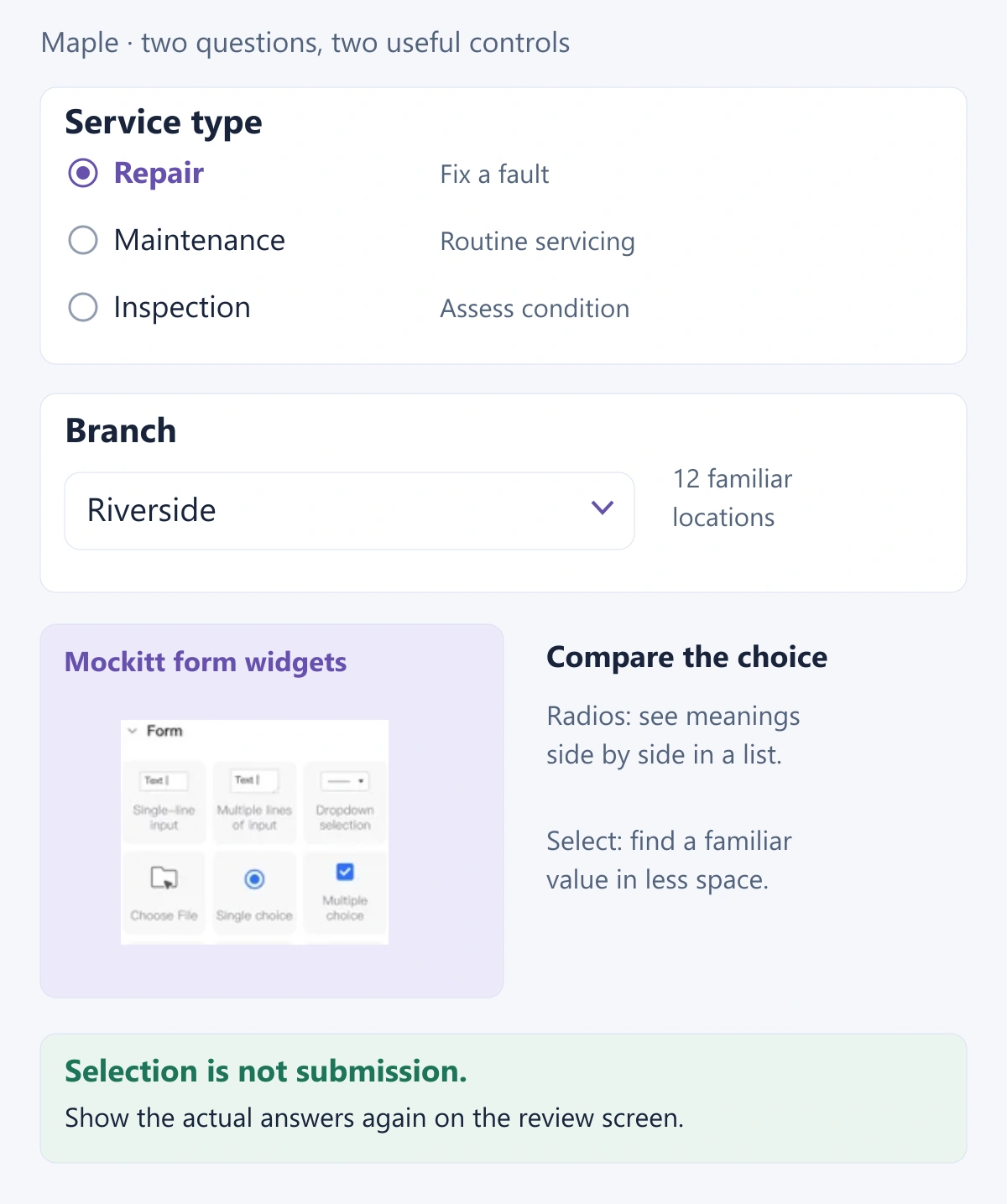
For Branch, the example uses a labeled select with twelve locations in a consistent, recognizable order. Its initial display says “Select a branch”; that prompt is not a valid submitted answer. After choosing Riverside, the closed control clearly shows Riverside.
The two questions use different controls because they require different work. Service type is a comparison of meanings. Branch is a lookup among names. If customers do not recognize those names, the answer may be to provide location context or an address-based search, rather than simply enlarging the dropdown.
For a broader form, organize these questions with the other relevant information. The web form design guide covers grouping, persistent labels, and mobile layout around the controls.
Write options people can distinguish
Options should answer the same question at the same level. A list mixing “Repair,” “Urgent,” and “Riverside” combines service, priority, and location. No component styling can make that a coherent single choice. Separate those decisions if the service genuinely needs each one.
Use labels the audience can recognize without decoding internal abbreviations. When two labels sound similar, explain the difference beside the choice or revise the labels. Do not hide essential distinctions in tooltips that disappear when someone moves to the next option.
A valid “I do not know” or “None of these” answer can be useful when the task permits uncertainty. It should have a real downstream consequence, such as triage by the service team. Do not add an escape option that the process cannot actually handle. If the question is optional, provide an understandable way to leave or clear it rather than making the first selected radio irreversible within the interface.
Order options by a rule people can understand: alphabetical locations, a meaningful sequence, or another justified arrangement. Keep the order stable while the person is making the choice. Moving an option under their pointer or changing its place after each interaction introduces an avoidable source of error.
Keep selection, dependencies, and submission distinct
Choosing Repair reveals the problem-description field in Maple. The branch choice remains separate. Selecting a different service does not submit the booking or navigate to another page; the person completes the form and uses an explicit continuation action.
Suppose the customer types “The drill stops under load,” switches to Inspection, then returns to Repair. Decide whether the draft description should remain available and whether it is included in the submitted request. In this example, it is retained for convenience but submitted as repair detail only while Repair is selected. The review screen shows the information that will actually be sent.
If changing one answer makes another invalid, explain the dependency. A branch that cannot perform the chosen service should not remain silently selected as though the appointment were possible. Either show which services a branch supports before selection or identify the conflict and ask for a new valid combination. Do not erase unrelated contact information.
Field errors need to identify the question, not merely the visual control. “Select a service type” is more useful than “Invalid input.” Keep the message close to its group and update it when the choice has been checked. The form validation workflow provides the separate timing and correction model.
Check the implemented control, not only its appearance
Give a radio group a meaningful group label and associate each option with its label. Give the select a persistent label too. The W3C form-grouping tutorial explains the relationship between related controls and their shared question. A heading drawn above several circles does not establish that relationship in the working page.
Start with established native controls or an accessible component library. A custom select drawn to match a brand brings additional keyboard, focus, and assistive-technology behavior to implement. Do not assume that a chevron and an animated option list provide the same experience as a real select.
Inspect long labels, zoomed text, and the actual mobile selection surface. Keep touch targets and label associations clear. On a small display, stack the Service type options rather than squeezing three descriptions into narrow columns. The Branch label should remain visible after a location has been chosen.
Choose per question, not per form
Prepare Maple's empty form, a Repair selection, the Riverside branch selection, a service-change state, and the review summary. A prototype can compare the visibility and reading effort of radios and a select using the same labels. The production component still needs its own keyboard and accessibility verification.
Ask a participant to arrange a repair for faulty equipment at Riverside. Watch whether they understand the service terms and notice the selected branch. If service options are repeatedly reopened or misread, inspect their wording and visibility; if locations are hard to find, inspect their organization and context. A visual preference between circles and dropdowns will not reveal those task problems.
The resulting form need not use one control style everywhere. Visible radios for a meaningful three-way comparison and a compact select for a recognizable location list can coexist. Consistency means that each control behaves predictably and represents the right kind of answer.